Introduction
SAP SuccessFactors brings updates twice a year, and the 2025 releases include several improvements across different modules, including Compensation. If your organization uses the Compensation module, you’ll notice changes in areas like worksheets, statements, and integrations. In this blog, I’ll explain the key updates from the 1H 2025 release and what we know so far about the 2H updates.
- The 1H 2025 release – April 2025 includes the first set of changes.
- The 2H 2025 release – October/November builds on that.
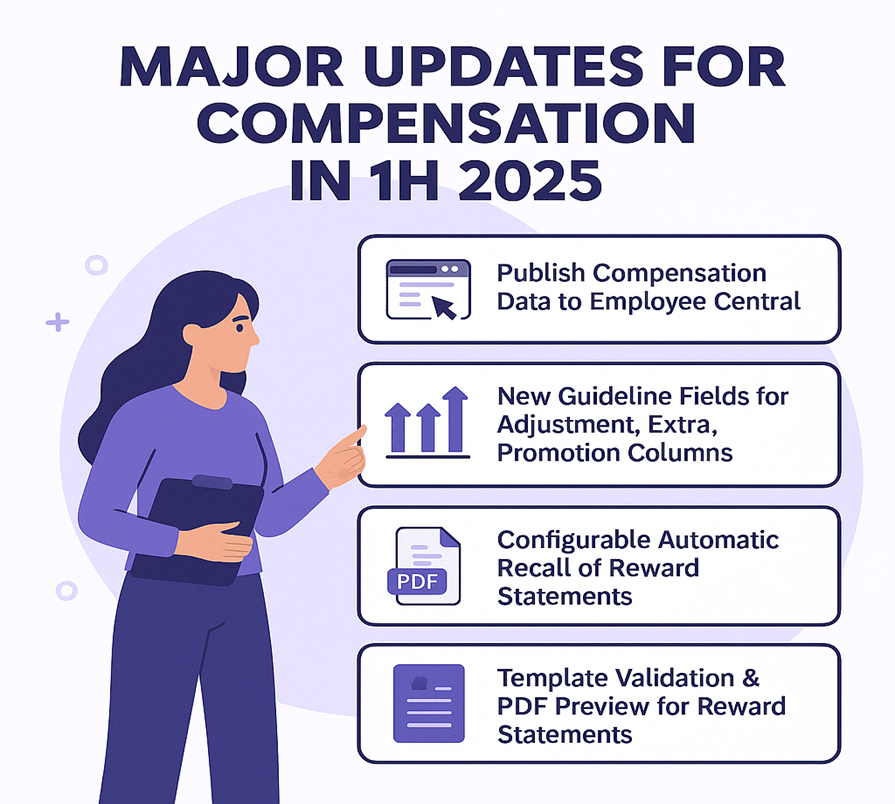
Here are the significant enhancements for the Compensation module identified in the 1H 2025 release.
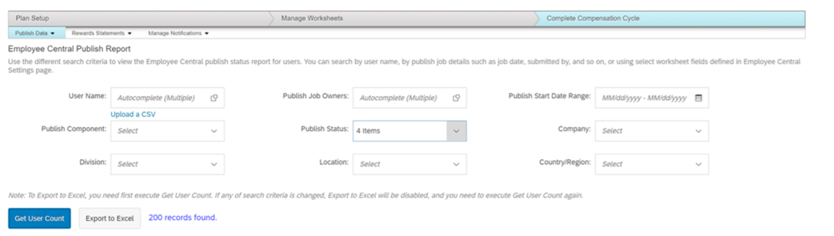
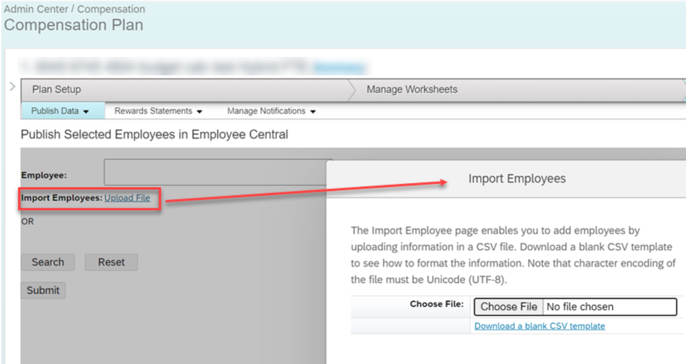
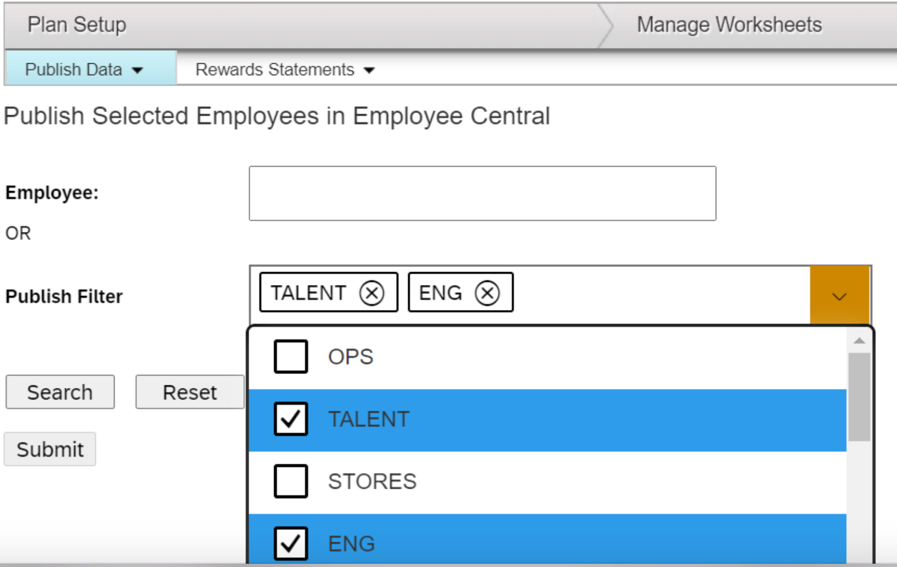
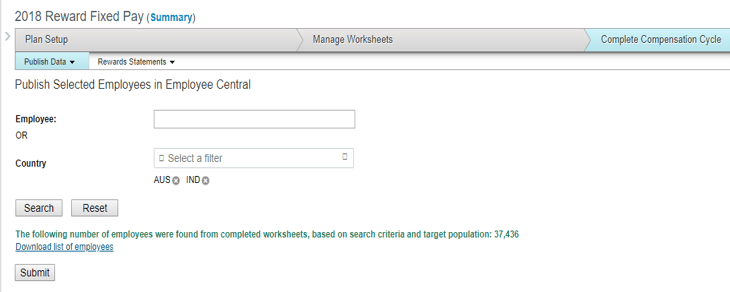
Publish Compensation Data to Employee Central without PCNR
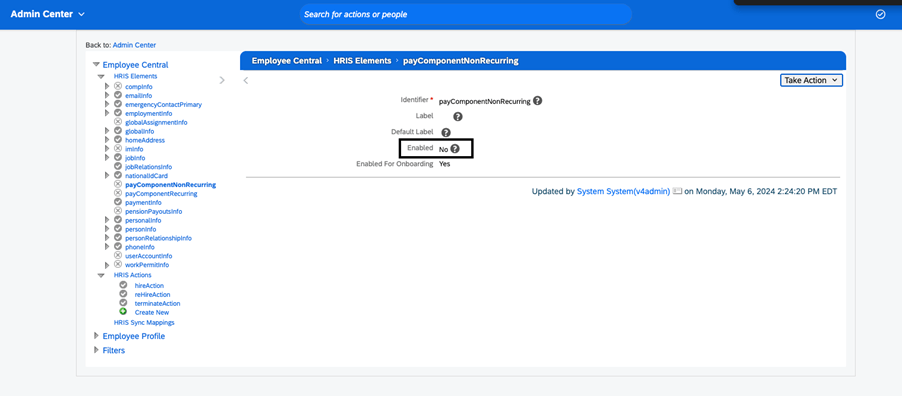
Previously: If you wanted to publish compensation plan data into SAP SuccessFactors Employee Central (EC), you needed the HRIS element payComponentNonRecurring enabled in your configuration.
New: You can now publish compensation data to Employee Central without enabling the payComponentNonRecurring HRIS element. This simplifies configuration and gives more flexibility on your side.
Why it matters: If you enable that HRIS element (for example, due to complexity or control reasons), this change reduces a barrier and broadens options for integration.
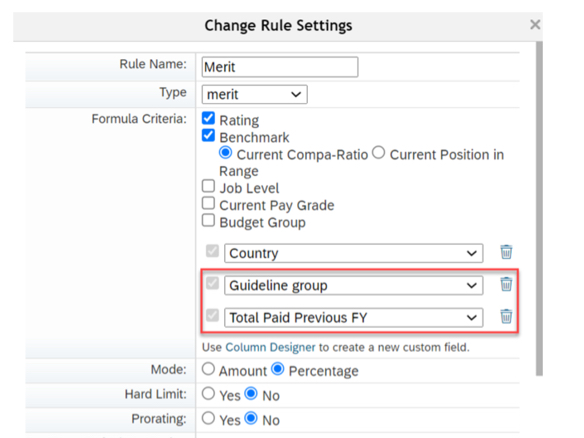
New Guideline Fields for Adjustment, Extra, Promotion Columns
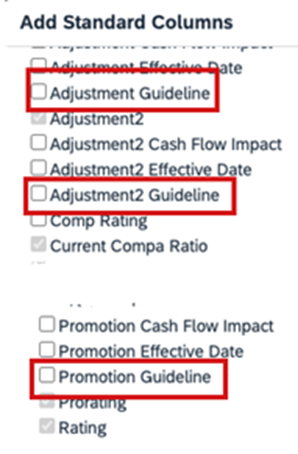
Previously: Compensation worksheets had guideline fields for standard columns like Merit or Lump Sum, but not all columns had guideline-support.
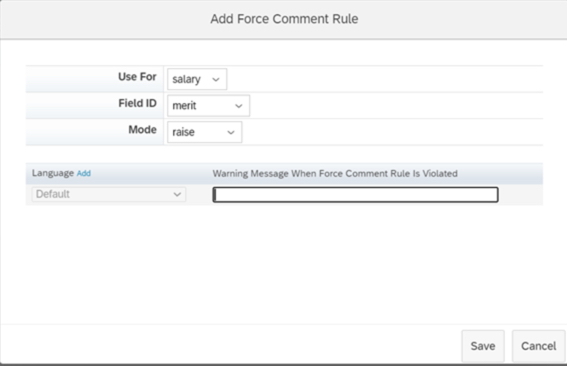
New: The update introduces additional standard guideline fields for columns such as Extra, Extra2, and Promo (via new field IDs: extraGuideline, extra2Guideline, promoGuidelie).
Why it matters: It gives planners more visibility and control. For example, you can set guidelines around “Promotion” adjustments the same way you had for merit increases, and surface warnings or rules when planners exceed or ignore those guideline values.
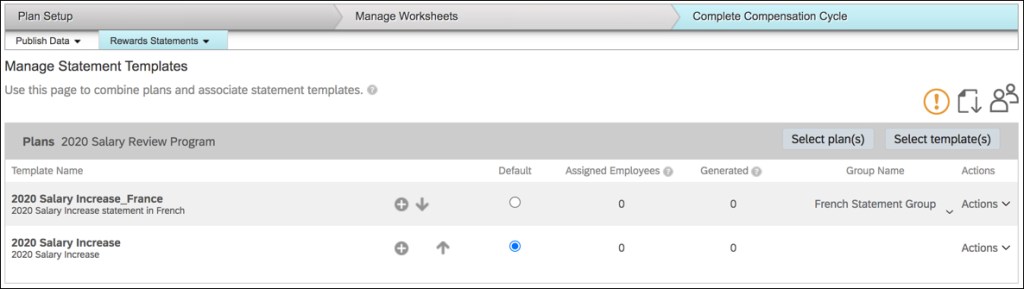
Configurable Automatic Recall of Reward Statements

Previously: If you completed a compensation worksheet and generated corresponding reward statements, and then later moved the worksheet back to “In Progress”, the system would automatically recall those reward statements.
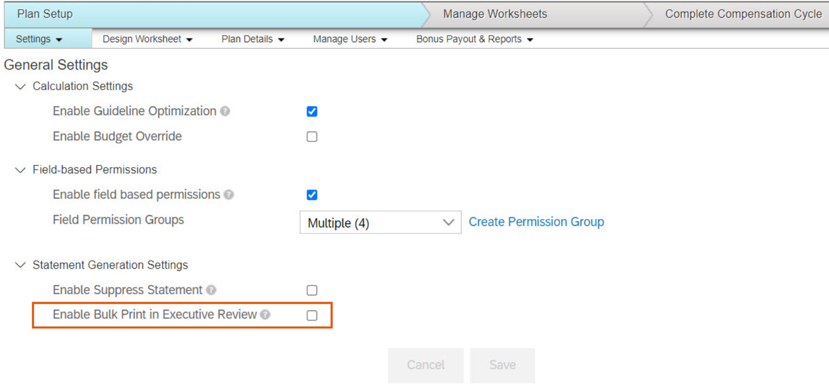
New: You now have a setting that allows preventing automatic recall of reward statements when worksheets are moved back to In Progress status.
Why it matters: In some use-cases you want to preserve the generated statements (for audit/tracking) even if the worksheet is reopened. This change adds flexibility around your workflow.
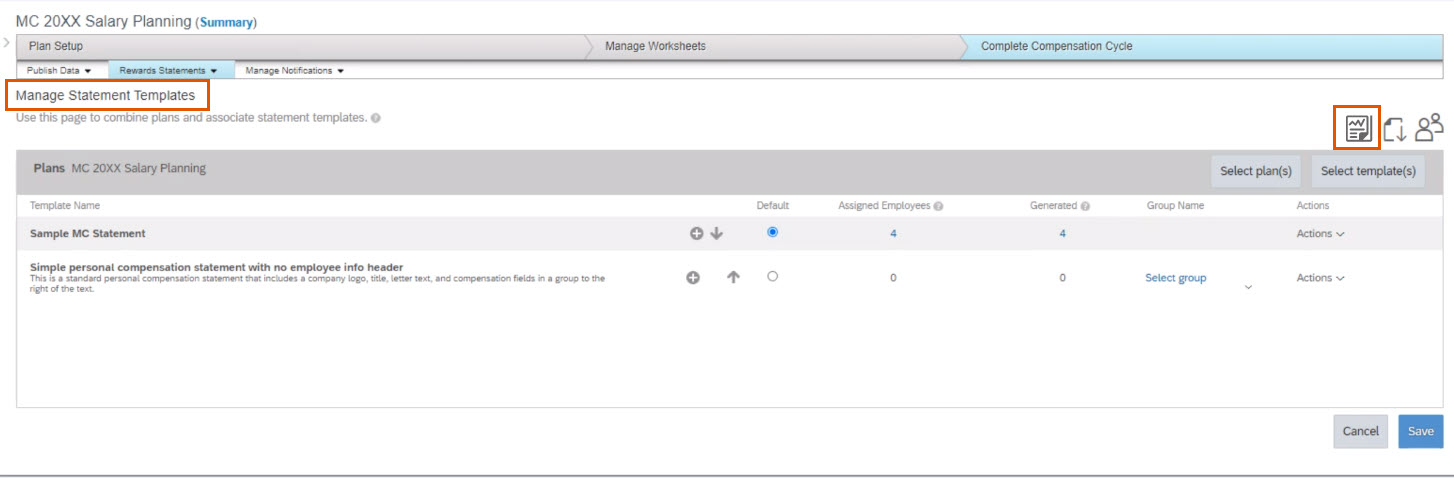
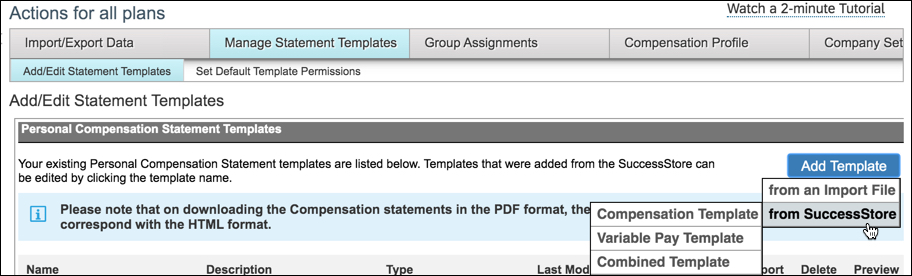
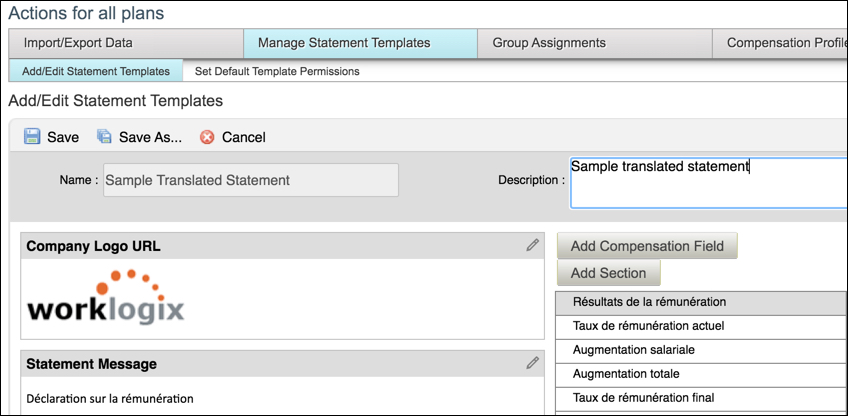
Template Validation & PDF Preview for Reward Statements
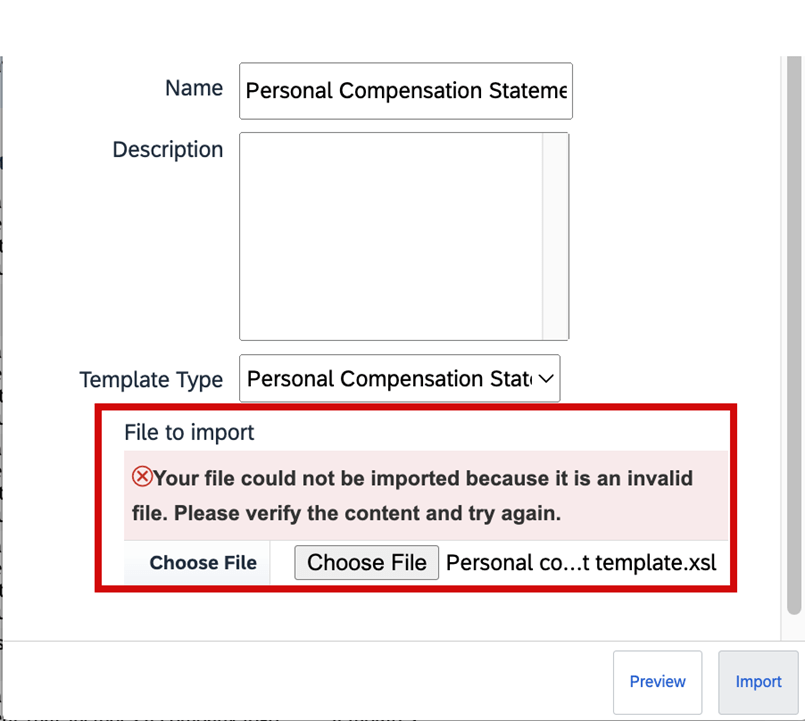
Previously: When importing custom XSL templates for reward statements, the system had limited validation. Also you didn’t always have a full preview of what the generated PDF-statement would look like before production generation.
New: The system now validates the XSL file when importing templates. You can now preview sample PDFs of statement templates before generating them for employees (via a “Download Sample PDF” / “Preview Sample HTML” action).
Why it matters: Improves the quality of end-user statements, reduces surprises or formatting issues, and supports smoother rollout of statement templates.
1H 2025 Changes You Can Disable
| Change You Can Disable | Short Description of Change |
| Automatic Recall of Compensation Statements Now Configurable | Sometimes, your company must move completed compensation worksheets back to in progress status. In the previous version, if you had generated the reward statements already, the system automatically recalls the statements. You can now set up your system to prevent this automatic recall of the statements when the worksheets are moved back to in progress. |
| Enforce User Account Upgrade for Consistent Login Experience | If you have users with employment-based logins, SAP SuccessFactors upgrades them to account-based logins. Additionally, profiles show login names instead of user names. |
| Latest Experience of Performance Management Forms | We redesigned the user interface of the Performance Management form, introducing a streamlined, flexible layout along with many other user experience enhancements. |

Advanced Filters on Worksheets
Previously: You see the legacy filter functionality in case you don’t enable the advanced filters on the worksheet where you’re only able to filter based on certain pre-selected criteria.
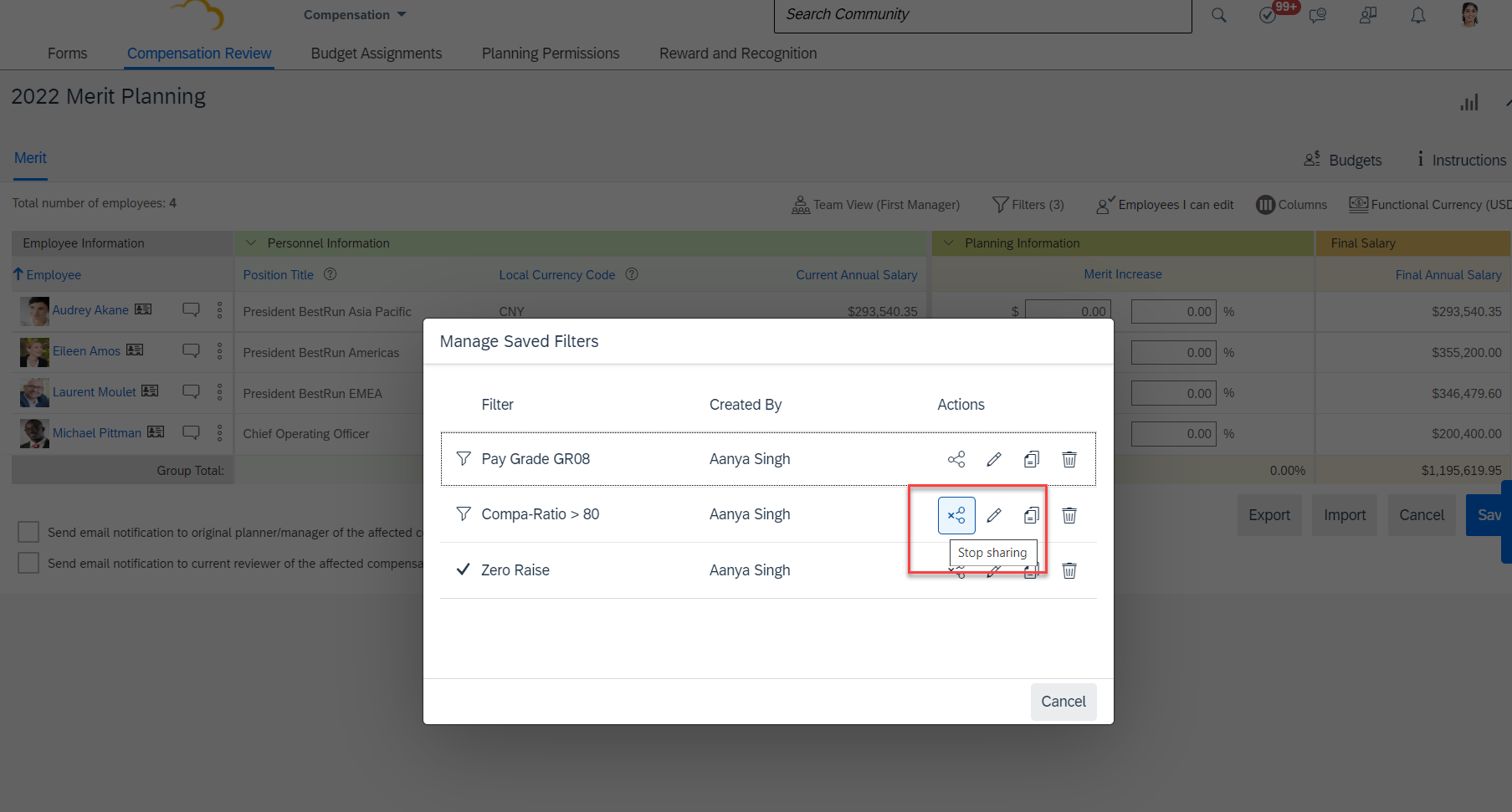
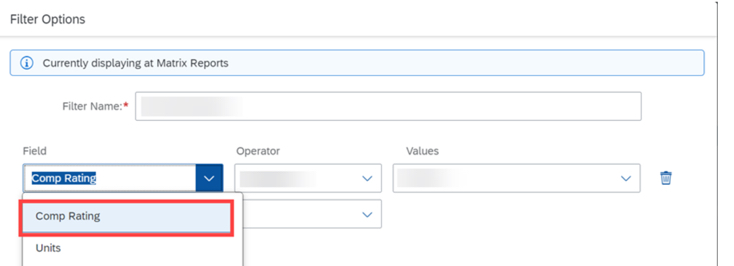
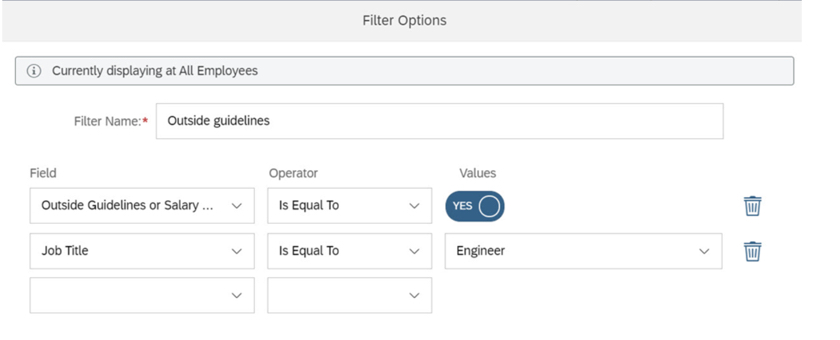
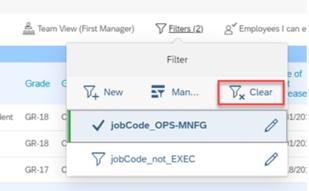
New: On a worksheet, select the Filter button to access the Create Filter button. Once Create Filter is selected, you see the dialog for creating filter open up. On the popup, you’re able to set conditions and criteria for your filters. Also, you can select if you want All (and) or Any (or) operators to be applied to the conditions when applying the filters.
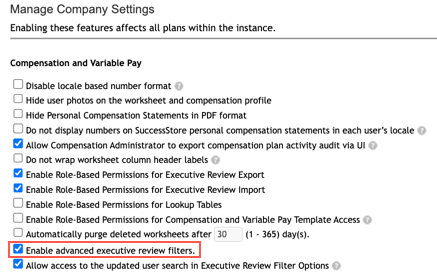
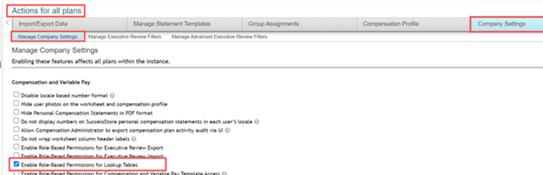
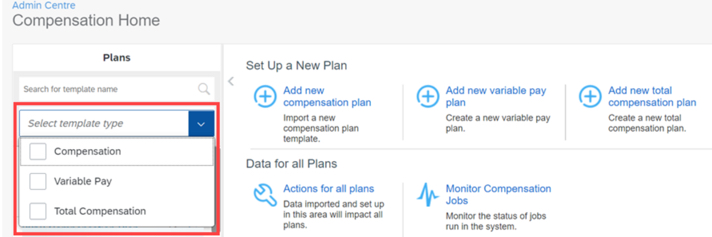
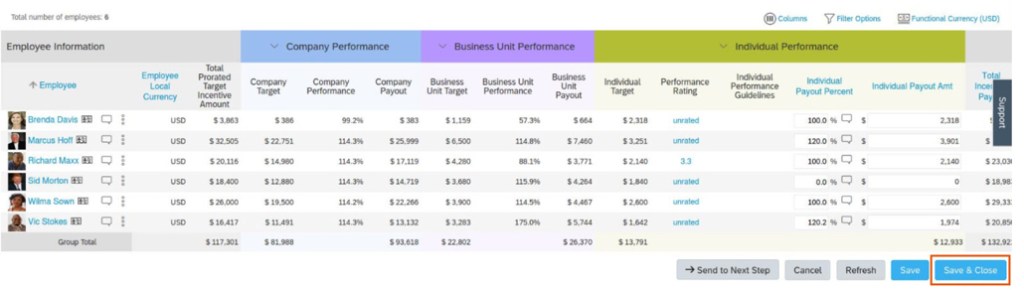
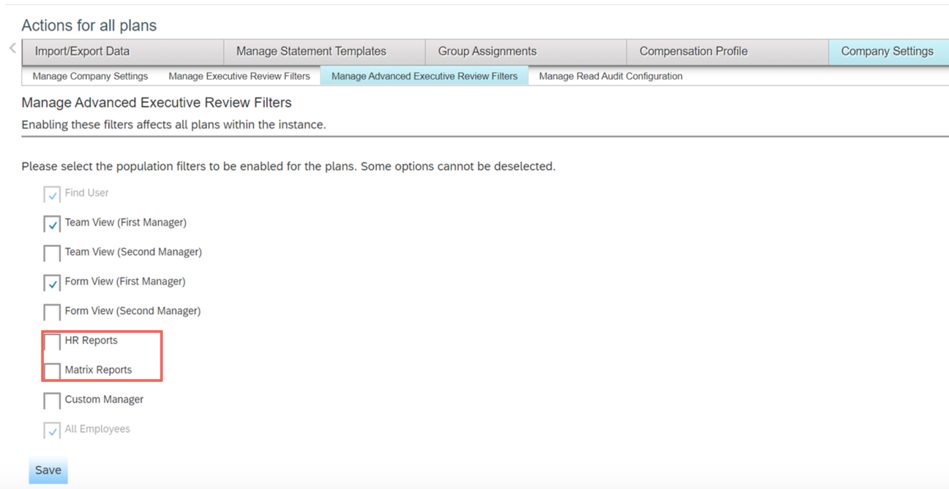
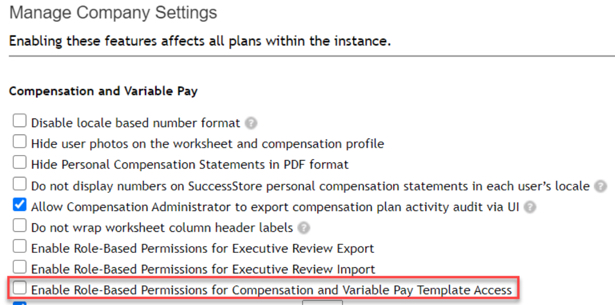
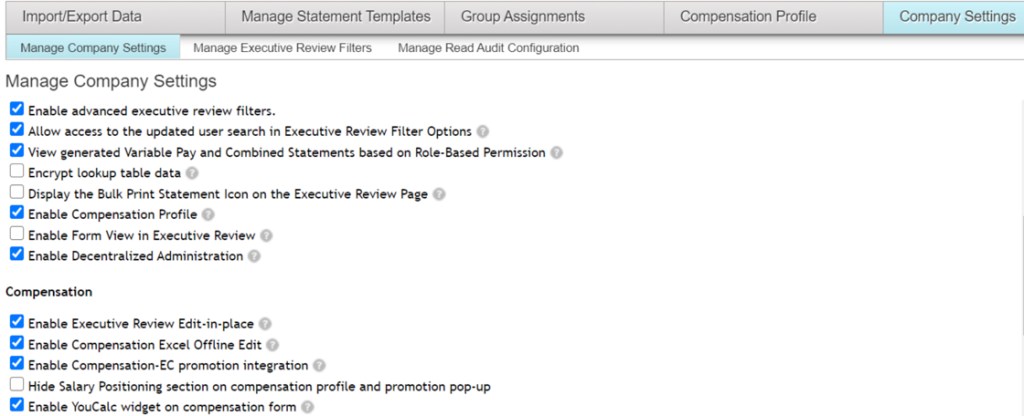
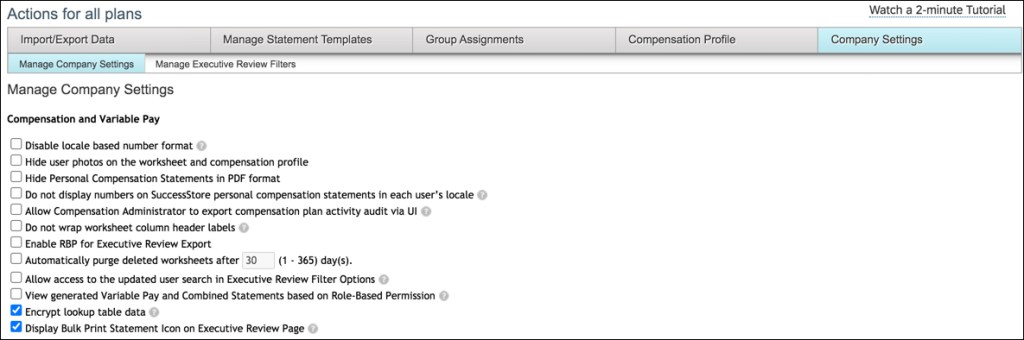
Why it matters: We now support advanced filtering capabilities on worksheets for compensation, variable pay, and total compensation plans. To enable advanced filters on worksheets, go to Compensation Home Actions for all Plans Company Settings Manage Company Settings and enable the Enable advanced filters on worksheets checkbox. You can have up to 30 criteria per filter spread across one or multiple conditions. The advanced filtering capabilities on the executive review are now extended to the worksheets.
Custom Field Visibility on the Compensation Profile

Previously: Earlier you could hide a column entirely. You didn’t have the options to show a field on the profile or the worksheet selectively.
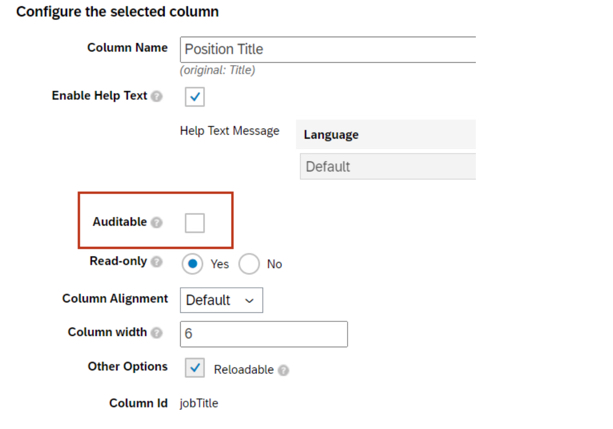
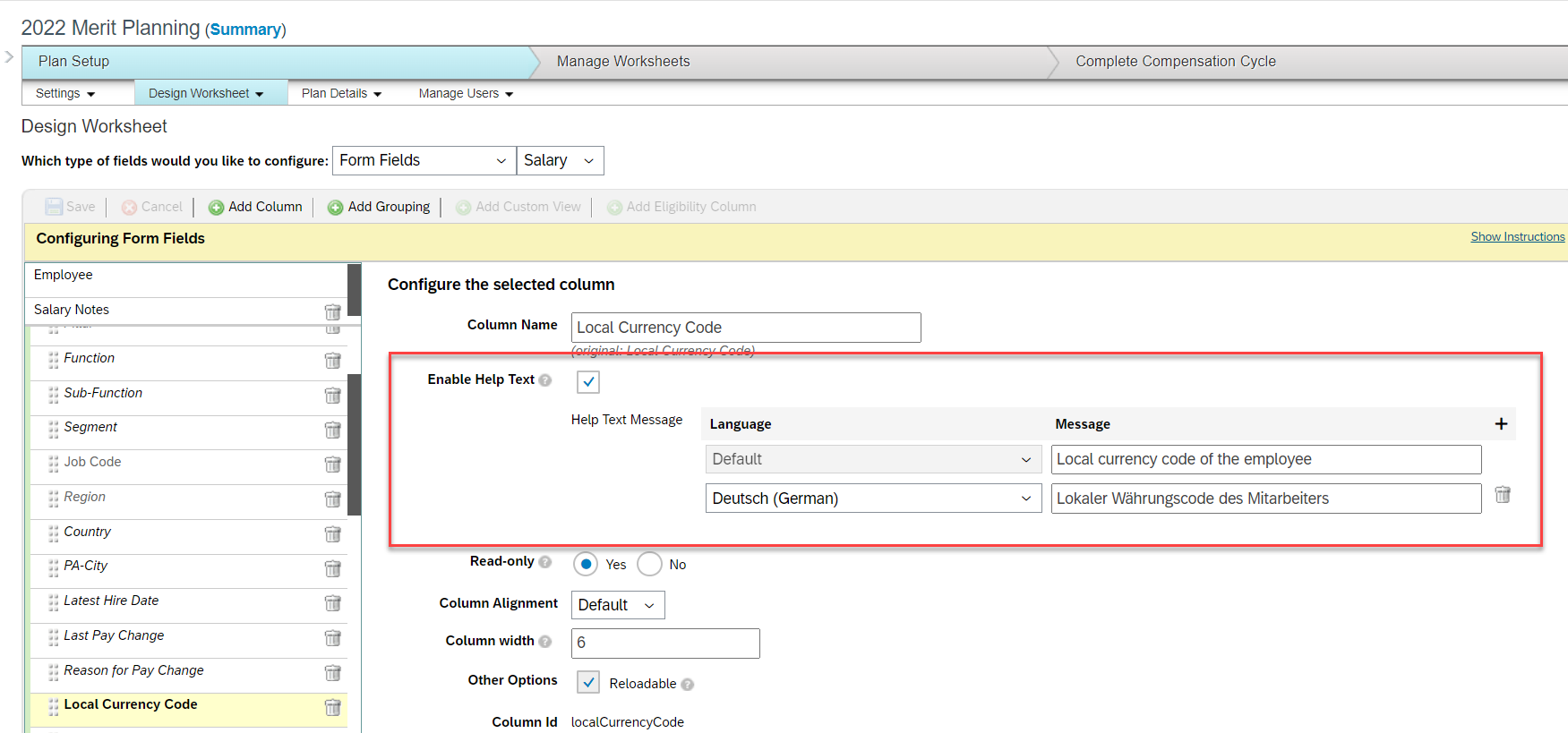
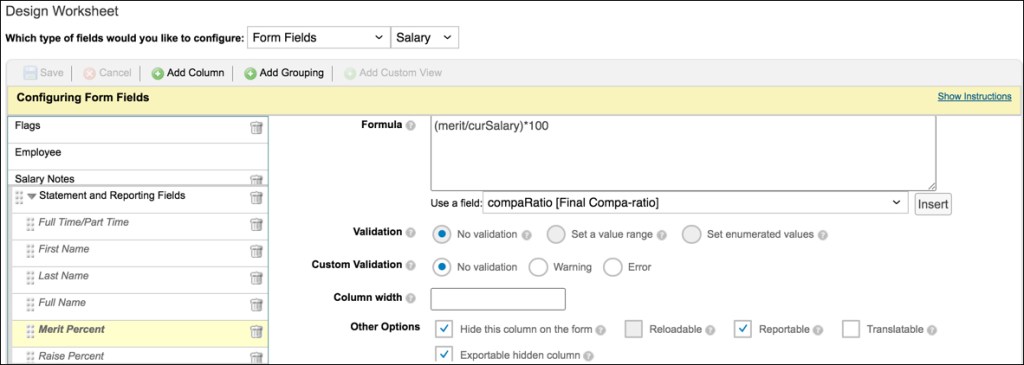
New: Additional options to configure visibility of custom fields for the Compensation Profile and the worksheet in the Design Worksheet tool when configuring columns for a worksheet. These options apply to the Compensation module for the worksheets and the executive review.
Why it matters: You now have additional options to configure visibility of custom fields for the Compensation Profile and the worksheet in the Design Worksheet tool when configuring columns for a worksheet. These options apply to the Compensation module for the worksheets and the executive review.
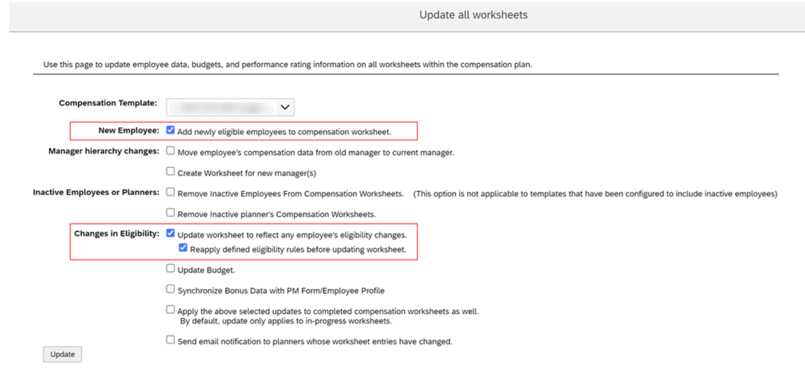
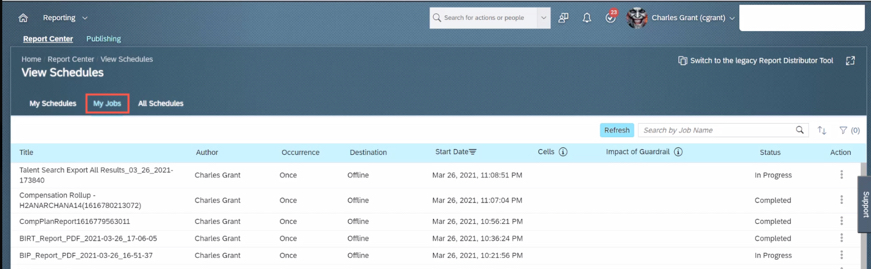
Update Compensation Forms for Template Now in the Job Scheduler
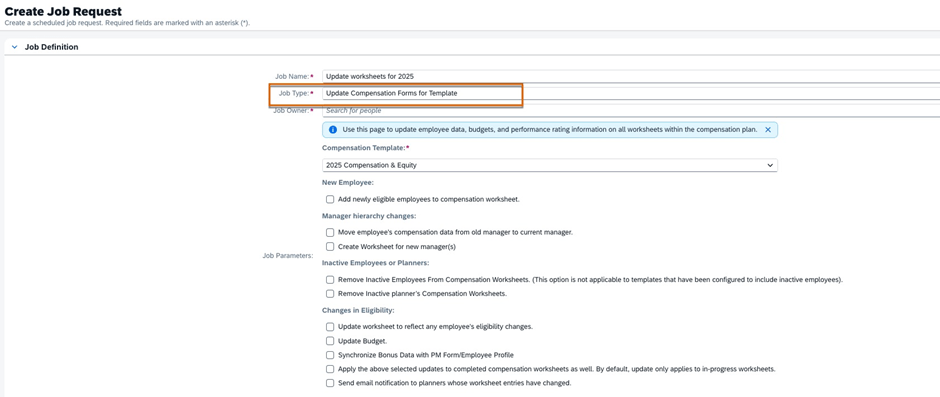
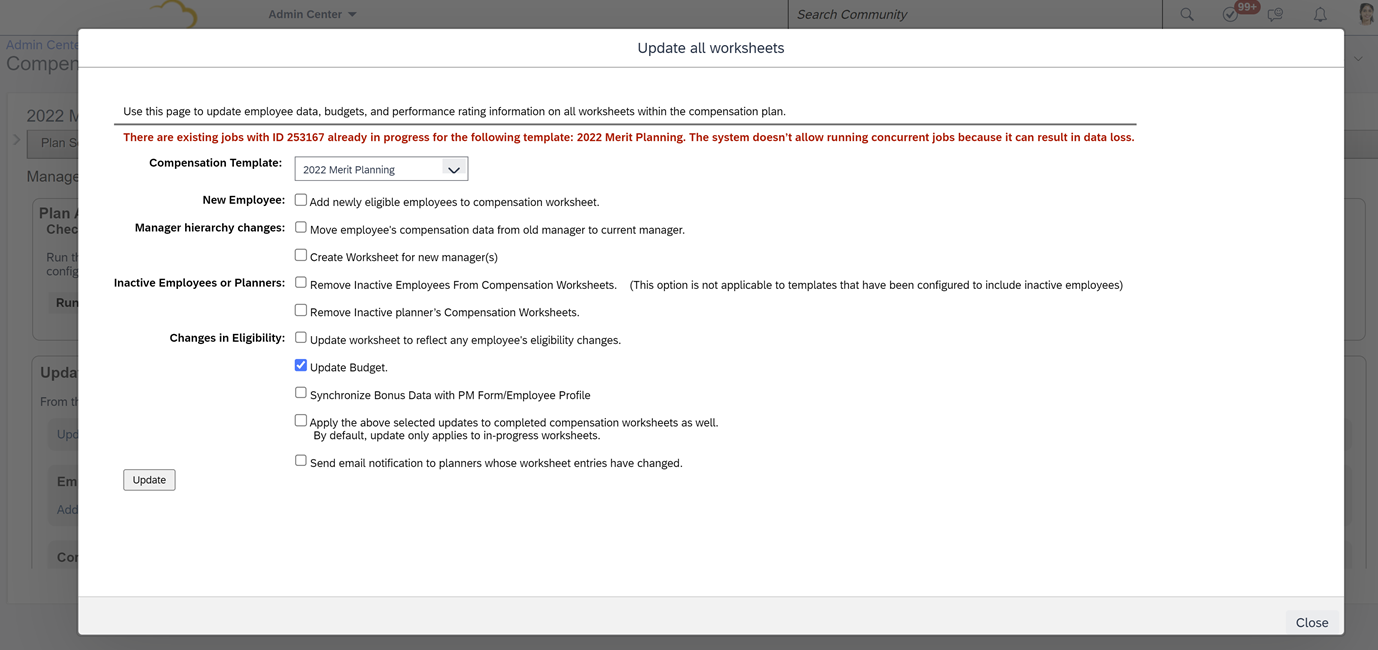
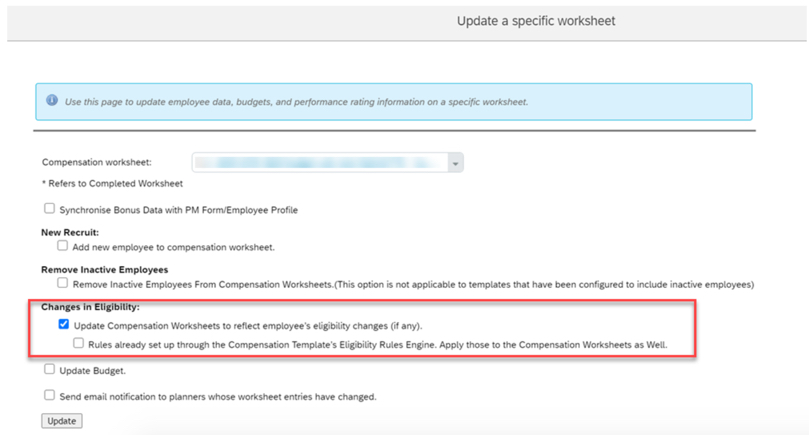
Previously: In the previous version, you opened a support ticket to configure and schedule the job in Provisioning. You could and can still run the job in Compensation Home <Template Name> Manage Worksheets Update all worksheets right away. However, if you must run the job later or on a schedule, you can now configure the job on your own in Job Scheduler. Parameters for the job are the same as those for Update all worksheets.
New: You can configure and monitor the job in the Job Scheduler and Job Monitor for compensation worksheets. The parameters for the job are the same as those parameters for the Update all worksheets tool.
Why it matters: In the current version, if you must run the job later or on a schedule, you can now configure the Update Compensation Forms for Template job yourself in Job Scheduler.
Integration changes
The 2H 2025 release mentions updated integration-capabilities for the suite, which will impact Compensation where data flows to/from other modules.
Known issues tracker
There is a published “Known Issues” list for 2H 2025 for the Compensation module (among others) — it’s advisable your team monitors this to identify any regression or hot-fixes required.
Planning tip
Because features introduced in 1H may wave into 2H (or require follow-on steps), ensure your roadmap includes review of the 2H enhancements and impacted processes.
Here are some steps and considerations for Compensation teams as you approach or implement the 2025 delta release updates:
Review your current configuration
- Take inventory of what modules/configurations you currently use in Compensation (worksheets, statements, integrations to EC, guideline fields, statement templates).
- Identify which of the 1H 2025 features apply to you (e.g., are you publishing compensation data to EC? Do you use extra/extra2/promo guideline fields? Do you generate reward statements with custom templates?).
- For any upcoming 2H updates, map whether your integration architecture or processes will need review.
Activate and test selectively
- Features like “Publish to EC without PCNR” may simplify your configuration, but still test in a non-prod instance before moving to production.
- For new guideline fields (extraGuideline etc), update your worksheet template and test planner experience: how does the warning/goal behave? Does the UI display as expected?
- For statement template validation and PDF preview: have your template-owners/import team test custom templates, validate XSL import, preview PDFs, and confirm the end-user experience.
- For automatic recall setting: review your workflow. Do you want the old behaviour (automatic recall) or the new flexibility? Ensure stakeholders agree and you test the setting.
Change management & communication
- For planners and managers: inform them of new guideline fields and any changed worksheet behaviour (e.g., warnings/out-of-guideline alerts).
- For reward statements: communicate to recipients that the statement format may change slightly (because of improved templates/preview).
- For HR/Comp Ops team: update your release checklist and regression test plans to include the new features. Also monitor the 2H 2025 Known Issues list for Compensation to catch any issues early.
Roadmap your 2H 2025 actions
- Even if you don’t immediately activate all features, include in your roadmap: review the integration changes, check whether any features become auto-on (i.e., you cannot opt-out), and plan workload around testing.
- Use the “What’s New” viewer or release documentation at SAP or the SAP SuccessFactors Community to capture all release items and filter for Compensation.
- Prioritize features by business impact, implementation effort, and configuration complexity.
Summary
In short, the 2025 delta releases for the Compensation module in SAP SuccessFactors provide meaningful enhancements especially around integration for Employee Central publishing, advanced filters, worksheet guideline flexibility, statement template improvements for validation & preview, and automatic recall setting. These changes enhance configurability, user experience and governance around compensation planning cycles.
If you’re planning your next compensation cycle (worksheet rollout, statement generation, integration to EC), now is a good time to evaluate these updates, adjust your configuration or roadmap, and ensure you’re leveraging the new capabilities rather than being surprised by them.












 Worklogix Blog