Category: Compensation

  • SAP SuccessFactors Compensation 1H/2H 2025: Key Enhancements Explained

    Introduction

    SAP SuccessFactors brings updates twice a year, and the 2025 releases include several improvements across different modules, including Compensation. If your organization uses the Compensation module, you’ll notice changes in areas like worksheets, statements, and integrations. In this blog, I’ll explain the key updates from the 1H 2025 release and what we know so far about the 2H updates.

    • The 1H 2025 release – April 2025 includes the first set of changes. 
    • The 2H 2025 release – October/November builds on that.
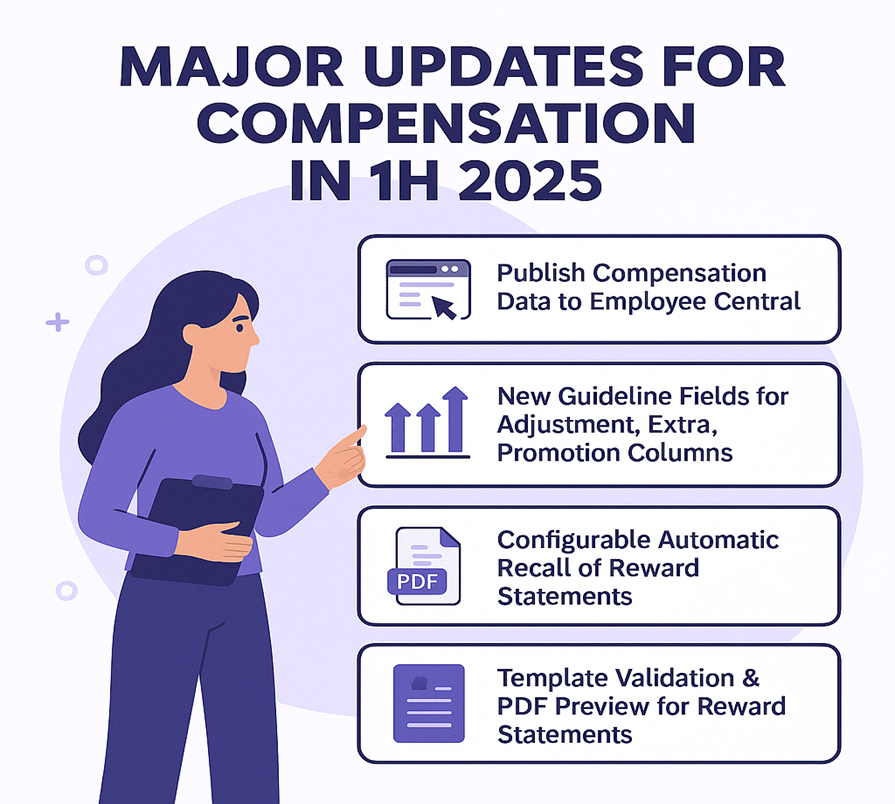
    Here are the significant enhancements for the Compensation module identified in the 1H 2025 release.

    Publish Compensation Data to Employee Central without PCNR
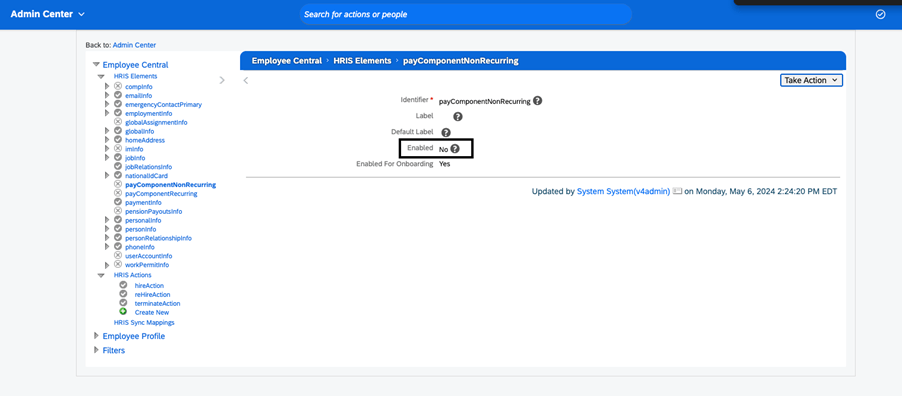
    Previously: If you wanted to publish compensation plan data into SAP SuccessFactors Employee Central (EC), you needed the HRIS element payComponentNonRecurring enabled in your configuration. 

    New: You can now publish compensation data to Employee Central without enabling the payComponentNonRecurring HRIS element. This simplifies configuration and gives more flexibility on your side. 

    Why it matters: If you enable that HRIS element (for example, due to complexity or control reasons), this change reduces a barrier and broadens options for integration.

    New Guideline Fields for Adjustment, Extra, Promotion Columns
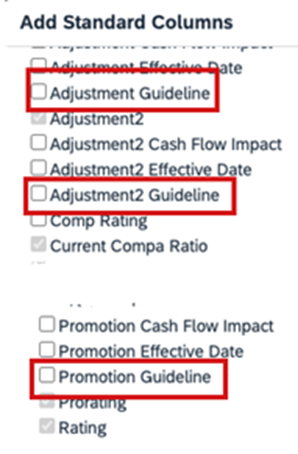
    Previously: Compensation worksheets had guideline fields for standard columns like Merit or Lump Sum, but not all columns had guideline-support.

    New: The update introduces additional standard guideline fields for columns such as Extra, Extra2, and Promo (via new field IDs: extraGuideline, extra2Guideline, promoGuidelie).

    Why it matters: It gives planners more visibility and control. For example, you can set guidelines around “Promotion” adjustments the same way you had for merit increases, and surface warnings or rules when planners exceed or ignore those guideline values.

    Configurable Automatic Recall of Reward Statements

    Previously: If you completed a compensation worksheet and generated corresponding reward statements, and then later moved the worksheet back to “In Progress”, the system would automatically recall those reward statements.

    New: You now have a setting that allows preventing automatic recall of reward statements when worksheets are moved back to In Progress status. 

    Why it matters: In some use-cases you want to preserve the generated statements (for audit/tracking) even if the worksheet is reopened. This change adds flexibility around your workflow.

    Template Validation & PDF Preview for Reward Statements
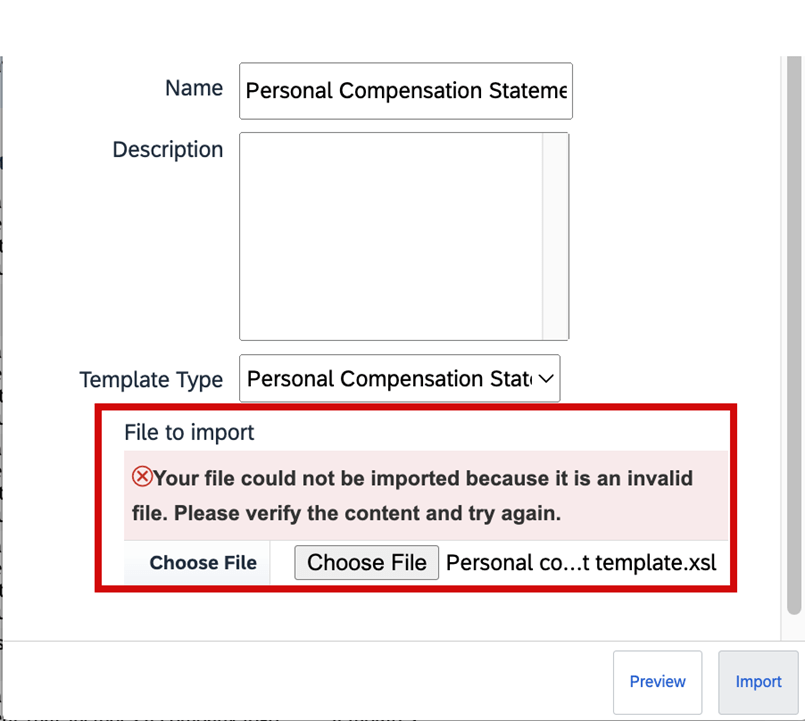
    Previously: When importing custom XSL templates for reward statements, the system had limited validation. Also you didn’t always have a full preview of what the generated PDF-statement would look like before production generation.

    New: The system now validates the XSL file when importing templates. You can now preview sample PDFs of statement templates before generating them for employees (via a “Download Sample PDF” / “Preview Sample HTML” action). 

    Why it matters: Improves the quality of end-user statements, reduces surprises or formatting issues, and supports smoother rollout of statement templates.

    1H 2025 Changes You Can Disable

    Change You Can DisableShort Description of Change
    Automatic Recall of Compensation Statements Now ConfigurableSometimes, your company must move completed compensation
    worksheets back to in progress status. In the previous version, if you had generated the
    reward statements already, the system automatically recalls the statements. You can now
    set up your system to prevent this automatic recall of the statements when the
    worksheets are moved back to in progress.
    Enforce User Account Upgrade for Consistent Login ExperienceIf you have users with employment-based logins, SAP SuccessFactors upgrades them to
    account-based logins. Additionally, profiles show login names instead of user
    names.
    Latest Experience of Performance Management FormsWe redesigned the user interface of the Performance Management
    form, introducing a streamlined, flexible layout along with many other user experience
    enhancements.

    Advanced Filters on Worksheets

    Previously: You see the legacy filter functionality in case you don’t enable the advanced filters on the worksheet where you’re only able to filter based on certain pre-selected criteria.

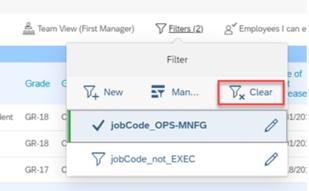
    New: On a worksheet, select the Filter button to access the Create Filter button. Once Create Filter is selected, you see the dialog for creating filter open up. On the popup, you’re able to set conditions and criteria for your filters. Also, you can select if you want All (and) or Any (or) operators to be applied to the conditions when applying the filters.

    Why it matters: We now support advanced filtering capabilities on worksheets for compensation, variable pay, and total compensation plans. To enable advanced filters on worksheets, go to Compensation Home Actions for all Plans Company Settings  Manage Company Settings and enable the Enable advanced filters on worksheets checkbox. You can have up to 30 criteria per filter spread across one or multiple conditions. The advanced filtering capabilities on the executive review are now extended to the worksheets.

    Custom Field Visibility on the Compensation Profile

    Previously: Earlier you could hide a column entirely. You didn’t have the options to show a field on the profile or the worksheet selectively.

    New: Additional options to configure visibility of custom fields for the Compensation Profile and the worksheet in the Design Worksheet tool when configuring columns for a worksheet. These options apply to the Compensation module for the worksheets and the executive review.

    Why it matters:  You now have additional options to configure visibility of custom fields for the Compensation Profile and the worksheet in the Design Worksheet tool when configuring columns for a worksheet. These options apply to the Compensation module for the worksheets and the executive review.

    Update Compensation Forms for Template Now in the Job Scheduler
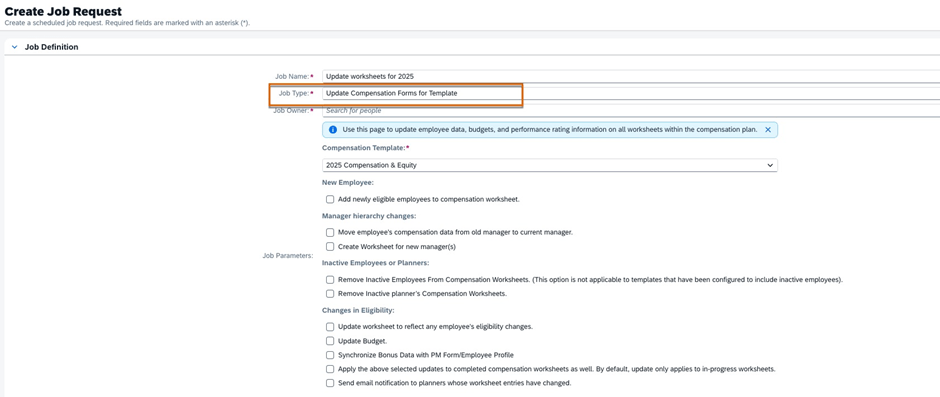
    Previously: In the previous version, you opened a support ticket to configure and schedule the job in Provisioning. You could and can still run the job in Compensation Home <Template Name> Manage Worksheets Update all worksheets right away. However, if you must run the job later or on a schedule, you can now configure the job on your own in Job Scheduler. Parameters for the job are the same as those for Update all worksheets.

    New: You can configure and monitor the job in the Job Scheduler and Job Monitor for compensation worksheets. The parameters for the job are the same as those parameters for the Update all worksheets tool.

    Why it matters: In the current version, if you must run the job later or on a schedule, you can now configure the Update Compensation Forms for Template job yourself in Job Scheduler.

    Integration changes

    The 2H 2025 release mentions updated integration-capabilities for the suite, which will impact Compensation where data flows to/from other modules.

    Known issues tracker

    There is a published “Known Issues” list for 2H 2025 for the Compensation module (among others) — it’s advisable your team monitors this to identify any regression or hot-fixes required.

    Planning tip

    Because features introduced in 1H may wave into 2H (or require follow-on steps), ensure your roadmap includes review of the 2H enhancements and impacted processes.
    Here are some steps and considerations for Compensation teams as you approach or implement the 2025 delta release updates:

    Review your current configuration

    • Take inventory of what modules/configurations you currently use in Compensation (worksheets, statements, integrations to EC, guideline fields, statement templates).
    • Identify which of the 1H 2025 features apply to you (e.g., are you publishing compensation data to EC? Do you use extra/extra2/promo guideline fields? Do you generate reward statements with custom templates?).
    • For any upcoming 2H updates, map whether your integration architecture or processes will need review.

    Activate and test selectively

    • Features like “Publish to EC without PCNR” may simplify your configuration, but still test in a non-prod instance before moving to production.
    • For new guideline fields (extraGuideline etc), update your worksheet template and test planner experience: how does the warning/goal behave? Does the UI display as expected?
    • For statement template validation and PDF preview: have your template-owners/import team test custom templates, validate XSL import, preview PDFs, and confirm the end-user experience.
    • For automatic recall setting: review your workflow. Do you want the old behaviour (automatic recall) or the new flexibility? Ensure stakeholders agree and you test the setting.

    Change management & communication

    • For planners and managers: inform them of new guideline fields and any changed worksheet behaviour (e.g., warnings/out-of-guideline alerts).
    • For reward statements: communicate to recipients that the statement format may change slightly (because of improved templates/preview).
    • For HR/Comp Ops team: update your release checklist and regression test plans to include the new features. Also monitor the 2H 2025 Known Issues list for Compensation to catch any issues early.

    Roadmap your 2H 2025 actions

    • Even if you don’t immediately activate all features, include in your roadmap: review the integration changes, check whether any features become auto-on (i.e., you cannot opt-out), and plan workload around testing.
    • Use the “What’s New” viewer or release documentation at SAP or the SAP SuccessFactors Community to capture all release items and filter for Compensation.
    • Prioritize features by business impact, implementation effort, and configuration complexity.

    Summary

    In short, the 2025 delta releases for the Compensation module in SAP SuccessFactors provide meaningful enhancements especially around integration for Employee Central publishing, advanced filters, worksheet guideline flexibility, statement template improvements for validation & preview, and automatic recall setting. These changes enhance configurability, user experience and governance around compensation planning cycles.

    If you’re planning your next compensation cycle (worksheet rollout, statement generation, integration to EC), now is a good time to evaluate these updates, adjust your configuration or roadmap, and ensure you’re leveraging the new capabilities rather than being surprised by them.


  • Considerations when Implementing SuccessFactors Compensation or Variable Pay before Employee Central

    Considerations when Implementing SuccessFactors Compensation or Variable Pay before Employee Central

    Over the past few months, we have been asked from customers about considerations of going live with SuccessFactors Compensation (or SuccessFactors Variable Pay) before implementing Employee Central.

    Below are the main considerations when doing so:

    • Configuration –  The configuration of the module is largely the same whether implemented with EC or not.  That said, some retrofit would be needed if deployed earlier than EC.
    • Data –  Decisions on certain data definitions (e.g., Location, Division, and Department) are needed regardless of deployment.  If implemented within a non-EC environment first, those foundational decisions would need to be made at that time.
    • Automation – Components such as eligibility and manager changes are heavily dependent on data updates. If deployed as non-EC, automation may lag depending on the frequency of data update.  
    • Employee/Planner Experience – the employee experience will be the same to the end users regardless of deployment approach
    • “Publish” – At the end of the process, an EC-enabled template provides automatic updates to employees’ pay-related information.  For non-EC, the data would be exported to Excel/CSV for an upload/update to the source system. (If your HRIS system is SAP HCM, there are some standard integrations you can implement. Check out the SAP Help link here.
    • Compensation Statement – Compensation statements can be issued regardless of method. They will look-and-feel the same.

    Do you need help implementing or supporting your SAP SuccessFactors system?  Contact info@worklogix.com for assistance, download our support services brochure, or visit https://www.worklogix.com/implementation.html for additional information.

     Worklogix partners with clients to plan, configure, develop and integrate HR products and custom applications. We have assembled a global team with years of experience implementing HCM solutions. Our team is dedicated to understanding your business challenges, helping you leverage your technology and implement solutions that deliver results.

  • SAP SuccessFactors 1H 2023 What’s New in Compensation

    SAP SuccessFactors 1H 2023 What’s New in Compensation

    SAP SuccessFactors has released new features for your Compensation solution. They can be found in detail here (S-User ID required).  Filter on Solution for Compensation to review all the latest changes. Under the Description for each, you can click on ‘See More’ to see screenshots and detailed information.

    Preview release was available on April 28 with the production release scheduled for June 2. For full details on the release cycle, check out the SAP SuccessFactors official product updates blog here.  New to the release process? For tips on how to manage a release, check out our blog here

    After reviewing all of the changes in this release, we narrowed the list down to the 1H 2023 SAP SuccessFactors Compensation Top 5 Features:

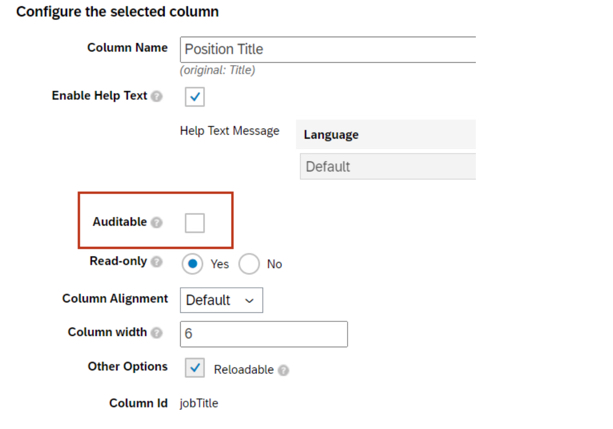
    • Planner Audit Feature for Compensation Planner
      • Compensation planners can now review field history changes made to compensation, variable pay, and total compensation worksheets.
      • Managers will be able to see changes to enabled fields on their worksheets via the link for Export Change History.
    To enable fields for Planner Audit, go to Compensation Home – Template Name – Plan Setup – Design Worksheet
    • Compensation Plan Template Versions
      • Admins can now view the change history including Modified Date and Modified By for Compensation, Variable Pay, and Total Compensation templates.
      • Admins can download previous versions of the templates to assist in troubleshooting issues.
    Role based permissions must be set in order to access export template history – Administrator – Manage Compensation and VarPay –  Enable Export of Plan Template Versions
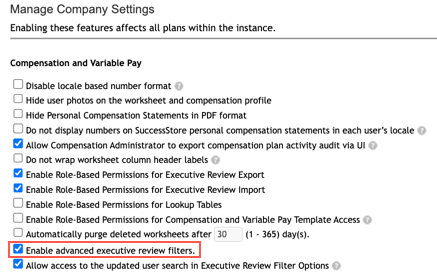
    • Advanced Executive Review Filters Are Now on by Default
      • Users can now select which fields are included in the Executive Review filter. This includes the standard fields of department, division, and location, as well as the 15 custom fields.
      • Filters can be saved and shared with other users.
    Actions for all plans – Company Settings – Manage Company Settings – Enable advanced executive review filters is now checked by default
    • Recall Reward Statements When Worksheet Reverts
      • Statements are typically made visible when worksheets are in the Completed step of the route map. This enhancement automatically recalls generated statements when the worksheets are routed back from Completed Status.
      • This ensures that a statement is not viewed when it is not in Completed status as it may have needed to be updated with corrected information.
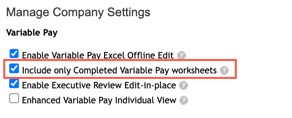
    In order for this functionality to work for Variable Pay, the Include only Completed Variable Pay worksheets setting must be checked
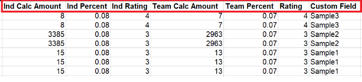
    • Assignment Details in Bonus Payment Detail Report on Executive View
      • The Bonus Payout Detail Report download in the Executive Review now includes assignment level information for individual and team standard fields.
      • Assignment level custom fields are also included in the download.
    Bonus Payout Details export now contains assignment level fields

    Do you need help implementing or supporting your SAP SuccessFactors system?  Contact info@worklogix.com for assistance, download our support services brochure, or visit https://www.worklogix.com/implementation.html for additional information.

  • SAP SuccessFactors 2H 2022 What’s New in Compensation

    SAP SuccessFactors 2H 2022 What’s New in Compensation

    SAP SuccessFactors has released new features for your Compensation solution. They can be found in detail here (S-User ID required).  Filter on Solution for Compensation to review all the latest changes. Under the Description for each, you can click on ‘See More’ to see screenshots and detailed information.

    Preview release was on October 28 and production will be released December 9. For full details on the release cycle, check out the SAP SuccessFactors official product updates blog here.  New to the release process? For tips on how to manage a release, check out our blog here

    After reviewing all the changes, we narrowed the list down to the 2H 2022 SAP SuccessFactors Compensation Top 5 Features:

    • Reward Statement Generation Report
      • Compensation Administrators can now download a csv file that will show which employees had a statement generated for them and which did not.
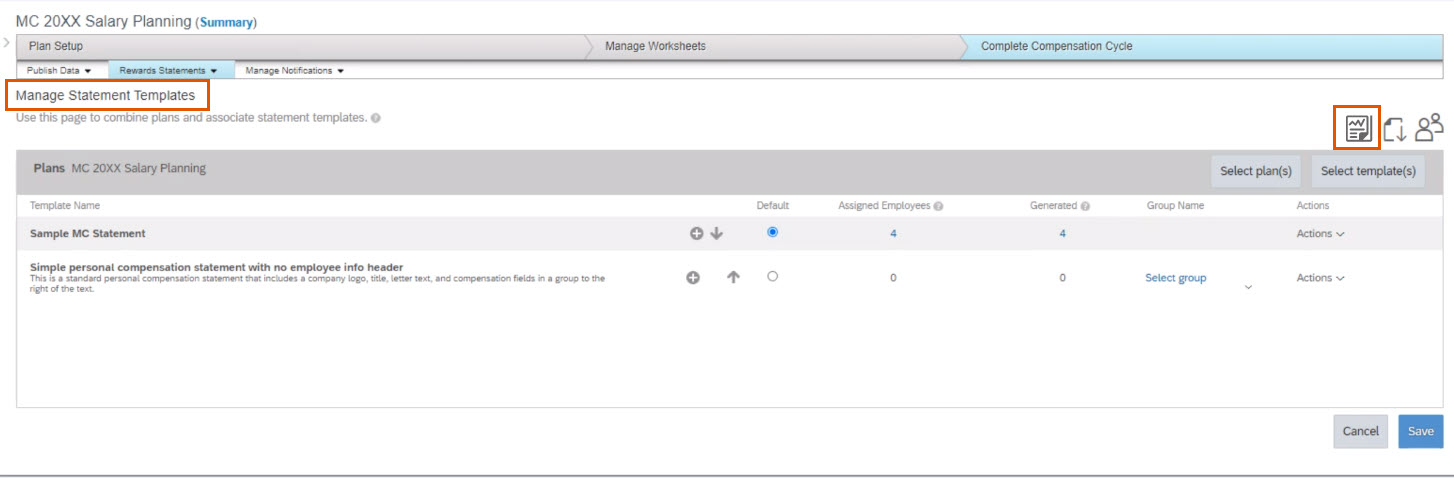
      • This feature can be found under the Plan you are generating statements for by navigating to Complete Compensation Cycle –> Reward Statements –> Manage Statement Templates and select the Reward Statement Generation Report icon.
    • Additional Column Fields with Help Text When Designing Plan Worksheets
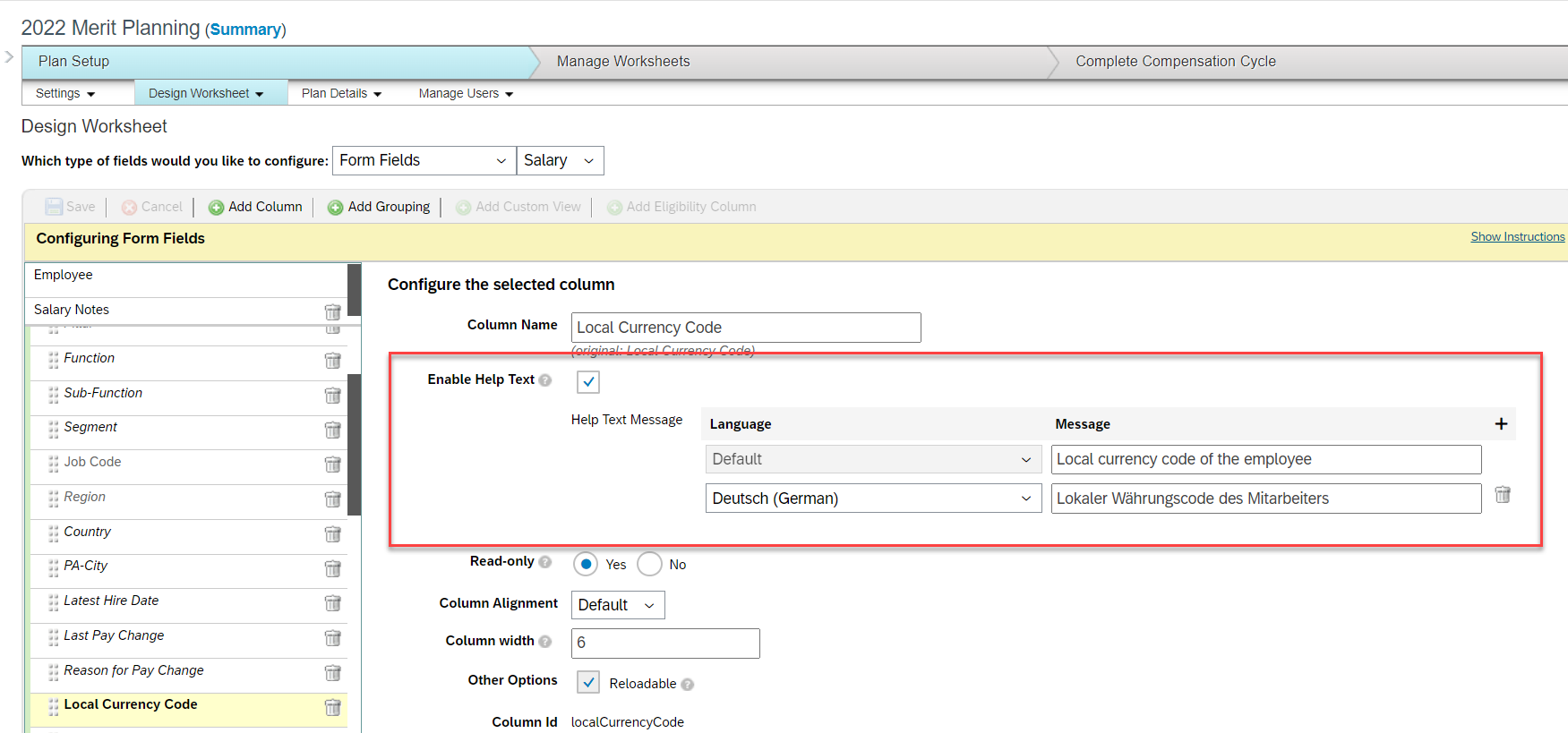
      • Compensation Administrators can now configure help text for up to 50 column fields when designing Compensation, Variable Pay, and Total Compensation templates.
      • Previously, this was limited to 10 but was extended to allow end users more visibility to useful information describing each column when needed.
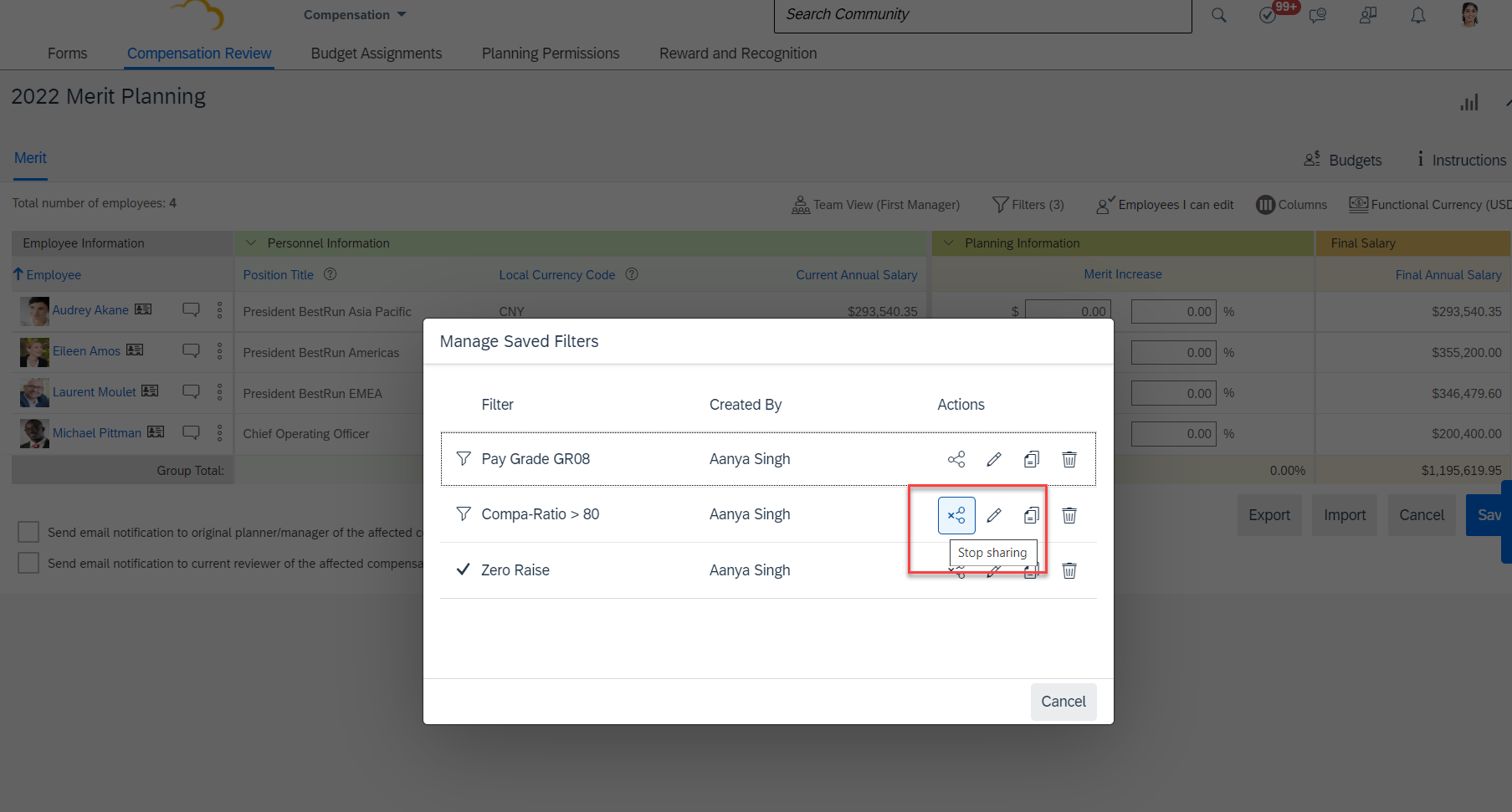
    • Share Option for Advanced Executive Review Filters
      • Users will now be able to see a Share button that allows the ability to create and use filters that can be shared across the organization.
      • In order for users to be able to share, Role-Based Permissions need to be updated by navigating to  Administrator Permissions –> Manage Compensation and VarPay –> Enable Sharing Executive Review Filters permission.
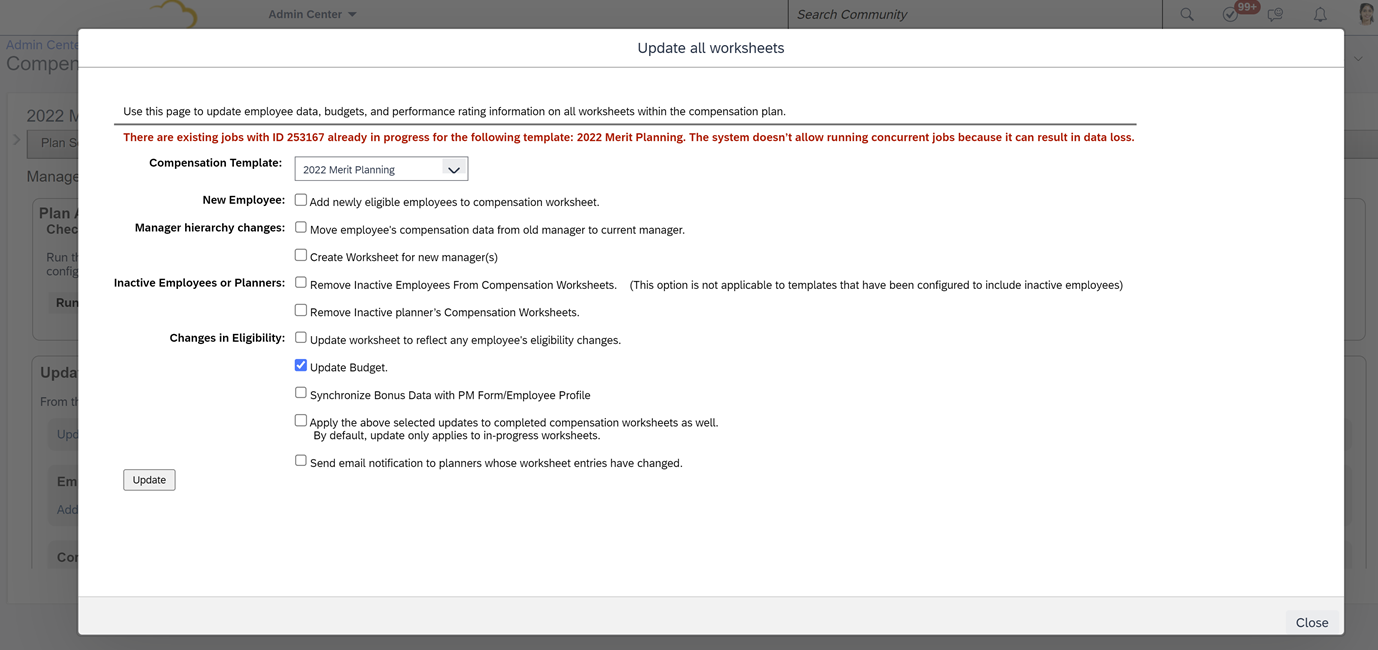
    • Prevent Concurrent Mass Update Jobs for Compensation
      • An error message will show if the Compensation Administrator tries to submit a job that is already running. This applies to:
        • Update Compensation Forms for Template
        • Apply Eligibility Rule
      • This is helpful to provide Compensation Administrators better visibility to the status of pending requests and help prevent data loss.
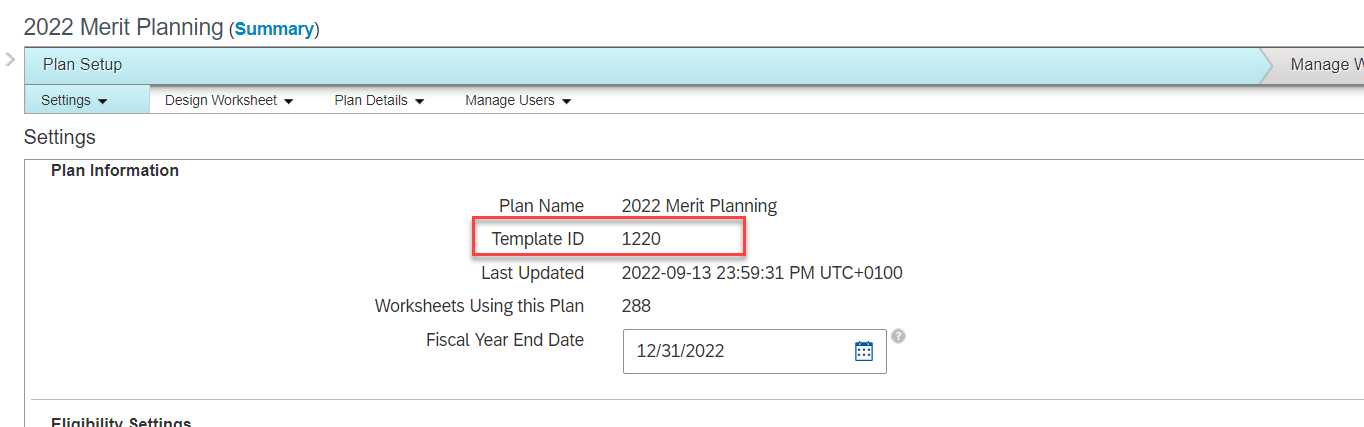
    • Display Template ID in the Template Settings Page
      • The Template ID can now be found on the Settings tab for Compensation, Variable Pay, and Total Compensation Plan templates.
      • Previously, this information could only be found in Provisioning or by downloading the template and reviewing the xml code.

    Do you need help implementing or supporting your SAP SuccessFactors system?  Contact info@worklogix.com for assistance, download our support services brochure, or visit https://www.worklogix.com/implementation.html for additional information.

  • SAP SuccessFactors 1H 2022 What’s New in Compensation

    SAP SuccessFactors 1H 2022 What’s New in Compensation

    SAP SuccessFactors has some exciting new features for your Compensation solution. They can be found in detail here (S-User ID required).  Filter on Solution for Compensation to review all the latest changes. Under the Description for each, you can click on ‘See More’ to see screenshots and detailed information.

    As a reminder, preview release was on April 15 and production will be released May 20. For full details on the release cycle, check out the SAP SuccessFactors official product updates blog here.  New to the release process? For tips on how to manage a release, check out our blog here

    After reviewing all the changes, we narrowed the list down to the Highlights for H1 2022 SAP SuccessFactors Compensation Features:

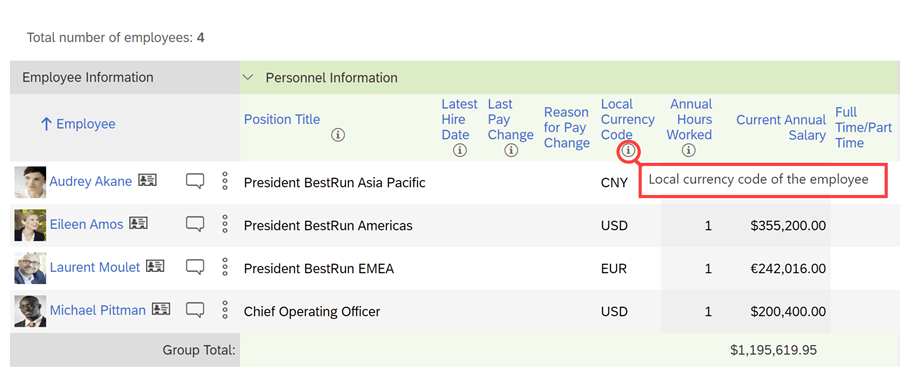
    • Help Text for Column Fields When Designing Plan Worksheets
      • Info icons can be added to provide additional details to managers as they are completing their planning.
      • There’s a maximum of 10 fields with help text per template and these can be configured in multiple languages.
    Example of info icon being used to explain further what the column is showing
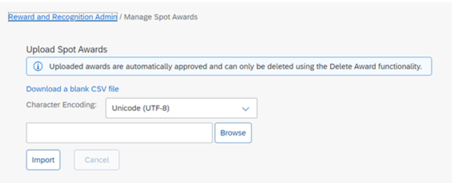
    • Mass Upload of Spot Awards
      • An administrator can download a CSV file for a mass upload of awards for Reward and Recognition that contains multiple award programs with multiple nominees.
      • No approval permission process is provided, the mass upload assumes approval. 
    Spot Awards can be uploaded in mass
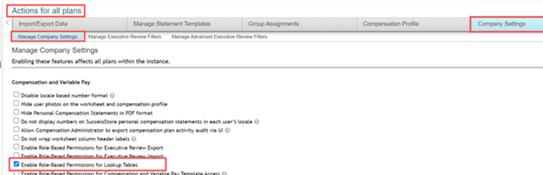
    • Role-Based Access to Compensation Lookup Tables
      • Currently an administrator is allowed access to all lookup tables. Permissions can now be set to limit access to specific lookup tables.
      • Role-based permissions need to be configured to select which tables the role can access.
    Enable Role-Based Permissions for Lookup Tables is now available under Company Settings
    • Plans List in Compensation Home Filtered by Template Type
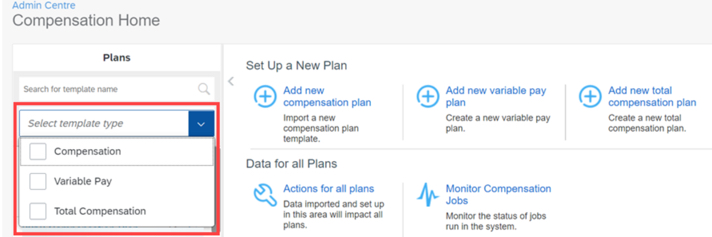
      • Compensation Administrators on the Compensation Home view can now search and see results for Compensation, Total Compensation Plan, or Variable Pay plans.
    Searching for plan can now be done by template type
    • New Filter Options for Compensation Plans
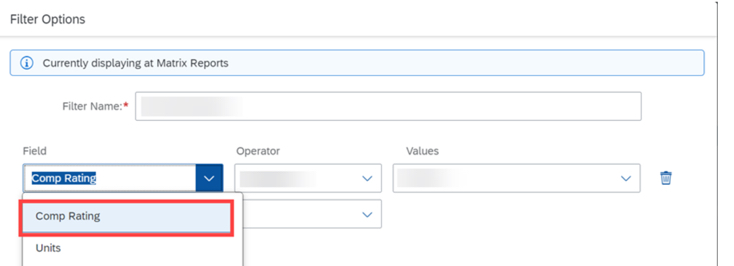
      • In Executive Reviews, planners now have the option to apply Employee Name and Comp Rating filters to their compensation plan.
    Employee Name and Compensation Rating have been added to filter options in Executive Review

    Do you need help implementing or supporting your SAP SuccessFactors system?  Contact info@worklogix.com for assistance, download our support services brochure, or visit https://www.worklogix.com/implementation.html for additional information.

  • H2 2021 SAP SuccessFactors Compensation Features

    H2 2021 SAP SuccessFactors Compensation Features

    SAP SuccessFactors has released new features for your overall Compensation solution. They can be found in detail here (S-User ID required).  Filter on Solutions for Compensation to review all the latest changes. Under the Description for each, you can click on ‘See More’ to see screenshots and detailed information.

    As a reminder, preview release was on October 15 and production will be released November 19.  For full details on the release cycle, check out the SAP SuccessFactors official product updates blog here.  New to the release process? For tips on how to manage a release, check out our blog here

    After reviewing all the changes, I narrowed the list down to the Highlights for H2 2021 Compensation:

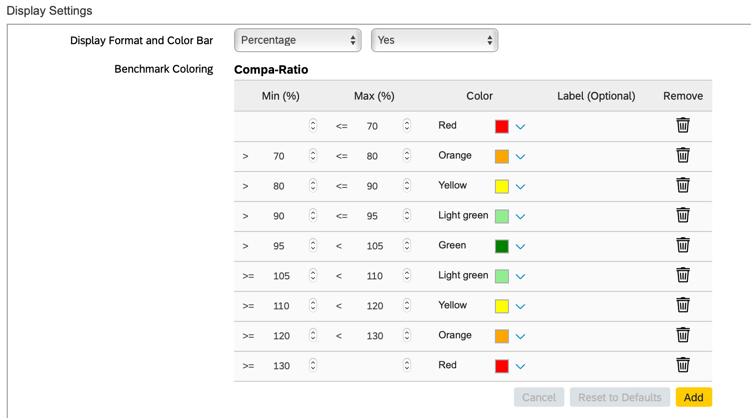
    1. Create Benchmarking Ranges and Color Values for Compensation Plans Using Display Settings

    • Compensation administrators can now update benchmark ranges and color settings for Compa-Ratio and Range Penetration in the compensation plan template under Display Settings.
    • Previously this was done in XML.
    Additional settings have been added to allow Compensation Administrators to make changes via configuration

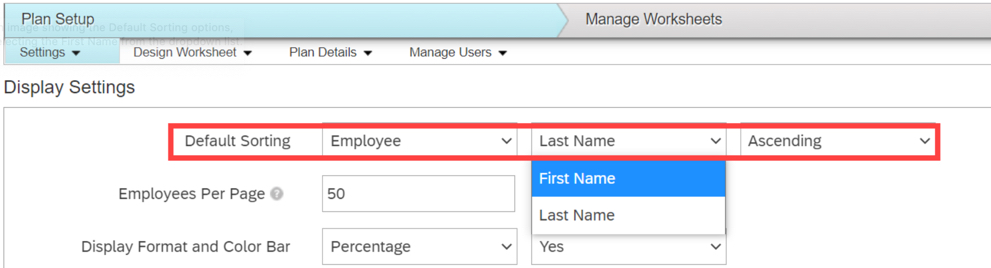
    2. Enhanced Default Sorting by Employee Name for Compensation Plan Worksheets

    • There is now a new setting for sorting of employee names by First Name or Last Name as well as by Ascending or Descending order.
    • This allows end users to be able to find employees more easily.
    Additional settings have been added to enhance usability

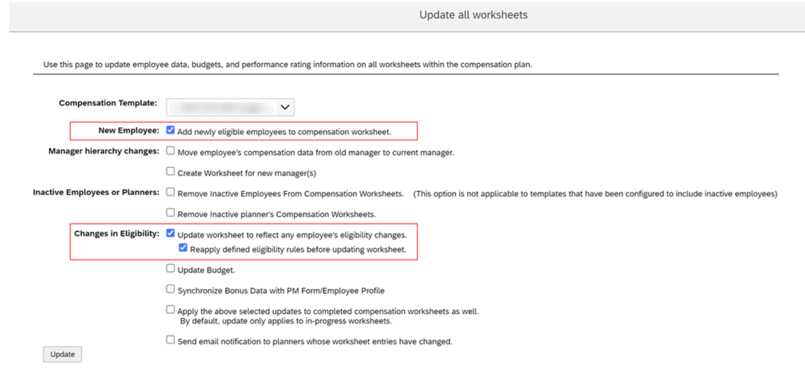
    3. Enhanced Ability to Add Newly Eligible Employees to Compensation Worksheets

    • Users can now update settings to add eligible employees, not just new hires, to worksheets for a compensation plan.
    • These selections must be made on both the Update all worksheets settings and the Update a specific worksheet settings.
    Both checkboxes should be selected for updating new hires as well as those newly eligible

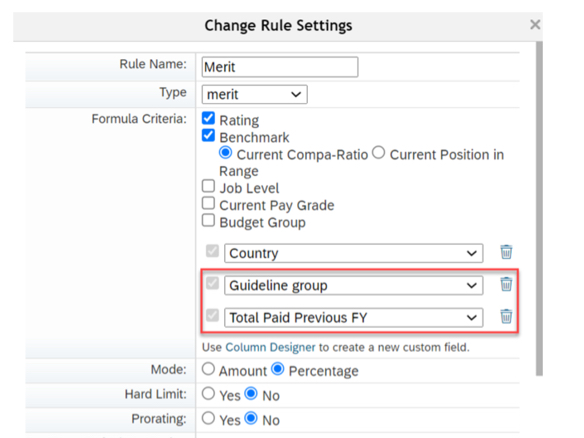
    4. Guidelines Using Entered or Calculated Values for Compensation Planning

    • Calculated or editable fields defined in the Design Worksheet can now be used as attributes for Guideline tables in Compensation, Variable Pay, and Total Compensation Plan templates.
    • This is very helpful for when customers have specific guidelines they wish to use that would have otherwise been difficult to incorporate via a workaround.
    Custom columns can be created and then used as part of guideline configuration

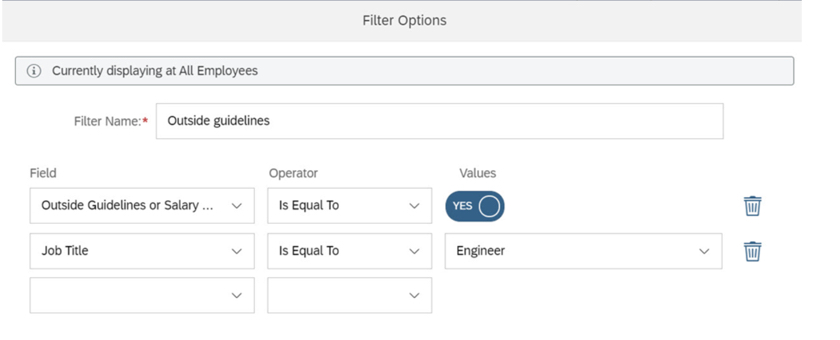
    5. Show Compensation Recommendations Outside of Guidelines or Salary Range by Using a Filter in Executive Review

    • Compensation planners can create a filter showing employees with compensation recommendations that are outside of guidelines or salary ranges.
    • This is now a standard option that doesn’t require any additional configuration.
    Filter can be set to show all employees, show only employees within guidelines, or show only employees outside of guidelines

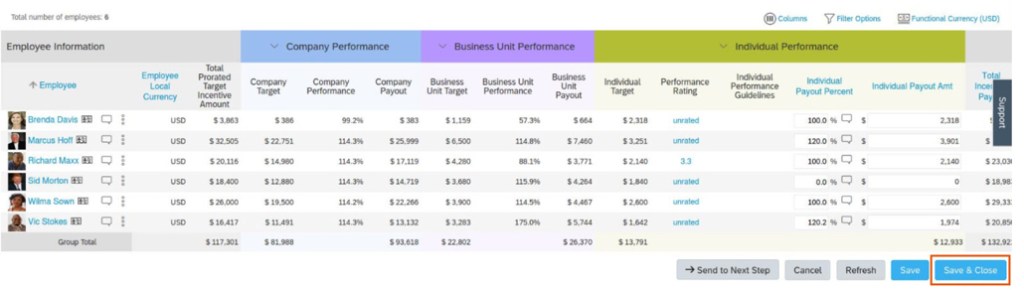
    6. Improved Collaboration for Planners in Updating Worksheets

    • Save & Close button was added to allow easier collaboration for planners updating the same worksheet.
    • In the previous version, although a planner chose Save to save the updates made to the worksheet, the worksheet remained inaccessible to the other planners until the current planner exited the worksheet. 
    Save & Close button has been added to allow less restrictions for multiple planners on same worksheet

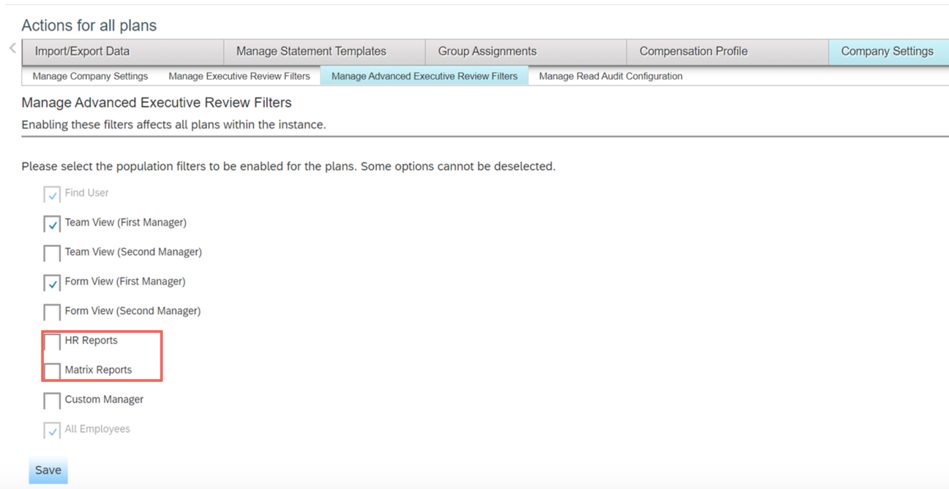
    7. Define Population Views Using Manage Advanced Executive Review Filters

    • Compensation Administrators can now turn off Executive Review filters that are not relevant to their company.
    • Some of these additional filters were confusing to end users as they were not being used.
    Filters can now be turned off via Company Settings – Manage Advanced Executive Review Filters

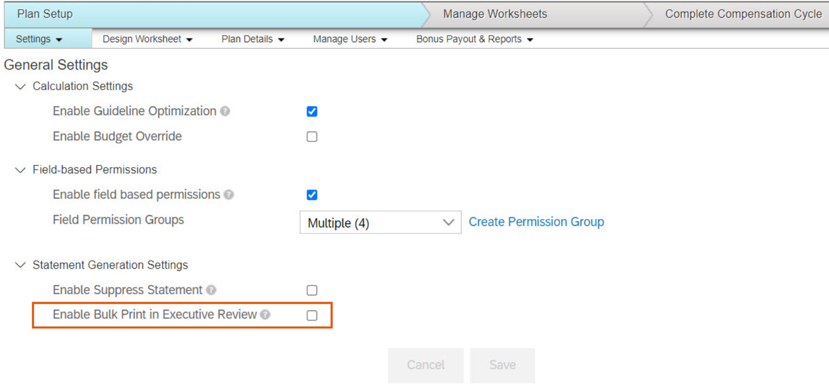
    8. Enabling Bulk Print Feature in Specific Compensation Plans for Executive Review

    • Compensation Administrators can now set Enable Bulk Print in Executive Review from Plan Setup in the Settings page.
    • This change allows for plan specific control over bulk printing.
    Enable Bulk Print in Executive Review checkbox is now found under plan specific Settings – General Settings

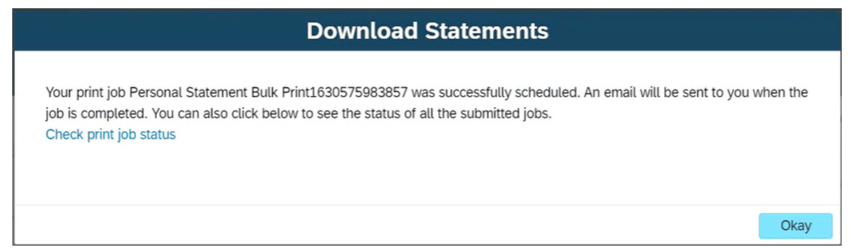
    9. Integration of My Jobs Window for Bulk Print Statements in Executive Review

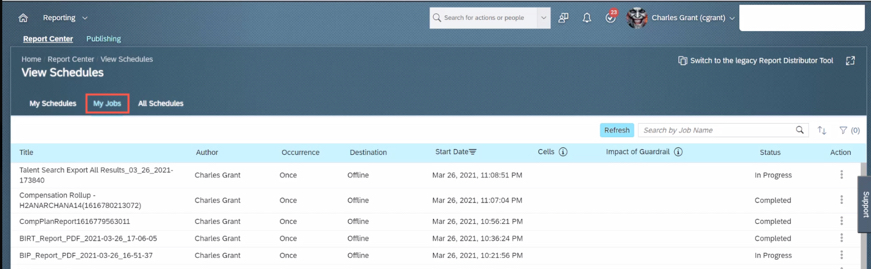
    • Users can now view the status and download Bulk Print statements from the My Jobs window that is now integrated with the Executive Review page.
    • Choosing Check print job status from this window redirects you to the Reporting – Report Center – View Schedules – My Jobs page.
    Users now have an easier time navigating and find statements that were bulk printed

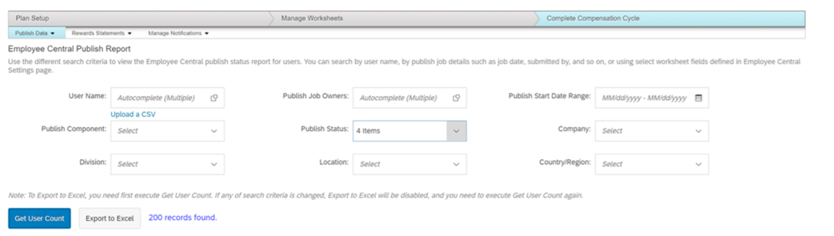
    10. Publish Report for Detailed Logs on Compensation Publish to Employee Central

    • Compensation Administrators can now create a detailed report of the publishing status logs for employees and identify the issues during the publishing process for a given template. 
    • The report is available in the Complete Compensation Cycle – Publish Data – Employee Central Publish Report area of the compensation plan. 
    To view report, Administrator – Manage Compensation – View Employee Central Publish Report permission has to be set in role-based permissions

    Do you need help implementing or supporting your SAP SuccessFactors system?  Contact info@worklogix.com for assistance, download our support services brochure, or visit https://www.worklogix.com/implementation.html for additional information.

  • H1 2021 SAP SuccessFactors Compensation Features

    H1 2021 SAP SuccessFactors Compensation Features

    SAP SuccessFactors has some exciting new features for your Compensation Solution. They can be found in detail here (S-User ID required).  Filter on Solutions for Compensation to review all of the latest changes. Under the Description for each, you can click on ‘See More’ to see screenshots and detailed information.

    As a reminder, preview release was April 16th and production will be released May 21st.  

    After reviewing all the changes, I narrowed the list down to the Highlights for H1 2021 Compensation:

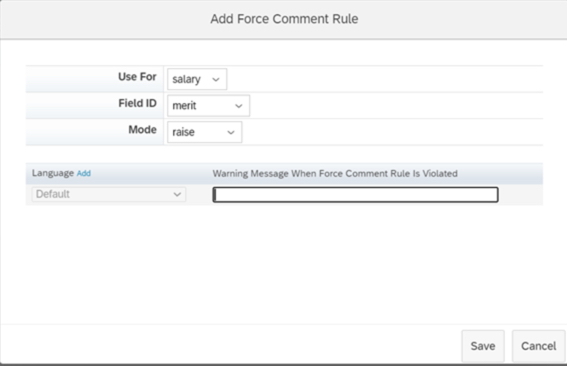
    1. Ability to Configure Force Comments on Compensation Worksheets

    • Previously configuring forcing comments had to occur within the XML, now it can be done within Comp Admin Tools.
    • You can navigate to Design Worksheet – Define Standard Validation Rules to configure this functionality. The Force Comments feature is optional. When configured, you control whether users must enter comments under the following conditions:
      • An employee doesn’t receive a raise. Managers didn’t enter a value in a field configured to force comments.
      • An employee receives a raise. Managers entered a value in a field configured to force comment.
      • An employee receives a raise that is outside guidelines. Managers entered a value that doesn’t comply with guidelines in a field configured with force comments
    Force Comments rules can now be configured via Admin Tools

    2. Salary Validation Rules Added to Compensation Worksheets

    • Previously configuring Salary Validation Rules had to occur within the XML, now it can be done within Comp Admin Tools.
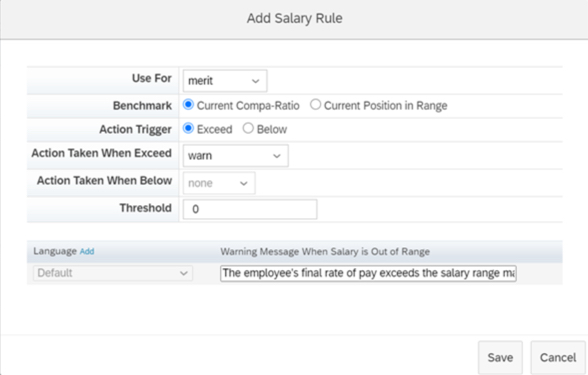
      • You define rules to compare amounts using either compa-ratio or range penetration benchmarks. Configure what action the system takes when amounts exceed threshold percentages for lump sum amounts or fall below or exceed threshold percentages for merit amounts.
    Salary rules can now be configured via Admin Tools

    3. Compensation Worksheets Support Five Custom Validations

    • With this release, you can define up to five custom validations for fields in Compensation templates and configure how the system responds when validations fail, with either a warning or an error. The system processes the worksheet only after the error is corrected.
      • Previously, the maximum number of validations per template was three. This is especially helpful if you have complex calculations or are using 1 form for multiple plans.
    Example of custom validation. Now users can define up to 5 custom validations.

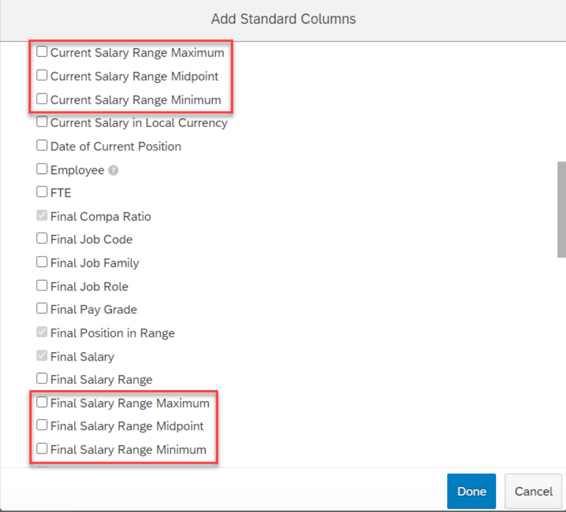
    4. Current and Final Pay Ranges Configurable Through the Compensation Column Designer

    • You can now configure minimum, midpoint, and maximum values for current and final pay ranges through Compensation template’s column designer.
      • Previously, these fields weren’t available in the template configuration. There were two fields (Current Pay Range and Final Pay Range) in the min-mid-max format.
      • With this release, minimum, midpoint, and maximum are available as independent fields.
    Separate columns exist now for Salary Range fields

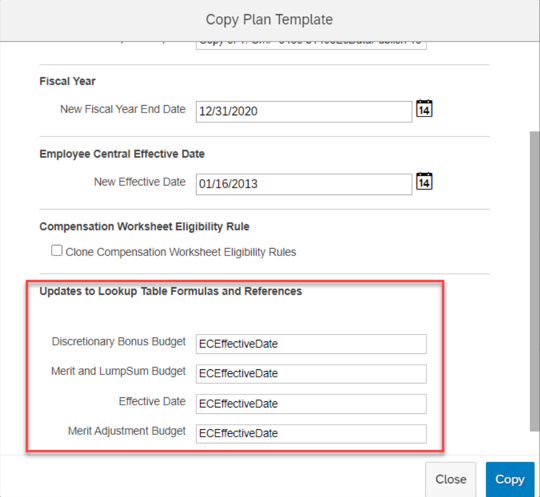
    5. Update Lookup Table Formulas and References When Cloning Compensation Templates

    • Now when cloning Compensation templates, you can update lookup tables and references at the same time. A new section has been added to the Copy Plan Templates page, enabling you to view and edit the custom formulas and references from lookup tables on the original template.
      • Previously, you had to manually search through the original template’s XML file, looking for all lookup tables associated with it.
    Cloning compensation templates allows for updating lookup tables and references

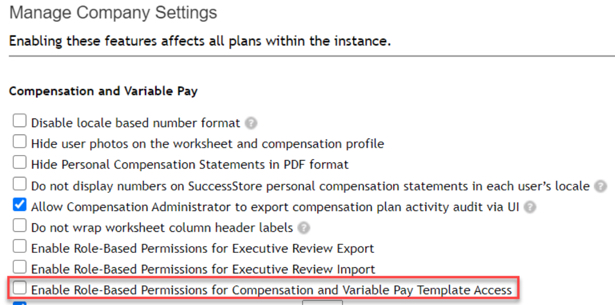
    6. Administrative Permissions for Individual Compensation Templates

    • A new Role-based Permission has been added to assign administrative permissions on a template level.
      • Previously, access had to be granted to all or no templates.
    Template access can be granted per individual template

    7. Filter Enhancements Added to Compensation Executive Reviews

    • Enhanced filtering was added to Executive Review, new filters include:
      • Filter based on standard or custom reportable columns
      • Filter on compa-ratio and range penetration
      • Filter on Compensation planners
      • Filter based on entry in Comments fields
      • Filter based on promotions
    • To enable enhanced filtering, you must select the Enable Advanced Executive Review Filters option on the Actions for all Plans – Company Settings page.
    Enhanced Filter capabilities now exist in Executive Review

    8. Compensation and Variable Pay Reports are now available for download in Report Center

    • You can now download the reports from the My Jobs page within View Schedules in Report Center.
      • Previously, report outputs (i.e. Executive Review exports) were available for download on the Scheduled Reports page in classic view. This caused confusion for users on how to get to their reports by having to direct them to Switch to Classic View.
      • You can review my other blog post for more changes to Reporting for this release.
    Executive Review export can now be accessed via My Jobs

    9. Application of Eligibility Rules for Individual Compensation Worksheets After Launching

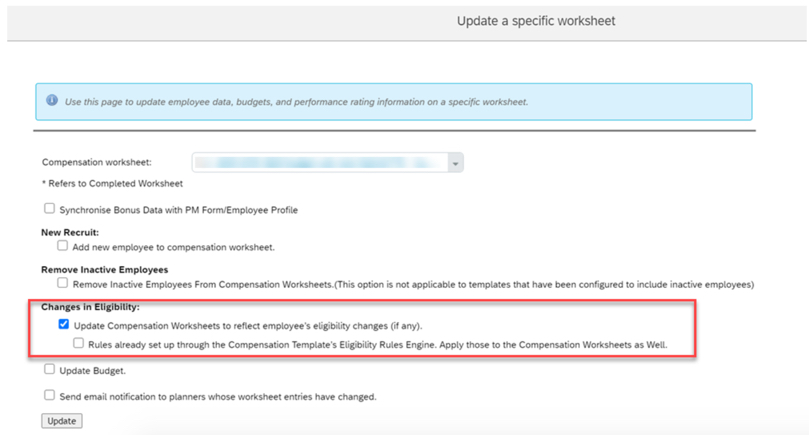
    • You can now reapply eligibility rules to a specific Compensation worksheet that you have already launched.
      • In previous releases, you could only reapply eligibility rules to all worksheets.
    Eligibility can now be applied to individual worksheet updates

    10. Publish Compensation Employees to Employee Central by Import Using CSV File

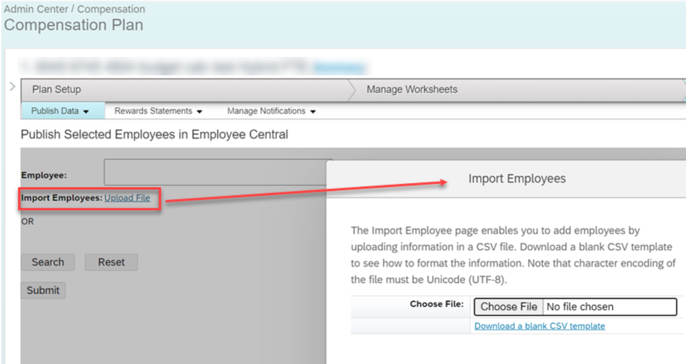
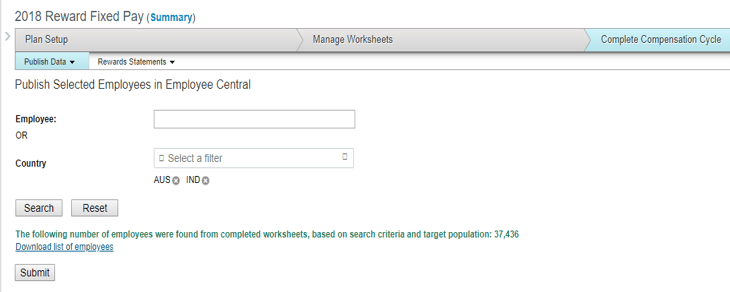
    • The Publish Selected Employees in Employee Central page has a new option, Import Employees. This allows publishing by importing them from a CSV file
      • Previously, you could publish multiple employees, but you needed to search and select them individually.
    Publishing can now be done based on an imported file

    Do you need help implementing or supporting your SAP SuccessFactors system?  Contact info@worklogix.com for assistance, download our support services brochure, or visit https://www.worklogix.com/implementation.html for additional information.

  • H2 2020 SAP SuccessFactors – Compensation and Variable Pay Features

    H2 2020 SAP SuccessFactors – Compensation and Variable Pay Features

    SAP SuccessFactors has some exciting new features for your Compensation & Variable Pay Solutions. They can be found in detail here (S-User ID required).  Filter on Solutions for Compensation to review all of the latest changes. Under the Description for each, you can click on ‘See More’ to see screenshots and detailed information.

    As a reminder, preview release will be October 16 and production will be released November 20th.  

    After reviewing all the changes, we narrowed the list down to the Highlights for H2 2020 Compensation & Variable Pay & Reward and Recognition:

    1. New Layouts for Statement Templates

    • Additional flexibility has been added for standard compensation statements
      • The new layouts are available for Compensation, Variable Pay, and Combined statement templates to support right-to-left (RTL) compliance. Previously, Compensation fields were always displayed to the right of text section in statements. This will allow for a more custom look and feel to better suit your needs.
      • The new statement template layout increases usability and improves user experience with Compensation statements. See my earlier blog post for other tips on optimizing standard statements.
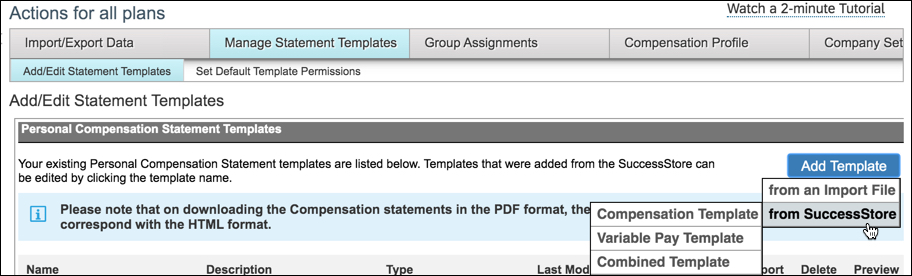
    After selecting template from SuccessStore, you will now you have the flexibility to display Compensation fields to the right, left, or below the text section of statements.

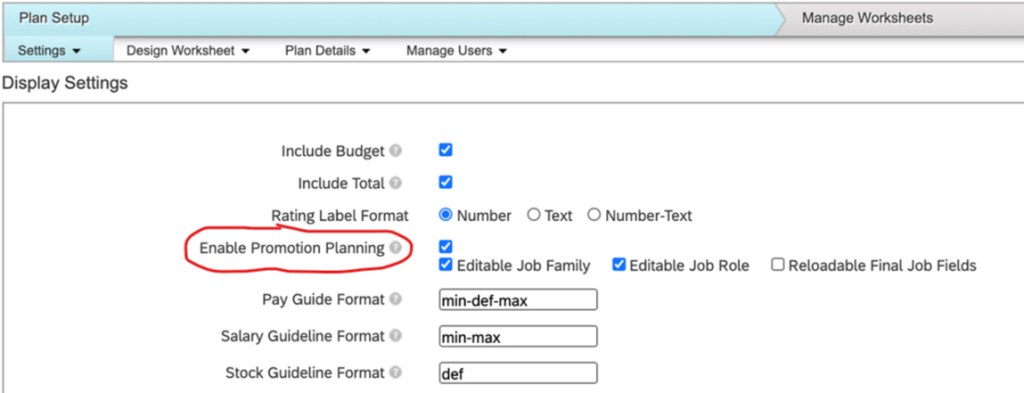
    2. Promotion Planning and Job Selector Within Compensation Template

    • You can now enable promotion planning and job selector functionality at the compensation template level.
      • When you select Enable Promotion Planning, the system displays three parameters related to job selector functionality: Enable Promotion Planning, Editable Job Family, Editable Job Role, and Reloadable Final Job Fields.
    End users can Enable Promotion Planning directly in the template instead of the XML

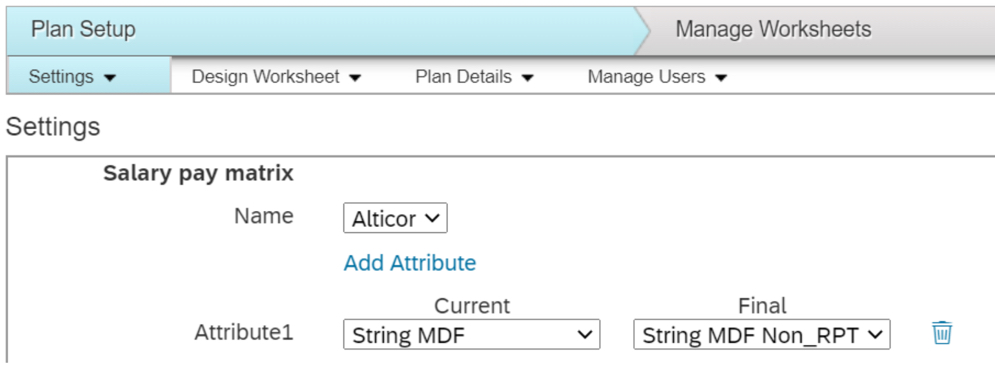
    3. Configuration of Calculated Pay Range on the Basis of Post-Promotion Information

    • A new setting has been added to allow you to directly maintain the post promotion fields to be used when calculating the final pay range for a promoted employee. In most cases, the final pay range is based on post-promotion information.
      • Previously this was done only in the XML.
      • Check out this demo SAP provided.
    Post Promotion attribute to be used to determine final pay range can be defined in Settings

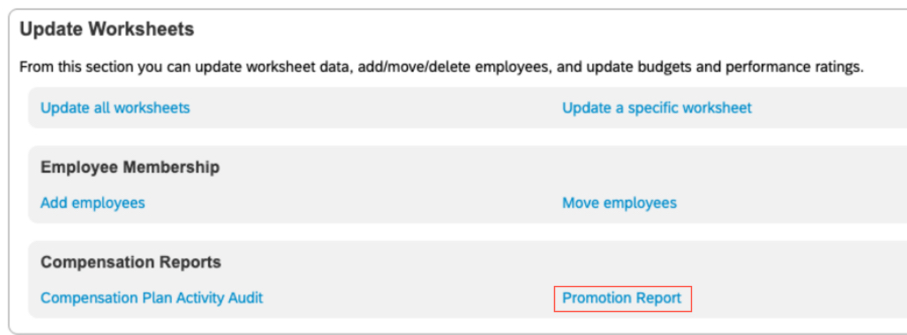
    4. Promotion Data Available in Compensation Report

    • New functionality was created to allow users to create worksheet reports containing promotion-based information for employees. The system exports data from Employee Central for EC-enabled templates and from job selector fields within compensation for worksheets that aren’t EC-enabled.
      • Previously you would have to manually go employee-by-employee through your worksheets to review promotion information, which can be time consuming for large groups of employees.
      • Click here for details on the Role-Based Permissions that are needed for this report.
    Promotion report can be found under Admin Center –> Compensation –> select template –> Manage Worksheets

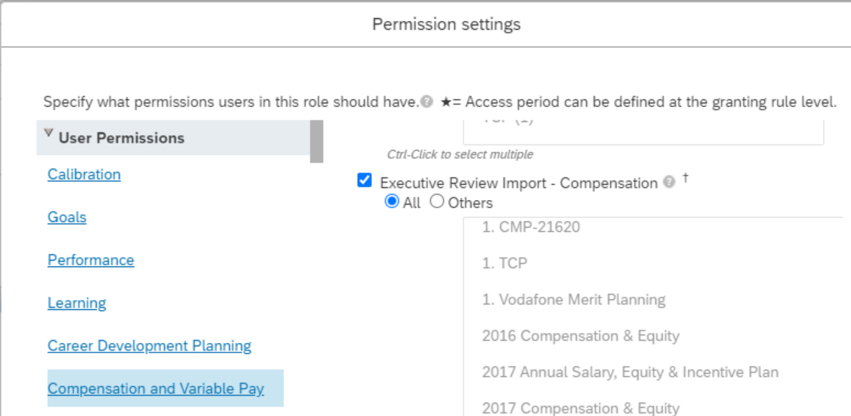
    5. Role-Based Permission to Control Import of Executive Review Information

    • You can now use Role-Based Permissions (RBP) to control who can import data into Executive Review. You can allow access to every template or specify individual templates to which the RBP applies.
      • Previously when you enabled compensation excel offline edit, all users with Executive Review access would have seen the Import button.
    You can now control who has access to Import into Executive Review and which templates they can do this for

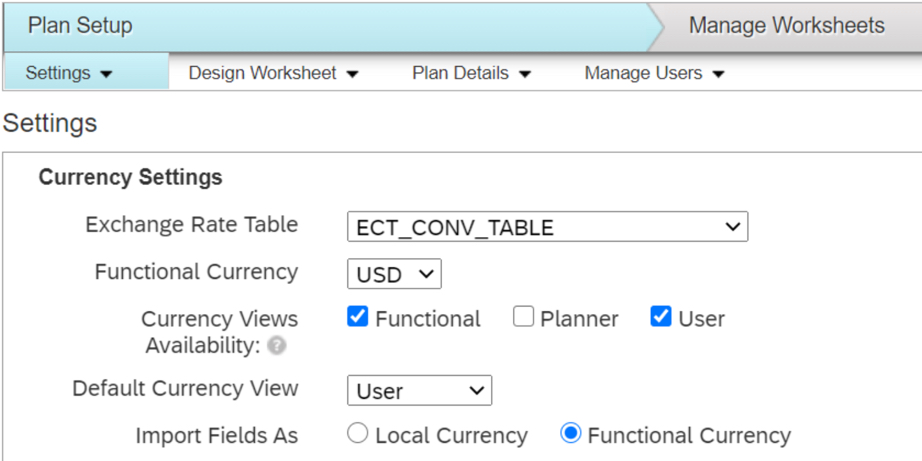
    6. Currency Views Availability Field Added to Compensation Plans

    • Users can now select which currency views are available per template.
      • This functionality was previously only available for Variable Pay plans and Total Compensation plans.
    Currency Views allow users to toggle between Functional, Planner, or User (Local) Currency

    7. Configure Compensation Worksheets to Display Multiple Columns for Collapsed Groups

    • Users can now configure the system to display multiple columns for a collapsed group on a compensation worksheet.
      • This allows greater flexibility when setting up the worksheet and can allow for better look and feel for end users while saving real estate.
    In the example above, several columns appear in the collapsed groups instead of just one

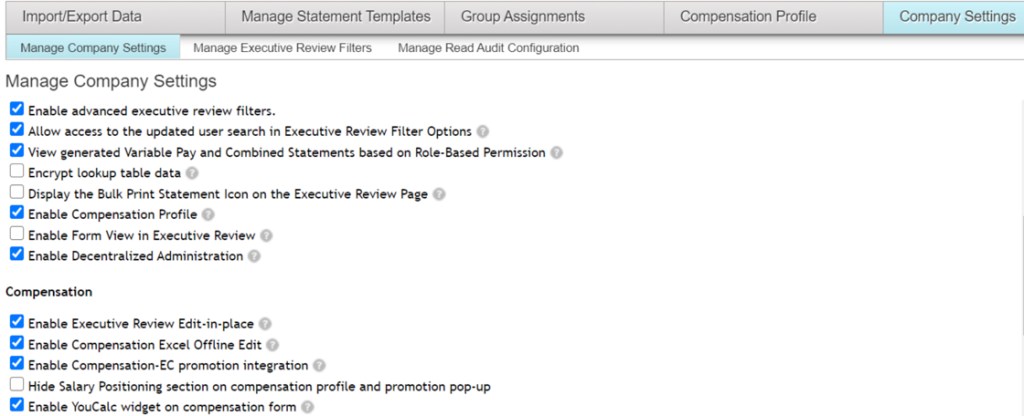
    8. Compensation Provisioning Settings Available on Company Settings Page

    • You can now configure fields on the Display Settings and Settings pages that you previously needed to set by modifying through the XML file.
      • Enable YouCalc widget on compensation form
      • Enable Compensation Profile
      • Enable Form View in Executive Review
      • Enable Decentralized Administration
    Additional company settings added for compensation administrators to access

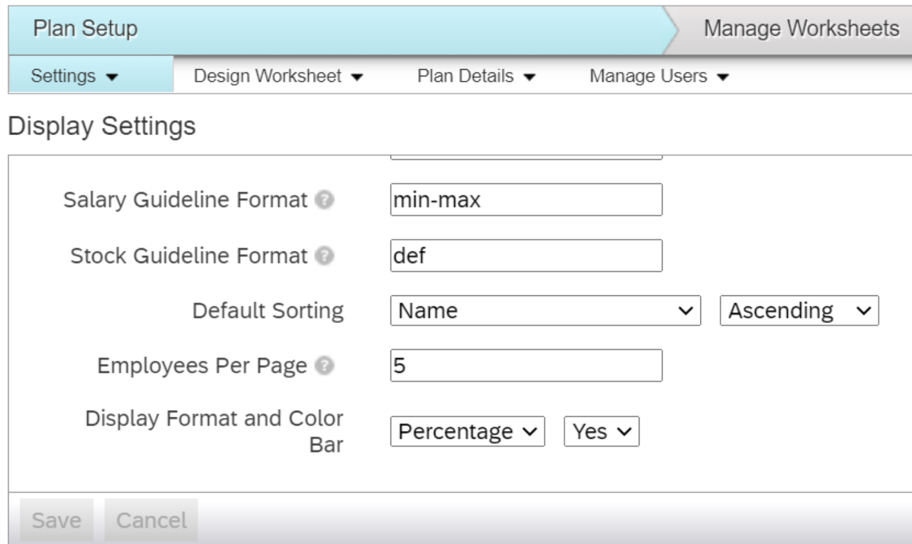
    9. XML Attributes for Compensation Added to Display Settings Page

    • You can now configure fields on the Company Settings page that you previously needed to set by modifying through Provisioning.
      • Default Sorting
      • Employees Per Page (now up to 100 employees per page)
      • Display Format and Color Bar (Compa-Ratio)
    Additional settings added for compensation administrators to access

    10. Multi-Select Filtering Supported Within Compensation When Publishing Employees in Employee Central

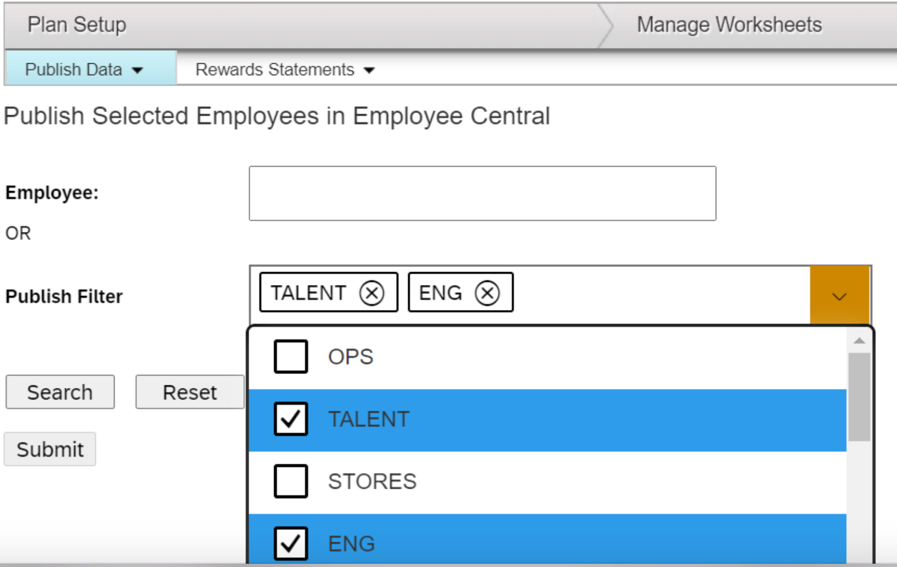
    • You can select multiple filtering reportable fields when using the Publishing Selected Employees in Employee Central functionality.
      • This allows for increases flexibility when publishing data back to EC.
    Multiple fields can now be selected to publish by

    See this great article for useful information on how to prepare for a SAP SuccessFactors Regular Release.

    Do you need help implementing or supporting your SAP SuccessFactors Compensation or Variable Pay system?  Contact info@worklogix.com for assistance, download our support services brochure, or visit https://www.worklogix.com/implementation.html for additional information.

  • H1 2020 SAP SuccessFactors – Compensation and Variable Pay Features

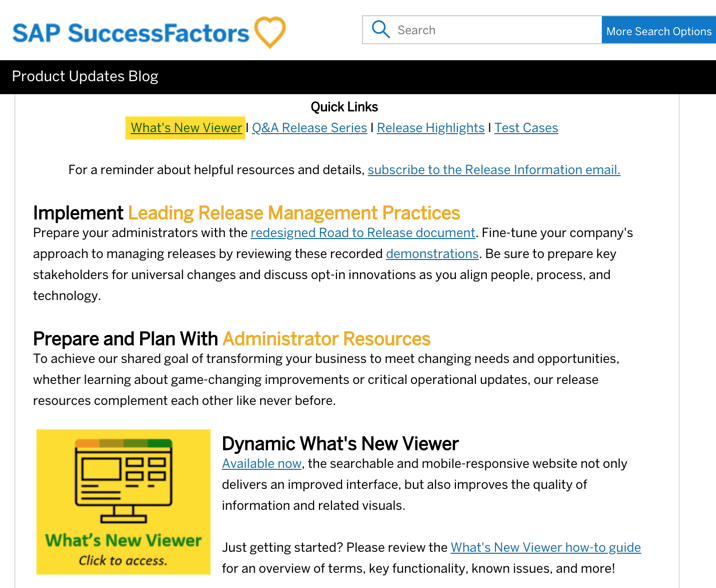
    Starting in 2020, SAP changed the release schedule to every 6 months. All of the latest enhancements can be found here (S-User ID required). Scroll down to the What’s New Viewer to review the changes.

    Click on the What’s New Viewer to review the latest changes

    Filter on Solutions for Compensation, Variable Pay, and Reward and Recognition to review all the latest changes. Under Description, you can click on ‘See More’ to see screenshots and detailed information.

    After reviewing all the changes, we narrowed the list down to the Highlights for H1 2020 Compensation & Variable Pay & Reward and Recognition:

    1. Import and Export non-EC Eligibility Rules

    • Administrators now have the ability to Export and Import Eligibility rules
      • Admins can export the rules as a .csv file and then import the file as needed into other templates
      • This process will save time and improve accuracy during configuration
    Import and Export buttons now appear for Eligibility Rules

    2. Enhanced Display Criteria for Bulk Download Icon

    • Users can now view the icon for bulk download only if a statement was generated for an employee from the recently filtered list of Executive Review
      • Previously, the icon was displayed even if statements weren’t generated from the filtered list which caused confusion
      • Enable the Display Bulk Print Statement Icon on Executive Review Page option
    Bulk download icon only displays if statements are generated for filtered list

    3. View a List of Employees Excluded from Statement Download

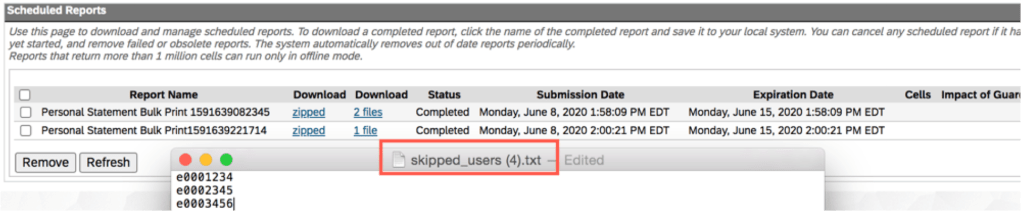
    • Using log files, users can now identify employees who are excluded during the bulk download process from Executive Review
      • Log file will show a list containing the username and user ID of all excluded employees
    Log file shows list of employees excluded during the bulk download process

    4. Publish by User for Variable Pay and Total Compensation Plan Templates

    • Administrators can now publish specific employees or groups of employees to Employee Central in Variable Pay and Total Compensation Plan templates
      • Prior to this release, this feature was only available for compensation templates
    Publish by Employee is now available for Variable Pay and Total Compensation Plans

    5. Use Bonus Payout Summary Reports Offline

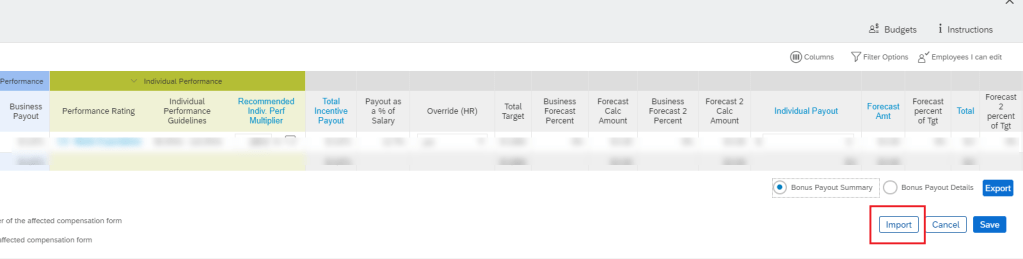
    • Users can now modify editable fields in the exported file while offline from Executive Review. The modified exported file can then be reimported to update the fields with new changes.
      • Permissions must be set to allow for edit and export access to Executive Review
      • Enable the setting for Offline Edit Access for variable pay worksheets
    Import functionality now exists for Bonus Payout Summary

    6. Expanded Pay Range Matching for Promoted Employees

    • Users can now define a new finalAttribute field that the system uses when calculating the final pay range.
      • This will avoid the issue of miscalculated post-promotion pay ranges in EC-enabled compensation templates caused when the system continues to incorrectly use pre-promotion classification and pay grade information
      • In previous versions, the system incorrectly calculated pay range on the basis of pre-promotion information
    finalAttribute field can be defined for proper calculation of pay ranges

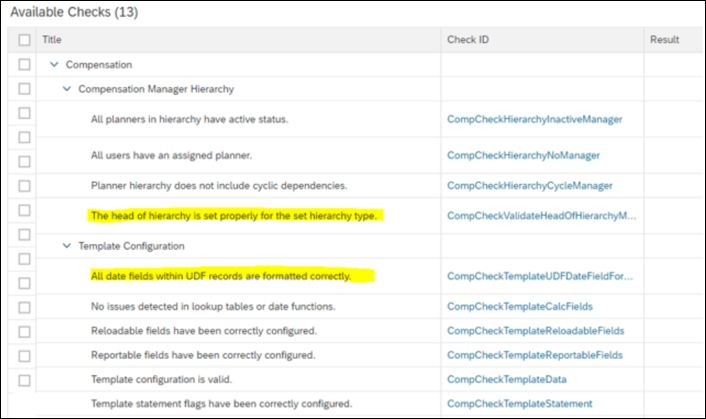
    7. Hierarchy and Date Validations for Check Tool

    • Check Tool now has two new validations:
      • Review the Manager ID of each head of hierarchy in the compensation plan
      • Ensure that all date fields within UDF are formatted correctly
    Additional useful validations added to Check Tool

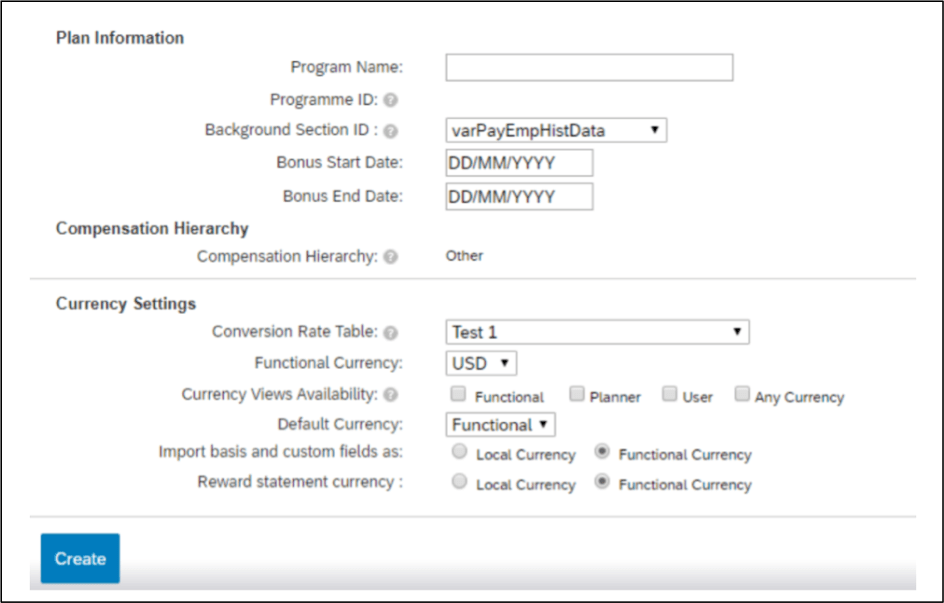
    8. Default Currency View in Compensation, Variable Pay, and Total Compensation Plans

    • Users can now set the currency that the system uses as default when compensation, variable pay, and total compensation plans are launched.
      • In previous versions, this was handled in the XML
    Users can set Default Currency under Currency Settings

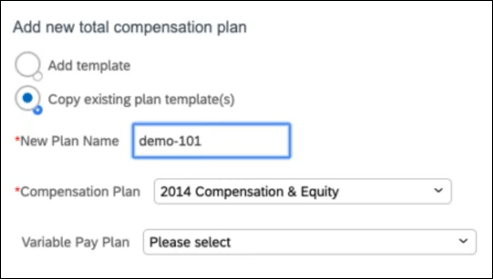
    9. Expanded Flexibility in Total Compensation Plans

    • While creating total compensation plans by copying existing templates, users now have the option to create a plan by selecting an existing Compensation template without also selecting a Variable Pay plan template.
      • This is useful as not all customers are using variable pay
    Total Compensation Plans can be created without having to select variable pay template

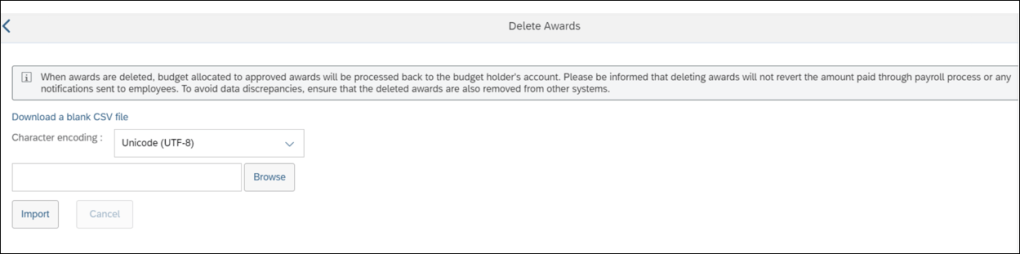
    10. Delete Awards

    • Users can now delete awards, irrespective of their status using the award IDs.
      • Awards that are no longer used can be permanently deleted from the system
    Users now have the ability to delete awards

    See this great article for useful information on how to prepare for a SAP SuccessFactors Regular Release.

    Do you need help implementing or supporting your SAP SuccessFactors Compensation or Variable Pay system?  Contact info@worklogix.com for assistance, download our support services brochure, or visit https://www.worklogix.com/implementation.html for additional information.

  • Optimizing SuccessFactors Standard Compensation Statements

    Optimizing SuccessFactors Standard Compensation Statements

    Photo by Oleg Magni from Pexels

    Compensation Statements may be the most critical aspect to a successful Compensation implementation. Statements are typically the only visibility employees have to the Compensation module and are important in not only communicating final payments to employees but also in letting them know of any other company directives and overall business results.

    Working in Compensation for over 15 years, I have configured a lot of compensation statements. Sure, custom statements in XSL can be created to meet all of the customer’s wildest dreams, but this may not always be needed or possible as customers might be restrained by budget, time, or expertise in maintaining year over year. Standard delivered statements can be used for compensation, templates, variable pay templates, or a combination.

    Admin Center –> Compensation –> Actions for All Plans –> Manage Statement Templates –> Add Template –> from SuccessStore –> choose template type

    My Top 10 List on how to optimize standard compensation statements:

    1. Gather statement requirements early

    Statements are often thought of as an end of the process final product. While they are just that, you will find that if you include statements as part of the early requirements discussion along with the design of the compensation plans, you will end up with a better final product.

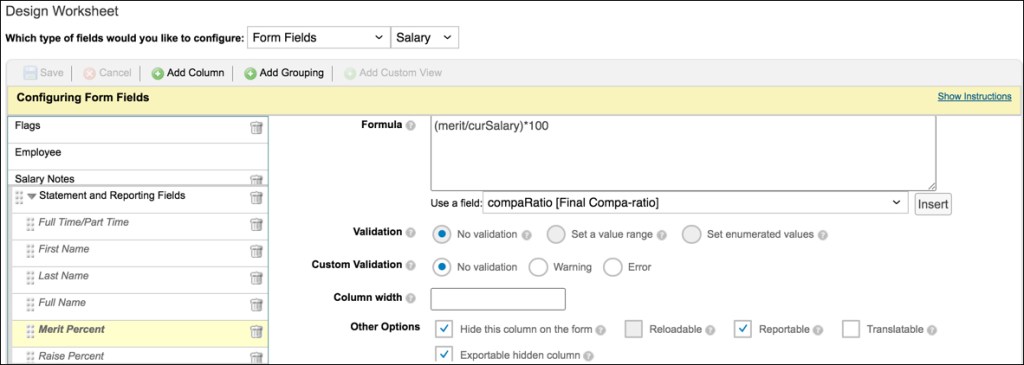
    In order to pull fields of information into the statements, they must be a field in the plan template(s) you are referencing. You can include extra indicative data or calculated fields (such as Merit Percent) or fields that show final values rounded (such as New Annual Salary) in case your customer wants to show nice rounded numbers to the employees. These fields do not need to be made visible during planning, but can be hidden so they are available for display in the statement.

    Example of a custom field marked hidden during planning but that can be pulled into the statement

    2. Take advantage of statement suppression

    In 2019, SuccessFactors enhanced the compensation module to allow for statement suppression. Gone are the days of having to generate and recall statements for employees that you wouldn’t need to communicate awards to.

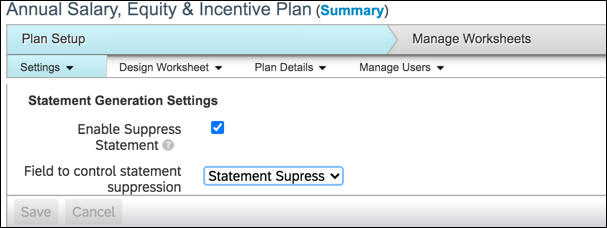
    To start, create a custom column in your template to control the suppression based on the customer’s desired logic. For example, to suppress a statement because of a low rating the custom column could include the formula if(pmRating<2, “FALSE”, “TRUE”). Employees with the value “TRUE” will have statements generated, those with a value of “FALSE” will be suppressed.

    Enable the setting from Plan Setup –> Settings. Select the box for Enable Statement Suppression and use the drop down to select the custom column you have created with your statement suppression logic. When statements are generated, the job status report will list the names whose statements have been suppressed.

    Admin Center –> Compensation –> select template –> Plan Setup –> Settings –> Statement Generation Settings

    3. Make use of sections and conditional formatting for the right side data fields

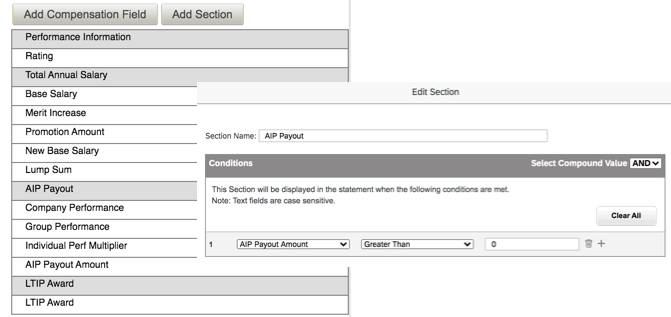
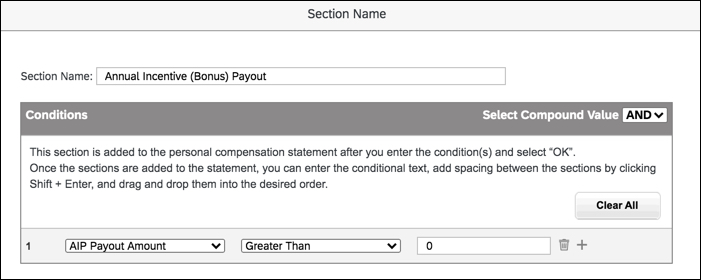
    Group fields of data under Sections to consolidate Performance, Merit, Bonus, and Equity fields depending on the templates used in the statement. Conditional formatting can be added to suppress these groups for instance if the customer wishes to suppress the merit section if the employee had zero for their merit award. Conditional formatting can also be done on the field level in cases where customers wish to show the merit section for example to show salary information but not show the merit award field if amount = 0. This also allows for fields such as promotion or lump sum to only show if applicable to the employee.

    Example of using sections to group similar compensation fields and adding conditional formatting to a section to suppress if the customer does not wish to show in various scenarios

    4. Get the most out of the left side text and logo

    Most of the time, the company logo being used throughout the SuccessFactors tool can be used as the logo in the statement as well. If the customer wants a custom logo, plan for this early as it can take time to the custom logo URL setup and to make sure the look and feel is right. Encourage the customer to use their standard logo if possible for a standard compensation statement.

    Make use of font sizes and typographical emphasis to draw attention to key elements. Typically I use the small size font throughout for text sections. These text sections can be dragged and dropped depending on the order they should appear.

    Conditional formatting can be added here as well to suppress the text section for instance if the customer wishes to only show the section if the amount is greater than 0. The conditional formatting on the left and right side should be configured together so that the logic aligns.

    Typically customers can use the left side text to add in text that is applicable to all employees such as overall company results and any disclaimers that are needed around payment dates and rounding rules.

    Example of using conditional formatting to only show text sections if conditions apply

    5. Keep the statement to 1 page if possible

    Keep in mind the more text and fields you add, the longer the statement becomes. Most customers like to see a concise one page statement.

    The Signature section is not really needed as you can add this to a text box above if the signature is pretty straightforward. The section itself even with no text configured in it can cause the statement to push to the next page as it shows below the text and data sections, even if it just shows a blank second page. This section cannot be removed, but you can trick the system into shortening it significantly if you simply add a few spaces.

    Example of suppressing the signature section by simply adding a few blank spaces

    6. Multi-language requirements aren’t necessarily a show stopper

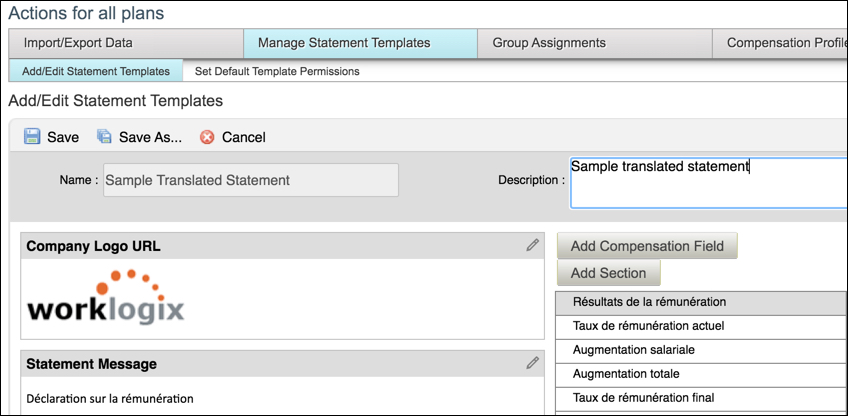
    Standard statements do not typically support multi-language requirements. You can however do a workaround and create translated standard statements using the English version as a baseline for the fields and input the required language into the text boxes and field names. If you have a requirement to translate the plan templates, you have a good start to the translations already for the fields. This process can be tedious, so make sure to have a pretty finalized English version before you start creating additional versions in other languages.

    Example of a translated standard statement into French

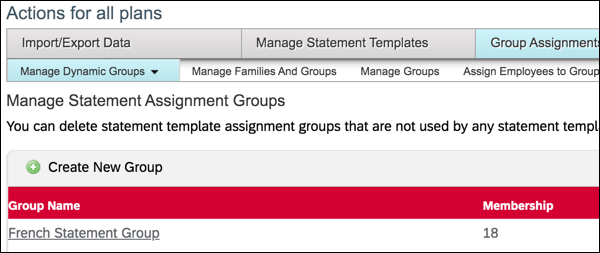
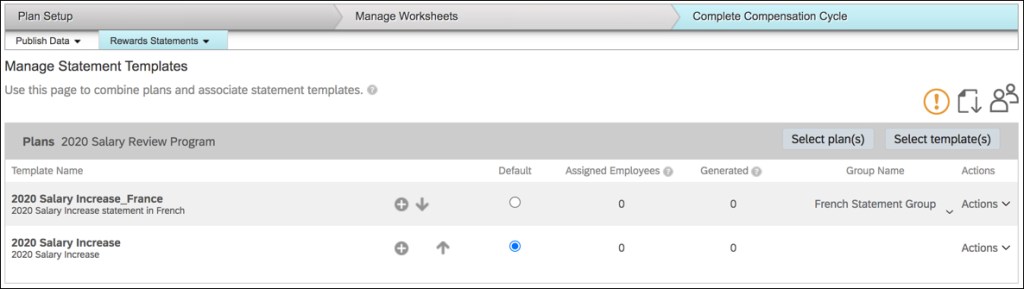
    You can then configure statement groups to tie the translated statements to the groups of employees that need the statement in non-English languages.

    Actions for all plans –> Group Assignments –> Manage Dynamic Group –> Manage Statement Assignment Groups –> Create New Group using required criteria
    Admin Center –> Compensation –> select template –> Complete Compensation Cycle –> Rewards Statements –> Manage Statement Templates –> Add translated statement templates and associated groups

    7. Figure out the roles that will be involved in communicating statements

    Planners are typically responsible for communicating the awards to their employees. They can download statements in several ways from their Completed worksheets or within the People Profile if permissions have been set. Additionally, check with your customer if they wish for the employees themselves to have access to their own statements. If this is the case, typically this is a task scheduled out a few weeks from the initial conversations with managers to open access to employees.

    SuccessFactors recently added the ability to download statements directly from Executive Review. This allows higher level managers as well as HR managers (assuming role based permissions have been granted to allow access to Executive Review) to be able to download their span of control using the Bulk Print Statements button. The icon for bulk download now only appears if the employees have a generated statements based on the filters in Executive Review. In the previous version, the icon was displayed even if statements weren’t generated from recently filtered list.

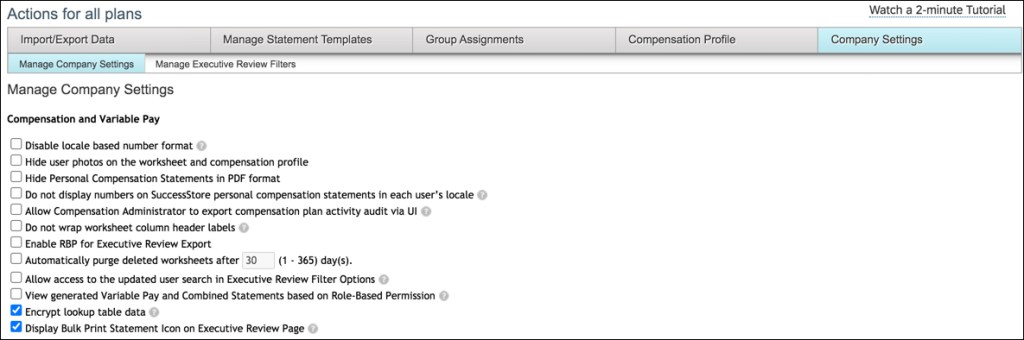
    To activate statement printing from Executive Review, these settings should be established in Company Settings: Disable Hide Personal Compensation Statements in PDF Format & Enable Display Bulk Print Statement Icon on Executive Review

    8. Test early and often

    In addition to gathering statement requirements early, plan to test the statements early as well. Ideally the statement would be part of the early iteration reviews to gather feedback before the frenzy of planning occurs. Create examples of statements to show all the different variations that are possible with the customer such as merit only, merit and lump sum, lump sum only, etc. If you wait until the planning is occurring in Production, you are no longer able to add or edit fields that customers may request in the statement.

    Also test the role based permissions and the process for how and when the various roles would download the statements. This will prevent any headaches down the road when the timing is tight to review and open statement access to HR, managers, and/or employees in Production.

    9. Make use of standard Email Notifications

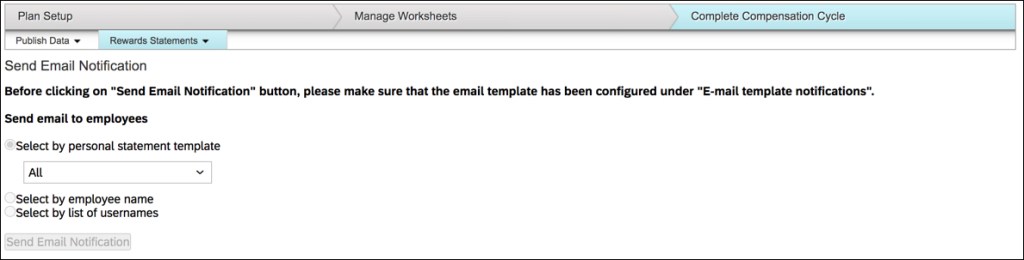
    If the employees will be able to access their own statements, there is a standard email notification that can be sent. The email text can be setup in E-Mail Notification Template Settings. This will allow for Compensation Administrators to send specific text to employees or groups of employees letting them know that their statements are available and how to navigate in the system to find them.
    Admin Center –> Compensation –> select template –> Complete Compensation Cycle –> Rewards Statements –> Send Email Notification

    10. Finalize with a smooth move to Production
    Validate any final changes with the customer. Company numbers and final performance may come in just prior to statement generation so an additional validation of the text sections especially is suggested.

    You can recreate the statements in each environment, but I suggest to make all changes in the lowest environment and then download and upload them instead. This takes away some flexibility in making last minute changes in Production but keeps the environments consistent and encourages testing to be done in the lower environments before moving to Production.