SAP SuccessFactors has some exciting new features for your Analytics & Reporting solutions. They can be found in detail here (S-User ID required). Filter on Solutions for Analytics to review all the latest changes. Under the Description for each, you can click on ‘See More’ to see screenshots and detailed information.
As a reminder, preview release was on October 15 and production will be released November 19. For full details on the release cycle, check out the SAP SuccessFactors official product updates blog here. New to the release process? For tips on how to manage a release, check out our blog here.
After reviewing all the changes, we narrowed the list down to the Highlights for H2 2021SAP SuccessFactors Analytics/Reporting Features:
Audit Trail Now Reportable in Stories in People Analytics
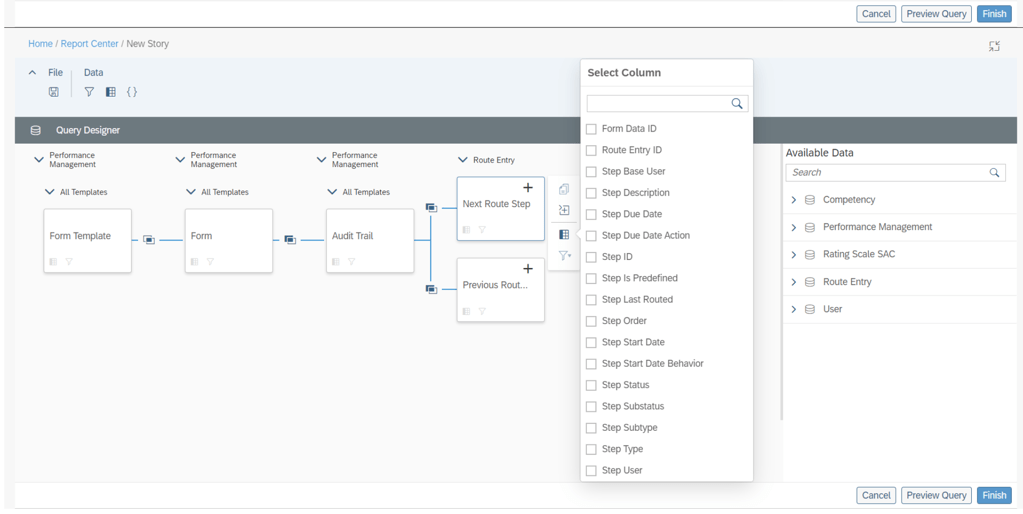
Users can now use Stories in People Analytics to report the audit trail records of form completed steps, including step owner and step action.
This new feature allows you to track the routing details of Performance Management forms in a consolidated report.
Additional columns available to report on step details
Increase in the Number of Columns Supported for Learning Queries in Story Reports
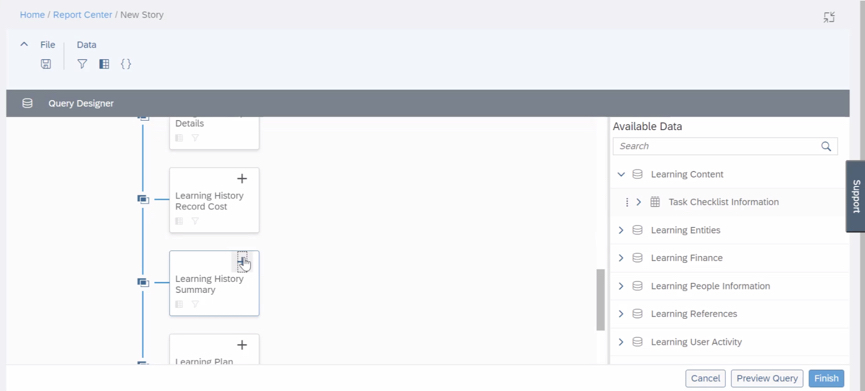
The number of columns that you can select while creating a Learning query has been increased from 30 to 120.
You can now create more complex queries due to the increase in number of columns.
Notes of People Profile Now Reportable in Stories in People Analytics
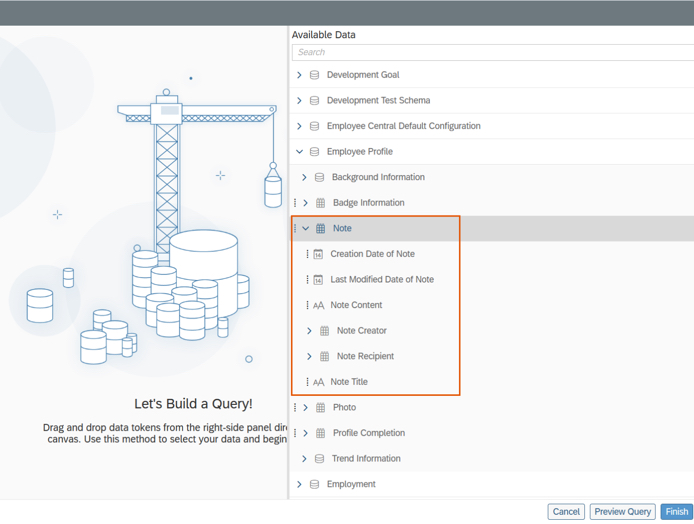
Users can now use Stories in People Analytics to report the notes of People Profile. Information about notes that can be reported includes:
Note content
Note titles
Note creators
Note recipients
Last modified dates
Creation dates
Notes of People Profile are now reportable
Query Validation for Story Reports
The queries in Story reports are now checked for errors whenever you choose Preview or Finish on the Query Designer page.
The validation checks return a list of missing or erroneous columns, calculations, and filters used in the query.
Inline Translation for Story Reports
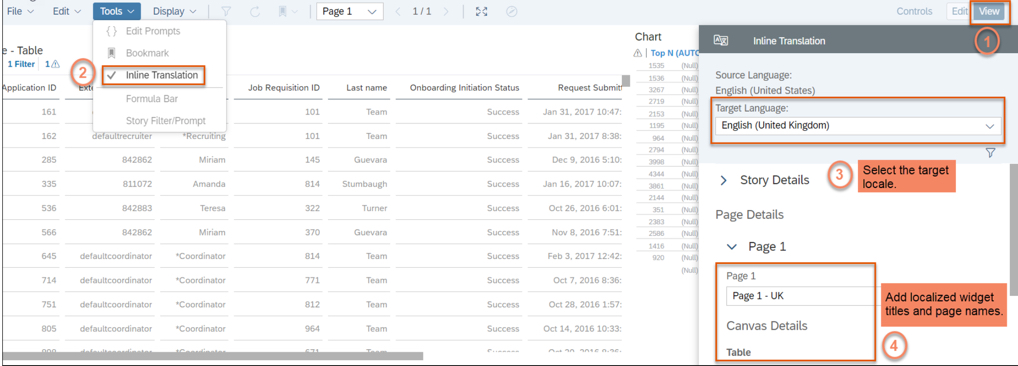
You can now add localized values for widget titles and page names in Story reports.
Note: After you enable inline translation in a story, you can edit it only in the source language. When you enable inline translation in the story, your current locale becomes the source language for the story.
The ability to add localized widget titles and page names enhances the user experience for Story reports.
The latest release updates are here! In this article we take a quick look at the latest updates for SAP SuccessFactors Onboarding 2.0. Preview release is October 15 and production is November 19. You can view the full set of documentation in the What’s New Viewer here. For full details on the release cycle, check out the SAP SuccessFactors official product updates blog here. Let’s get started! We’ve categorized the enhancements below for you!
Security Enhancements
In the category of security, there’s been an enhancement to proxy where you now have more granular control over whether or not a person who can proxy has access to onboarding. You can select the check box on the Proxy Management screen.
In addition to US I-9, the Canadian TD1form for all provinces is now supported. The New Zealand KS2 KiwiSaver deduction form, Tax code Declaration, and Tax rate notification for contractor forms are now supported.
Qualtrics Integration
SAP continues to further their integrations with Qualtrics across the board. There’s now a new Intelligent Services event to send internal hire information to Qualtrics. This allows you to send email surveys to employees when the internal hire step is completed. There is a new configuration screen that makes this setup easy! It is shown below:
New Hire Enhancements
A few enhancements have been made to the new hire experience. New Hires can now complete the onboarding process on the homepage. There’s new “To Do” tasks that show up for onboarding here for the new hires such as compliance tasks and completing personal data collection.
New hires can also now access LMS courses before their first day of work as shown below!
The complete new hire experience for the home page can now be done on the latest version of the homepage.
Hiring Manager / Admin Enhancements
In addition to new hire experience, the hiring manager and admin experiences have seen some updates as well. Future Managers can also now access information about their new hires in the onboarding dashboard and “To Do” tasks. Role-based permissions also now allow you to assign based on this new future manager relationship.
The Restart process for onboarding has also been enhanced so that you can choose whether or not to retain data or instead reload from recruiting.
General Process Enhancements / Behind The Scenes Enhancements
Behind the scenes, there’s been some other updates as well!
When it comes to picklists, the mapping from recruiting to employee central can be a pain. The system has now been updated to map based on a series of potential exact matches rather than just on labels. First, the system will attempt to map based on the option id since this is the most unique identifier. If no exact match is found, then mapping is performed via label using the external code value. If no external code is available, then the label alone is used.
Also behind the scenes, when a major patch/release is deployed to the system, the default onboarding process in the Business Process Engine is now automatically upgraded. Previously, an admin had to manually upgrade the flow.
The rehire process has also been enhanced to make life easier for admins managing this process. Values such as date of birth, national id, legal entity, and user records can now be seen as shown below:
No shows and rehires are handled better as ell. The value “No Show” has been added as an event reason for cancelling the second rehire check. There is also a new welcome email template specifically designed for rehires.
Conclusion
The SAP SuccessFactors Onboarding product continues to grow and become increasingly more robust! This does not represent all of the enhancements in the H2 2021 release – only the highlights we found most compelling. Check out the What’s New Viewer here for the complete list of enhancements.
See this great article for useful information on how to prepare for a SAP SuccessFactors Regular Release.
SAP SuccessFactors has some exciting new features for your Compensation Solution. They can be found in detail here (S-User ID required). Filter on Solutions for Compensation to review all of the latest changes. Under the Description for each, you can click on ‘See More’ to see screenshots and detailed information.
As a reminder, preview release was April 16th and production will be released May 21st.
After reviewing all the changes, I narrowed the list down to the Highlights for H1 2021Compensation:
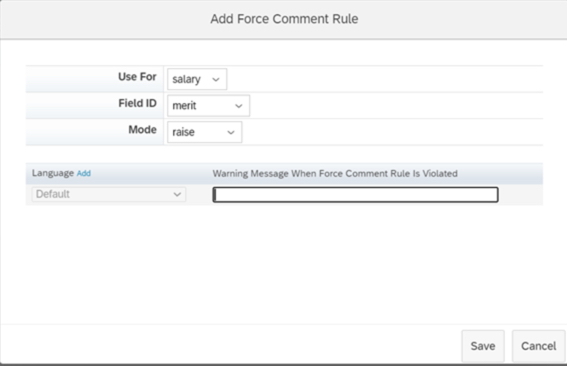
1. Ability to Configure Force Comments on Compensation Worksheets
Previously configuring forcing comments had to occur within the XML, now it can be done within Comp Admin Tools.
You can navigate to Design Worksheet – Define Standard Validation Rules to configure this functionality. The Force Comments feature is optional. When configured, you control whether users must enter comments under the following conditions:
An employee doesn’t receive a raise. Managers didn’t enter a value in a field configured to force comments.
An employee receives a raise. Managers entered a value in a field configured to force comment.
An employee receives a raise that is outside guidelines. Managers entered a value that doesn’t comply with guidelines in a field configured with force comments
Force Comments rules can now be configured via Admin Tools
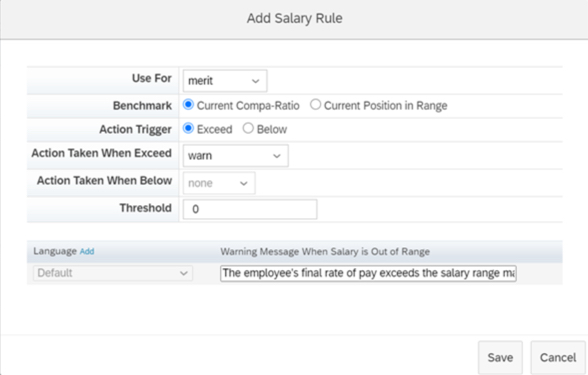
2. Salary Validation Rules Added to Compensation Worksheets
Previously configuring Salary Validation Rules had to occur within the XML, now it can be done within Comp Admin Tools.
You define rules to compare amounts using either compa-ratio or range penetration benchmarks. Configure what action the system takes when amounts exceed threshold percentages for lump sum amounts or fall below or exceed threshold percentages for merit amounts.
Salary rules can now be configured via Admin Tools
3. Compensation Worksheets Support Five Custom Validations
With this release, you can define up to five custom validations for fields in Compensation templates and configure how the system responds when validations fail, with either a warning or an error. The system processes the worksheet only after the error is corrected.
Previously, the maximum number of validations per template was three. This is especially helpful if you have complex calculations or are using 1 form for multiple plans.
Example of custom validation. Now users can define up to 5 custom validations.
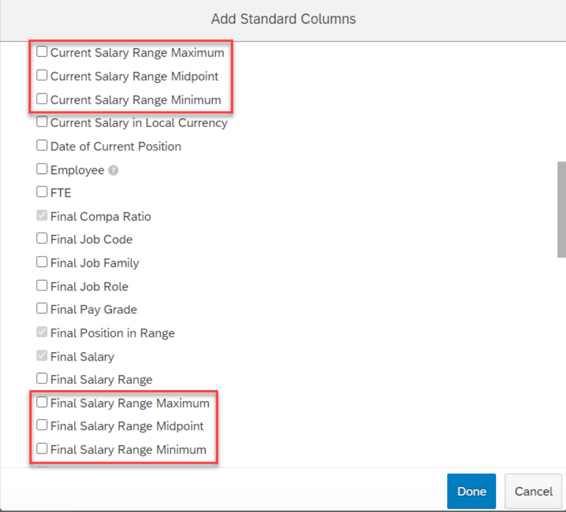
4. Current and Final Pay Ranges Configurable Through the Compensation Column Designer
You can now configure minimum, midpoint, and maximum values for current and final pay ranges through Compensation template’s column designer.
Previously, these fields weren’t available in the template configuration. There were two fields (Current Pay Range and Final Pay Range) in the min-mid-max format.
With this release, minimum, midpoint, and maximum are available as independent fields.
Separate columns exist now for Salary Range fields
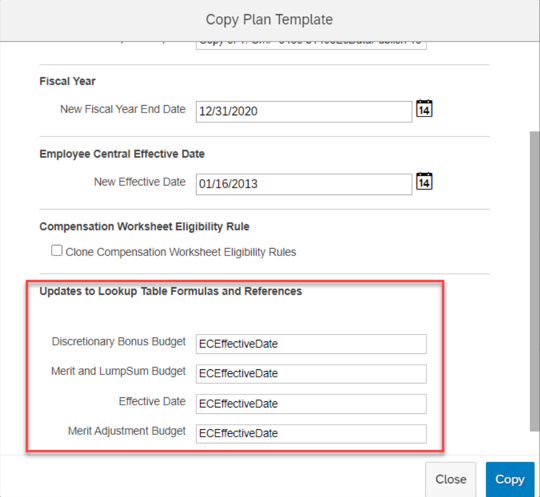
5. Update Lookup Table Formulas and References When Cloning Compensation Templates
Now when cloning Compensation templates, you can update lookup tables and references at the same time. A new section has been added to the Copy Plan Templates page, enabling you to view and edit the custom formulas and references from lookup tables on the original template.
Previously, you had to manually search through the original template’s XML file, looking for all lookup tables associated with it.
Cloning compensation templates allows for updating lookup tables and references
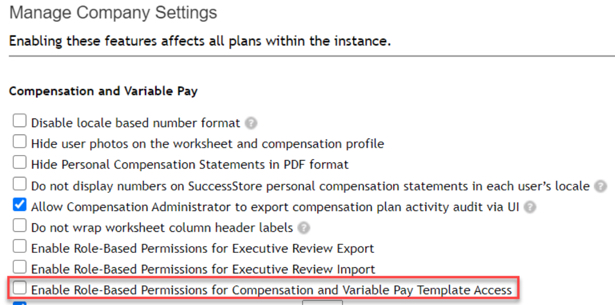
6. Administrative Permissions for Individual Compensation Templates
A new Role-based Permission has been added to assign administrative permissions on a template level.
Previously, access had to be granted to all or no templates.
Template access can be granted per individual template
7. Filter Enhancements Added to Compensation Executive Reviews
Enhanced filtering was added to Executive Review, new filters include:
Filter based on standard or custom reportable columns
Filter on compa-ratio and range penetration
Filter on Compensation planners
Filter based on entry in Comments fields
Filter based on promotions
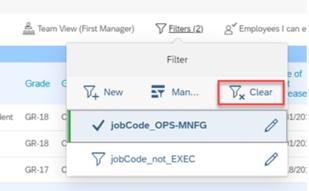
To enable enhanced filtering, you must select the Enable Advanced Executive Review Filters option on the Actions for all Plans – Company Settings page.
Enhanced Filter capabilities now exist in Executive Review
8. Compensation and Variable Pay Reports are now available for download in Report Center
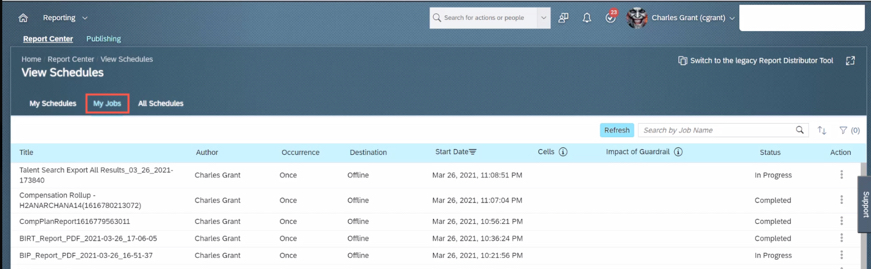
You can now download the reports from the My Jobs page within View Schedules in Report Center.
Previously, report outputs (i.e. Executive Review exports) were available for download on the Scheduled Reports page in classic view. This caused confusion for users on how to get to their reports by having to direct them to Switch to Classic View.
You can review my other blog post for more changes to Reporting for this release.
Executive Review export can now be accessed via My Jobs
9. Application of Eligibility Rules for Individual Compensation Worksheets After Launching
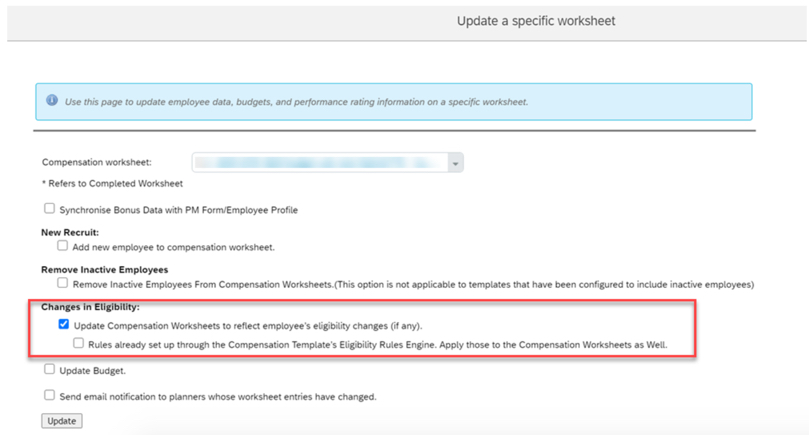
You can now reapply eligibility rules to a specific Compensation worksheet that you have already launched.
In previous releases, you could only reapply eligibility rules to all worksheets.
Eligibility can now be applied to individual worksheet updates
10. Publish Compensation Employees to Employee Central by Import Using CSV File
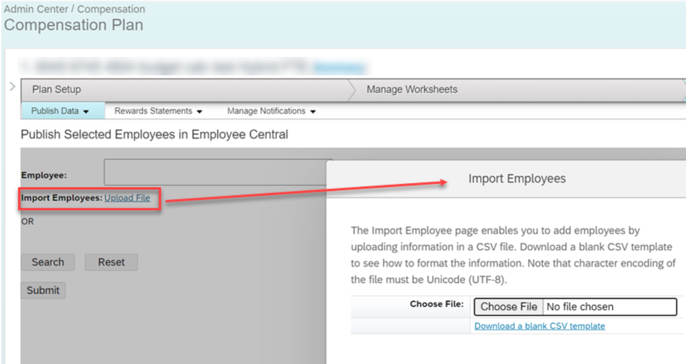
The Publish Selected Employees in Employee Central page has a new option, Import Employees. This allows publishing by importing them from a CSV file
Previously, you could publish multiple employees, but you needed to search and select them individually.
Publishing can now be done based on an imported file
SAP SuccessFactors has some exciting new features for your Analytics & Reporting Solutions. They can be found in detail here (S-User ID required). Filter on Solutions for Analytics to review all of the latest changes. Under the Description for each, you can click on ‘See More’ to see screenshots and detailed information.
After reviewing all the changes, we narrowed the list down to the Highlights for H1 2021 SAP SuccessFactors Analytics/Reporting Features:
Calibration, Succession, and Compensation and Variable Pay Reports Now Available for Download in Report Center
Previously, the reports were available for download on the Scheduled Reports page in classic view. This caused confusion for users on how to get to their reports by having to direct them to Switch to Classic View.
You can now download the reports from the My Jobs page within View Schedules in Report Center.
Reports can now be accessed via My Jobs
2. All User Info Fields Are Now Available in Story Reports
You no longer need to set a User Info field as Reportable to make it available in Story reports.
All the User Info fields are now automatically available for reporting using Stories in People Analytics.
3. Stories in People Analytics for SAP SuccessFactors Learning
You can now create, access, and share Learning stories in People Analytics for generating custom Learning reports.
You can also have the data of SAP SuccessFactors Learning and other modules side-by-side in the same story and link them to apply common filters on them.
Stories in People Analytics for SAP SuccessFactors Learning
4. Increase in Number of Columns Supported in Queries of Story Reports
The number of columns that you can select while creating a query has been increased from 30 to 120.
You can now create complex or detailed queries that involve more than 30 columns.
5. UI Enhancements for Stories in People Analytics
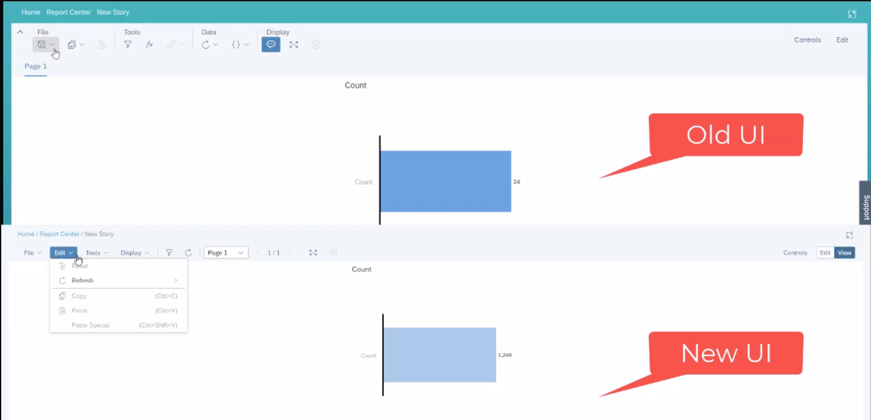
The UI enhancements on the viewer mode include:
An updated Display menu, which now has the Tab Bar, and the Comment Mode options. By default, the page dropdown view appears. The multiple pages in tab view now appear when you select the Tab Bar option.
Separate File and Edit menus.
Removal of the Data menu. The refresh option has moved into the Edit menu and the edit prompt option has moved into the Tools menu.
In the SAP SuccessFactors Onboarding H1 2021 release, we’ve mainly seen updates to compliance forms and processes as well as some user experience enhancements and security Features. Let’s take a look at what’s new in the Onboarding module below!
Compliance Forms & Processes
As expected, SAP continues to expand the number of compliance forms supported. In this release SAP has included these forms:
In addition, reporting information is also now available for I-9 and E-Verify data so that you can create Stories in in People Analytics using the information.
In addition to compliance features, there’s some nice enhancements to user experience. Of all the modules, I think onboarding is one of the more confusing to navigate as an admin user and these enhancements help address this issue. Let’s take a look!
First, users can now navigate directly to the onboarding dashboard from the global navigation (early adoption feature). I personally liked this one because when I first started with Onboarding, I was used to the main page of every module being accessible through the navigation menu – onboarding was the only one where you had to click on a home page tile instead. I think this will provide some nice consistency for users.
In addition to easier navigation to the dashboard, its features have also been enhanced. Here’s a list of the new feaures:
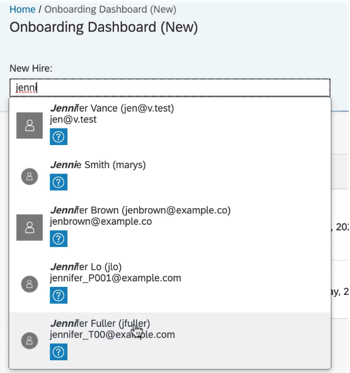
New Hire Search – allows onboarding users to type a name to search through new hires
Checklist Task – can now be viewed under “New Hire Tasks”, items can be added for a specific user using the “Delegated” drop down (delegates can also be notified via email when the task is assigned to them), and under “View Details” users can edit the checklist tasks,
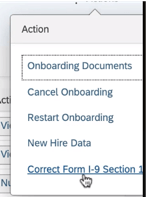
I-9 – corrections to section 1 can now be initiated from the “New Hire Details” action menu
E-Verify – view details from the “E-Verify Case Details” link on the “New Hire Details” screen
User Search
Correct I-9 from the Action Menu
Its great to see the dashboard getting some new features to make transitioning between screens easier!
Next, the locale for external users of Onboarding will now be updated automatically based on their recruiting settings. This is a common sense win. Locale can also be set when manually adding users via the “Add New Hire to Onboarding” screen. If no value is specified in either scenario, the locale will default to the default language set in provisioning.
Security Features
In addition to compliance enhancements and improvements to usability, there’s a few cool security features worth mentioning.
First, the target population for the external user target population can now be based on the division, department, and location of the user. This allows organizations to have multiple admins specific to division, department, and/or location rather than just admins who can see the whole new user population.
Last, read access audit logs for onboarding have been enhanced to show context and reason why sensitive fields were accessed (e.g. through the UI, or APIs, or a downloaded document). This is designed to give auditors better understanding of why data was accessed.
Wrap up
I hope you’ve enjoyed this quick review of the latest Onboarding features available in the H1 2021 release! Do you need help managing your SuccessFactors Release cycles? Download our support services brochure or email info@worklogix.com to see how we can help!
With so many jobs lost, we all need to hunker down and concentrate on keeping our current jobs until things get better right? Nothing could be further from the truth!
Realizing the Need
Just last week, I had a call with a customer who wanted to re-examine their Succession Management process. They had the system set up. They didn’t really use it. Then COVID hit. Like many companies, the organization underwent a lot of changes and left a lot of resource gaps. Now they are realizing they could have been better prepared and are looking to quickly ramp back up their succession process. They are not alone.
Throughout this year, I’ve had the pleasure of serving on HR.com‘s advisory board for Internal Mobility, Succession, and Career Development. The organization just recently published the results of the cross-industry study we board members helped create. From what I see, the survey results are consistent with what I am seeing in the example I described above. Let’s take a closer look at the facts!
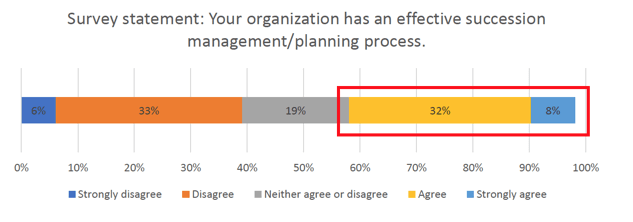
First off, most organizations recognize they don’t have an effective succession management and/or planning process in place. In addition to only 40% of companies agreeing or strongly agreeing that their process is effective as shown below, another survey question revealed that only 26% have a succession management system in place.
Source: HR.com’s Internal Mobility Webinar Nov 5, 2020
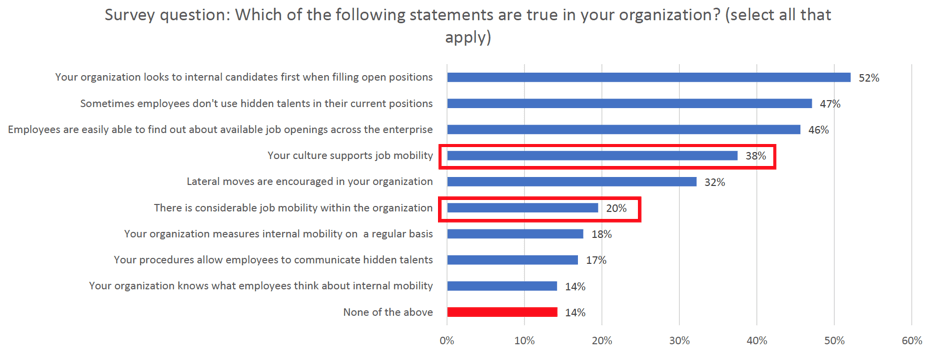
Furthermore, the survey also found that only about 1 in 5 companies have considerable job mobility within the organization.
Source: HR.com’s Internal Mobility Webinar Nov 5, 2020
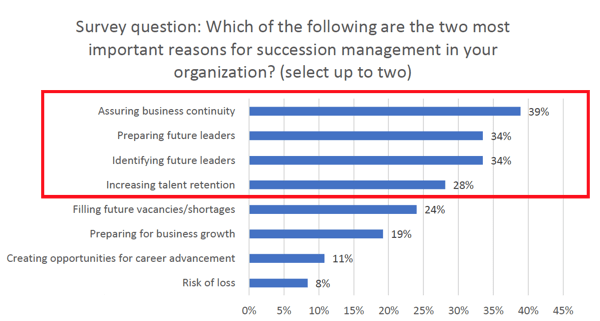
At the same time, companies realize that business continuity (e.g. keeping the lights on!) is the most important reason to promote succession management and internal mobility.
Source: HR.com’s Internal Mobility Webinar Nov 5, 2020
Recognizing The Gap
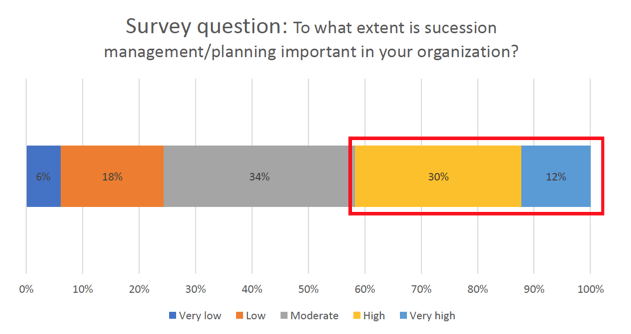
So let’s get this straight, companies recognize that Succession and Internal Mobility are important, but they don’t currently have good systems and processes in place to support them. So why don’t more companies get their Succession Management systems and processes up and running? The problem is, most organizations don’t consider Succession Management important to the organization.
Source: HR.com’s Internal Mobility Webinar Nov 5, 2020
The gap here is that the process really is important for the reasons these companies have already realize and just not acted up (remember what we said about keeping the lights on?). And many companies right now are starting to realize this the hard way during COVID as employees leave both voluntarily and involuntarily and large resource gaps are being felt because of this process gap. I can only attribute this trend to “perception” since the facts point to a real need here. I think it is time to end this perception!
Is It Worth The Investment?
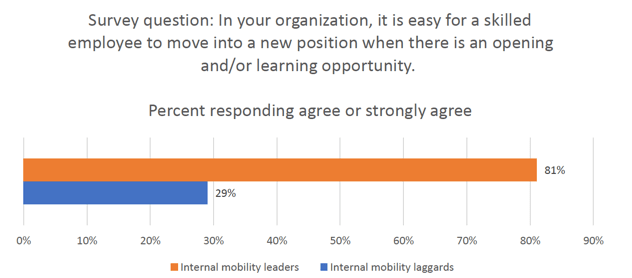
If I invest in a Succession and Development Management strategy, is it really going to work? The answer is “Yes!” The survey found overwhelmingly that those organizations who are internal mobility leaders, it is easier for employees to move to new positions. Making it easy for employees to move from one position to another makes it easier to fill critical roles with people your organization already knows and trusts rather than going through the expense and risk of recruiting externally (which many companies are still unable to do at all at the moment with some still experiencing hiring freezes).
Source: HR.com’s Internal Mobility Webinar Nov 5, 2020
OK, I get it, I need Succession and Internal Mobility! How do I get started?
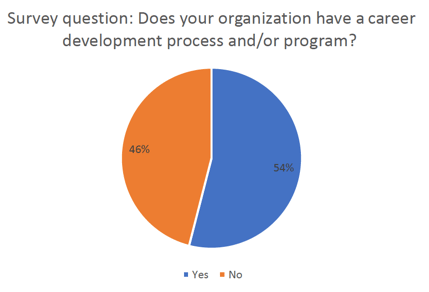
There’s a ton of ways! We’ve talked a lot about Succession Management – which involves tagging which roles are critical to the organization and identifying how to fill those roles. This can help you define who to develop and what they need to develop. But of course, that means investing in employee development itself! Not surprisingly, the survey found a similar trend here. Almost half of companies reported they did not have a development process or program!
Source: HR.com’s Internal Mobility Webinar Nov 5, 2020
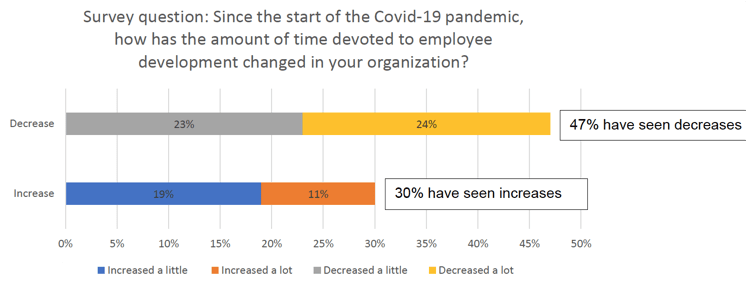
What’s more frightening, is that during the Pandemic, when the concentration should be on developing the fewer employees many companies are trying to make more effective, the opposite seems to be happening. 47% of companies saw decreases in employee development.
Source: HR.com’s Internal Mobility Webinar Nov 5, 2020
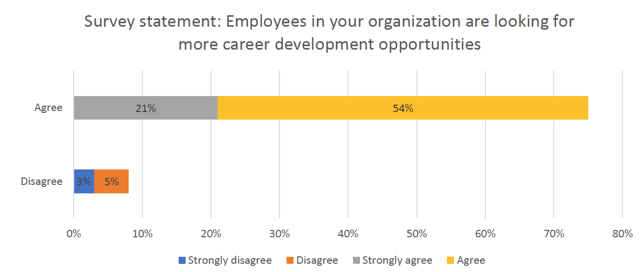
At the same time, employee demand for development opportunities has increased! 75% of companies saw that employees are looking for development opportunities!
Source: HR.com’s Internal Mobility Webinar Nov 5, 2020
Once again, there is a huge disconnect which helps explain further why many company strategies are out of alignment with the needs. Only once employees are able to develop their skills and competencies in order to meet the needs of critical roles will they will be ready to start filling those critical roles.
There are a lot of specific strategies companies are using the promote internal mobility and fill their succession management strategies. To find out more information about the different approaches companies are taking to implement their Succession and Development Strategies, you can download the full survey at HR.com or contact info@worklogix.com to talk more about your strategy!
For more information about Succession Management and other talent management modules in SAP SuccessFactors, check out our book here!
SAP SuccessFactors has some exciting new features for your Compensation & Variable Pay Solutions. They can be found in detail here (S-User ID required). Filter on Solutions for Compensation to review all of the latest changes. Under the Description for each, you can click on ‘See More’ to see screenshots and detailed information.
As a reminder, preview release will be October 16 and production will be released November 20th.
After reviewing all the changes, we narrowed the list down to the Highlights for H2 2020Compensation & Variable Pay & Reward and Recognition:
1. New Layouts for Statement Templates
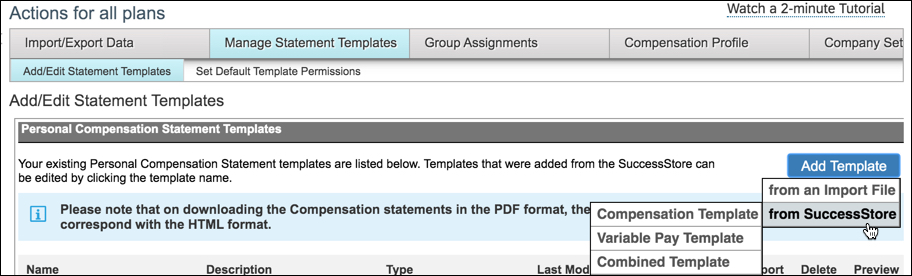
Additional flexibility has been added for standard compensation statements
The new layouts are available for Compensation, Variable Pay, and Combined statement templates to support right-to-left (RTL) compliance. Previously, Compensation fields were always displayed to the right of text section in statements. This will allow for a more custom look and feel to better suit your needs.
The new statement template layout increases usability and improves user experience with Compensation statements. See my earlier blog post for other tips on optimizing standard statements.
After selecting template from SuccessStore, you will now you have the flexibility to display Compensation fields to the right, left, or below the text section of statements.
2. Promotion Planning and Job Selector Within Compensation Template
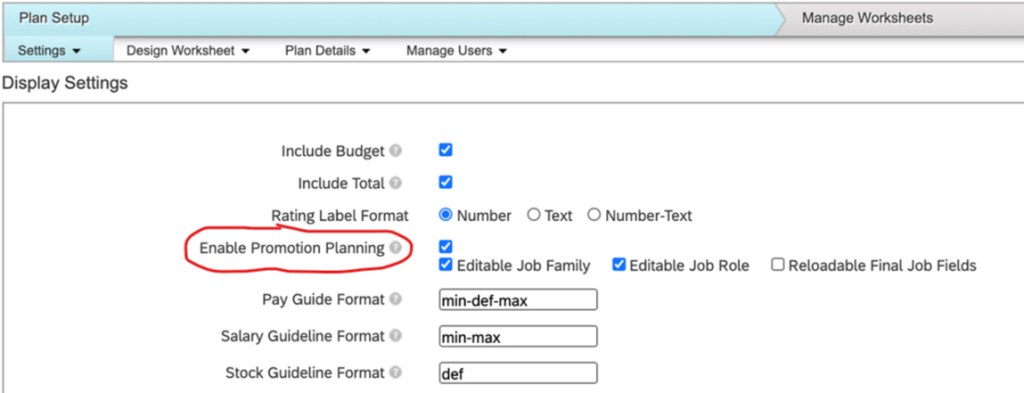
You can now enable promotion planning and job selector functionality at the compensation template level.
When you select Enable Promotion Planning, the system displays three parameters related to job selector functionality: Enable Promotion Planning, Editable Job Family, Editable Job Role, and Reloadable Final Job Fields.
End users can Enable Promotion Planning directly in the template instead of the XML
3. Configuration of Calculated Pay Range on the Basis of Post-Promotion Information
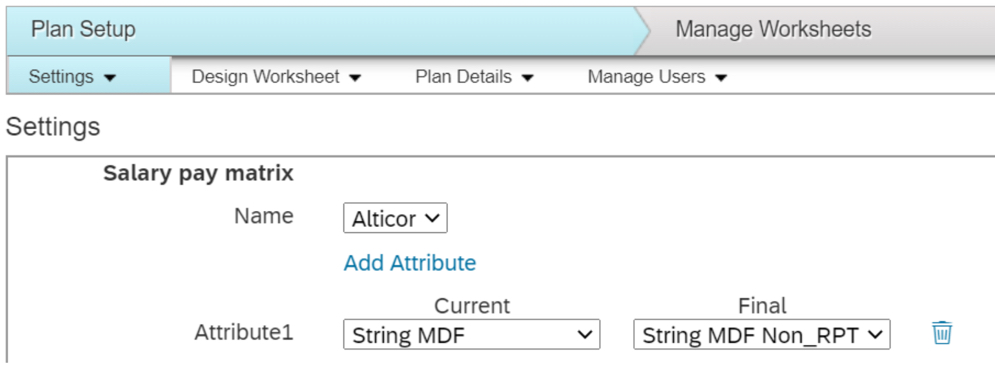
A new setting has been added to allow you to directly maintain the post promotion fields to be used when calculating the final pay range for a promoted employee. In most cases, the final pay range is based on post-promotion information.
Post Promotion attribute to be used to determine final pay range can be defined in Settings
4. Promotion Data Available in Compensation Report
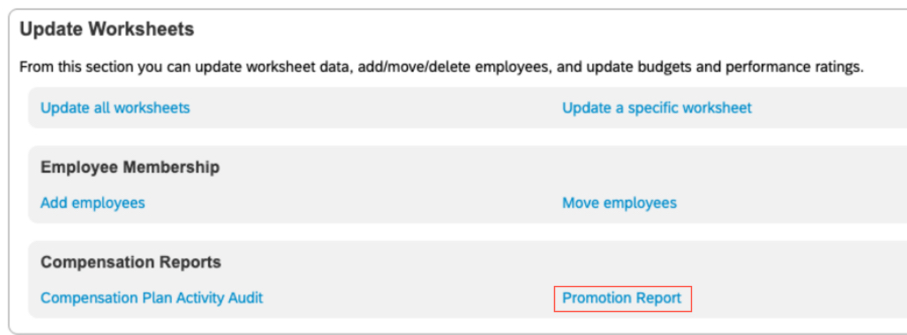
New functionality was created to allow users to create worksheet reports containing promotion-based information for employees. The system exports data from Employee Central for EC-enabled templates and from job selector fields within compensation for worksheets that aren’t EC-enabled.
Previously you would have to manually go employee-by-employee through your worksheets to review promotion information, which can be time consuming for large groups of employees.
Click here for details on the Role-Based Permissions that are needed for this report.
Promotion report can be found under Admin Center –> Compensation –> select template –> Manage Worksheets
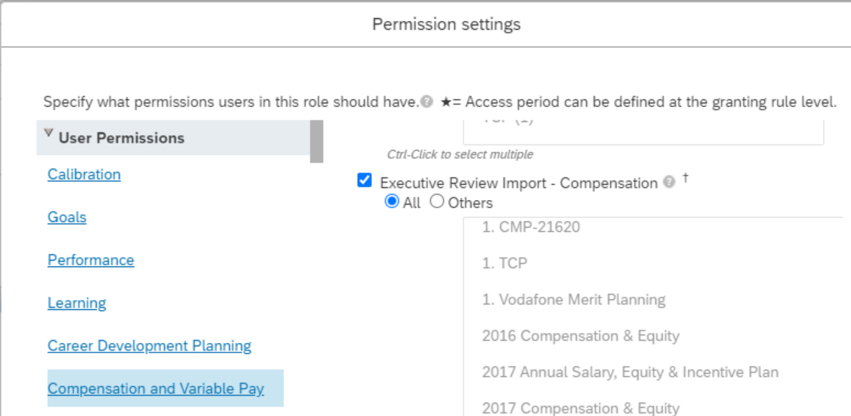
5. Role-Based Permission to Control Import of Executive Review Information
You can now use Role-Based Permissions (RBP) to control who can import data into Executive Review. You can allow access to every template or specify individual templates to which the RBP applies.
Previously when you enabled compensation excel offline edit, all users with Executive Review access would have seen the Import button.
You can now control who has access to Import into Executive Review and which templates they can do this for
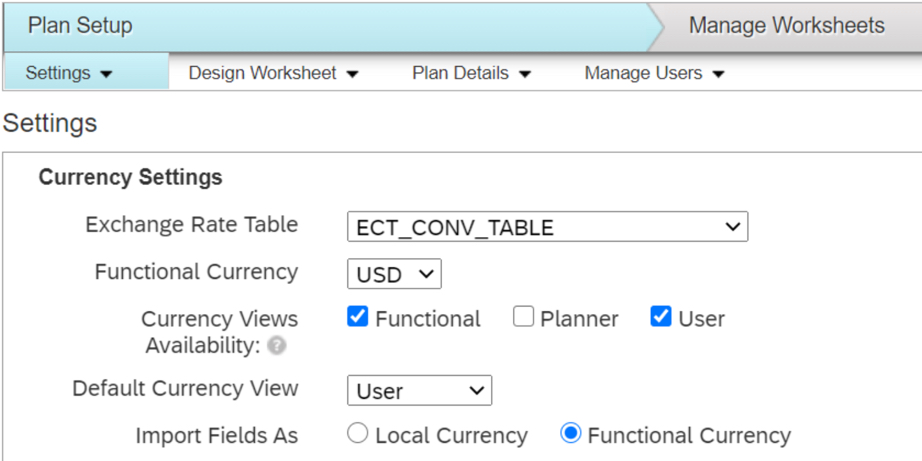
6. Currency Views Availability Field Added to Compensation Plans
Users can now select which currency views are available per template.
This functionality was previously only available for Variable Pay plans and Total Compensation plans.
Currency Views allow users to toggle between Functional, Planner, or User (Local) Currency
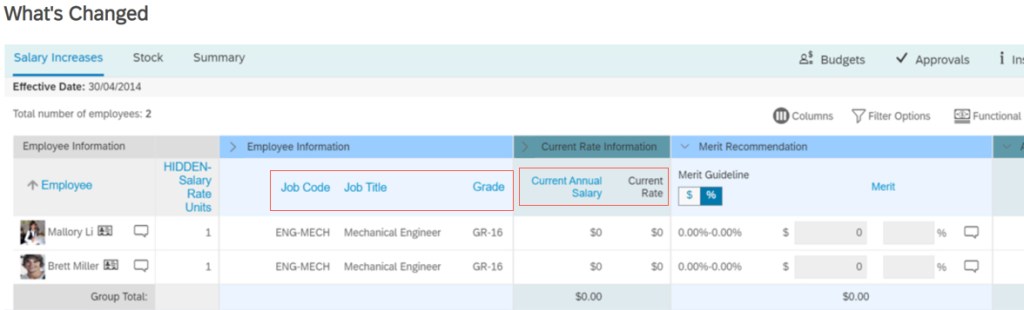
7. Configure Compensation Worksheets to Display Multiple Columns for Collapsed Groups
Users can now configure the system to display multiple columns for a collapsed group on a compensation worksheet.
This allows greater flexibility when setting up the worksheet and can allow for better look and feel for end users while saving real estate.
In the example above, several columns appear in the collapsed groups instead of just one
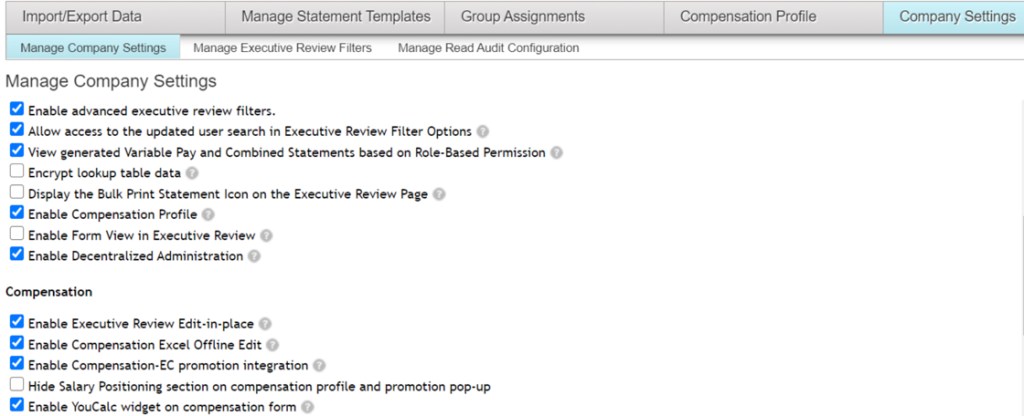
8. Compensation Provisioning Settings Available on Company Settings Page
You can now configure fields on the Display Settings and Settings pages that you previously needed to set by modifying through the XML file.
Enable YouCalc widget on compensation form
Enable Compensation Profile
Enable Form View in Executive Review
Enable Decentralized Administration
Additional company settings added for compensation administrators to access
9. XML Attributes for Compensation Added to Display Settings Page
You can now configure fields on the Company Settings page that you previously needed to set by modifying through Provisioning.
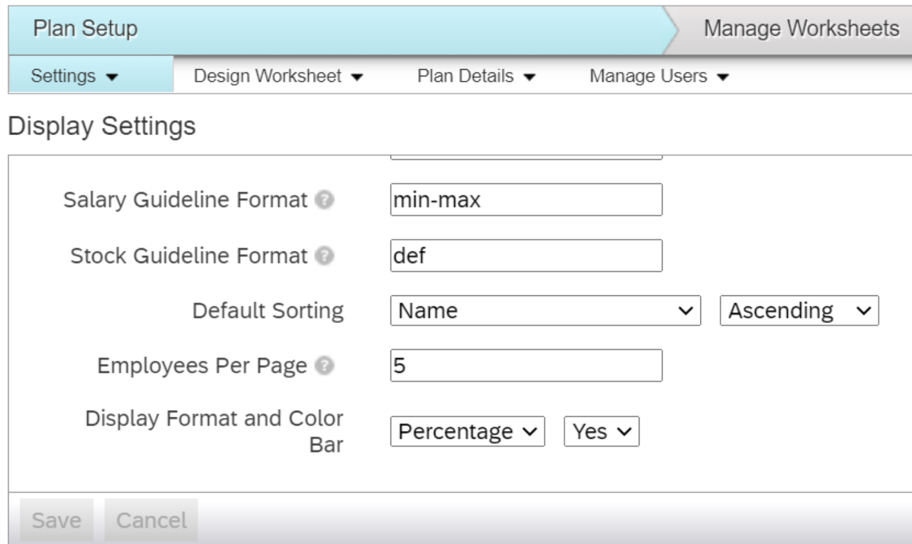
Default Sorting
Employees Per Page (now up to 100 employees per page)
Display Format and Color Bar (Compa-Ratio)
Additional settings added for compensation administrators to access
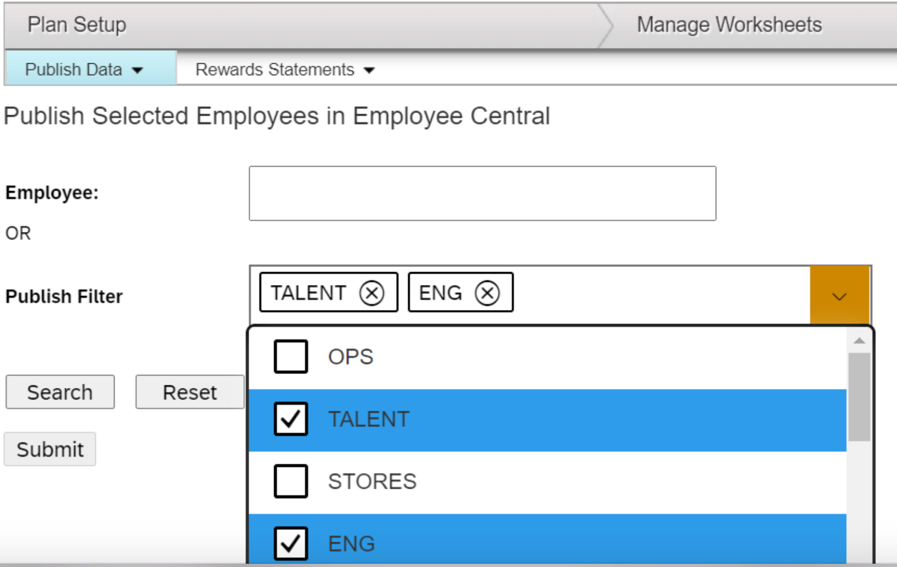
10. Multi-Select Filtering Supported Within Compensation When Publishing Employees in Employee Central
You can select multiple filtering reportable fields when using the Publishing Selected Employees in Employee Central functionality.
This allows for increases flexibility when publishing data back to EC.
Multiple fields can now be selected to publish by
See this great article for useful information on how to prepare for a SAP SuccessFactors Regular Release.
Lately, in a variety of customer engagements for various SAP SuccessFactors modules, I’ve had to bring up the topic of the Job Profile Builder. As a relatively new feature that touches every module, it’s really no wonder! But there’s still a lot of customers who aren’t quite familiar with it. This blog should give you an understanding of what the Job Profile builder is, why you would want to use it, and an overview of what it takes to go about setting it up.
What is the Job Profile Builder?
The Job Profile Builder is an important SuccessFactors Platform feature that enables customers to build and organize a catalog of well-formed jobs. So what exactly is a “job”? If you are familiar with position management in HRIS systems, you’ll know to traditionally think of positions as a seat. One person sites in one seat (I know there’s some exceptions, but let’t not get complicated here). Jobs are an abstraction above positions. So where there might be a Maintenance Tech I position who services a building in San Francisco, there’s also a Maintenance Tech I position in Seattle that does the same thing but is a unique instantiation of a position from the San Francisco position. The job describes the common tasks, required skills, education, & competencies, etc. for these positions. If you’d like an idea of what kinds of information companies associate with a job regardless of the system they use, Mercer has a great article here.
What Benefit Does it Provide?
Quite a few benefits are to be had with a well maintained job catalog. From a business process perspective, it will help you categorize and regulate your positions. For example, standardizing pay bands, required competency levels, government classifications, etc. On the Successfactors side, the Job Profile Builder integrates across all modules and can greatly reduce redundant data entry while helping facilitate the business process benefits. The following integrations are available with the job profile builder:
Employee Central: Direct association with positions in Position Management
Performance Management: Automatic Assignment of Competencies
Succession Management: Successor suggestions based on competency assessments
Compensation: Derive compa-ratio based on link with job grade
Recruiting: Automatic population of job posting description from job profile
Workforce Analytics: Planning based on required job Competencies
LMS: Assigning learning content based on job
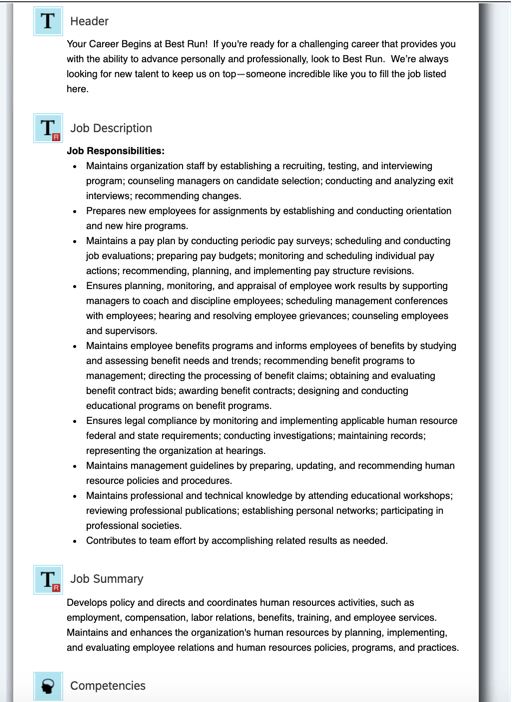
In the example screenshot below, we can see how the recruiting integration automatically pulls the job description from the job profile for internal and external requisition postings. This can save your recruiters a great amount of time having to re-type job descriptions for each posting.
Example Job Profile Integration with Recruiting
How does Job Profile Builder work?
There are 3 major components and corresponding configuration screens of the Job Profile builder:
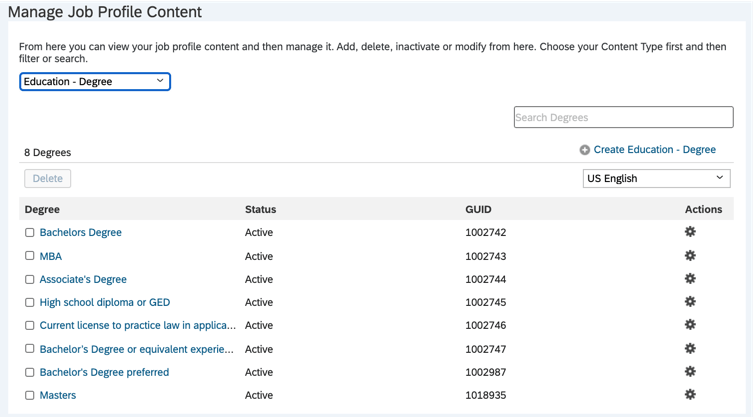
Job Profile Content: Define the options (e.g. drop-downs) that show on the profile. For example what skills or competencies or education types will exist in the system that can be placed on a profile. An example of configuring what degree types will exist for selection in creating a job profile in the system is shown below. There’s also a lot of helpful pre-built content from SAP available for download from the SuccessStore that pops up as you build your content. For more info, see the link here: https://help.sap.com/viewer/70097a1a469d47a0ae08809e4a240f98/2005/en-US/99856fa2c4944001ab5991e92c9454eb.html
Managing Job Profile Content
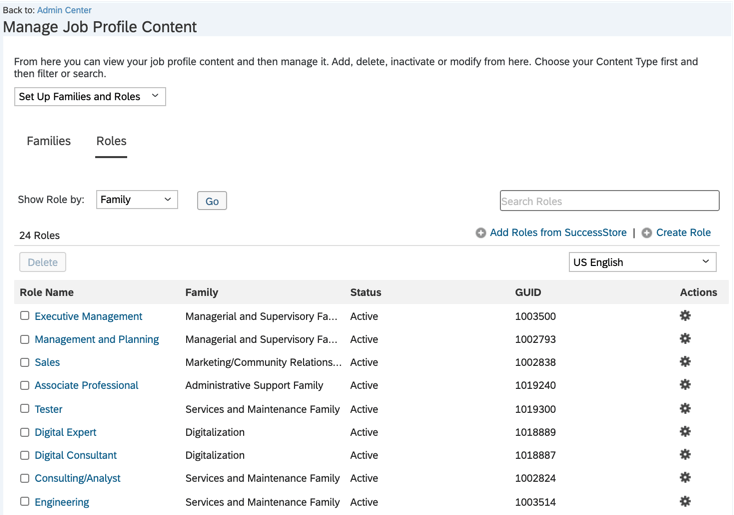
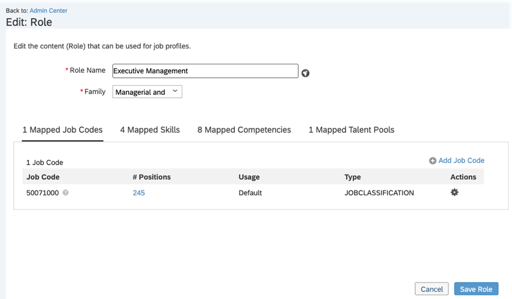
Job Roles: Roles are what you build the profile around. They represent a specific set of skills, competencies, description, etc. Roles can be associated with job codes which in turn associate to positions. Job roles can also be grouped into similar categories called Job Families. You setup the Job roles within the Job Profile Content screen. See the example below. For more info, see the link here: https://help.sap.com/viewer/70097a1a469d47a0ae08809e4a240f98/2005/en-US/aa2d3d5b1027403bbcffa8b29f70196d.html
Setting up Job Roles
This still doesn’t tell us what the Job profile is….well, when you create a Job Profile you are associating it to a specific Job Role and filling in a specific template with the specific content relevant for that role. So to answer the question of what is a Job Profile?–It is the marriage of these 3 components. You can see in the screenshot below where a specific template is being filled in with the content we have setup in the system to define a particular role.
The Manage Job Profile Screen: Editing the Content on Your Specific Job Profile
How does the Job Profile Integrate with Employee Central Position Management?
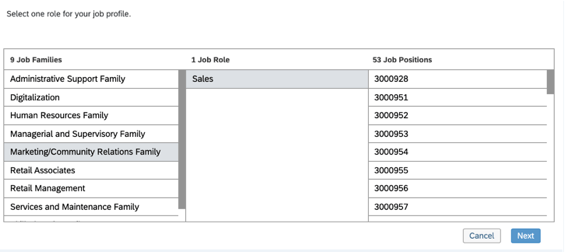
You will notice when you start creating a Job Profile, there’s a screen asking you to associate the profile with a Job Role:
Example screenshot showing organization of Job Families to Roles and Positions when creating a Job Profile
When you edit roles, the system will ask you to map Job Codes. Those Job codes sit between the job Role and the Positions. Thus while there’s a 1:1 relationship between the Profile and the Role, there can be many codes associated to a role. Since there’s many codes across many positions, thus there are many positions that can be associated to one job role and profile.
This provides us with many benefits! For example, whenever you create a requisition from a position with an associated Job Profile, the requisition will automatically pull in the Job Profile as well and activate this integration seamlessly!
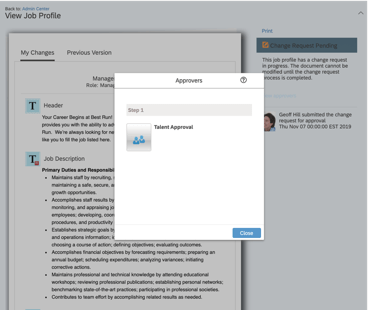
Furthermore, the Job Profile builder can utilize Employee Central workflows as well! This can be beneficial as you manage you job catalog as a variety of resources all using the profiles across the modules may want to make edits. In the screenshot below we can see when one of these interested parties modifies the Job Profile it will trigger a workflow.
Screenshot of Job Profile Builder Edits Triggering Workflow
Conclusion
Hopefully you now have a good understanding of the Job Profile Builder and are excited to start using it! Setting up a job catalog can be a tremendous undertaking, but hopefully now that you understand how the tool works, it can make the task a little easier. If you have an existing job catalog you’d like to import, there are also import screens available for you. As I mentioned before, there’s also a lot of helpful pre-built content available from the SuccessStore.
For more information about the Job Profile Builder and other talent management modules in SAP SuccessFactors, check out our book here!
Do you need help with integrating or setting up the Job Profile Builder? Contact us at: info@worklogix.com
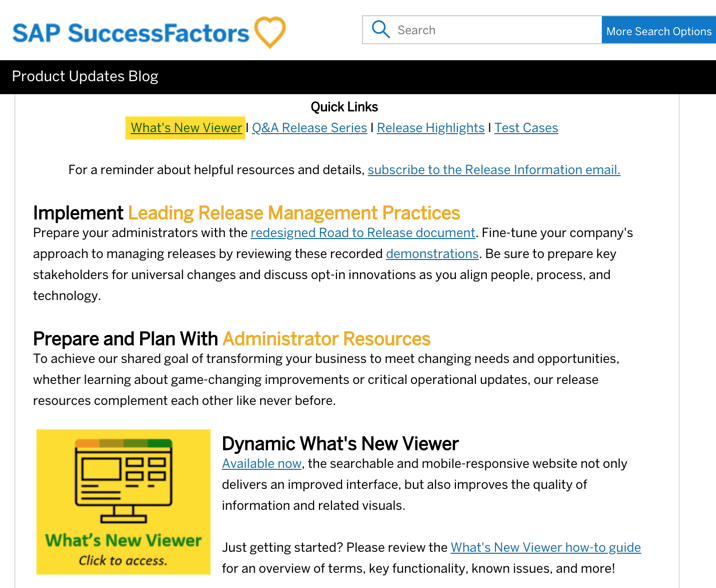
Starting in 2020, SAP changed the release schedule to every 6 months. All of the latest enhancements can be found here (S-User ID required). Scroll down to the What’s New Viewer to review the changes.
Click on the What’s New Viewer to review the latest changes
Filter on Solutions for Compensation, Variable Pay, and Reward and Recognition to review all the latest changes. Under Description, you can click on ‘See More’ to see screenshots and detailed information.
After reviewing all the changes, we narrowed the list down to the Highlights for H1 2020Compensation & Variable Pay & Reward and Recognition:
1. Import and Export non-EC Eligibility Rules
Administrators now have the ability to Export and Import Eligibility rules
Admins can export the rules as a .csv file and then import the file as needed into other templates
This process will save time and improve accuracy during configuration
Import and Export buttons now appear for Eligibility Rules
2. Enhanced Display Criteria for Bulk Download Icon
Users can now view the icon for bulk download only if a statement was generated for an employee from the recently filtered list of Executive Review
Previously, the icon was displayed even if statements weren’t generated from the filtered list which caused confusion
Enable the Display Bulk Print Statement Icon on Executive Review Page option
Bulk download icon only displays if statements are generated for filtered list
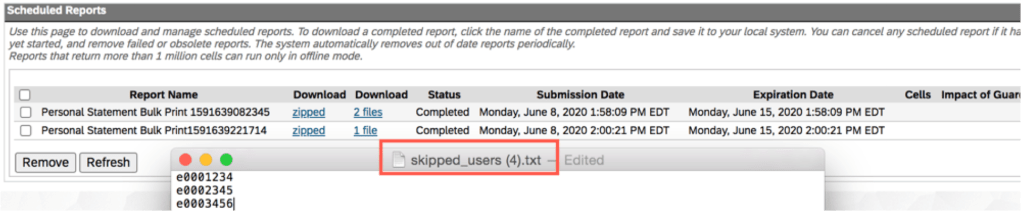
3. View a List of Employees Excluded from Statement Download
Using log files, users can now identify employees who are excluded during the bulk download process from Executive Review
Log file will show a list containing the username and user ID of all excluded employees
Log file shows list of employees excluded during the bulk download process
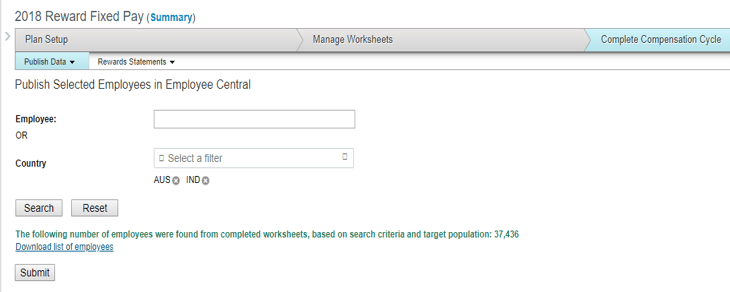
4. Publish by User for Variable Pay and Total Compensation Plan Templates
Administrators can now publish specific employees or groups of employees to Employee Central in Variable Pay and Total Compensation Plan templates
Prior to this release, this feature was only available for compensation templates
Publish by Employee is now available for Variable Pay and Total Compensation Plans
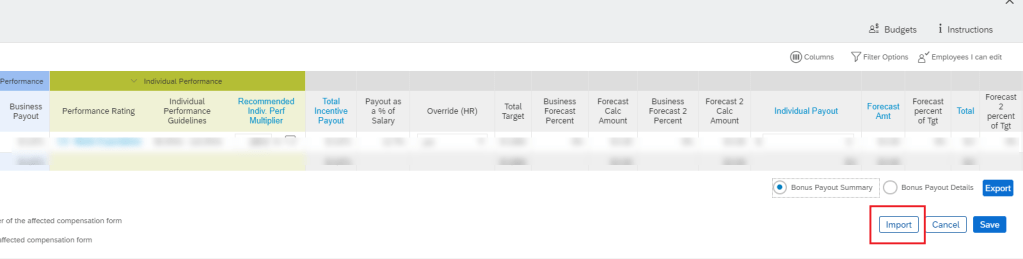
5. Use Bonus Payout Summary Reports Offline
Users can now modify editable fields in the exported file while offline from Executive Review. The modified exported file can then be reimported to update the fields with new changes.
Permissions must be set to allow for edit and export access to Executive Review
Enable the setting for Offline Edit Access for variable pay worksheets
Import functionality now exists for Bonus Payout Summary
6. Expanded Pay Range Matching for Promoted Employees
Users can now define a new finalAttribute field that the system uses when calculating the final pay range.
This will avoid the issue of miscalculated post-promotion pay ranges in EC-enabled compensation templates caused when the system continues to incorrectly use pre-promotion classification and pay grade information
In previous versions, the system incorrectly calculated pay range on the basis of pre-promotion information
finalAttribute field can be defined for proper calculation of pay ranges
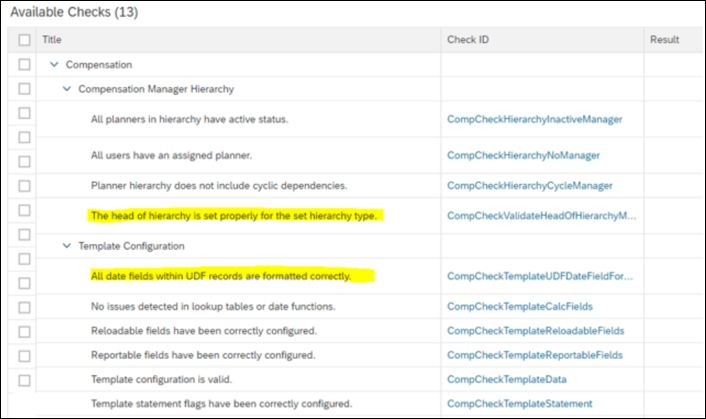
7. Hierarchy and Date Validations for Check Tool
Check Tool now has two new validations:
Review the Manager ID of each head of hierarchy in the compensation plan
Ensure that all date fields within UDF are formatted correctly
Additional useful validations added to Check Tool
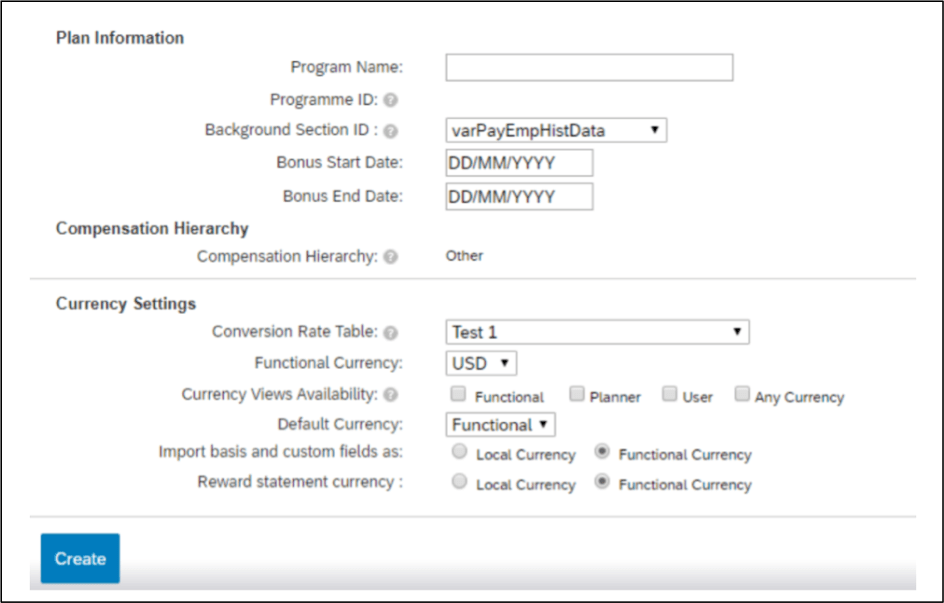
8. Default Currency View in Compensation, Variable Pay, and Total Compensation Plans
Users can now set the currency that the system uses as default when compensation, variable pay, and total compensation plans are launched.
In previous versions, this was handled in the XML
Users can set Default Currency under Currency Settings
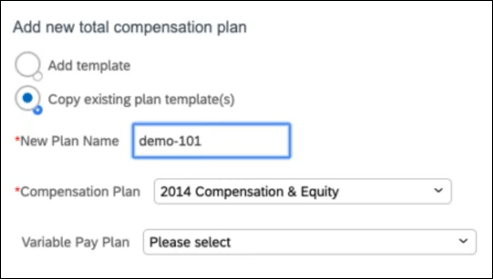
9. Expanded Flexibility in Total Compensation Plans
While creating total compensation plans by copying existing templates, users now have the option to create a plan by selecting an existing Compensation template without also selecting a Variable Pay plan template.
This is useful as not all customers are using variable pay
Total Compensation Plans can be created without having to select variable pay template
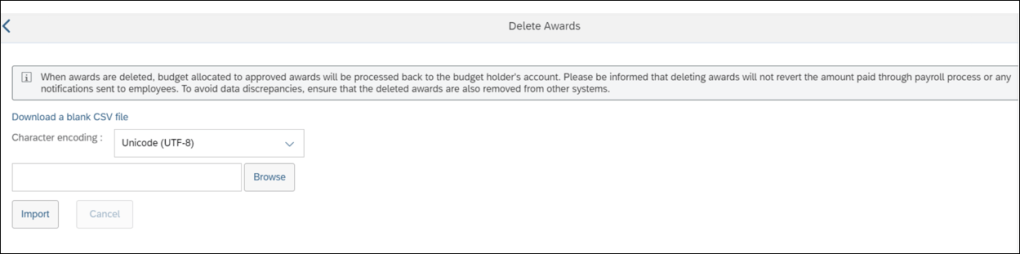
10. Delete Awards
Users can now delete awards, irrespective of their status using the award IDs.
Awards that are no longer used can be permanently deleted from the system
Users now have the ability to delete awards
See this great article for useful information on how to prepare for a SAP SuccessFactors Regular Release.
Starting in 2020, SAP SuccessFactors has changed its release schedule from every quarter to biannually. With this change, the releases will be larger with an additional preview week. Here we will focus on what’s new and what has changed in Calibration.
There is one new feature for Calibration along with four enhancements. Let’s start with what’s new!
Customized Weighted Ratings now used in Calibration
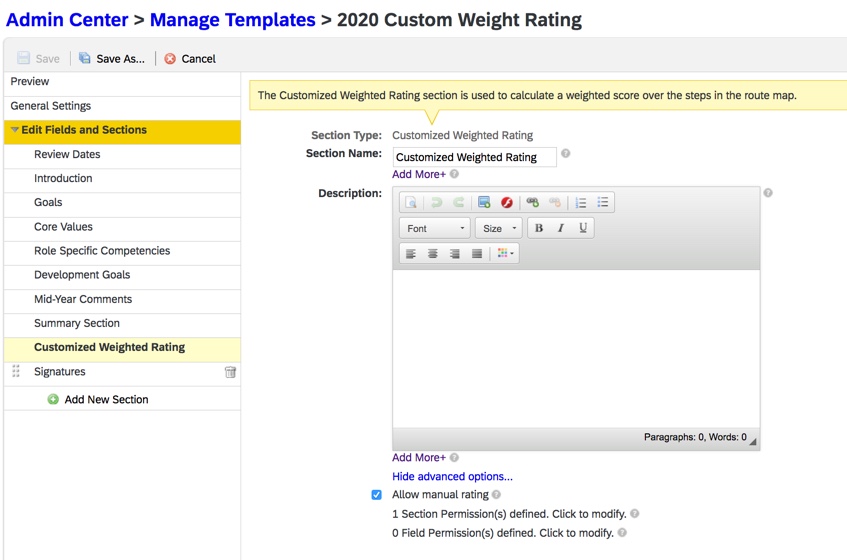
There is a new universal feature that allows ratings from the Customized Weighted Rating summary section of performance form template to be used in Calibration. Prior releases of Calibration could only use ratings from the Overall Performance, Overall Potential, Overall Objective and Overall Competency sections of a performance form templates as rating sources.
This option is helpful if you wish to calibrate the overall form rating based on the ratings given by different roles in different steps instead of using the final overall rating from one role. The customized weighted rating is calculated based on the ratings and weights from the steps and roles that were defined in a business rule. Another rule defines the trigger step used to calculate the overall weighted rating.
The Customized Weighted Rating section of a performance form template is displayed below.
Customized Weighted Rating Section of PM Template
When using ratings from the Customized Weighted Rating section, make sure the calibration step is after the step where the calculation of the weighted rating is triggered in the PM form. Just remember, when the manual rating is enabled in this template section, the calculated rating would not be available in the Bin view of a calibration session.
The Customized Weighted Rating section of a PM form is shown below.
Customized Weighted Rating section of a PM Form
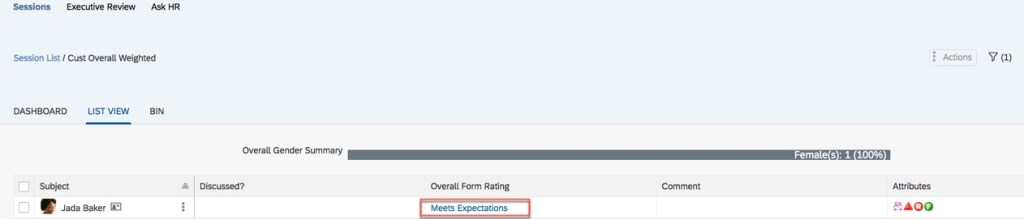
In the example below, you can see the customized weighted rating appearing in a calibration session. It appears in the “Overall Form Rating” column because a manual rating overrides the calculated rating.
Overall Rating in Calibration Session
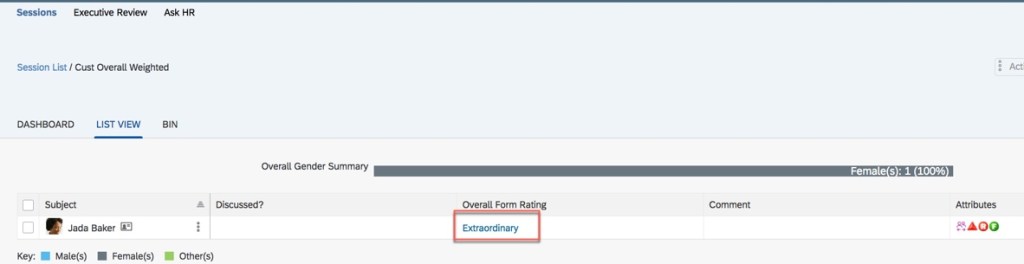
Continuing with this example, the rating is updated from “Meets Expectation” to “Extraordinary” in the calibration session as shown below.
Updated Rating in Calibration Session
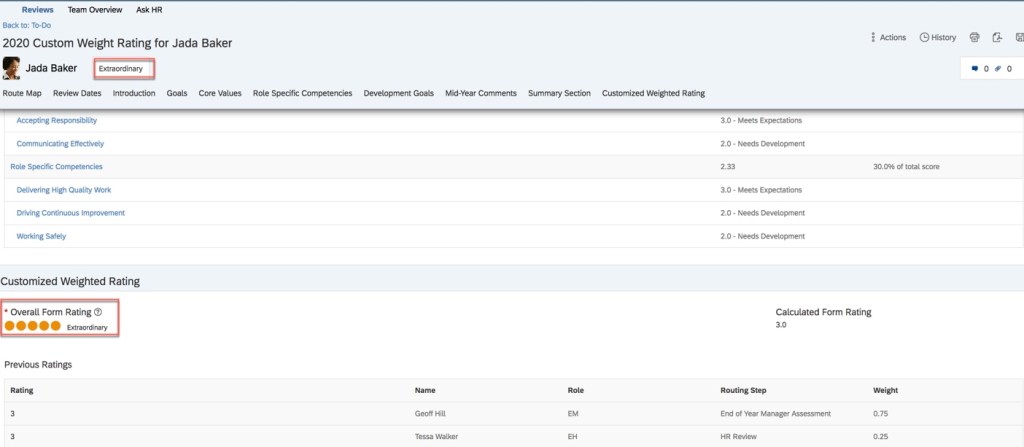
After the calibration session has been finalized, the updated rating appears in the performance form as seen below.
PM Form Reflects Updated Rating
In the Customized Weighted Rating section of the form, the overall rating reflects the updated rating of “Extraordinary” from the calibration session. The overall score pod at the top of the form reflects this updated rating as well.
Now let’s see what existing functionality has been improved in the latest release.
There are four universal enhancements for Calibration.
Subjects List Page Enhancement
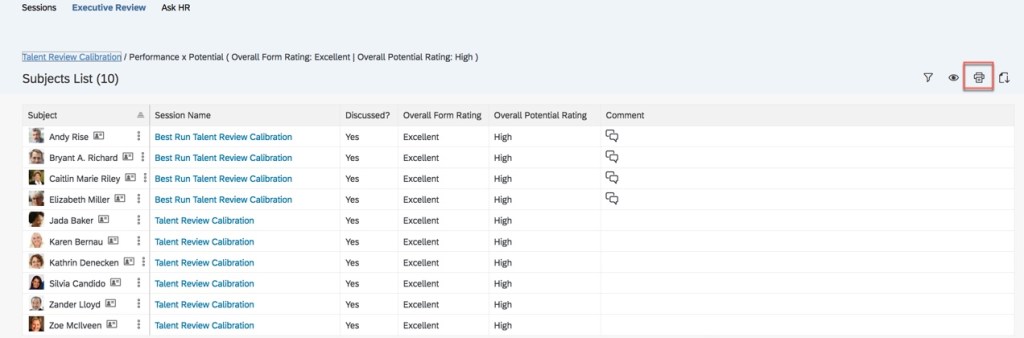
In prior releases, when drilling down into one of the standard charts in Executive Review, printing the Subjects List page was not supported. In addition, any list display modifications were not saved. Now it is possible to print out the list of subjects and retain any adjustments made to the page display after refreshing the page. More details are shown below.
Now when a data point is drilled into a chart, the print option is now available as seen below.
Subjects List with Print Capability
Within this list, the Executive Reviewer may customize the display. Columns may be reordered by dragging and dropping, column widths may be adjusted, the sort mode may be set for columns and display options may be changed. The printed list will reflect the display changes. Notice there is no “save” button, the adjustments are saved automatically. The changes are preserved after the Subjects List page is refreshed as well.
When the Executive Reviewer drills down into another cell in the chart, the updated display has been retained. This enhancement prevents the user from having the update the display each time the Subjects List page is viewed.
Enhanced Comment Details
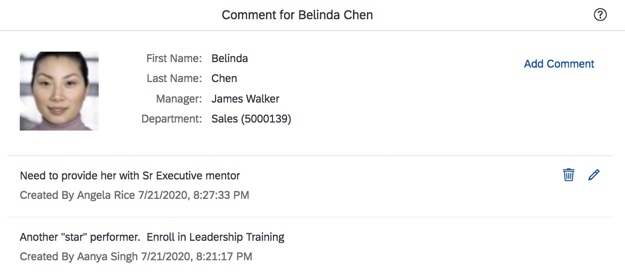
This next enhancement is applicable when comments are required when a rating is changed in a calibration session. When viewing comments made on a subject, the name of the calibration participant who entered the comment is listed along with the date the comment was made. An example is shown below.
Comments with Name and Date
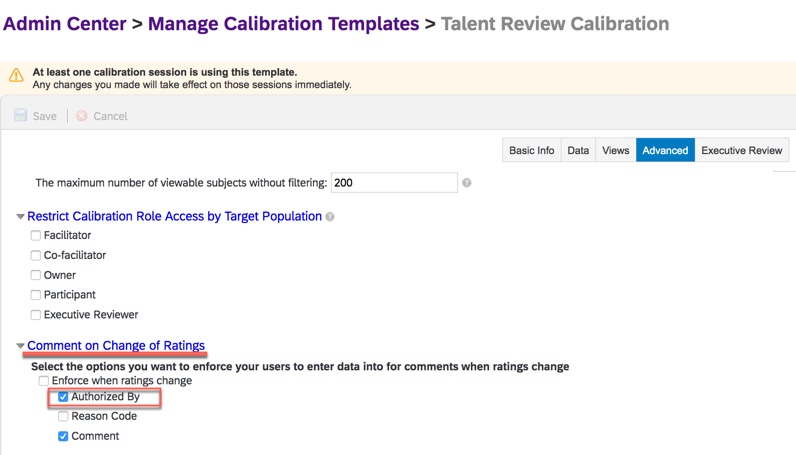
When the rater is required to enter the user name associated with a rating change, your calibration template will have “Authorized By” enabled as shown below.
Calibration Template with Authorized By Enforced on Rating Change
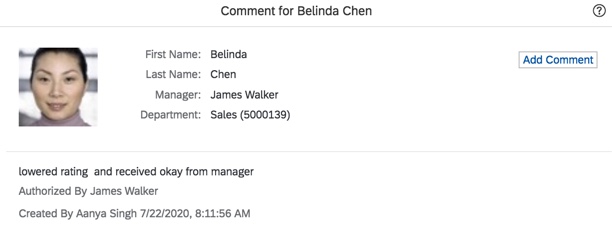
Now when viewing a comment with “authorized by” enabled, the comment detail will include the authorizer as well as the comment creator and date as seen in the example below.
Comments with “Authorized By” Field
Next we will see an update for matrix views within a calibration session.
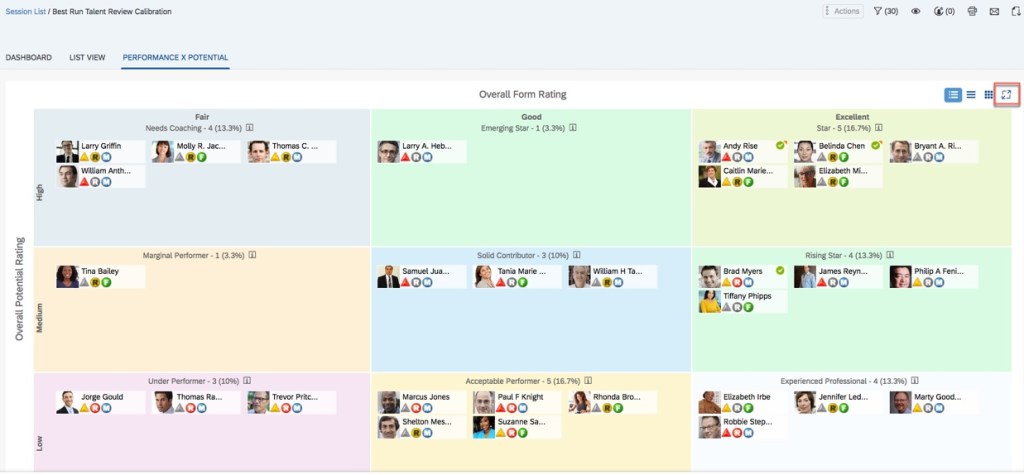
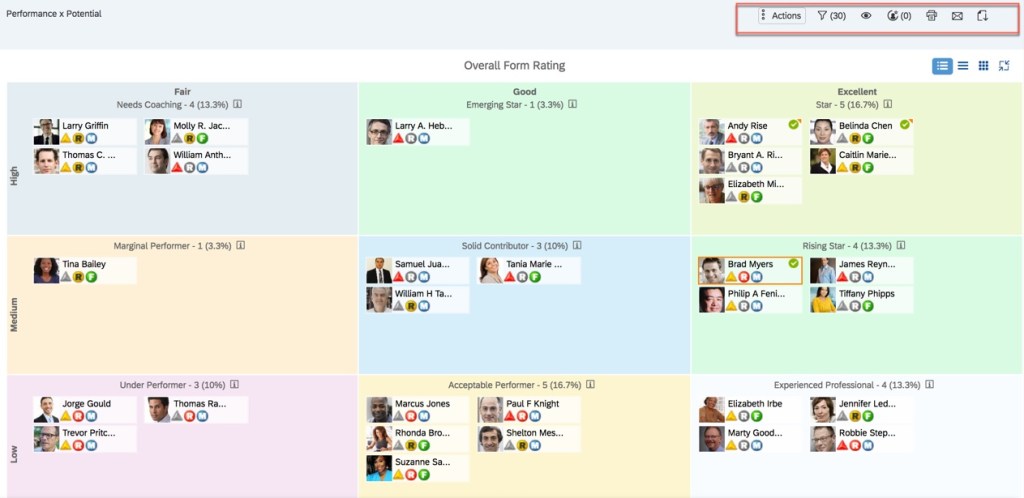
Full Screen Mode Matrix View
During a calibration session, matrix views will now have the toolbar available in full screen mode. Previously the toolbar was not visible in this mode. From the standard view, the user clicks on the “Open Full Screen” icon as seen below.
Matrix View with Full Screen Icon
When switching to the full screen view, the toolbar is available and enables users to take the same actions in the full screen mode as they would in the normal mode.
Matrix View in Full Screen Mode with Toolbar
New Reporting Columns
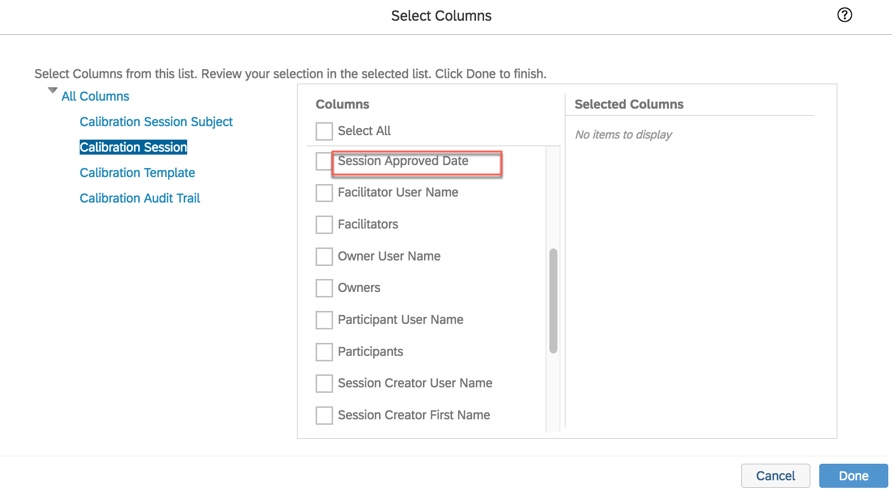
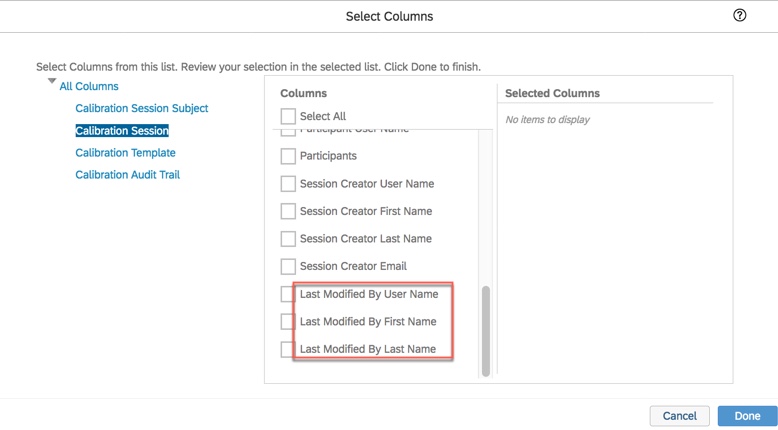
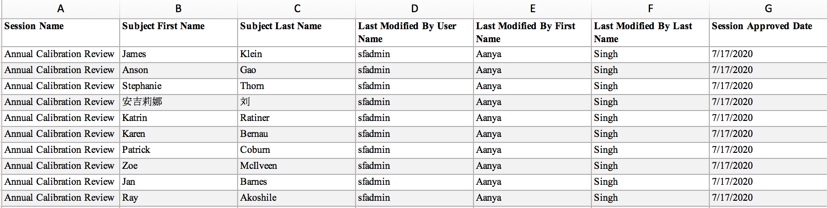
The final Calibration enhancement involves ad hoc and SAC reporting. There are new fields available to report on when generating a report for a finalized session. The session approval date along with the name of the last user to modify the session are now available. Most likely the last user to modify the session was the approver. The last modified user fields include “Modified By User Name”, “Last Modified by First Name”, and “Last Modified by Last Name”.
“Session Approved Date” Field
“Last Modified User” Fields
The new fields are available when reporting for all three calibration domains. A sample report is shown below.
Sample Calibration Report with New Fields
Wrap up
We have now explored what’s new and what features have been enhanced in Calibration. While the updates are minimal, hopefully these features will make your calibration sessions more user friendly. Check out my other blogs on what’s new in Succession and Career Development.
Do you need help with your calibration implementation? Contact us at: info@worklogix.com




















 Worklogix Blog