For tips on how to manage a release, check out our blog here.
Delegation Available for Performance Reviews
Managers can now delegate their performance review tasks to others for a specific time period. It also allows administrators to create delegations on behalf of managers.
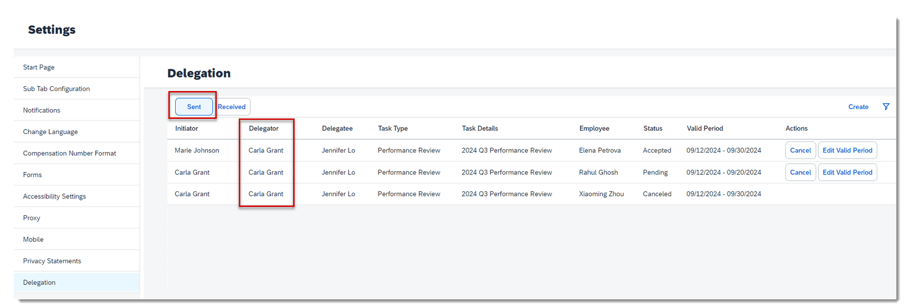
From Settings, go to the Delegation tab, this will display a Delegation page where a user can:
Create a delegation request for themselves
View and manage the delegations they created and those created by administrators on their behalf
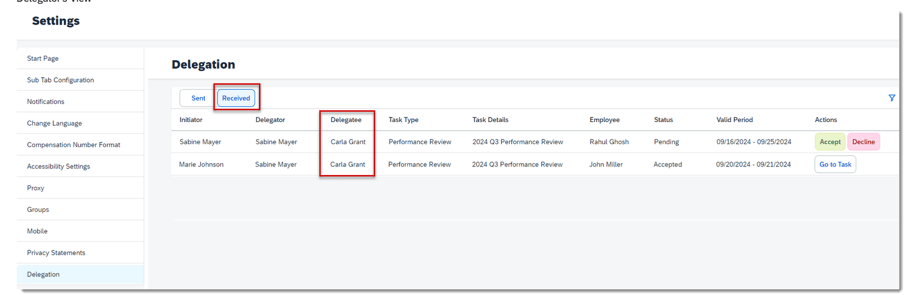
Accept or decline the delegation requests they received
Go to the delegated task they accepted
Delegation will not display on the side panel if the user does not have the permission to use it.
A Sent and Received tab will be visible.
Delegations Page
On the view for the delegatee, they can see any delegation requests and accept or decline requests.
Delegation Requests Received
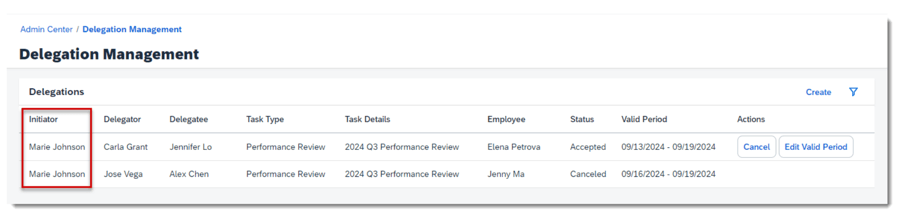
On the Admin Center Delegation Management page, an administrator can:
Create a delegation request for users
View and manage the delegations they created on others’ behalf
Admin Features
Delegation Steps
Create Delegation – a request to delegate is initiated by a manager or an admin. The validity period and form template must be identified in the request.
Respond to Delegation – the delegatee receives a notification to act as a delegate. Within Settings, clicking the Delegation tab, details about the request are shown and they may choose to accept or decline the request. The requestor is notified of their decision.
Perform Delegated Task – a Go to Task button is visible on the Delegation page during the validity period. The delegatee can perform the action on the form. The original manager sees the form in their inbox as read-only.
Edit or Cancel Delegation – The delegator may edit the validity period of the delegation or cancel the request.
Complete Delegated Task – The delegatee completes the task and the form moves to the next step in the route map.
Delegation Related Email Notifications
Email notifications are automatically generated in the following steps of the delegation process:
Delegation Created/Pending Action notification goes to the delegatee
Delegation Accepted or Declined notification goes to the delegator and delegatee
Delegation Canceled Manually notification goes to the delegator and delegatee
Delegation Request Auto-Canceled due to Inactivity notification goes to the delegator and delegatee
Delegation Expired notification goes to the delegator and delegatee
Requirements for Delegation
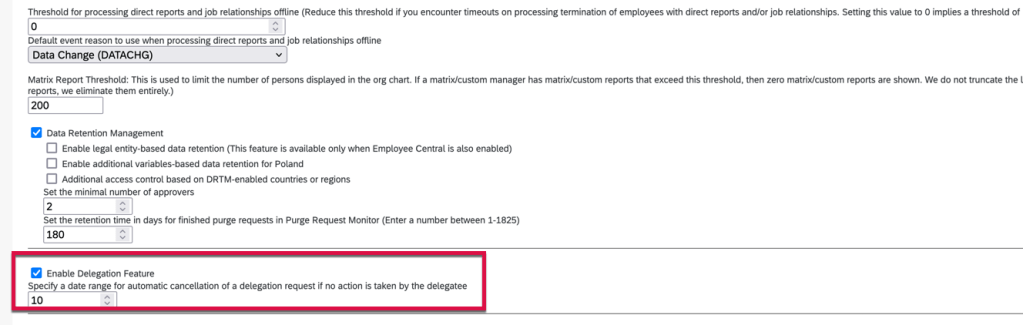
Delegation must be enabled within Company System and Logo Settings. A number of days to automatically cancel a delegation request if no action is taken by the delegatee must be set as well.
Enable Delegation in Company System and Logo Settings
Permissions for Delegating Performance Review Tasks
To allow all managers to delegate, permissions need to be added to their role. If you wish to allow administrators to delegate on manager’s behalf, the admin role will need additional permissions as well.
First let’s review the various roles in a delegation scenario.
Initiators: managers and administrators
Delegators: managers
Delegatees: managers’ peers and those directly above them
Employees: managers’ direct reports
Based on the roles, we will need to add delegation permissions to the various permission roles.
User Permissions >Delegation>Create Delegation Based on Form Templates
Delegators Role:
User Permissions >Delegation>Delegator-Delegatee Relationship, defines who can be selected as the delegatees of a delegator during the delegation creation process.
User Permissions >Delegation>Delegator-Employee Relationship, defines who can be selected as the delegatees of a delegator during the delegation creation process.
Create Performance Reviewer (Delegation) Role
A permission role needs to be created as well, this allows users can access the Performance Management forms delegated to them from the Delegation page. Do not assign the role. It’s expected to be inactive.
Required to allow access of forms from the delegation page:
User Permissions>General User Permission>User Login
User Permissions>Performance>Performance Management Access
Optional
To add, edit or delete goals on the PM form: User Permissions>Goals>Goal Plan Permissions
To view People Profile blocks through links on the form: User Permissions>Employee Data>View (identify the elements to view)
To restrict access to inactive users’ forms: User Permissions>Performance>Restrict Data Access of Inactive Users’ Forms
Delegation Role with Required Permissions
When the delegatee goes to their delegated form, the system automatically grants them the role’s permissions, with the form subject (employee) being the target population.
Enhancement to the Latest My Forms Page for PM Forms
If you are using the latest My Forms Page, there are some improvements for the user’s experience. The My Forms page has updates to form creation, form lists and filters.
Form Creation
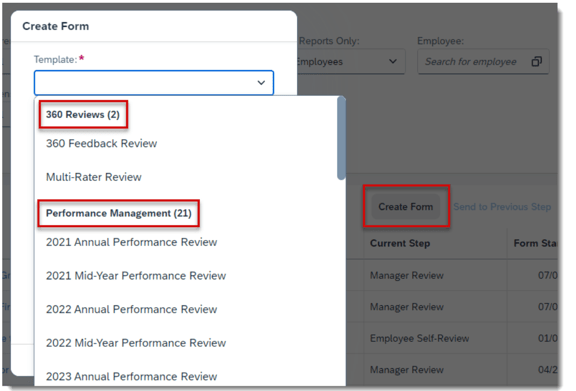
The Create Form button is now only visible for users that have permission to create at least one PM or 360 form.
The dropdown list of forms is now grouped by under 360 Reviews and Performance Management. Each heading lists the number of forms available for the category.
Create Form Templates
Form Lists
The number of forms is included in the forms list title.
Form List View with Number of Forms
Filters
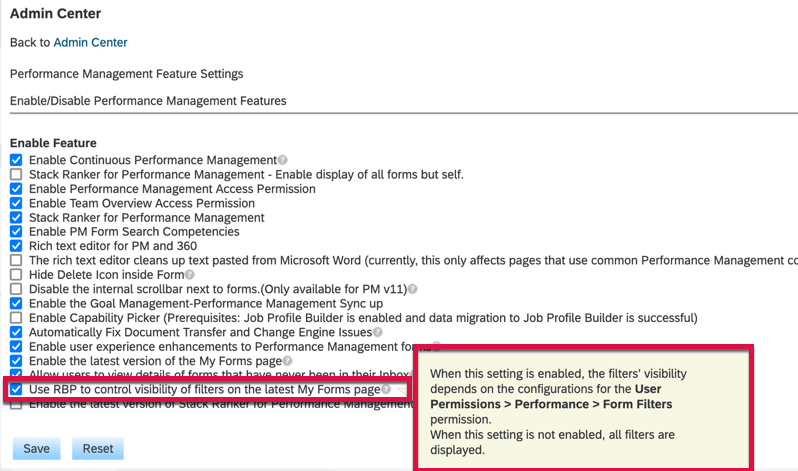
Standard and custom filter visibility can be controlled by role. All filters display by default but can be hidden using role based permissions. Enable Use RBP to control visibility of filters on the latest My Forms page in Performance Management Feature Settings.
Performance Management Feature Settings
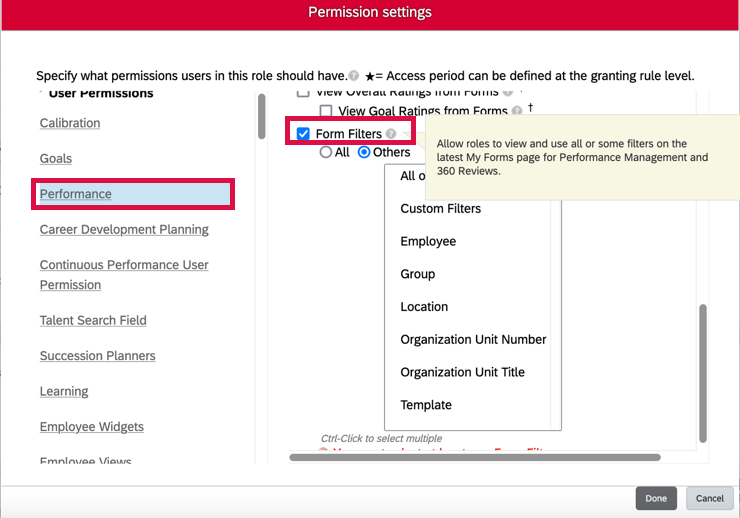
Then, grant users the User Permissions Performance Form Filters permission to show all or certain filters to them.
Form Filter Permissions
A All or Reports Only filter is available for users with direct reports, matrix reports or HR reports
The Template filter is now dynamic and changes based on templates of forms in a folder, previously all templates were listed
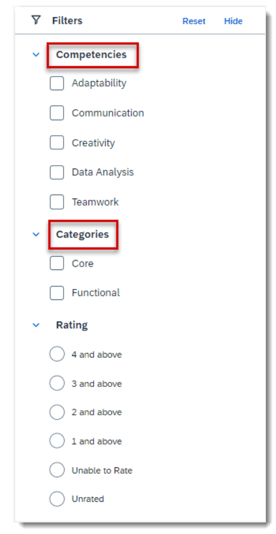
There is a reset button to clear filters
Filters
Performance Management Text Changes
If you aren’t using Talent Intelligence Hub, the filters have been renamed from Attributes to Competencies and Tags to Categories.
SAP SuccessFactors has released new features for your People Analytics solution. They can be found in detail here (S-User ID required). Filter on Solution for People Analytics to review all the latest changes. Under the Description for each, you can click on ‘See More’ to see screenshots and detailed information.
Preview release was available on April 28 with the production release scheduled for June 2. For full details on the release cycle, check out the SAP SuccessFactors official product updates blog here. New to the release process? For tips on how to manage a release, check out our blog here.
After reviewing all of the changes in this release, we narrowed the list down to the 1H 2023SAP SuccessFactors People Analytics Top 3 Features:
Availability of Optimized View Mode in Story Reports
Users can now see an optimized story experience in the visualization of Story reports.
The optimized view mode is automatically enabled in the new stories that are built using the optimized design mode. Existing stories can be duplicated and then the optimized view mode can be enabled in the copied version.
Undo and Redo functionality lets users reverse or restore actions in Story reports
Optimized Loading Time for Workforce Analytics Reports
Load time has been reduced for Workforce Analytics reports since the widgets now appear on the screen as they are ready.
Previously, the screen would not render until all widgets were ready to view.
Dynamic Teams Data Available in Story Reports
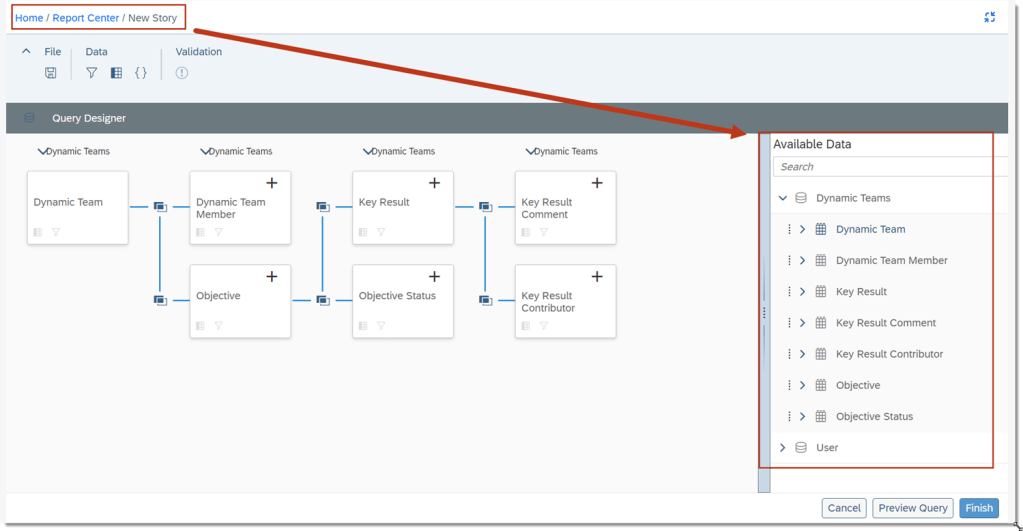
Users can create a Story report with new data from Dynamic Team, Dynamic Team Member, Objective, Objective Status, Key Result, Key Result Comment, or Key Result Contributor.
After necessary role based permissions are setup, users can report on the usage of Dynamic Teams across the organization.
Dynamic Teams can now be added in the Query Designer
SAP SuccessFactors has released new features for your Compensation solution. They can be found in detail here (S-User ID required). Filter on Solution for Compensation to review all the latest changes. Under the Description for each, you can click on ‘See More’ to see screenshots and detailed information.
Preview release was available on April 28 with the production release scheduled for June 2. For full details on the release cycle, check out the SAP SuccessFactors official product updates blog here. New to the release process? For tips on how to manage a release, check out our blog here.
After reviewing all of the changes in this release, we narrowed the list down to the 1H 2023SAP SuccessFactors Compensation Top 5 Features:
Planner Audit Feature for Compensation Planner
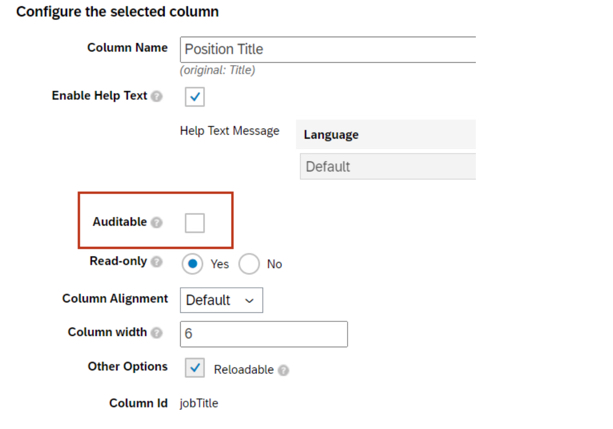
Compensation planners can now review field history changes made to compensation, variable pay, and total compensation worksheets.
Managers will be able to see changes to enabled fields on their worksheets via the link for Export Change History.
To enable fields for Planner Audit, go to Compensation Home – Template Name – Plan Setup – Design Worksheet
Compensation Plan Template Versions
Admins can now view the change history including Modified Date and Modified By for Compensation, Variable Pay, and Total Compensation templates.
Admins can download previous versions of the templates to assist in troubleshooting issues.
Role based permissions must be set in order to access export template history – Administrator – Manage Compensation and VarPay – Enable Export of Plan Template Versions
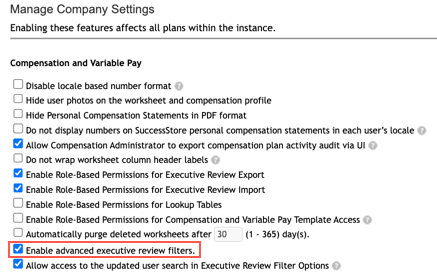
Advanced Executive Review Filters Are Now on by Default
Users can now select which fields are included in the Executive Review filter. This includes the standard fields of department, division, and location, as well as the 15 custom fields.
Filters can be saved and shared with other users.
Actions for all plans – Company Settings – Manage Company Settings – Enable advanced executive review filters is now checked by default
Recall Reward Statements When Worksheet Reverts
Statements are typically made visible when worksheets are in the Completed step of the route map. This enhancement automatically recalls generated statements when the worksheets are routed back from Completed Status.
This ensures that a statement is not viewed when it is not in Completed status as it may have needed to be updated with corrected information.
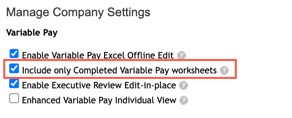
In order for this functionality to work for Variable Pay, the Include only Completed Variable Pay worksheets setting must be checked
Assignment Details in Bonus Payment Detail Report on Executive View
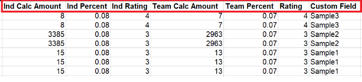
The Bonus Payout Detail Report download in the Executive Review now includes assignment level information for individual and team standard fields.
Assignment level custom fields are also included in the download.
Bonus Payout Details export now contains assignment level fields
SAP has announced the latest updates and changes for SuccessFactors for the first half of 2023.
Preview release is available on April 28 with the production release scheduled for June 2. You can view the full set of documentation in the What’s New Viewer here. For full details on the release cycle, check out the SAP SuccessFactors official product updates blog.
For tips on how to manage a release, check out our blog here.
Latest Goal Management
General Availability – Universal
Latest Goal Management Now Generally Available
The latest Goal Management is now generally available. It does require an upgrade which cannot be undone. It is best to familiarize yourself with the latest features available and limitations before doing the upgrade.
Latest Goal Management
Once enabled, the latest version is automatically applied to the modules that are integrated with Goal Management. This includes as Performance Management, 360 Reviews,Continuous Performance Management, Career Development and the latest home page.
In prior releases, there were several limitations to the features available in the latest Goal Management. The 1H 2023 release addresses several these restrictions. We will review the most important updates.
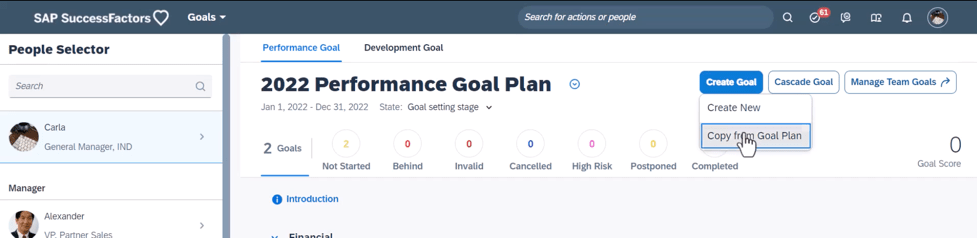
Copy goals or create goals from a goal library.
Use milestones in goal plans
Use Advanced People Search to Assign or Cascade Goals using the latest Goal Management
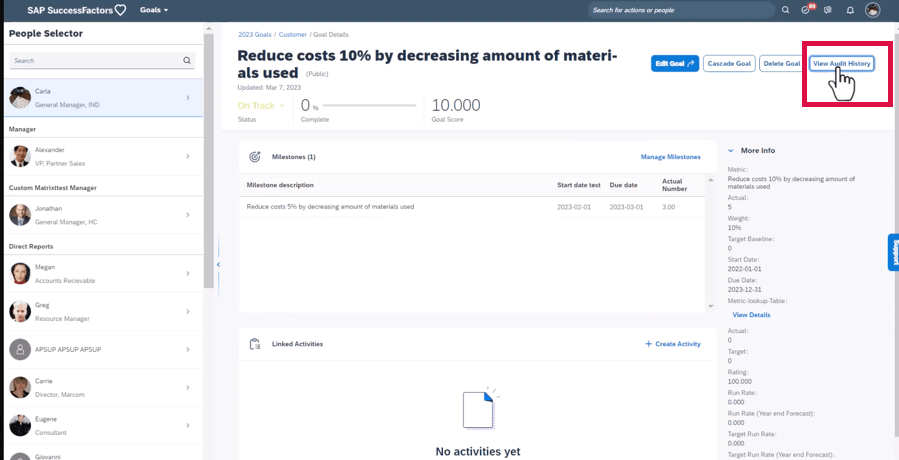
View audit history for goals
Use legal scan
Dynamic Teams Integration with latest Goal Management
Latest Goal Management Updates for iOS and Android Mobile Apps
Create Goals from a Goal Library using the latest Goal Management
One of the best new features of the latest version of Goal Management is the ability to use goal libraries when creating goals. Previously, goals could only be created from scratch or copied from another goal plan.
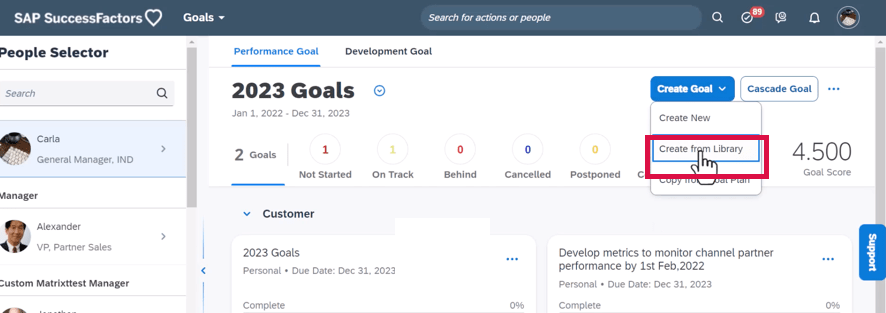
With proper permissions, when clicking the Create Goal button, the user can now select the “Create from Library” option.
Create Goals from Goal Library
A users can select up to 10 personal goals from a predefined goal library at once.
Manage Milestones for Goals
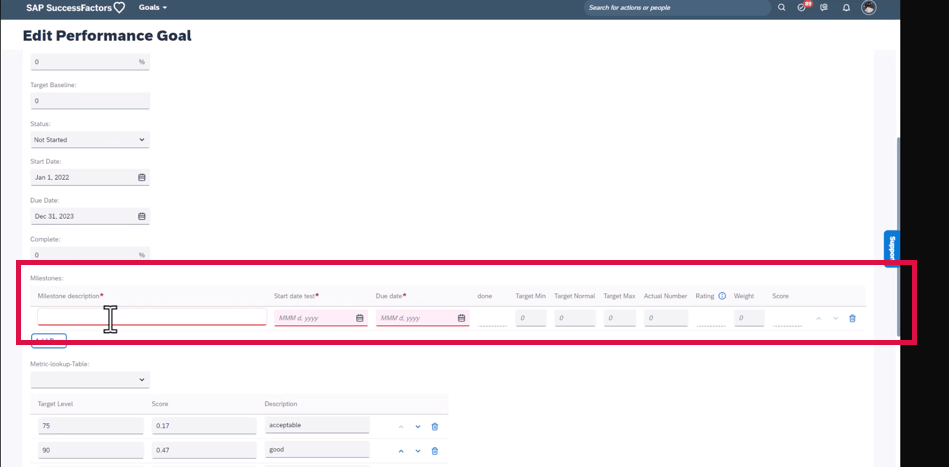
It is now possible to use milestones (sub-goals) on goal plans. Milestones can be used for personal and team goals.
Milestones on Goal Plans
Use Advanced People Search to Assign or Cascade Goals using the latest Goal Management
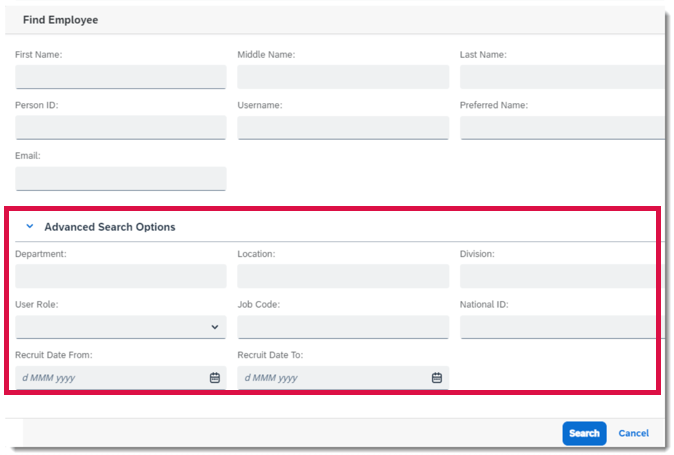
When assigning a team goal or cascading a personal goal, the people search was limited to Name. Now an advanced people search is now available. The search now includes department, location, and division.
Advanced Search to Cascade Goals
View Audit History for Goals
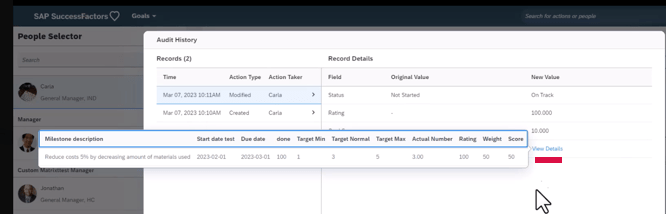
When read permission for goal fields is granted, users can now keep track of goal changes. Anytime a goal is created, copied, cascaded, assigned, modified, deleted, or replaced, an audit record is created.
Audit Goal History
Users will be able to see a list of any changes were made. This includes identify who made the changes, and when. A before/after comparison for modified or replaced goals will display previous values and the new values for changed fields.
Details on Audit History
Comments, activities, and learning activities changes are not captured in the Audit History.
Use Legal Scan in the Latest Goal Management
The Legal Scan feature is now available and allows users to check whether their inputs for text and textarea goal fields are in compliance with legal requirements. Comment field are not included.
Dynamic Teams Integration with latest Goal Management
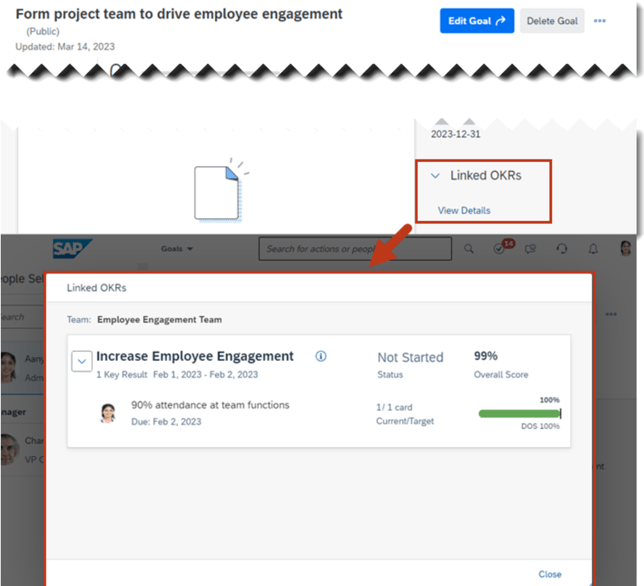
A new major feature integrates Dynamic Teams with Goal Management. This allows team members to link the their dynamic team’s objectives to their performance goals. Dynamic Teams has to be configured and the Enable Linking to Performance Goals setting turned on.
Team members identified as contributors to one key result (ORK) can link a dynamic team’s objective to personal goals.
Contributors may
Use the “display more actions” menu to open the Link to Goals side panel, where you can see linked goals or add a new one.
Use the ‘ Link to goals’ icon to open the Link Goals dialog to select a goal plan and the goals you to link to the objective.
A Linked OKRs section in the goal details has an option to View Details about the linked OKRs in a dialog.
Linked OKRs in Goal Plan
Additional requirements to use this feature include:
Being a member of a dynamic team that has defined its objectives and key results.
Being as a contributor to at least one of the key results for the objective you want to link.
Have permission to view the goal plan that includes the goal you want to link the objective to.
Latest Goal Management Updates for iOS and Android Mobile Apps
Many of the capabilities in the latest Goal Management had not been available for mobile users. The latest release address many of these limitations:
Create Goals from a Goal Library in iOS and Android Mobile Apps
Copy Goals from Goal Plans in iOS and Android Mobile Apps
Leave Comments on Goals in iOS and Android Mobile Apps
Manage Milestones for Goals in iOS and Android Mobile Apps
Performance Management
Updates to performance forms are minimal. We will look at a few of these.
User Experience Enhancements to Performance Management Forms
There have been enhancements to the user experience for PM forms which we will discuss.
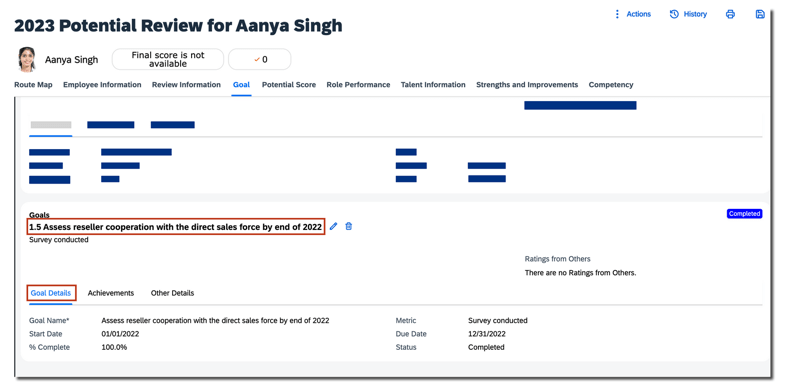
Goal Section Updates
In the goal section some enhancements have been made:
Goal Details tab now appears first among all available tabs for a goal. Previously, the first tab was Achievements.
The Goal Name is now in bold font.
Goals on performance form
Page Anchoring
Previously, when the PM form page refreshed, users were anchored to the top of the page. Now when users perform an action on the form page, they’re now anchored to the location where the action was performed.
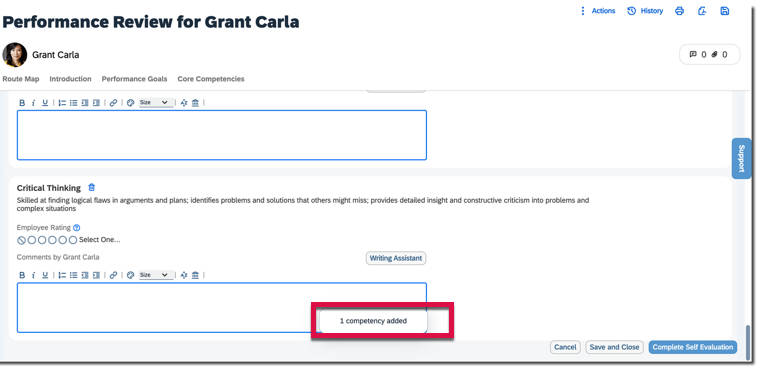
Toast Messages
Toast Messages provide feedback to users about an action they have taken.
For example, adding or deleting a goal, competency, or learning activity on the form page, a toast message will display confirming the action was performed.
Toast Message
Automatically Fix Document Transfer and Change Engine Issues Caused by RBP Refresh Failures
The Document Transfer and Change Engine issues caused by a RBP refresh failures can now be fixed automatically on a daily basis.
To enable the automatic fixing, select Automatically Fix Document Transfer and Change Engine Issues under Admin Center Performance Management Feature Settings.
Continuous Performance Management
General Availability – Universal
Hide Prior Feedback from the New Manager That Was Requested or Given By the Former Manager
A major update for Employee Central (EC-enabled) instances allows the admin to automatically hide feedback from former managers in Continuous Performance Management (CPM).
Previously, when an employee inherits a new manager, or a manager provides feedback to the employee and leaves the company, the employee had the option to manually hide or delete that feedback from their new manager.
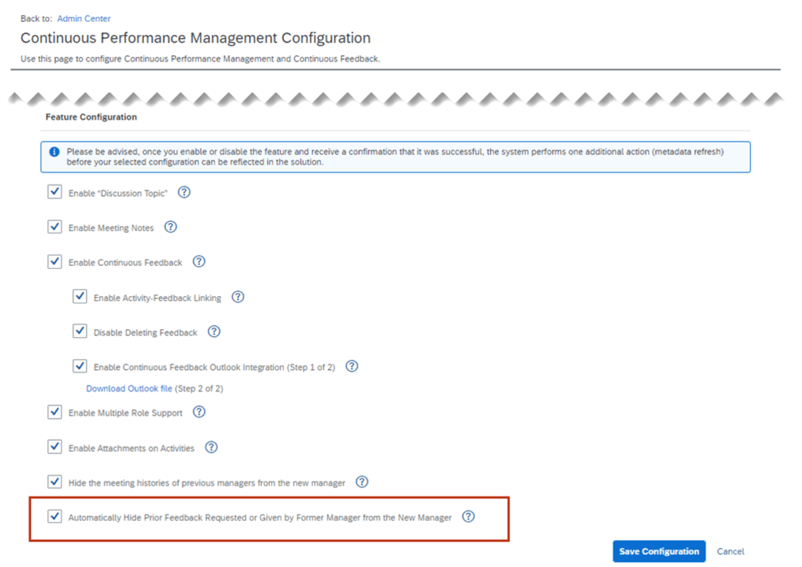
The feature automates the process of hiding feedback given or requested by the prior manager when a manager transfer occurs. The admin will now have the option on the CPM configuration page to automatically hide prior feedback requested.
CPM Configuration
Visibility of Edit and Delete Actions for Continuous Performance Goal Cards Based on User Permissions
Continuous Performance Management goal actions are aligned with Goal Plan action permissions for Goal Management. Employees now have more control over their Performance Goals by creating, editing, or deleting directly in Continuous Performance Management (CPM). When integrated with Goal Management, changes to Performance Goals by the CPM user are reflected in the user’s Goal Plan.
The permissions for available actions on a goal in Continuous Performance Management experience respect Goal Plan configuration. In the previous version of CPM, users were shown both Edit and Delete options for goals. Now employees see actions for edit, delete or edit and delete for Goal cards based on their granted permissions.
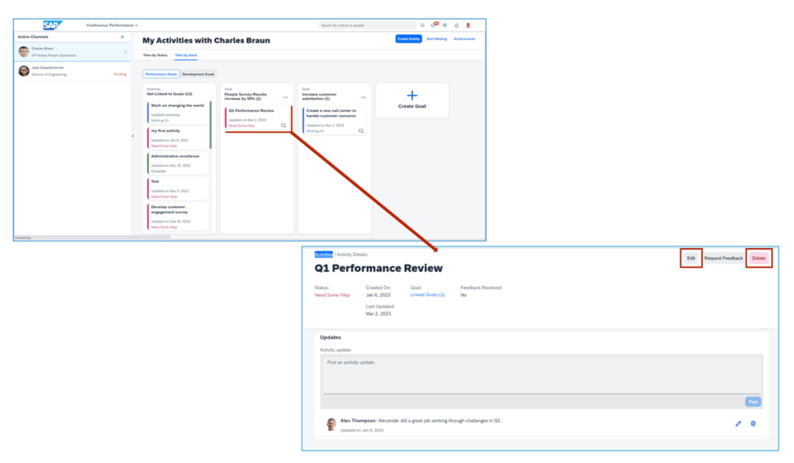
There are three different access views of the Goal card: Edit, Delete, Edit and Delete. With this release, the user is only shown the options that they have permissions to use. Previously, Goal cards shown in My Activities view of Continuous Performance allowed all users access to edit or delete actions for the goal.
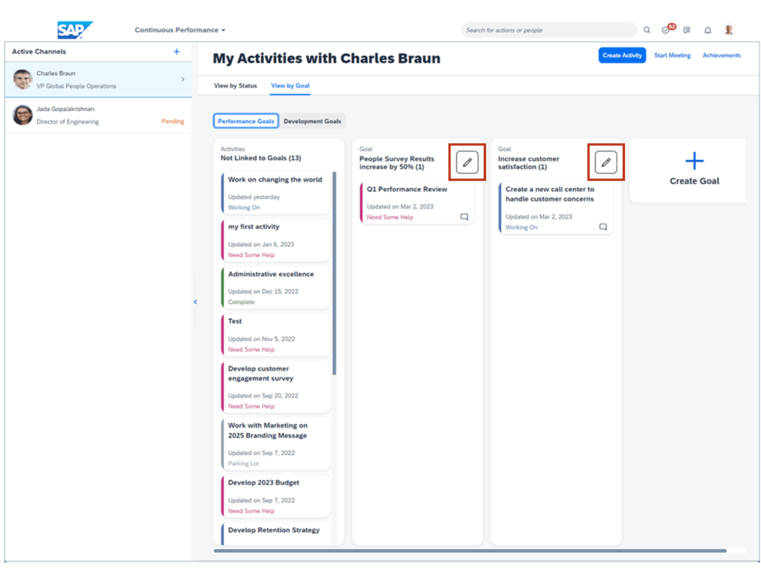
Now on the My Activities view with the employee’s permission to only edit goals, the Edit icon is what they will see on the Goal cards.
Edit Goals
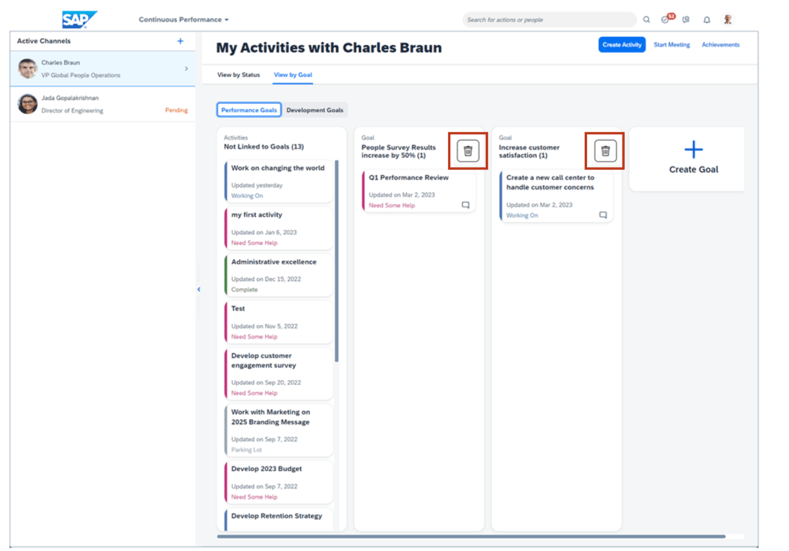
When an employee’s permission only allows to delete a goal, the delete icon is the only action available on the Goal cards on the My Activities view.
Delete Goals
To modify an Activity linked to a Goal, select that Activity. This opens a new view with Activity Details. Separate Edit and Delete options are available for the selected Activity.
Activity Link to Goal
Use Continuous Feedback in the SAP SuccessFactors App in Microsoft Teams
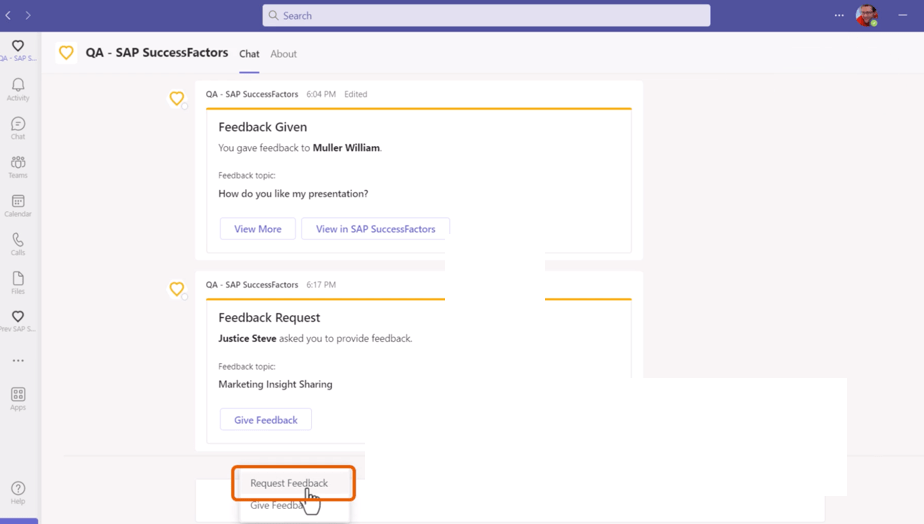
When SAP SuccessFactors and Microsoft 365 are integrated, a new feature enables allows Continuous Feedback of the latest Continuous Performance Management within Microsoft Teams.
Within Teams, users can enter the SAP SuccessFactors app from the app bar or the compose message area of any chat and perform these tasks:
Request feedback: users can send a feedback request to others to ask for feedback on their performance at work
Give feedback: users who receive a feedback request can provide their feedback and send it back to the requester
Continuous Feedback from Microsoft Teams
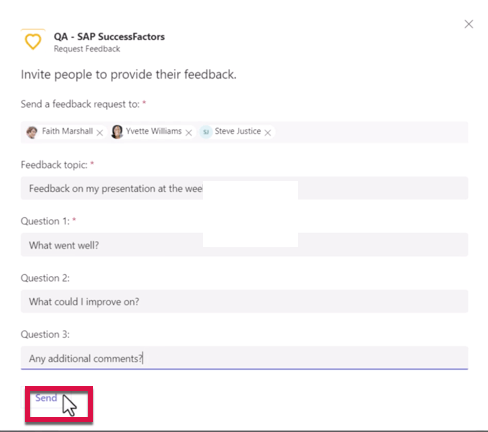
Then find and select the person to collect feedback from. Fill in the questions to ask.
Questions for Feedback Provider
Receiver is then notified and can reply in the SF app.
Replacement of Continuous Performance Management Legacy Version with the Continuous Performance Management Latest Version
The legacy version of Continuous Performance Management (CPM) reached end of maintenance on May 20, 2022 and will be deleted as of May 24, 2024.
The replacement is the latest version of CPM is currently available in the Upgrade Center. If no action is taken, your company will be automatically upgraded to the latest version after the deletion date.General Availability – Admin Opt-Ins
Calibration
General Availability – Universal
New Filter Options in Calibration Session
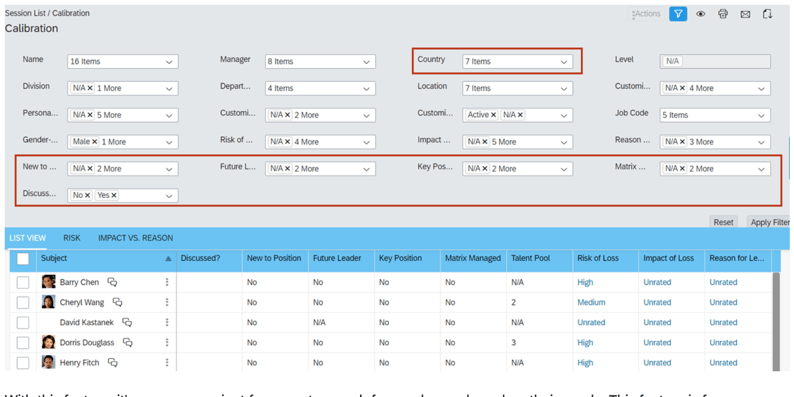
There are now six more filter options to narrow down employees to be displayed in a calibration session.
The new filter options are:
Discussed
Country
New to Position
Future Leader
Key Position,
Matrix Managed
Additional Filters for Calibration Session Employee Search
Discussed is predefined as a default filter. To use the other five filters, enable in Filter Fields from Admin Center >Manage Calibration Settings>Search and Filter Fields.
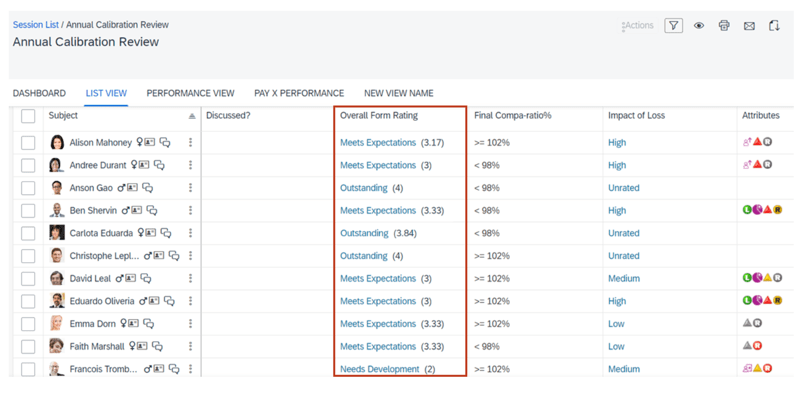
Calculated Performance Management Ratings Available in List View
You can now view calculated ratings of employees for all performance rating elements in the List view of a calibration session.
By enabling the new admin option Show Calculated Rating from Performance Management in List View at Admin Center >Manage Calibration Templates>Views>List View, calculated ratings of employees can be shown in the List view.
When manual rating for performance elements are enabled, calculated ratings display in the same column as manual ratings. Previously, only manual ratings were shown for the rating element.
When calculated rating for performance elements is enabled, calculated ratings display in the same column as rating labels. Previously, calculated ratings were shown as rating labels defined in rating scales.
Calculated Ratings in Calibration List View
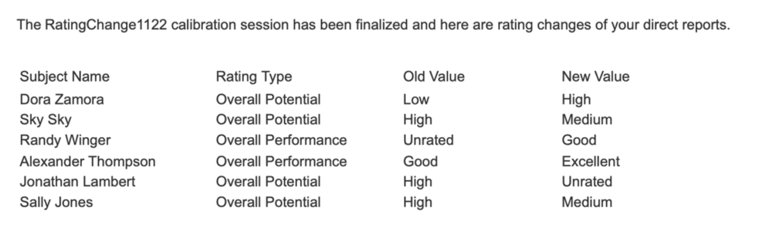
Improved Format of E-mail Notifications Regarding Calibration Rating Changes
Next is a minor update generally available. Columns are left-aligned in e-mail notifications about rating changes in finalized calibration sessions. This update is easier to read. Previously the header and data were not aligned.
Updated Calibration Rating Changes Email
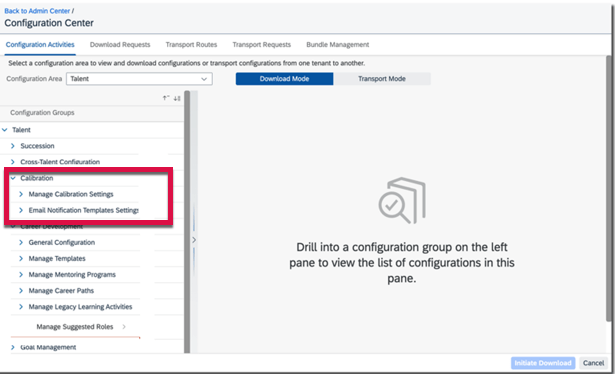
Calibration Configuration Available in Configuration Center
You can now view, download, and transport parts of Calibration configurations using Configuration Center.
Configuration Center
360 Reviews
There are very minor 360 Review updates. Highlights are described below.
Participants are now loaded on demand in the Evaluation Summary section of 360 Reviews forms.
Previously when a 360 form was opened, all participants were all loaded at once. In rare cases where a form had a great number of participants, there was potential to cause performance issues.
With the latest release, if a form has fewer than 100 participants, all the participants are loaded when the form is opened. If the form has more than 100 participants, the first 100 are loaded but users can scroll down to the bottom of the list to trigger further loading.
Deprecation of 360 Reviews v11 Version
The 360 Reviews v11 version will reach the end of maintenance on May 19, 2023 and will be deleted on November 17, 2023.
If you’re using 360 Reviews v11 Version, you should migrate to 360 Reviews – SAP Fiori Version.
For tips on how to manage a release, check out our blog here.
For your convenience, we’ve summarized the highlights of 1H 2023 minor visual enhancements for Performance Management and Career Development.
Visual Enhancements
There were several minor visual enhancements in this release. The visual enhancements for this release provide a more user friendly and consistent experience.
There are four types of changes:
Text changes (labels, error messages, or roll-over texts)
Iconography (new or changed icons)
Interaction pattern (new position of interaction, new order of list, new or changed buttons)
Styling (layout, spacing, or other design changes)
We will review some of the more notable visual enhancements for Performance Management, 360 Reviews, Continuous Performance Management, Calibration and Mentoring.
Performance Management
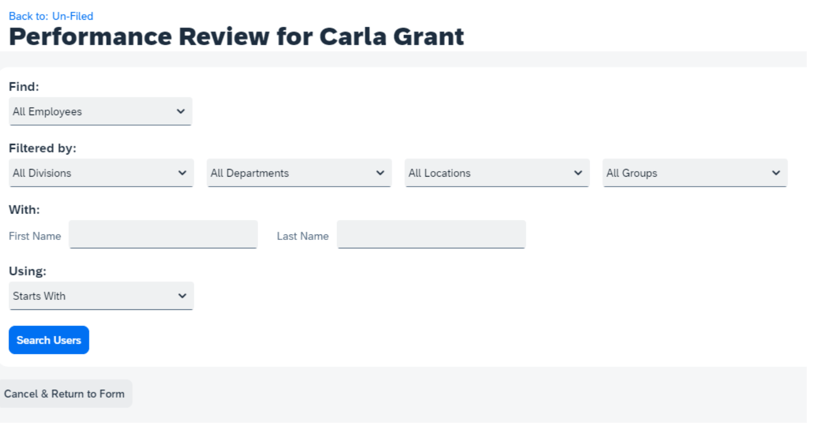
Search for users to send completed form to
Each set of filters is now below its category name
The Search Users button is below all the filters
Search Users
Create New Form from Performance Inbox
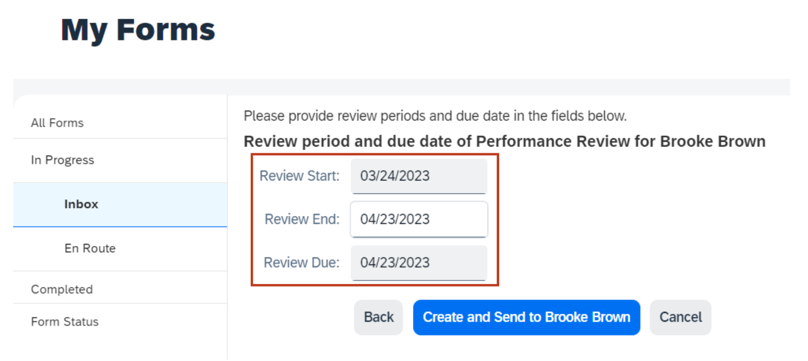
When launching a performance form from a user’s inbox, the date fields are now indented and right aligned.
Form Launch
Form Inbox Tooltips
In the Performance inbox, the tooltip for the icon in the Employee column is “View more information about <employee name>”,
Employee Info Tooltip
The tooltip for the icon in the Action column is “Add <form title> to Outlook”.
ActionTooltip
Cancel button placement updated
The button to cancel an action has been moved to the right.
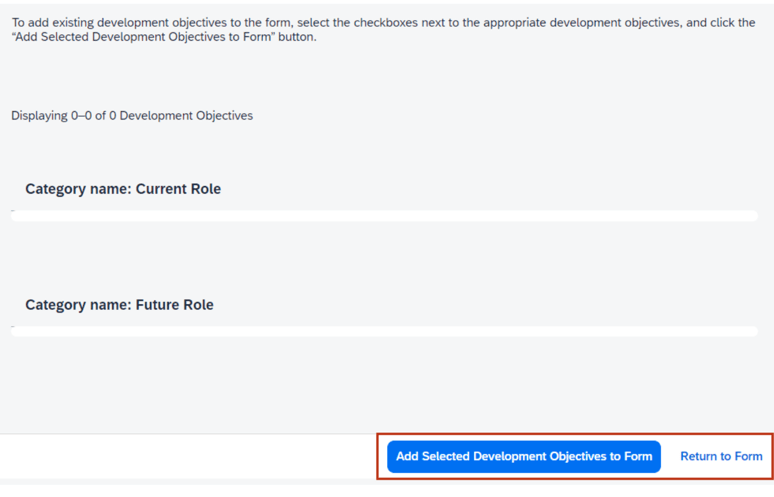
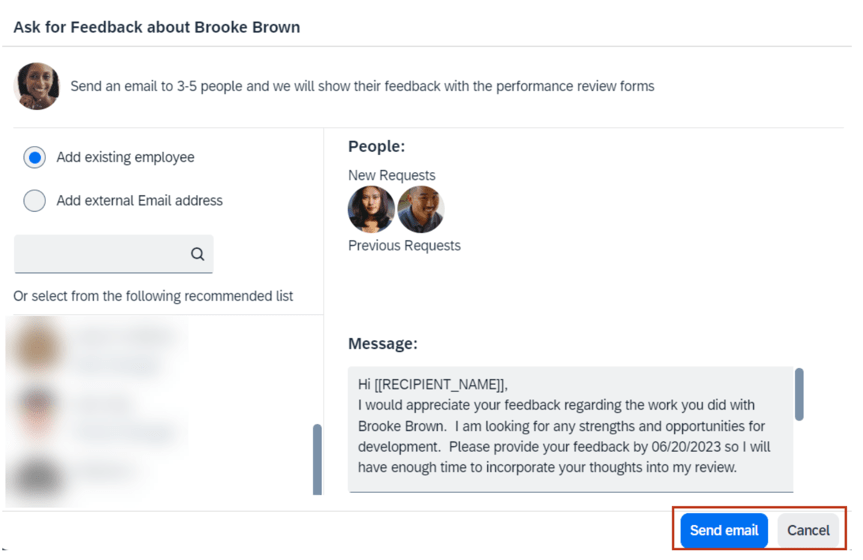
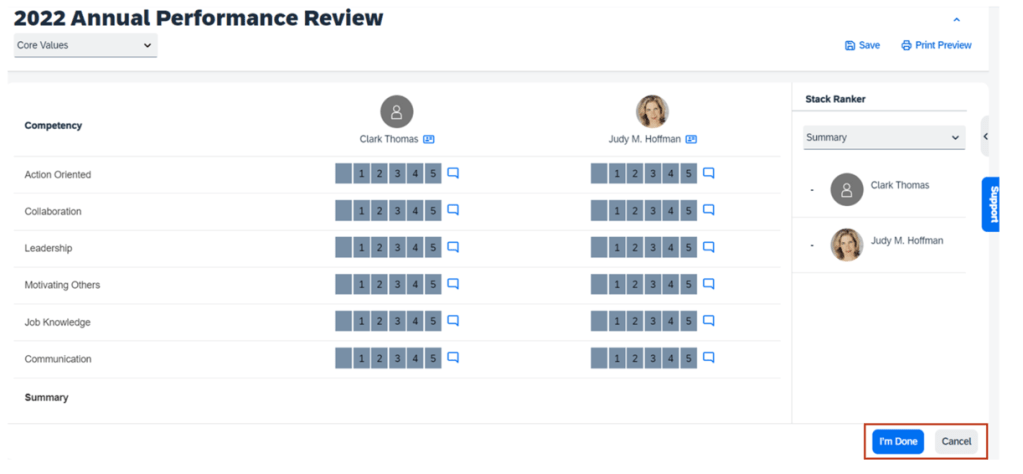
This change applies to almost all user interfaces in Performance Management, including: Add Objectives from Objective Plans dialog, Send to Next Step page, Ask for Feedback dialog, Stack Ranker page, Comment dialog, Legal Scan dialog, and Print Setup dialog.
Here are some examples.
Adding objectives tot a PM form.
Return to Form button placement
Ask for Feedback dialog
Ask for Feedback Cancel button placement
Stack Ranker
Stack Ranker Cancel button placement
Goal in the goal section or Competency in the competency section
The first column header is Goal in the goal section orCompetencyin the competency section of a performance form. Previously Expand All and Collapse All were inthe first column table header
The Expand All and Collapse All options now appear in the top-left corner above the table
Goal section layout
360 Reviews
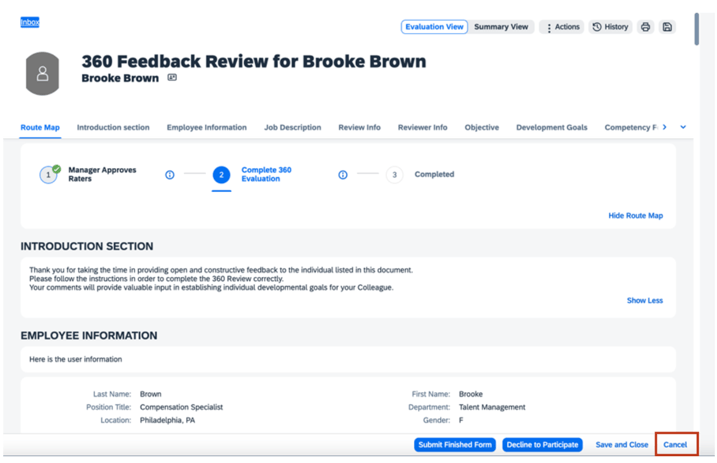
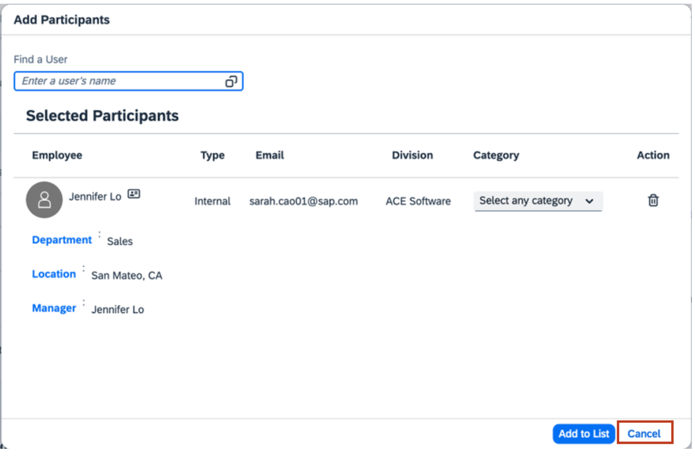
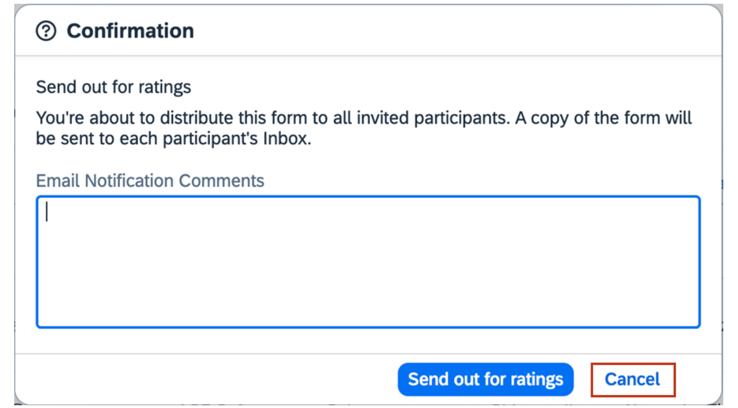
Cancel button placement updated for 360 Reviews
The Cancel button has been moved to the right for 360 Reviews.
Changes include opened 360 Reviews form, Goal Weights dialog, Add Participants dialog, Send Back dialog, Find Employee dialog, and Add Competencies dialog.
Here are some examples.
Canceling an opened 360 Reviews form
Cancel button placement on 360 Review
Canceling a participant search
Cancel confirmation to next step
Cancel button on Confirmation
Continuous Performance Management
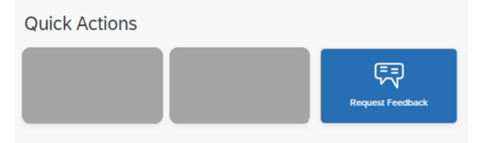
The icon for the Request Feedback on the latest home page has two intersecting talk balloons.
Request Feedback Quick Action
Previously the icon had talk balloons that included a question mark and an exclamation mark.
Achievements on Mobile Device
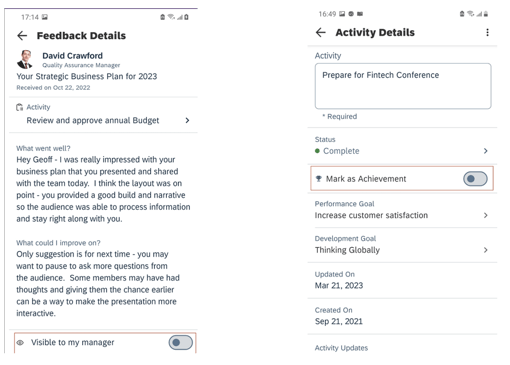
On the Android app, the Visible to my manager switch and the Mark as Achievement switch have wider tracks, and new color mappings.
Achievements on Android
Career Development – Mentoring
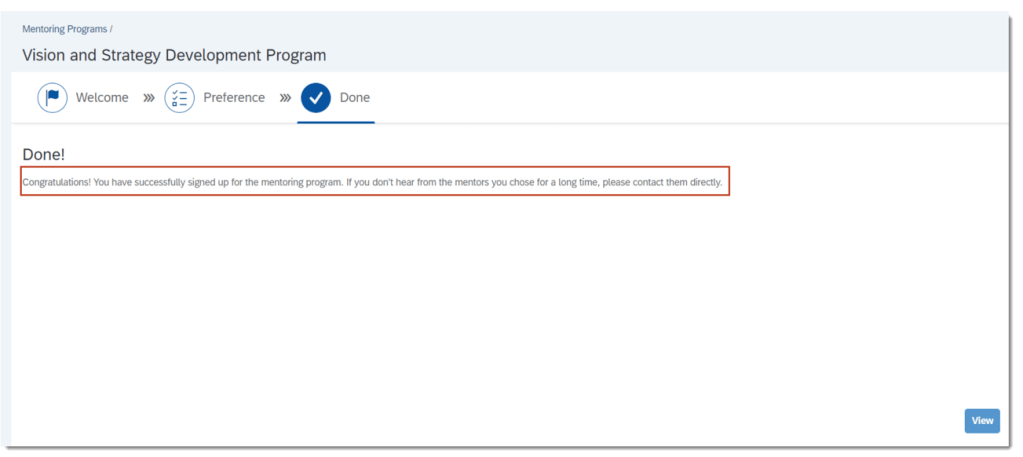
Successful Enrollment Message
When users sign up for an open enrollment or unsupervised program as a mentee there is a “success” message. The message has been enhanced to now include a reminder for the user that they can contact preferred mentors directly if they don’t hear from the mentors for an extended period of time.
Mentoring Enrollment Message
Mentor Participation Approval Request
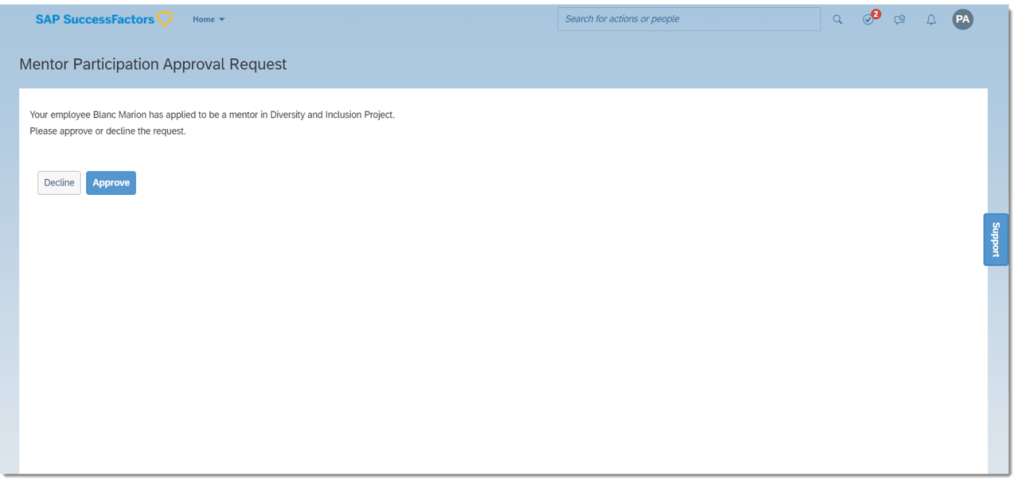
The Mentor Participation Approval Requests have been updated.
The Approve and Decline buttons are now closer to the message text. The buttons used to be at the bottom of the page.
Mentor Participation Request
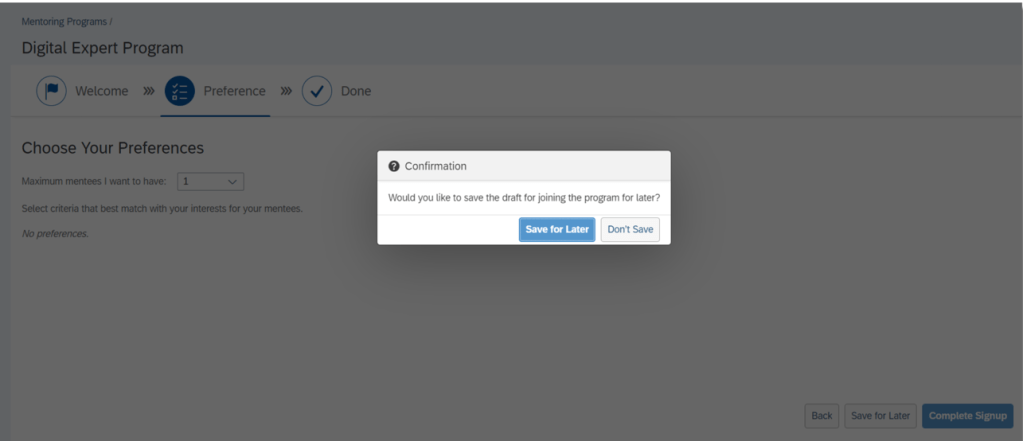
Confirmation for Joining Mentoring Program
When signing up for a mentoring program and a user decides to Save for Later, there is now a confirmation message pop up for them to confirm if they want to save the draft for joining the program for later.
SAP has announced the latest updates and changes for SuccessFactors for the first half of 2023.
Preview release is on April 28 with the production release is scheduled for June 2. You can view the full set of documentation in the What’s New Viewer here. For full details on the release cycle, check out the SAP SuccessFactors official product updates blog.
For tips on how to manage a release, check out our blog here.
For your convenience, we’ve summarized the highlights of what’s new for 1H 2023 Career Development below.
Career Development
There are a few universal updates for Career Development that are reviewed below.
Career Worksheet – General Availability
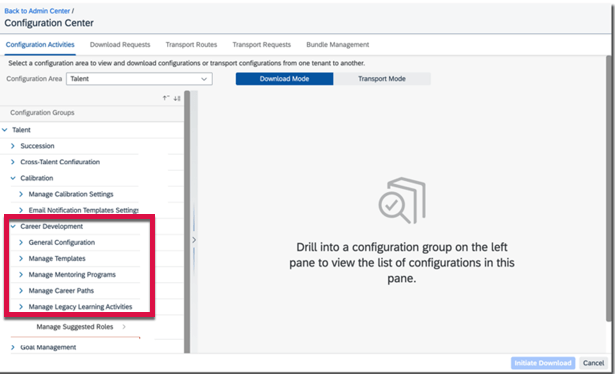
Career Development Configurations Available in Configuration Center
You can now view, download, and transport Career Development configurations using Configuration Center.
Configuration Center
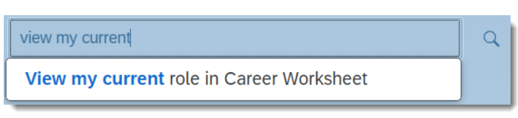
New Action Available in Action Search
On a career worksheet, View my current role in Career Worksheet action is now available for use in the global search box. Users can enter the exact text of the action or select from suggested actions to navigate to the Career Worksheet page.
Current Role Action
The new action takes users directly to a selected page and eliminates multiple steps to get there.
Career Worksheet Data in Story Reports Now Limited to Target Population
The Career Worksheet data that users can view in Story reports, including current and target roles, is now limited to their target population.
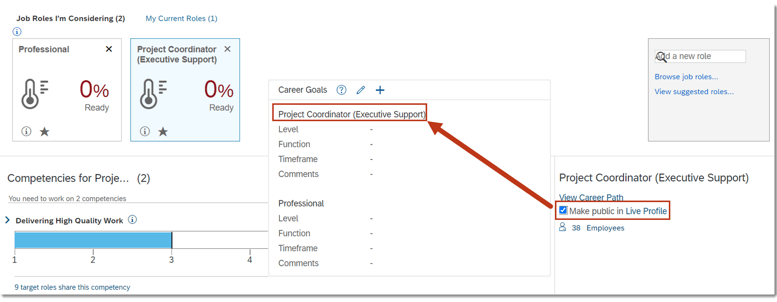
Changed Permission for Users to Show Target Roles in People Profile
Now a user only needs View permission (User Permissions>Employee Data>Preferred Next Move) in order to select the Make public in Live Profile checkbox in Career Worksheet to show target roles in People Profile.
Previously, View and Edit permissions were required. Now a user can select the option to show a role in Career Worksheet. The role then appears in the Career Goals block in People Profile.
Link to Career Goal Block
Mentoring – General Availability – Universal
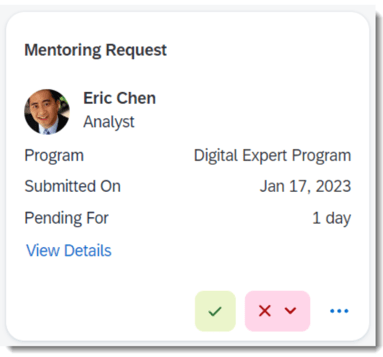
Approvals for Mentoring Requests on the Latest Home Page
In an open enrollment or unsupervised mentoring program, Mentors can now accept or decline the mentoring requests sent by mentees in the Approvals section on the latest home page.
Accept or Decline Mentoring Requests
View More Recommended Mentors
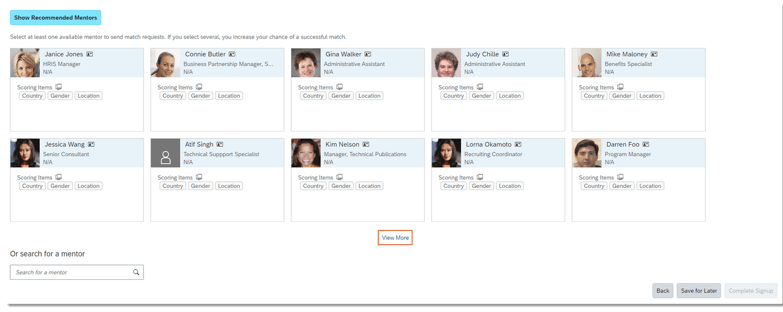
When a user signs up for a mentoring program as a mentee, they can now view up to 100 recommended mentors. Previously, only 10 mentors were recommended.
While signing up and choosing Show Recommended Mentors, now there will be two rows of recommended mentor cards with the View More link below the cards.
Recommended Mentors
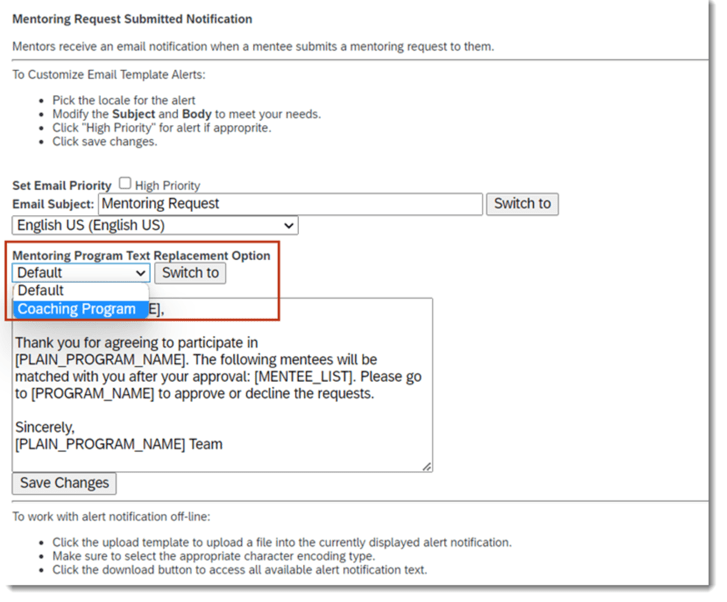
Customize Mentoring Email Notifications
For any customized program type created with text replacement for a Mentoring programs, email notifications for a specific program type may be customized in Email Notification Templates Settings as well.
Customize Mentoring Emails
Approvals for Mentoring Requests on the Latest Home Page in iOS and Android Mobile Apps
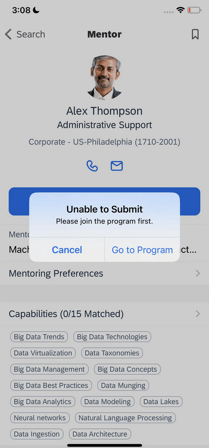
SAP SuccessFactors Mobile users can now search for mentors from a recommended mentoring program they haven’t joined in Opportunity Marketplace. Previously, they had to join the program first.
When a user wants to invite someone they found to be their mentor, choose Submit Request on the Mentor or Bookmarks page. They will be prompted with a message guiding them to join the program first.
Mobile Message when Joining
After joining the program, users can submit a mentoring request to their preferred mentor directly on the page.
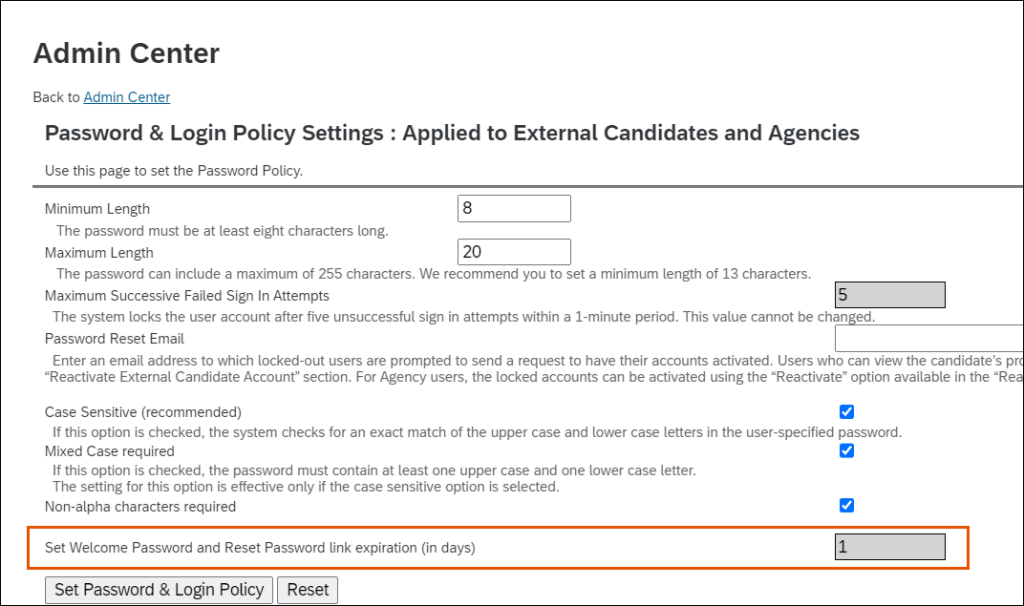
Update to the Expiration Duration of Reset Password Link
Link expiration duration for the Set Welcome Password and Reset Password link expiration (in days) option is now set to 1 day by default.
The Set Welcome Password and Reset Password link expiration (in days) option is now disabled for editing. This option is available in the Password and Login Policy Settings: Applied to External Candidates and Agencies page.
This update enhances the privacy of Agency user accounts and external candidate accounts.
Improved Special Character Support in Job Searches
Keyword and location searches in career sites enabled by Career Site Builder now recognize special characters and treat them as if they were regular characters, so that search results are the same whether the term you use includes special characters or not.
The following table shows an example of how search functionality now treats “Quebec”:
Term Used in Job Posting
Search Query
Search Result
Québec
Quebec
Returns job postings that list both Québec and Quebec.
Quebec
Québec
Returns job postings that list both Québec and Quebec.
The following special characters are recognized for both keyword and location searches, and are treated as if they were unaccented:
é – accent acute
è – accent grave
ë – umlaut
ê – circumflex
ç – cedilla
ñ – tilde
ø – streg
ð – eth (capital form Ð)
å – bolle
æ – ligature
œ – ligature
ē – macron
č – háček
ŭ – crescent
This enhancement to improve the search experience for the candidate, as well as to provide more flexibility for persons writing job requisitions.
New Recruiting Career Site Details for SSL Certificate Expiration Email Reminders
The SSL certificate expiration email reminders are improved with additional details that help administrators identify the specific Recruiting career site certificate that is set to expire.
The email reminders now include the following details:
RCM Company ID
Career Site Builder Site ID
Site Name
Career Site URL
This enhancement to make it easier for administrators to easily identify which career site is associated with the expiring SSL certificate email reminder.
Enhanced Search Functionality for Redesigned Applicant Workbench
The redesigned Recruiting Applicant Workbench now provides an improved user experience for searching, filtering, and displaying applicants who have applied for specific jobs.
You can now filter the applicants using:
Background elements configured in your candidate profile template. For example, previous employment, education, and so on.
Applicant first name and last name.
Fields defined in your application templates and candidate profile.
Keyword search in resume and cover letter.
Facet counts for picklist items, such as Country, where you can see the number of applicants.
For example, you can easily find the list of applicants:
Who currently live in New York and previously worked for the ABC organization.
Who have proficiency in speaking and writing in the French language.
Whose resume contains keywords, such as Java, Python, User Assistance, and so on.
Note:
The Latest Applicant Workbench is available only for customers who have joined the Early Adopter Care (EAC) Program for Recruiting. Find more details at the Customer Community link in the Related Information section: Early Adopter Care for Applicant Workbench Management – Registration is now open!
New Qualtrics Feedback Opportunity for Recruiting Application Status Change
You can use Intelligent Services events to send information to SAP SuccessFactors Recruiting.
Manage Qualtrics Integrations in the Admin Center now includes the Application Status Change option in the Event Name field’s dropdown list for Recruiting.
Here’s a screenshot of the enhanced feature.
This enhancement was delivered so customers would have a way to get feedback from candidates when their application status changed. This, in turn, can help organizations make appropriate corrections or adjustments to the Recruiting process.
Replacement of Google Universal Analytics for Career Sites
Google is replacing Universal Analytics with Google Analytics 4. Career Site Builder administers should update their configuration settings by July 1, 2023, when all standard Universal Analytics properties stop processing new hits.
Key Dates
Future dates are subject to change.
Milestone
Date
Definition
End of Development
December 9, 2022
The deprecation milestone after which SAP stops enhancing a product or part of a product. You can continue to use the software, but you should begin planning for a time when it will no longer be available for use. We still fix high-priority bugs.
End of Maintenance
December 9, 2022
The deprecation milestone after which SAP does not fix bugs or deliver patches for the software. SAP continues to answer your how-to questions. We strongly encourage you to adopt an alternative method for your business scenario.
Deleted
July 1, 2023
The deprecation milestone when a feature is no longer available for productive use. You should now be using an alternative method for your business scenario.
Deprecation Details
Career Site Builder has a new Google Analytics 4 ID field, in SettingsSite ConfigurationSite Information. After you configure your Google Analytics 4 account, you can enter this account’s identification number in the new field. Doing so ensures that new hits continue to be processed for your career site after Google retires Universal Analytics on July 1, 2023.
If you’ve been using Universal Analytics for your career site, the existing Google Analytics ID field will continue to be available in Career Site Builder during this transition period. To reduce confusion between the old and new fields, we’ve revised the label of the retiring field from Google Analytics ID to Google Analytics (Universal Analytics) ID.
In Conclusion
We have now covered the highlights of the Recruiting related updates for 2H 2022.
SAP SuccessFactors has released new features for your Compensation solution. They can be found in detail here (S-User ID required). Filter on Solution for Compensation to review all the latest changes. Under the Description for each, you can click on ‘See More’ to see screenshots and detailed information.
Preview release was on October 28 and production will be released December 9. For full details on the release cycle, check out the SAP SuccessFactors official product updates blog here. New to the release process? For tips on how to manage a release, check out our blog here.
After reviewing all the changes, we narrowed the list down to the 2H 2022SAP SuccessFactors Compensation Top 5 Features:
Reward Statement Generation Report
Compensation Administrators can now download a csv file that will show which employees had a statement generated for them and which did not.
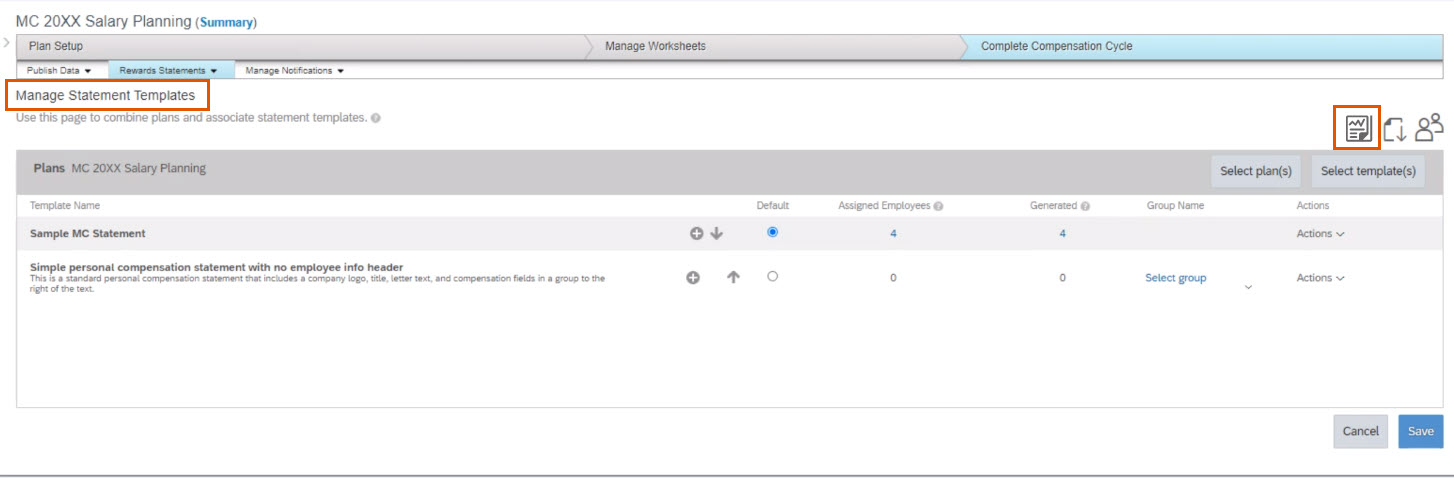
This feature can be found under the Plan you are generating statements for by navigating to Complete Compensation Cycle –> Reward Statements –> Manage Statement Templates and select the Reward Statement Generation Report icon.
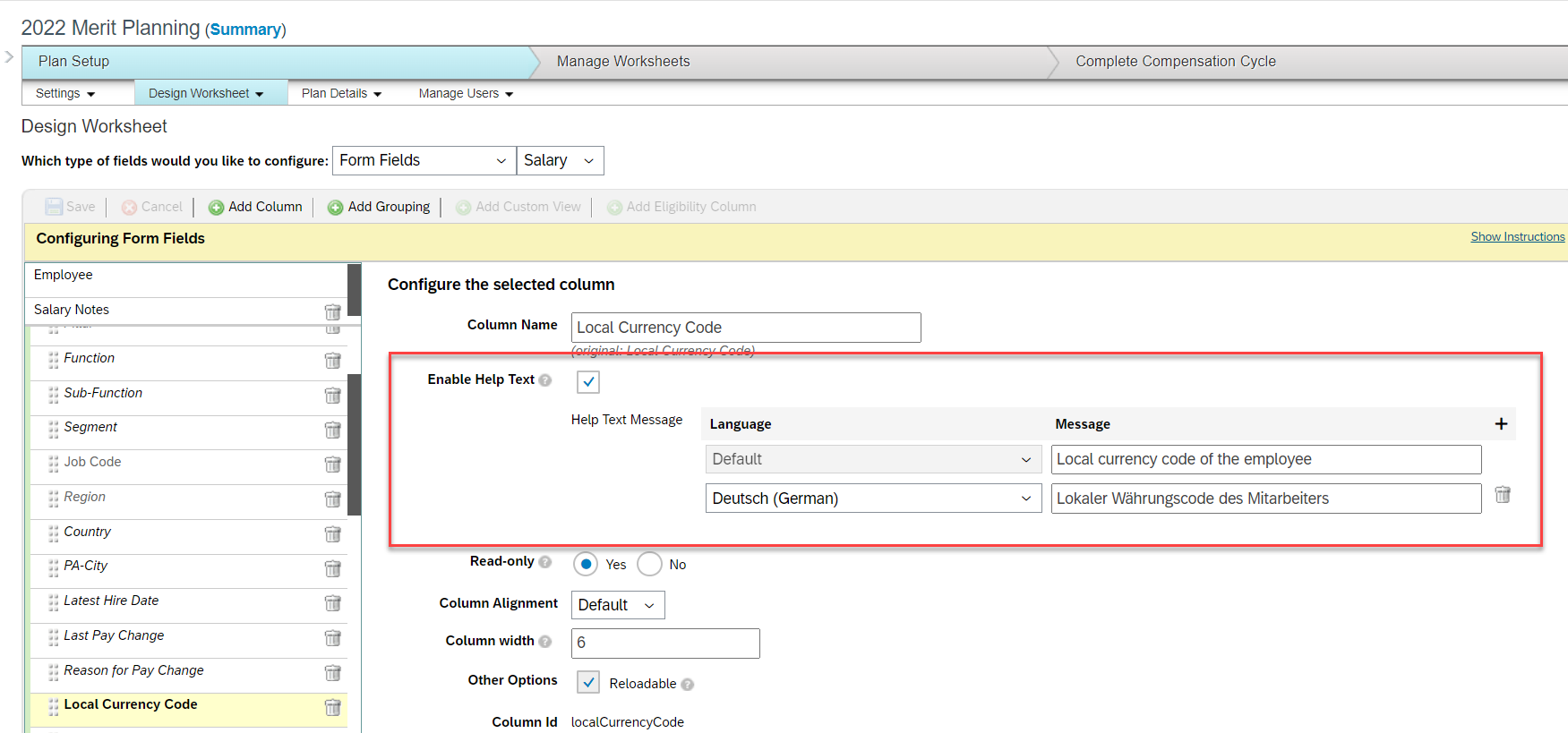
Additional Column Fields with Help Text When Designing Plan Worksheets
Compensation Administrators can now configure help text for up to 50 column fields when designing Compensation, Variable Pay, and Total Compensation templates.
Previously, this was limited to 10 but was extended to allow end users more visibility to useful information describing each column when needed.
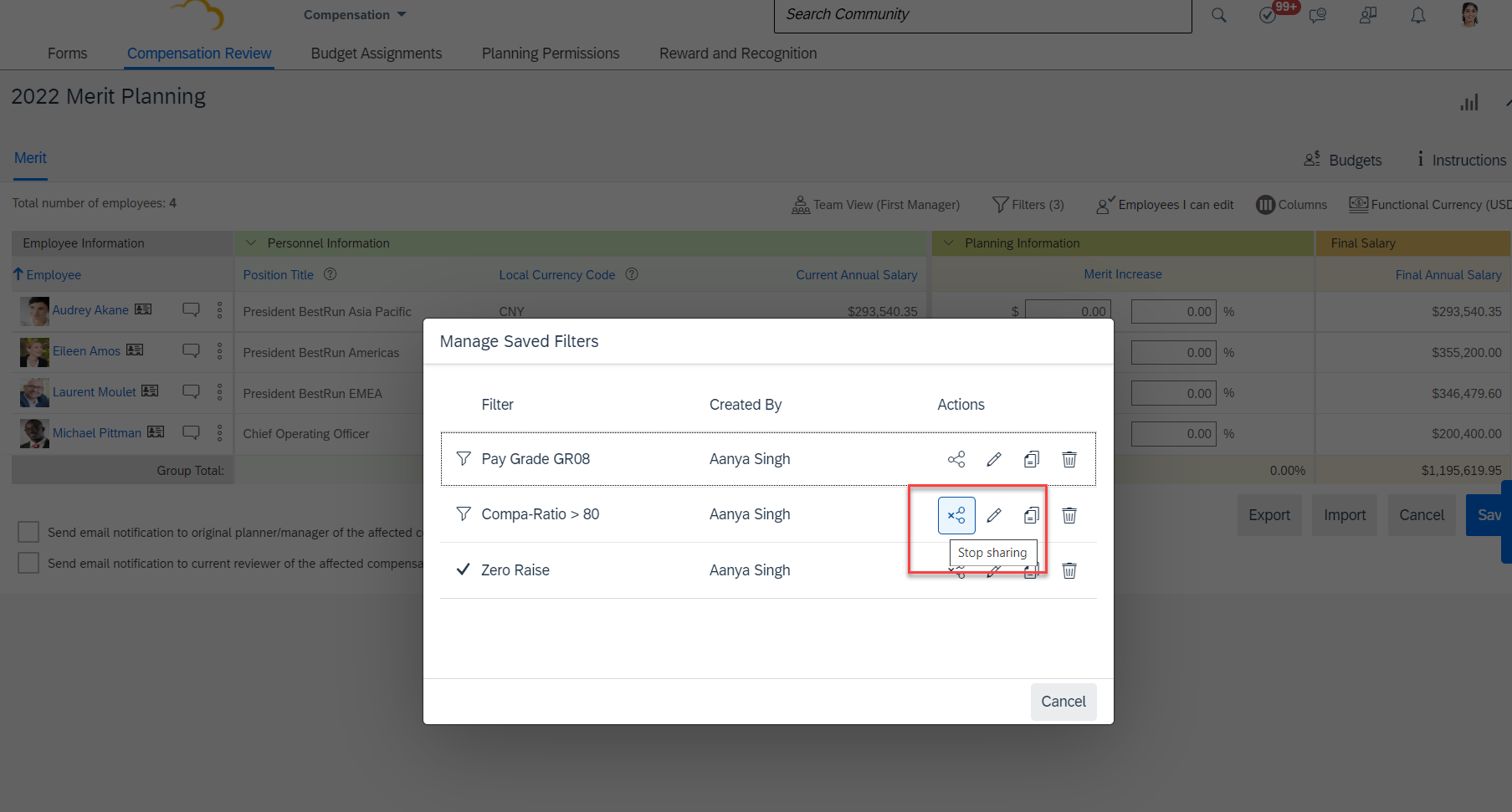
Share Option for Advanced Executive Review Filters
Users will now be able to see a Share button that allows the ability to create and use filters that can be shared across the organization.
In order for users to be able to share, Role-Based Permissions need to be updated by navigating to Administrator Permissions –> Manage Compensation and VarPay –> Enable Sharing Executive Review Filters permission.
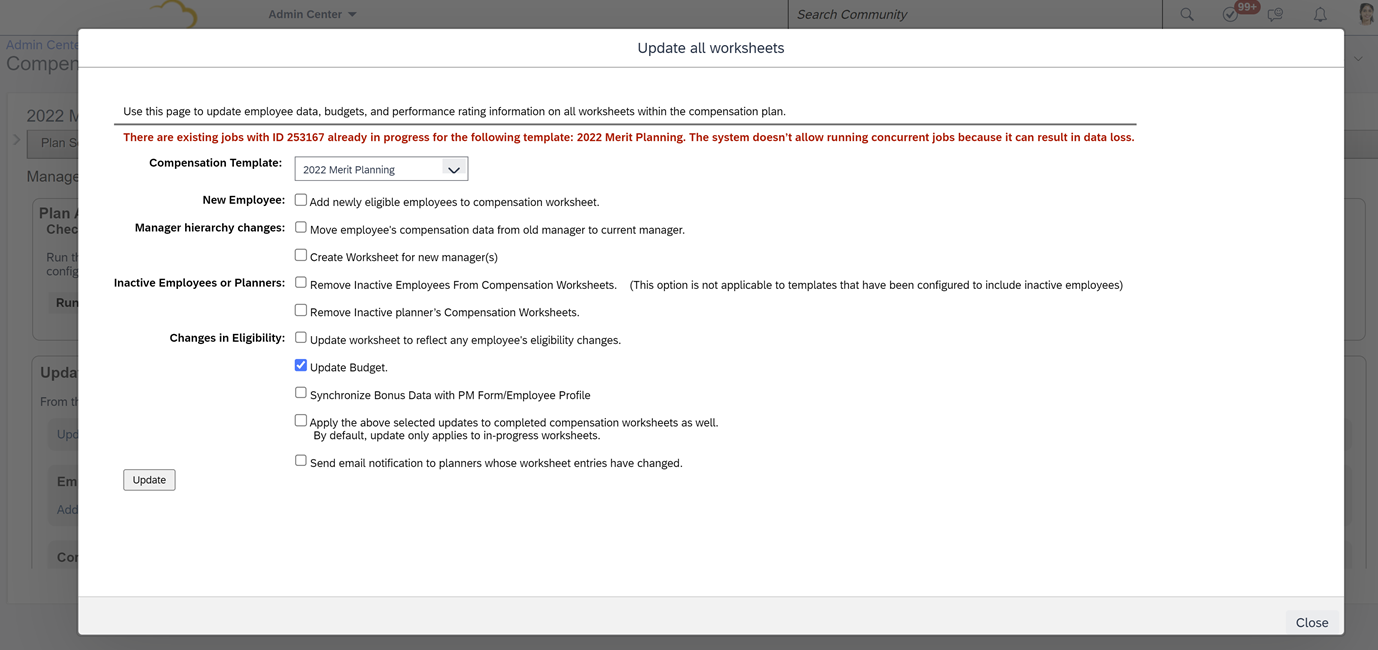
Prevent Concurrent Mass Update Jobs for Compensation
An error message will show if the Compensation Administrator tries to submit a job that is already running. This applies to:
Update Compensation Forms for Template
Apply Eligibility Rule
This is helpful to provide Compensation Administrators better visibility to the status of pending requests and help prevent data loss.
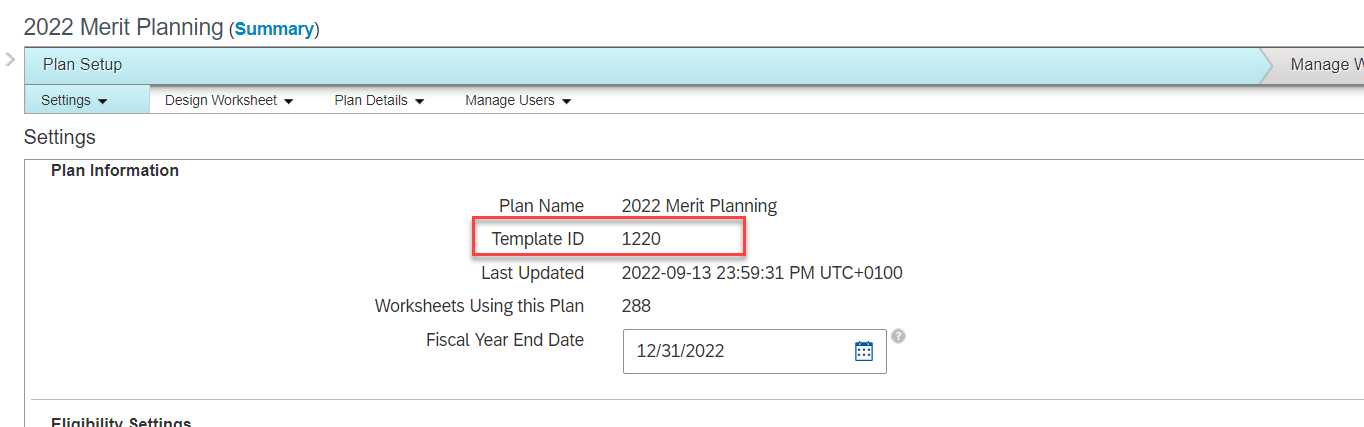
Display Template ID in the Template Settings Page
The Template ID can now be found on the Settings tab for Compensation, Variable Pay, and Total Compensation Plan templates.
Previously, this information could only be found in Provisioning or by downloading the template and reviewing the xml code.
For your convenience, we’ve summarized the highlights of what’s new for 2H 2022 Onboarding 2.0 below.
New Hire Enhancements
New Hires got enhancements to their email notifications. Welcome emails will now get sent after completing the New Hire Data review step if the onboarding process is restarted after onboarding initiation but before New Hire Data Review. Before the email never got sent in this scenario (oops!) There’s also new tokens for Legal Entity and Position available for email notifications.
There’s also now a new guided experience for onboarding in SuccessFactors Work Zone. Admins can configure an experience based on the 3 phases of “Before Your First Day”, “Your First Day”, and “Your First Three Months”.
Hiring Manager / Admin Enhancements
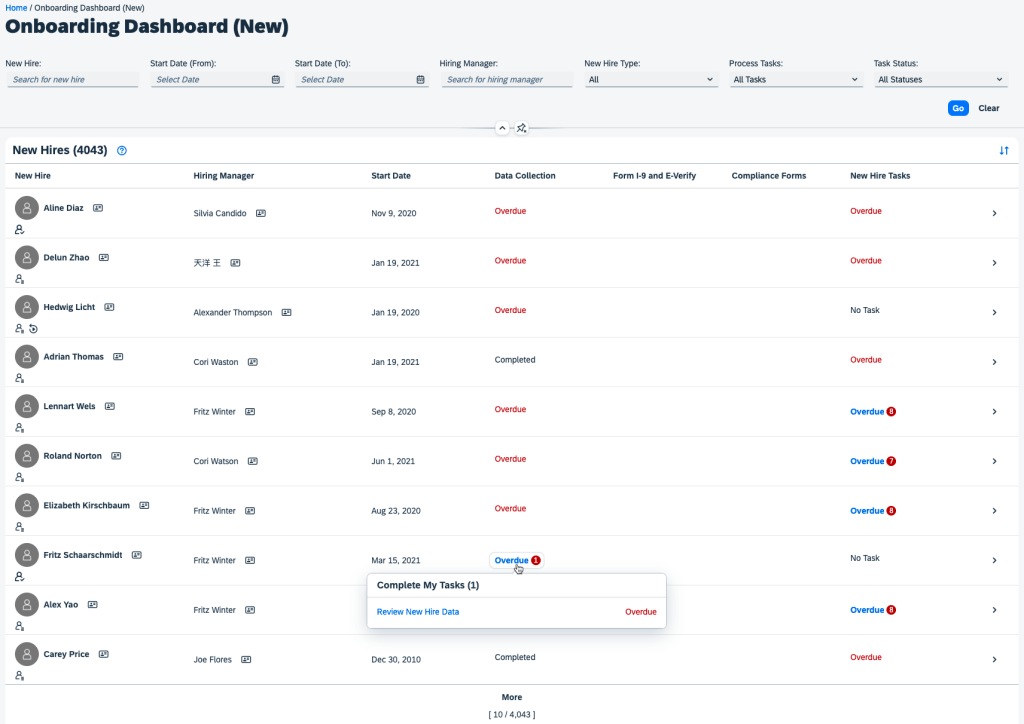
The Onboarding Dashboard (New) has been improved with multiple new UI enhancements. For example you can now view contact information of new hires and hiring managers by clicking the business card icons next to their names. Also, notification badges now let you more easily scan how many tasks you have for a particular category. The status shown for each onboarding task is now an interactive button that can take you to the task details page to complete the task. Also, instead of a “View Details” button for each row of data, there is now a > which takes you to the task details page.
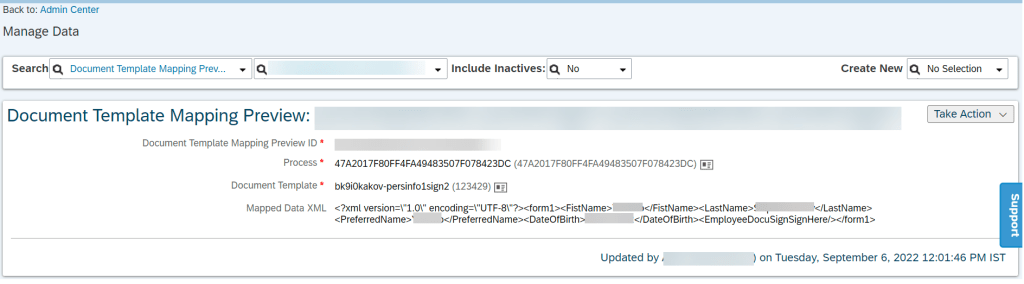
Admins can also now preview what a new hire’s data will look like in a form by using a new “Document Template Mapping Preview” MDF object. This allows you to better troubleshoot issues with the onboarding user’s data. You can see in the screenshot below that the incoming data shows as an XML to further help troubleshoot this data:
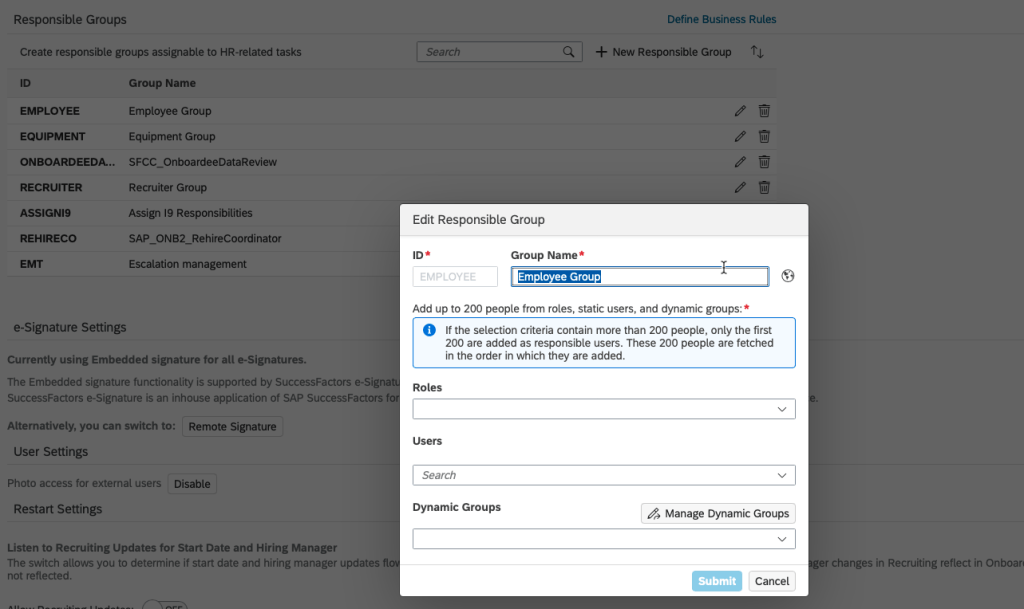
The UI of the Onboarding General Settings screen and how responsible groups work got enhancements as well. Now, all responsible groups can be displayed – when more than 10 groups are created a “More” option appears to view the extras. Responsible groups can now also be searched by ID or name and sorted by name. Up to 200 people from roles, static users, or dynamic groups can be added to a single responsible group.
It is also important to note that DocuSign has switch to OAuth – so if you use DocuSign for Onboarding or recruiting, you’ll need to update your authentication method (no more basic authentication!). Do this before March 31, 2023!
Croatian Currency will change to the Euro on January 1, 2023
General Process Enhancements / Behind The Scenes Enhancements
At its core, an onboarding system is designed to streamline the onboarding process and make sure accurate data is flowing into the HRIS and other systems to that the new employee’s onboarding and day 1 experience is successful, productive, and easy. We can definitely seem some enhancements that speak to this greater goal in this release!
One helpful process enhancement is that when you complete the New Hire Data Review, it no longer triggers the follow up processes in position such as adapt hierarchy, adapt the to-be-hired status on the position, reclassify or transfer positions, and job relationship sync. Instead this only occurs after hire completion in manage pending hires. I can see where this makes more sense to push down stream in the process and will help data integrity – you generally wouldn’t want to make these kinds of changes until the actual hire (e.g. avoids situations where you’ve changed position data and the person is a no show or the hire is never finally made).
Another helpful process change is that you can now rehire with old employment data within the manage pending hires tool. This is setup for admin users by adding the corresponding permission to their permission role(s).
Data validation also got multiple enhancements. For example, the onChange and onSave events in Employee Central can now access Employment_Info, Comp_Info, Job_Relations_Info, Pay_Component_Recurring, and Pay_Component_NonRecurring. This is great for example if someone is crossboarding and needs to update these entities and trigger subsequent system actions. Another example is that redundant job relationship entries when the job relationship is passed from recruiting to onboarding. You also no longer have to pass dummy data from Recruiting to Onboarding in order to retain original values for dates like original start date, hire date, service date, etc. Country-specific field mappings can also now occur when data is passed from recruiting to onboarding. All of these new data integrity enhancements are activated by turning on the “Enable Enhanced Internal Hire Process” switch on the “Onboarding General Settings” screen.
Cancelling an onboarding process also got simplified. The errors shown when a cancellation is requested are more clear now and less permissions are required in order to be able to cancel (e.g. previously this required OData permissions).
The ability to rehire using old employment data is now generally available (was previously just an early adopter feature).
Integrations / APIs
There is a new helpful field called “isRehireOnOldEmployment” in the createOnboardee OData API function import. The idea is that this field identifies if the person is a rehire so that the system tries to find the old employment record which will then be activated. By exposing this to the apis it allows external ATS systems to use the rehire functionality and not just SuccessFactors Recruiting.
There’s also a new getUserNameOfNewlyHiredEmployee API that gets the username of the of the onboarding new hire. This is a great function in my opinion! Many times the benefit of an onboarding system is that it can allow a new username to be setup and shared across systems so that access to multiple systems is ready to go on day one. Given that the HRIS system is often the system of record for the username, it makes a lot of sense to use this API to provision users across multiple third party systems.
Conclusion
The SAP SuccessFactors Onboarding product continues to grow and become increasingly more robust! This does not represent all of the enhancements in the H2 2021 release – only the highlights we found most compelling. Check out the What’s New Viewer here for the complete list of enhancements.
See this great article for useful information on how to prepare for a SAP SuccessFactors Regular Release.
Highlights are identified by module and the type of change.
Universal- for modules enabled, universal means no steps are required to have access to the new functionality. These features are automatically made available.
Admin Opt-In – the admin must enable the new feature, usually in Admin Tools
Admin Opt-Out – the admin must disable the new feature, usually in Admin Tools
Provisioning Opt-In and Opt-Out require a Partner or Product Support request For your convenience, we’ve summarized the highlights of what’s new for 2H 2022 Performance Management below.
Latest Goal Management
The updates are for the latest Goal Management are admin opt-ins. The new features are described below. These features are also now available in iOS and Android mobile apps.
General Availability – Admin Opt-Ins
Copy Goals from Goal Plans using the latest Goal Management
Users can now copy personal goals from their own goal plans as a new option to create goals.
Requirements to use this feature include:
The TGM/CDP Goal Transfer Wizard feature is enabled
The create permission is granted in XML configurations
The write permission for goal fields is granted
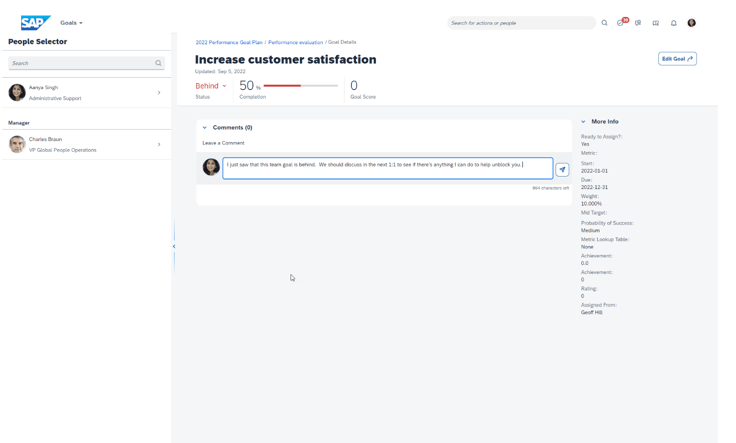
Leave Comments on Goals when using the latest Goal Management
Users can now add, edit, or delete comments on their own goals or those of their direct reports. In legacy Goal Management, comments are shown in the goal list or on the goal editing page.
Copy form Goal Plan
In the latest Goal Management, the updated comment feature is supported and comments are shown on the goal details page.
Comments Section on Goal Details
Comments can also be managed in Performance Management forms, 360 Reviews forms, and Career Development.
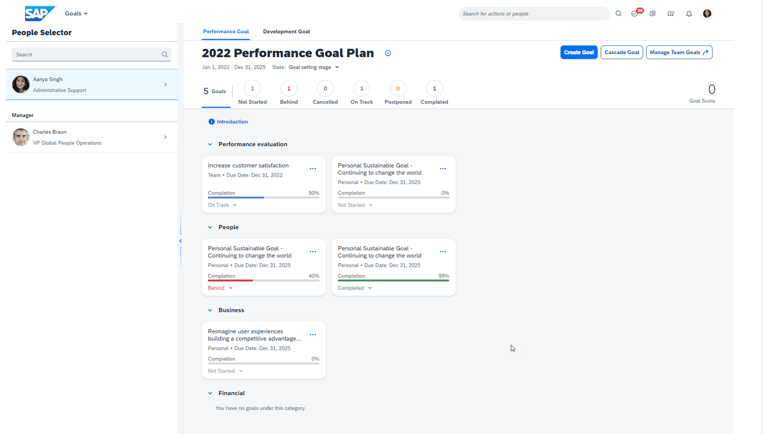
Team Goals Now Available when using the latest Goal Management
Users can now create, manage, and be assigned team goals in the latest Goal Management.
Users may:
Create, edit, or delete team goals
Access team goals from their own goal plan
Assign/unassign team goals to people from their team or people found via search
Share/unshare team goal ownership with others
If configured, users can manage team goals assigned to them in Continuous Performance Management.
Team Goal Landing Page
Users can also manage team goals assigned to them in Performance Management forms, 360 Reviews forms, and Continuous Performance Management.
Group Goals are no longer supported.
These new features are available in iOS and Android Mobile Apps as well.
Performance Management
The majority of the performance management updates involve Multi-Rater 360 forms and Calibration. However there are a few goal and performance related updates that we will begin with.
General Availability – Universal Updates
SMART Goal Wizard not available when using the latest Goal Management
It will not be possible to use the SMART Goal Wizard when adding a goal to a performance form. This feature currently is not supported. Even if you enable the SMART Goal Wizard setting in Form Template Settings this option will not appear when adding a goal.
Enhanced OData Entities for Querying Development Goal Sections on Forms
You can now use APIs to query development goal sections and goal items on Performance Management forms. The FormContent, FormPMReviewContentDetail, FormObjective, FormObjectiveDetails, and FormObjectiveSection APIs. Previously these APIs were used to query performance goal sections and goal items only
General Availability – Admin Opt-In
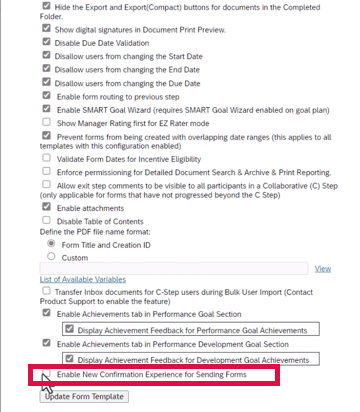
Confirmation prior to Sending Forms
When users send a form, a message popup appears and allows them to confirm the action.
In the advanced settings for the template, there will be a new option to enable the new experience as seen below.
New Setting Available
A pop-up will appear for a user that is sending a form back or forward a step to allows the user to confirm the action. It is also applicable when signing a form, rejecting form or sending a copy of a completed form.
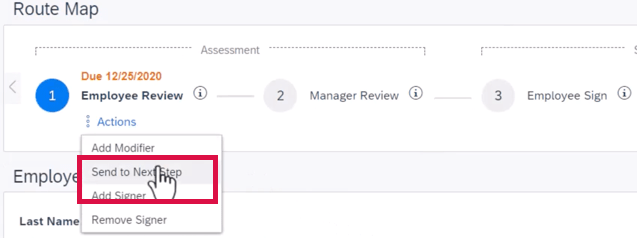
In the route map on the form, clicking Actions in the current step, will display a dropdown list.
Actions on Route Step
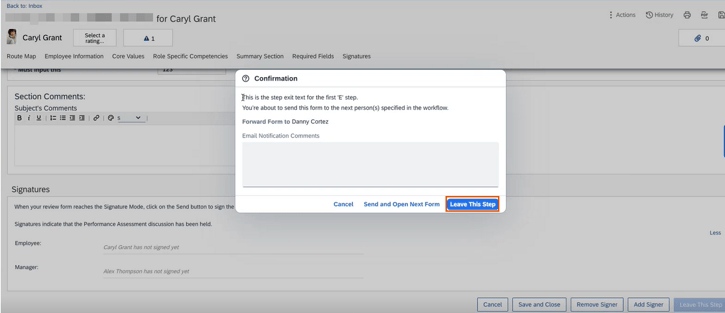
Selecting the action will cause a pop-up to display.
Confirmation Pop-up
Continuous Performance Management
General Availability – Universal
Updated Character Count for Continuous Feedback Topic Field
In the previous version, when users chose the “send” button on a form, a confirmation page appeared.
The character count for the Continuous Feedback topic field to 200 characters.
Replacement of Continuous Performance Management Legacy Version with the Continuous Performance Management Latest Version
The legacy version of Continuous Performance Management (CPM) will reach End of Maintenance on May 20, 2022 and will be retired as of May 24, 2024. The replacement is the latest version of CPM, initially released in 2H 2020, that is currently available in the Upgrade Center. If no action is taken, your company will be automatically upgraded to the latest version after the retirement date.
General Availability – Admin Opt-Ins
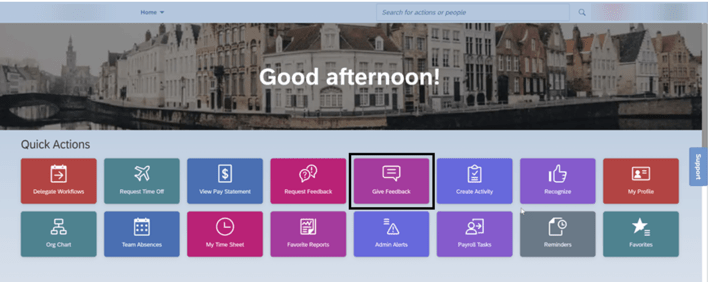
New Quick Action to Give Feedback on the Latest Home Page
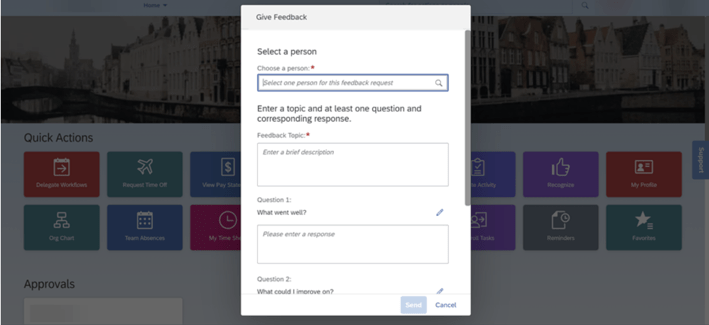
Employees can now choose to Give Feedback from the Quick Actions section on the latest home page.When the Give Feedback is selected, the user can search and select one person, input a topic, and provide feedback to the other user.
Give Feedback from Quick Actions
Once selected, the user may select the person, feedback topic, and questions.
Selections for Feedback
OData v4 API Continuous Feedback for the Latest Version of Continuous Performance Management
You can now use the Continuous Feedback OData v4 API with the latest version of Continuous Performance Management.
The OData v4 API for Continuous Feedback has been added to support third-party integrations and extensions for the latest version of Continuous Performance Management (CPM).
Calibration
General Availability – Universal
Remove Subjects from Calibration Sessions
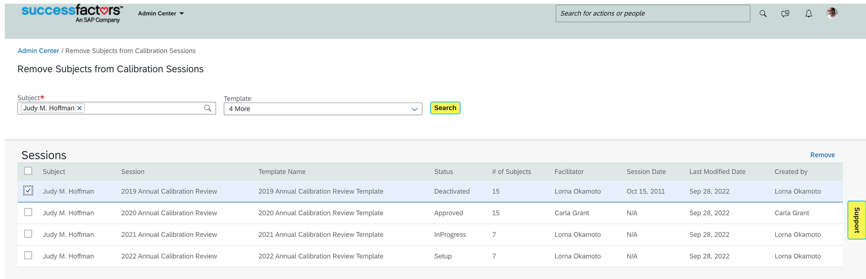
There is a new admin tool, Remove Subjects from Calibration Sessions, used to search for the sessions where an employee has been included as a calibration subject.
When the employee is included in many sessions, you narrow down the search results by selecting a calibration template name. Then, only the sessions created with the specified template are listed.
Remove Subjects from Calibration Sessions
General Availability – Admin Opt-In
More Gender Values in Calibration Views
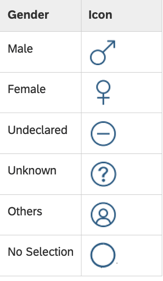
Male and Female were supported for visualization in Calibration Views. Now there are the other three standard values: Unknown, Undeclared, and Others.
The gender icon is displayed next to the employee’s name. When the gender of an employee hasn’t been specified in the system yet, it will be indicated as No Selection.
Gender Icons
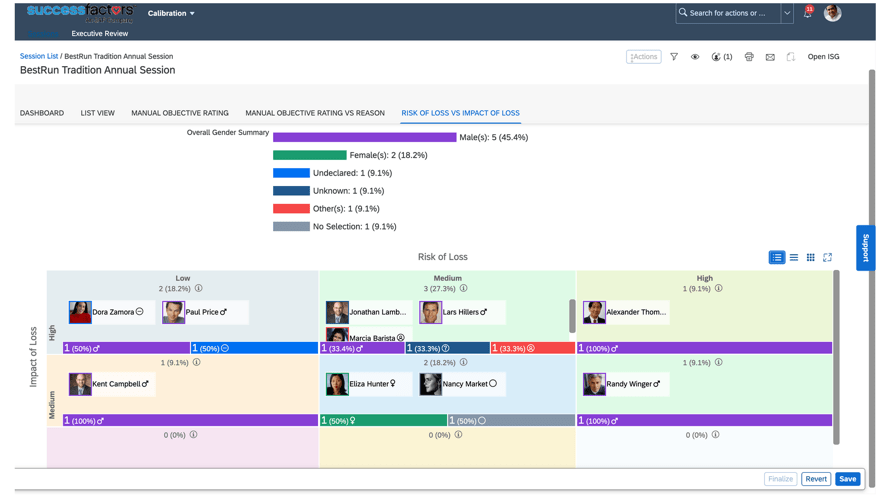
The gender bars in the matrix grid view are now rendered in different colors:
Male: Violet
Female: Green
Undeclared: Blue
Unknown: Dark Blue
Others: Red
No Selection: Grey
Matrix Grid View
Enhancement to Guidelines Enforcement During Mass Finalization
There are more guidelines enforcement scenarios that are supported when you finalize multiple sessions at one time.
More than one rating is included in a guideline defined with a rating group
An operator other than “=” is configured in a guideline defined with a rating range
Not all ratings have a guideline
No longer are guidelines enforced only when finalizing an individual calibration session. With the latest release, multiple sessions can be finalized as long the distribution of subjects doesn’t meet one of the above-mentioned definitions. Distributions would need to be adjusted in order to finalize all of the sessions.
Previously, these guidelines were enforced only when you finalized individual sessions.
360 Reviews
There are several updates for 360 Reviews. Highlights are described below.
General Availability – Universal
Hide Route Map on 360 Reviews Forms
Similar to PM forms, a route map may be collapsed on the form.
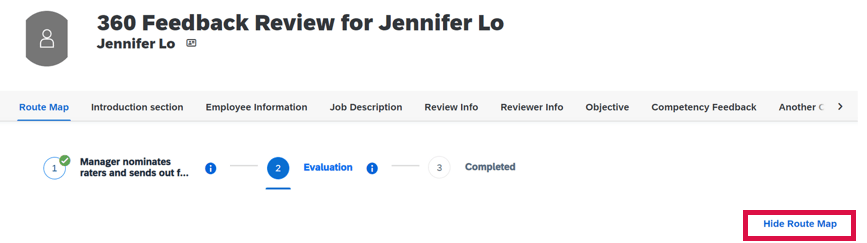
This is done through the advanced settings of the 360 Review template by selecting “Hide Route Map on the Form”. Once enabled, when viewing the form, clicking on Hide Route Map will hide the route map from view on the form.
Visible Route Map
Clicking on Hide Route Map will collapse the route map from view on the form.
Click Show Route Map
Hidden Route Map
Required Fields Marked on 360 Reviews Forms
Fields defined as required are now identified with red asterisks on forms in the Evaluation stage. This now matches how required fields display in PM forms.
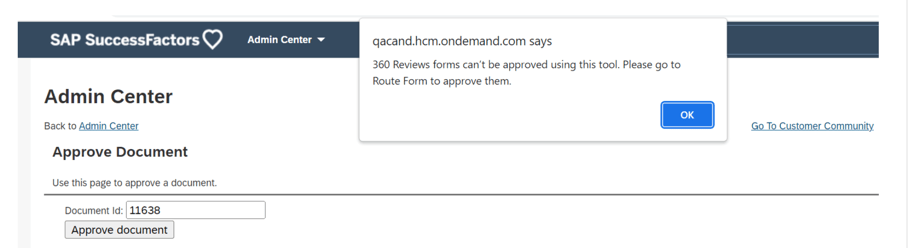
Updated Messages for Users Approving or Routing Forms Using Unsupported Tools
In the Approve Form or Route Signature Stage Form tool, once users enter document IDs and chose the buttons to approve or route forms, they weren’t informed that these tools don’t work for 360 Reviews forms.
Now if a user tries to approve or route 360 Reviews forms using unsupported tools in Admin Center, a message will display reminding them that these tools aren’t supported and are shown the correct tool to use.
Messaging when Routing using Unsupported Tools
“competency-filter” Attribute Supported in 360 Reviews Forms
The competency-filter attribute can be used to control what competencies users from different participant categories can view and rate on 360 Reviews.
Within the meta-cat element in the meta section of the form XML, define different participant categories in order to:
After the form is launched, in the Show Assignments dialog, participants belonging to the categories allowed to rate a competency are automatically selected for that competency. However, users can still select any competencies for a participant that weren’t initially included in the competency-filter defined for the participant’s category.
If a participant’s category is changed in the Modify stage, the participant’s competency assignment will be automatically updated to comply with the new category’s competency-filter.
If a participant is added in the Evaluation stage, the participant’s competency assignment will follow the competency-filter defined for the participant’s category.
If a competency is added to the form, filters including or not including this competency will apply to related competency assignments.
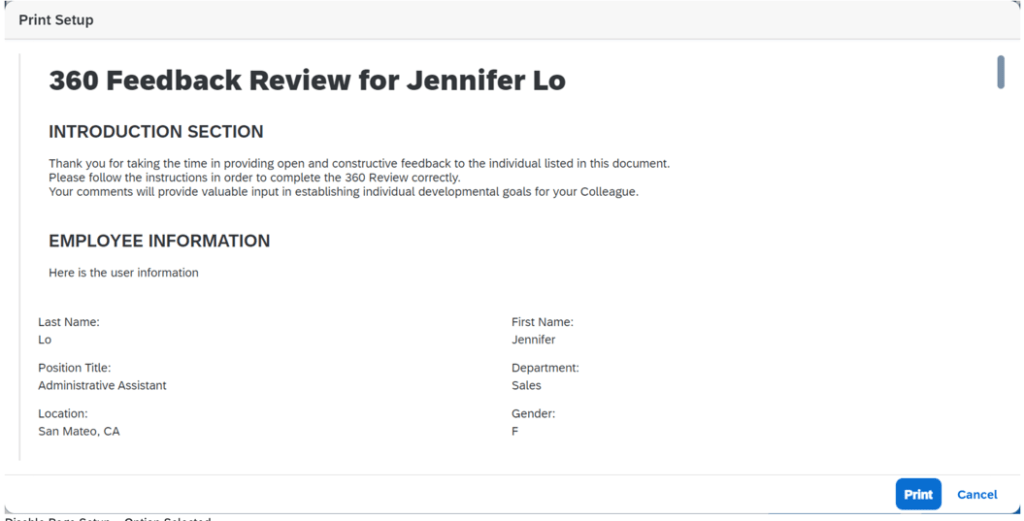
Disable Page Setup When Printing 360 Reviews Forms
It is now possible to prevent a user from specifying to print the Summary View or 360 Executive Review form. Instead the form will be printed in its entirety.
In Form Template Settings there is a new option – Disable Page Setup. When enabled, users aren’t allowed to specify the sections to print and the entire form will print.
Print Setup without Section Option
Show Behaviors in Summary Section by Enabling Rate-by-Behavior
When behaviors are associated with competencies, it is now possible to show behavior names and ratings in the Summary section.
To enable rate-by-behavior, set use-behavior to true and behavior-mode-opt to 0. In the Summary section, add the show-behaviors-in-summary element.
Purge Data of External Users in 360 Reviews
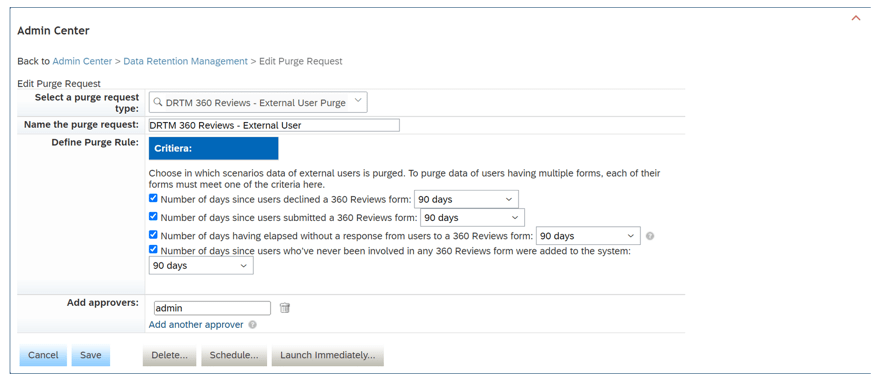
There is a new purge request, DRTM 360 Reviews – External User Purge used to delete data of external users no longer needed in 360 Reviews forms.
The External User Purge for 360 Reviews can be defined by the following purge rules.
A specified number of days have passed since the user declined a form
A specified number of days have passed since the user submitted a form
A specified number of days have passed and the user hasn’t responded to a form
A specified number of days have passed since the user who has never been involved in any form was added to the system
To successfully purge a user’s data who has multiple 360 Reviews forms, each form must satisfy one of the first three criteria.
360 Reviews External User Purge Request
Deprecation of 360 Reviews v11 Version
The 360 Reviews v11 version will reach the end of maintenance on May 19, 2023 and will be deleted on November 17, 2023.
360 Reviews v11 Version is being depreciated because 360 Reviews – SAP Fiori Version is generally available and includes the majority of features and functions that were available in 360 Reviews v11. In addition the SAP Fiori version has an enhanced user experience and updated visualizations.
If you’re using 360 Reviews v11 Version, please migrate to 360 Reviews – SAP Fiori Version.
Career Development
There are a few universal updates for Career Development that are reviewed below.
Career Worksheet – General Availability – Universal
Enhanced Competency Gap Graph in Career Worksheet
Previously, the gap graph was shown only when a competency had both a last rating and expected rating. With the latest release, if a competency has either a last rating or expected rating, a horizontal bar graph for ratings is shown below the competency.
In the example below, the competency has an expected rating shown in blue with no last rating.
Gap Graph
In the previous version, no horizontal bar graph was available if both ratings were not available.
Career Worksheet – General Availability – Admin Opt-Ins
Career Explorer Now Generally Available
Previously, Career Explorer was only available for customers in an Early Adopter Care (EAC) program. It is now generally available.
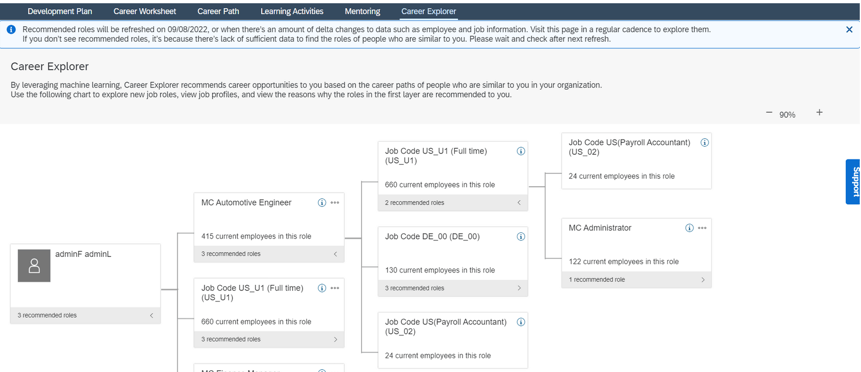
Career Explorer recommends career opportunities to employees based on the career paths of people who are similar to them in the organization. It provides a means for employees to find relevant opportunities in their organization outside their hierarchy, career moves of people who are similar and paths that they may not have considered.
For a recommended role, an employee can expand the card to see a career path in a lineage chart and view job profiles and recommendation reasons. The role may be added to Career Worksheet to do gap analysis for personal skills, or dislike the role to further personalize subsequent recommendations.
Recommended roles are refreshed every two weeks or when there are enough delta changes to the data. This allows employees to visit the Career Explorer page regularly to explore new recommendations.
Career Explorer Page
Mentoring – General Availability – Universal
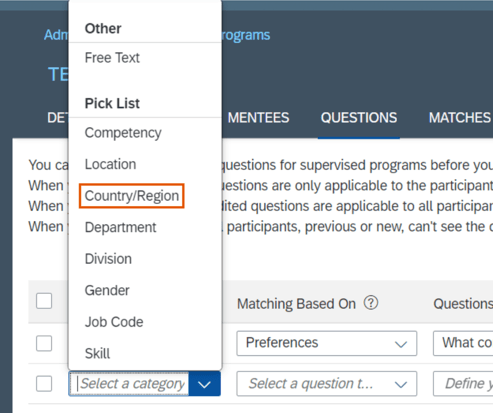
Country/Region Picklist Available for Mentoring Matching Questions
A “Country/Region” picklist is now available in the question category to use for automatic matching. Matching rules can be created to allow mentees to define their preferred country/region when signing up for a program, and mentors’ country/region information is pulled from their profile data.
Country/Region Picklist for Mentoring
Mentoring Program Available in Cross Domain Table Reports
Mentoring Program is now available as a domain in Cross Domain reports in Table reports. This can be used with Performance Management, Goal Management and Employee Profile domains to gather mentoring program related data.
In Conclusion
We have now covered the highlights of the PM related updates for 2H 2022.



























 Worklogix Blog