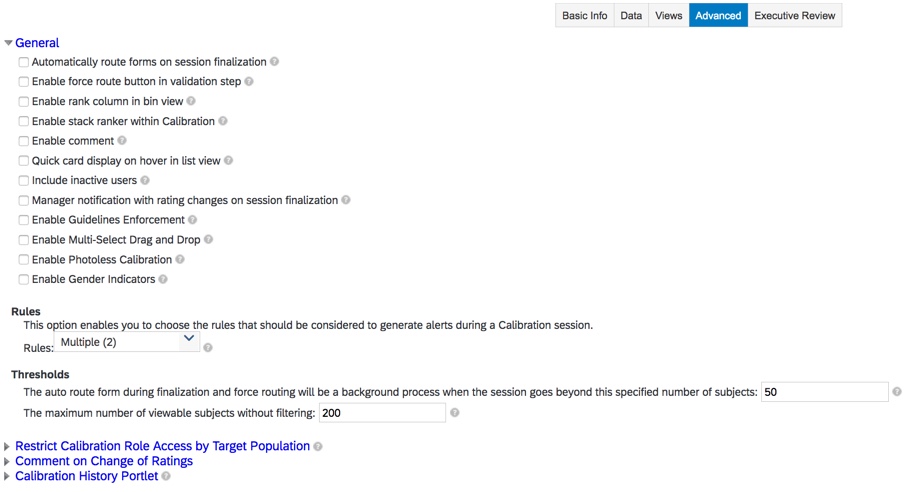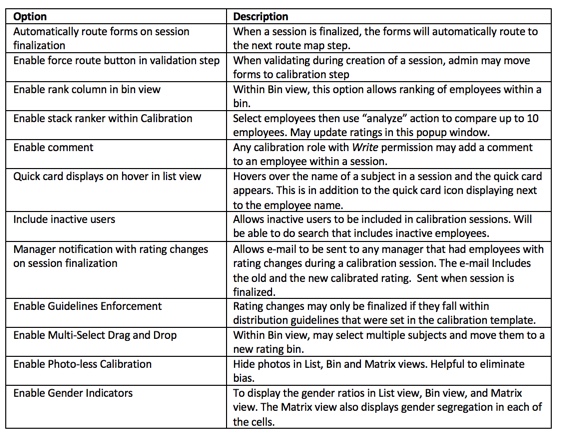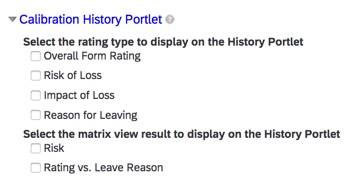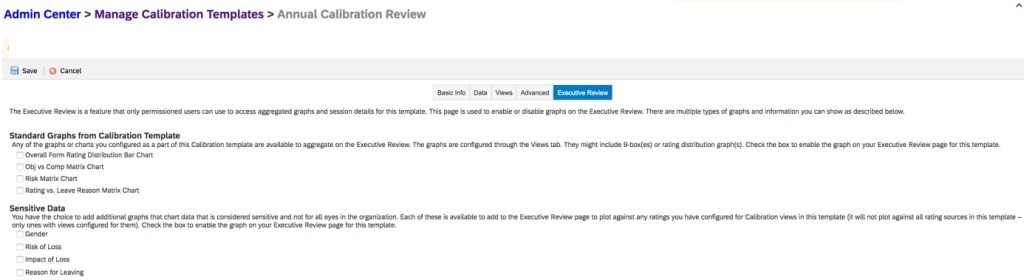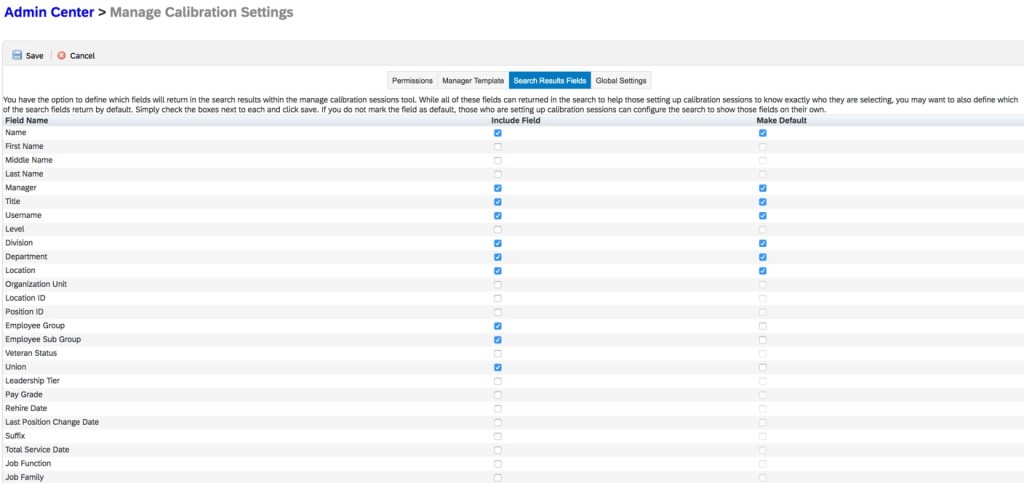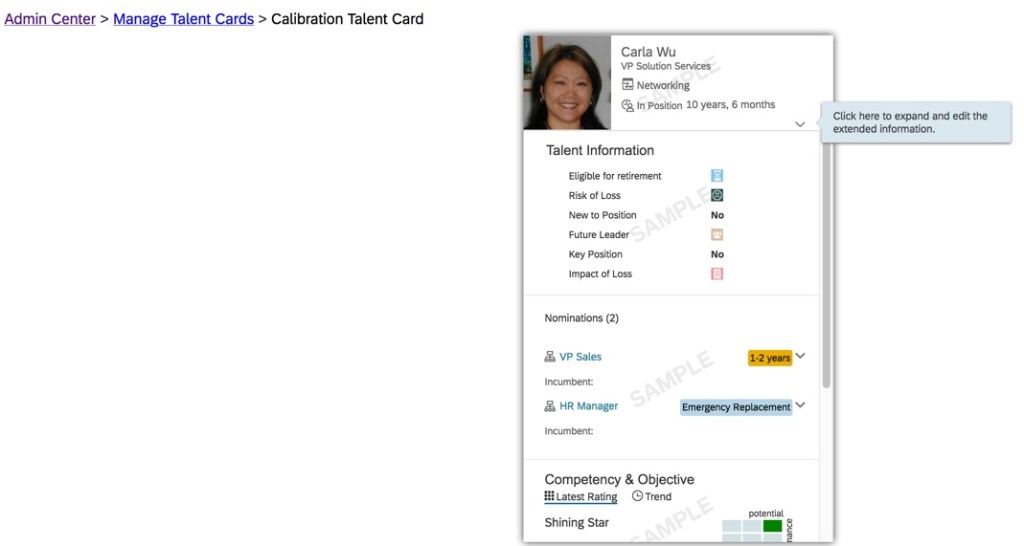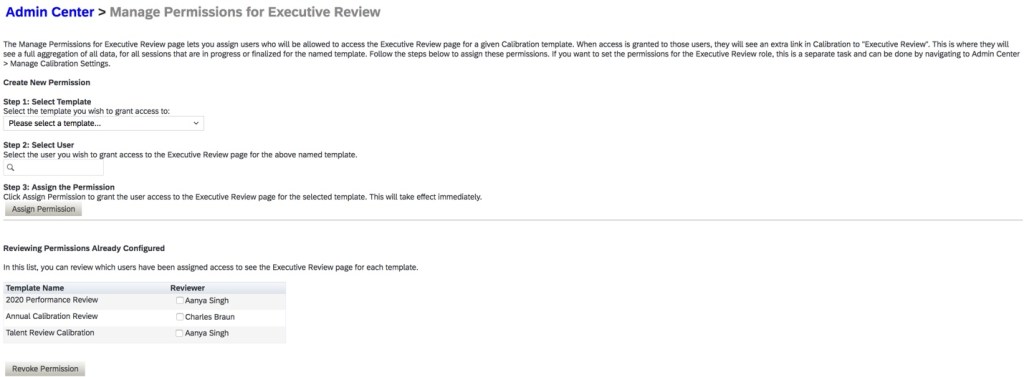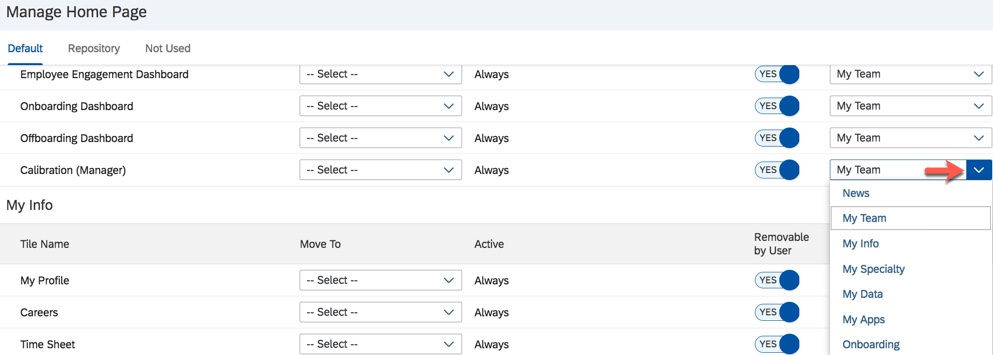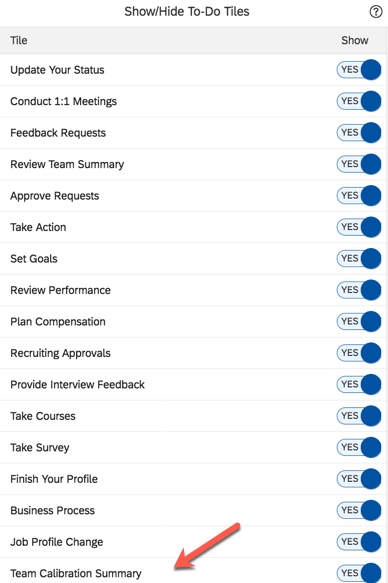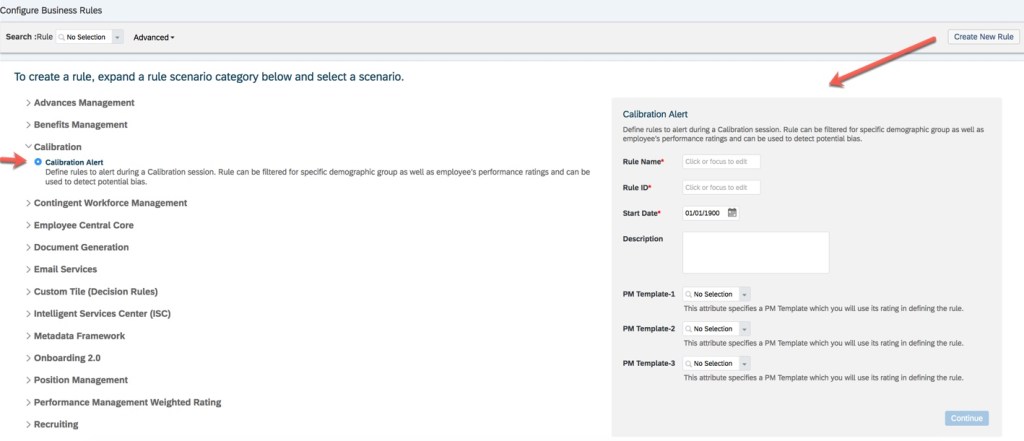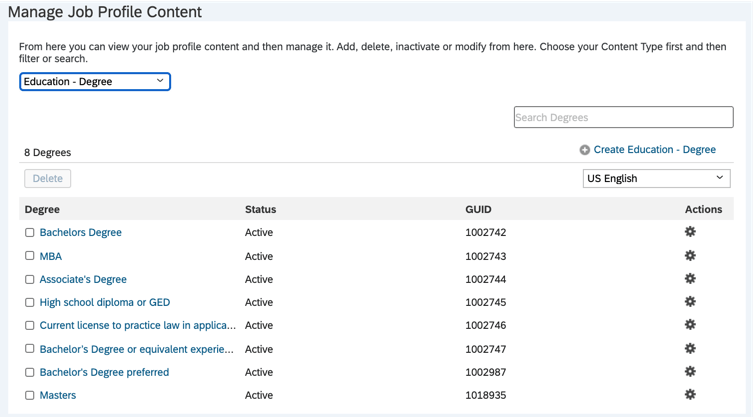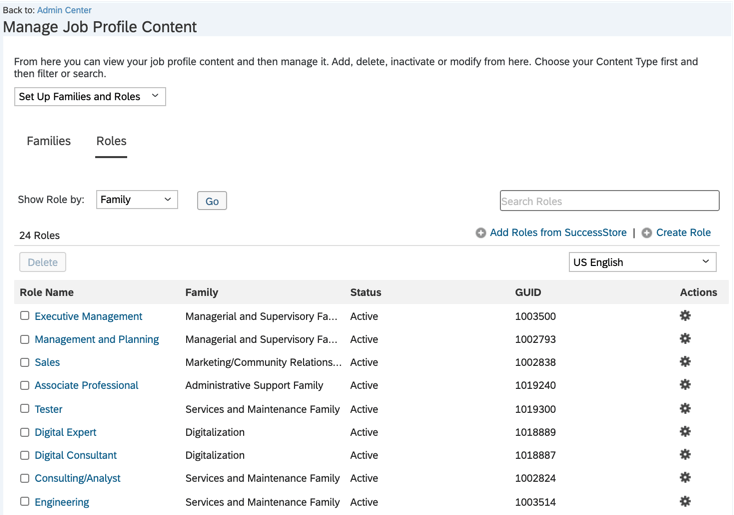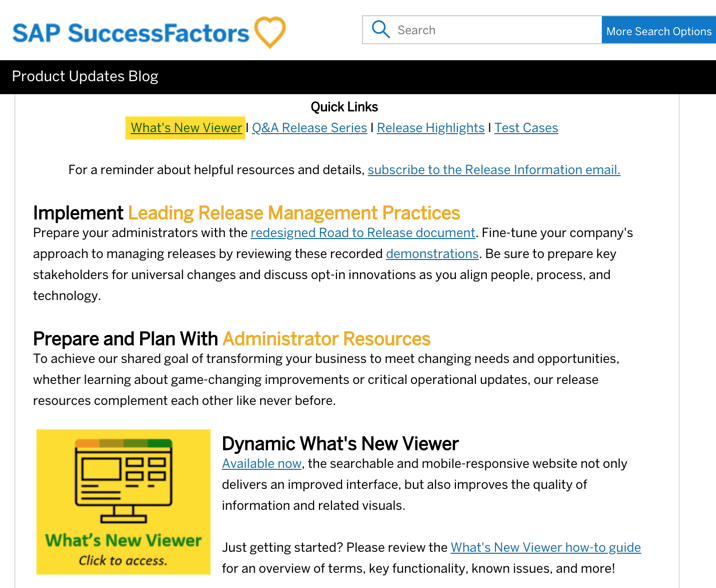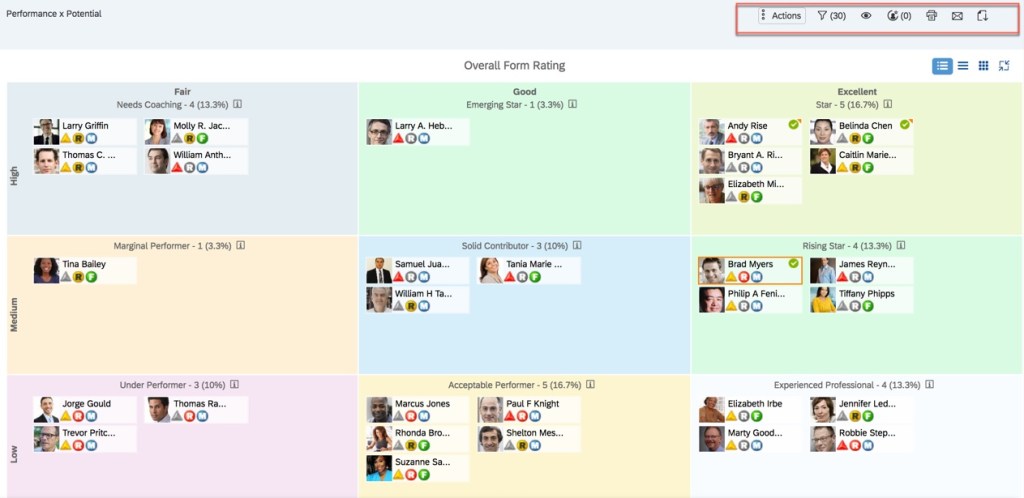
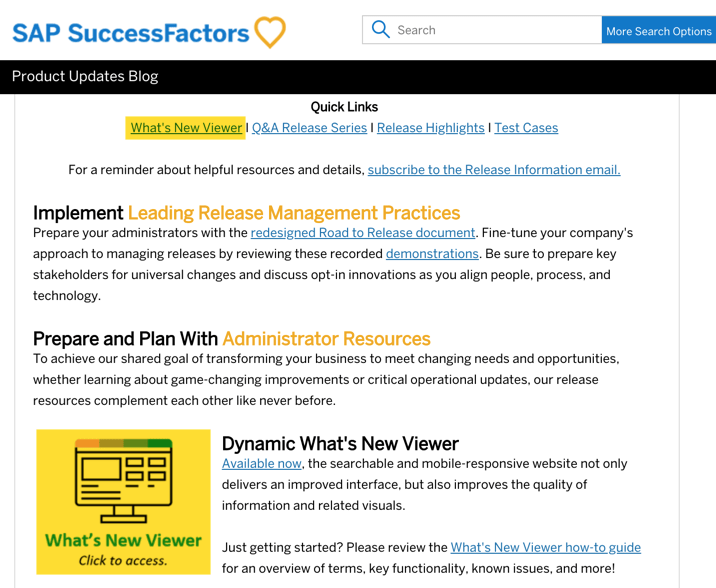
SAP SuccessFactors Employee Central has come out with several enhancements and features for 1H 2020. All of the latest enhancements can be found here (S-User ID required). Scroll down to the ‘What’s New Viewer’ to review the changes.
Filter on Solutions for Employee Central to review all the latest changes. Under Description, click on ‘See More’ to see screenshots and detailed information.
This post will be highlighting some of the top enhancements & features:
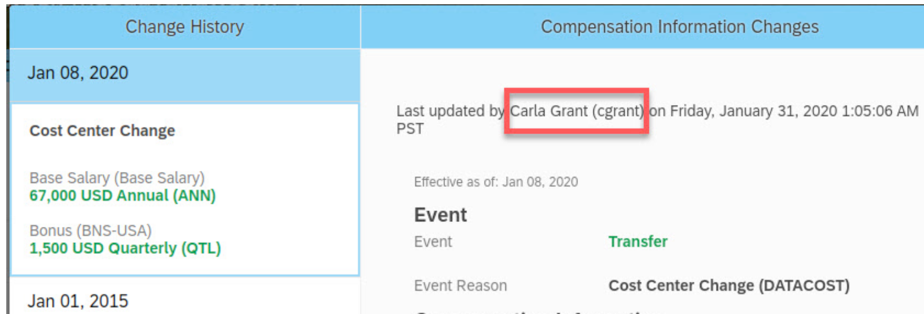
Show Full Name in History Pages
Users previously had difficulty finding out who made the change solely by their user name in the History page. But now SuccessFactors has made it easy for users by showing the full name of the person who made the change along with the user name in the “Last modified” field of the “History section” for the below pages:
Job Information
Job Relationships
Compensation Information
Personal Information
Dependents
Addresses
Synchronize Data from Work Order to Job Information
Manual steps has been reduced – Yes!! Manual steps are no longer required in updating the job information of contingent workers when there is a change in their work order.
Now Synchronization is automatic between the work order and job information for the common data of contingent workers. This can be achieved by creating a business rule while adding a new work order or modifying an existing work order.
Detailed Information can be found here: Click Here
Check Tool for Contingent Workforce Management
New checks have been created to help users identify and resolve potential configuration and data issues with the contingent workforce management application.
To save time and effort, a few checks have been added to highlight issues related to application configuration and contingent worker data along with resolution tips to help users resolve them by themselves.
Detailed Information can be found here: Click Here
Export and Import of Corporate Data Model Information
The Corporate Data Model can be now be imported and exported from the Admin center. Users can incorporate their changes in the exported XML and import them back in from the Admin Center.
This includes Country or Region-Specific Corporate Data Model. This removes the need to do the Import/Export of the CDM on the provisioning side.
Detailed information can be found here: Click Here
Rule Contexts During Import
Now while importing a data model, the original values of the rule contexts will be preserved. Previously when users imported a data model by default, all rule contexts were reset to Yes.
Detailed information can be found here: Click Here
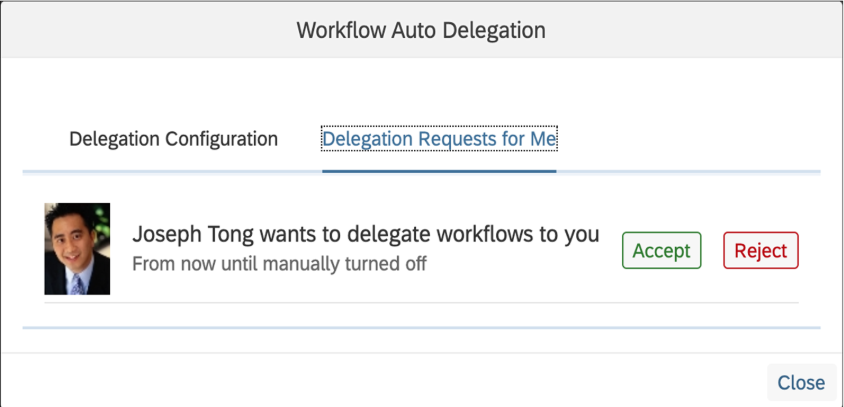
Accept or Reject Auto Delegation Requests
SuccessFactors has now offered the chance to users whether they wish to accept or reject delegation request. Users can now respond to auto delegation requests on a new tab called “Delegation Requests for Me”. Workflows are delegated to them only when they have chosen to accept the request.
Detailed information can be found here: Click Here
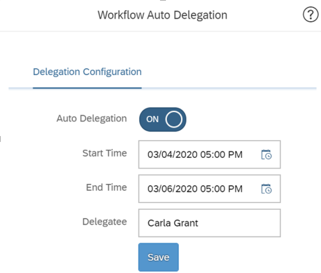
Specify Start Time and End Time of Auto Delegation
Delegators will now be able to choose a period for the auto-delegate to remain effective. Users have the option to choose the start date and end date when they configure the delegation.
During the specified period, the workflows will be triggered automatically for the delegates to approve. When the “end date” has been reached, the auto delegation feature will turn off automatically and hence no manual work is required to turn it off.
Customizable Key Details on the My Workflow Requests Page
An enhancement has been made to include the custom key details for workflows in the “My Workflow Requests (Advanced To-do)” page.
Now workflow decisions can be made by seeing the summary without having to open the workflow detail page for position workflows.
Detailed information can be found here: Click Here
Time Sheet Custom Fields are now supported for the iOS and Android Mobile Apps
The SAP SuccessFactors Mobile apps now support the following Time Sheet custom fields: Date, Boolean, Number, Decimal, and String.
This feature creates better alignment between the iOS and Android Mobile apps and the web application.
New Rehire Event Reason for Replication of Employee Master Data
A new event reason has been created that supports the scenario where an employee is rehired after termination. Job information records will be extracted from the rehire date with PSEUDO_REHIRE event reason.
Starting in 2020, SAP changed the release schedule to every 6 months. All of the latest enhancements can be found here (S-User ID required). Scroll down to the What’s New Viewer to review the changes.
Click on the What’s New Viewer to review the latest changes
Filter on Solutions for Compensation, Variable Pay, and Reward and Recognition to review all the latest changes. Under Description, you can click on ‘See More’ to see screenshots and detailed information.
After reviewing all the changes, we narrowed the list down to the Highlights for H1 2020Compensation & Variable Pay & Reward and Recognition:
1. Import and Export non-EC Eligibility Rules
Administrators now have the ability to Export and Import Eligibility rules
Admins can export the rules as a .csv file and then import the file as needed into other templates
This process will save time and improve accuracy during configuration
Import and Export buttons now appear for Eligibility Rules
2. Enhanced Display Criteria for Bulk Download Icon
Users can now view the icon for bulk download only if a statement was generated for an employee from the recently filtered list of Executive Review
Previously, the icon was displayed even if statements weren’t generated from the filtered list which caused confusion
Enable the Display Bulk Print Statement Icon on Executive Review Page option
Bulk download icon only displays if statements are generated for filtered list
3. View a List of Employees Excluded from Statement Download
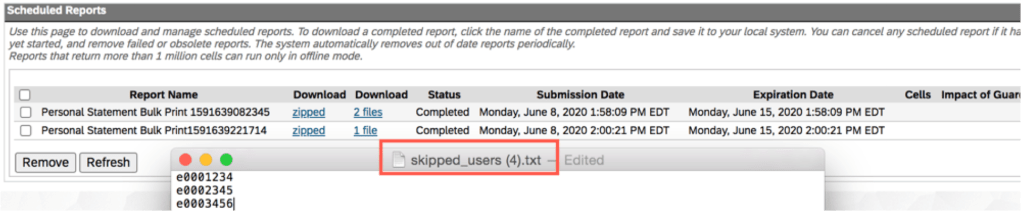
Using log files, users can now identify employees who are excluded during the bulk download process from Executive Review
Log file will show a list containing the username and user ID of all excluded employees
Log file shows list of employees excluded during the bulk download process
4. Publish by User for Variable Pay and Total Compensation Plan Templates
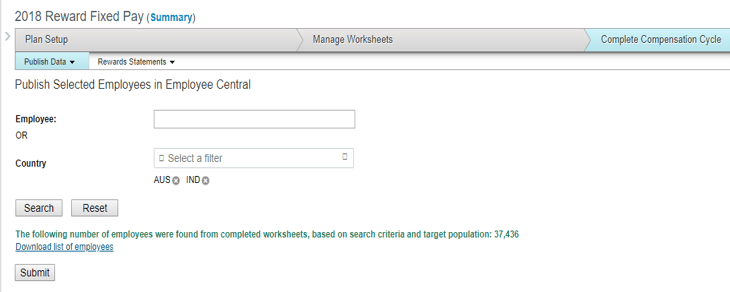
Administrators can now publish specific employees or groups of employees to Employee Central in Variable Pay and Total Compensation Plan templates
Prior to this release, this feature was only available for compensation templates
Publish by Employee is now available for Variable Pay and Total Compensation Plans
5. Use Bonus Payout Summary Reports Offline
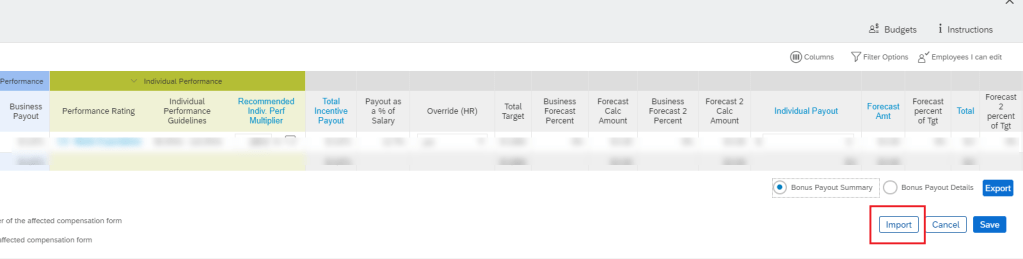
Users can now modify editable fields in the exported file while offline from Executive Review. The modified exported file can then be reimported to update the fields with new changes.
Permissions must be set to allow for edit and export access to Executive Review
Enable the setting for Offline Edit Access for variable pay worksheets
Import functionality now exists for Bonus Payout Summary
6. Expanded Pay Range Matching for Promoted Employees
Users can now define a new finalAttribute field that the system uses when calculating the final pay range.
This will avoid the issue of miscalculated post-promotion pay ranges in EC-enabled compensation templates caused when the system continues to incorrectly use pre-promotion classification and pay grade information
In previous versions, the system incorrectly calculated pay range on the basis of pre-promotion information
finalAttribute field can be defined for proper calculation of pay ranges
7. Hierarchy and Date Validations for Check Tool
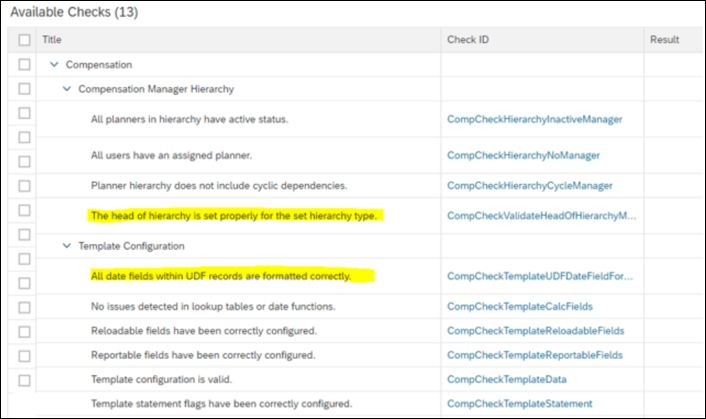
Check Tool now has two new validations:
Review the Manager ID of each head of hierarchy in the compensation plan
Ensure that all date fields within UDF are formatted correctly
Additional useful validations added to Check Tool
8. Default Currency View in Compensation, Variable Pay, and Total Compensation Plans
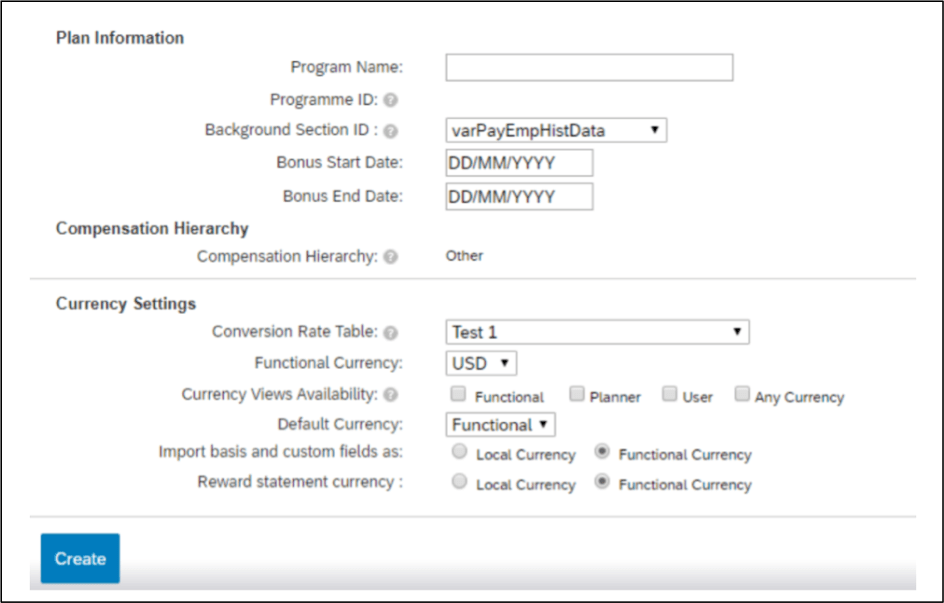
Users can now set the currency that the system uses as default when compensation, variable pay, and total compensation plans are launched.
In previous versions, this was handled in the XML
Users can set Default Currency under Currency Settings
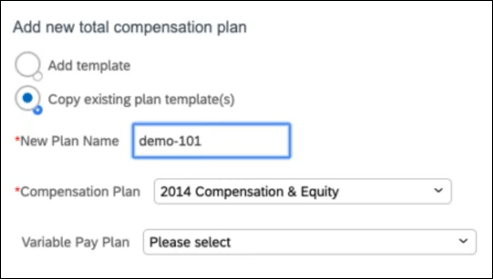
9. Expanded Flexibility in Total Compensation Plans
While creating total compensation plans by copying existing templates, users now have the option to create a plan by selecting an existing Compensation template without also selecting a Variable Pay plan template.
This is useful as not all customers are using variable pay
Total Compensation Plans can be created without having to select variable pay template
10. Delete Awards
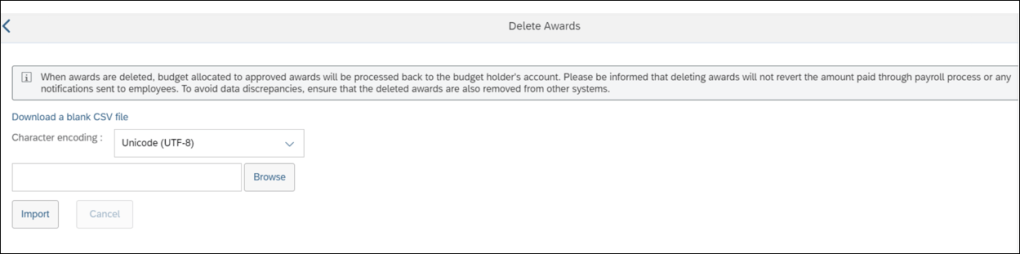
Users can now delete awards, irrespective of their status using the award IDs.
Awards that are no longer used can be permanently deleted from the system
Users now have the ability to delete awards
See this great article for useful information on how to prepare for a SAP SuccessFactors Regular Release.
Starting in 2020, SAP SuccessFactors has changed its release schedule from every quarter to biannually. With this change, the releases will be larger with an additional preview week. Here we will focus on what’s new and what has changed in Calibration.
There is one new feature for Calibration along with four enhancements. Let’s start with what’s new!
Customized Weighted Ratings now used in Calibration
There is a new universal feature that allows ratings from the Customized Weighted Rating summary section of performance form template to be used in Calibration. Prior releases of Calibration could only use ratings from the Overall Performance, Overall Potential, Overall Objective and Overall Competency sections of a performance form templates as rating sources.
This option is helpful if you wish to calibrate the overall form rating based on the ratings given by different roles in different steps instead of using the final overall rating from one role. The customized weighted rating is calculated based on the ratings and weights from the steps and roles that were defined in a business rule. Another rule defines the trigger step used to calculate the overall weighted rating.
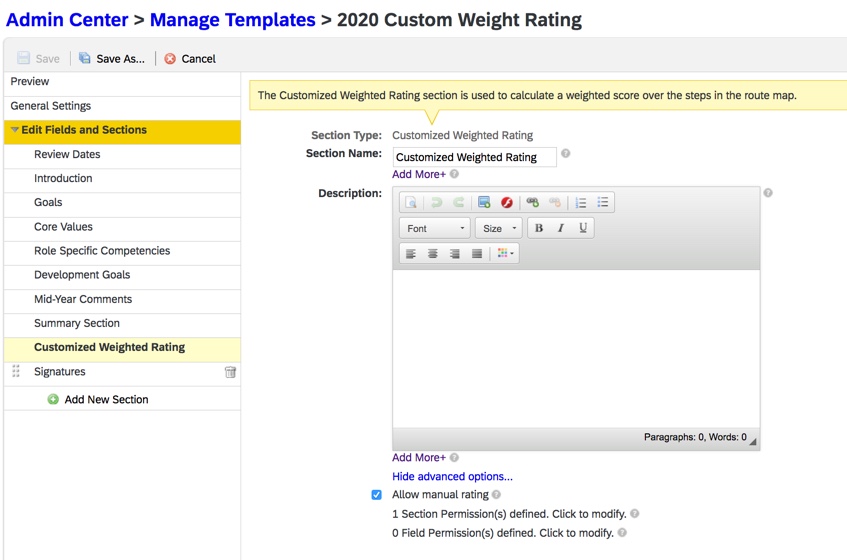
The Customized Weighted Rating section of a performance form template is displayed below.
Customized Weighted Rating Section of PM Template
When using ratings from the Customized Weighted Rating section, make sure the calibration step is after the step where the calculation of the weighted rating is triggered in the PM form. Just remember, when the manual rating is enabled in this template section, the calculated rating would not be available in the Bin view of a calibration session.
The Customized Weighted Rating section of a PM form is shown below.
Customized Weighted Rating section of a PM Form
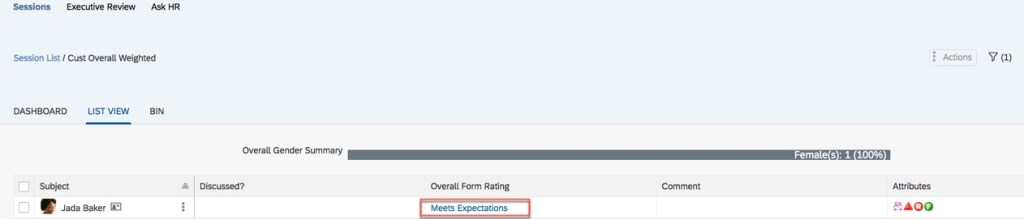
In the example below, you can see the customized weighted rating appearing in a calibration session. It appears in the “Overall Form Rating” column because a manual rating overrides the calculated rating.
Overall Rating in Calibration Session
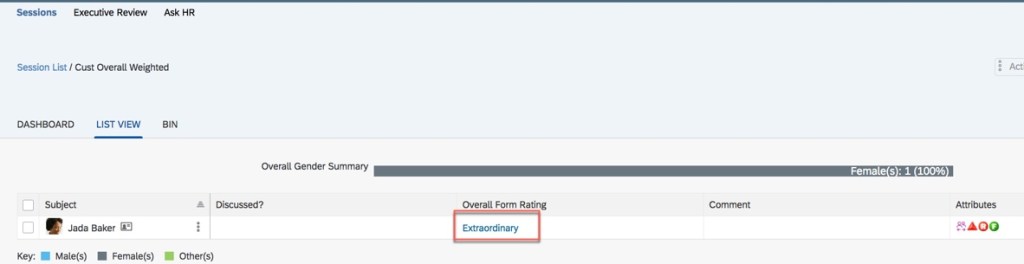
Continuing with this example, the rating is updated from “Meets Expectation” to “Extraordinary” in the calibration session as shown below.
Updated Rating in Calibration Session
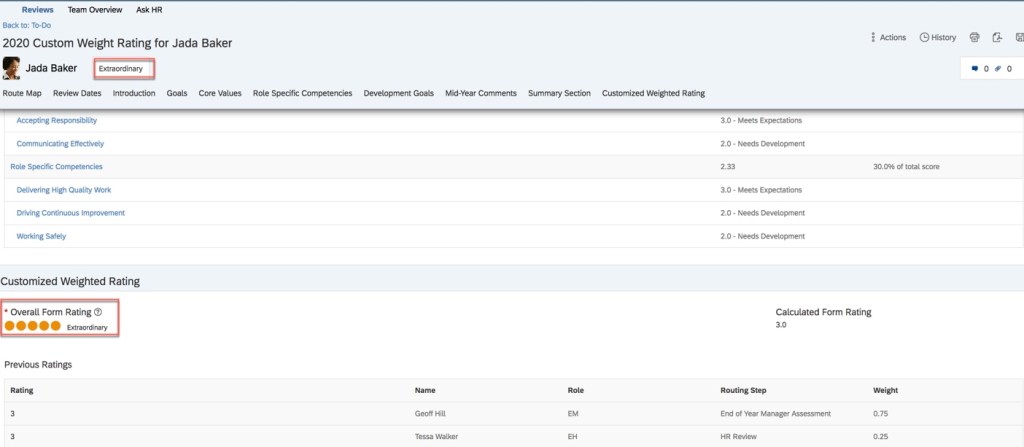
After the calibration session has been finalized, the updated rating appears in the performance form as seen below.
PM Form Reflects Updated Rating
In the Customized Weighted Rating section of the form, the overall rating reflects the updated rating of “Extraordinary” from the calibration session. The overall score pod at the top of the form reflects this updated rating as well.
Now let’s see what existing functionality has been improved in the latest release.
There are four universal enhancements for Calibration.
Subjects List Page Enhancement
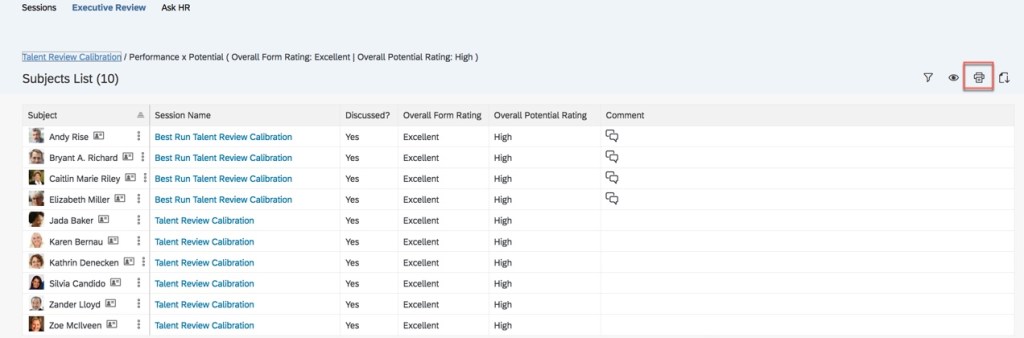
In prior releases, when drilling down into one of the standard charts in Executive Review, printing the Subjects List page was not supported. In addition, any list display modifications were not saved. Now it is possible to print out the list of subjects and retain any adjustments made to the page display after refreshing the page. More details are shown below.
Now when a data point is drilled into a chart, the print option is now available as seen below.
Subjects List with Print Capability
Within this list, the Executive Reviewer may customize the display. Columns may be reordered by dragging and dropping, column widths may be adjusted, the sort mode may be set for columns and display options may be changed. The printed list will reflect the display changes. Notice there is no “save” button, the adjustments are saved automatically. The changes are preserved after the Subjects List page is refreshed as well.
When the Executive Reviewer drills down into another cell in the chart, the updated display has been retained. This enhancement prevents the user from having the update the display each time the Subjects List page is viewed.
Enhanced Comment Details
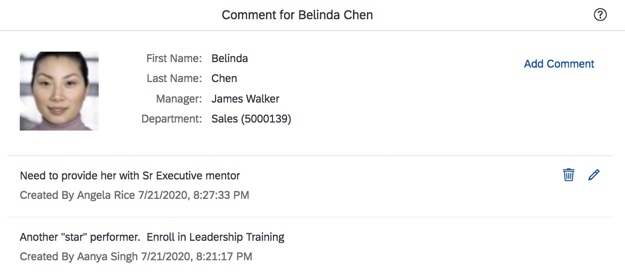
This next enhancement is applicable when comments are required when a rating is changed in a calibration session. When viewing comments made on a subject, the name of the calibration participant who entered the comment is listed along with the date the comment was made. An example is shown below.
Comments with Name and Date
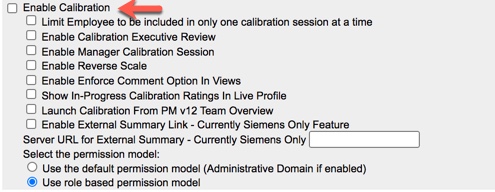
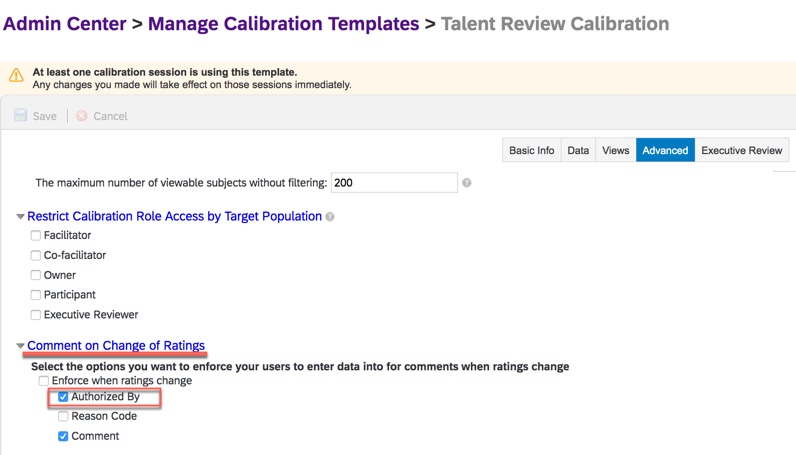
When the rater is required to enter the user name associated with a rating change, your calibration template will have “Authorized By” enabled as shown below.
Calibration Template with Authorized By Enforced on Rating Change
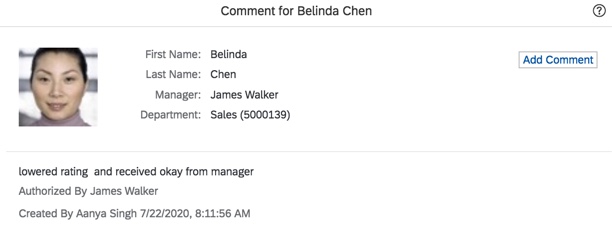
Now when viewing a comment with “authorized by” enabled, the comment detail will include the authorizer as well as the comment creator and date as seen in the example below.
Comments with “Authorized By” Field
Next we will see an update for matrix views within a calibration session.
Full Screen Mode Matrix View
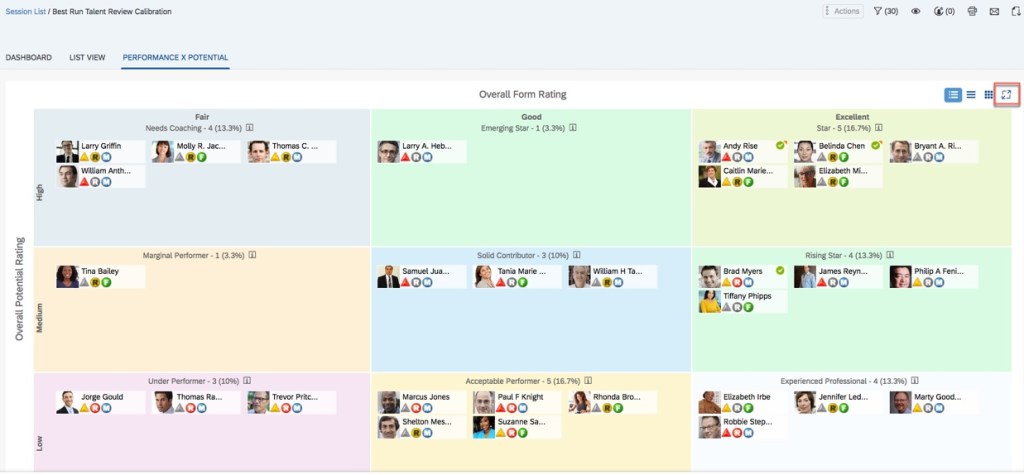
During a calibration session, matrix views will now have the toolbar available in full screen mode. Previously the toolbar was not visible in this mode. From the standard view, the user clicks on the “Open Full Screen” icon as seen below.
Matrix View with Full Screen Icon
When switching to the full screen view, the toolbar is available and enables users to take the same actions in the full screen mode as they would in the normal mode.
Matrix View in Full Screen Mode with Toolbar
New Reporting Columns
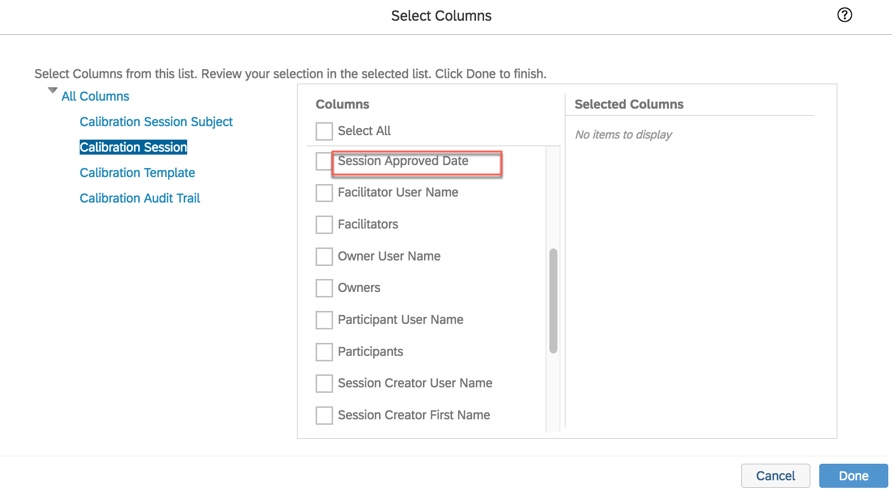
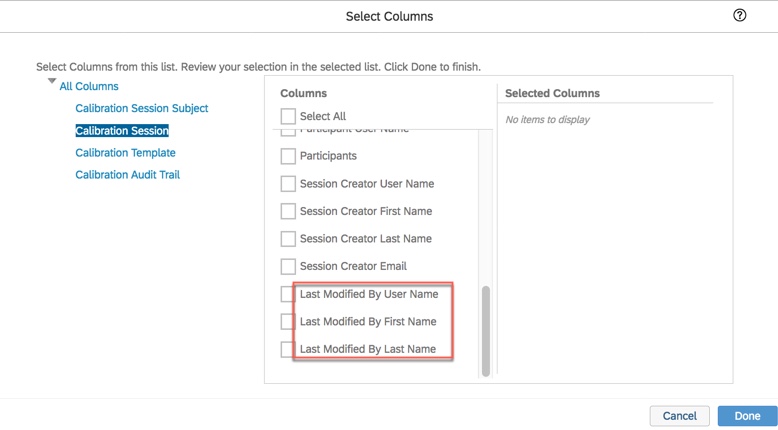
The final Calibration enhancement involves ad hoc and SAC reporting. There are new fields available to report on when generating a report for a finalized session. The session approval date along with the name of the last user to modify the session are now available. Most likely the last user to modify the session was the approver. The last modified user fields include “Modified By User Name”, “Last Modified by First Name”, and “Last Modified by Last Name”.
“Session Approved Date” Field
“Last Modified User” Fields
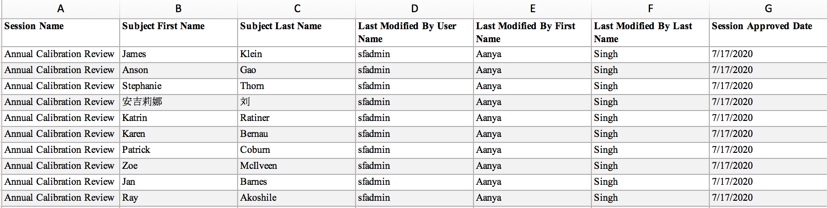
The new fields are available when reporting for all three calibration domains. A sample report is shown below.
Sample Calibration Report with New Fields
Wrap up
We have now explored what’s new and what features have been enhanced in Calibration. While the updates are minimal, hopefully these features will make your calibration sessions more user friendly. Check out my other blogs on what’s new in Succession and Career Development.
Do you need help with your calibration implementation? Contact us at: info@worklogix.com
Want to know what’s changed from the first Half (1H) 2020 SAP SuccessFactors release for Career Development? Let’s take a look!
There are two new universal features within Career Development and three universal enhancements in Mentoring. We will wrap up by seeing the new Career Explorer tool that is only available in an Early Adopter Care (EAC) program at this time.
We will begin with the new universal feature in Career Worksheet.
Creating a Deep Link to “My Current Roles” in Career Worksheet
It is now possible for an employee to use a deep link to go directly to the “My Current Roles” tab in Career Worksheet.
So what exactly is a deep link? For our purposes, it is a hyperlink that links to a specific page in the SAP SuccessFactors application. For example, a custom tile on the home page may contain a deep link. This acts as a shortcut to reduce the number of clicks to move to another page in SuccessFactors.
In prior releases, it would take several clicks for an employee to get to their current role on Career Worksheet. From the home page the path would be Development>Career Worksheet>My Current Roles tab.
With the latest release, an employee can open a deep link to go directly the Career Worksheet “My Current Roles” tab by using the new URL “sf/careerworksheet?currentrole=true“.
In order to take advantage of this new feature, a little set up is needed. For our example, we will add a link to the “Quick Links” tile on the Home page.
First let’s set up the URL so it will be ready when we need to reference it. To use the deep link, add it to the base URL of your SuccessFactors instance. To find your base URL, look at the URL for your login page. An example is shown below.
Now we can set up our deep link. Go to “Manage Home Page” and find the “Quick Links” tile as seen below.
Manage Links
Click on “Manage Links” in order to add the URL. Click the plus sign seen in the top right corner of the page. You will then be able to add a new entry. Provide a name for the link label, turn the link on by default, enter the newly created URL and save. An example is seen below.
Create Deep Link
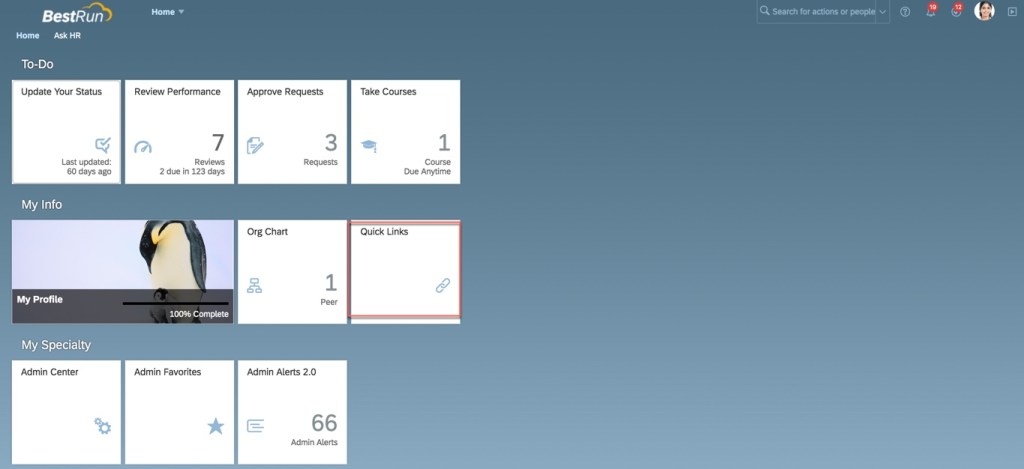
Now go to your home page. The new deep link will now be available in the “Quick Links” tile as seen in the example below.
Quick Links Tile
Clicking on this tile, the user will see all of the quick links available to them. In the example seen below, the user has added this link to their favorites.
Link to Current Role
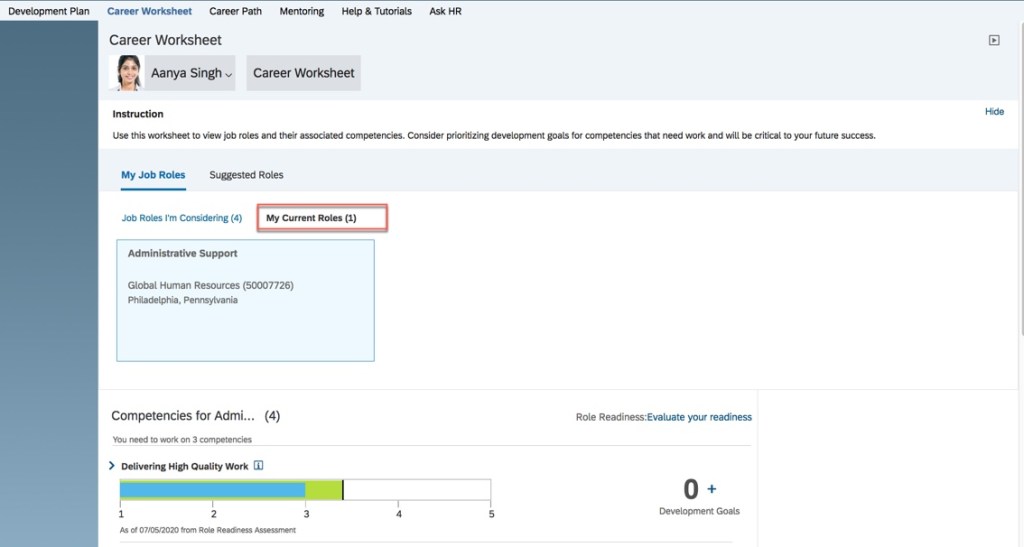
Clinking the link will take the user to the “My Current Role” tab on Career Worksheet as seen below.
My Current Role Tab of Career Worksheet
That wraps up what is new for Career Worksheet. Next we will move on to the Development Plan.
Development Plan
The final “what’s new” for Career Development Planning is the availability of the Buddhist calendar in Development Plans. This enhancement is specific to customers in Thailand. The Buddhist calendar will now display in:
Development Plan – add and edit learning activity
Development Plan – add and edit goals
Learning Activity within Development Plan – create and edit new learning activity
Learning Activity Group within Development Plan – group definition, edit assigned learning activities for groups
We have now seen the new features for Career Worksheet and Development Plan. Now let’s see the enhancements for Mentoring.
Mentoring
There are no new features in Mentoring but there are a few universal updates to existing functionality:
Enhanced Matching Rules
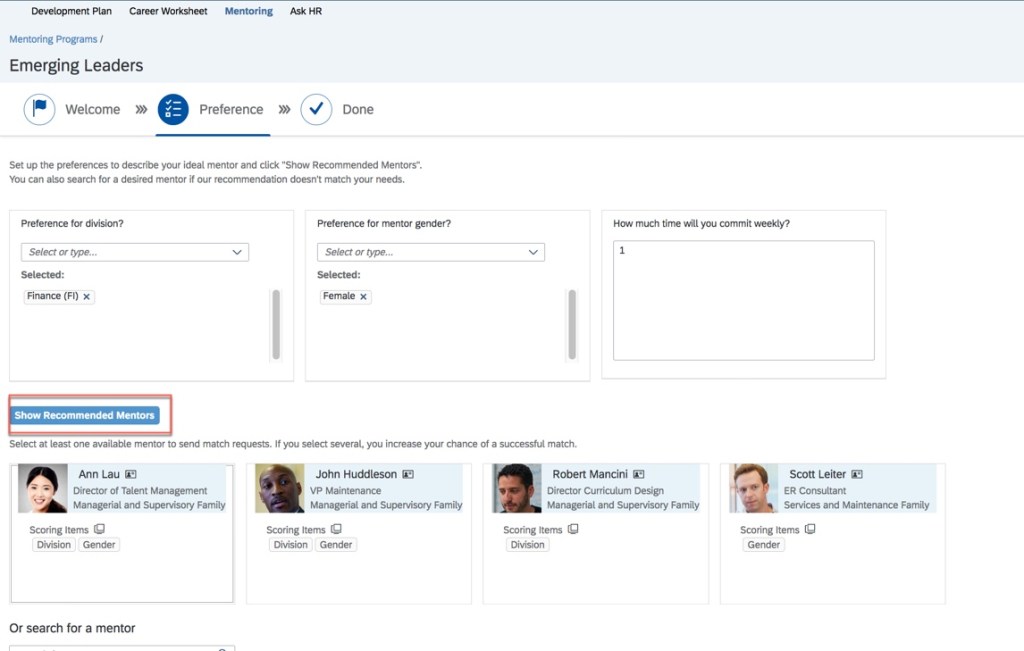
Reduced number of recommended mentors
Email notifications for changes in mentor availability
We will look at each one.
Enhanced Matching Rules
When an admin creates a mentoring program, the program signup form is configured. The admin creates a series of questions that mentors and mentees must answer when joining a mentoring program. Now matching rules are defined for each question. The system determines the best match for a mentor and mentee based on the responses and the matching rules for each question.
When creating the signup form in prior releases, there were only four columns to complete as seen below.
Prior Version of Signup Form
The fields to complete were: “Answer Type“, “Selection Values“, “Questions to Mentor” and “Questions to Mentee“.
The admin would create questions for the mentors and mentees. Each question would need to have the answer type defined: free text or a picklist. If the answer would come from a picklist, the picklist would be identified in the “Selection Values” column.
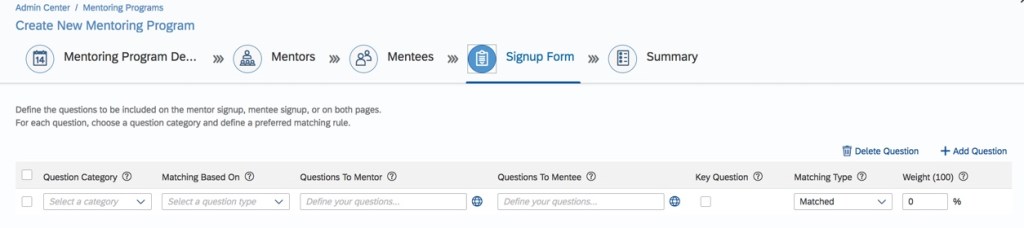
The latest version of Mentoring has a much more robust method for matching program participants.
The new signup form is displayed below.
New Signup Form
Like the previous releases, a matching rule is created for each question that appears on the signup sheet. Now there are additional criteria defined in order to find the best match:
Question Category
Matching Based On
Key Question
Matching Type
Weight
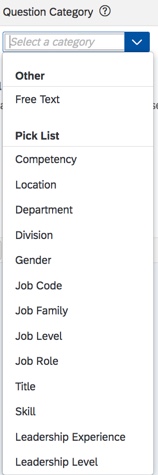
The “Answer Type” and “Selection Values” columns from previous releases have been combined into the “Question Category”. An example of the selections for this field is shown below.
Question Category
If the question may be answered by a picklist, the picklist is identified in this field otherwise the question category value would be “Free Text”.
In order for mentors to be matched to mentees, all of the questions cannot be free text.
Just a few things to keep in mind about picklists.
The picklists that may be used for each question are: competency, department, division, location, gender, job family, job role, job code, job level, job title and skill. You may also use custom picklists. The picklists need to be defined in the data model and permissions must be granted.
The same picklist (standard and custom) may be used in multiple questions.
Custom picklists may only be used when matching is based on preference, not with mentee or mentor preference or profiles.
New is the “Matching Based On” column. For each question, matching may be based on:
Preferences. Mentors and mentees are matched based on their answer to the question.
Mentee’s Preference. Using this match type, there is only a question for the mentee. The mentor will not get the question on their signup form. Matching is based on the mentee’s answers and the mentor’s employee profile.
Mentor’s Preference. Using this match type, the question is only for the mentor. The mentee will not get the question on their signup form. Matching is based on the mentor’s answers and the mentee’s employee profile.
Profiles. This match type does not use a question. Matching is done based on the picklist value for the question on the mentor and mentee employee profiles.
Also new is “Key Question”. When a question is identified as “key”, and the mentee and mentor don’t satisfy the matching criteria for the question, they won’t match. Key questions cannot be weighted.
Matching type. Options are “Matched” or “Not Matched“. Matching depends on the answers or the profile to determine if they are a match on each question. If the answer is defined as “Not Matched”, the answer to the question by the mentor and mentee cannot be the same in order to match on the question.
Weight. If used, the sum of the weights must equal 100. If this column is left blank, equal weight will be given to each question. If you wish to omit a question from matching, you may leave its weight blank but have the weight for the remaining questions to add up to 100. Responses to key questions and free text questions cannot be weighted.
The table shown below identifies which fields are available for each “question category”/”matching based on” combinations. The fields that the admin will be able to enter for each question on the signup form will differ based on the matching options.
Question Category
Matching Based On
Question to Mentor
Question to Mentee
Key question
Matching Type
Weight
Free text
N/A
X
X
N/A
N/A
N/A
Picklist
Preferences
X
X
X
X
N/A
Picklist
Preferences
X
X
X
X
Picklist
Profiles
N/A
N/A
X
X
N/A
Picklist
Profiles
N/A
N/A
X
X
Picklist
Mentee’s Preference
N/A
X
X
X
N/A
Picklist
Mentee’s Preference
N/A
X
X
X
Picklist
Mentor’s Preference
X
N/A
X
X
N/A
Picklist
Mentor’s Preference
X
N/A
X
X
Field Availability Based on Question Category/Matching Based On
For example, if you are using employee profile as the matching type, there will be no questions for the mentee or mentor because matching is based on the picklist value on the mentor and mentee employee profiles. For all cases where a question is identified as “key”, the weight field will not be active.
Matching Rules
The matching between mentors and mentees is based on the rules set up for the signup form questions. Matching rules determine the recommended matches. The system compares data from the mentee to the mentor.
The matching program looks at the key questions first. If the matching rule is not satisfied for any of the questions, the mentor/mentee are not considered a match. If there is a match based on the rule of a key question, the system keeps matching based on additional question matching rules. For non-key questions, preferences or employee profiles are compared to calculate the mentor’s match score.
Skill and competency questions calculate a match score based (0 to 100) on the number of picklist values matched for a question. The number of mentor’s competencies/skills that match with the mentee is divided by the total number of competencies/skills that the mentee selected in their signup form. This number is then multiplied by 100 to arrive at the match score for this question. So the more competencies/skills that match, the higher the matching score. The match score for any other standard or custom picklist will be 0 or 100. If a question does not have at least one picklist value in common between mentor and mentor, the match score is zero.
After the system calculates the mentor’s match score for each question, the scores are summed. Weights used on a question are also used in the calculation of the final match score. Based on the results, the top ten matches become the recommended mentors for a mentee.
Matching Program for Supervised Mentoring Programs
Supervised mentoring programs use a backend matching program to calculate match scores. This program uses a star system with four matching levels.
Preferred (four stars) match based on preferred mentor selected during sign up
Excellent match (three stars) based on 75% or higher match score
Good match (two stars) based on 50 – 74.99% match score
Average match (one star) based on 49.99% or lower match score
Recommended Mentors Cap
Another enhancement involves reducing the number of recommended mentors. In prior releases, when a mentee completed the questions on their signup form and then saw the recommended mentors, up to 100 recommended matches would display. Now the mentee will only see ten recommended mentors. This limits the mentee’s time scrolling though all matched mentors to make a selection and instead can focus on the ten with the best fit.
Recommended Successors
We will now look at the final enhancement for Mentoring.
Email Notifications for Unavailable Mentors
The final enhancement involves email notifications for mentor availability status changes.
When the availability status of a mentor changes, their mentees and their pending mentees will receive an email notification. This is very helpful information for mentees to be made aware of so they may select another mentor. In prior releases, only the mentor received notification when their availability status changed.
Going forward, the mentor will only receive a notification if the admin changed their availability. In other words, if the mentor changed his own availability status, he would not be notified. In either case, the mentee will receive the availiabilty change notification.
Let’s look at what happens when the admin goes into a mentoring program and makes a mentor unavailable as seen in the example below.
Admin Makes Mentor Unavailable
The mentor will not be available until July 24, 2020 so both the mentor and the mentee will receive an email notification.
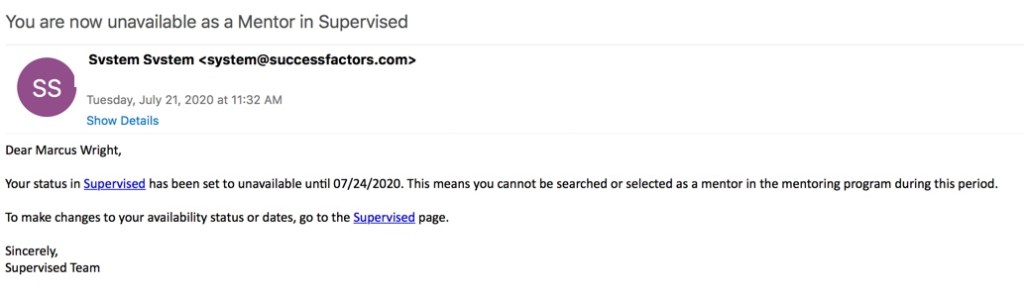
The mentor notification is seen below. The email contains the date the mentor will be available again. It also explains that the mentor cannot be selected by a mentee when in this unavailable status.
Unavailable Notification to Mentor
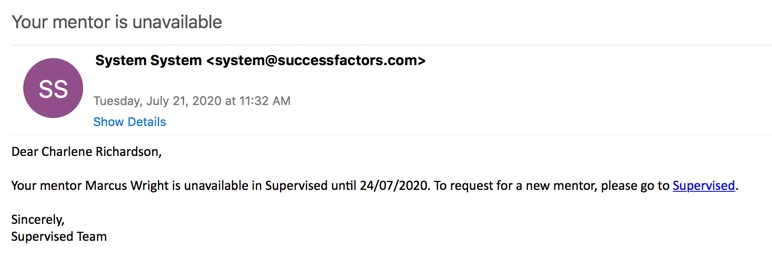
When the mentor is no longer available, the mentee receives an email notification as well. Any mentee that has a pending mentor request with this person will also get the email. A sample email is shown below.
Unavailable Mentor Notification to Mentee
In the email, the mentor’s availability date is supplied. The mentee also is prompted to select a new mentor.
Now we will see what happens when mentor makes himself unavailable as seen below. The mentor changed his availability and entered the date when their availability date.
Mentor Makes Himself Unavailable
In this case, only the mentee will receive the availability notification.
Next, if the admin goes into the program and makes the mentor available again, both the mentee and mentor will be notified.
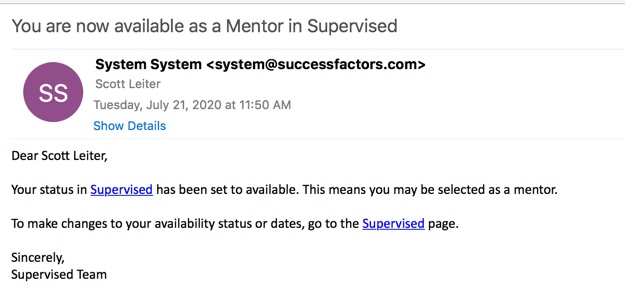
Here is a sample email notification received by the mentor.
Mentor Notification of Availability
The mentor is made aware that they are available again so the mentor may expect to see some mentoring requests coming his way again. The email also explains that they may go into the program to change the availability or status.
The mentee is notified of the mentor’s availability as well. Shown below is a sample notification.
Mentee Receives Mentor Available Notification
If mentor makes himself available again, only the mentee receives notification.
We have now seen what’s new and enhanced for Career Development. Now we will take a brief look at the limited release for a new feature.
Career Explorer
A new component of Career Development is Career Explorer. It uses a machine learning algorithm to make recommendations for future job roles based on users “like me”. Career Explorer recommends career opportunities based on the career paths of people who are similar to the user in the organization. An employee can see the career path taken by others that used to have the same job role or who have similar skills, previous roles or education. This give the employee some additional future job roles to consider that may not be within their regular career path. This tool provides personalized guidance over the predefined career paths to determine the possible next role.
Career Explorer helps an employee find possible future roles outside of traditional career paths or even discover an unexpected fit for a role. These roles may be set as targets for career development. Based on the recommended roles, the user can also see a future career path in a lineage chart.
A sample view of Career Explorer is shown below.
Career Explorer
Competencies, skills and other job profile details may be viewed for each role. The employee may see how well they meet the job role requirements. If the role is added to their Career Worksheet, the employee may identify competency deficiencies and then create development goals and learning activities to help fill those gaps.
Prerequisites
Career Explorer is currently available only to those in the Early Adapters Care program (EAC). In order to apply, you must be have a minimum of 1000 employees all associated with job roles. Additional requirement include using:
Employee Central
Job Profile Builder using job code, job classifications and competencies
Succession Management
Career Development Planning, preferably with Career Worksheet enabled
Registration ends November 1, 2020.
Wrap Up
We have now seen what’s new and improved within the Career Development module. And we have seen what is coming with the new Career Explorer. Check out my blog on what’s new for SAP SuccessFactors Succession for 1H 2020 as well.
With the SAP SuccessFactors First Half 2020 release there are six updates in Succession. There are four new features and two enhancements. Let’s start with Talent Pools.

Talent Pools
There are two new features and some minor enhancements for Talent Pools.
The two new features are:
View Nomination History for Talent Pools
View Talent Pool Nominations in People Profile and Talent Cards without Talent Pool Object Level Permission
The Talent Pool enhancements involve filter fields and the Nomination Table.
Now let’s look closer at each starting with what’s new for Talent Pools.
View Nomination History for Talent Pools
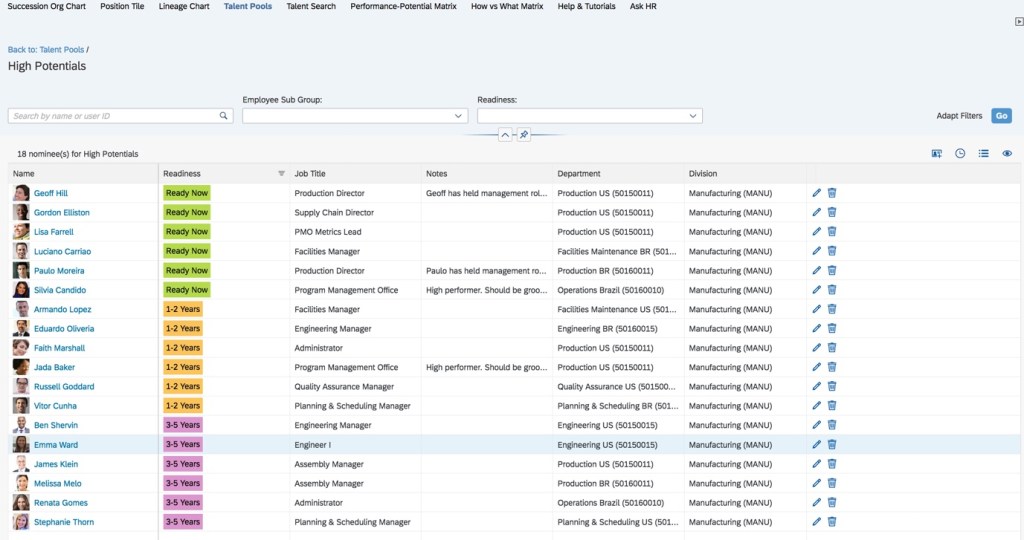
This new universal feature permits those with Talent Pool permission to see nomination changes for nominees within a Talent Pool.
In prior releases, there was no nomination history available to view within a talent pool. Now users with Talent Pool role-based permissions with assigned target populations may see the nomination history for employees in a talent pool.
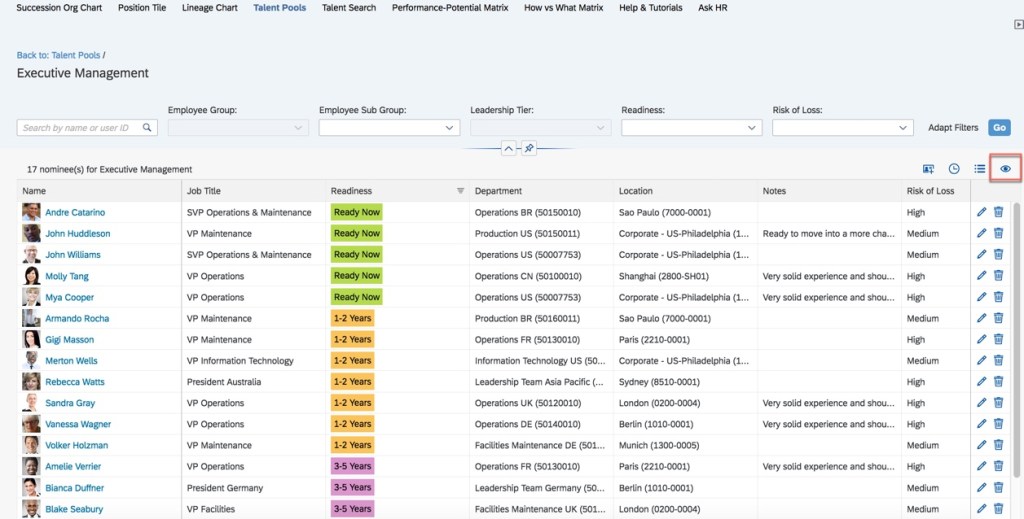
Within a talent pool, there is new icon used to view nomination history for each nominee. The example shown below identifies the icon which displays on the top right side of the talent pool table.
View Nomination History Icon
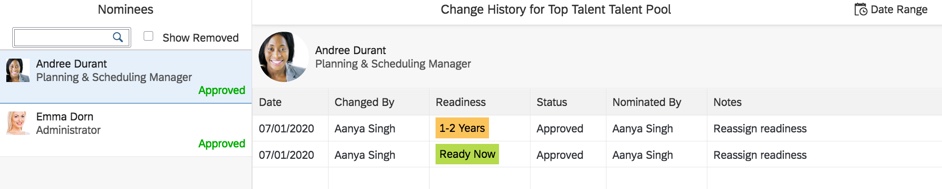
Talent pool nominees that have nomination change history for this pool will display in the “Nominees” section that displays on the left side of the page. Click on any nominee name from this column and their nomination change history for this talent pool will display.
An example is displayed below.
Talent Pool Nominees with Nomination Changes
The name of the user that made the change will display along with the change date. The readiness, status, nomination source and notes for each change are displayed as well.
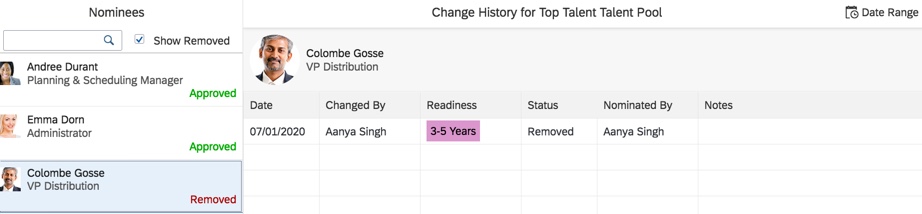
Approved and Removed nominees will display their nomination history. You must click the checkbox for “Show Removed” in the nominees section to see any employees removed from the talent pool. Both Approved and Removed nominees will display as seen below. The default view is approved nominees.
Approved and Removed Nominees with Nomination Change History
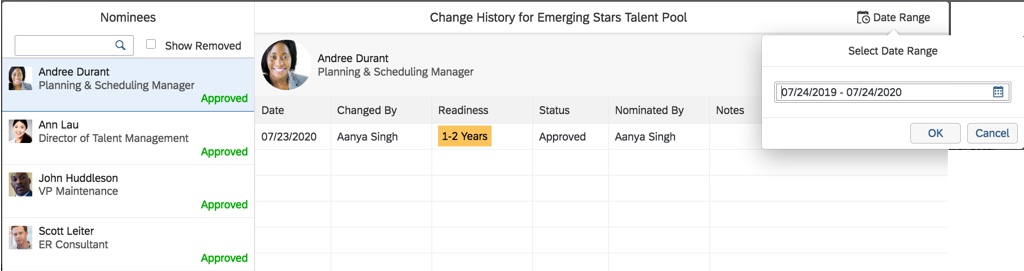
To see the nominee’s talent pool history for another date range, click the “Date Range” calendar icon that is available on this screen. An example is shown below.
Modify Date Range for Nomination History
The default date range is one year from the current date. The date range may be modified and then the nomination history will display for the new date range
We will now look at the other new feature for Talent Pools.
View Talent Pool Nominations in People Profile and Talent Cards without Talent Pool Object Level Permission
It is now possible to enable users without Talent Pool object level permission to view Talent Pool nominations of employees in People Profile and Talent Card.
This new feature may be used to enable managers to see this information for their direct reports in People Profile and Talent Card.
This is a provisioning opt-in. The setting to enable is “View Talent Pool nominations in People Profile and Talent Card without having the Talent Pool object level permission“.
Provisioning Opt-In
When enabled, users without Talent Pool object level permission may view Talent Pool nominations for employees within:
Nomination Block in People Profile
Nominations section of Talent Card
In addition to these two new features, there is also an enhancement for Talent Pools that we will look at next.
Talent Pool Enhancements
There are a few enhancements to talent pools. Let’s open a talent pool to see what’s changed.
Talent Pool Nomination Table View
First, there are more lines available in a talent pool nomination table view as seen below. This update also includes making the line width consistent with tables in other modules.
Updated Nomination Table for a Talent Pool
Notes Column Placement
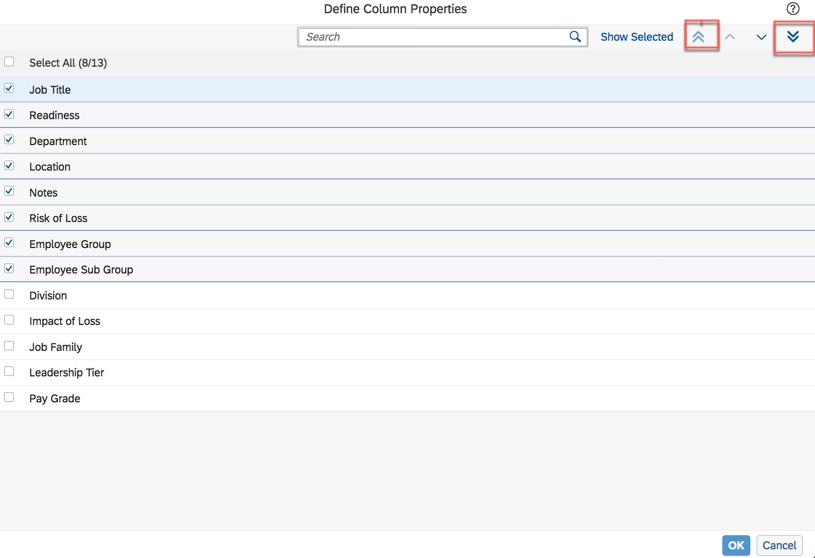
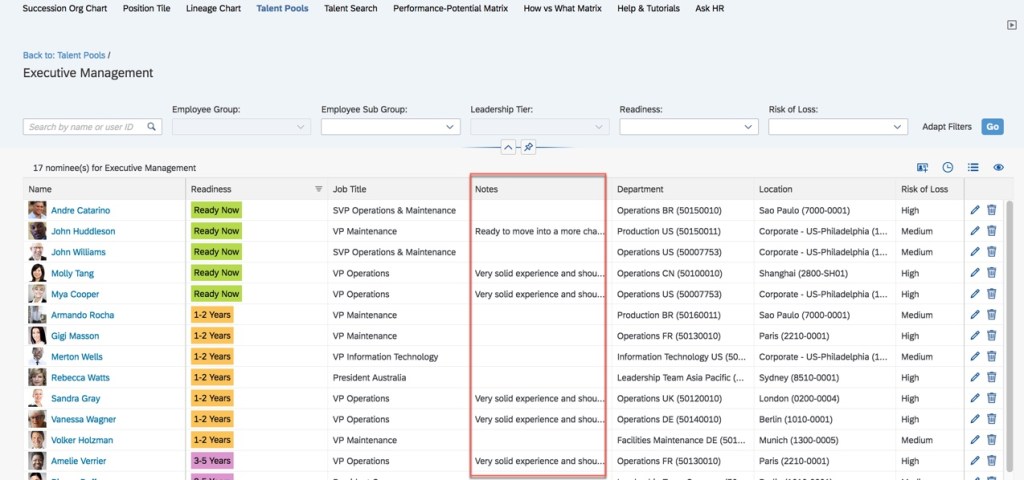
There is an additional display field option as well. Users may modify the position of the Notes column. Let’s see how it’s done.
Within the talent pool, click on the “Define Column Properties” icon as noted below.
Define Column Properties Icon
A pop up displays the available fields that may be included in the talent pool view. When the cursor is place on “Notes“, the upward and downward arrows may be used to change placement of this field.
Define Talent Pool Column Properties
Clicking “OK” and the nominations in the Talent Pool will now reflect the changed column order as seen in the figure below.
Nomination Table with Updated Notes Column Placement
The final enhancement to Talent Pools involves selected filters.
Talent Pool Filters
First, the selected filters can now be automatically cleared after all nominees are deleted from a Talent Pool. Looking at the example below, the filters were defined by clicking “Adapt Filters“.
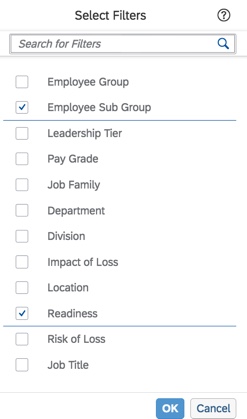
Select Fields to Appear on Filter Bar
Here is where the filters are defined. The fields to use as filters are selected and will appear on the filter bar within a talent pool.
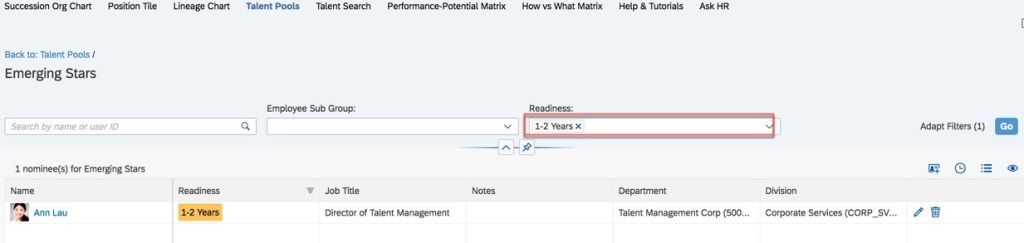
In the example shown below, there is a filter to display nominees with a readiness of 1 to 2 years.
Talent Pool Before Nominee Deletion
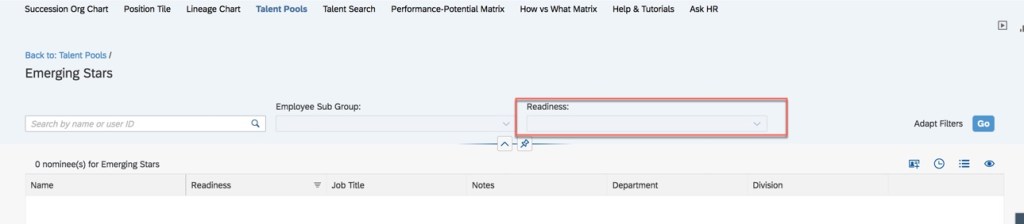
After the final nominee is deleted from the talent pool, the readiness filter is cleared as seen below.
We have now seen all of the updates for Talent Pools. Let’s see what else is new in Succession.
Exclude Nominees from Seeing Themselves within a Succession Plan
This is an admin opt-in setting that when enabled, prevents users nominated as successors to see themselves in a succession plan. This will also prevent them from nominating themselves. This means that users with permission to do Succession Planning for certain positions won’t see themselves within the succession plans of those positions.
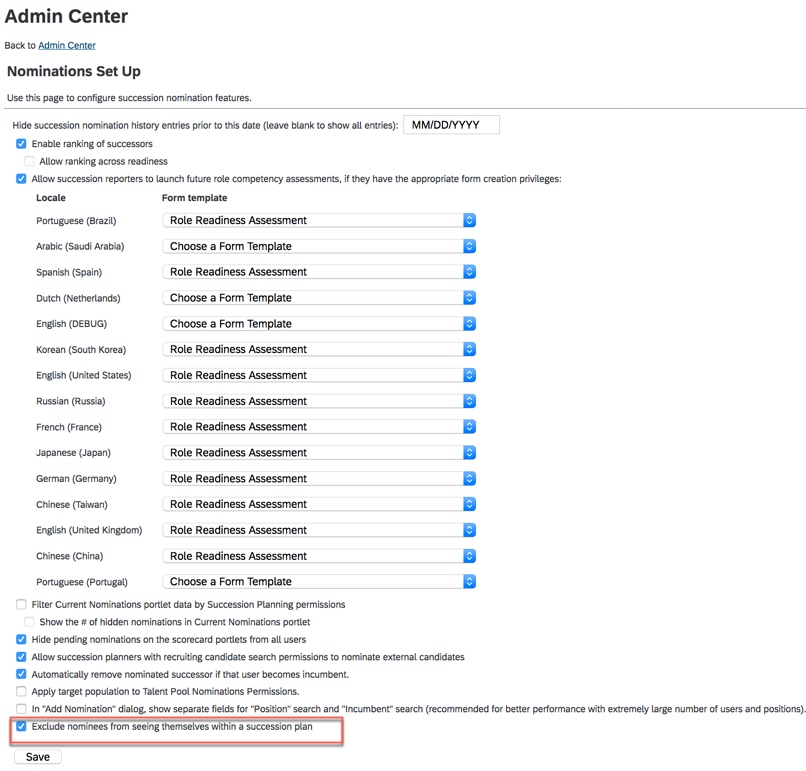
Let’s see how to enable this feature. Go to “Nominations Set Up”. Scroll to the very bottom of the screen and enable “Exclude nominees from seeing themselves within a succession plan”. The “Nomination Set Up” page is shown below.
Nomination Set Up Feature to Enable
This exclusion prevents nominees from nominating themselves. Additionally, the nominees would not see themselves in Succession Org Chart, Position Tiles, Lineage Chart, Talent card, People Profile, Presentation and Nomination History from position card. A Talent Search would not display them or a list that they are a part of.
There is one additional feature that we will now explore.
New OData API Function Imports for Succession
There are two new OData API Function Imports for Succession:
approveSuccessors
rejectSuccessors
These function imports may be used to approve or reject nominees that are in a pending status.
In prior releases, third-party applications could only read the Succession nominations in Pending Approval status.
The two new function imports allows third-party applications to write the approval steps of the nomination workflow.
The role-based permissions needed for both function imports is: Succession Planners>Succession Approval Permission.

Approve Nominees in Pending Status
Pending status for approvals are:
Change Pending
Pending
Approval Pending
Parameters for approval and rejection are nomineeIds (mandatory) and comment (optional).
Now we have seen what’s new in Succession, let’s see the final enhancement.
Picklist Label Enhancements for Matrix Grid Report and Talent Pools Overview Page
In previous releases, picklists used for filter fields in the Matrix Grid Reports and Talent Pool Nominations overview page showed option IDs rather than labels.
Matrix grid reports support custom filters and these filters may be associated with a picklist. If this is the case, the picklist labels will be displayed in the customizable fields. Picklists that are used for filter fields of the Matrix Grid Reports and Talent Pools nominations overview page will now show labels instead of option IDs. A custom picklist with values for a talent pool filter is shown below.
Talent Pool Filter with Values
These fields also remember the picklist labels that were chosen the last time.
Wrap Up
We have now seen the new features and functionality for the Succession module. Check out my blogs on Highlight of 1H 2020 Release Updates for Calibration and Career Development too.
Compensation Statements may be the most critical aspect to a successful Compensation implementation. Statements are typically the only visibility employees have to the Compensation module and are important in not only communicating final payments to employees but also in letting them know of any other company directives and overall business results.
Working in Compensation for over 15 years, I have configured a lot of compensation statements. Sure, custom statements in XSL can be created to meet all of the customer’s wildest dreams, but this may not always be needed or possible as customers might be restrained by budget, time, or expertise in maintaining year over year. Standard delivered statements can be used for compensation, templates, variable pay templates, or a combination.
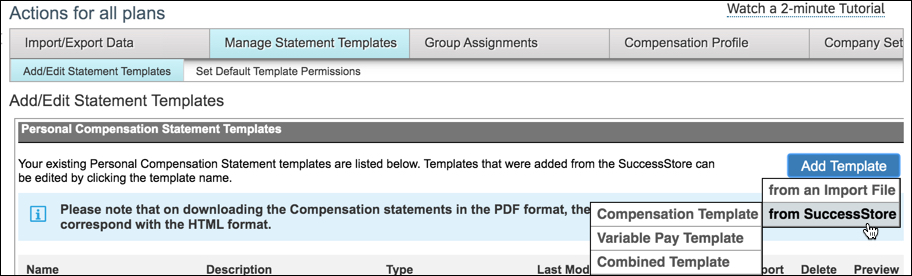
Admin Center –> Compensation –> Actions for All Plans –> Manage Statement Templates –> Add Template –> from SuccessStore –> choose template type
My Top 10 List on how to optimize standard compensation statements:
1. Gather statement requirements early
Statements are often thought of as an end of the process final product. While they are just that, you will find that if you include statements as part of the early requirements discussion along with the design of the compensation plans, you will end up with a better final product.
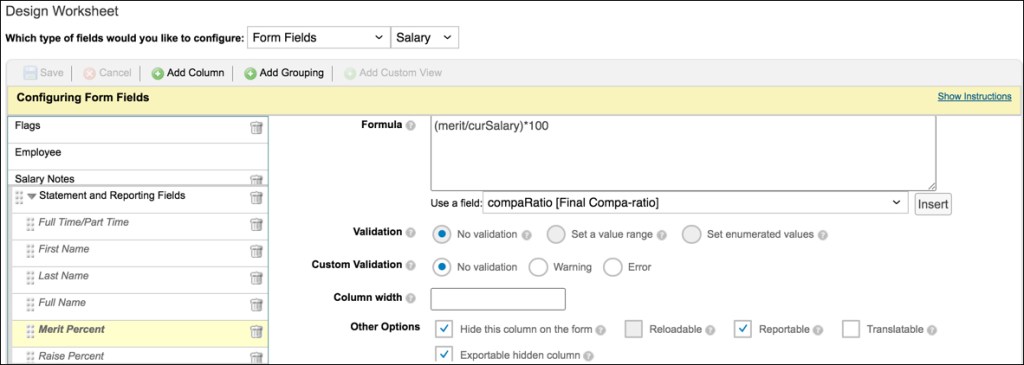
In order to pull fields of information into the statements, they must be a field in the plan template(s) you are referencing. You can include extra indicative data or calculated fields (such as Merit Percent) or fields that show final values rounded (such as New Annual Salary) in case your customer wants to show nice rounded numbers to the employees. These fields do not need to be made visible during planning, but can be hidden so they are available for display in the statement.
Example of a custom field marked hidden during planning but that can be pulled into the statement
2. Take advantage of statement suppression
In 2019, SuccessFactors enhanced the compensation module to allow for statement suppression. Gone are the days of having to generate and recall statements for employees that you wouldn’t need to communicate awards to.
To start, create a custom column in your template to control the suppression based on the customer’s desired logic. For example, to suppress a statement because of a low rating the custom column could include the formula if(pmRating<2, “FALSE”, “TRUE”). Employees with the value “TRUE” will have statements generated, those with a value of “FALSE” will be suppressed.
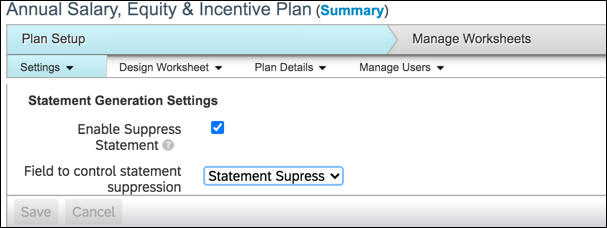
Enable the setting from Plan Setup –> Settings. Select the box for Enable Statement Suppression and use the drop down to select the custom column you have created with your statement suppression logic. When statements are generated, the job status report will list the names whose statements have been suppressed.
Admin Center –> Compensation –> select template –> Plan Setup –> Settings –> Statement Generation Settings
3. Make use of sections and conditional formatting for the right side data fields
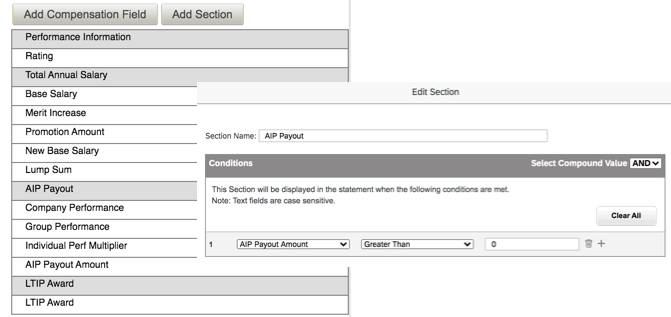
Group fields of data under Sections to consolidate Performance, Merit, Bonus, and Equity fields depending on the templates used in the statement. Conditional formatting can be added to suppress these groups for instance if the customer wishes to suppress the merit section if the employee had zero for their merit award. Conditional formatting can also be done on the field level in cases where customers wish to show the merit section for example to show salary information but not show the merit award field if amount = 0. This also allows for fields such as promotion or lump sum to only show if applicable to the employee.
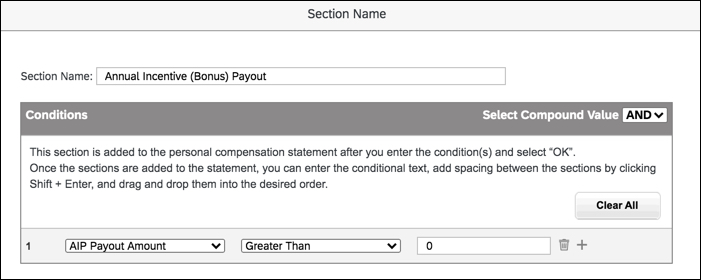
Example of using sections to group similar compensation fields and adding conditional formatting to a section to suppress if the customer does not wish to show in various scenarios
4. Get the most out of the left side text and logo
Most of the time, the company logo being used throughout the SuccessFactors tool can be used as the logo in the statement as well. If the customer wants a custom logo, plan for this early as it can take time to the custom logo URL setup and to make sure the look and feel is right. Encourage the customer to use their standard logo if possible for a standard compensation statement.
Make use of font sizes and typographical emphasis to draw attention to key elements. Typically I use the small size font throughout for text sections. These text sections can be dragged and dropped depending on the order they should appear.
Conditional formatting can be added here as well to suppress the text section for instance if the customer wishes to only show the section if the amount is greater than 0. The conditional formatting on the left and right side should be configured together so that the logic aligns.
Typically customers can use the left side text to add in text that is applicable to all employees such as overall company results and any disclaimers that are needed around payment dates and rounding rules.
Example of using conditional formatting to only show text sections if conditions apply
5. Keep the statement to 1 page if possible
Keep in mind the more text and fields you add, the longer the statement becomes. Most customers like to see a concise one page statement.
The Signature section is not really needed as you can add this to a text box above if the signature is pretty straightforward. The section itself even with no text configured in it can cause the statement to push to the next page as it shows below the text and data sections, even if it just shows a blank second page. This section cannot be removed, but you can trick the system into shortening it significantly if you simply add a few spaces.
Example of suppressing the signature section by simply adding a few blank spaces
6. Multi-language requirements aren’t necessarily a show stopper
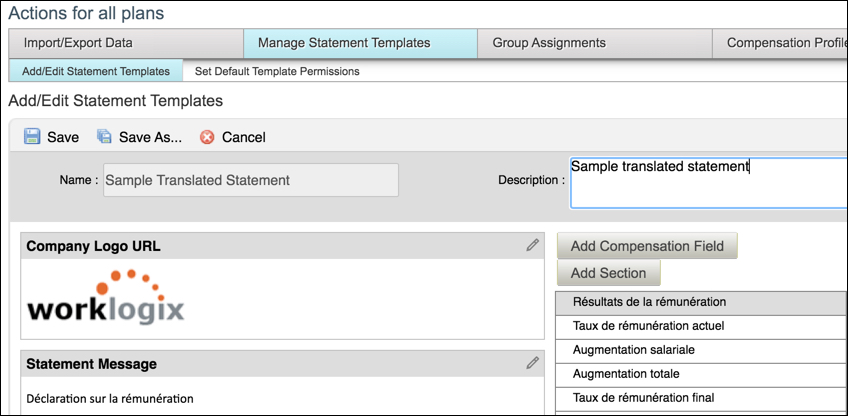
Standard statements do not typically support multi-language requirements. You can however do a workaround and create translated standard statements using the English version as a baseline for the fields and input the required language into the text boxes and field names. If you have a requirement to translate the plan templates, you have a good start to the translations already for the fields. This process can be tedious, so make sure to have a pretty finalized English version before you start creating additional versions in other languages.
Example of a translated standard statement into French
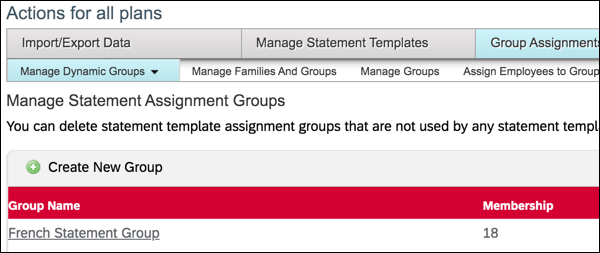
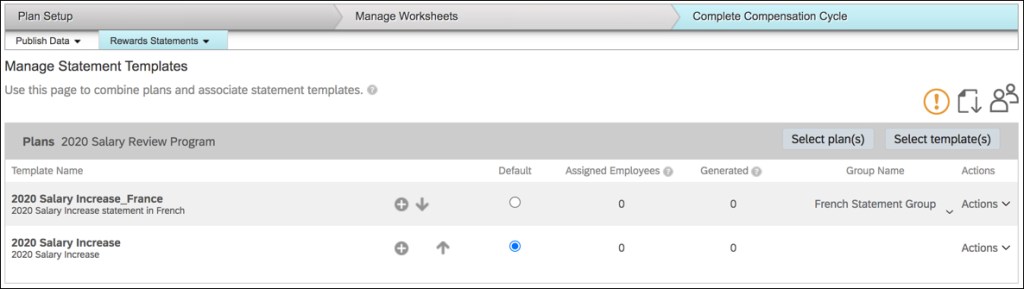
You can then configure statement groups to tie the translated statements to the groups of employees that need the statement in non-English languages.
Actions for all plans –> Group Assignments –> Manage Dynamic Group –> Manage Statement Assignment Groups –> Create New Group using required criteriaAdmin Center –> Compensation –> select template –> Complete Compensation Cycle –> Rewards Statements –> Manage Statement Templates –> Add translated statement templates and associated groups
7. Figure out the roles that will be involved in communicating statements
Planners are typically responsible for communicating the awards to their employees. They can download statements in several ways from their Completed worksheets or within the People Profile if permissions have been set. Additionally, check with your customer if they wish for the employees themselves to have access to their own statements. If this is the case, typically this is a task scheduled out a few weeks from the initial conversations with managers to open access to employees.
SuccessFactors recently added the ability to download statements directly from Executive Review. This allows higher level managers as well as HR managers (assuming role based permissions have been granted to allow access to Executive Review) to be able to download their span of control using the Bulk Print Statements button. The icon for bulk download now only appears if the employees have a generated statements based on the filters in Executive Review. In the previous version, the icon was displayed even if statements weren’t generated from recently filtered list.
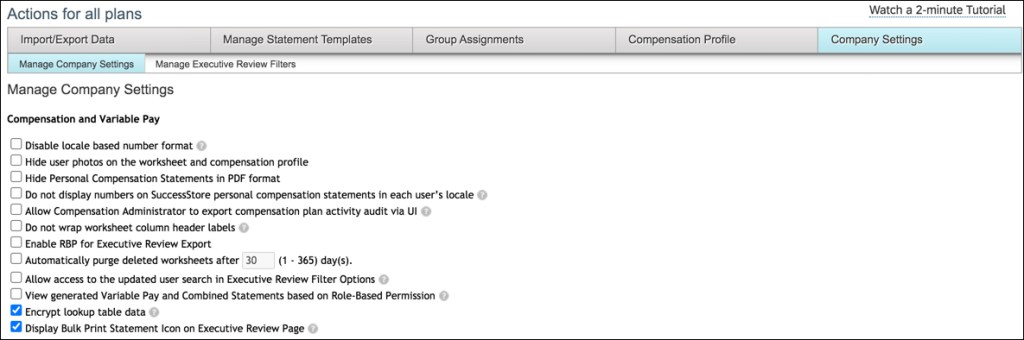
To activate statement printing from Executive Review, these settings should be established in Company Settings: Disable Hide Personal Compensation Statements in PDF Format & Enable Display Bulk Print Statement Icon on Executive Review
8. Test early and often
In addition to gathering statement requirements early, plan to test the statements early as well. Ideally the statement would be part of the early iteration reviews to gather feedback before the frenzy of planning occurs. Create examples of statements to show all the different variations that are possible with the customer such as merit only, merit and lump sum, lump sum only, etc. If you wait until the planning is occurring in Production, you are no longer able to add or edit fields that customers may request in the statement.
Also test the role based permissions and the process for how and when the various roles would download the statements. This will prevent any headaches down the road when the timing is tight to review and open statement access to HR, managers, and/or employees in Production.
9. Make use of standard Email Notifications
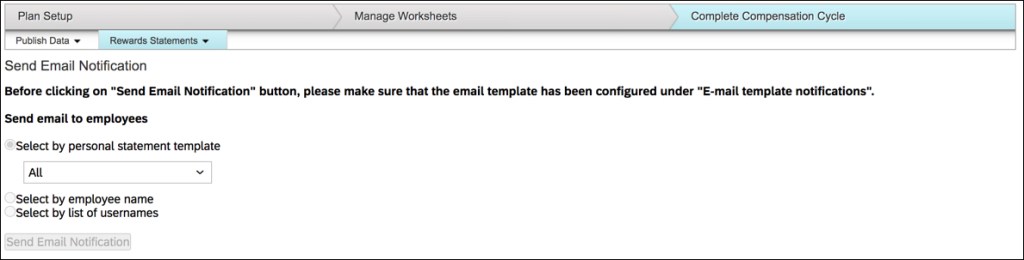
If the employees will be able to access their own statements, there is a standard email notification that can be sent. The email text can be setup in E-Mail Notification Template Settings. This will allow for Compensation Administrators to send specific text to employees or groups of employees letting them know that their statements are available and how to navigate in the system to find them.
Validate any final changes with the customer. Company numbers and final performance may come in just prior to statement generation so an additional validation of the text sections especially is suggested.
You can recreate the statements in each environment, but I suggest to make all changes in the lowest environment and then download and upload them instead. This takes away some flexibility in making last minute changes in Production but keeps the environments consistent and encourages testing to be done in the lower environments before moving to Production.
With discrimination coming to the forefront of world news lately, many organizations are asking themselves: What can we do to actively prevent discrimination in our organization? I’ve seen a variety of options out there ranging from internal audits by 3rd party anti-discrimination consulting firms to pro-active succession planning that tracks minority status. While organizations I’ve worked with differ in these types of approaches, one solution at minimum in the United States has been clear for my entire lifetime: federal contractors must comply with the Office of Federal Contract Compliance Programs (OFCCP) guidelines.
Per an announcement on the Department of Labor website, a new Voluntary Self-Identification of Disability Form CC-305 was approved in May. As of today, Federal contractors must post the comply by updating the form by August 4, 2020. An example new form can be found here. I warn against simply using a search engine to look for updated forms as these may lead you to the expired form (check the expiration date at the top of the form first).
For SAP SuccessFactors customers, this typically means:
Updating your job application template to include the new form(s)
Updating your Onboarding forms to include the new forms(s)
I recommend referencing the Department of Labor website to understand the updated requirements and then working with your IT department, SAP Partner, and/or SAP to make updates to the recruiting application template and/or Onboarding forms to ensure compliance.
Hopefully this brief update has been helpful! While many people are out there working hard to come up with a variety of solutions for today’s social issues, one thing is for certain: EEO is the law.
Do you need help implementing these forms in your Sap SuccessFactors system? Contact mwellens@worklogix.com.
In the past few days, SAP SuccessFactors has completed moving the H1 2020 release into production. For some well-prepared customers, users are excited about new features they are starting to enjoy. Others might be feeling some pain with critical issues that have arisen unexpectedly. Still others might not have done much preparation at all and are wondering if they missed something. In my experience consulting and providing production support services, I’ve seen all 3 types. Hopefully after reading this quick article you’ll always fall into the first category!
Note: you will need an SAP S-ID to access all of the links in this document
The preview dates and production dates are posted in the upper-right-hand corner of the blog. Preview date refers to the date the release will be put into the preview environments. You know your environment is in a preview datacenter if the url has preview in it. For example:
Historically SAP SuccessFactors and SuccessFactors prior to the merger conducted quarterly releases. However starting in 2020 SAP reduced the release time to every 6 months. While I haven’t conducted a survey, my guess is most customers and SAP are pretty happy about this as it gives much more time to properly prepare. With a quarterly release, by the time you finished your regression testing it was already time to start prepping for the next release and keeping dedicated resources onboard to only conduct regression tests was impractical. I’m sure it was a similar story on the SAP side of the house.
Step 2: Read the Documentation
SAP changed how the documentation works a bit this year. The first document you should read is the Road to Release document which is also available on the SuccessFactors Community Product Updates blog. The latest road to release document tells you how to sign up for newsletters to keep you updated and also outlines some steps similar to the ones in this blog I’m writing. The document is informative and a must read, but realistically I treat is as a pamphlet on when documentation will be released because in my opinion it focuses only on new features glosses over any regression testing and misses a few key things customers should do and know that I’ll point out in this blog.
Next, given that it’s a week or so prior to the preview release (which is when SAP releases the detailed documentation), take a look at the documentation here:
The above link lets you search the documentation for every new feature – so if you choose to turn on a new feature, this will let you know what administrator steps to take as well as some basic end user testing scenarios. You can also choose prior releases as well from the drop down above the search bar.
However, before you start searching for features to turn on, you’ll want a god’s eye view of what’s available to you. Click the link to the “What’s New Viewer” on that same page. This tool will allow you to filter by specific modules to find what’s relevant to you, providing a brief summary of each feature.
What’s New Viewer
The key concept to understand when exploring this tool is the configuration type. “Universal” means that all customers will receive the feature on preview and production release dates without taking any action. “Admin Opt-In” means customers can opt to receive the feature by taking the steps outlined in the detailed documentation (search for the name of the feature in the big search bar in the first screenshot and you’ll find these steps). “Admin Opt-Out” means you’ll need to follow similar steps to not receive the feature. “Provisioning Opt-In” means you will need a partner and/or SAP to follow the steps in the detailed documentation to turn the feature on because only they have access to provisioning to do so.
There’s links to other documents on the SuccessFactors Community Product Release Blog, however if you like to jump straight to the facts and avoid the fluff, the ones I mention above will get you on your way.
Step 3: Analyze and Plan
Now that you know the dates and the scale of what’s being impacted by the release, you can setup a calendar plan and resources to execute the plan. A sample plan might roughly look like the below:
Preview Release minus 1 week – IT Team reviews release documentation
IT Team Meets with Stakeholders with abridged list of key features that may interest the business and discusses regression testing resources
Preview Release Date – Regression testing commences
IT Team reports any found defects to SAP via customer ticket
Preview Release plus 1 week – IT Team and/or stakeholders attend Q&A sessions with SAP to clarify any feature questions
Stakeholders report which opt-in features they would like to explore in preview
Once Regression testing is complete, IT turns on opt-in features and/or engages SAP/Partners to turn on any provisioning opt-in features
Stakeholders explore and test functionality in preview environment and finalize which features will be turned on in production
Communications and training are drafted as needed on any new features
Production Release
Stakeholders report any production regression Issues to IT who reaches out to SAP as needed to open customer tickets
IT Team and/or Partner/SAP turn on opt-in features
Stakeholders report any production new feature Issues to IT who reaches out to SAP as needed to open customer tickets
Step 4: Regression Test
Being a cloud product, there’s a pretty high level of confidence that the system will continue to function as normal after release since both SAP and numerous customers are all collectively testing the same set of code. However, if you want to err on the side of caution, you may wish to regression test your key business processes in your preview environment prior to turning on any new features. In particular, you may also want to focus on business processes impacted by universal changes. The key advantage here is being able to report issues to SAP ahead of production release so there’s a solution before it becomes a problem! Often customers will reference their test scripts from their initial implementation and update them for any universal features.
Step 5: Explore New Features
Once you’ve explored the documentation on new features and have agreement with business stakeholders on what should be explored, it is time to start playing!
If you’ve chosen to regression test, I’d recommend executing that prior to turning on any new opt-in features to keep troubleshooting issues less confusing. For example, if you’ve turned on a feature you later decide you don’t want and later find a regression test issue, it may not be clear if that issue will occur in production or not. In fact, some customers who only have 1 preview and 1 production environment wait until after production release before exploring new features in their preview environment so that there is clarity on what production will look like and what issues might arise prior to sandboxing a bit with new features. If you have 2 preview environments at your disposal, then these activities can be done in parallel more confidently.
Step 6: Release Friday – Stay Away!
Typically, a release starts on a Friday evening up-until early Saturday morning. While you might try to access the system and be able to get in, I don’t recommend it. SAP will be loading code and restarting services. There’s no guarantee any data you save or changes you make will be there the next day. Have a nice weekend and come back on Monday and be glad you invested in a cloud product that handles this for you!
Step 6: Release Monday – Be on the Alert!
I don’t think I’ve ever turned on a new feature in the first week of a production release unless it has been a business-critical function/feature. SAP is wise enough to start production releases on Friday evening so that if things go wrong, they’ve maximized the time available to them before customers will come back Monday morning. However, just because the system is up does not mean everything is perfect. Often, SAP is very busy handling new tickets related to the release. If you are experiencing an issue, report it ASAP, but also be realistic. If it is a critical issue that lots of customers are experiencing, it will get fixed very quickly. If it is an issue unique to your organization and not business-critical, you may be waiting a couple weeks or more for resolution.
Step 7: Turn on Your Production Opt-Ins
Once you are comfortable your system is stable, it is time to turn on your opt-ins in production! You can follow the steps outlined in the detailed documentation that you followed in preview again or use instance sync depending on the particular configuration.
Step 8: Rinse and Repeat
Congratulations! You’ve made it through your release! Time to check back on the dates for the next release!
Up until now, customers have been using round-about methods of adapting SuccessFactors recruiting to handle their high-volume requisitions that are always posted – commonly known as “Evergreen Requisitions”. Recently, with the Q4 2019 release a beta version of Evergreen Requisition functionality was released. I had the opportunity recently to work with a customer to implement this new functionality and take it for a test drive! This article gives an overview of the functionality, its business need, key advantages to implementing the functionality, and some helpful hints in rolling it out to your instance.
Why do companies need Evergreen Requisitions?
Not every company needs Evergreen Requisitions. Unique to some industries are so-called “high-volume” jobs where the demand for the job constantly out-weights the supply. For example, merchandiser positions in the consumer products industry or pilots in the airline industry. For these positions, the company is always hiring. For recruiting systems, this often creates a problem because typically one requisition and one posting equals one position in the HRIS system. Having multiple requisitions and postings for a multitude of positions that are all basically the same would be confusing to people looking for jobs – not to mention for recruiters to manage. For example, one candidate could apply to essentially the same job multiple times. To avoid this, companies use evergreen requisitions to have one long-standing posting to represent a single channel for job seekers and recruiters for several open seats of the same position in the company.
How were companies handling this situation prior to the functionality?
Prior to the release of this functionality, there was no officially agreed-upon method for creating evergreen requisitions. In my experience a custom Evergreen Requisition solution looked like this:
Requisitions would be launch for each open seat (e.g. unique position number) – typically a custom field would be used to record this position number on each requisition
One requisition would be chosen to be the Evergreen and only that one requisition would be posted for candidates to apply
As candidates applied to the requisition, finalized candidates (usually those reaching a finalized offer) would be moved from the Evergreen requisition to the requisition using the late-stage application functionality
While this solution “worked” in a happy path scenario, there were still many shortfalls here.
There was no clear relationship between the Evergreen Requisition and the child requisitions – so often recruiters may get confused as to which requisition to transfer the candidates
From a compliance and reporting standpoint, it looked as if the candidates were dispositioned off of the Evergreen Requisition even though they were qualified and furthermore did not go through all of the preliminary steps a candidate normally would on the child requisition. This left many compliance officers feeling a uneasy about how to explain the situation in the event of an audit.
With no clear guidance on an official way to take care of this situation, many companies may take alternate approaches, leaving SAP and partners at a loss for how to continue to implement and support long term
How does the new functionality work?
The process flow for the new functionality is as follows.
Requisitions can be marked as “evergreen” using a new standard field that recruiters/others can see on the requisition detail screen. The Job Requisition Type field also shows if the requisition is standard, evergreen, or child:
Once an Evergreen Requisition is marked as such, child requisitions can be associated to it on the requisition details screen as well:
These associations can also be seen from the requisition overview screen with the new fields shown below:
The functionality allows for a new action from the action menu when selecting candidates called “Forward as Applicant”.
What are the key advantages with the new functionality?
There are many advantages with this new functionality!
The new functionality release gives an agreed standard way to handle Evergreen Requisitions that partners and customers can more universally follow and support going forward.
Previously there was no way to identify what was an evergreen, what was a child, and what was just a standard requisition. Now there is a field dedicated to identifying this which can help recruiters as well as those creating reports to sort out what is what.
Similarly, now that child requisitions are hard linked in the system with their parent Evergreen Requisition, recruiters can keep tabs on which requisitions they should move candidates to in the event one has accepted an offer.
The new “Forward As Applicant” has many advantages over the other forward or late-stage application action functionality.
Forward as applicant copies the entire application and only runs field checks as if the person just applied.
It also copies the current application data selected whereas other methods copy whatever the latest application is (which can get very frustrating).
Furthermore, candidates and recruiters can view the jobs applied in candidate profile when they use this action – the other actions do not do this.
Forward as applicant also now gets its own unique email trigger
Forward as applicant retains the source data (e.g. google or some career site) as well as agency ownership
Are there any helpful hints or “gotcha’s” out there I should look for?
In our implementation, we ran into a couple of common snags listed below.
For implementation partners, permissions are always the culprit – make sure the right permissions are assigned to these new fields in the requisition templates for everyone!
Change management: Make sure the recruiters are using the new “Forward as Applicant” action! It is often confusing for recruiters to understand the difference in the 3 different ways to forward and also late-stage applications.
What’s ahead?
Per the latest SAP SuccessFactors roadmap, Evergreen Requisition functionality will be available for general availability in the upcoming 1H 2020 release. While detailed documentation is still not available, you can be sure to check out the SuccessFactors Community product update blog for the documentation release.
Worklogix partners with clients to plan, configure, develop and integrate HR products and custom applications. We have assembled a global team with years of experience implementing HCM solutions. Our team is dedicated to understanding your business challenges, helping you leverage your technology and implement solutions that deliver results.
This guide is to help system administrators with Provisioning access to understand and configure the Career Worksheet template.
Career Worksheet
Enabling the Career Worksheet In Provisioning
To get started, let’s handle the settings needed in Provisioning. You should already have enabled Goal Management Suite (Total Goal Management) and Development Plan V12. In order for the Career Worksheet to be used in the Career Development module, My Goals Tab and Career Worksheet V12 must be enabled in Company Settings.
Company Settings to enable to use Career Worksheet and Career Paths
To use these features, Version 12 UI framework (Revolution), Enable Generic Manager and Enable the Attachment Manager should be enabled as well.
Configuring the Career Worksheet
The Career Worksheet is based on a template found in Provisioning. The Career Worksheet template is found under the Managing Plan Template section and may be seen by clicking on the Import/Update/Export Career Worksheet Templates link.
Templates within Managing Plan Template
If the Career Worksheet Template is not found, you may download the Career Worksheet XML from a sales demo and then import into your company.
Company without Career Worksheet XML
Once you see the Career Worksheet template, export it to tailor the features to your organization’s needs. The Career Worksheet XML may be updated to change field labels, define the rating scale, choose which features to switch on and set permissions.
Career Worksheet Template
Career Worksheet Template Elements
Let’s explore the Career Worksheet XML to get an understanding of the elements and their purpose.
Career Worksheet XML
Look for the first field-definition tag. It will follow tags for text replacement, behaviors, and self-assessment.
Field Definition Ids follow self-assessment tag
The standard field-definition ids are:
Competency name
Last rated form
Last rated date
Last rating
Development goals
Readiness Meter
The field definitions within the Career Worksheet XML are highlighted below:
Field definitions within the Career Worksheet
No custom fields are allowed in the Career Worksheet XML.
All of the field elements are required with the exception of the readiness meter. It is recommended to use the readiness meter, without it, the target roles will not display the percentage of how ready an employee is for a role.
Field definitions and the Career Worksheet
The fields defined in the Career Worksheet XML are related to the competencies for a role.
The first field definition id: competency_name. The name of the competency required for the targeted role.
View of competency_name field definition id
Each competency that is required for the targeted role is displayed on the Career Worksheet.
Required competencies for the targeted role
Field definition id: last_rated_form. The name of the form where the competency rating was pulled from.
View of last_rated_form field definition id within the Career Worksheet XML
The name of the form where the rating comes from is displayed beneath the competency gap graph.
Name of form where competency rating comes from
Field definition id: last_rated_date. The date on which the competency was last rated.
View of last_rated_date field definition id within the Career Worksheet XML
Used in conjunction with last_rating_form, it displays the date that the form was completed.
Date of form completion where competency rating comes from
Field definition id: gap_graph. Image that shows the gap between the expected rating for a competency compared to the employee’s actual competency rating.
View of gap_graph field definition id within the Career Worksheet XML
Gap graph for each competency on Career Worksheet
Field definition id: last_rating. The user’s latest competency rating.
View of last_rating field definition id within the Career Worksheet XML
The system uses the latest rating information in the system as the default. You can also specify a specific form or a couple of forms as the source of the existing ratings. We are concentrating of the use of the role readiness form as the source.
Be sure to reference the same rating scale that is used in the Role Readiness template. Otherwise the Career Worksheet will not have the readiness meter populate after an evaluation is completed.
Rating scale should match scale used in Role Readiness template
The rating is pulled from the form that is identified in the Role Readiness Assessment Template as the source.
Rating scale referenced in Role Readiness Template XML
The competency rating is represented in the gap graph for each competency.
Gap graph shows actual rating and expected rating rating for each competency
When hovering over the graph, the actual employee numeric competency rating will display along with the expected competency rating. The graph is based on the competency rating scale used in the form.
Hover to see the last rating and the expected rating for each competency
Field definition id: development_goals. This field is used to show the number of existing development goals for each competency along with a button to create a new development goal. Use of this field requires that a development plan template with competencies is loaded. The worksheet will use the default development plan.
View of development_goals field definition id within the Career Worksheet XMLExisting development goals count display with ability to add new development goal
In order to use this, there must be an active development plan template with a competency field defined.
Competency used on development plan
On the Career Worksheet, you may expand a competency to see any development goals the employee has already associated with the competency. If configured in the development plan, the employee may edit or delete the competency.
Development goal associated with a competency
Field definition id: readiness_meter. The percentage rate of readiness for the target roles based on calculation of actual competency rating and expected competency rating.
View of readiness_meter field definition id within the Career Worksheet XML
Until a role readiness assessment form is completed, the target roles’ meters will show that the role is not ready.
View of readiness meters for targeted roles prior to initial role assessment completed
Once the initial role assessment is completed, all of the targeted roles will have the readiness meter show the percentage of how ready the employee is for the role based on the competencies needed for the role.
Role Readiness Meters for targeted roles
Career Worksheet Permissions
The ability to view the content of the Career Worksheet and the actions that a role may perform are set in the Career Worksheet template.
Now that the Career Worksheet fields have been reviewed, let’s move on the permissions for these fields.
Career Worksheet Field Permissions
The visibility of the fields on the Career Worksheet are influenced by the Read permissions in the template.
Write permissions for any fields on the template are ignored because the template does not support write permissions for the fields.
The competency_namepermission allows the user to see the name of the role’s competencies. If read access is not granted to competency_name but is granted for the last_rated_date and last_rated_form fields, the competency name will show on worksheet as “undefined”.
Example of no read permission for competency_name field:
Read permission without competency field
View of worksheet without read permission for competency_name field.
Names of competencies will be undefined without competency_name field read permission
Competencies required for a role are shown as undefined rather than by the name of the competencies.
The development_goals permission allows user to see the development goals associated with each competency. The read and write permissions for development goals come from the development plan template.
The last_rating read permission is needed to view the gap graph for each competency.
The last_rated_date permission displays date of the most recent rating for each competency.
The last_rated_form permission displays form name for the most recent rating for each competency.
A role must have permission for both last_rated_date and last_rated_form in order to see the source and date of the rating.
Example of read permission without last_rate_date
Without read permission for both fields, date and form name do not display.
View of competency without read permission for date and form name
The readiness_meter read permission allows the “Readiness” percentage to display for each of the targeted job roles.
Readiness percentage displays because of readiness_meter read permission
Example of read permission for all fields for employee, manager hierarchy and HR roles.
All roles should be able to read the readiness meter. Without the read permission for role set to “*”, the readiness meter will not populate after the role assessment is completed.
Read permission for Readiness Meter
Switches
There is a section within the XML to add switches that will control some of the features. The switches tag should be inserted prior to the text-replacement tag.
Switches in Career Worksheet XMLSwitch for Proportional Calculation
Switch for Job Profile Builder Profile
When Job Profile Builder is used and job profiles are defined, turn on the sync switch in Career Worksheet template xml.
This is done by setting the disable-jpb-profile-in-csw switch to “off”.
Switch to sync future role details with job profile from JPB
When the sync is on (value on switch is set to “off”), the future role details in the career worksheet come from Job Profile Builder Job Profile shows for future role when you hover mouse on i icon, as below:
Job role details
Switch for Position Count per Role
For each targeted role, it is possible to see the number of openings using the “hide-position-count” switch set to “off”.
Count of number of openings for target role
The default value is “off”, however, this position count only works for Legacy Position Nomination Method for Succession so the switch should be set to “on” to hide the count.
Switch to hide position count
Switch for Development Goals
When competencies are included in the worksheet, a switch may be set to allow the competency descriptions to display.
Switch to show competency descriptionInformation icon for competencyCompetency description
Switch for Competency Rating Calculation
To use the role readiness meter, you need to define how role readiness is calculated. There are two calculation types: averaging competency readiness or summing up the number of ready competencies.
Either calculation type requires the employee’s current competency ratings which can come from the latest rating from the performance review, average rating from 360 form or role readiness form. The default rating is the latest rating in the system
The default rating calculation switch is “off” which calculates role readiness using a score of either 1, for those competencies where a user met the expected rating, or 0, for those competencies where a user did not meet the expected rating.
For a proportional calculation for role readiness, add the switch for new_role_readiness_calculation with value “on”.
When the switch is set to “on”, each competency rating is weighted as a percentage of the expected rating. The average of each of the competencies rating those percentages determines role readiness.
The system calculates readiness for each required competency for a role, and then calculates an average of the competency readiness.
Switch for proportional calculation
If no switch is included, the default calculation is summing up the number of ready competencies.
Switch to launch form for current role
The Career Worksheet XML can be configured to allow employees to launch the Role Readiness Assessment form for their current role. This is accomplished with the following switch added to the Career Worksheet XML.
Will also need to identify the form to use when creating a current-self-assessment tag.
Tag to identify form to open
Once the Career Worksheet XML is imported in Provisioning with these updates, the Current Roles tab will contain a link to evaluate readiness.
Current roles tab with evaluate readiness
Click the link to open the form for the current role.
Current role Role Readiness Assessment form
Identify source of ratings
The default rating is the latest rating in the system. It is possible to identify a specific form or forms as the existing ratings source. First find the form ids in Provisioning>Form Template Administration.
Form ids for rating sources
Next add <assessment-filters> tag to the Career Worksheet XML to identify the form to be used as the rating source.
Tag to identify form as the source of ratings
Action Permissions in the Template
The action permissions for create, delete and private access need to be defined.
The ability to view the content of the Career Worksheet and the actions that a role may perform are set in the Career Worksheet template.
Create permission allows users to add Job Roles to the Job Roles I’m Considering section of the Career Worksheet. This permission is also necessary for the Suggested Roles tab to be visible.
At the minimum, the employee role should be able to add targeted roles to the Career Worksheet. Based on your organization, you may decide that the manager or HR may add roles to the worksheet.
Delete permission allows a user to remove a targeted role from the job roles that they are considering.
At the very least, the employee role should be able to delete targeted roles from their Career Worksheet.
“X” allows employee to remove a target role from Career Worksheet
Private-access permission allows users to see the content in the “Job Roles I’m Considering” section of the Career Worksheet.
In addition, the Career Worksheet template will need to have the Share permission enabled. At the least, the employee role should be permissioned to allow sharing of a role in their plan.
Share permission for employee role
Additional Settings
For each targeted role and current role, there is an count of the number of employees for each targeted role and current role.
Count of employees in a roleTo see employee count
When this feature is on, and the Employee Directory to be enabled in Provisioning, there will be a link to see the list of employees in this role.
Indicator that shows number and listing of employees in a role
If the directory is not enabled, you will see the number of employees but there will be no link to the list.
If you don’t wish to see the employee count for the number of employees in a targeted role, the Career Worksheet XML will need to be updated to change cws-people-role from “true” to “false”.
Additional Configuration in Career Worksheet XML for Role Readiness Form
A link to the role readiness form within the Career Worksheet enables an employee to launch the form and rate the needed competencies for a future role. To enable linking to the correct form, the role readiness form id must be identified within the Career Worksheet XML.
The Role Readiness Assessment form id may be found in Provisioning within the Form Template Administration section.
Form Template Administration section in Provisioning
Go into Form Template Administration to see all of the form templates. Find the form id associated with the form that will be used to identify readiness for a role.
Templates within Form Template Administration
Using the form id associated with the Role Readiness Assessment template, add the self-assessment tag which includes the role assessment form id to the Career Worksheet XML.
The tag which includes the form id is inserted before the first field definition tag.
Self-assessment tag follows text replacement and behavior tags
If the form is used for multiple languages, include an entry for each locale with the Role Readiness Assessment form ID. You may have multiple entries using the same form id ut only but only one self-assessment form may be specified.
Multiple locales for Role Readiness Assessment form in Career Worksheet XML
Without the self-assessment tag in the Career Worksheet XML, the “Evaluate your Readiness” link will not appear in Career Worksheet.
View of Career Worksheet without “Evaluate Your Readiness” link
Career Worksheet access also allows a user to the “User Search” permission and to make the details of the Career Worksheet publicly available. The content will be restricted based on the Career Worksheet template permissions, so do not give all roles (*) read access to all Career Worksheet fields as shown below.
Read permission for all roles will enable users to search and view any Career Worksheets
To prevent users from seeing the details of any other user’s Career Worksheet, the permissions should be restricted in the Career Worksheet template. Limit the read permission for these fields to just the employee, manager and HR roles.
Read permission limited to employee, manager hierarchy and HR roles
Once the updates have been made to the Career Worksheet XML, import the template in order for the updates to be reflected in the Career Worksheet.
Succession Data Model Updates
There is an indicator on the Career Worksheet which enables the employee to display any future role on their profile as a potential career move. On the Job Roles I’m Considering sub-tab, there would be a checkbox to make the future role public in their profile. This may be selected for each of the roles under consideration.
View of Career Worksheet with “Make public in Live Profile” option
When the indicator is set for any of the target roles, the role will be visible on the employee’s profile is the background element is set up in the Succession Data Model, configured in People Profile and role based permissions granted.
Target role displaying on profile
Any or all of the future roles can be set to display on their profile.
Indicator for each target role to appear on the profile
Select each targeted role and set the indicator in order for the role to appear on the profile.
In order to enable this feature, the Succession Data Model must be exported from Provisioning in order to have the “preferredNextMove” background element added. The future job role on the Career Worksheet is used in the title field on the background element and is what will display in the profile.
Preferred Next Move background element
The background element’s Title field is required. Any additional fields that you wish to include on the background element should not be required. These additional fields are not displayed on the Career Worksheet. When the targeted role is selected on the Career Worksheet, it will then appear on the employee’s profile in the Preferred Next Move block. But any additional fields would be blank until the employee enters information. However these fields would not be seen on the Career Worksheet. It is probably best then to use only the Title field on the background element for Career Worksheet purposes and use another background element for Career Goals fields.
You may also relabel the background element; Future Roles, Career Goals, or any other name that is meaningful to your organization.
Here is an example of the background element that contains additional fields that are not required.
Preferred Next Move Background Element with Optional Fields
Any additional fields would appear on the block in the profile where they could be updated but would not reflect in the Career Worksheet.
Additional fields in Preferred Next Move block on Profile
Once the data element is added and the data model re-imported, the profile within the instance needs to include this element. Go to Configure People Profile to include this block.
Add block to Profile
Add background element permission to any role that may edit or view this block on the profile.
Employee role permission to edit Future Career Interests
Role Based Permissions for Employee
In addition to the field permission granted to users within the template, the user will also need access to the Career Worksheet and access to the content of the Career Worksheet in the Development module.
Career Development Plan Access Permission allows access to Development.
Career Worksheet Access Permission allows access to the Career Worksheet.
Career Worksheet Suggested Roles Access Permission allows access to the Career Worksheet Suggested Roles tab.
Grant the required role-based permission so that the permitted roles can access Career Worksheet under Development.
The employee role will need access to Career Development. Under the Career Development Planning User Permission, enable Career Development Plan Access Permission, Career Worksheet Access Permission, and Career Worksheet Suggested Roles Access Permission.
The employee role will need access to Career Development. Under the Career Development Planning User Permission section, enable Career Development Plan Access Permission, Career Worksheet Access Permission, and Career Worksheet Suggested Roles Access Permission.
Employee role CDP permissions
In addition to the Career Development Plan permissions, the employee will need access to the Career Worksheet. When the employee opens the Career Worksheet tab, they are not authorized to view the career worksheet plan without it. Under Goals, select the Goal Plan Permissions for the Career Worksheet.
Permission for Employee role to access the Career Worksheet
The target population of the “Goal Plan Permissions” is ignored when viewing the Career Worksheet.
Target population for a role
Career Worksheet access also allows a user to the “User Search” permission but the content will be restricted based on the Career Worksheet template permissions. To prevent users from seeing the details of any other user’s Career Worksheet, the permissions should be restricted in the Career Worksheet template.
Performance Management Access permission is needed as well. Without it, “Evaluate your readiness” link will not appear on Career Worksheet when targeted roles exist.
Performance Permission for Employee Role
Now that the Career Worksheet is configured and permissioned, you are ready to create a Role Readiness Assessment form to be used within the worksheet. Check out the guide to set up the Role Readiness Assessment for more details.
For more information about the Career Worksheet and other talent management modules in SAP SuccessFactors, check out our book here!
Do you need help with your career worksheet or SuccessFactors Development implementation? Contact us at: info@worklogix.com