Category: Analytics

  • SAP SuccessFactors Performance Management Form Audit Trail

    SAP SuccessFactors Performance Management Form Audit Trail

    The SuccessFactors performance form has an audit trail on the Form Information page which shows the chronological log of actions, users, and comments as a form moves through the workflow steps.

    The audit trail provides benefits to the organization, the manager and the employee. It provides transparency by showing history of actions taken on the form, acts as legal evidence in disputes and grievance, is useful in error tracking and facilitates internal and external audits by providing traceable documentation.

    Let’s look at what the audit trail delivers.

    There are 2 ways to see the audit trail.

    • The Blue Information icon displays in a user’s inbox in the Actions column.
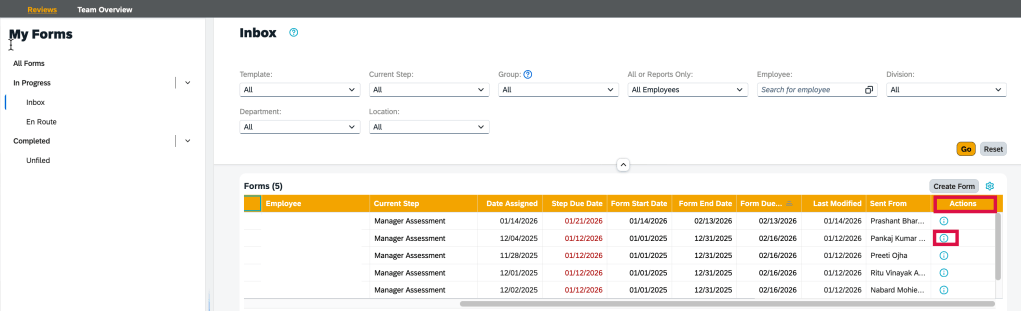
    Info icon to access the audit trail for a form
    • Within the form, go to Actions at the top of the page and select “Info about this form”.
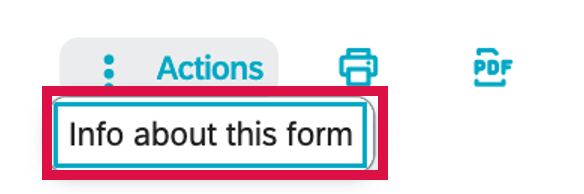
    View Audit Trail of Form

    The Form Information view displays. The Route Map, Properties and Approval sections display.
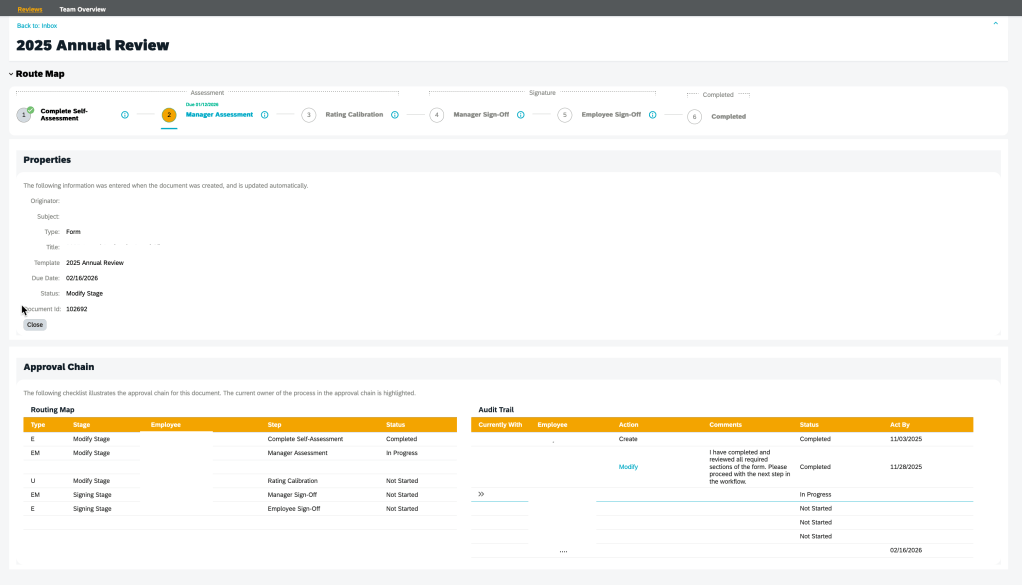
    Form Information Page

    The Properties section shows the information present at the time the form was created and includes the user who generated the form, the form subject, type, form title and template and status.
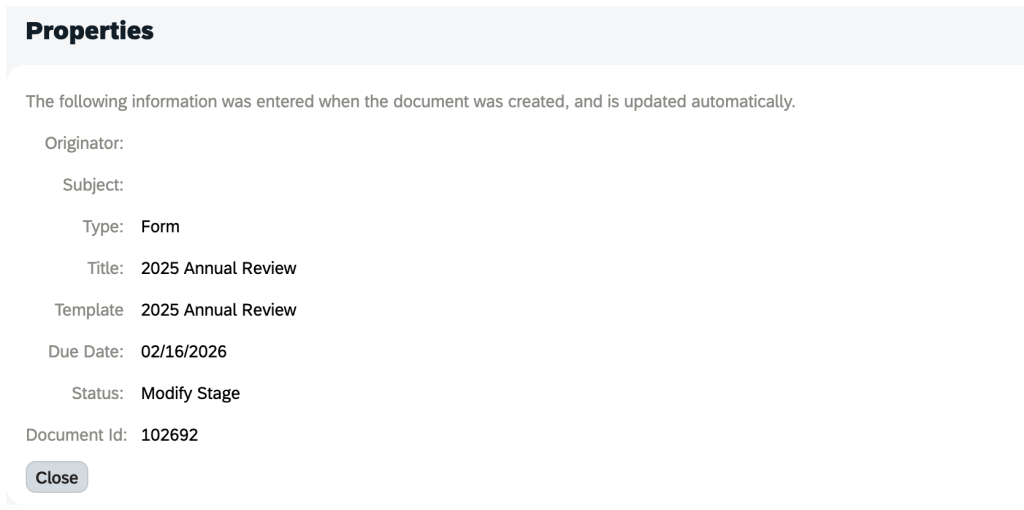
    Form Properties

    The Approval Chain section is comprised of the Routing Map and Audit Trail information for the form.
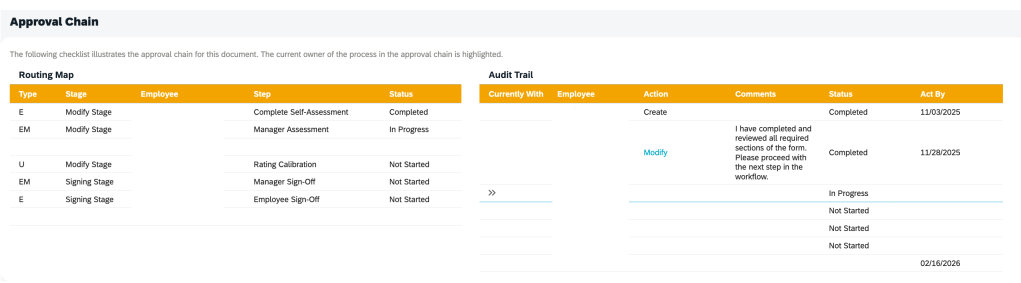
    Audit Trail for Performance Form

    The Routing Map  section displays the Step Type, Stage, Employee, Step, Status for the form.

    The Audit Trail shows a chronological log of users within the workflow and the actions taken.

    The Audit Trail section entries are created when a form moves from one step to the next and will show you the following information: Currently With, Employee, Action, Comments, Status, Act By. 

    Iterative and Collaborative steps are not shown.

    Entries in the audit trail are only created when a form moves from one step and shows the routing history of the form.

    In the Action column, you can find the changes employees made to a form. Click the link in a step to open a form and view what the form at that step. Employees cannot drill into steps which they do not have permission to.

    Access to the step link is affected by the following two options from Admin Center > Company System and Logo Settings:

    • Everyone can access the revision history of the document. Allows users to access the revision history of each document for which they were on the approval chain. When you select this option, your users can go to the Documents Information page and view a read-only snapshot of the document as it was in each stage of the workflow.
    • Manager can access the revision history of the document. When you select this option, the manager can go to the Documents Information page and view a read-only snapshot of the document as it was in each stage of the workflow.

    However, there is no option to determine whether users have opened the form.

    The Comment column includes the system comments and the e-mail notification comments entered by the sender when sending the form to the next step.
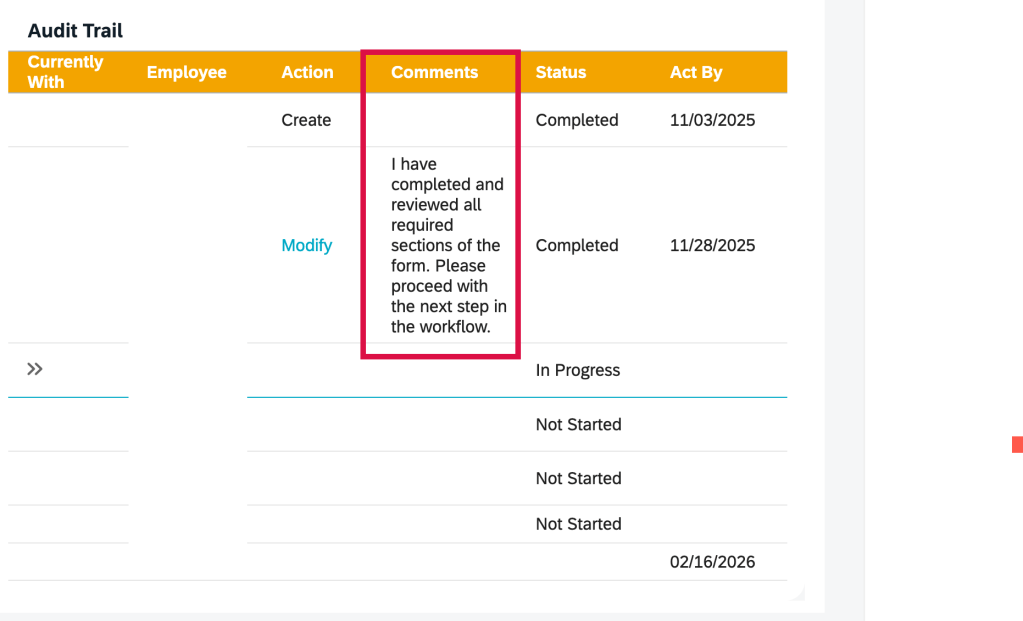
    Email notification and system comments

    If you do not want the sender’s comments to be stored and displayed in the Audit Trail section, go to Admin Center > Company System and Logo Settings, and select Do not store sender’s comment on workflow action”.
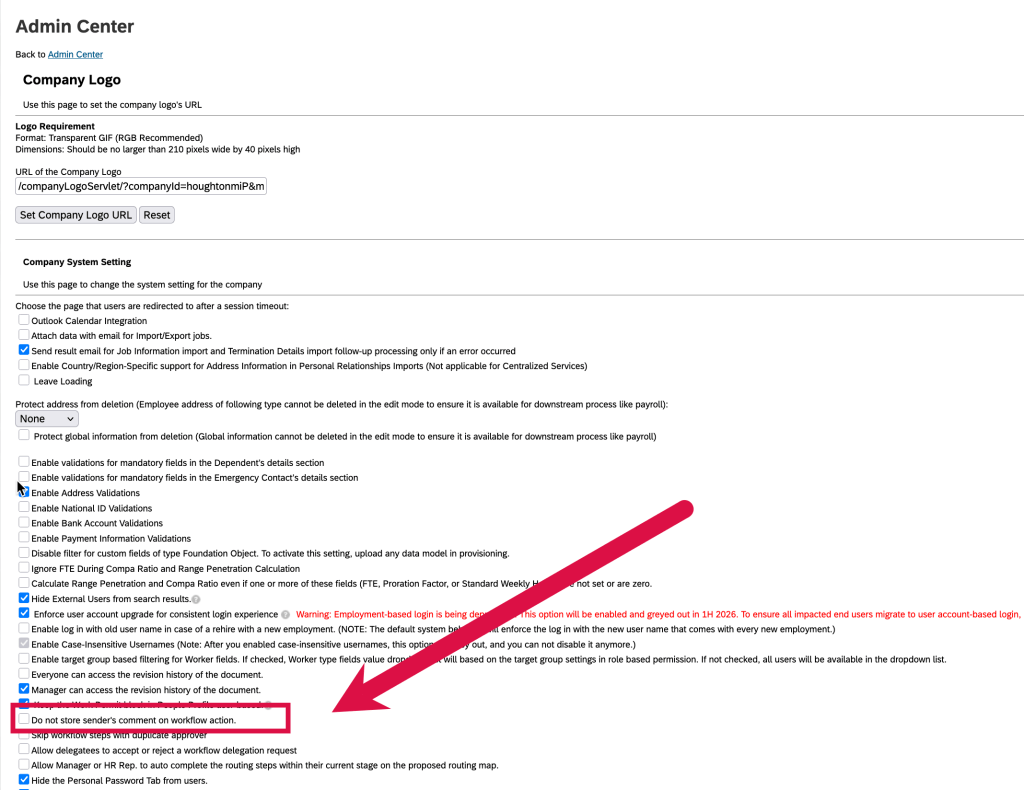
    Advanced Settings of Performance Template

    Reporting

    Reporting can be done on the audit trail records of the form completed steps by using the Audit Trail table in the Performance Management schema in Story reports.

    Reportable fields include step owner, step action, date time when a step was completed, and system and user comments.

    You can also join the Audit Trail table with the Next Route Step and Previous Route Step tables in the Route Entry schema to report on step information.

    In Closing

    The most successful SuccessFactors implementations aren’t defined by how much functionality is turned on—but by how intentionally it’s designed.

    At Worklogix, we help organizations make these decisions with adoption, scalability, and business impact in mind—so talent processes don’t just exist in the system, but actually work in practice. Do you need help implementing or supporting your SAP SuccessFactors system?  Contact info@worklogix.com for assistance.



  • SAP SuccessFactors 1H 2023 What’s New in People Analytics / Reporting

    SAP SuccessFactors 1H 2023 What’s New in People Analytics / Reporting

    SAP SuccessFactors has released new features for your People Analytics solution. They can be found in detail here (S-User ID required).  Filter on Solution for People Analytics to review all the latest changes. Under the Description for each, you can click on ‘See More’ to see screenshots and detailed information.

    Preview release was available on April 28 with the production release scheduled for June 2. For full details on the release cycle, check out the SAP SuccessFactors official product updates blog here.  New to the release process? For tips on how to manage a release, check out our blog here

    After reviewing all of the changes in this release, we narrowed the list down to the 1H 2023 SAP SuccessFactors People Analytics Top 3 Features:

    • Availability of Optimized View Mode in Story Reports
      • Users can now see an optimized story experience in the visualization of Story reports.
      • The optimized view mode is automatically enabled in the new stories that are built using the optimized design mode. Existing stories can be duplicated and then the optimized view mode can be enabled in the copied version.
    Undo and Redo functionality lets users reverse or restore actions in Story reports
    • Optimized Loading Time for Workforce Analytics Reports
      • Load time has been reduced for Workforce Analytics reports since the widgets now appear on the screen as they are ready.
      • Previously, the screen would not render until all widgets were ready to view.
    • Dynamic Teams Data Available in Story Reports
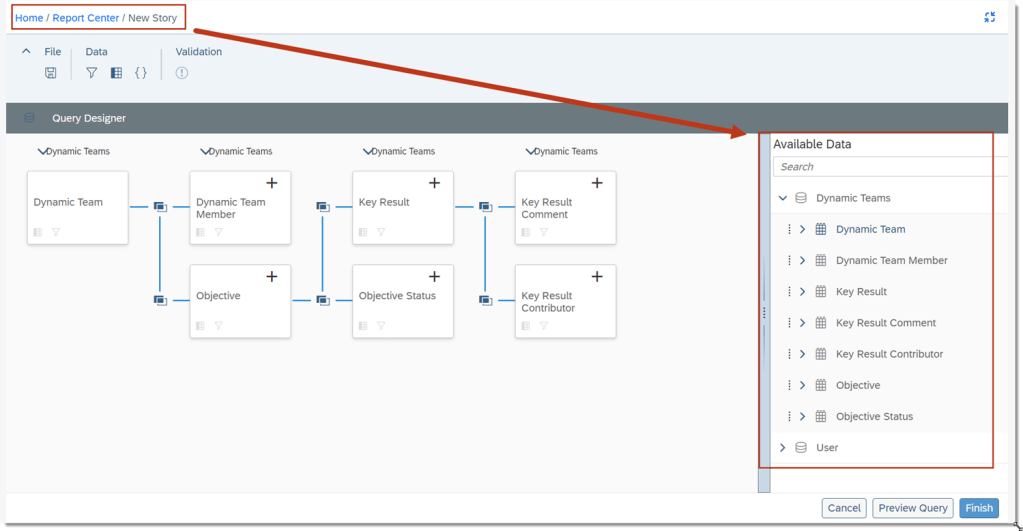
      • Users can create a Story report with new data from Dynamic Team, Dynamic Team Member, Objective, Objective Status, Key Result, Key Result Comment, or Key Result Contributor.
      • After necessary role based permissions are setup, users can report on the usage of Dynamic Teams across the organization.
    Dynamic Teams can now be added in the Query Designer

    Do you need help implementing or supporting your SAP SuccessFactors system?  Contact info@worklogix.com for assistance, download our support services brochure, or visit https://www.worklogix.com/implementation.html for additional information.

  • SAP SuccessFactors 2H 2022 What’s New in People Analytics

    SAP SuccessFactors 2H 2022 What’s New in People Analytics

    SAP SuccessFactors has released new features for your Analytics solution. They can be found in detail here (S-User ID required).  Filter on Solution for Analytics to review all the latest changes. Under the Description for each, you can click on ‘See More’ to see screenshots and detailed information.

    Preview release was on October 28 and production will be released December 9. For full details on the release cycle, check out the SAP SuccessFactors official product updates blog here.  New to the release process? For tips on how to manage a release, check out our blog here

    After reviewing all the changes, we narrowed the list down to the 2H 2022 SAP SuccessFactors Analytics Top 3 Features:

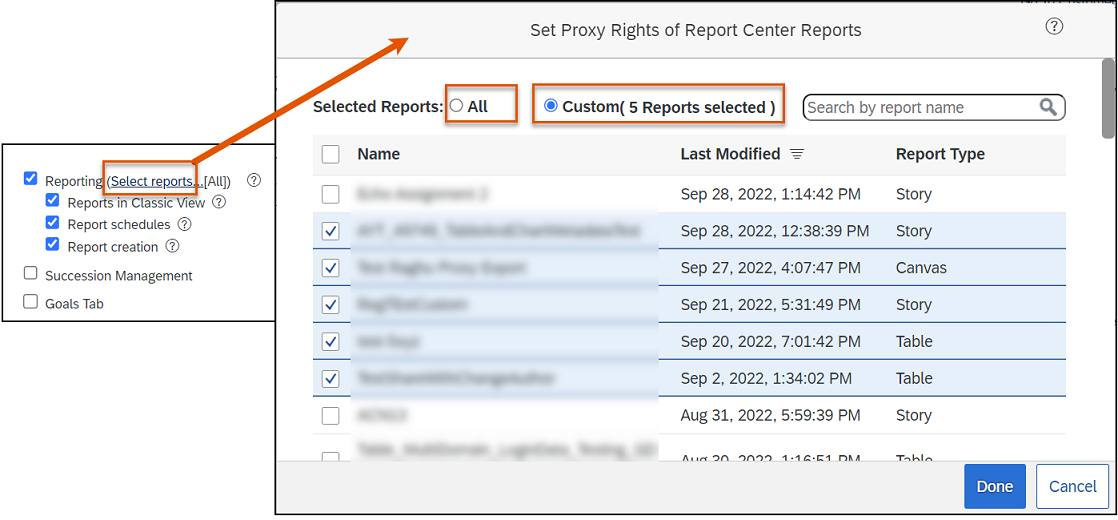
    • Granular Proxy Rights for Reporting
      • Users can choose the Report Center reports that a proxy user can access and the tasks in reporting that a proxy user can perform on behalf of the account holder. 
      • Instead of the proxy rights being all or nothing, users can decide on an individual basis what reports a user can access and what reporting actions a user can perform as a proxy.
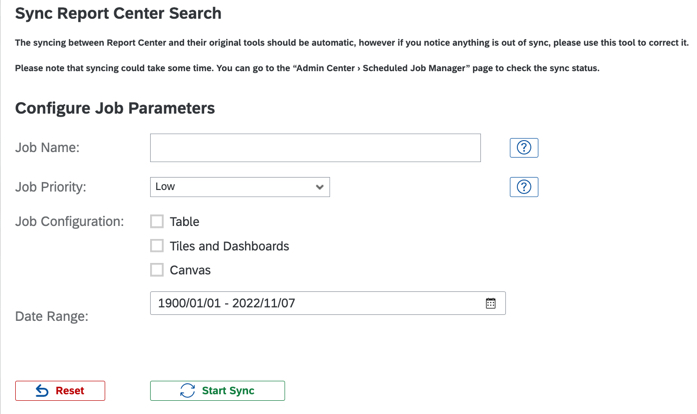
    • Status of Sync Report Center Search Jobs on the Scheduled Job Manager Page
      • Users have the ability to check the status of the sync jobs initiated from the Sync Report Center Search page in the Job Monitor and the Job Scheduler tabs on the Scheduled Job Manager page.
      • Role-based permission changes Manage Dashboards / Reports –>  Manage Report Center are required to access Admin Center –> Sync Report Center Search.
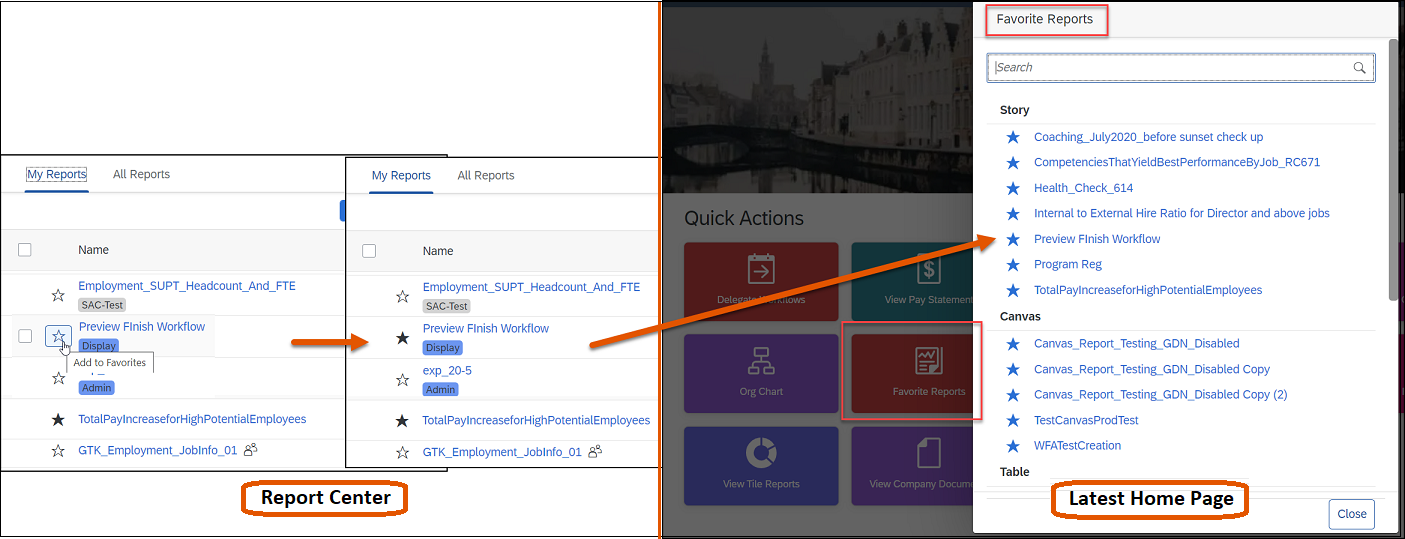
    • Manage Favorite Reports from the Report Center Page
      • Users can use Report Center to add or remove favorite reports that are available on the home page.
      • For the favorite reports to appear on the latest home page, ensure that Favorite Reports quick action is enabled in Admin Center –> Manage Home Page.

    Do you need help implementing or supporting your SAP SuccessFactors system?  Contact info@worklogix.com for assistance, download our support services brochure, or visit https://www.worklogix.com/implementation.html for additional information.

  • SAP SuccessFactors 1H 2022 What’s New in People Analytics

    SAP SuccessFactors 1H 2022 What’s New in People Analytics

    SAP SuccessFactors has some exciting new features for your Analytics & Reporting solutions. They can be found in detail here (S-User ID required).  Filter on Solutions for People Analytics to review all the latest changes. Under the Description for each, you can click on ‘See More’ to see screenshots and detailed information.

    As a reminder, preview release was on April 15 and production will be released May 20. For full details on the release cycle, check out the SAP SuccessFactors official product updates blog here.  New to the release process? For tips on how to manage a release, check out our blog here

    After reviewing all the changes, we narrowed the list down to the Highlights for H1 2022 SAP SuccessFactors Analytics/Reporting Features:

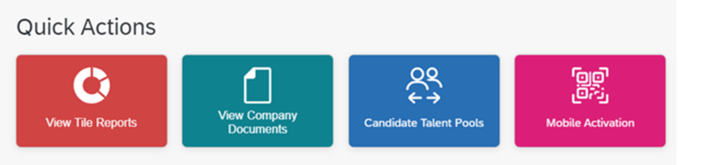
    • View Tile Reports Quick Action from the Latest Home Page
      • View Tile Reports quick action enables users to view Tile reports that are available in Analytics, based on permissions.
    • New Permission to Access Tile Reports from the Latest Home Page
      • The newly added Access Tiles from Home Page permission on the Reports Permission tab enables users to view Tile reports from the latest home page.
      • After the initial one-time migration, users can enable or disable the Access Tiles from Home Page permission for roles to manage their access to the View Tile Report quick action.
    Quick Action – View Tile Reports has been added to Latest Home Page
    • Learning Queries in Story Reports has increased Number of Columns
      • The number of columns for Learning queries has been increase to 120 from 30.
    • Change of Behavior of Tabs on the View Schedules Page in Report Center
      • The View Schedules page in Report Center now displays user’s previously selected tab, instead of its default tab. This will remember the tab the user was last working on instead of returning to the default My Jobs tab.
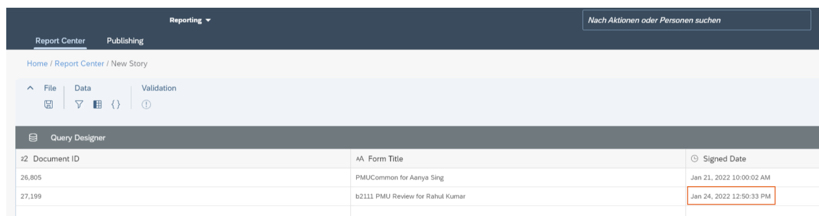
    • Enhanced Signed Date Column in Story Reports
      • Story reports now shows the date and time when the form was signed.
    Signed Date and Time appears in Story Report details

    Do you need help implementing or supporting your SAP SuccessFactors system?  Contact info@worklogix.com for assistance, download our support services brochure, or visit https://www.worklogix.com/implementation.html for additional information.

  • H2 2021 SAP SuccessFactors Analytics/Reporting Features

    H2 2021 SAP SuccessFactors Analytics/Reporting Features

    SAP SuccessFactors has some exciting new features for your Analytics & Reporting solutions. They can be found in detail here (S-User ID required).  Filter on Solutions for Analytics to review all the latest changes. Under the Description for each, you can click on ‘See More’ to see screenshots and detailed information.

    As a reminder, preview release was on October 15 and production will be released November 19.  For full details on the release cycle, check out the SAP SuccessFactors official product updates blog here.  New to the release process? For tips on how to manage a release, check out our blog here

    After reviewing all the changes, we narrowed the list down to the Highlights for H2 2021 SAP SuccessFactors Analytics/Reporting Features:

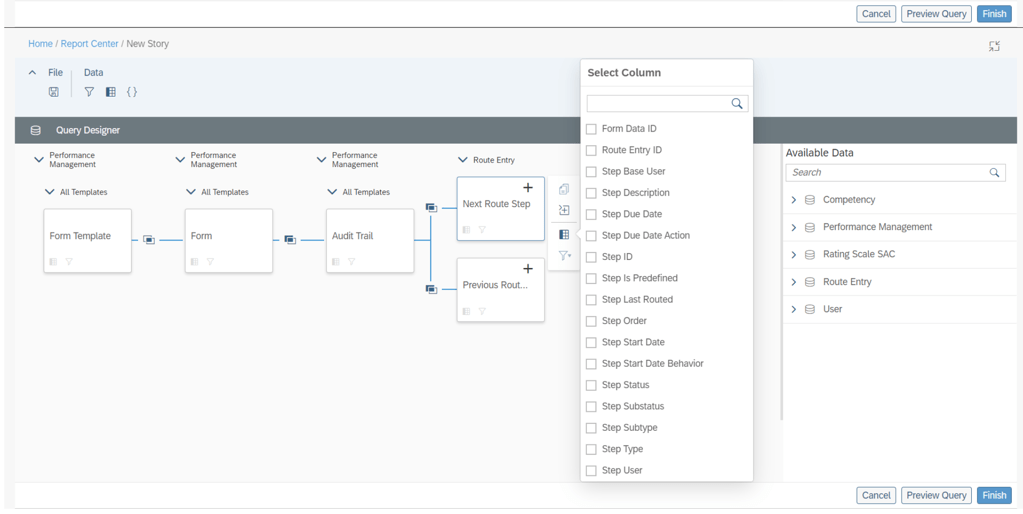
    • Audit Trail Now Reportable in Stories in People Analytics
      • Users can now use Stories in People Analytics to report the audit trail records of form completed steps, including step owner and step action.
      • This new feature allows you to track the routing details of Performance Management forms in a consolidated report.
    Additional columns available to report on step details
    • Increase in the Number of Columns Supported for Learning Queries in Story Reports
      • The number of columns that you can select while creating a Learning query has been increased from 30 to 120.
        • You can now create more complex queries due to the increase in number of columns.
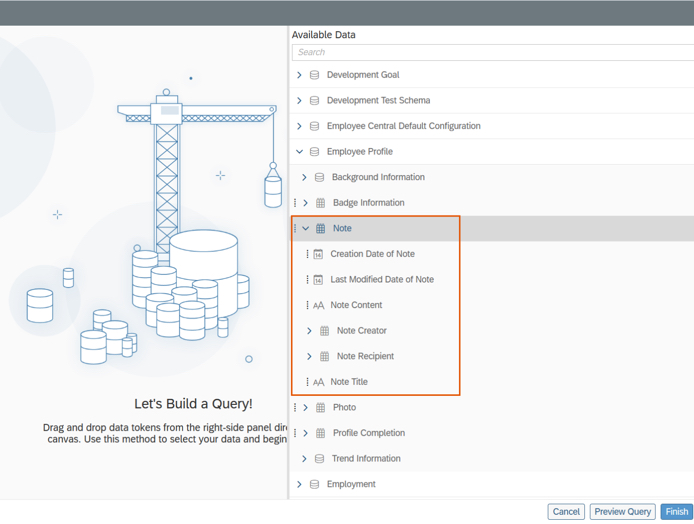
    • Notes of People Profile Now Reportable in Stories in People Analytics
      • Users can now use Stories in People Analytics to report the notes of People Profile. Information about notes that can be reported includes:
        • Note content
        • Note titles
        • Note creators
        • Note recipients
        • Last modified dates
        • Creation dates

    Notes of People Profile are now reportable
    • Query Validation for Story Reports
      • The queries in Story reports are now checked for errors whenever you choose Preview or Finish on the Query Designer page.
        • The validation checks return a list of missing or erroneous columns, calculations, and filters used in the query.
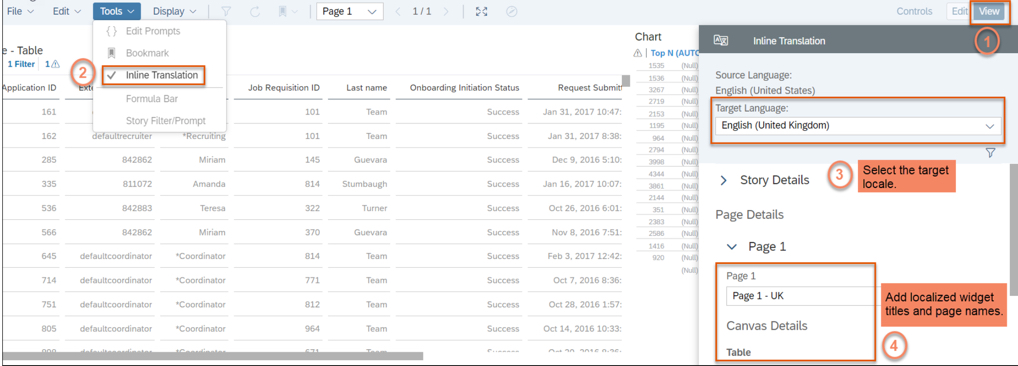
    • Inline Translation for Story Reports
      • You can now add localized values for widget titles and page names in Story reports.
      • Note: After you enable inline translation in a story, you can edit it only in the source language. When you enable inline translation in the story, your current locale becomes the source language for the story.
    The ability to add localized widget titles and page names enhances the user experience for Story reports.

    Do you need help implementing or supporting your SAP SuccessFactors system?  Contact info@worklogix.com for assistance, download our support services brochure, or visit https://www.worklogix.com/implementation.html for additional information.

  • H1 2021 SAP SuccessFactors Analytics/Reporting Features

    H1 2021 SAP SuccessFactors Analytics/Reporting Features

    Photo by PhotoMIX Company from Pexels

    SAP SuccessFactors has some exciting new features for your Analytics & Reporting Solutions. They can be found in detail here (S-User ID required).  Filter on Solutions for Analytics to review all of the latest changes. Under the Description for each, you can click on ‘See More’ to see screenshots and detailed information.

    As a reminder, preview release will be April 16th and production will be released May 21st.  For full details on the release cycle, check out the SAP SuccessFactors official product updates blog here.  New to the release process? For tips on how to manage a release, check out our blog here

    After reviewing all the changes, we narrowed the list down to the Highlights for H1 202SAP SuccessFactors Analytics/Reporting Features:

    1. Calibration, Succession, and Compensation and Variable Pay Reports Now Available for Download in Report Center
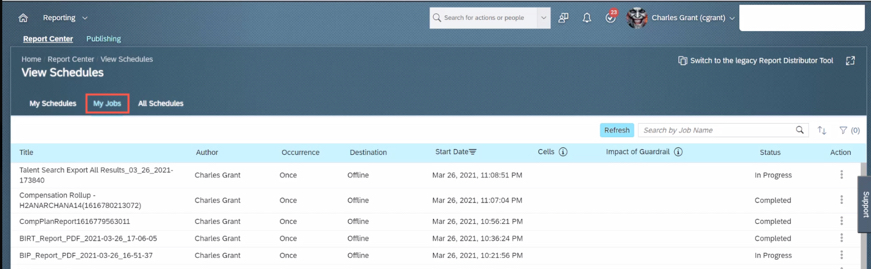
      • Previously, the reports were available for download on the Scheduled Reports page in classic view. This caused confusion for users on how to get to their reports by having to direct them to Switch to Classic View.
      • You can now download the reports from the My Jobs page within View Schedules in Report Center.
    Reports can now be accessed via My Jobs

    2. All User Info Fields Are Now Available in Story Reports

    • You no longer need to set a User Info field as Reportable to make it available in Story reports.
    • All the User Info fields are now automatically available for reporting using Stories in People Analytics.

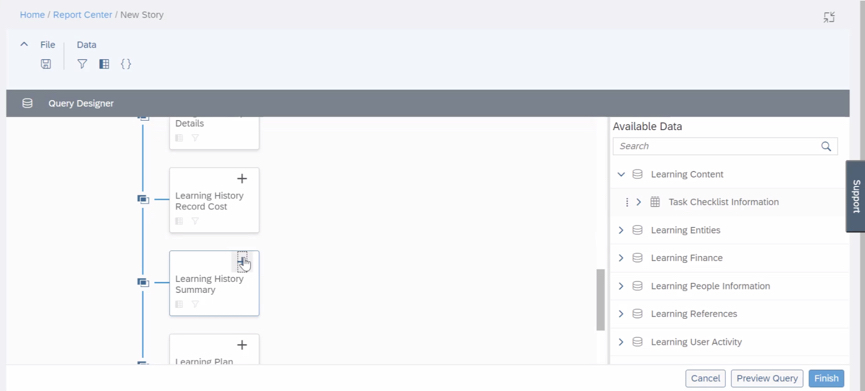
    3. Stories in People Analytics for SAP SuccessFactors Learning

    • You can now create, access, and share Learning stories in People Analytics for generating custom Learning reports.
    • You can also have the data of SAP SuccessFactors Learning and other modules side-by-side in the same story and link them to apply common filters on them.
    Stories in People Analytics for SAP SuccessFactors Learning

    4. Increase in Number of Columns Supported in Queries of Story Reports

    • The number of columns that you can select while creating a query has been increased from 30 to 120.
    • You can now create complex or detailed queries that involve more than 30 columns.

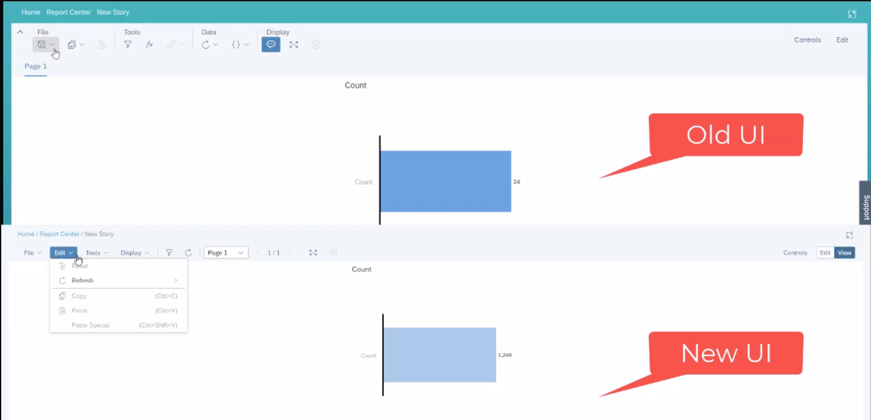
    5. UI Enhancements for Stories in People Analytics

    • The UI enhancements on the viewer mode include:
      • An updated Display menu, which now has the Tab Bar, and the Comment Mode options. By default, the page dropdown view appears. The multiple pages in tab view now appear when you select the Tab Bar option.
      • Separate File and Edit menus.
      • Removal of the Data menu. The refresh option has moved into the Edit menu and the edit prompt option has moved into the Tools menu.
    Enhancements to UI to improve usability

    Do you need help implementing or supporting your SAP SuccessFactors system?  Contact info@worklogix.com for assistance, download our support services brochure, or visit https://www.worklogix.com/implementation.html for additional information.