The latest release updates are here! In this article we take a quick look at the latest updates for SAP SuccessFactors Onboarding 2.0. Preview release is October 15 and production is November 19. You can view the full set of documentation in the What’s New Viewer here. For full details on the release cycle, check out the SAP SuccessFactors official product updates blog here. Let’s get started! We’ve categorized the enhancements below for you!
Security Enhancements
In the category of security, there’s been an enhancement to proxy where you now have more granular control over whether or not a person who can proxy has access to onboarding. You can select the check box on the Proxy Management screen.
In addition to US I-9, the Canadian TD1form for all provinces is now supported. The New Zealand KS2 KiwiSaver deduction form, Tax code Declaration, and Tax rate notification for contractor forms are now supported.
Qualtrics Integration
SAP continues to further their integrations with Qualtrics across the board. There’s now a new Intelligent Services event to send internal hire information to Qualtrics. This allows you to send email surveys to employees when the internal hire step is completed. There is a new configuration screen that makes this setup easy! It is shown below:
New Hire Enhancements
A few enhancements have been made to the new hire experience. New Hires can now complete the onboarding process on the homepage. There’s new “To Do” tasks that show up for onboarding here for the new hires such as compliance tasks and completing personal data collection.
New hires can also now access LMS courses before their first day of work as shown below!
The complete new hire experience for the home page can now be done on the latest version of the homepage.
Hiring Manager / Admin Enhancements
In addition to new hire experience, the hiring manager and admin experiences have seen some updates as well. Future Managers can also now access information about their new hires in the onboarding dashboard and “To Do” tasks. Role-based permissions also now allow you to assign based on this new future manager relationship.
The Restart process for onboarding has also been enhanced so that you can choose whether or not to retain data or instead reload from recruiting.
General Process Enhancements / Behind The Scenes Enhancements
Behind the scenes, there’s been some other updates as well!
When it comes to picklists, the mapping from recruiting to employee central can be a pain. The system has now been updated to map based on a series of potential exact matches rather than just on labels. First, the system will attempt to map based on the option id since this is the most unique identifier. If no exact match is found, then mapping is performed via label using the external code value. If no external code is available, then the label alone is used.
Also behind the scenes, when a major patch/release is deployed to the system, the default onboarding process in the Business Process Engine is now automatically upgraded. Previously, an admin had to manually upgrade the flow.
The rehire process has also been enhanced to make life easier for admins managing this process. Values such as date of birth, national id, legal entity, and user records can now be seen as shown below:
No shows and rehires are handled better as ell. The value “No Show” has been added as an event reason for cancelling the second rehire check. There is also a new welcome email template specifically designed for rehires.
Conclusion
The SAP SuccessFactors Onboarding product continues to grow and become increasingly more robust! This does not represent all of the enhancements in the H2 2021 release – only the highlights we found most compelling. Check out the What’s New Viewer here for the complete list of enhancements.
See this great article for useful information on how to prepare for a SAP SuccessFactors Regular Release.
For your convenience, we’ve summarized the highlights of what’s new for 2021 Performance Management below.
The updates for Performance Management are primarily targeted for 360 Reviews so we will start with those. The PM form updates will be discussed after these features have been reviewed. Calibration updates can be found in our separate blog here.
What’s New for 360 Forms – Fiori Version
Here are the 10 universal updates made for the Fiori version of 360 forms to provide the same features that are available 360 Reviews v11.
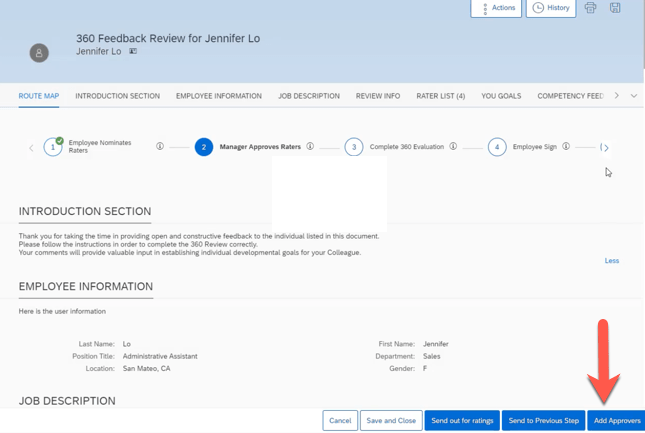
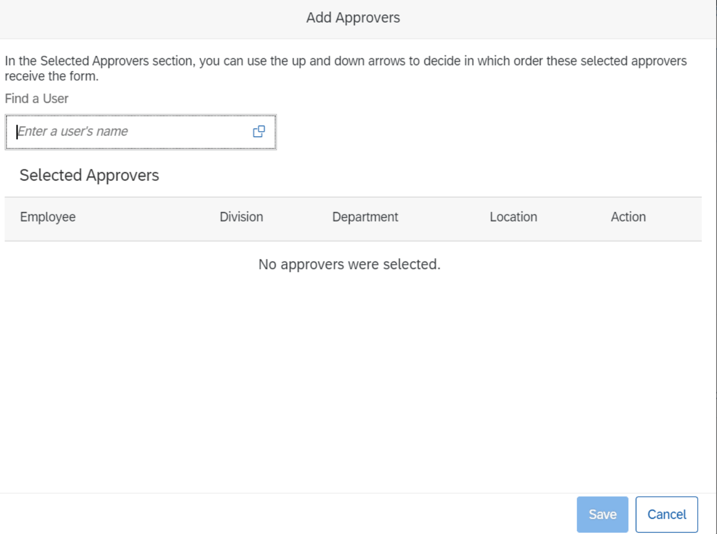
Add Approvers in 360 Reviews
Approvers may now be added in the Modify stage.
Development Goal Section Available in 360 Reviews
A development goal section may be added to a 360 Review form template. These enables employees the opportunity to add and edit development goals.
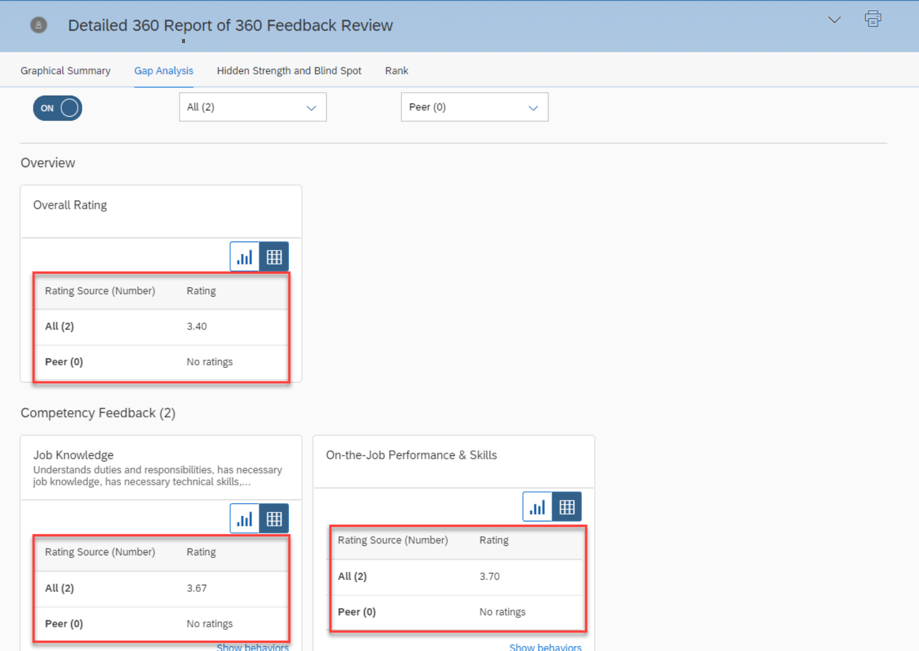
Display a Data Table for a Chart
Within a 360 Executive Review and Detailed 360 Report, a user may select the table icon on a chart to see a data table. This provides text equivalents for non-text content.
Display External Users in Search Results When Adding Participants
It is now possible to add external users as participants without having to disable the system setting Hide External Users from search results.
EZ Rater Available in 360 Reviews
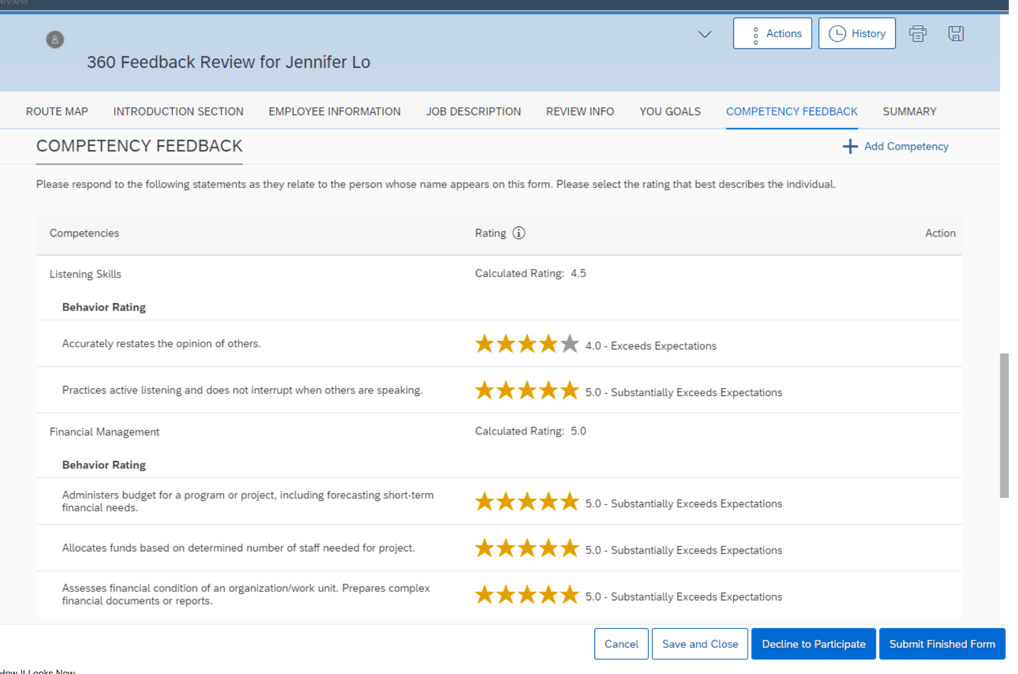
When enabled, the EZ Rater option provides a more condensed list view for rating goal and competencies.
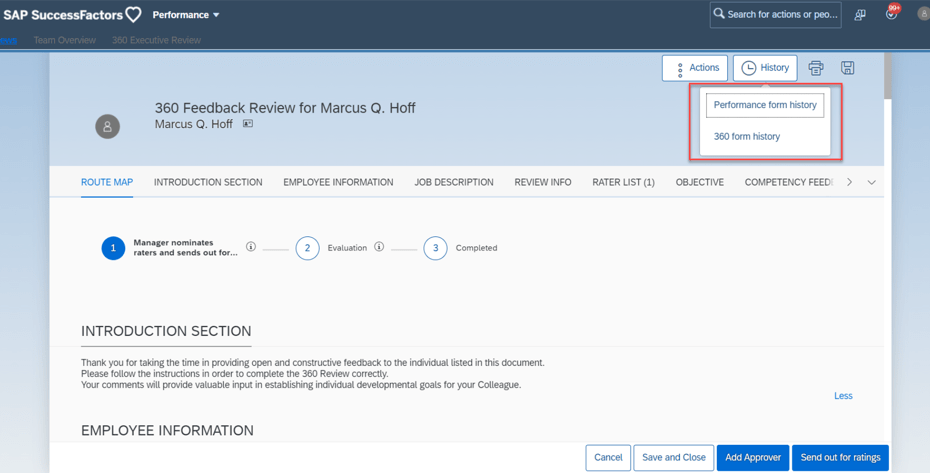
Form History Available in 360 Reviews
Prior performance and 360 forms are now available within a 360 Review. The History button will display options to view either form type if available.
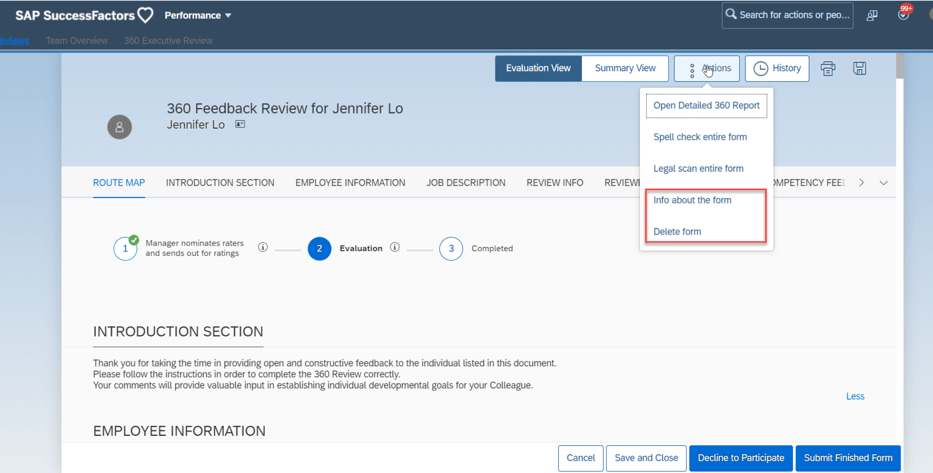
More Form Actions Available in 360 Reviews
Additional action options are now available for 360 forms. Information about the form may be viewed and the form may be deleted.
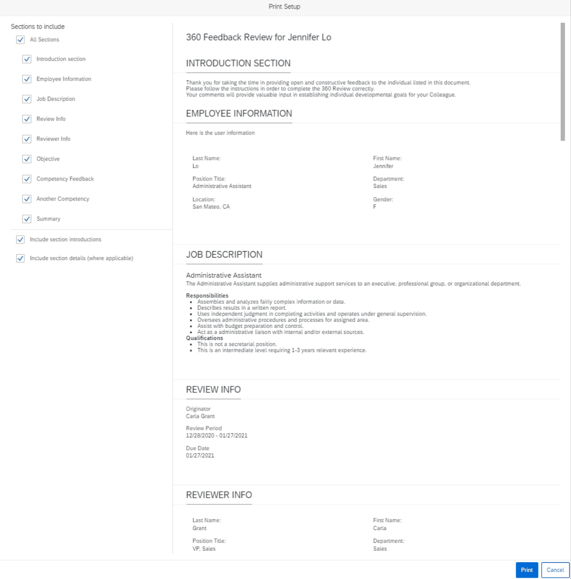
Print Preview Available in 360 Reviews
When the user clicks the Print button, a popup displays a preview of the form. This provides the user the opportunity to select the entire form or selected sections to print.
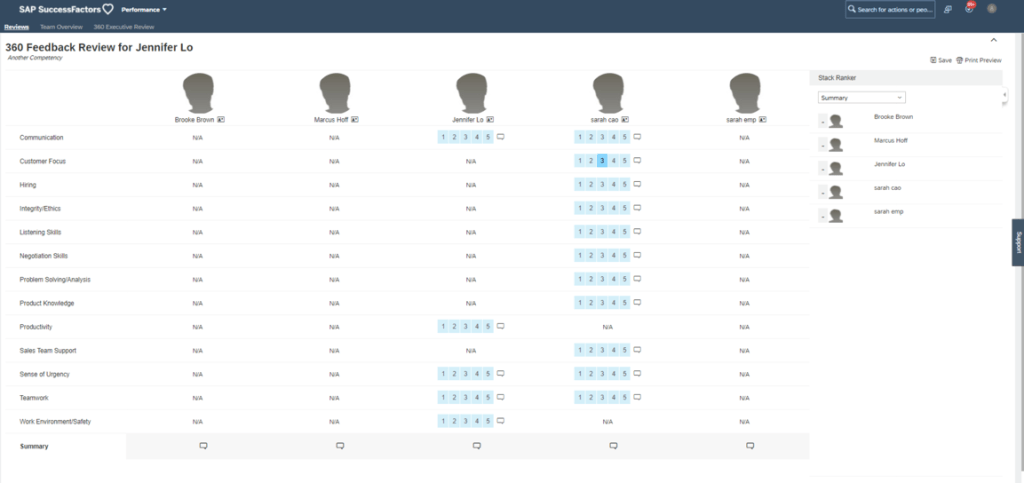
Stack Ranker Available in 360 Reviews
Stack Ranker can be enabled which allows side by side ranking of employee competencies. Ratings may be modified and comments added.
Section Descriptions Fully Displayed by Default
Now section descriptions are fully displayed by default and can be collapsed. Clicking Show Less to hide content. Previously sections were collapsed and the user had to click Show More to see the content.
What’s New for PM Forms
There are 5 universal updates for PM forms.
Customized Weighted Rating Supported in Import Overall Scores
Previously it was only possible to import overall scores into the Objective Competency Summary, and Performance Potential Summary, and Summary sections. The new release enables you to update overall scores for the Customized Weighted Rating section.
On the import file, use <PERFORMANCE> rating in the CSV file. The rating field is also used to update the Summary and Performance Potential section overall rating. If there is more than one PERFORMANCE rating, there is a priority for updating. The section order for uploading from high to low is:
Customized Weighted Rating
Performance Potential Summary
Summary
Deep Link to Performance Management Forms
There is now a deeplink available to access a performance form: /sf/openFormByDocId
New OData V2 API Entity FormCustomizedWeightedRatingSection
There is a new OData V2 API Entity: FormCustomizedWeightedRatingSection. It can be used to get the Customized Weighted Rating section details of a performance form in order to update the manual ratings section of the performance form.
Target Population in Role-Based Permissions for Import Overall Scores
This update pertains to the Customized Weighting Rating import that we just covered. Role based permissions may now be used to restrict users to importing scores for only their target population.
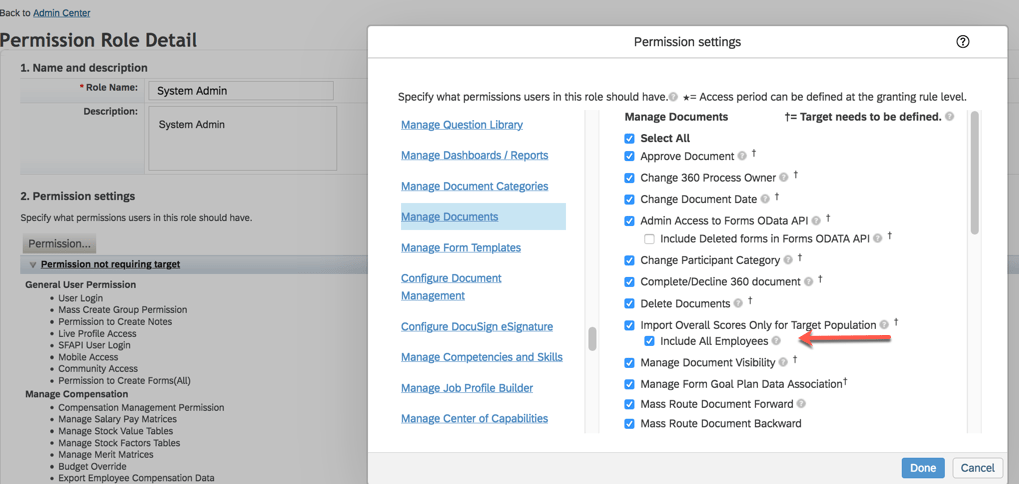
Select a role in Manage Permission Roles. Go to Permission>Administrator Permissions>Manage Document and select “Import Overall Scores Only for Target Population” and “Include All Employees” which allows granted users to update manual overall scores for all employees.
Live Profile Section Deleted
A Live Profile section can no longer be added to PM forms. Information in the existing section is no longer available. A link to People Profile can be used on the form instead.
What’s New in Continuous Performance Management (CPM)
There are some new early adapter features for the latest version of Continuous Performance Management (CPM). They are admin opt-in or opt-out features. We won’t cover these here since the latest version is not widely enabled. When the latest version of CPM is enabled, these email reminder notifications will become obsolete: Conduct 1:1 Meeting, Update Status, along with Activity and Achievement reminder notifications.
The latest version will handle notifications differently since multiple roles can be used and meeting channels can be created. Requests and meeting notifications can be created for anyone in the user’s meeting channel.
We have now covered the highlights of the PM related updates for H1 2021. See our blog for Calibration release features.
Highlights are identified by module and the type of change.
Universal- for modules enabled, universal means no steps are required to have access to the new functionality. These features are automatically made available.
Admin Opt-In – the admin must enable the new feature, usually in Admin Tools
Admin Opt-Out – the admin must disable the new feature, usually in Admin Tools
Provisioning Opt-In and Opt-Out require a Partner or Product Support request
For your convenience, we’ve summarized the highlights of what’s new for 2H 2021 Performance Management below.
Performance Management
There is not much in the way of new functionality, just one universal update.
General Availability – Universal Updates
Configuration Center Support For Performance Management Form Templates
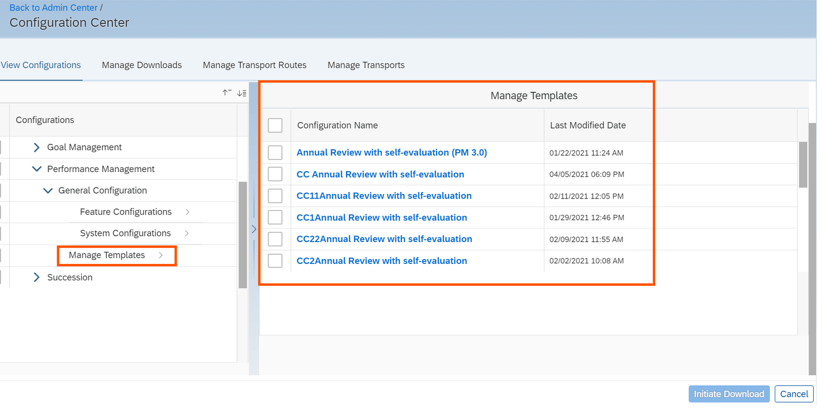
You can now view, download, and transport Performance Management form templates across tenants using Configuration Center. Prior to this release, only Feature Configuration was available under General Configuration for Performance Management. Now System Configuration and Manage Templates are available.
New PM Configuration In Configuration Center
General Availability – Admin Opt-Ins
The admin opt-ins require the latest version of the home page.
PM Related Updates “For You Today” Section of the Latest Home Page
When the latest home page is used, a “For You Today’ card will appear for PM tasks.
You can enable to-do tasks on the latest home page in the Upgrade Center.
The tasks are:
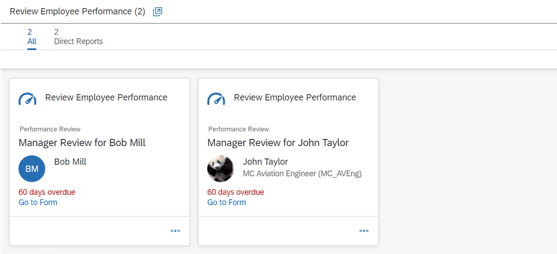
“Review Employee Performance” task available for managers
“Review Employee Performance” task available for employees
To give managers a view of the form that need their review, cards are grouped into Direct Reports, Matrix Reports, and Other on the stack view. An example is shown below.
For You Today Performance Tasks
Users can go directly to the performance review forms from this card to complete the tasks.
Goal Management
There is one universal update for Goal Management. The majority of the new functionality is for the latest version of Goal Management. With each release more and more features become available.
General Availability – Universal Updates
View, download, and transport Goal Management configurations using Configuration Center.
It is now possible to use ConfigurationCenter for Goal Management to view configurations, download configurations, and transport configurations across tenants. Configuration Center permission is required.
The view feature enables the admin to view configuration as well as see the username who made changes with a date and timestamp.
The download feature is useful to take a backup of your application’s configurations as well as for troubleshooting by an Implementation Partner or Customer Support.
The export feature can be used to export configuration in order to copy from the preview system to production.
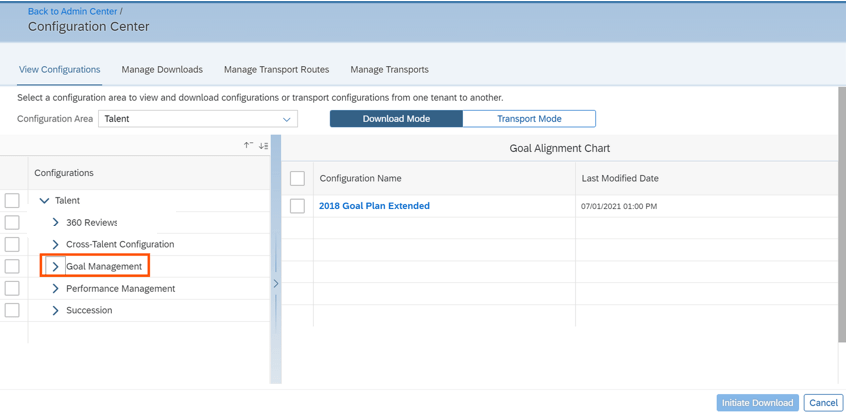
With this release, after selecting the Talent configuration area, Goal Management is visible. The admin can then select the features to download.
Goal Management in Configuration Center
After selection, the admin goes to the “Transport Mode” tab to initiate the download process.
Upon completion, the configuration bundles is downloaded in ZIP format. Configuration types are available as separate files.
Latest Goal Management
With each release, the latest version of Goal Management has functionality added that is already available in the current version,
Now supported in the latest version of Goal Management:
Beta Goal Import
Changing goal plan states in Goals
User search
Matrix relationships
Now available in the latest version of Goal Management:
Spell Check
Legal Scan
Advanced user search by criteria
We will look at the new supported functions that are available for those using the latest Goal Management. We will start with the universal updates.
Early Adopters – Universal Updates
Mass Import Personal Goals in Latest Goal Management
It is now possible to use the “Import Performance Goals” for the latest version of Goal Management.
Change Goal Plan States in Latest Goal Management
It is now possible to update the goal plan state in the latest version of Goal Management. The ability to lock and unlock goal plans will be available and provides visibility of the goal plan state using the latest version of GM.
Goal plan states are used to control the action and field permissions before and after a goal plan is approved. Users with the “change-state” permission in the goal plan XML can now change the goal plan state in a more straightforward manner.
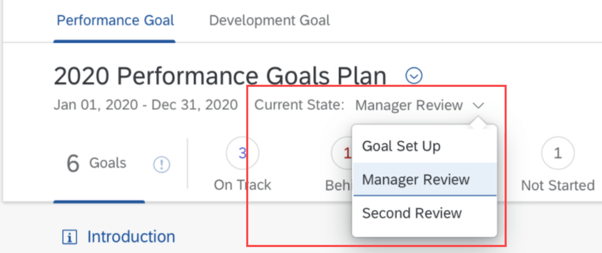
An example using goal plan states in the latest version of a goal plan is shown below. The current state has a dropdown list.
Latest Goal Management Goal Plan Current State
In addition, employees will be able to receive email notifications when their goal plan state changes. The notifications will include who changed the goal plan state and what the current goal plan state is.
Enhanced People Selector in Latest Goal Management
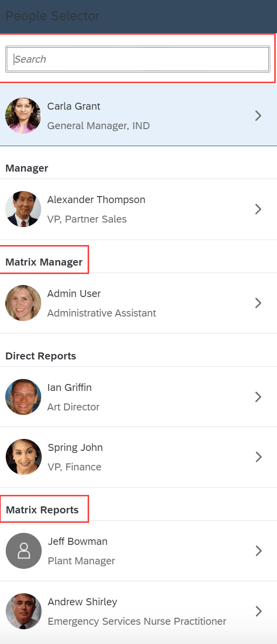
When using the latest version of goals management, the people selector will include matrix manager and matrix reports. If these matrix roles have permission, they will have access to view goal plans.
An example of the people selector in a goal plan is shown below.
People Selector with Matrix Manager and Reports
If these matrix roles have permission, they will have access to view goal plans.
360 Reviews
General Availability – Universal Updates
View, download, and transport 360 Reviews configurations using Configuration Center
Similar to the Goal Management being available in Configuration Center, it is now possible to use ConfigurationCenter for 360 Reviews to view configurations, download configurations, and transport configurations across tenants. Configuration Center permission is required cross tenants.
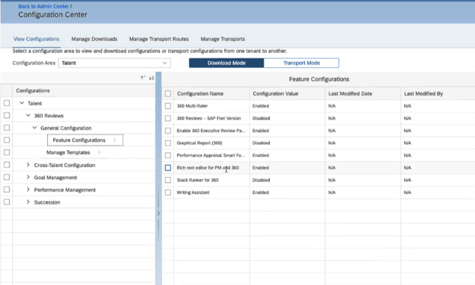
Before this release, 360 was not available in Configuration Center Now when selecting the Talent configuration area, 360 is visible. The admin can then select the features to download fro the Transport Mode tab.
360 in Configuration Center
Add External Participants When Users Have No Search Permissions
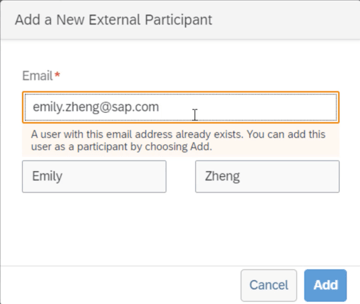
Users without permission to search for external users may now add them as form participants by email address. Users can enter the email address of an external user in the “Add a New External Participant” dialog box.
If the external user already exists in the system, the First Name and Last Name fields are automatically filled and users can select “Add” to add the external user as a participant.
An example is shown below.
Add External Participant
General Availability – Admin Opt-Ins
360 Reviews Tasks on the Latest Home Page
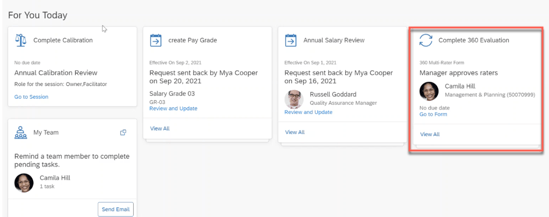
When the latest home page is used, a “For You Today’ card will appear for 360 Review tasks:
“Complete 360 Evaluation task” available for managers
“Complete Your 360 Evaluation task” available for employees
Found on the latest Home Page, for any 360 forms for an employee, manager or raters, there is a card to prompt the user to review and complete the 360 Reviews form in the Performance inbox.
For You Today Card for 360
Users can go directly to the 360 review form from this card.
Calibration
General Availability – Universal Updates
There is a universal update for a calibration session.
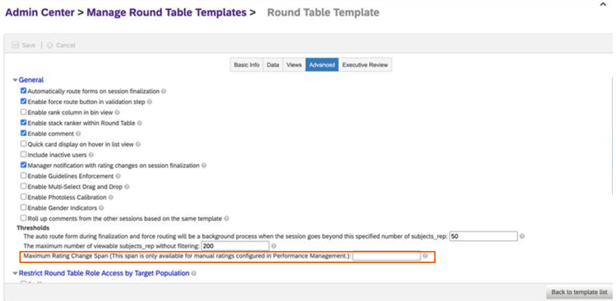
Set max rating change span
In “Manage Calibration Templates”, if your data source is “Performance”, it is now possible to set a maximum rating change span. This setting can be found on the “Advanced” tab.
Once the span is set, if you make rating changes in the session, the following rules apply:
If the rating change made doesn’t exceed the maximum rating change span, the rating will be changed
If the rating change exceeds the maximum rating change span, an error message displays and the rating reverts to the original rating.
Shown below is the Calibration Template “Advanced Settings” tab.
Set Maximum Rating Change Span
Continuous Performance Management (CPM)
There are only admin opt-ins for this release of Continuous Performance Management.
General Availability – Admin Opt-Ins
New Qualtrics Survey for Continuous Performance Management
It is possible to integrate Qualtrics surveys with Continuous Performance Management. This integration allows you to collect feedback from employees after 1:1 sessions with their managers.
To use this feature:
CPM must be enabled
Qualtrics license for website and app feedback projects required
“Manage Qualtrics Integrations” feature is enabled in Upgrade Center
The Qualtrics account is used to create the survey and view survey feedback.
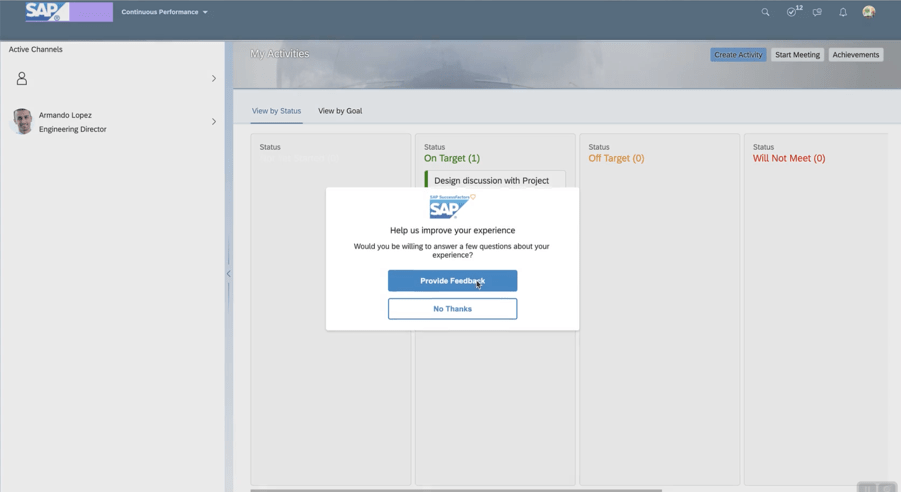
An employee will be prompted to complete the survey. An example is shown below.
Start Survey within CPM
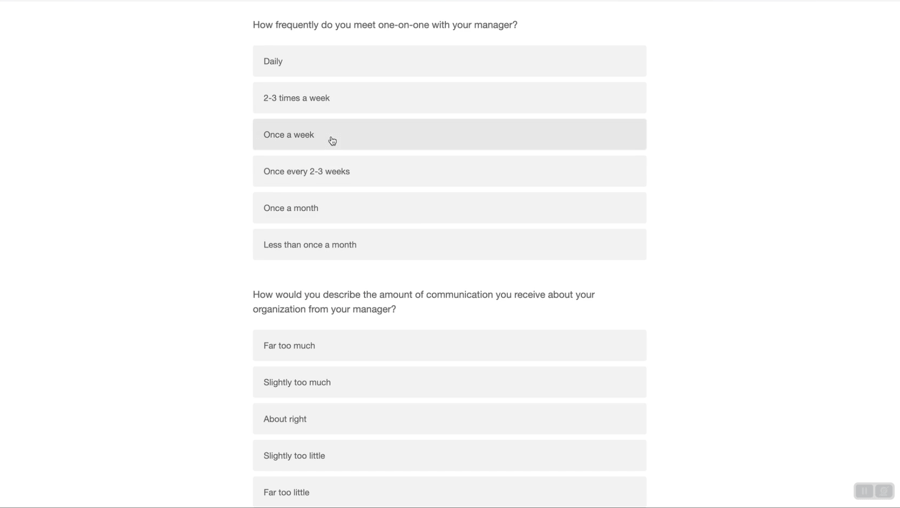
The user will see questions to answer.
Survey Questions
Once completed, the admin may view the survey feedback.
Early Adopter – Admin Add -Ins
Enhanced Achievement Experience for Continuous Performance Management
This feature is only available if the latest version of CPM is used.
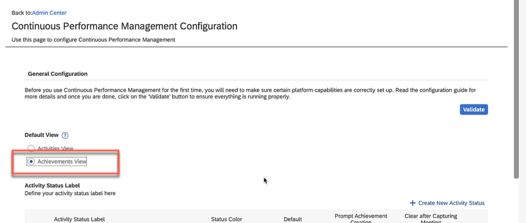
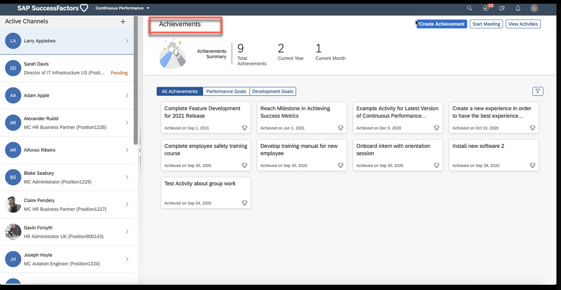
Achievements can be the default view on the CPM landing page, which enables quick access to achievements. The admin would have to select “Achievements view” as the default on the “Continuous Performance Management Configuration” page. An example is shown below.
Set Default View
When a user accesses CPM, the default view will now be the Achievements tab.
Achievements tab default view
Feedback Integration with Microsoft Outlook
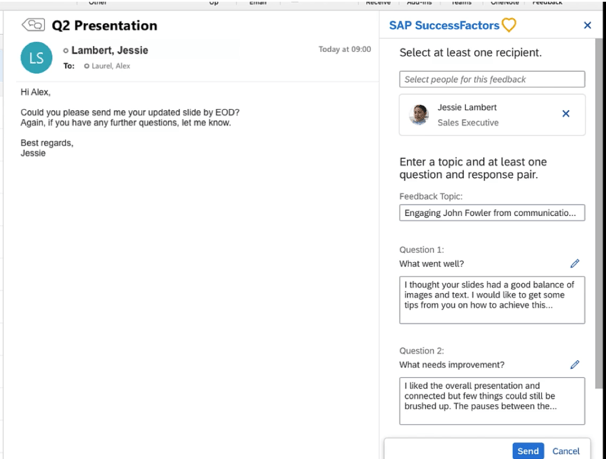
Continuous feedback may be enabled from a Microsoft Outlook add-in to make giving feedback easier.
In order to use this feature:
Latest version of CPM must be enabled
SAP SuccessFactors user attributes are mapped to Microsoft Active Directory
Continuous Feedback outlook integration is enabled and the manifest file downloaded
SAP SuccessFactors user attributes mapped to Microsoft Active Directory.
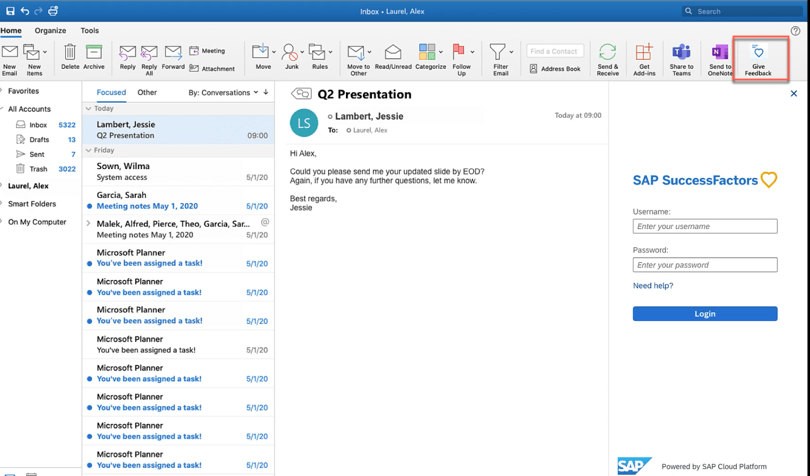
The employee will see an option to give feedback.
CPM Feedback within OutlookStart Giving Feedback
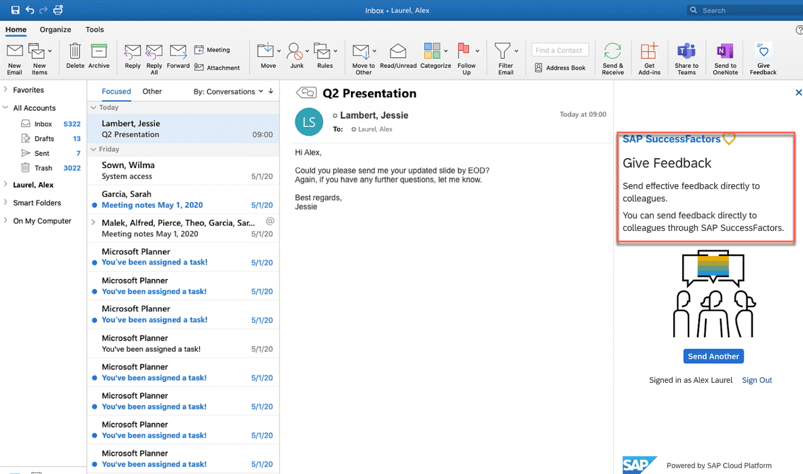
The feedback questions display and enable the employee to provide feedback.
Feedback Questions
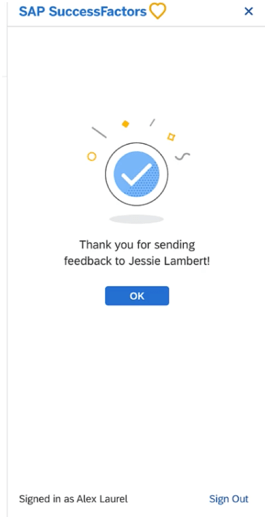
Upon submission, a confirmation message displays. An example is shown below.
Completion of Providing Feedback
Depreciation
Deprecation of 360 Reviews v11 Version
November 18, 2022 is the end of maintenance for 360 Reviews v11 and will be deleted on May 20, 2023.
We have now covered the highlights of the PM related updates for 2H 2021. See our blogfor 2H 2021 Career Development release features.
There are not a lot of new features for Career Development in this release. There are some updates for Mentoring and for early adopters, the latest version of Goal Management and Career Explorer have new functionality.
For your convenience, we’ve summarized the highlights of what’s new for 2H 2021 Career Development below.
Mentoring
General Availability – Universal Updates
The universal updates for Mentoring relate to mentoring email notifications.
Improved Email Notifications
With the new release, there are changes to some of the mentoring email notifications. Some links have been added or removed and some of the messages have been made more concise.
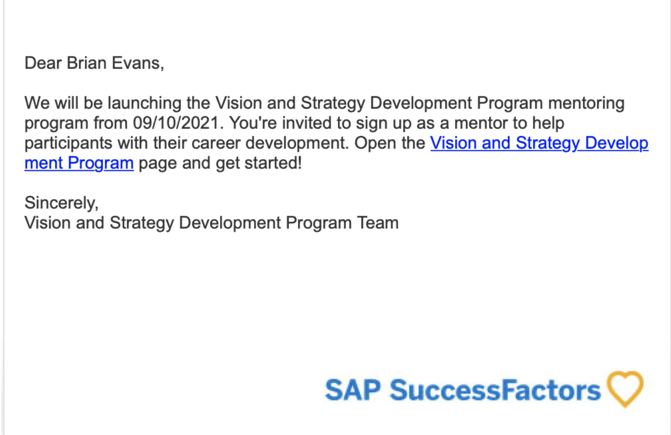
The mentor invitation email notification has been updated. Now there is a link that goes directly to the mentoring program to accept the invitation to participate. An example is shown below.
Mentor Invitation to Participate
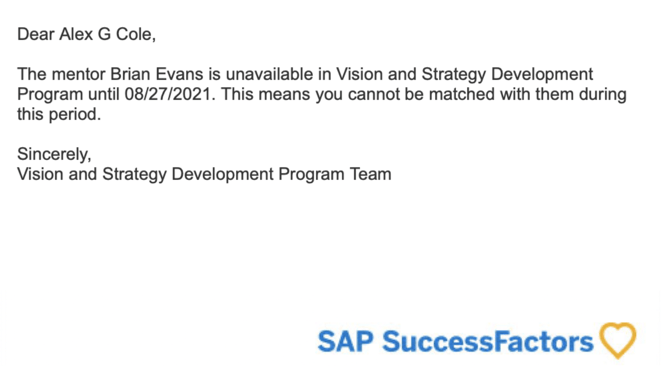
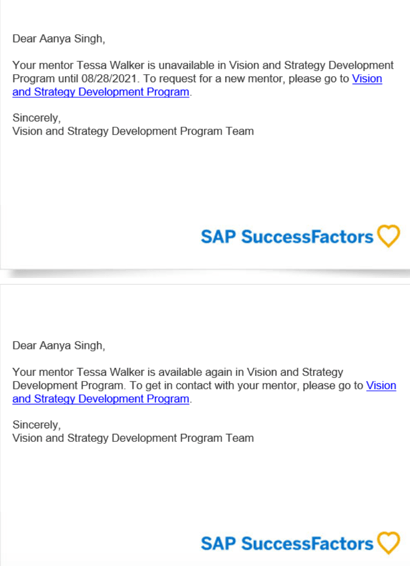
The program link has been removed from the email notification that goes out to pending mentees when their requested mentor becomes unavailable. Here is an example of the new email notification.
Mentor Unavailable Notification
Stop Email Notifications to Matched Mentees About Mentor Availability
Currently any mentee that is linked to a mentor will received an email notification when the mentor becomes unavailable as a recommended mentor for new mentees.
Similarly, when the mentor becomes available again, the mentees already in a relationship with a mentor would be notified. An example is shown below.
Emails to Current Mentees regarding Mentor Availability
Sending a notification to existing mentees when their mentor becomes unavailable caused confusion. It was not clear to existing mentees that their mentor was still available to them.
Mentees already accepted by a mentor will no longer be notified when the mentor becomes available or unavailable as a recommended mentor to others joining the program. The existing mentees will still have the mentor relationship but any employees searching for a mentor will not see the unavailable mentor to select from.
General Availability – Admin Opt-Ins
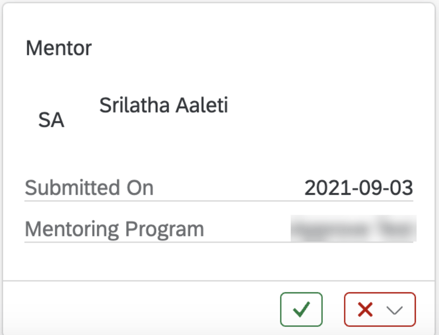
If you are using the latest Home Page, managers will be able to approve or decline employee requests to be a mentor. A new approval card will show on the home page which identifies when the request was submitted and identifies the mentoring program. The manager can approve or reject the request directly from this card.
An example is shown below.
Mentor Approval Card
Latest Version Development Goal Plan
Early Adopter – Universal Updates
For early adopters using the latest version of Goal Management there a few new features that we will discuss briefly.
Mass Import Personal Goals
For early adopters using the Latest Goal Management, it is now possible to mass import personal goals into development plan through Admin Center. This functionality was not available previously for the latest version of goal management.
Improved People Selector
Users with the appropriate role based permissions will be able to search for people by name and access their goal plans.
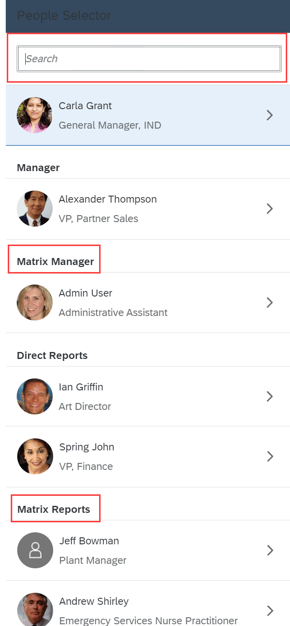
People Selector will now include additional hierarchical relationships: a user’s matrix manager and matrix reports.
Improved People Selector
Career Explorer
Early Adopter – Universal Updates
Career Explorer is only available for customers in an Early Adopter Care (EAC) program.
Exclude Job Roles from Data Sync
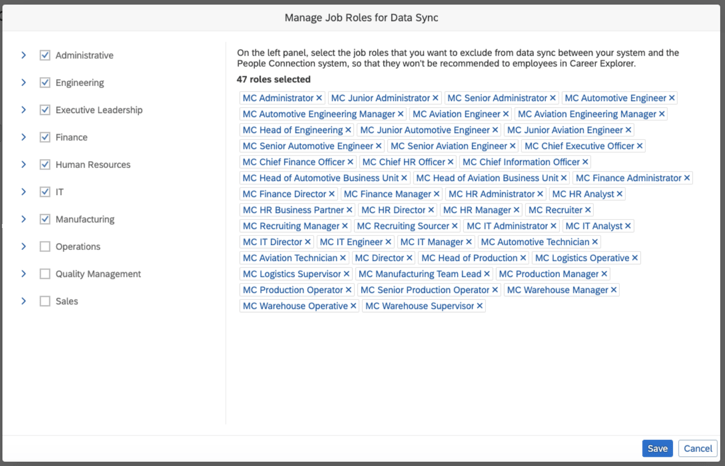
With the new release, there is a universal feature that allows job roles to be excluded from data sync between your system and the People Connection. This means those job roles will not be recommended to employees in Career Explorer.
Accessed from Admin Center, go to “Manage People Connection Integration”. Select “Manage Job Roles for Data Sync”.
The new “Manage Job Roles for Data Sync” screen is seen below.
Select Job Roles to Exclude
Display Long Job Role Names in Recommended Role Card
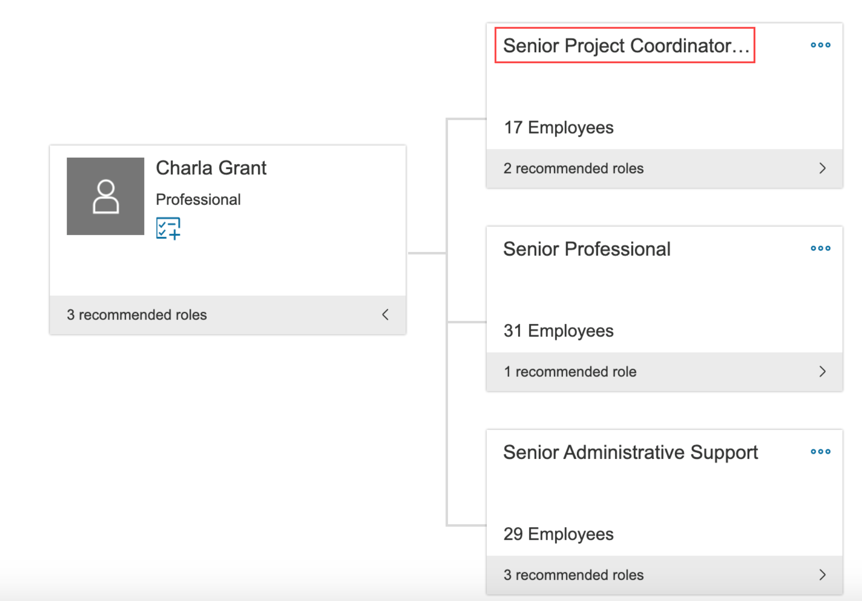
Currently, long job role names will truncate in the recommended role card as seen below.
Truncate Job Role Names
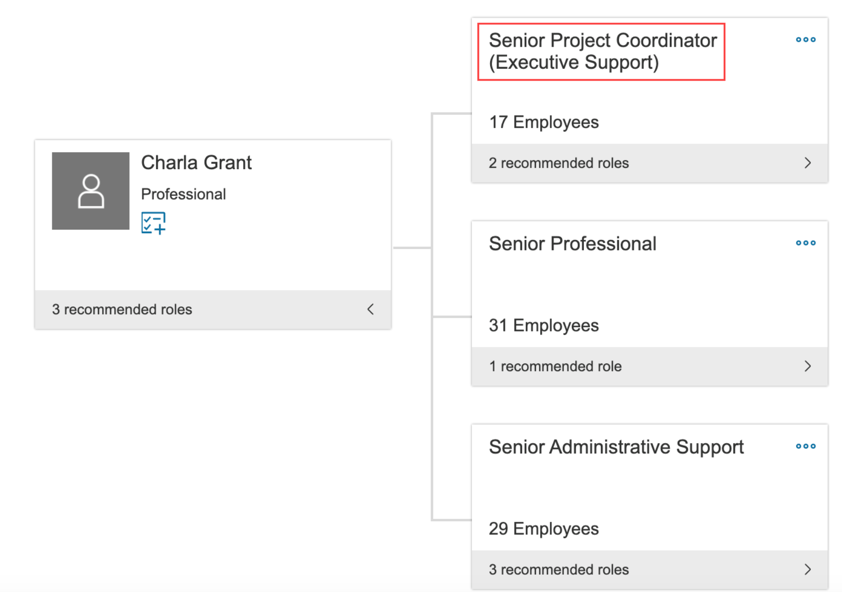
With the new release, longer names of job roles can be displayed in full using two lines as seen below.
Complete Job Role Names
We have now covered the highlights of the Career Development related updates for 2H 2021. See our blog for 2H 2021 PM release features.
New major updates in Admin Opt-in Configuration Type
Stories in People Analytics for SAP SuccessFactors Learning
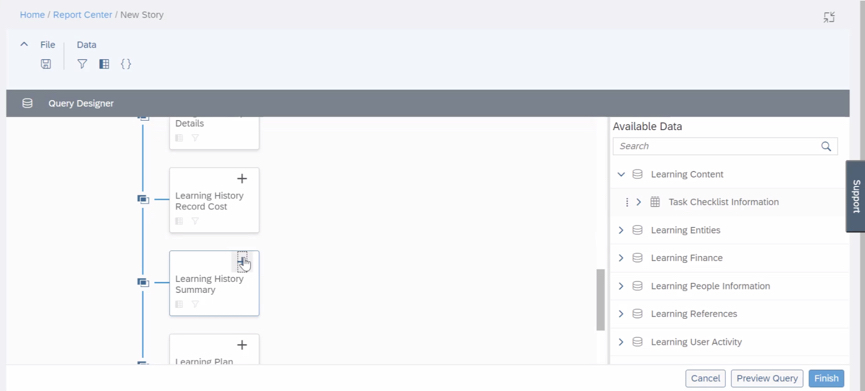
As a report designer, you can create, access, and share Learning stories in People Analytics for generating custom Learning reports. You can also have the data of SAP SuccessFactors Learning and other modules side-by-side in the same story, and link them to apply common filters on them. Extending the capabilities of Stories in People Analytics to Learning improves the experience of creating Learning reports by making the process intuitive, easy, and technically simple.
Enhanced Course Home for Instructor-Led with Online Content Courses
The Course Home User Experience (UX) includes new behaviors when the feature is enabled for courses that are instructor-led with online content. The following table describes the UX behavior changes when the feature is enabled (enableCourseHomeBlended=true) or disabled (enableCourseHomeBlended=false)
Impact Area
Summary
Behavior with enableCourseHomeBlended=true
Behavior with enableCourseHomeBlended=false
E-Signature
E-Signature pages support the Show Revision Information setting.
When the Show Revision Information setting (System Administration Application Administration User Settings) is disabled, revision information isn’t displayed during history verification through the content player.
Regardless of the Show Revision Information setting, revision information displays to the user during history verification.
E-Signature
No limit to e-signature verification attempts.
The user has unlimited attempts to enter their user name and PIN on the entry page.
After three failed attempts to enter their user name and PIN, the user is forced to leave the page and come back to re-enter their credentials.
E-Signature
Notification of unverified history records.
On a user’s learning plan and within the content player, users are notified if they have any unverified history records. When viewing item details, users are notified if there’s an unverified history record for that course.
On a user’s learning plan, within the content player, and on the item details page, users are notified if they have any unverified history records.
E-Signature
User can view the e-signature approval status.
Users can view the approval steps, approvers, and the status of each step in the approval process when verifying history records.
When verifying history records, approval information and status is provided to users through email notifications.
Online Content
Content structure includes e-signature and required survey.
Separate content items display for e-signature and survey within the content structure.
E-Signature and required surveys aren’t included in the content structure.
Online Content
Document Type content can be configured to launch inline, for specific types of files.
For Document Type content, certain file types can be configured to launch inline, such as PDF or HTML.
For Document Type content, all file types are launched in a new browser window.
Online Content
Revised the conditions that trigger a warning to users if they aren’t launching the current revision of a course.
When users launch an old revision, they’re warned that there’s a new revision and prompted to launch that revision, with three exceptions. The user isn’t warned when:The old revision is a prerequisite to the new revision and the user hasn’t completed that prerequisite.The old revision is required and the new revision isn’t a substitute.The new revision requires registration in order to take the online content and the user hasn’t already registered.
When users launch an old revision, they’re warned that there’s a new revision and prompted to launch that revision.
Online Content
Users can review any content type from history when Users can Review Completed Content from History is enabled (Learning Activities Item Online Content Settings).
Unless the content is locked due to failure, users can launch any content type except assessment from history. The content can be launched in any order and launches inline or in a new window, based on the content object configuration.
Unless the content is locked due to failure, users can launch AICC or SCORM content from history.
Online Content
Users can review or retake content before the course is complete.
In the content player, a user can choose to review completed content or to retake content. Retaking content clears the completion and forces the user to complete the course again. Reviewing has no impact on completion status.
In the content player, a user can choose to retake content. Retaking content clears the completion and forces the user to complete the course again.
Post Completion
Post completion actions aren’t immediately available if a user fails a course.
Upon failure, the user is informed that they didn’t pass and is offered options to retake, if permitted. Additional post-completion actions are available from learning history, based on permissions.
Upon failure, it can be unclear to the user that they didn’t pass. The same post-completion actions are available when users fail as when they pass.
Registration
Improved processing for courses that require approval and have an associated cost.
For courses that are instructor-led with online content, if approval is required before purchase, the user provides account information when requesting approval. When approved, the payment is processed and the user can start the course.
When a course requires approval and has an associated cost, the user first requests approval. After approval, when the user starts the course they’re prompted to provide account information.
Updated Learning Cross-Domain Proxlet
Users can complete courses without issues when using SCORM 1.2 or SCORM 2004 content with the legacy inline content player
New Guided Experience for Employees Returning to Office
Return to Workplace (Employee) is a supplement to the Return to Workplace (Admin) guided experience. When HR or administrators finalize the list of returning employees in the admin guided experience, the selected employees need to complete the employee guided experience, including:
Taking pre-return surveys
Reviewing office readiness
Completing learning courses
Reporting vaccination status (this step is available when configured by the administrator)
New UI Integration Cards
Added the following UI integration cards:
Development Goals: View and update your development goals.
Learning Approval: Manage learning requests pending your approval.
Curricula Status: View the overall status of learning curricula assigned to you.
Vaccination Status: Track the current status of employee vaccination.
NEW MAJOR UPDATES IN Universal CONFIGURATION TYPE
Additional Language Support for Personalized Recommendations
The newly supported languages are:
Arabic
Simplified Chinese
Hebrew
Hindi
Vietnamese
Thai
Supporting additional languages in recommendations meets the requirements of customers for whom English isn’t the primary language.
Assignment Profile Enhancements
We no longer support adding or viewing 2000 attributes values. We also now support comma separated values and line breaks.
Curricula Jobs Scheduling Independent of onlineOperationMaxRecordsCount Configuration
Curricula jobs run now system-controlled, All other jobs continue to be governed by the onlineOperationMaxRecordsCount configuration. This change improves the system performance with optimum usage of resources.
New Session Timeout Behavior in SAP SuccessFactors Learning
SAP SuccessFactors Learning session timeout is aligned with the timeout behavior of SAP SuccessFactors platform
Updated Processing Logic for User Connector
if the user record has changes only to the Manager, then such records aren’t considered for processing. In such cases, the Manager changes are carried out as part of Manager post processing.
There’s an additional row for Managers in the User Connector run report to give a count of the Manager changes.
Item Connector Support for Assessments
The item connector Module Type field now contains the following option: Assessment (Exam and quiz).
We wanted customers to be able to associate several exams and quizzes to items in a single action. This functionality helps with the transition from the Plateau Question Editor (PQE) to the assessments module.
Migrate Legacy Exams to Assessments
You can now export legacy (PQE) exams to a Microsoft Excel template, which you can then import as learning assessments. You may export and import multiple exams at once using the same template. The exams appear as assessments in the locale that you choose during export.
The System Administration > System Management Tools > Export Data > Record Type field now contains the following option: Exam (Legacy). You can import the exam using System Administration > System Management Tools > Import Data > Record Type > Exam.
Removal of Certain Permissions for Legacy Exams and Future Association to Items
The following permissions are no longer available:
Add Exam Object (Legacy)
Copy Exam Object (Legacy)
Add Question
Copy Question
The Edit action for legacy exams on the Item Usage page is no longer available.
Viewing Items Associated to Assessments from the Assessments Menu
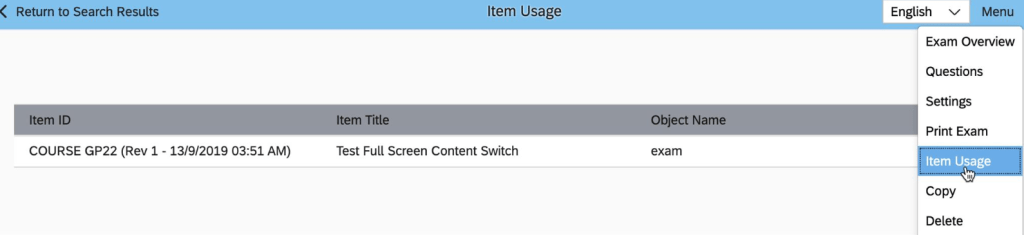
Added the Item Usage menu item on the Assessments page so you can see the items associated with an assessment.
Select the Item Classification While Creating New Items
You can now select an item classification when you create a new item.The following classifications are available:
Online
Instructor-led
Instructor-led with online content
Other
When you select Instructor-led, after the item is created the Agenda Template tab displays. When you select Online or Online with Instructor-led, the Online Content tab displays so you can add content. When you select Instructor-led, after the item is created, you’ll be taken to the Agenda Template tab. When you select Online or Online with Instructor-led, you’ll be taken to the Online Content tab to add content.
Right-to-Left Support in SAP SuccessFactors Learning Administration
Languages with RTL writing system are supported in the SAP SuccessFactors Learning Administration UI.
Support for Display Locale ID
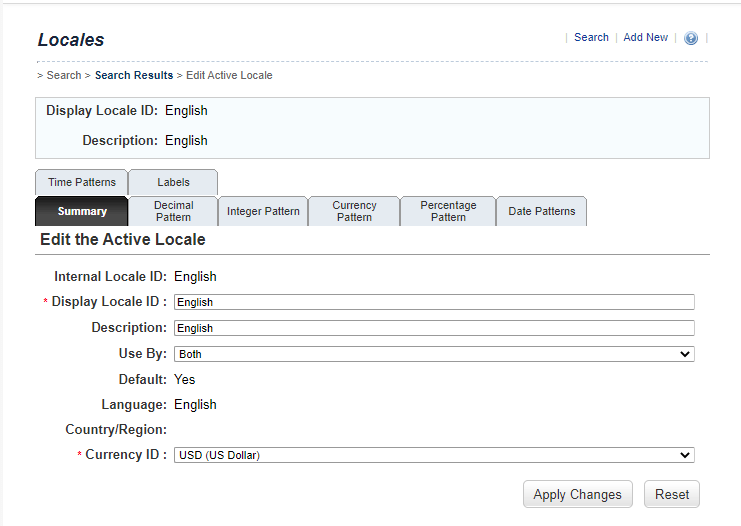
You can now define a Display Locale ID on the Locale page to display a different locale value in the application. The Internal Locale ID remains unchanged and continues to be used for Data Import, Connector, and API tasks.
The Learning Administration References Manage Labels Locales Summary tab now contains the following fields: Display Locale ID and Internal Locale ID.
Content Security Policy Header Support
If the new content security policy header causes desired items to be blocked, you can navigate to System Administration Configuration System Configuration Web Security to exclude file types from the security policy.
The content security policy header is included on all outgoing network page responses
To Learn More
Overall there are 35 items being changed or enhanced in this release for LMS and we didn’t cover every detail here. For more information, check out the What’s New Viewer here.
Interested in what’s new for Employee Central for H1 2021? There’s quite a few enhancements! In this quick blog we run through the major release updates that caught our attention the most.
Increasing the integration between Qualtrics and SuccessFactors has been a priority for SAP – we’ve seen multiple integrations across modules and now there’s a few more for EC. SAP has added 4 email survey integrations based on intelligent services to trigger in the below events:
Employee Rehire
First Time Manager
Transition from Individual Contributor to Manager
Transition from Manager to Individual Contributor
These surveys can be very insightful to find out if employees are comfortable in their new roles and identify where they might need help!
BizX Talent Integration / Succession Data Model
Integration with the BizX Talent side of SuccessFactors has also been improved. In particular, SAP has made it possible to run a full HRIS sync (that pushes data from EC to BizX) based on individual user ids.
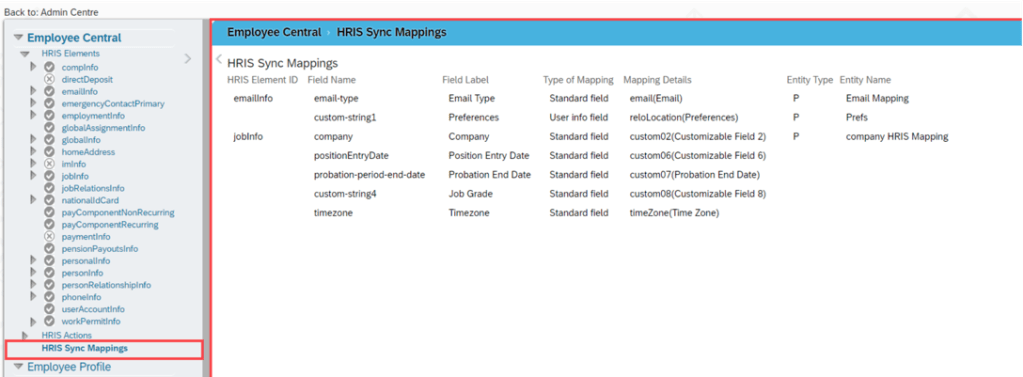
In addition, they’ve made it easier to view what the HRIS mapping looks like in the Manage Business Configuration Screen with an overview screen of all of the mappings in one location. Previously you had to dig through all of the fields individually to find this information! Check out the screenshot below:
Overview of HRIS Sync Mappings
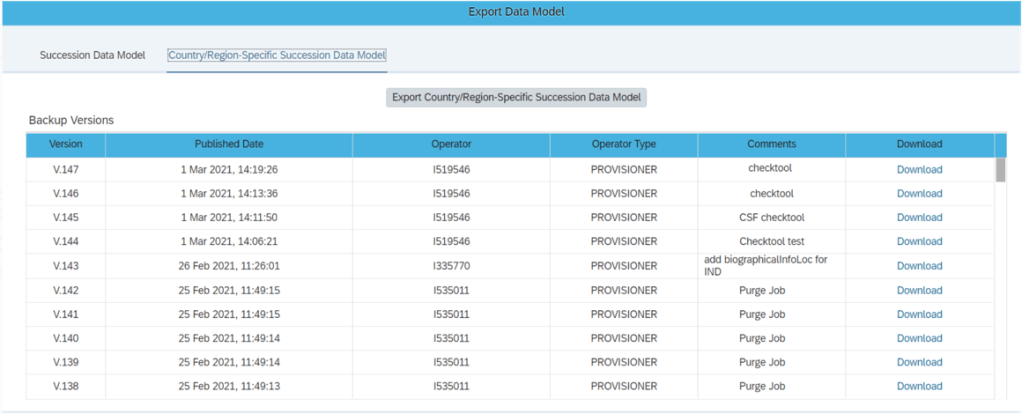
Admins can also now export the Succession Data Model and Country/Region_specific Succession Data models from Admin Center (previously only partners could do this in provisioning). Simply give the new permission “Export Succession Data Model or Export Country-Specific Succession Data Model” permission and you’ll get access to the screen shown below:
New Export Succession Data Model Screen
These enhancements help make the integration between employee central and the talent modules more clear cut.
Business Rule Scenarios
Multiple new business rule scenarios are now available that allow you to:
Configure cross-entity rules triggered from a source entity with changes executed on the target entity
Calculate Full Time Equivalent for a user
Create business validations / raise alert messages for HRIS elements
These enhancements contribute to the ongoing effort to increase the flexibility and robustness of business rules.
SAP Integration
If you sync your HRIS data with SAP, you’ll be happy to know there are 10 enhancements to this integration including:
A comparison tool that compares configuration between EC instances
An enhancement considering the purging status of ERP communication data while replicating employee communication data from EC
The ability to select specific foundation objects by object ID ad choose log or list view when viewing the Foundation Object Transfer Report
In Define Employee Data Settings for EC instance, the field names have been changes to “Standard Mapping (PERNR)” and “Standard Mapping (CP)” for clarity
The Enhanced Work Schedule Rule Transfer Report was updated with a new BAdi to maintain the external code of work schedule rules
Better data replication that considers purged data
Replication of inactive employees that were terminated in EC before the full transmission start date
Sample contract elements (IT0016) content
Replication of OM data infotypes even when relationship data (IT1001) can’t be replicated
Organizational assignment data that was marked as status “Failed” will change to “Outdated” once the next replication job runs
These enhancements help to make the interface more robust and reliable for customers wishing to replicate employee data to on-premise SAP.
Global Benefits
Enhancements and automations came to the global benefits functionality as well. Let’s take a quick look at these:
When an employee has a job change that affects their benefits eligibility, this can now trigger an intelligent service event to create or update benefit enrollments
When benefit master data changes, a new automatic enrollment job now exists to handle creating and updating enrollments
A new pension / retirement savings plan type has been introduced called “Workplace” that offers additional contribution options
Once again, we see how the system continues to provide helpful automations and features to make this functionality more simple and robust to use.
Reporting
Custom fields are now allowed in story reports. The fields can be seen within the query designer.
Conclusion
The SAP SuccessFactors Employee Central product continues to grow and become increasingly more robust! This does not represent all of the enhancements in the H1 2021 release – only the highlights we found most compelling. Check out the What’s New Viewer here for the complete list of enhancements.
See this great article for useful information on how to prepare for a SAP SuccessFactors Regular Release.
For your convenience, we’ve summarized the highlights of 2 legacy items that will require your attention if there are still used in your current SAP SuccessFactors implementation and 6 features for 2021 Recruiting.
Migration of Legacy Quickcard to Latest Quickcard
If you are using this feature for recruiting. You will need to move to the latest quickcard, the legacy Quickcard will be retired/deleted as of May 21st. Transition to the latest quick card will help to maintain consistency with the SAP SuccessFactors Quickcard. Additionally, the latest Quickcard improves user experience with the updated user experience.
Deprecation of Legacy Picklists Management
The legacy Picklist Management tool reached end of maintenance on December 31, 2018 and will be retired/deleted on November 18, 2021.
Support for Posting Jobs to Twitter and Jobvite from Job Postings is Deleted
The ability for posting jobs to Twitter and Jobvite from Job Postings is deleted as of May 21, 2021.
SSL Certificate Renewal Reminders for Career Sites
After a nice long and relaxing weekend. You come back to the office Monday morning and your career site is down because the SSL certificate has expired and now as you struggle to get the career site back up and running again your stress level is at it’s peak again. Well hopefully you will never experience these feelings again with this new feature.
SAP SuccessFactors Recruiting now proactively reminds organizations when their career site’s SSL certificate needs to be renewed.
To avoid career sites from becoming unreachable due to an expired SSL certificate, Career Site Builder offers two reminder methods: A pop-up dialog that appears when logging in to Career Site Builder, as well as the ability to enable email reminders for admin users.
Content Security Policy for Career Sites
Career Site Builder has introduced the Content Security Policy setting, which enables an HTTP header to automatically disallow external domains and only allow the browser to render resources from your domain. This will protect your career site against cross-site scripting attacks.
The content security policy is designed to guard against cross-site scripting (XSS) attacks through the use of a Content-Security-Policy HTTP response header that lets you control the resources allowed to load for a web page. The headers are used in career site pages owned by the organization.
Enhanced External Password Policy Configuration
The enhancement includes increasing the minimum password length and limiting the lock-out threshold. The enhanced external password policy impacts:
External candidates creating an account for the first time.
Existing external candidates trying to change their passwords. For example, password reset and forgot password.
Agency users trying to change their passwords.
Ability to Edit Existing Category Page Names in Career Site Builder
Career Site Builder administrators can now edit category names directly, without having to contact Professional Services, an implementation partner, or SAP Support.
In the previous version, the Name field became readonly after the category page was created and saved. Changing a category name was performed in the backend Command Center tool by Professional Services, an implementation partner, or SAP Support.
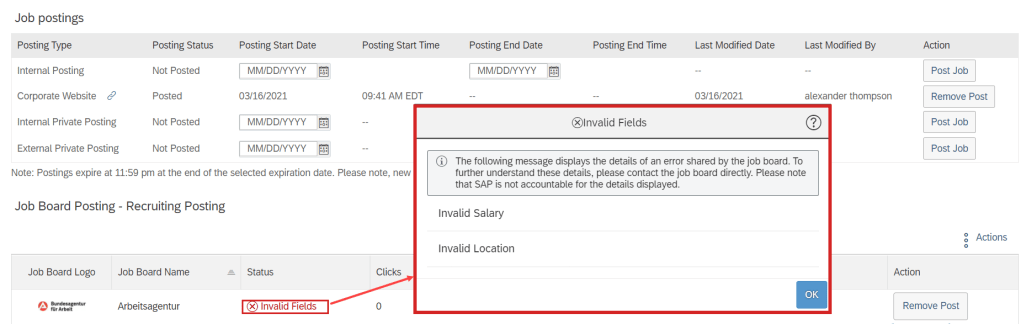
New Job Status Available in Job Postings Table
You can now see a new job status, Invalid Fields, in the job postings table when the job board’s system sends back error messages because of one or more incorrectly populated fields while posting a job.
See this great article for useful information on how to prepare for a SAP SuccessFactors Regular Release.
SAP SuccessFactors has some exciting new features for your Compensation Solution. They can be found in detail here (S-User ID required). Filter on Solutions for Compensation to review all of the latest changes. Under the Description for each, you can click on ‘See More’ to see screenshots and detailed information.
As a reminder, preview release was April 16th and production will be released May 21st.
After reviewing all the changes, I narrowed the list down to the Highlights for H1 2021Compensation:
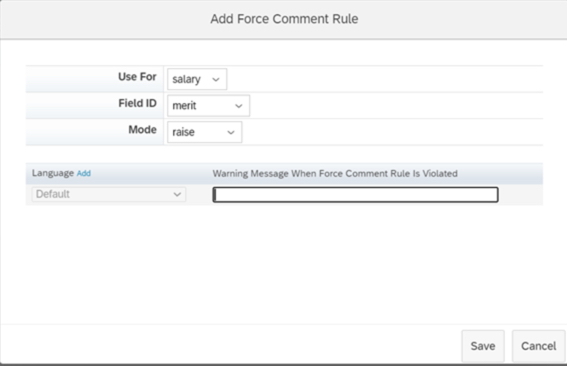
1. Ability to Configure Force Comments on Compensation Worksheets
Previously configuring forcing comments had to occur within the XML, now it can be done within Comp Admin Tools.
You can navigate to Design Worksheet – Define Standard Validation Rules to configure this functionality. The Force Comments feature is optional. When configured, you control whether users must enter comments under the following conditions:
An employee doesn’t receive a raise. Managers didn’t enter a value in a field configured to force comments.
An employee receives a raise. Managers entered a value in a field configured to force comment.
An employee receives a raise that is outside guidelines. Managers entered a value that doesn’t comply with guidelines in a field configured with force comments
Force Comments rules can now be configured via Admin Tools
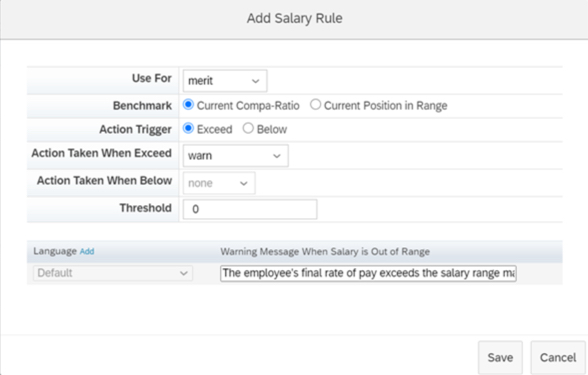
2. Salary Validation Rules Added to Compensation Worksheets
Previously configuring Salary Validation Rules had to occur within the XML, now it can be done within Comp Admin Tools.
You define rules to compare amounts using either compa-ratio or range penetration benchmarks. Configure what action the system takes when amounts exceed threshold percentages for lump sum amounts or fall below or exceed threshold percentages for merit amounts.
Salary rules can now be configured via Admin Tools
3. Compensation Worksheets Support Five Custom Validations
With this release, you can define up to five custom validations for fields in Compensation templates and configure how the system responds when validations fail, with either a warning or an error. The system processes the worksheet only after the error is corrected.
Previously, the maximum number of validations per template was three. This is especially helpful if you have complex calculations or are using 1 form for multiple plans.
Example of custom validation. Now users can define up to 5 custom validations.
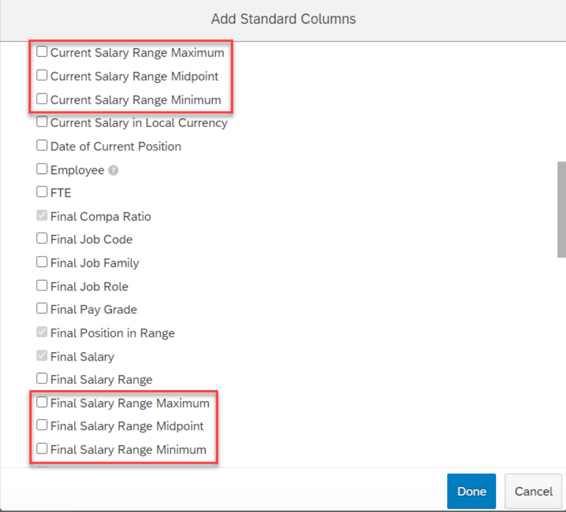
4. Current and Final Pay Ranges Configurable Through the Compensation Column Designer
You can now configure minimum, midpoint, and maximum values for current and final pay ranges through Compensation template’s column designer.
Previously, these fields weren’t available in the template configuration. There were two fields (Current Pay Range and Final Pay Range) in the min-mid-max format.
With this release, minimum, midpoint, and maximum are available as independent fields.
Separate columns exist now for Salary Range fields
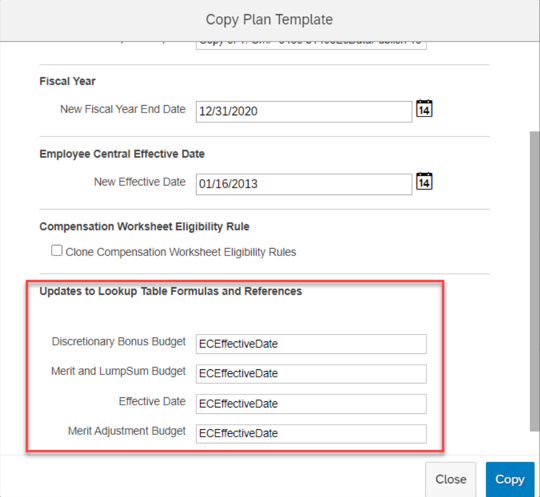
5. Update Lookup Table Formulas and References When Cloning Compensation Templates
Now when cloning Compensation templates, you can update lookup tables and references at the same time. A new section has been added to the Copy Plan Templates page, enabling you to view and edit the custom formulas and references from lookup tables on the original template.
Previously, you had to manually search through the original template’s XML file, looking for all lookup tables associated with it.
Cloning compensation templates allows for updating lookup tables and references
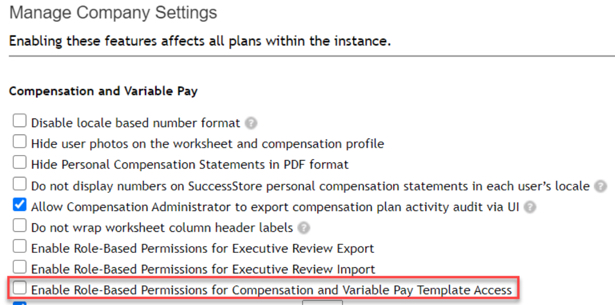
6. Administrative Permissions for Individual Compensation Templates
A new Role-based Permission has been added to assign administrative permissions on a template level.
Previously, access had to be granted to all or no templates.
Template access can be granted per individual template
7. Filter Enhancements Added to Compensation Executive Reviews
Enhanced filtering was added to Executive Review, new filters include:
Filter based on standard or custom reportable columns
Filter on compa-ratio and range penetration
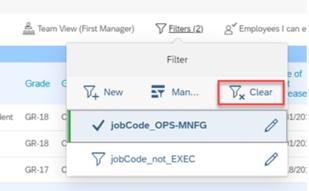
Filter on Compensation planners
Filter based on entry in Comments fields
Filter based on promotions
To enable enhanced filtering, you must select the Enable Advanced Executive Review Filters option on the Actions for all Plans – Company Settings page.
Enhanced Filter capabilities now exist in Executive Review
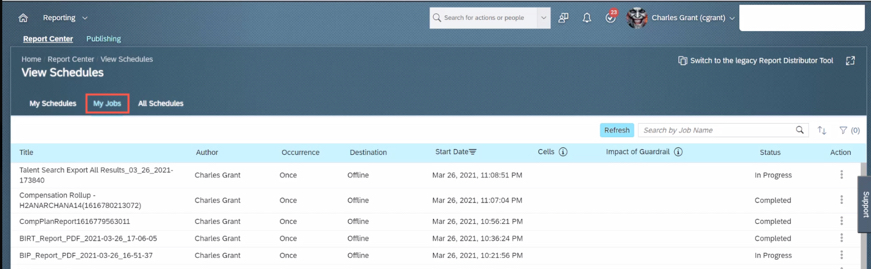
8. Compensation and Variable Pay Reports are now available for download in Report Center
You can now download the reports from the My Jobs page within View Schedules in Report Center.
Previously, report outputs (i.e. Executive Review exports) were available for download on the Scheduled Reports page in classic view. This caused confusion for users on how to get to their reports by having to direct them to Switch to Classic View.
You can review my other blog post for more changes to Reporting for this release.
Executive Review export can now be accessed via My Jobs
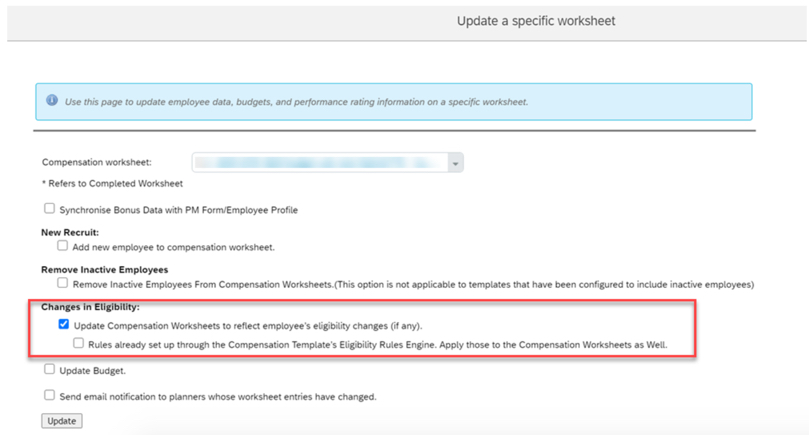
9. Application of Eligibility Rules for Individual Compensation Worksheets After Launching
You can now reapply eligibility rules to a specific Compensation worksheet that you have already launched.
In previous releases, you could only reapply eligibility rules to all worksheets.
Eligibility can now be applied to individual worksheet updates
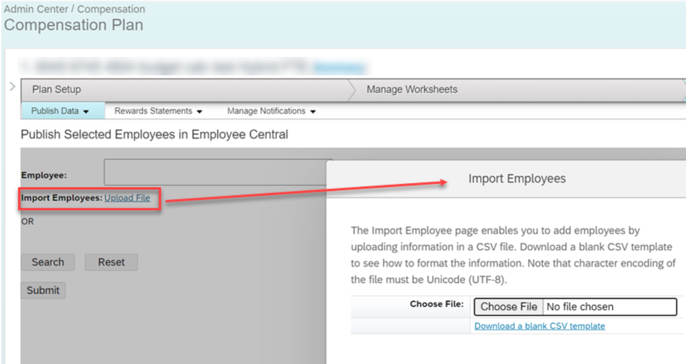
10. Publish Compensation Employees to Employee Central by Import Using CSV File
The Publish Selected Employees in Employee Central page has a new option, Import Employees. This allows publishing by importing them from a CSV file
Previously, you could publish multiple employees, but you needed to search and select them individually.
Publishing can now be done based on an imported file
SAP SuccessFactors has some exciting new features for your Analytics & Reporting Solutions. They can be found in detail here (S-User ID required). Filter on Solutions for Analytics to review all of the latest changes. Under the Description for each, you can click on ‘See More’ to see screenshots and detailed information.
After reviewing all the changes, we narrowed the list down to the Highlights for H1 2021 SAP SuccessFactors Analytics/Reporting Features:
Calibration, Succession, and Compensation and Variable Pay Reports Now Available for Download in Report Center
Previously, the reports were available for download on the Scheduled Reports page in classic view. This caused confusion for users on how to get to their reports by having to direct them to Switch to Classic View.
You can now download the reports from the My Jobs page within View Schedules in Report Center.
Reports can now be accessed via My Jobs
2. All User Info Fields Are Now Available in Story Reports
You no longer need to set a User Info field as Reportable to make it available in Story reports.
All the User Info fields are now automatically available for reporting using Stories in People Analytics.
3. Stories in People Analytics for SAP SuccessFactors Learning
You can now create, access, and share Learning stories in People Analytics for generating custom Learning reports.
You can also have the data of SAP SuccessFactors Learning and other modules side-by-side in the same story and link them to apply common filters on them.
Stories in People Analytics for SAP SuccessFactors Learning
4. Increase in Number of Columns Supported in Queries of Story Reports
The number of columns that you can select while creating a query has been increased from 30 to 120.
You can now create complex or detailed queries that involve more than 30 columns.
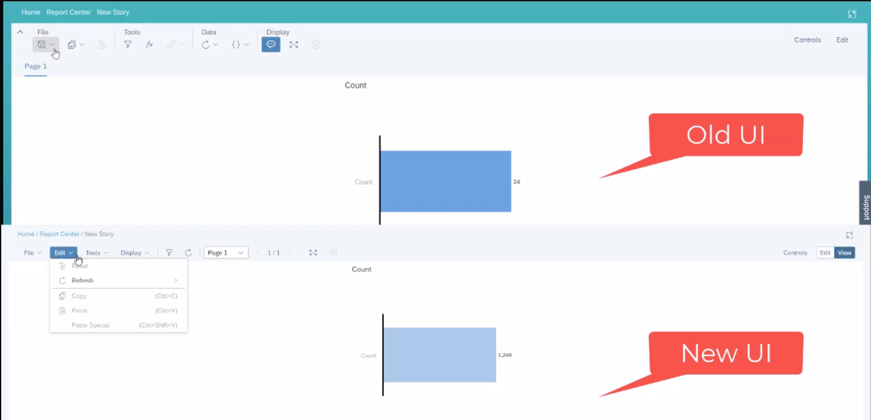
5. UI Enhancements for Stories in People Analytics
The UI enhancements on the viewer mode include:
An updated Display menu, which now has the Tab Bar, and the Comment Mode options. By default, the page dropdown view appears. The multiple pages in tab view now appear when you select the Tab Bar option.
Separate File and Edit menus.
Removal of the Data menu. The refresh option has moved into the Edit menu and the edit prompt option has moved into the Tools menu.
In the SAP SuccessFactors Onboarding H1 2021 release, we’ve mainly seen updates to compliance forms and processes as well as some user experience enhancements and security Features. Let’s take a look at what’s new in the Onboarding module below!
Compliance Forms & Processes
As expected, SAP continues to expand the number of compliance forms supported. In this release SAP has included these forms:
In addition, reporting information is also now available for I-9 and E-Verify data so that you can create Stories in in People Analytics using the information.
In addition to compliance features, there’s some nice enhancements to user experience. Of all the modules, I think onboarding is one of the more confusing to navigate as an admin user and these enhancements help address this issue. Let’s take a look!
First, users can now navigate directly to the onboarding dashboard from the global navigation (early adoption feature). I personally liked this one because when I first started with Onboarding, I was used to the main page of every module being accessible through the navigation menu – onboarding was the only one where you had to click on a home page tile instead. I think this will provide some nice consistency for users.
In addition to easier navigation to the dashboard, its features have also been enhanced. Here’s a list of the new feaures:
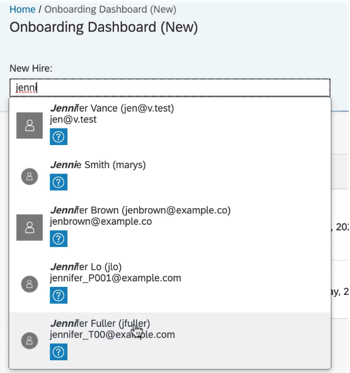
New Hire Search – allows onboarding users to type a name to search through new hires
Checklist Task – can now be viewed under “New Hire Tasks”, items can be added for a specific user using the “Delegated” drop down (delegates can also be notified via email when the task is assigned to them), and under “View Details” users can edit the checklist tasks,
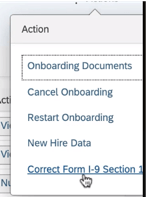
I-9 – corrections to section 1 can now be initiated from the “New Hire Details” action menu
E-Verify – view details from the “E-Verify Case Details” link on the “New Hire Details” screen
User Search
Correct I-9 from the Action Menu
Its great to see the dashboard getting some new features to make transitioning between screens easier!
Next, the locale for external users of Onboarding will now be updated automatically based on their recruiting settings. This is a common sense win. Locale can also be set when manually adding users via the “Add New Hire to Onboarding” screen. If no value is specified in either scenario, the locale will default to the default language set in provisioning.
Security Features
In addition to compliance enhancements and improvements to usability, there’s a few cool security features worth mentioning.
First, the target population for the external user target population can now be based on the division, department, and location of the user. This allows organizations to have multiple admins specific to division, department, and/or location rather than just admins who can see the whole new user population.
Last, read access audit logs for onboarding have been enhanced to show context and reason why sensitive fields were accessed (e.g. through the UI, or APIs, or a downloaded document). This is designed to give auditors better understanding of why data was accessed.
Wrap up
I hope you’ve enjoyed this quick review of the latest Onboarding features available in the H1 2021 release! Do you need help managing your SuccessFactors Release cycles? Download our support services brochure or email info@worklogix.com to see how we can help!




















 Worklogix Blog