
Learn what’s new Platform features available with the 2H 2025 SAP SuccessFactors Release. The updates will be in production November 14-16.
For greater details, you can view the full set of documentation in the What’s New Viewer here. For full details on the release cycle, check out the SAP SuccessFactors official product updates blog.
For tips on how to manage a release, check out our blog here.
Of major note, Profile Preview and Spotlight are now universally available as part of the latest People Profile experience. They are now standard without any opt-ins needed providing the latest People Profile is enabled.
Keep reading to discover more of what is now available.
Enhancements to Profile Preview and Spotlight of the Latest People Profile
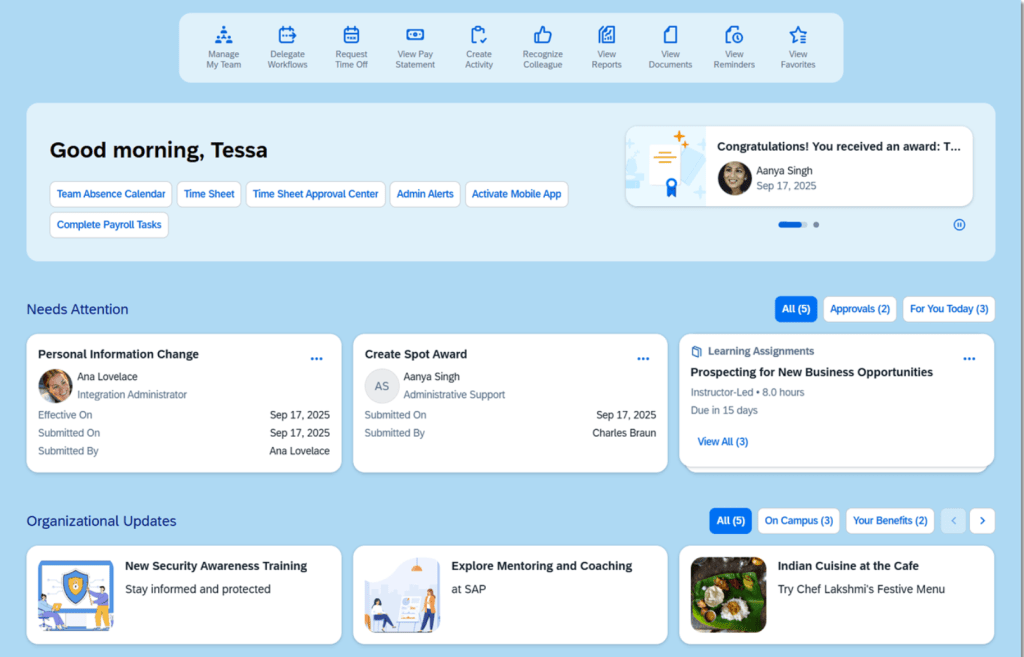
Updates to the Home Page Experience
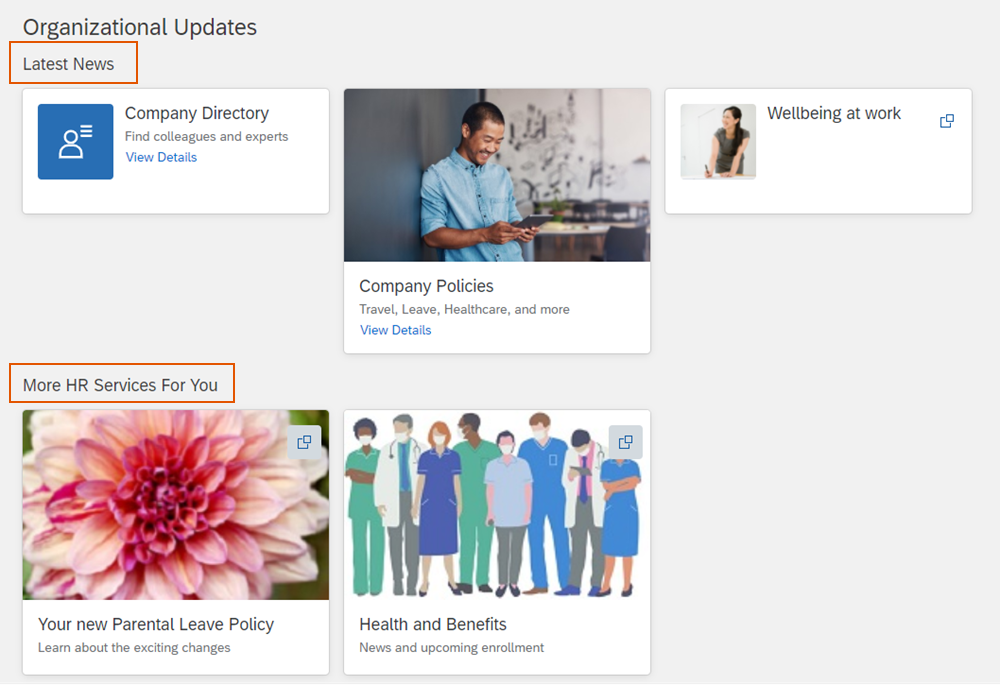
The Home Page has been enhanced with better use of space, less scrolling, with a consolidated list of tasks. There are new options, such as banner cards,analytic cards and personalization settings. There is improved design of custom content.
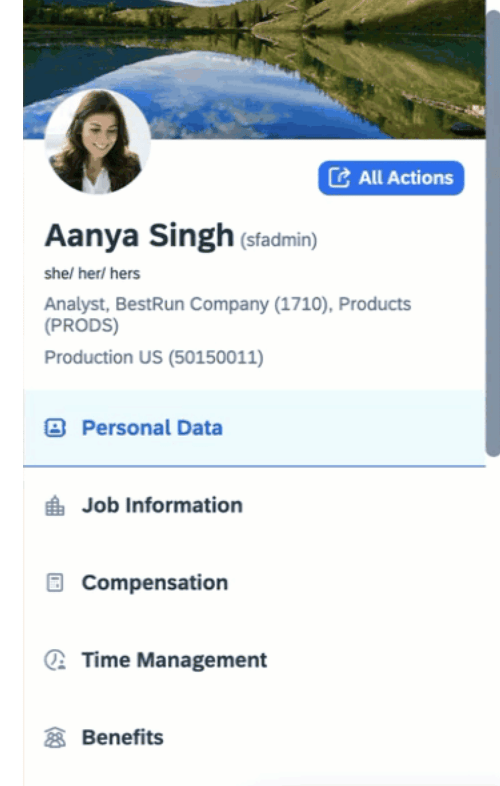
Profile Header Updated
The category list has been updated and the profile header automatically collapses as you scrolled down the categories
Only the employee’s photo, display name, login name, and job title remain visible at the top of the page when the categories are collapsed,
Three Additional Fields May be Added to the Profile Header
It is now possible to add 3 fields in the header of the full profile, such as gender pronouns, or alternate name. These additional fields will be read-only. The fields to select from are the same as those available for the Employee Information card in Full Profile.
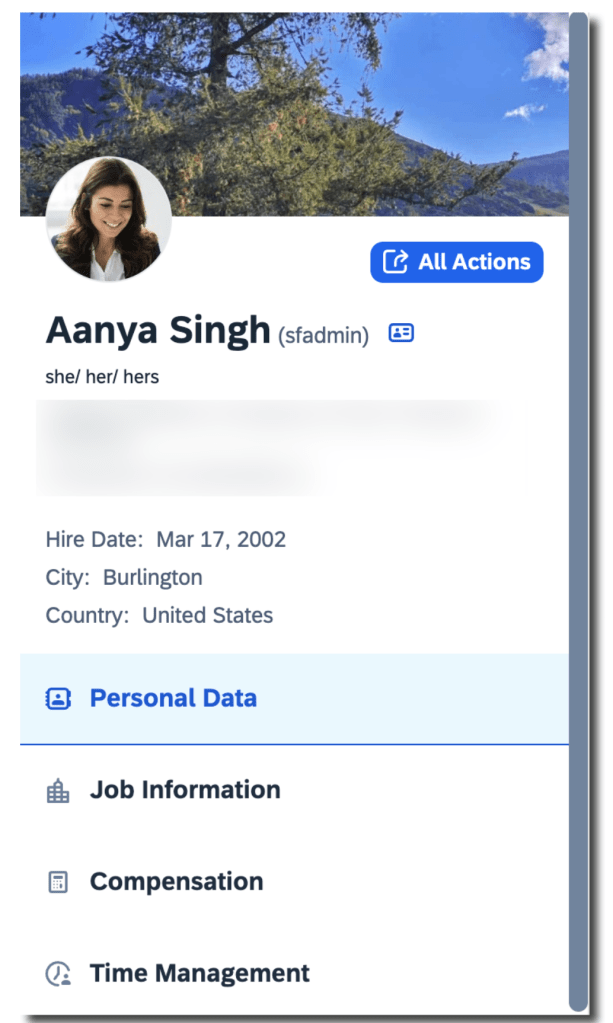
Quick Access to Profile Preview
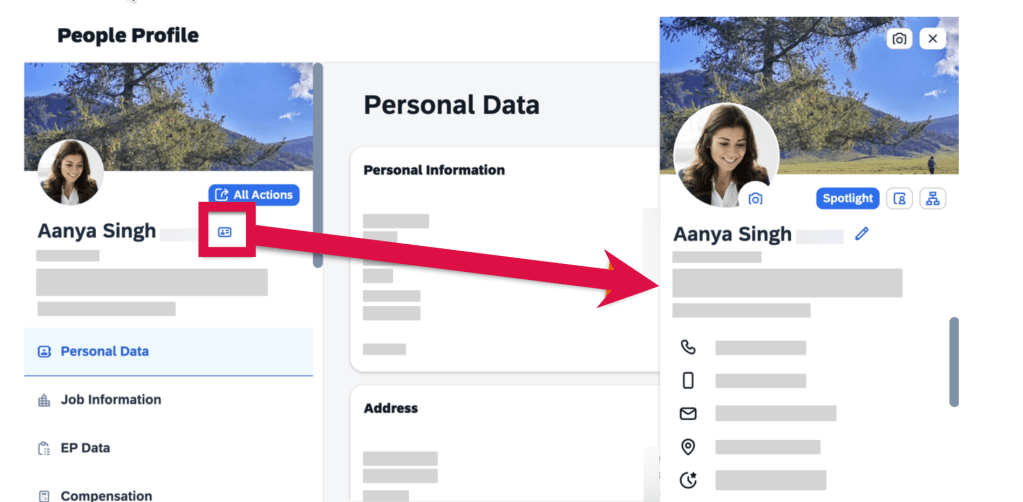
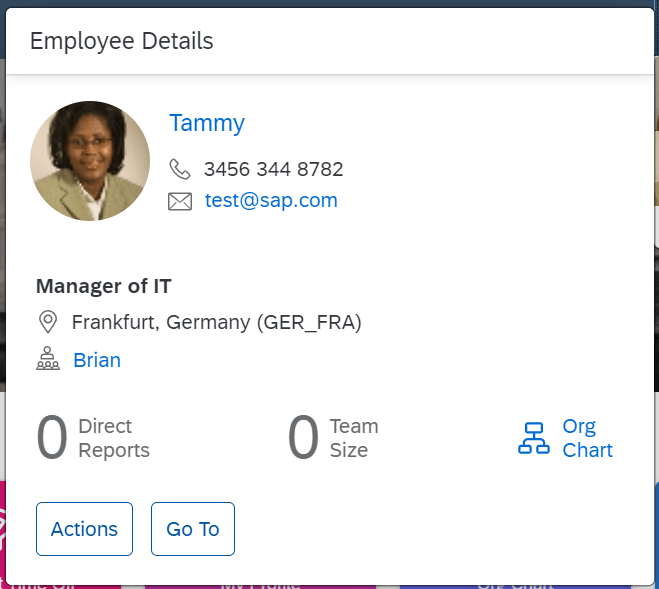
To easily get to the Profile Preview from the Full Profile page or any card’s details page, click the “Show employee details” icon next to the user name.
Upload Background Images
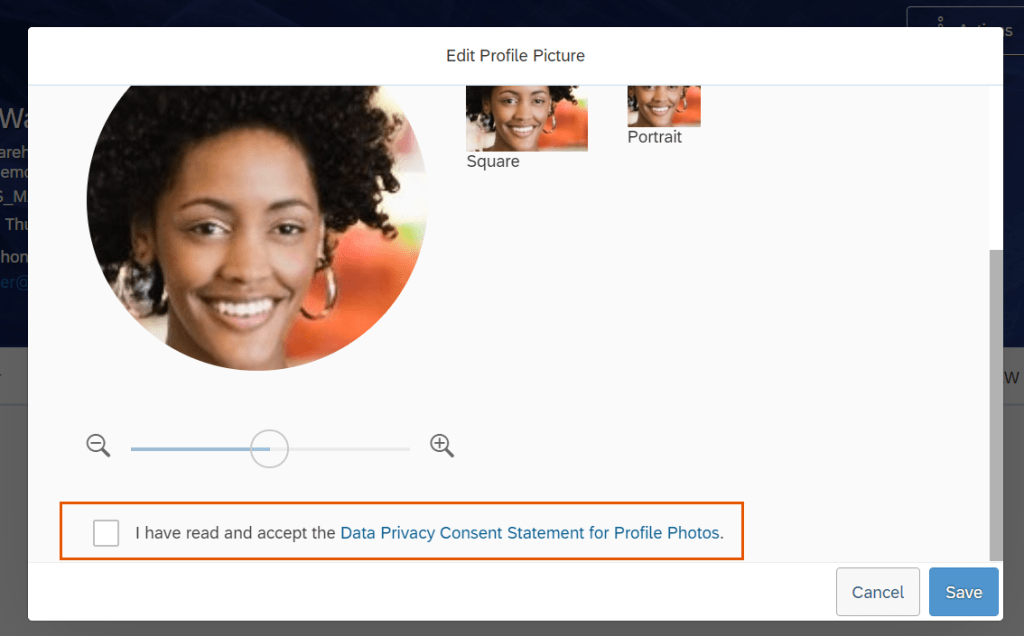
Employees may upload their own background images, not just from the image library.
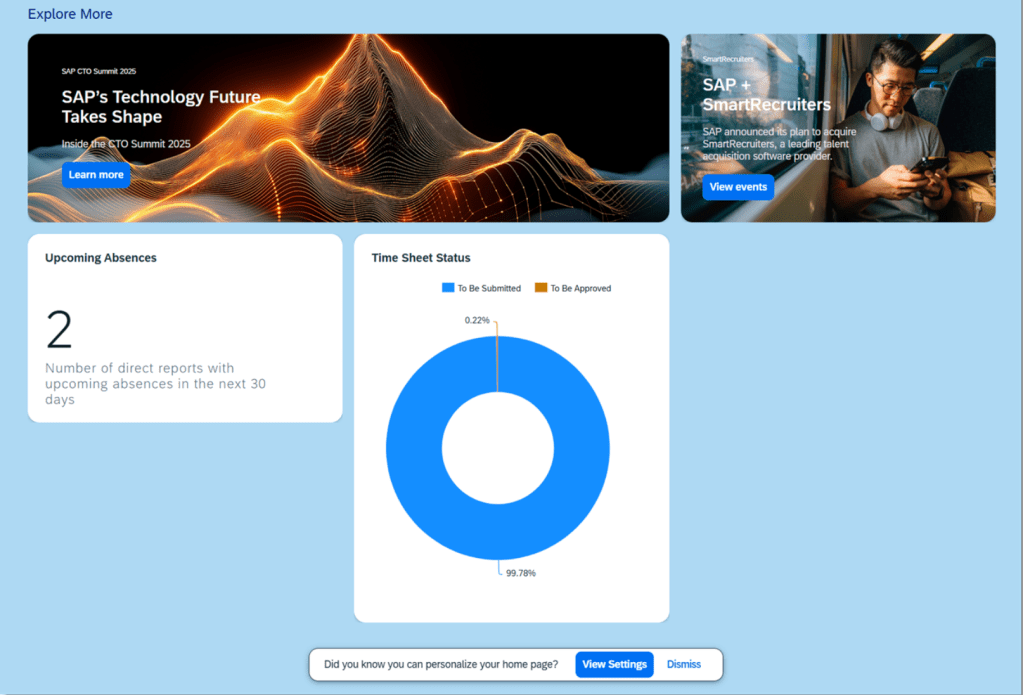
Analytic Cards on the Home Page
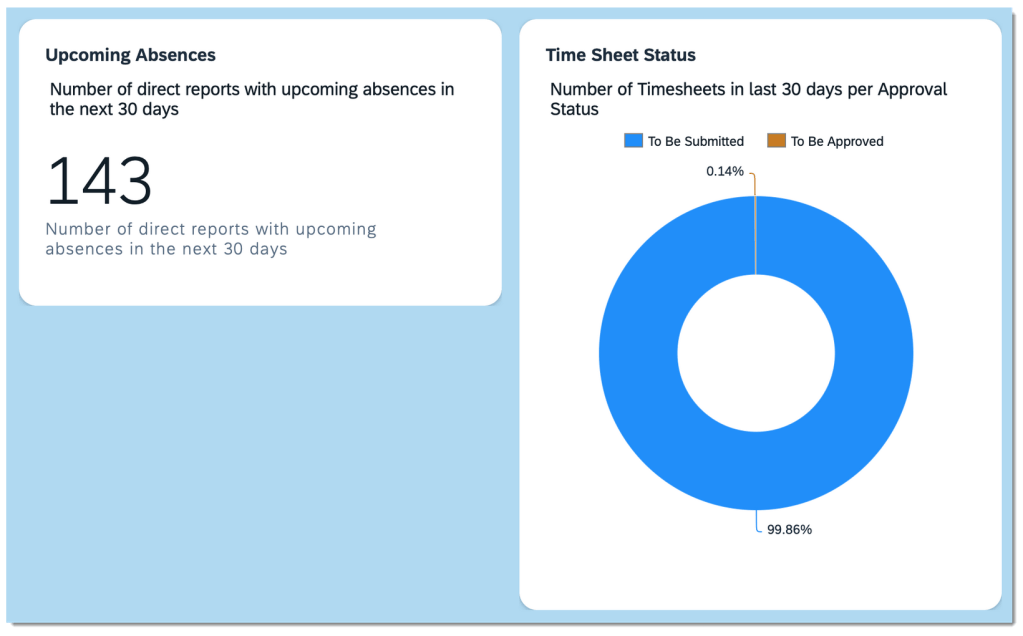
There are now 2 analytic cards available that may be displayed on the Home Page: Upcoming Absences and Time Sheet Status. These display charts may be enabled and would appear in the Explore More section on the latest home page.
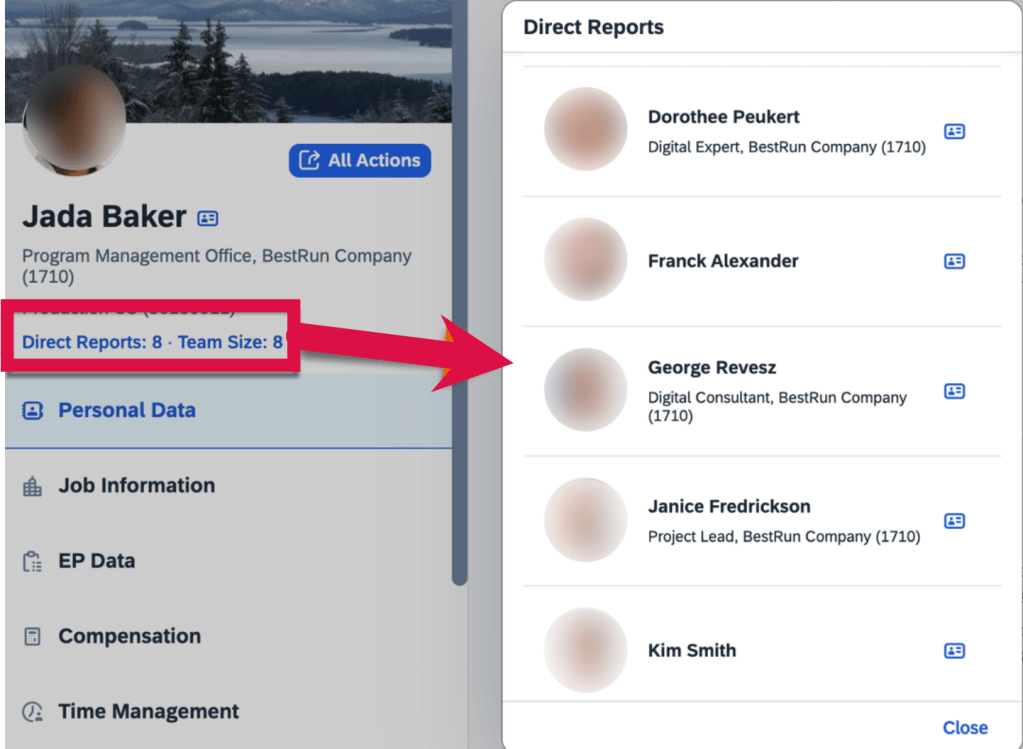
Manager’s Full Profile Contains Direct Report Count and Team Size
Direct reports view include photos, names and titles.
Advanced People Search
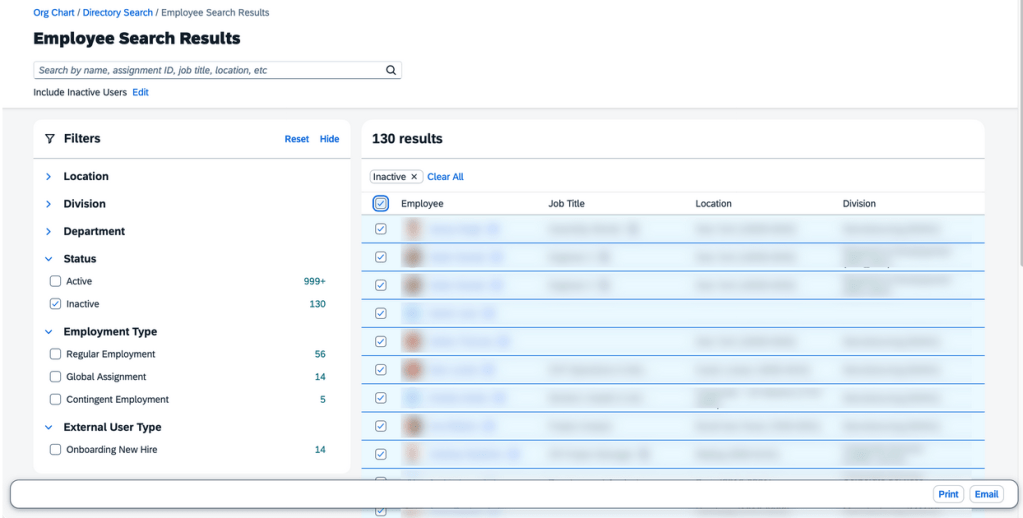
Enhanced People Search features now apply to the global header and Directory Search. The experience includes facets, filters and more searchable fields.
The Global Header People Search uses the enhanced Autocomplete Search.
Directory Search incorporates the enhanced Advanced Search, allowing users to search for employees with specific criteria.
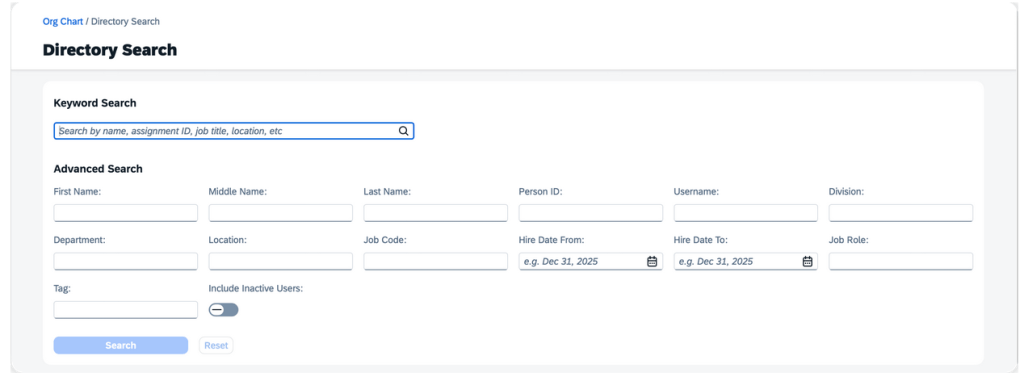
On the search criteria page, users can search for employees using keywords like name, assignment ID, job title, and location. Alternatively, they can use the search widget for more advanced search criteria.
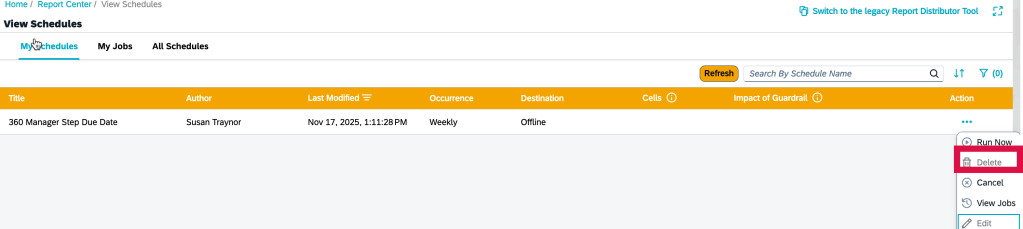
Option to Delete Scheduled Job on My Jobs Page
Scheduled jobs for all report types, except Canvas reports, can be deleted directly from the My Jobs page. Simply choose the ellipses button under the “Action” column and then select “Delete”.
Visual Changes Across the Platform
Throughout the system there are text, icon and label changes. Here are just a few of the updates.
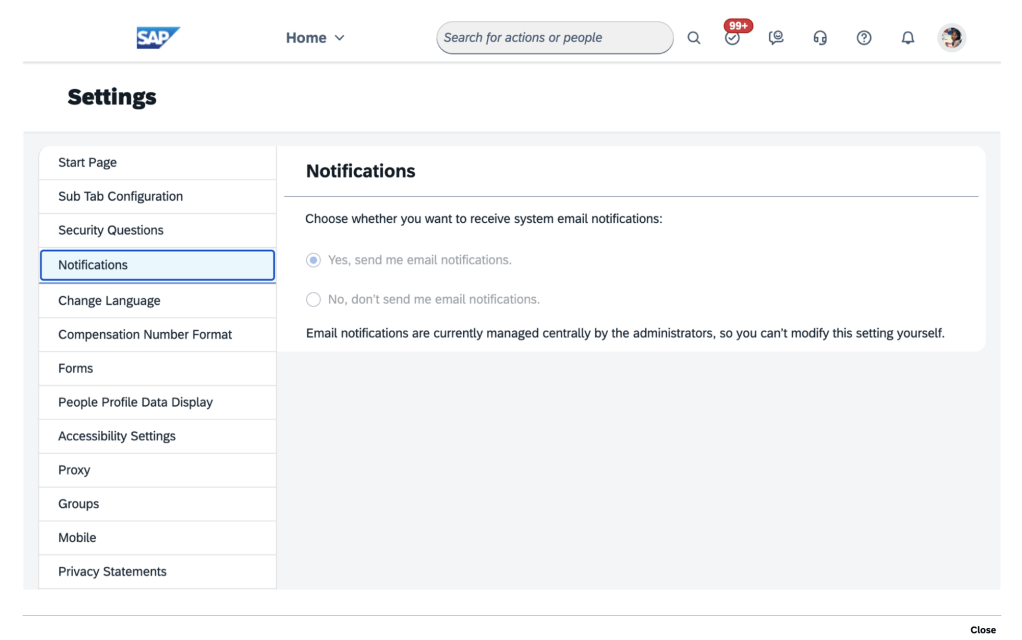
- More clear label for admin Settings page to identify when using system email notifications
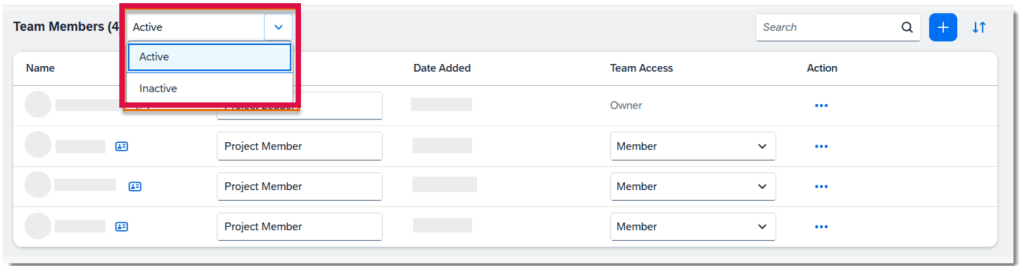
- Team Members can be displayed for Active or Inactive employees
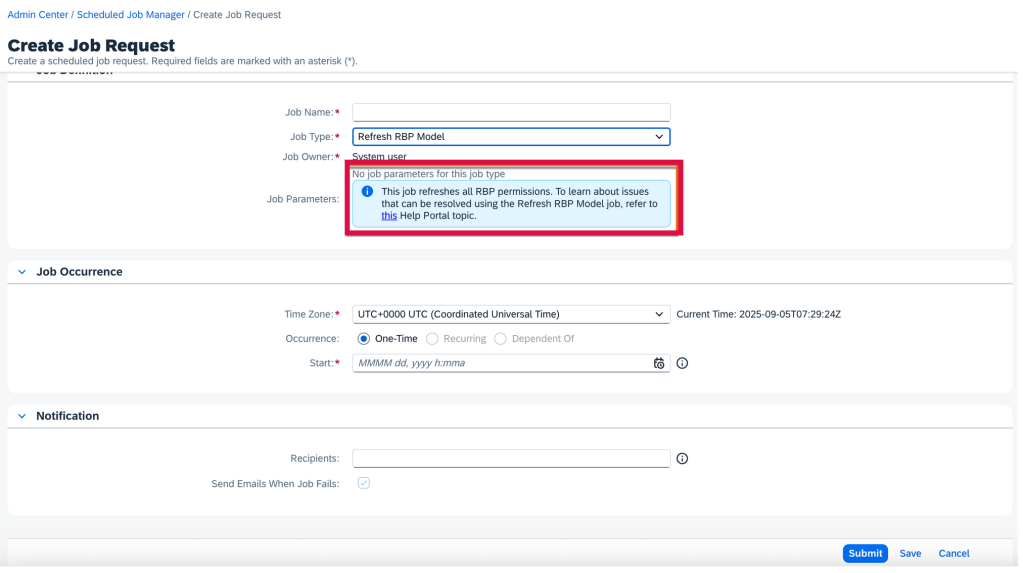
- Creating a Refresh RBP Model job request now has helpful information that this job will refresh all RBP permissions
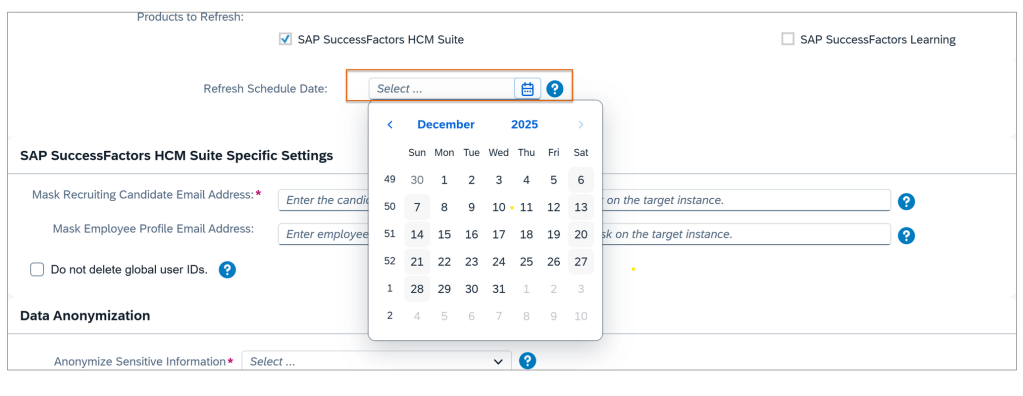
- Using the Instance Refresh Tool, the instance refresh can now only be scheduled 3 months in advance, down from 6 months
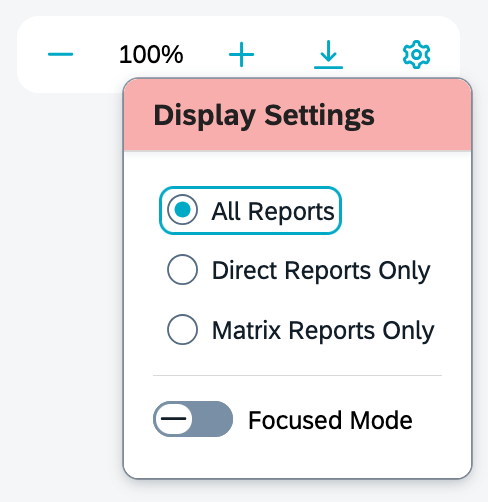
- When viewing the Org Chart, the gear icon pop up now is labeled “Display Settings“. Previously it was labeled “Display Options“
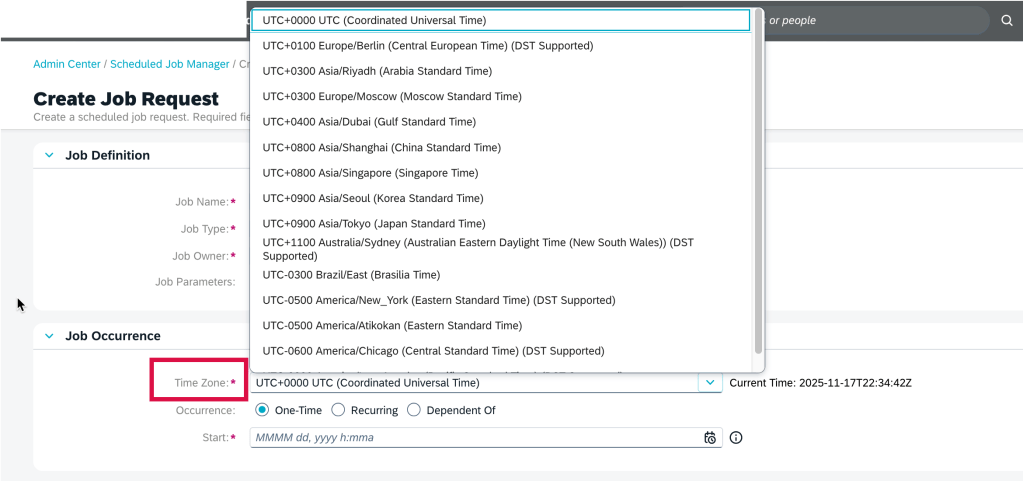
Scheduled Job Manager Supports Time Zones
A time zone may be selected when creating a job request in the Scheduled Job Manager admin tool. A new field, Time Zone, has been added to the Job Occurrence section on the Create Job Request page.
New Deeplink Parameters for Full Profile Navigation
There are more parameters in deep links to directly access the Full Profile cards.
- cardId=<card Id>: link to go directly to a card’s detail page
- mdfObjectType=<custom MDF object type, to access a custom MDF object card
- backgroundElementId=<custom Background Element Id>to go to a Background Information card’s details page
Delegation Request Card on Home Page
When using the latest home page experience, delegatees can now manage delegation requests directly from the Home Page with a new to-do card feature.
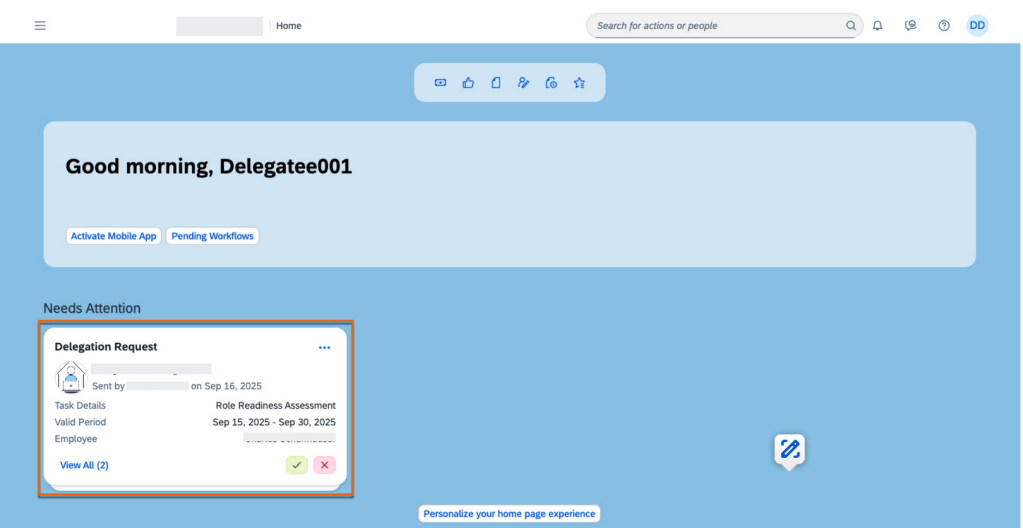
The Delegation Request card contains details of the delegation request, including the delegator’s profile picture, the name of the performance form, the valid period of the task, and the employee’s name whose form needs review. A request can be accepted or rejected directly from the card.
To learn more and get more details about the updates, see the full set of documentation in the What’s New Viewer here.
Do you need help implementing or supporting your SAP SuccessFactors system? Contact info@worklogix.com for assistance, download our support services brochure, or visit https://www.worklogix.com/implementation.html for additional information.





















 Worklogix Blog