Author: Susan Traynor

  • Tips for using SuccessFactors Writing Assistant and Coaching Advisor with Job Profile Builder

    Tips for using SuccessFactors Writing Assistant and Coaching Advisor with Job Profile Builder

    You have enabled SuccessFactors Job Profile Builder (JPB) and would like to utilize the attributes stored on the job profiles across the SuccessFactors suite.  Your job profiles contain competencies that you would like to be used in performance forms and to tie to development goals.  You would also like to use Writing Assistant and Give Advice for competencies within a performance form and Coaching Advisor for development objectives but you have heard that JPB does not support their set up. With Job Profile Builder enabled, it is not possible to create writing assistant content outside of Provisioning. Rather than throw in the towel and disable Job Profile Builder, you may update the competency library to use these features.

    Job Profile Builder Limitations

    When Job Profile Builder is enabled, you no longer have access to “Manage Competencies” in the UI where you would create the teasers and tunings used with Writing Assistant. Also with JPB, the Competency Library Import feature within the instance is not available. Since you cannot manage the competencies within the UI, you must make updates directly in the competency library in Provisioning.

    What are Teasers and Tunings?

    Before you can understand the competency library file, it helps to familiarize yourself with the Writing Assistant components.

    Writing Assistant can be used as a guide for employees and managers when they are writing comments while evaluating competencies on the PM form. Writing Assistant provides suggested sentences which are specific to each competency.  Writing Assistant adds the exact sentence in the comments section for a competency and the user may modify the suggested text or leave as-is. When the competency section of a PM form has item comments configured and Writing Assistant enabled, the Writing Assistant button would display near each comment text area.

    View of competency with Writing Assistant on PM form

    When Writing Assistant is selected, the competency details display. You will see the competency name, description and suggested phrases to use to describe the employee’s behavior.

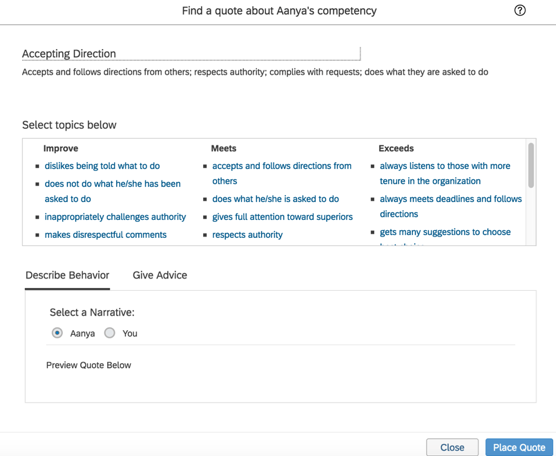
    View of competency using Writing Assistant

    Each competency has Teasers. Teasers are short statements that describe actions, attitudes, or skills that demonstrate proficiency in the competency. Teasers break down the definition of the competency into tangible performance levels such as Improve, Meets, or Exceeds.  You will also see tabs for Describe Behavior and Give Advice.

    The suggested phrases associated with a teaser are called Tunings.  Tunings are complete sentences that describe the teaser in terms that are more or less positive, or more or less personal. The tunings make up the Writing Assistant content and allow users to choose the tone they want to use to provide feedback during an evaluation.    

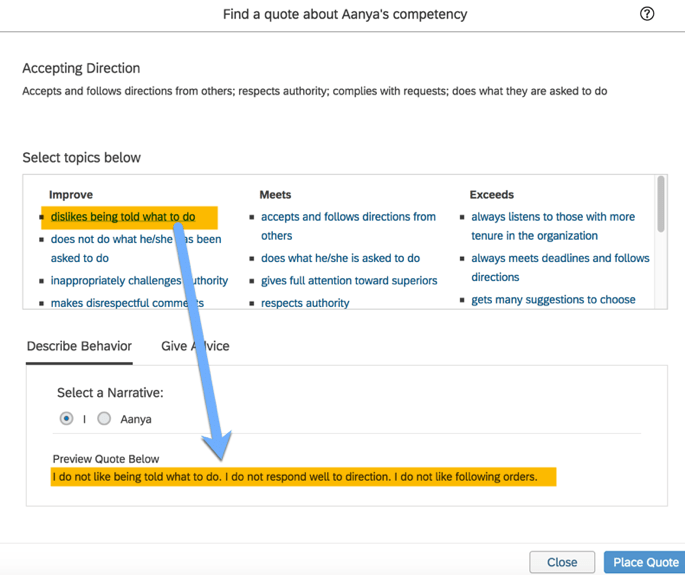
    The suggested sentences that would be placed in the comments section for a competency on a PM form.  Clicking on one of the topics would cause the statement to display in the quote area.

    Selected teaser appears in the behavior description section

    Tunings associated with a competency’s teaser can be in the first, second or third person narrative. The narrative options displayed are dependent who is accessing the form.

    When an employee accessing their PM form and uses Writing Assistant on a competency, the 1st person (“I”) and 3rd person (employee name) are the two narrative options that will appear as seen in the image above.

    Any other roles that are part of the PM form process that can write comments on a competency will see 2nd (“You”) and 3rd person (employee name) narrative options.

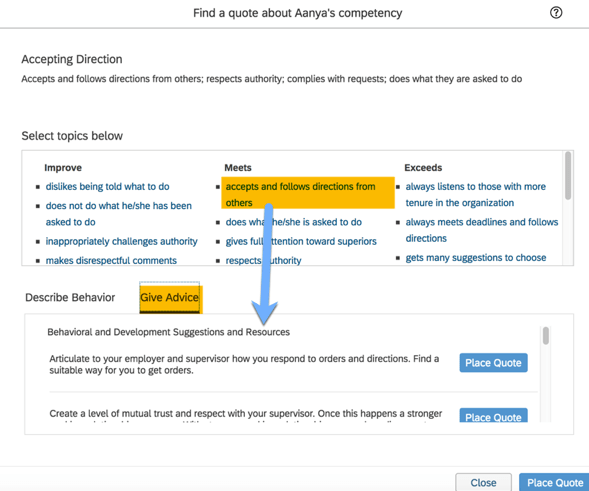
    The Give Advice tab provides sentences of developmental suggestions and concepts that address a defined problem area or encourage an employee strength. These are used by the manager to provide some guidance and direction for a competency.

    Select a topic to populate advice statements
    Using the SuccessFactors 2.1 Competency Library

    Now that you are familiar with the terminology, let’s look at the competency library in Provisioning.  Start by downloading the standard SuccessFactors 2.1 Competency library.  This is the most current library and contains 86 competencies with their associated behavior and advice suggestions that are used for Writing Assistant and Coaching Advice.

    You may tweak the library to add or hide competencies, add teasers for a competency, change the tunings for a competency’s teaser or add some additional behavioral suggestions. You may also copy the library to use as a template to create your own custom competency library. Each can be done in Provisioning manually or via a competency library import. 

    Understanding the Competency Library File

    To understand the contents of the Competency Library file, it is helpful to know which fields correspond to the Writing Assistant and Coaching Advice components of a competency. 

    There are two methods to extract the file.

    • Schedule export job
    • Export via Managing Competencies and Skills>Competency Libraries
    Schedule Background Job

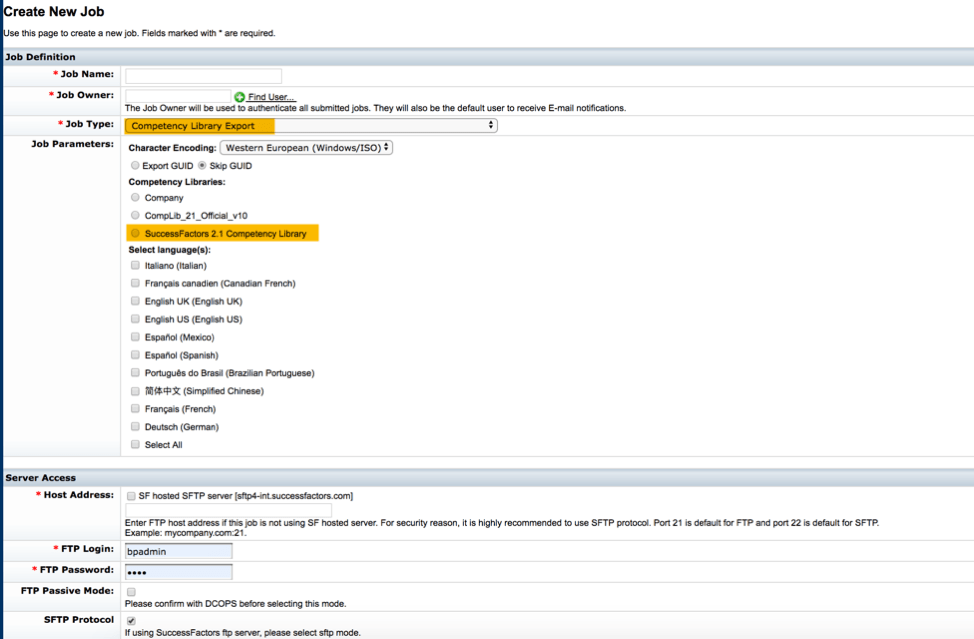
    A one-time job may be created to run the standard Competency Library Export. Go to Manage Job Scheduler>Create New Job.

    Set up the export using job type Competency Library Export.

    Job set up screen
    Export Competency Library File

    The competency library file may also be exported via Managing Competencies and Skills>Competency Libraries.

    Before downloading, be sure to select all competencies and use Unicode (UTF-8) for the character encoding using CSV format and include Export GUID.

    Opening the CSV file

    To retain the correct formatting of the file, open a new Excel workbook. Next go to the Data tab and select From Text.

    Select the file to open.

    After selecting the file, the Get Data button is active.

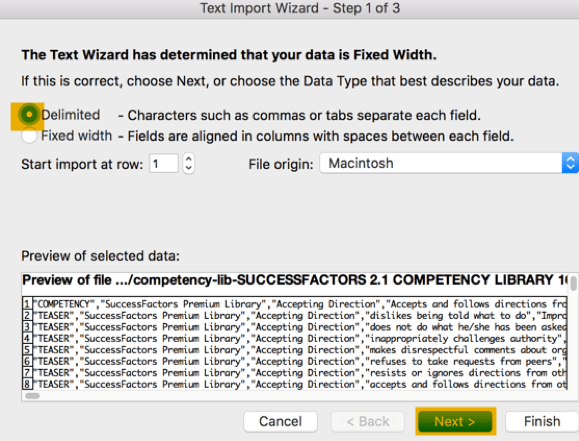
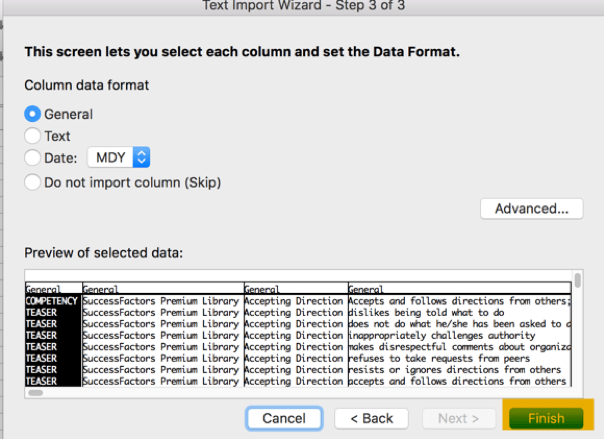
    Walk through the text import wizard to get data in formatted columns.  Be sure to select Delimited as your Data Type.

    Include comma as a delimiter.

    Complete the wizard.

    When prompted, import the data into the spreadsheet.

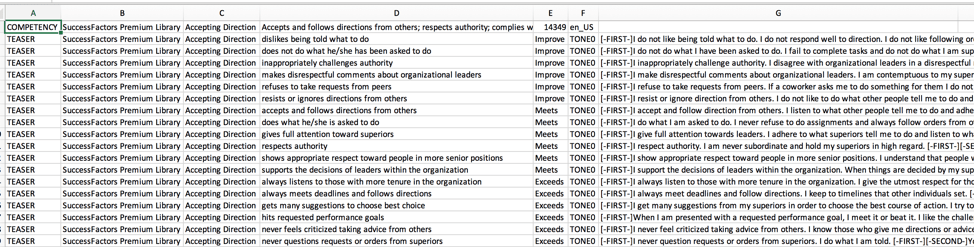
    The downloaded competency library file contains each a row for each competency followed by teaser records which contain the tunings and behavioral suggestions used with Writing Assistant.

    View of competency record followed by it teaser records
    Competency File Layout

    The file contains no header records. The first competency in the library starts the file followed by its teaser records. There will be multiple teaser records for each competency and each teaser record will contain the associated tunings.

    Competency Record Fields

    The first column of the competency records contains COMPETENCY followed by the competency library name in the next column.  The only other fields on the competency record are competency name, GUID and default language.

    Column A contains COMPETENCY. This identifies the row as a competency record.

    Column B identifies the name of competency library.

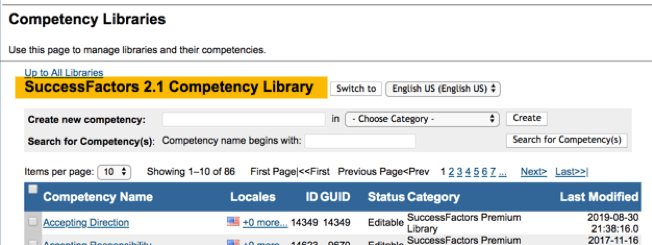
    It corresponds to the name of the competency library that was exported.

    Competency Library in Provisioning

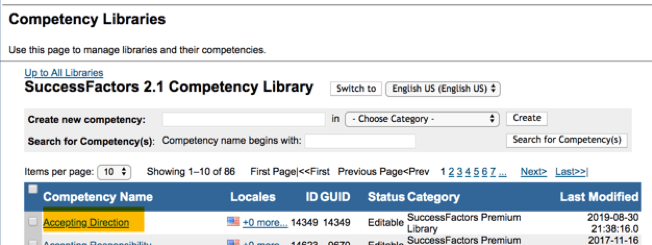
    Column C contains the competency name.

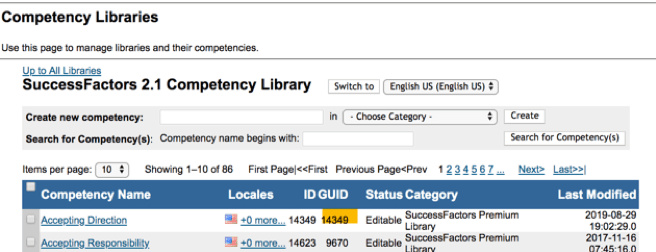
    It corresponds to the competency name shown in Provisioning in the Competency Library.

    And matches the name of the competency on the PM form.

    Column D contains the competency’s description.


    Competency description within a competency


    Competency with its description on the PM form

    Column E contains the competency GUID.

    This corresponds to the GUID for the competency as seen on the Competency Library screen.

    Column F contains the default language.  

    All of the associated teaser records will follow the competency record.

    Teaser Record

    There is a separate record for each competency’s teasers. The teaser records will immediately follow the competency that it is related to. Each teaser record will contain the columns for teaser, category, tunings and behavioral/development suggestions (coaching advice).

    Column A contains TEASER.  This identifies the row as a teaser record.

    Columns B and C contain the same competency library and competency name as the found on the competency record.

    • Column B identifies the competency library.
    • Column C contains the competency name.

    Column D contains the teaser for the competency.


    Tuning as seen as in Provisioning and within the competency on the performance form.

    Column E for the teaser record will contain the category or level of the competency. The standard categories are Improve, Meets, and Exceeds. There will be multiple teaser record in each category.

    Tuning with category within teaser record
    View of category within the competency within the library in Provisioning and within Writing Assistant for the competency on the PM form.

    Column F contains TONE0.  If there are multiple tunings for a teaser, the next tuning is TONE1, followed by TONE2, TONE3, etc.

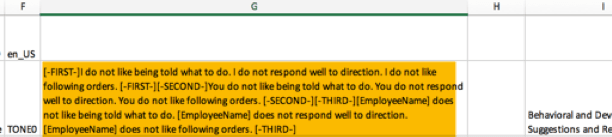
    Column G contains the tuning for the teaser. The cell contents include the first person, second person and third person phrases to be used for the tuning.

    • The first-person tuning phrase starts with [-FIRST-] and ends with [-FIRST-].
    • The second-person tuning phrase starts with [-SECOND] and ends with [-SECOND-].
    • The third-person tuning phrase starts with [-THIRD-] and ends with [-THIRD-].
    Select a topic to populate the behavioral section

    System Quirk to Look Out For

    If there are not 1st, 2nd and 3rd place narrative tunings for a competency’s teaser, the narrative buttons will still display but will not place any quotes for a competency.

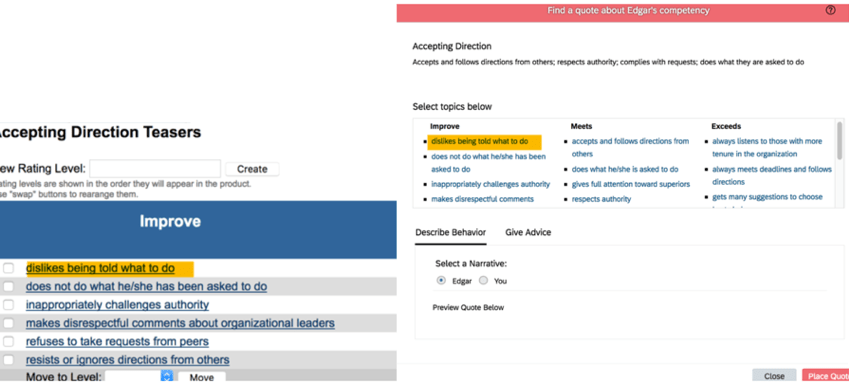
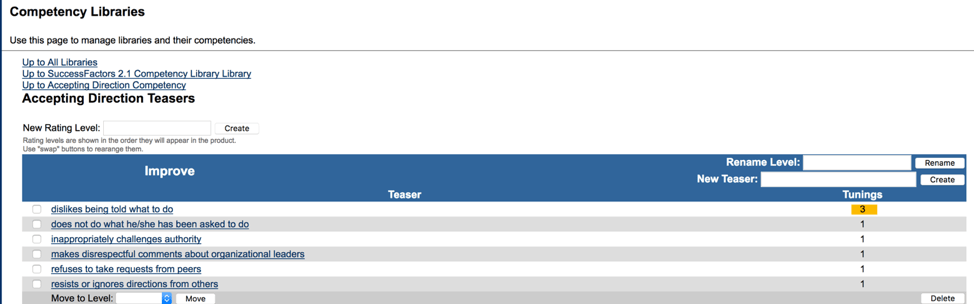
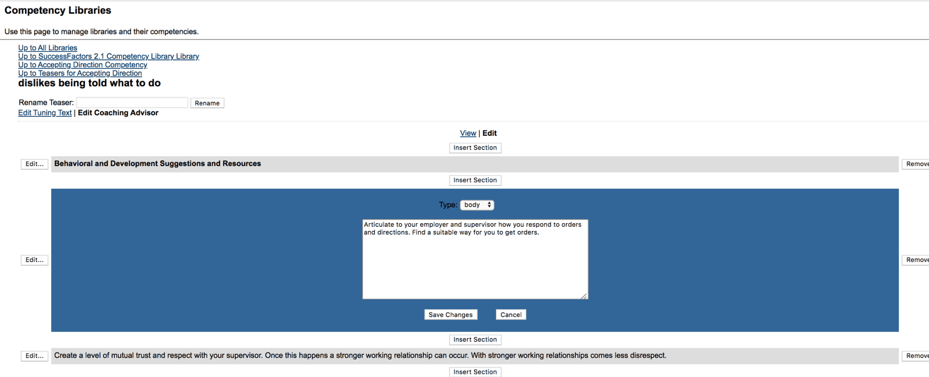
    Let’s look at an example. For the “Accepting Direction” competency, one of the teasers (“dislikes being told what to do”) only has a 1st person tuning as seen in the image below.

    1st Person Tuning Only for a Teaser

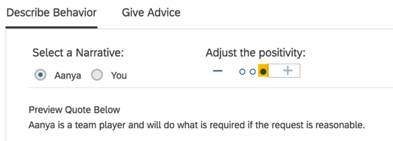
    The employee will still see the 1st and 3rd person narratives buttons as seen in the image below. However, when this tuning is selected, the name button and “Place Quote” button are clicked, no quote will display in the “Preview Quote Below” box. This is because there is no 3rd person tuning for this teaser.

    Tuning without 3rd Person Narrative

    When the manager goes into the employee’s PM form and clicks the “Writing Assistant” button for the competency, the 2nd (“You”) and 3rd person (employee name) narrative buttons will be available. However selecting the tuning, clicking either narrative button and the “Place Quote” button will not place any quote in the “Preview Quote Below” box. This is because this teaser does not have a 2nd or 3rd person tuning.

    Positivity Meter

    It is possible to have multiple tunings for teaser.   This allows for a positivity meter when giving advice by the manager.  This allows a less positive, neutral and more positive tone to advice for a tuning.

    To use, create a new column containing TONE1 after the last tuning description followed by the new tuning statements.

    A third level would have TONE2 column followed by the associated tuning statements. There are no blank columns between the tunings.


    The number of tunings for a teaser are shown.    

    When there is more than one tuning for a teaser, the positivity meter will be available for the manager to use when giving advice.

    View of Positivity Meter when multiple tunings exist

    As seen in the example below, adjusting the positivity by clicking one of the positivity button will modify the tone of the quote.

    Least positive phrase
    Most positive phrase

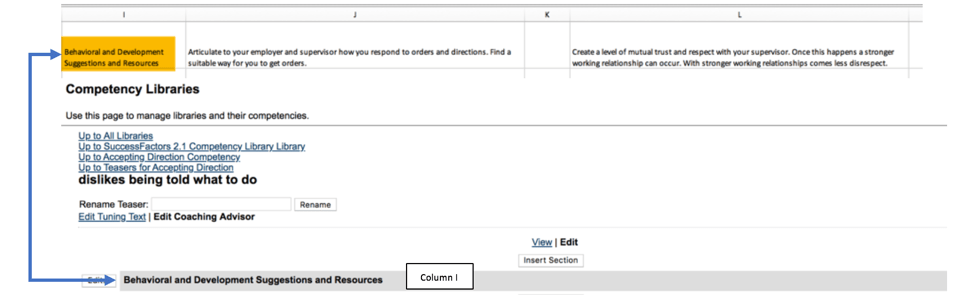
    The column following the last tuning description is blank. If using Coaching Advice, Column I contains the phrase Behavioral and Development Suggestions and Resource.

    Behavioral suggestion on the file corresponds to the list of resources within the teaser

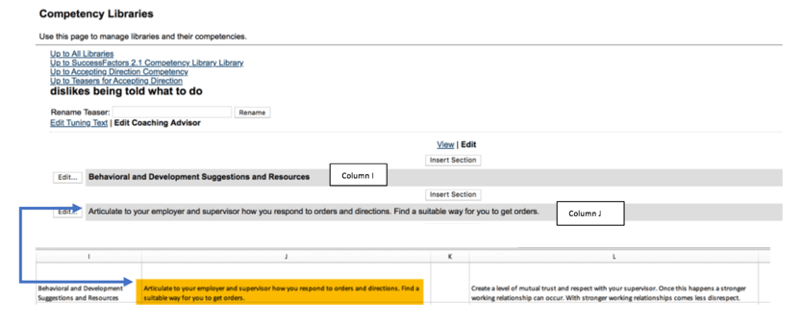
    Column J contains the actual suggestion/resources for the tuning. 

    As seen on the competency within the library in Provisioning

    You can create multiple suggestions/resources for the teaser, just be sure to leave a blank column between each.

    Now that you are familiar with the competency library and the file layout, you may make additions, subtractions and updates to its content.

    To make any updates, keep the columns intact and simply change the data within a record.  You may add teaser records for existing competencies or add new competencies.

    You may also use the standard library as a template to build competencies specific to your client’s needs.  Once all the changes are made, you are ready to upload the competency library.

    Import Competency Library

    Within Managing Competencies and Skills you will find Import New Competency Libraries which is used to import a new competency library or to update the existing standard library.

    If you add competencies or update any component of a competency on the file, you will need to re-import the entire library.

    If you wish to remove a teaser from a competency, omit the teaser from the file when you import and do not check any of the override options.

    Be sure to have Unicode (UTF-8) as the character encoding option.

    Manual Updates to the Competency Library

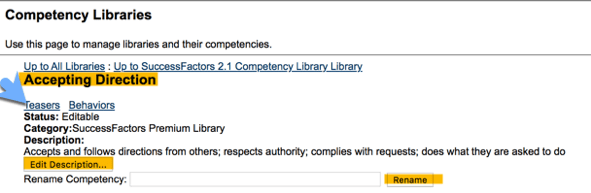
    If you only need a few minor updates such as adding a teaser or modifying a competency description, Provisioning is the place that these updates need to be done as well. Go into the competency library and select the competency to update.

    Just go into the library, select the competency to update. The competency and its description may be renamed and updates to the teasers and associated tunings can be made as well.

    Within a competency you may update teasers and behaviors.

    Click on Teasers to view the associated teasers for the competency

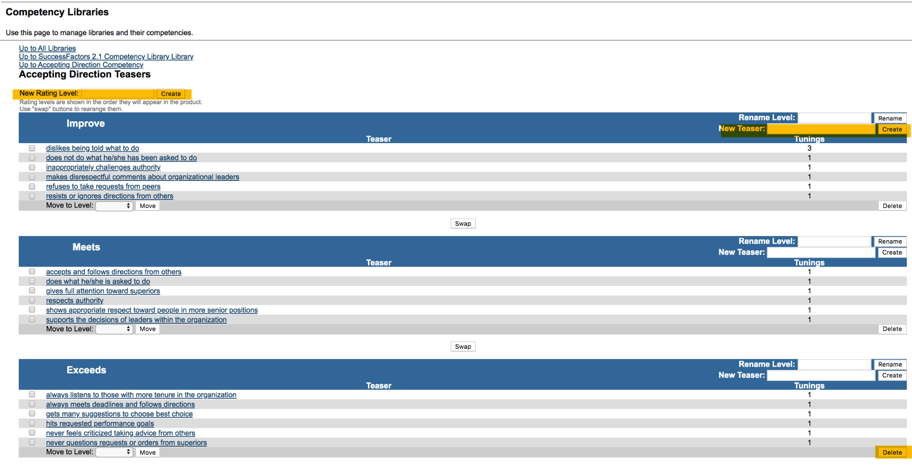
    To make changes to a competency’s teasers–you can add levels or rename levels, move, add or delete teasers

    Teasers for a Competency

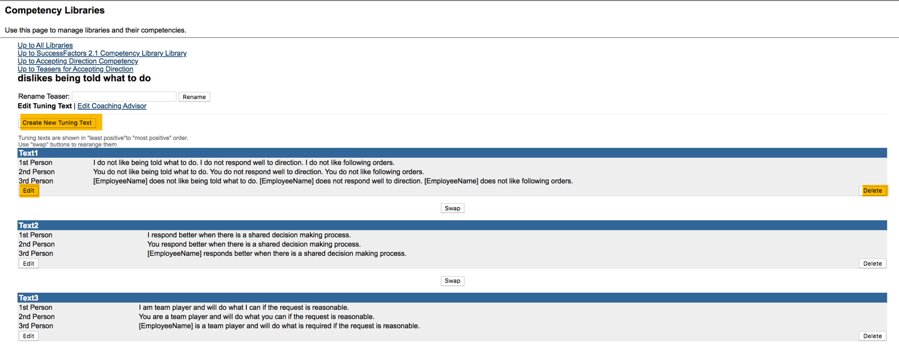
    Within a teaser, the associated tunings may be modified.

    View of tuning to be edited

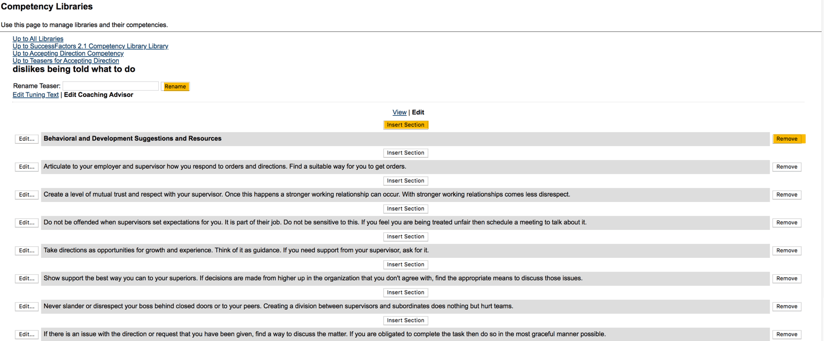
    Coaching advisor suggestions may be updated as well. Suggestions may be moved, edited, added or deleted.

    Suggestion to Edit
    In Conclusion

    Once you understand the record layout, updating the file is easy and allows you to make mass changes without having to manually update competencies. Using the import tool in Provisioning enables you to take advantage of the benefits of Job Profile Builder without losing the ability to use Writing Assistant. Until Job Profile Builder can maintain the teasers and tunings associated with Writing Assistant, this is a viable method for updates.

  • Implementing the SuccessFactors Role Readiness Assessment Form

    Implementing the SuccessFactors Role Readiness Assessment Form

    An employee is empowered to manage their career through the use of the SuccessFactors Career Worksheet. The Career Worksheet, a component of the Career Development module, allows an employee to view details about job roles that interest them, see the role’s associated competencies and select a targeted or future role. Once selected, a role readiness assessment form can be initiated to measure how ready an employee is for the potential future role.

    The Role Readiness Assessment form, accessed from the Career Worksheet will identify competency gaps for the target role and help an employee plan development steps to prepare for the role. The employee’s proficiency for each of the role’s competencies is rated and an overall role readiness rating is calculated based on the em­ployee’s actual competency ratings against the expected competency ratings for the role.

    Before we look what is required to set up the Role Readiness Assessment form, let’s confirm that you are using development goals with competencies, Job Profile Builder (JPB), and the Career Worksheet. The remainder of this post is based on these assumptions.

    Career Development Planning Settings in Provisioning

    Before outlining the permissions needed for the Role Readiness Assessment form, let’s review the settings that are required for Career Development Planning.

    To get started, you will need Provisioning access. Within Company Settings in the Goal Frameworks section, Goal Management Suite (Total Goal Management) and My Goals Tab should be enabled.

    Goal permissions

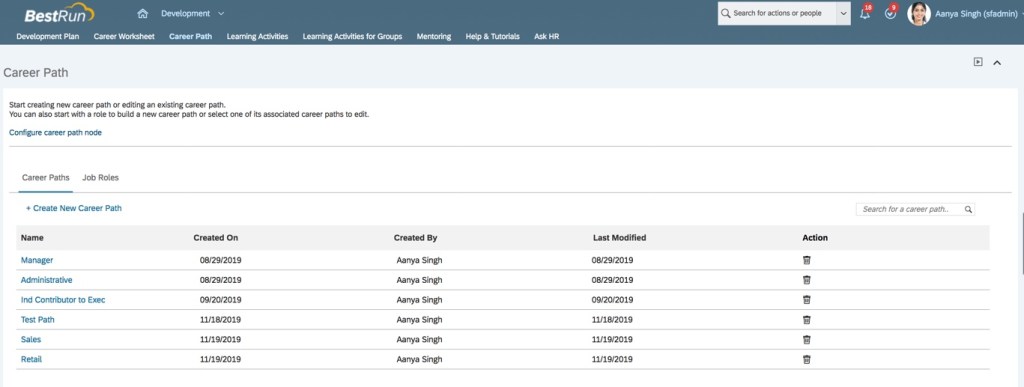
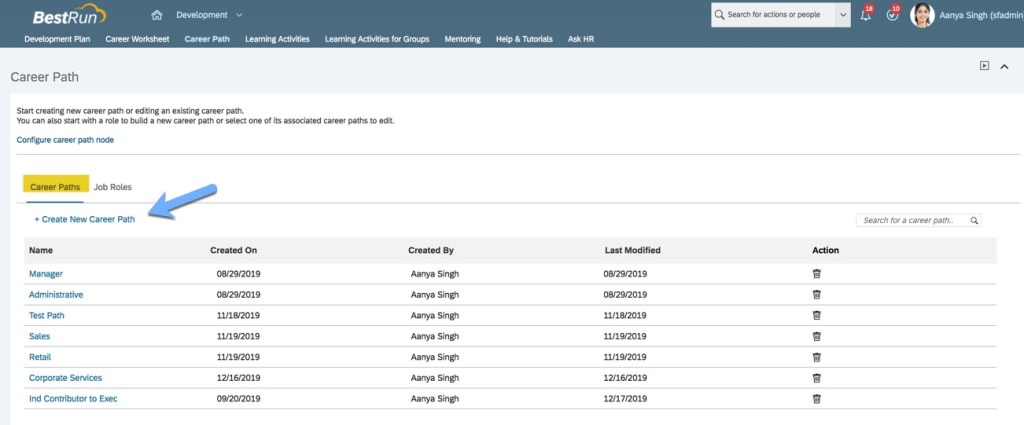
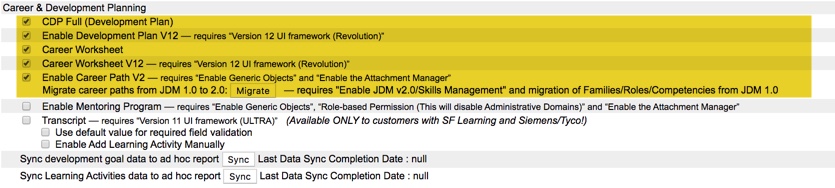
    Under Career & Development Planning in the Goal Frameworks section, enable CDP Full (Development Plan) which also enables Development Plan V12. Enable Career Worksheet which also enables Career Worksheet V12. Enable Career Path V2 as well so that Career Paths may be created and used by employees with the Career Worksheet.

    CDP settings to enable

    After enabling the Goal Frameworks settings, make sure Verions 12 UI framework (Revolution), Enable Generic Objects, and Enable the Attachment Manager are set as well.

    Provisioning Settings for Job Profile Builder

    The Role Readiness Assessment form relies on competencies linked to job roles. Competencies should be mapped to job roles using Job Profile Builder. There are some additional settings needed in Company Settings in order to use Job Profile Builder in the instance.

    JDM v2.0 /Skills Management should be enabled.

    JDM V.2-0 enabled in Provisioning

    In order to use Job Profile Builder, the Competency Library Management Suite should not be enabled.

    Competency Library Management Suite not enabled

    A competency library which contains all of the competencies used for your organization is required. This is critical for the Role Readiness Assessment form to work. The form rates competencies linked to a role, therefore job roles must be linked to competencies in a competency library. Make sure there is a competency library in use. The SuccessFactors Competency Library 2.1 has the expanded list of competencies or you may create a custom competency library.

    Competency Library
    Career Development Templates in Provisioning

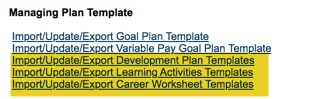
    Three of the four templates used within the Career Development module may be found in Provisioning under Managing Plan Template: Development Plan, Learning Activities, and Career Worksheet.

    Templates within Managing Plan Template in Company Settings

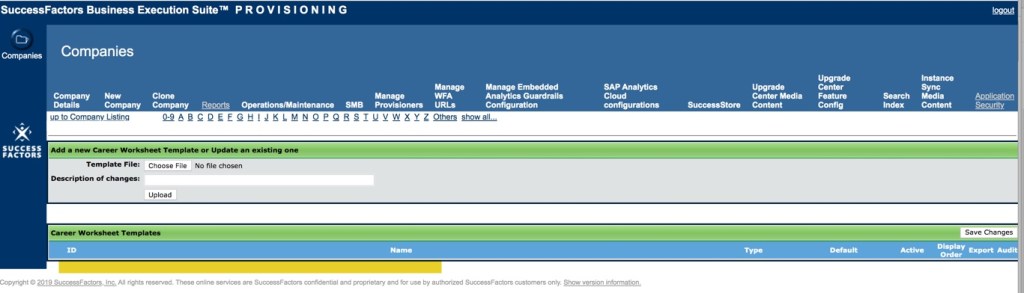
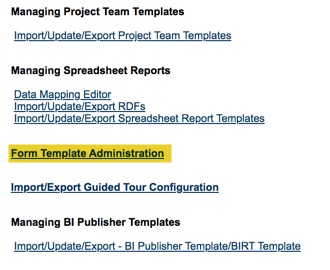
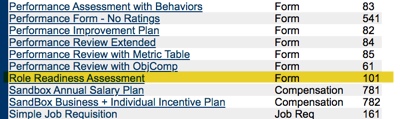
    The fourth template, used for the Role Readiness Assessment form is found under Form Template Administration.

    PM forms are found within Form Template Administration

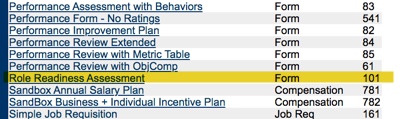
    Click on the link to see all of the existing templates. Scroll through the listing of form templates to find the standard Role Readiness Assessment template.

    Role Readiness Assessment template within Form Template Administration

    Career Worksheet V12 must be enabled and there should be a Career Worksheet template in order to see the standard Role Readiness Assessment template.

    Career Worksheet Template in Provisioning must be present
    Role Based Permissions for the Admin Role

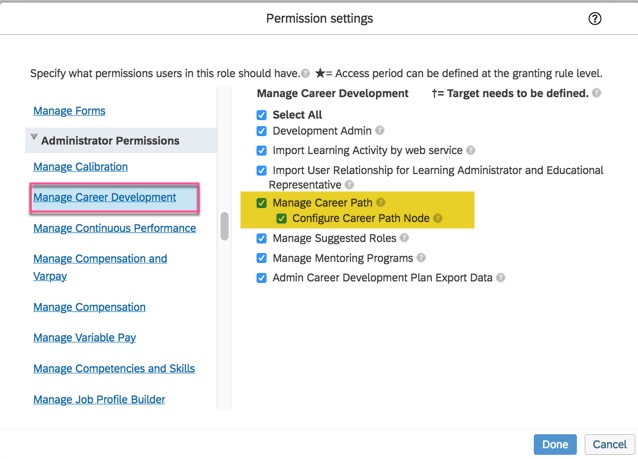
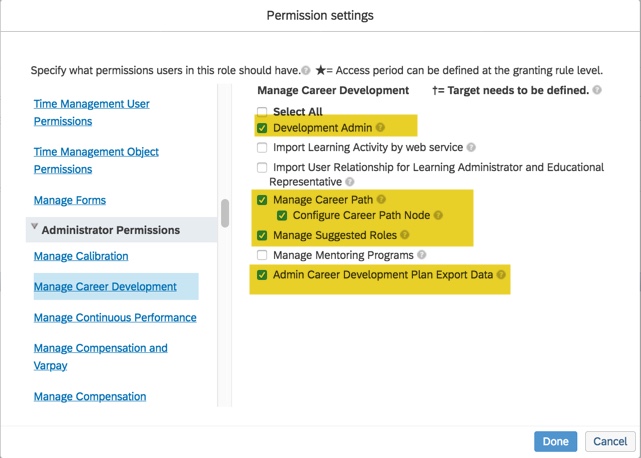
    There are some role based permissions in the instance that must be set up for the system or HR administrator and employee roles. The admin role will need to manage and configure various features for Career Development Planning. In the instance, go to Manage Permission Roles. For the admin role, select Manage Career Development under the Administrator Permissions section.

    CDP Permissions for Admin Role

    To manage the Career Worksheet, Development Admin and Manage Career Path permissions are needed. Admin Career Development Plan Export Data permission is optional.

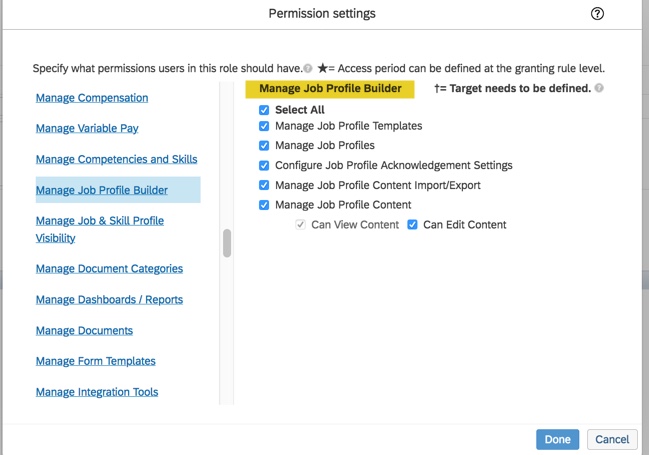
    The admin role requires Job Profile Builder access in order to configure job profiles and map job roles and competencies to the profiles.

    JPB Permissions

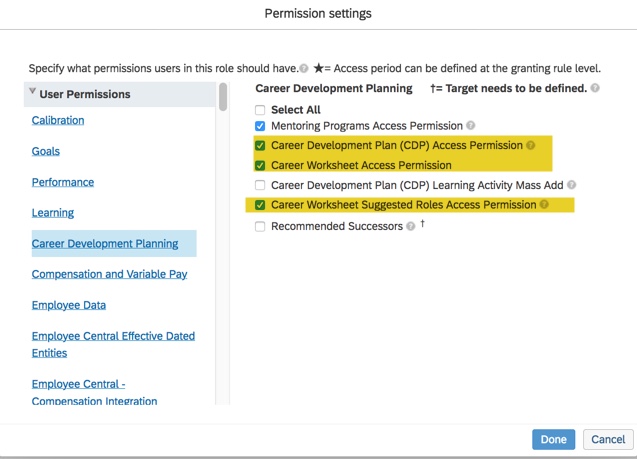
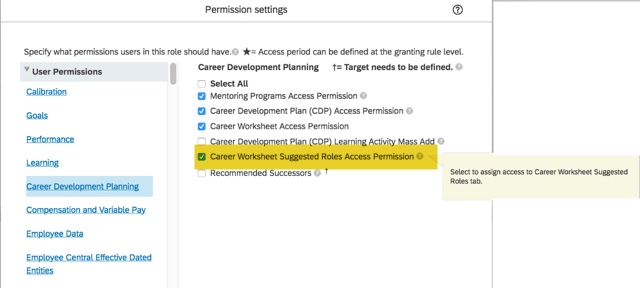
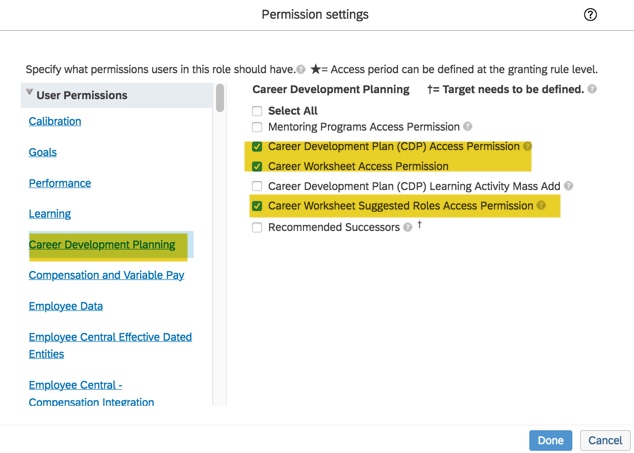
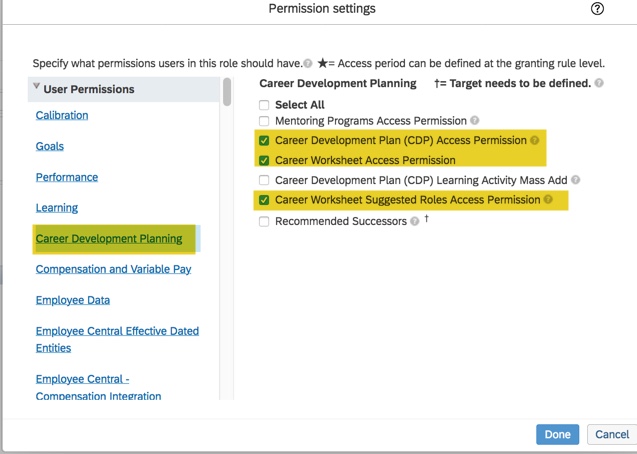
    Access is also needed for components of Career Development Planning: development plan, Career Worksheet and suggested roles for the worksheet.

    CDP permissions for the admin role

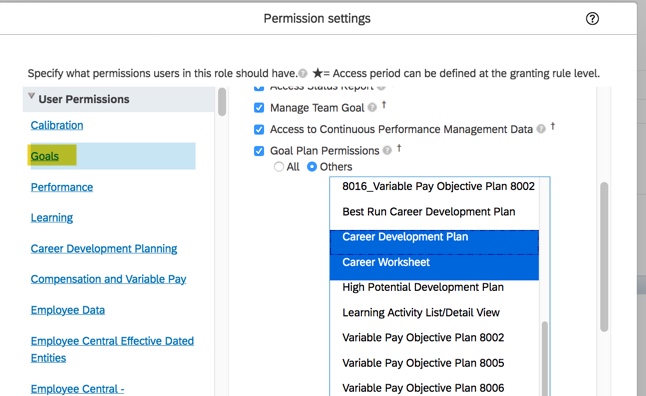
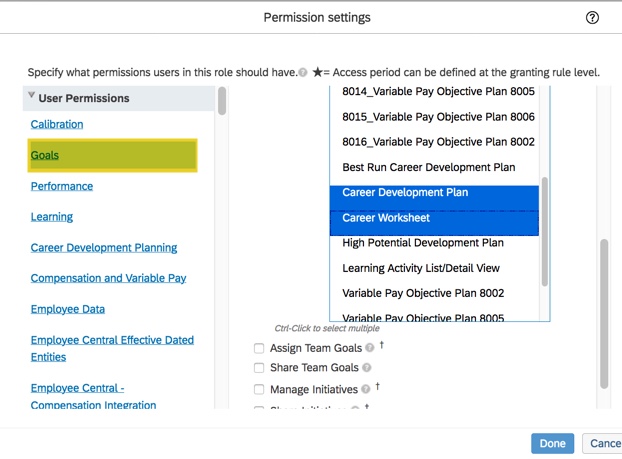
    Under User Permissions>Goals, the admin role will also need access to the Career Development Plan and the Career Worksheet.

    Goal Plan Permissions
    Role Based Permissions for the Employee Role

    The employee role needs to have permissions set up to be able to access the Role Readiness Assessment form. A link within the Career Worksheet will open the role readiness assessment form, bypassing the usual form creation steps.

    Link to the Role Readiness Assessment Form

    There are some role based permissions that need to be set up for the employee role for this link to work.

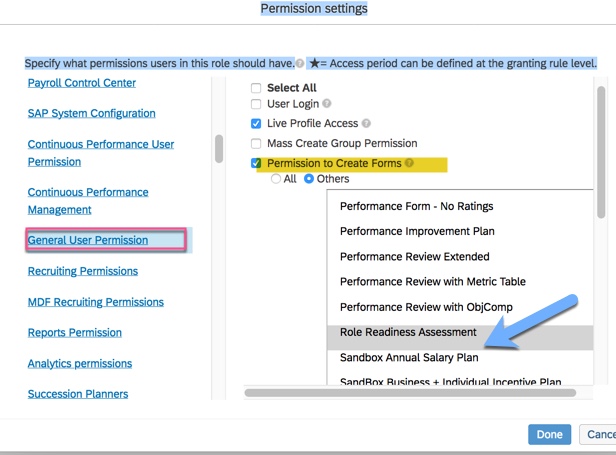
    Grant “Permission to Create Forms” for the Role Readiness Assessment template

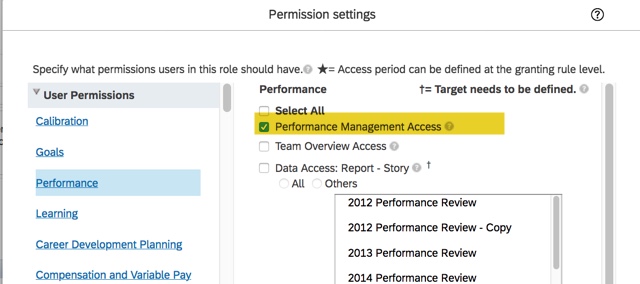
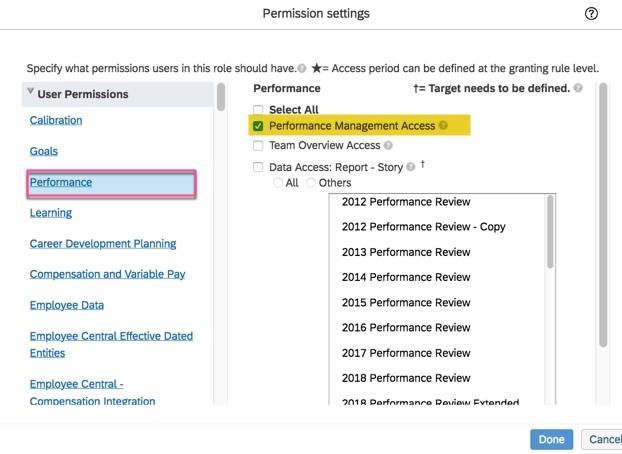
    The employee role will need Performance Management Access under Performance User Permissions.

    The employee role will also need Permission to Create Forms which is found in the General User Permission section. Select the Others radio button and select the Role Readiness Assessment form.

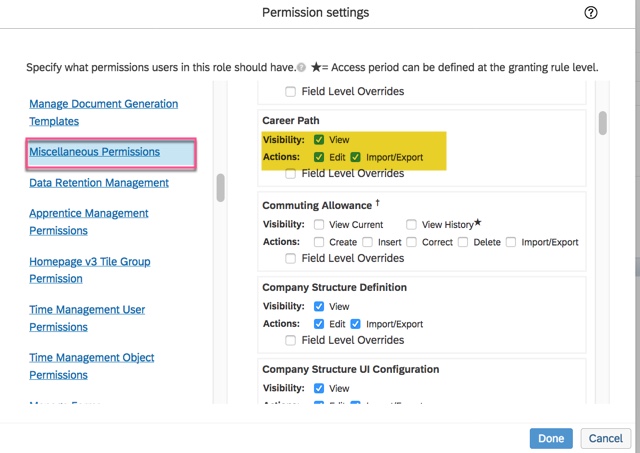
    This permission is in addition to CDP permissions that should be set for access to development plans, the Career Worksheet and Career Paths.

    CDP Permissions

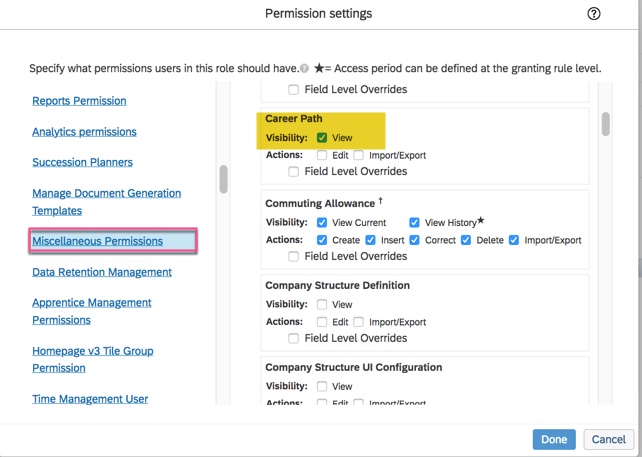
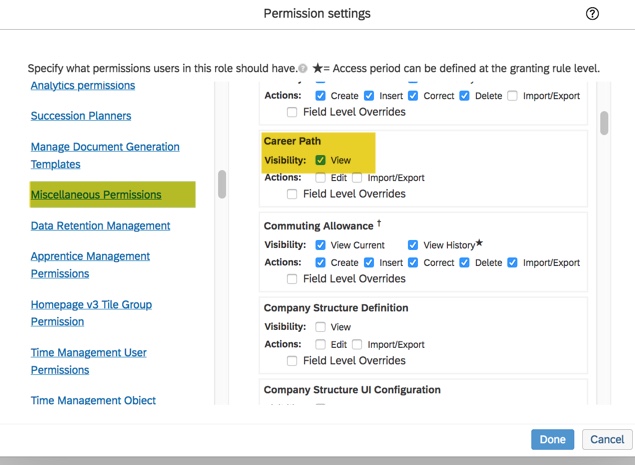
    The employee role will need access to view the Career Path. This permission will allow the user to browse career paths from the Career Worksheet.

    Permission to view Career Path

    Under User Permissions>Goals, the employee role will also need access to the Career Development Plan and the Career Worksheet.

    Goals Permissions
    Competency Expected Ratings Set Up

    Now that the employee role permissions are set, we will look at the competencies for a job role and how they are rated on the form. The goal of the Role Readiness Assessment form is to rate the employee’s mastery of the competencies needed for the targeted role.

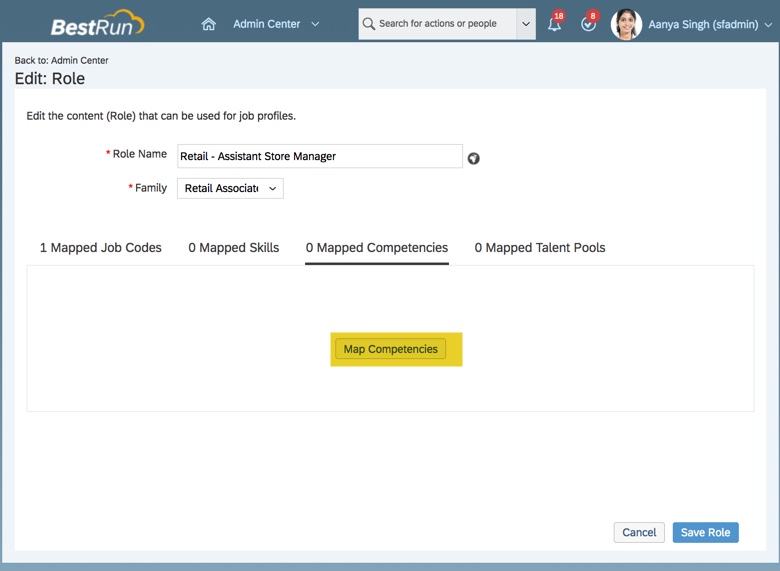
    It is within Job Profile Content where roles should be linked to competencies from the competency library.

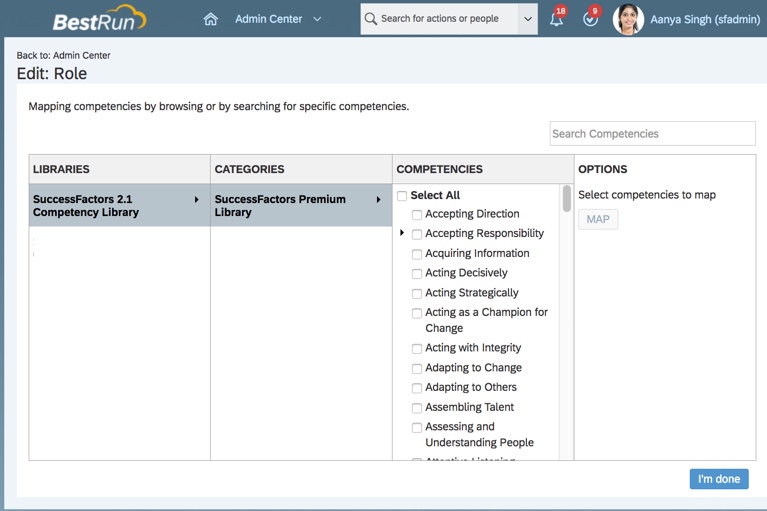
    Mapping competencies to a role

    When mapping the competencies to a role, you will see the competency library to select from.

    Select competencies in library to map to role

    The system uses a cal­culation to compute a competency score which will demonstrate how ready an employee is for the targeted role. The role readiness calculation relies on an expected rating for each competency for a role. The readiness score is based on a comparison between the em­ployee’s actual competency rating with the ex­pected competency rating. Rating the roles’ competencies also identify areas of development that are needed in order to succeed in a future role.

    The expected rating is configured within Job Profile Builder on the job role’s mapped competencies. The admin defines the expected competency ratings for each job role.

    Assigning Expected Ratings to Role Competencies

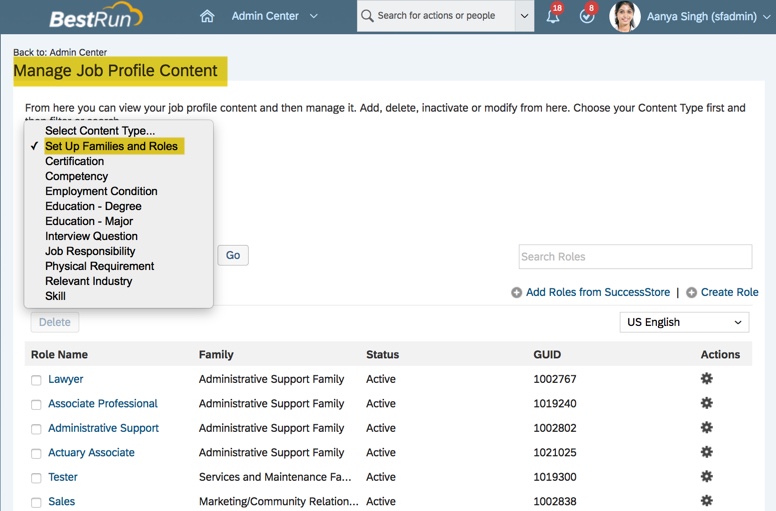
    In order to set the expected ratings for each competency on a job profile (a job role is attached to a profile), go to Manage Job Profile Content>Set Up Families and Roles.

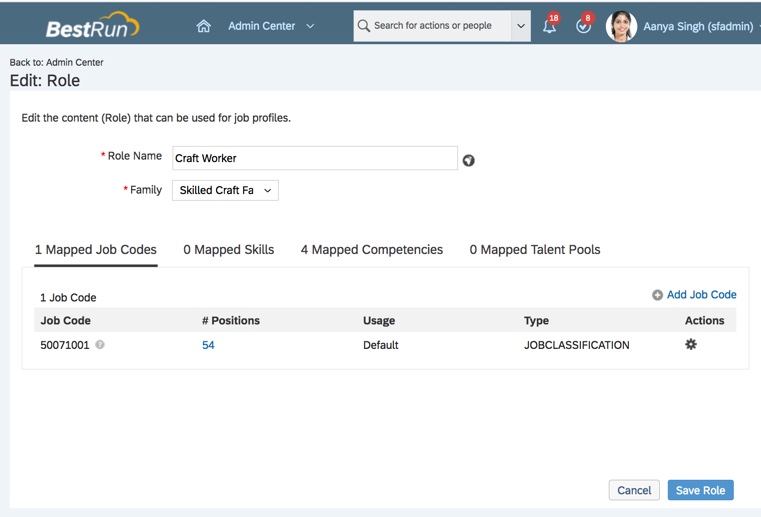
    A job role is associated with a job profile. Select a role to update by clicking on the role name. The content of the role will now be editable.

    Role in Edit mode

    The screen will have tabs for mapped job codes, mapped skills, mapped competencies and mapped talent pools. Each tab will include a count for the mappings.

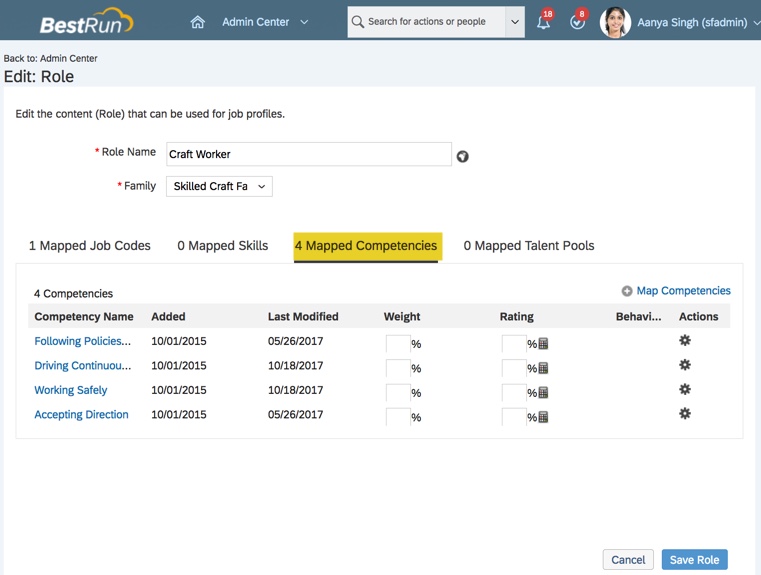
    Go to the Mapped Competencies tab. Any competencies that are mapped to the job role will display. Competencies must be mapped to a role in order for the Role Readiness Assessment to work. If a role does not have competencies and it is selected as a target role, the Role Readiness Assessment form will not have any competencies to rate. So be sure to map competencies to each role.

    Mapped Competencies for Role

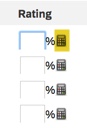
    The Rating column that is needs populated for each competency mapped to a role. The rating column is used to add the expected ratings and % weight for each competency. To create the expecting rating for a competency, click on the calculator icon in the Rating column.

    Select icon to set rating

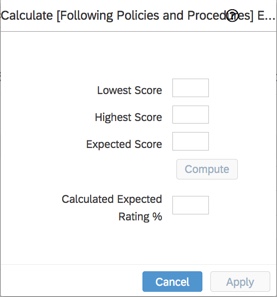
    Scores are entered on the pop up to determine the expected rating % for the competency.

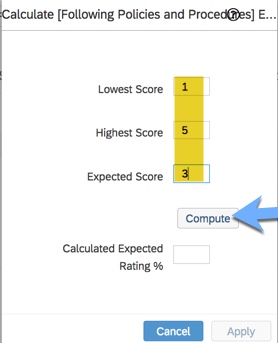
    Enter lowest, highest and expected scores for a competency

    Based on the rating scale used on the Role Readiness Assessment form, enter the lowest and highest scores in the rating range along with the expected proficiency rating.  In this example, the readiness scale has scores 1 to 5 with 1 being the lowest score and 5 being the highest score.

    Compute becomes active once the scores are entered

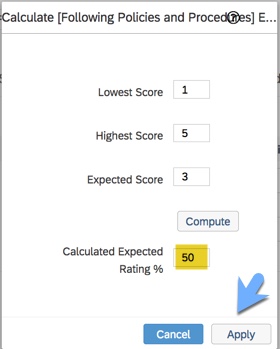
    Assign an expected score. This would represent proficiency needed to succeed in this competency. The Compute button becomes active once the 3 scores are populated. Click on the Compute button and the calculated expected rating % is computed. Click the Apply button to finalize the calculation.

    Click Apply button to confirm rating

    After computing, the calculated expected rating % is populated for the competency. In this example, using a rating scale of 1-5, the expected rating is 50% of the highest score.

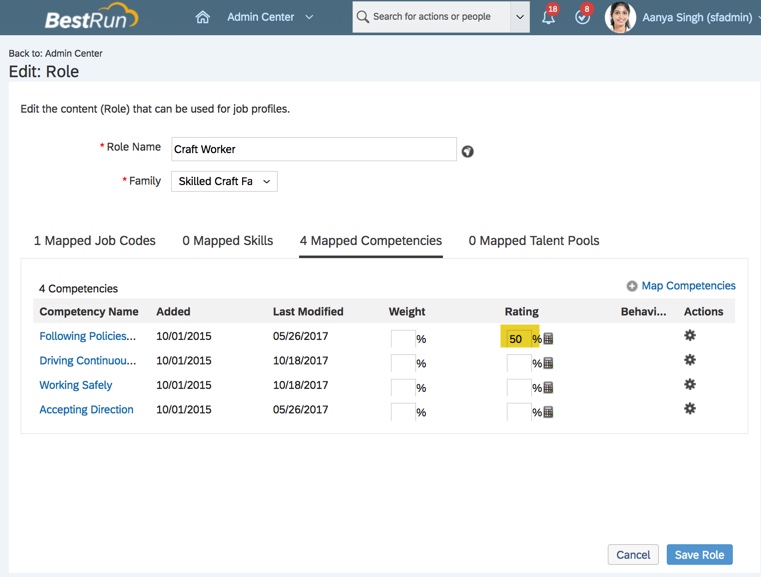
    After applying the calculation, back on the Edit: Role screen, the rating % is populated.

    Expected rating set for a competency

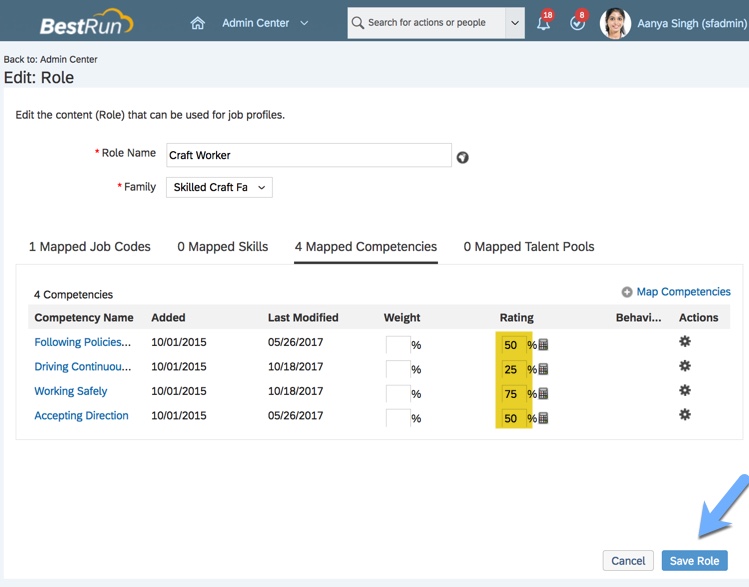
    Continue to create the expected rating for each competency for the role. Once all of the ratings are populated, save the role.

    Save Role to apply expected ratings for each competency

    You may also fill in the weight column to identify how much weight each competency holds. If left blank, the competencies are weighted equally in the overall readiness calculation.

    You will need to identify the competencies mapped to every role and setting the expected rating for each.

    Targeted Job Roles without Mapped Competencies

    As mentioned earlier, Job profiles (with associated role) need to have mapped competencies in order for the Role Readiness Assessment form to work properly.

    To better explain why this is critical, here are 2 examples.

    Example #1: Role without competencies.

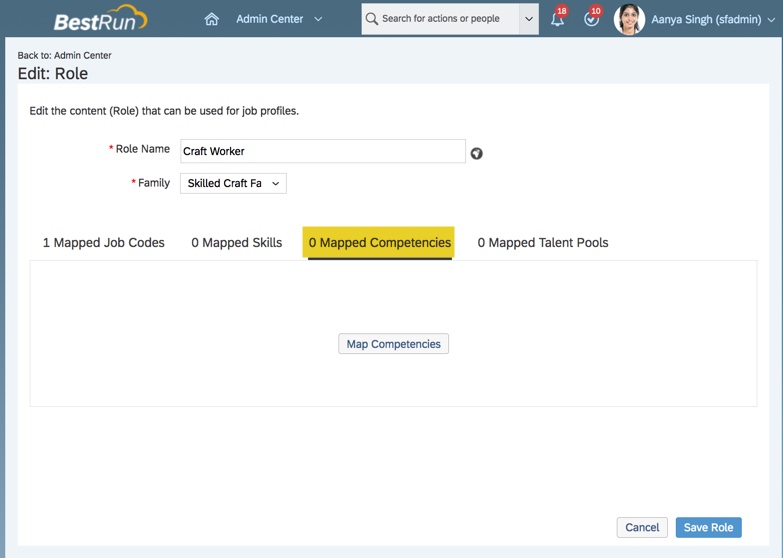
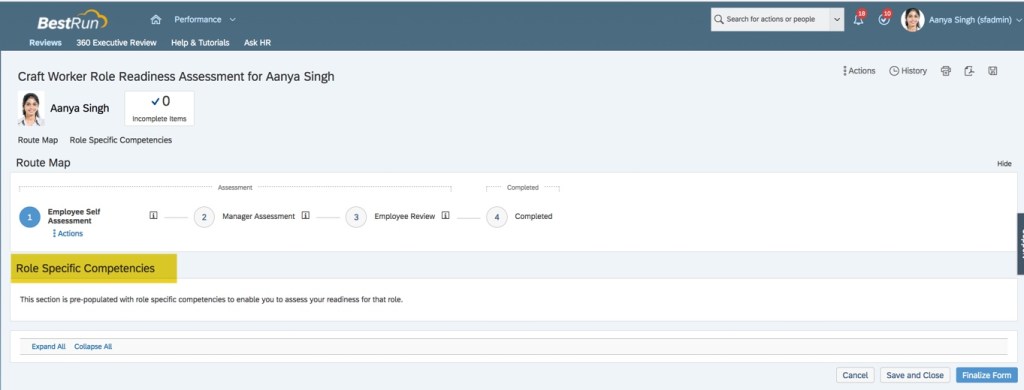
    Within Manage Job Profile Content>Set Up Families and Roles, here is a job role that has no mapped competencies.

    Role with no competencies

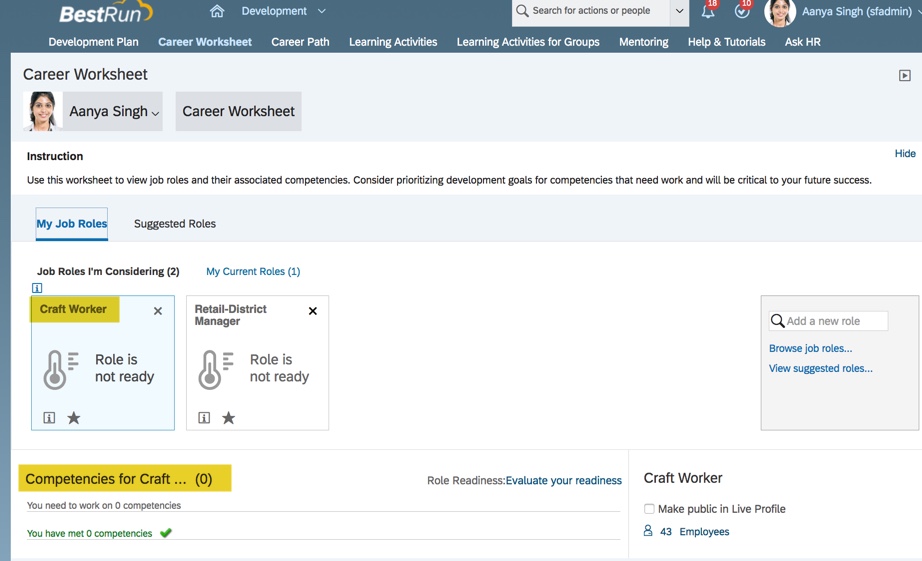
    When this role is selected in the Career Worksheet, there are no competencies listed.

    Targeted role without competencies on Career Worksheet

    And when the employee selects the target role to evaluate their readiness, the form will have no competencies to rate.

    Role Readiness Assessment form without mapped competencies

    If the role does not have competencies, it is impossible to evaluate an employee’s readiness for the role. The readiness meter will not calculate readiness for the role and there will be no gap graphs since there are no competencies.

    Targeted Roles with Mapped Competencies but no Expected Ratings

    Example #2: Job role has mapped competencies but no expected ratings

    If a job role does have mapped competencies but the expected ratings are not set, there will be issues as well.

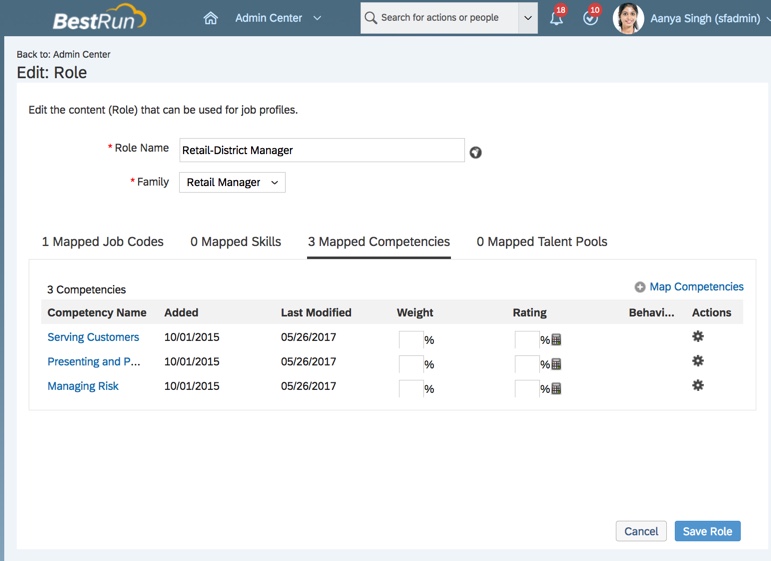
    Here is a job role with mapped competencies. However, the role does not have any expected ratings set for the competencies; the rating column for each competency is blank.

    Roles has mapped competencies but no ratings

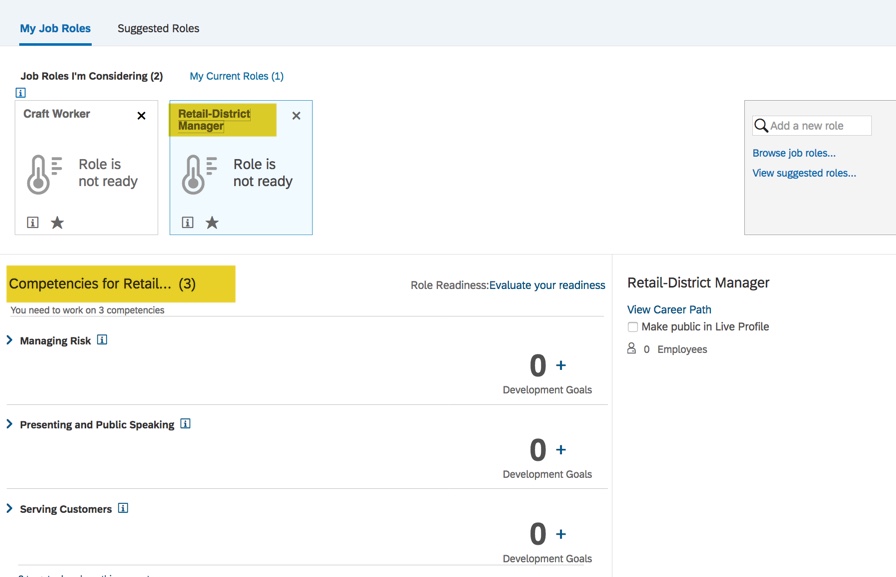
    If an employee selects this role to evaluate in the Career Worksheet, the three competencies are listed for the role.

    Targeted role with competencies

    So this part works correctly; the competencies display for the target role.

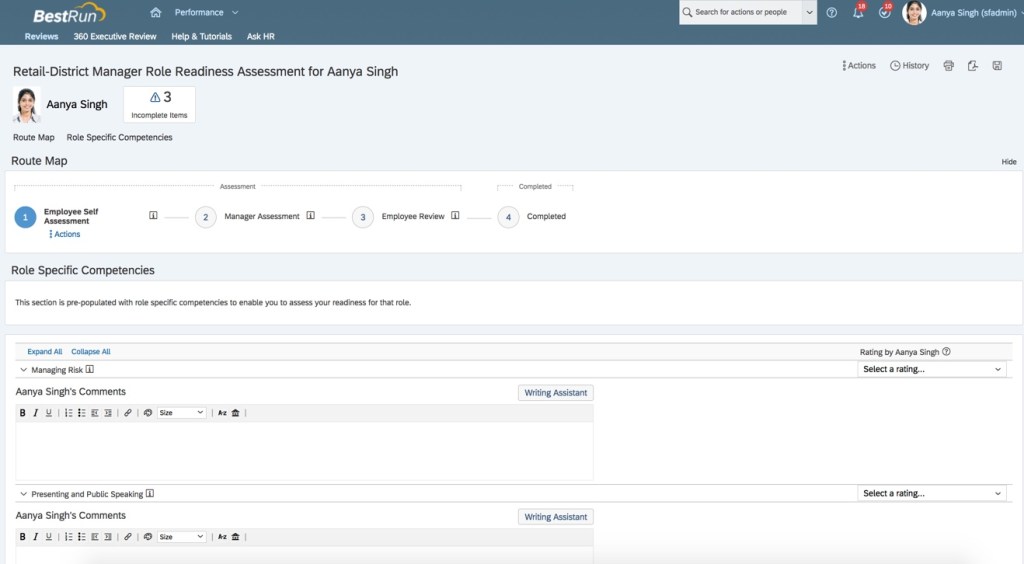
    And the employee can go into the Role Readiness Assessment form and is able to rate on each of the competencies.

    Role Readiness Assessment form with competencies

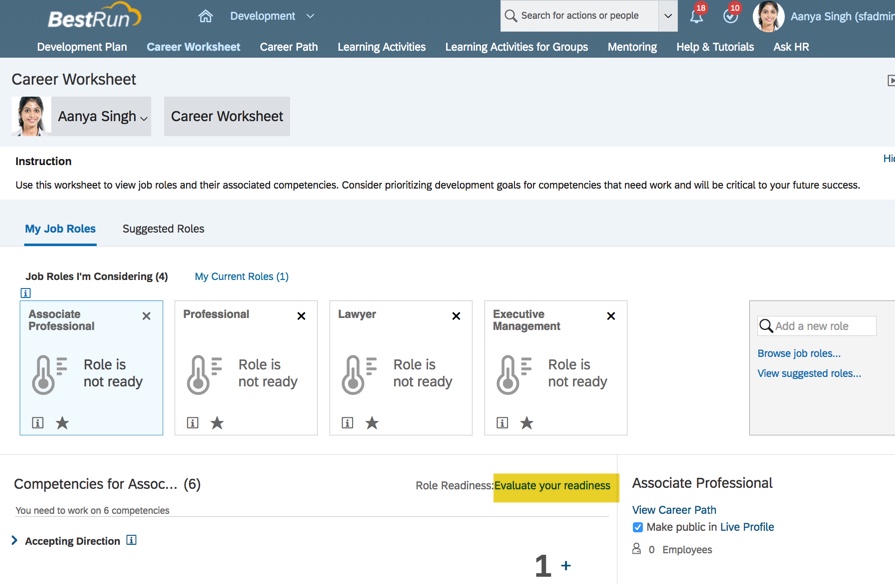
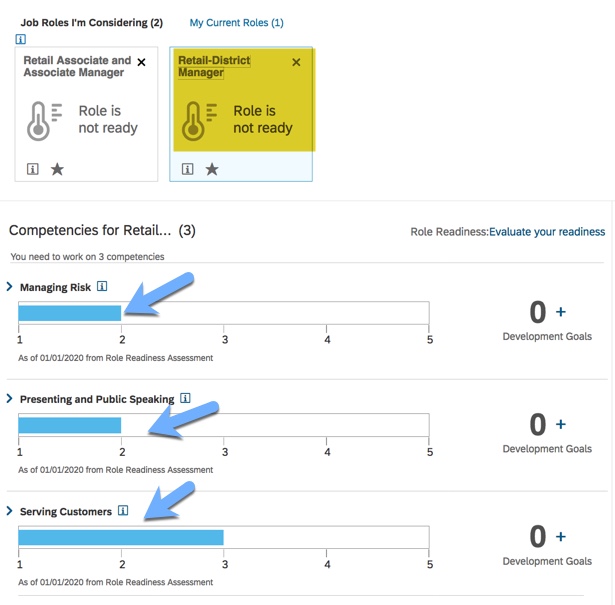
    The issue occurs back on the Career Worksheet upon form completion. The Readiness Meter for the role has not calculated the readiness percentage. The calculation needs expected ratings and without them there is no readiness. So “Role is not ready” will display instead of a readiness percentage.

    Readiness Meter does not show readiness %

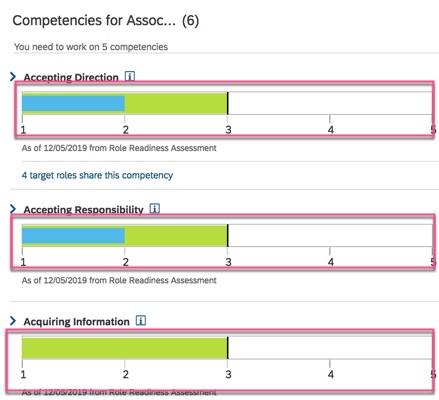
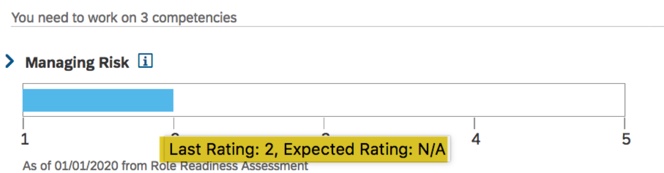
    In addition, the gap graph for each competency only shows the actual rating and not the expected rating.

    No expected rating on gap graph

    Without expected ratings for each competency, the gap graph will only display the actual competency rating.

    Hopefully these examples point out the pitfalls of not having mapped competencies for roles as well as roles having mapped competencies but no expected competency ratings.

    Other things to consider

    If any of the roles being considered have mutual competencies, the readiness meter will populate for all of them after a role assessment is completed. In other words, if an employee has selected a few targeted roles that share a competency, when a role readiness assessment form is completed for one of the roles, the readiness meter will calculate readiness for any other targeted role that has the competency. Since expected ratings can vary by role, the same competency might display different gap values for different roles.

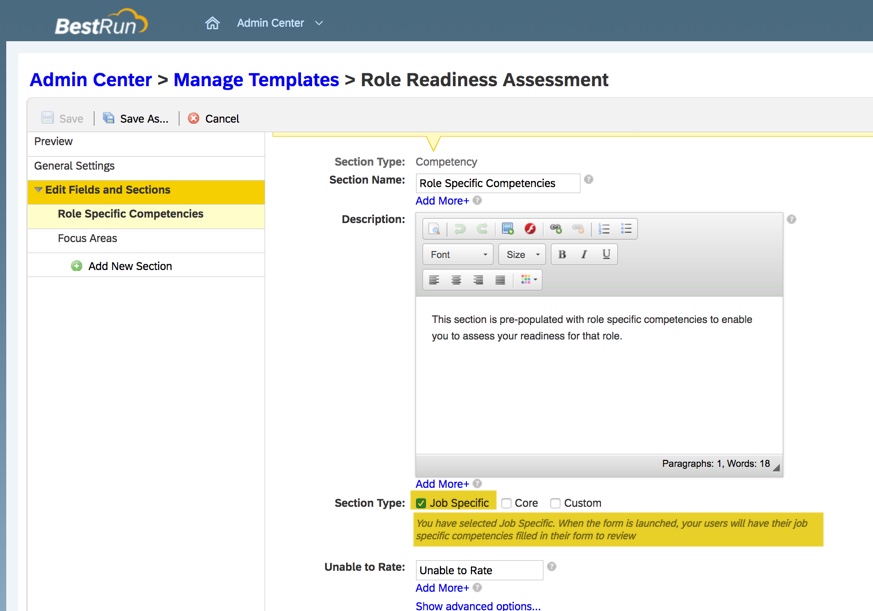
    The form should be configured to auto-populate all of the competencies for the role. The form template should show that the competencies are job specific.

    To use job specific competencies in form

    This can be set in the template in the instance by selecting Job Specific.

    Selecting Job Specific Competencies to appear on the form
    Ratings Calculation

    Role readiness may be calculated in one of two ways:

    • Summing up the number of competencies for the role
    • Averaging out the competency readiness
    Summing

    Role readiness can be calculated as the percentage ratio between employees’ ready competencies and the total of required competencies for the role. Each expected rating met is worth a full point and each rating not met is worth zero.

    The calculation would look like this:

    (number of competencies the employee is ready for)/(total number of required competencies) * 100%.

    To be “ready” for a competency, the system checks the employee’s current rating and the expected rating. If the current rating is equal to or greater than the expected rating, the employee is considered ready for this competency. The competency is then assigned a value of 1.

    The system will then count up all the “ready” competencies to use in the calculation.

    Here is an example. The targeted role has 5 competencies, each with an expected rating of 4. The employee has competency ratings below the expected ratings for 3 of the 5 competencies. The equation would be: (2/5) * 100%. The readiness for the role would be 40%. This percentage would appear on the readiness meter for the role on the Career Worksheet once the form is completed.

    Averaging

    A new option introduced in 2018 is a proportional calculation in which each competency rating is weighted as a percentage of the expected rating. A readiness score calculated proportionally may be more accurate in showing how close an employee is to full role readiness.

    In this method, the readiness for each competency is determined and then an average is calculated for the role readiness percentage.

    The system identifies readiness for each competency:

    • 100% for any current rating that meets or exceeds the expected rating.
    • 0% for no current rating for competency
    • 0 for no expected competency rating
    • when current rating is less than the expected rating, readiness is determined by calculation: (current rating – lowest rating in scale)/(expected rating – lowest rating in scale) * 100%

    Once a percent readiness is determined for the role, the percentages are tallied. The sum is then divided by the total of competencies for the role.

    To use the average calculation method, the Career Worksheet XML must contain the following switch:

    <switch for=”new-role-readiness-calculation” value=”on”/>

    If no switch configuration is added, the default calculation for role readiness is summing.

    Display Targeted Role Name in Title of Role Readiness Assessment form

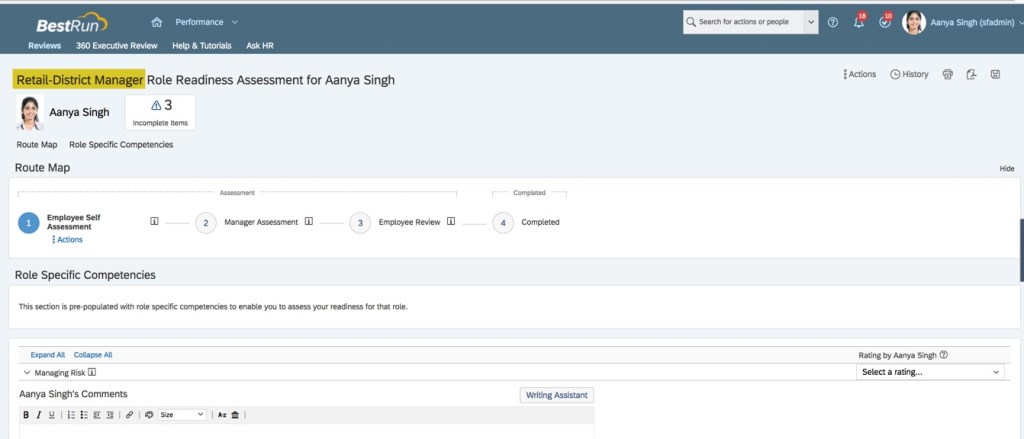
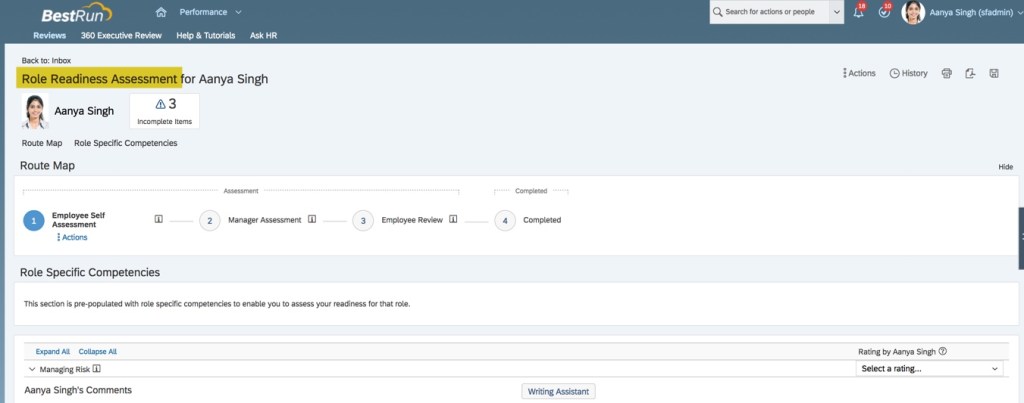
    The title of the self-assessment form contains the targeted role name.

    Form with targeted role name in title

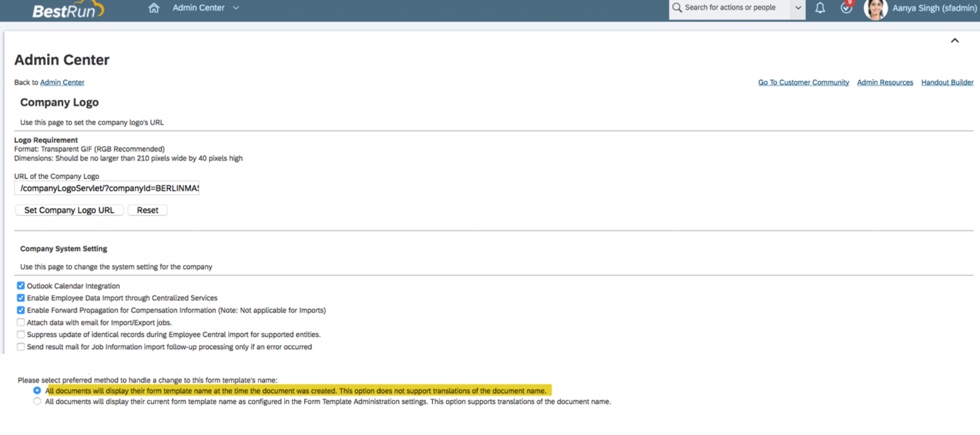
    This occurs when the Company System and Logo Settings have “All documents will display their form template name at the time the document was created.” enabled. This option does not support translations of the document name.

    Setting for role name on form

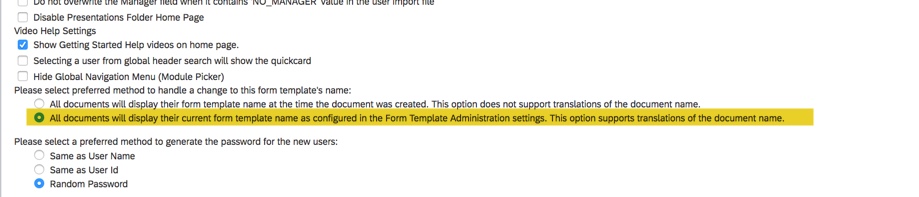
    If “All documents will display their current form template name as configured in the Form Administration settings. This option supports translations of the document name.” is enabled, the form will not contain the target role name.

    Setting to omit role name on form

    When form is run with this setting, the targeted title is omitted.

    Form without role name displayed in title
    Troubleshooting: Evaluate your readiness link not appearing on Career Worksheet

    After setting up the Role Readiness Assessment template the Evaluate your readiness link is not visible on the Career Worksheet. Here are some possible reasons for not seeing the link:

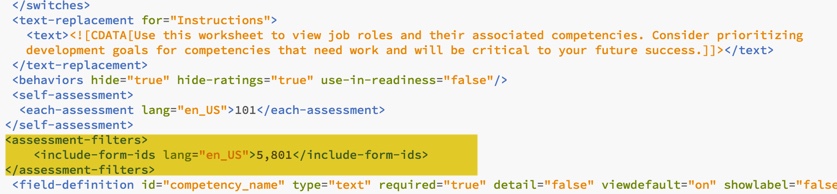
    • The Role Readiness Assessment form has not been configured in the Career Worksheet template (it needs to be configured for each locale). In order for the link from the Career Worksheet to the Role Readiness Assessment to work, the readiness form template ID must be identified in the Career Worksheet XML.
    • Employee role does not have the “Performance Management Access” permission in RBP and/or does not have “Permission to Create Forms” for the assessment template that was configured.
    • Proxying as the employee and trying to launch the Role Readiness Assessment form. This is a self-assessment function and the action is not supported by proxy feature. So, the “Evaluate your Readiness” link will only appear to the logged-in user directly (it will not appear if you are proxying as the user).
    Tag for Role Readiness Assessment template

    When the form is used in multiple languages, there needs to be one entry for each.

    Troubleshooting: Role Readiness Percentages Not Appearing on Career Worksheet

    Once the Role Readiness Assessment is complete, the role readiness percentages should appear for each targeted role. If the percentages do not appear, make sure the same rating scale is used for the Role Readiness Assessment and the Career Worksheet.

    Readiness Scale referenced in Career Worksheet XML

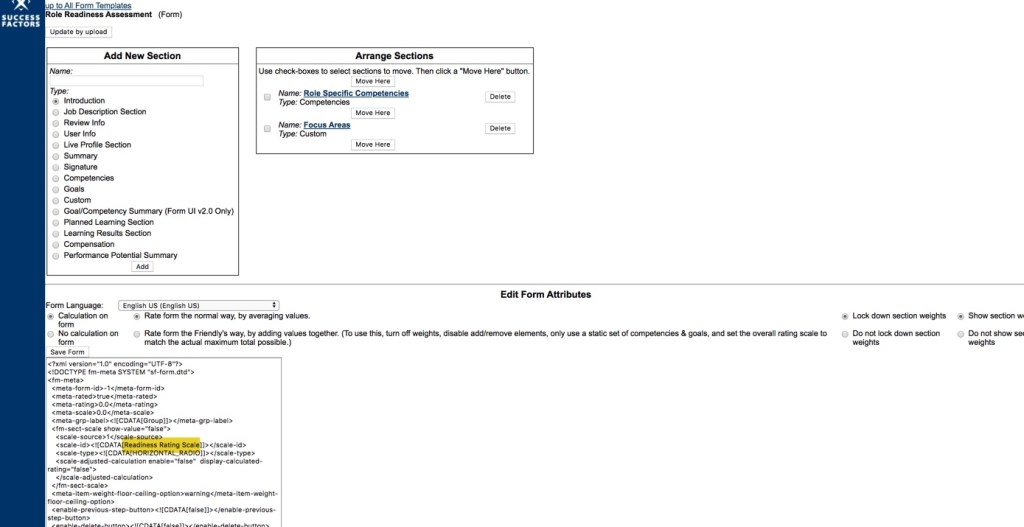
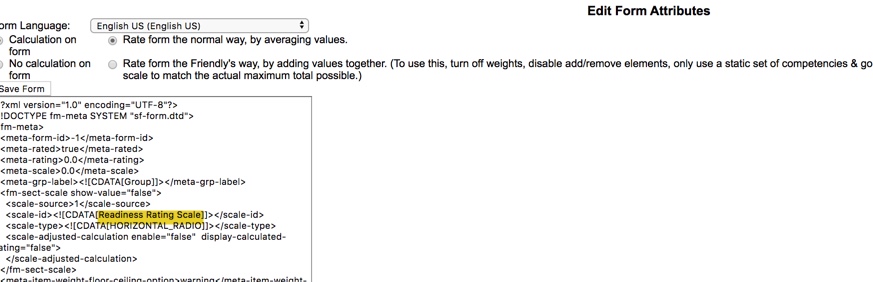
    Make sure the rating scale referenced in the career worksheet XML is the same as the role readiness template rating scale. Otherwise, once role readiness form is done, the percentages will not display.

    Readiness Scale referenced in Role Readiness Assessment XML
    Launching Role Readiness Assessment for Current Role

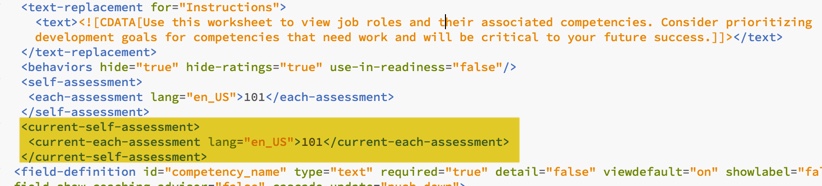
    The Career Worksheet XML can be configured to allow employees to launch the Role Readiness Assessment form for their current role. This is accomplished with the following switch added to the Career Worksheet XML.

    <switch for=”show-self-assessment-in-current-role-tab” value=”on”/>

    Switch to allow form to launch for current role

    Create a current-self-assessment tag making sure to identify the form to use.

    Tag to identify form to open

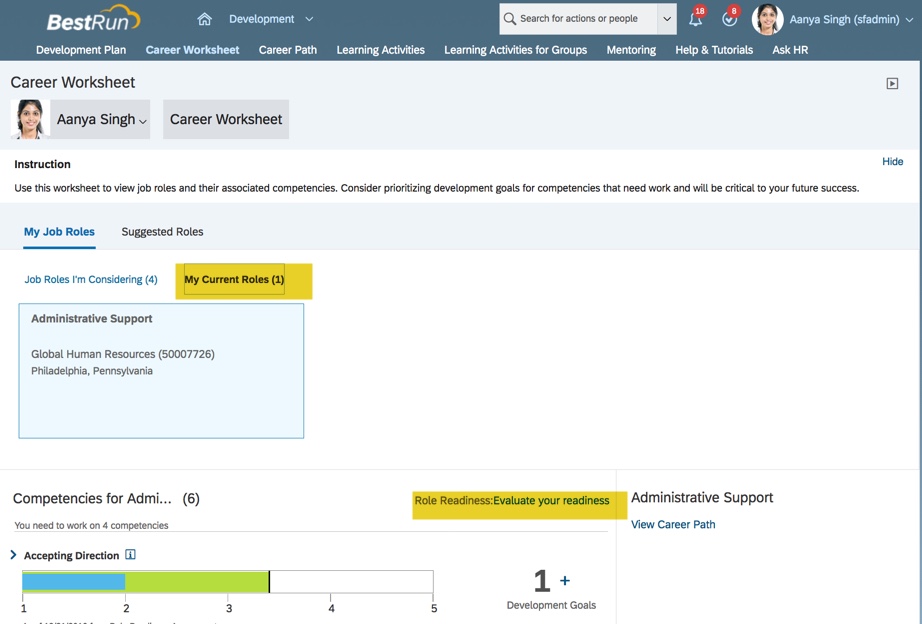
    After the updated Career Worksheet XML is imported in Provisioning, the Current Roles tab will contain a link to evaluate readiness.

    Current Roles tab now has link to evaluate readiness

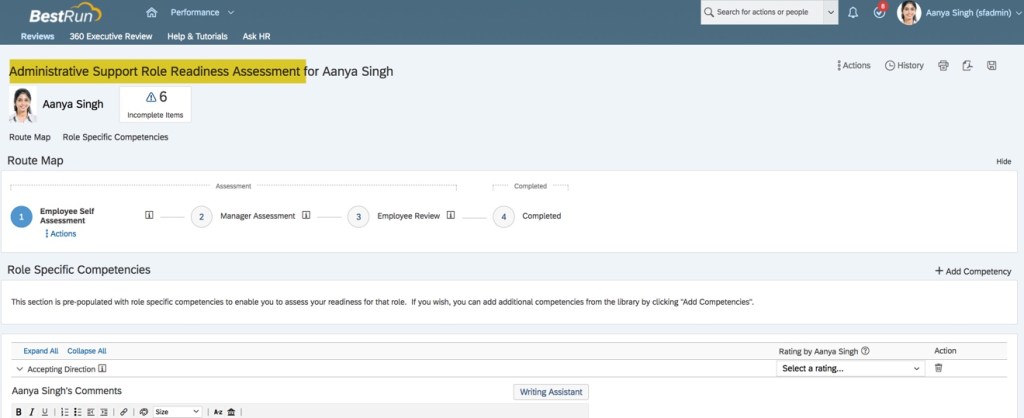
    Click the link to open the form for the current role.
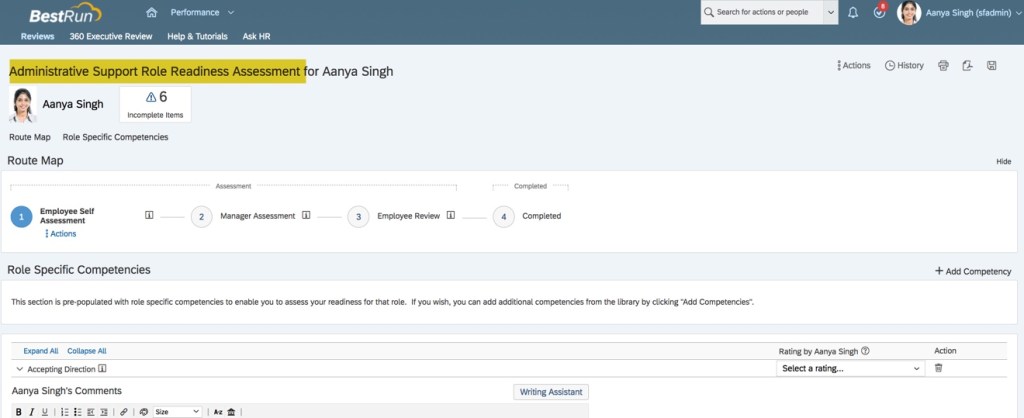
    Role Readiness Assessment for Current Role

    Some final reminders

    • Competency ratings are not differentiated by role; if current and targeted role share a competency, rating will apply to both.
    • Do not calculate an overall performance rating with the form.
    • If a competency is defined in a specific language but the employee signs into the system in a different language, that competency will not appear in the form.
    • Competency ratings are not differentiated by role; if current and targeted role share a competency, rating will apply to both roles.
    • When employees open the Career Worksheet, the role readiness shown in the worksheet is always calculated based on the latest ratings.
    • Route the form to the manager for a final rating, do not have the employee enter the rating of record.
    • Only ratings from completed forms are displayed in the Career Worksheet.

    Do you need help setting up the Role Readiness form or your SuccessFactors Career Development Implementation? Contact us at: info@worklogix.com

  • Using Role Readiness within SAP SuccessFactor’s Career Worksheet

    Employees are empowered to manage their career through the use of the SuccessFactors Career Worksheet. The Career Worksheet is a component of the Career Development module which allows employees to view details about job roles that interest them, see the role’s associated competencies and select any as targeted or future roles.

    Career Worksheet prior to selecting targeted roles

    When Job Profile Builder (JPB) is enabled and job profiles are defined, a switch may be set so that the Career Worksheet syncs with JPB. The sync enables role details from JPB to be used in the Career Worksheet.
    How does the Career Worksheet work?

    Employees may identify roles or career paths they may be interested in. They may the view details about job roles, including the associated competencies. This will enable the employee to gain an understanding of the development effort required to move into these roles.

    After the employee selects a job role that they are interested in, there is link on the Career Worksheet to a form that evaluates their readiness for the role. The form measures the readiness by the rating the competencies associated with the target role, not the competencies of the employee’s current role.
    The results of the role readiness form help employees plan their career development. By adding roles they are considering to Career Worksheet, they can track and measure their development to prepare themselves for the future roles and responsibilities.

    The Career Worksheet also provides a competency gap analysis so the employee can see areas they need to work on in order to be ready to move into the role.   This enables them to create development goals to help them attain the needed competencies to progress.

    The Career Worksheet may also include a readiness meter based on a readiness calculation which computes a competency match score which compares the em­ployee’s competency rating with the ex­pected ratings for the role. This percentage shows how ready an employee is for a targeted role.

    Components of the Career Worksheet

    Worksheet tabs

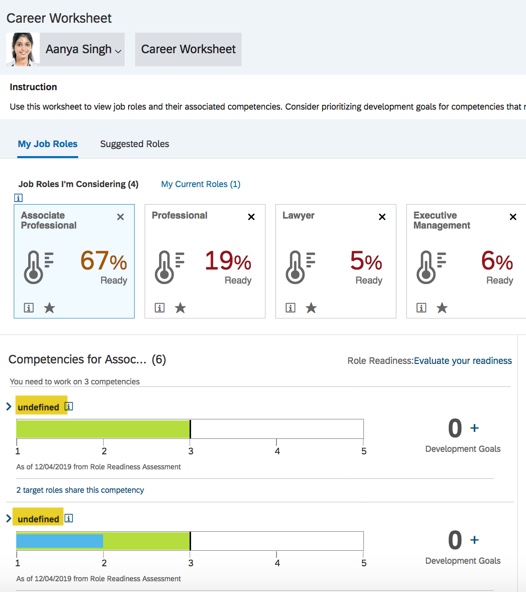
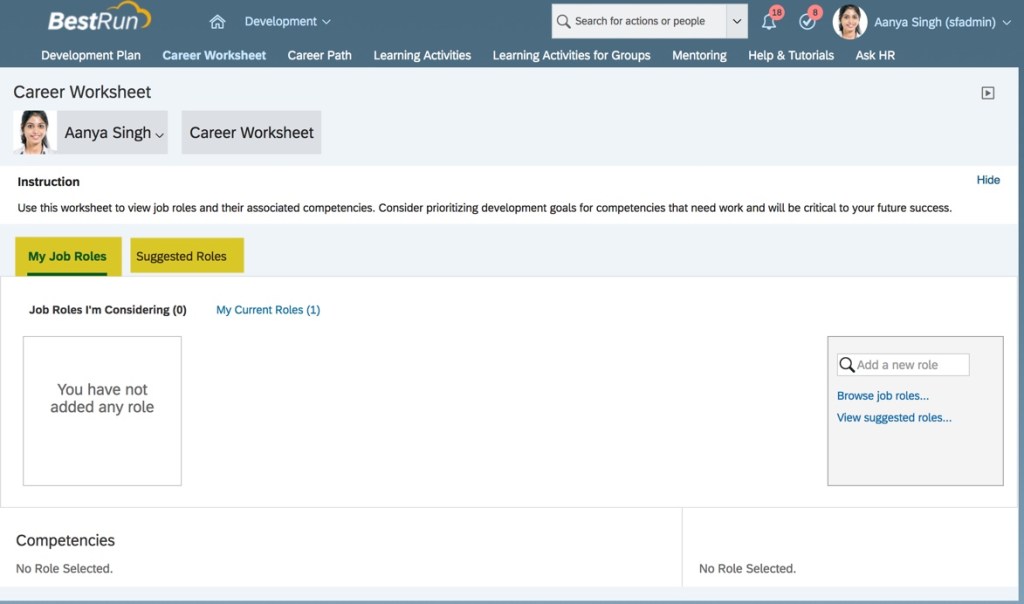
    The Career Worksheet contains two tabs:  My Job Roles and Suggested Roles.

    My Job Roles tab

    My Job Roles tab contains two sub-tabs:  Job Roles I’m Considering and My Current Roles.

    Each sub-tab label includes a job role count.

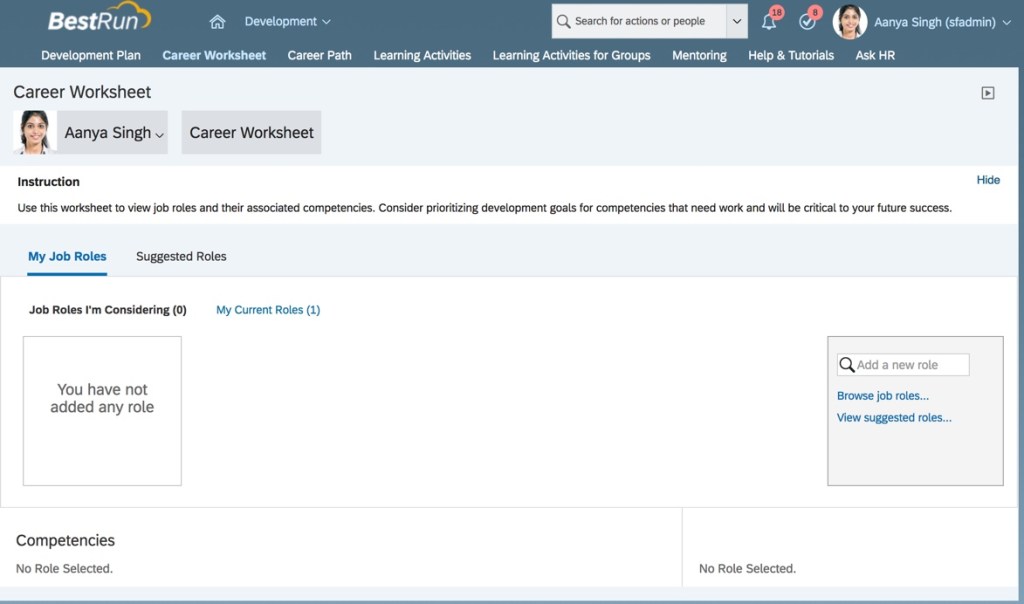
    The Job Roles I’m Considering tab displays a job role count of zero until job roles are selected. This sub-tab will not contain any data or competencies until the employee selects any future targeted role(s).

    Job Roles I’m Considering sub-tab contains no roles or competencies prior to selecting targeted roles

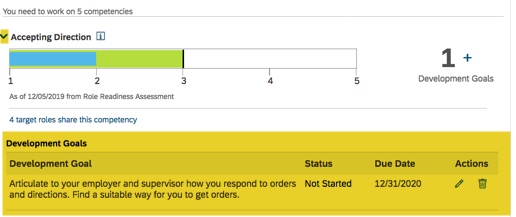
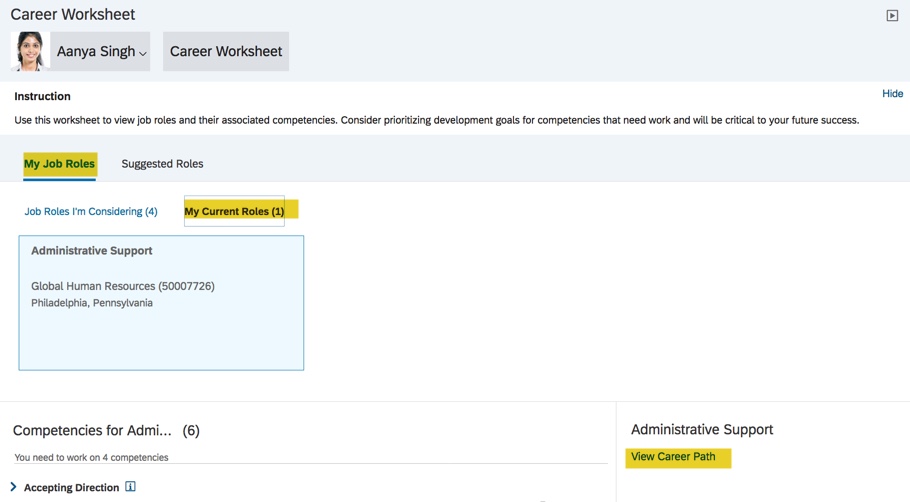
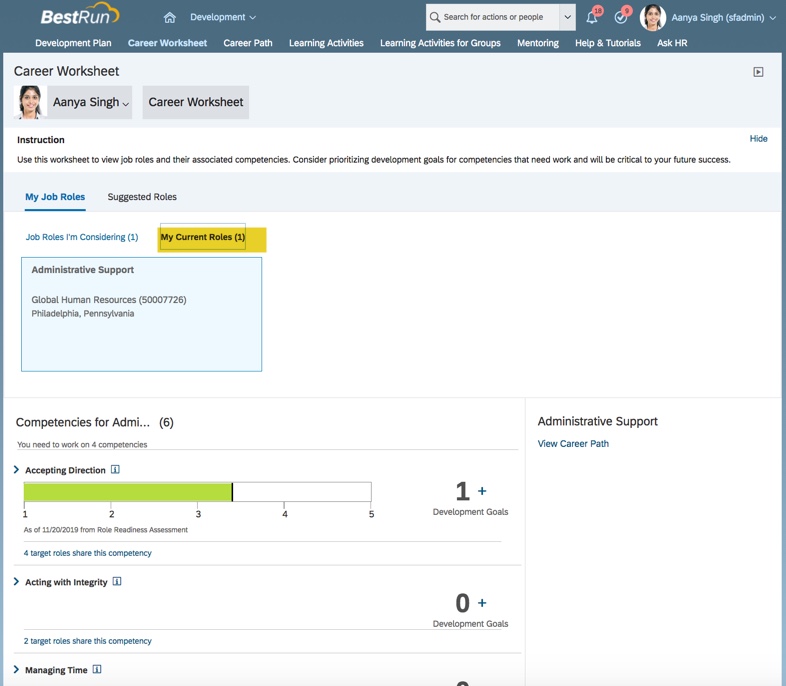
    The My Current Roles sub-tab displays the employee’s current role and the competencies and any development goals associated with each competency.

    Competencies associated with current role
    Job Roles I’m Considering sub-tab

    The employee may browse all job roles or the system generated suggested roles.

    Employee may search for job roles

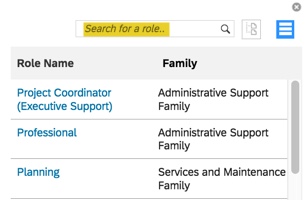
    Click on Browse job roles… to see roles organized by job family. The employee may select multiple roles as target roles.

    Select roles

    To select targeted roles from the My Job Roles tab, click on View suggested roles…
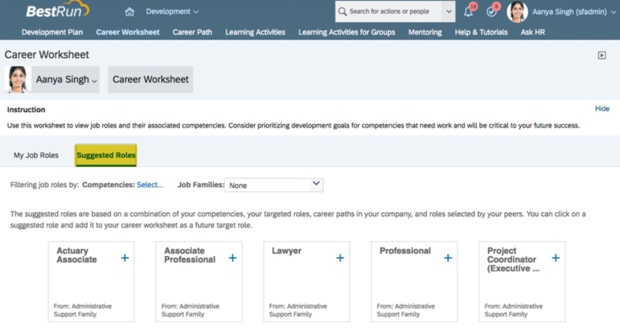
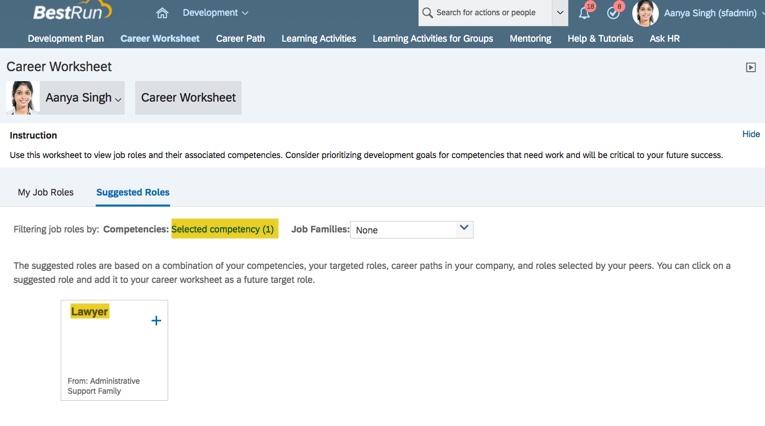
    The Suggested Roles tab will display.

    All suggested roles for an employee

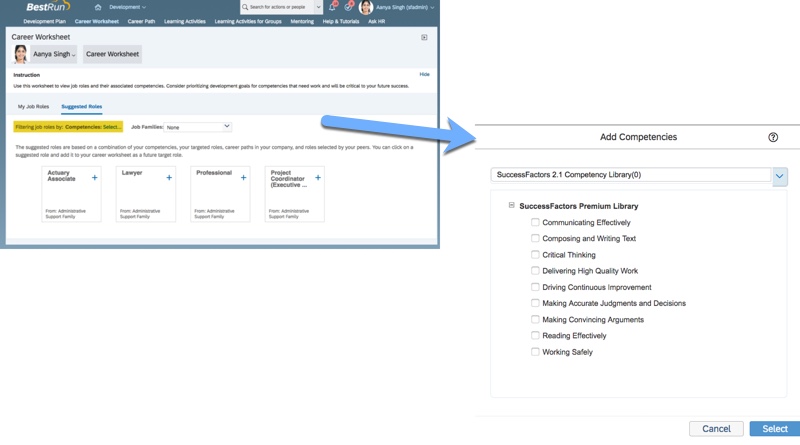
    If filtering is enabled, the employee may select the job family or specific competencies to find roles for.

    Selection of competencies to filter by

    This filter will cause the suggested roles to display only the roles that contain the selected competency.

    Suggested roles based on selected competency

    The other method to see the suggested roles is to go directly to the Suggested Roles tab on the Career Worksheet. This tab will be discussed later in detail.

    My Current Roles sub-tab

    The My Current Roles sub-tab displays the employee’s current role and the competencies and any development goals associated with each competency.

    The competencies mapped to roles are the only sources of competencies used on the Career Worksheet. This is where the job profile builder comes into play. The components of the job role from Job Profile Builder are pulled into the Career Worksheet. The roles seen on the worksheet are linked to a job code (job classification) where the competencies are mapped.

    Competencies for a role come from the mapped competencies of a role in JPB

    Any existing development goals linked to the competency are included along with the development goal count. There is also an option to add development goals to the role’s competency.

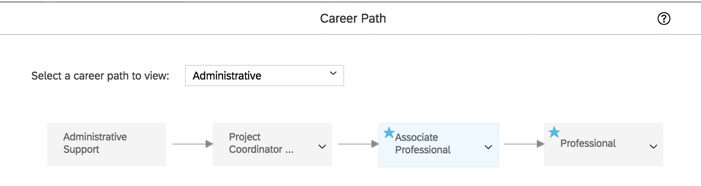
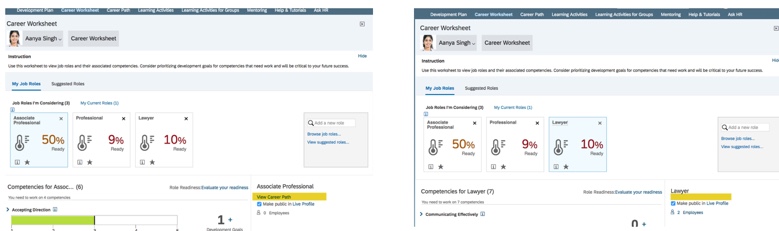
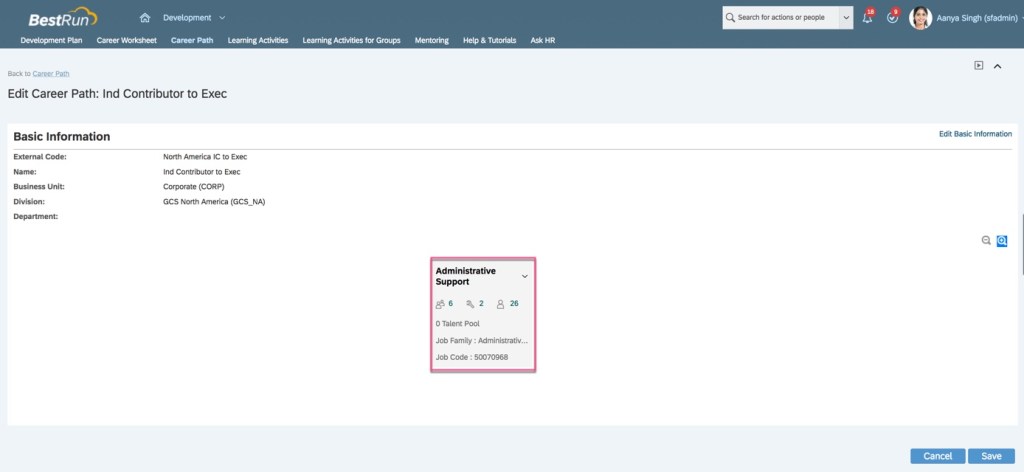
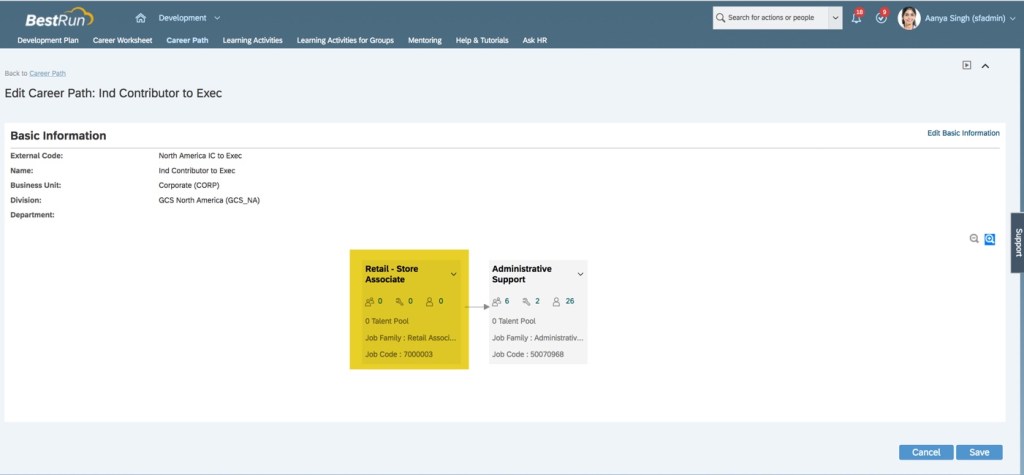
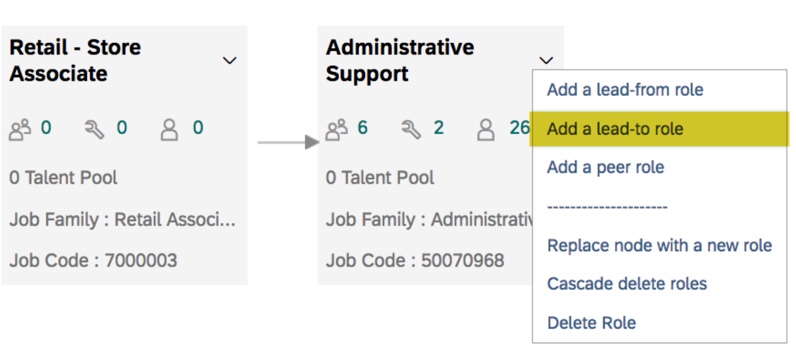
    If the current role has a career path, it may be viewed on the My Current Roles tab. This is a graphical representation of the progressive roles an employee may hold as they grow within the organization.

    Career Path for current role may be viewed from My Current Roles sub-tab

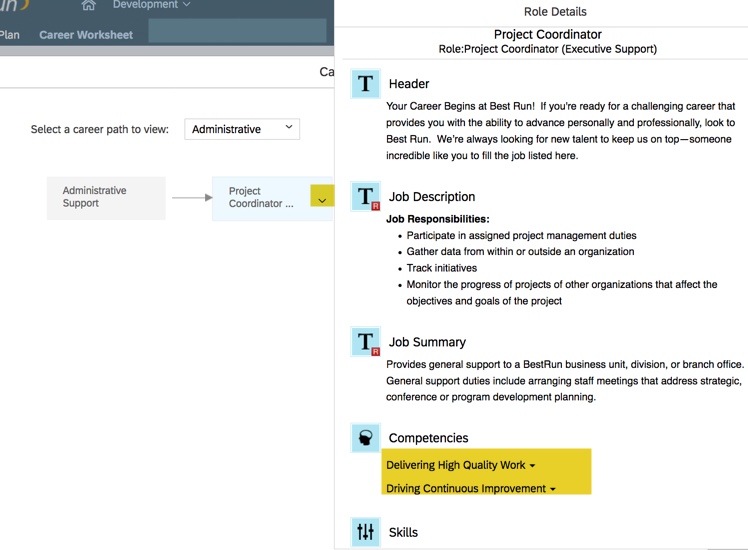
    Any role within the career path may be viewed to see the job profile which contains the role description and competencies for the role.

    My Current Roles sub-tab displays all competencies associated with the role
    Job profile for a role with all of its components
    Suggested Roles tab

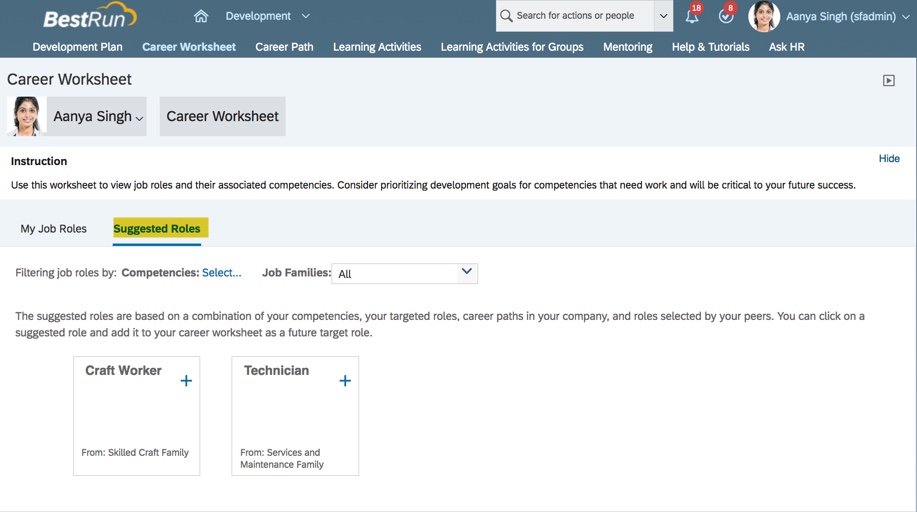
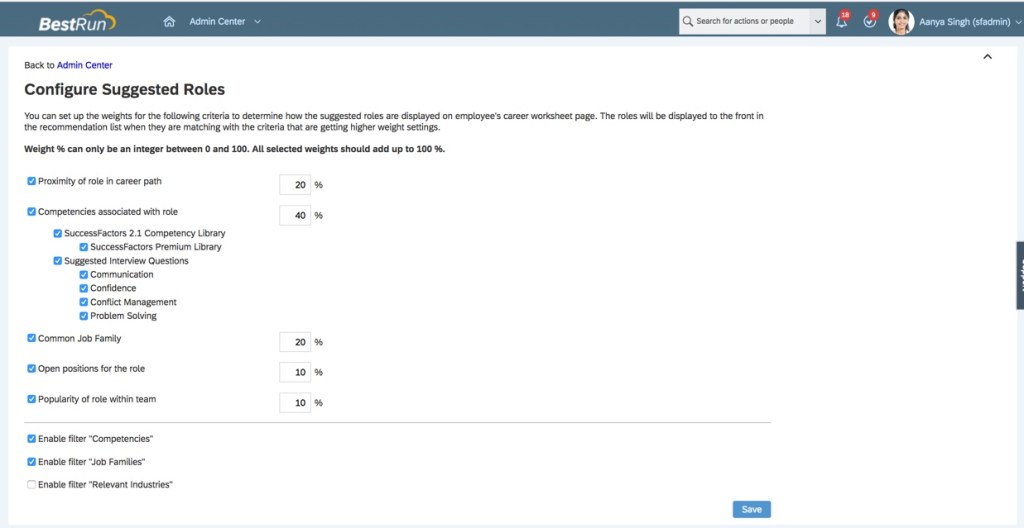
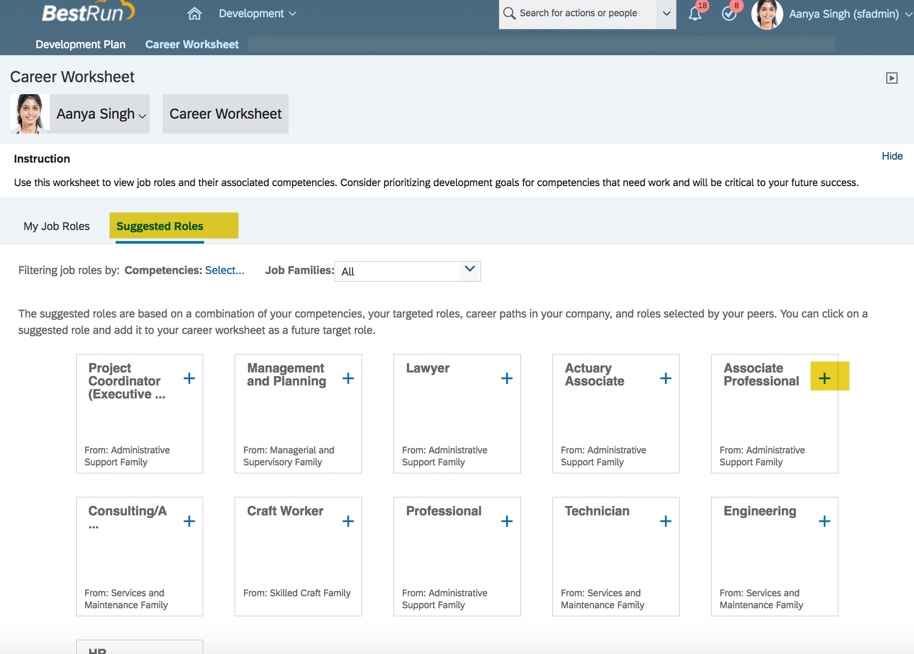
    The suggested roles are based on configured criteria. The system utilizes an algorithm to produce the list of suggested roles and calculates a score for the role based on proximity in Career Path, Competency, Job Family, Open Positions and Popularity within team.

    View of Suggested Roles tab
    Add a Targeted Role

    Employees may click on a suggested role and add it to their career worksheet as a future targeted role.

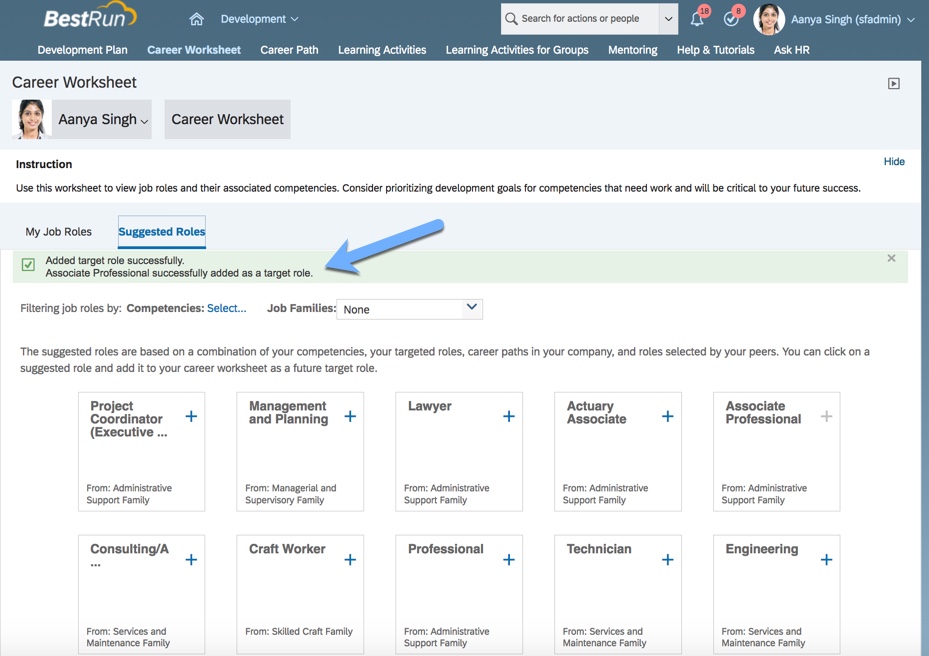
    Within the Suggested Roles tab, clicking on the plus sign for a role to add it as a target role.

    Clicking plus sign for a role will add it as a targeted role

    Once selected, a message displays that the role has successfully added as a target role.

    Role has been added as a target role

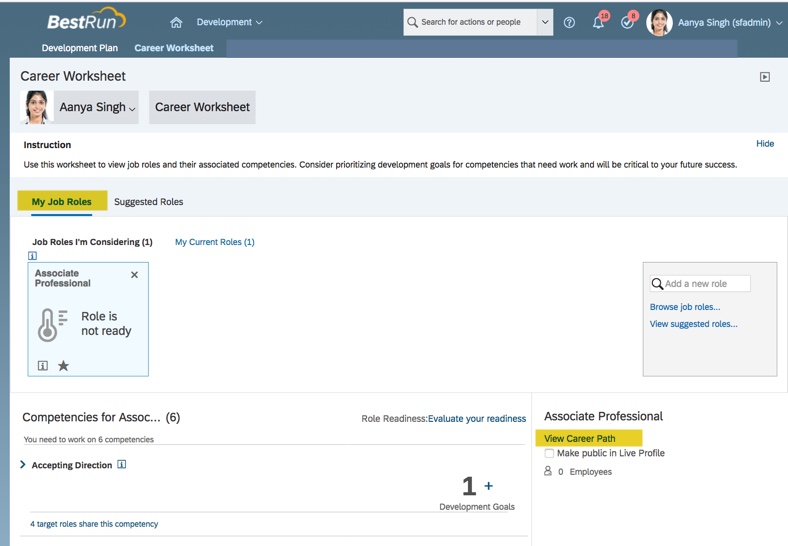
    A targeted or future role will be seen on the My Job Roles tab, Job Roles I’m Considering sub-tab.  The competencies associated with the role are listed as well.  If the employee’s current role contains any of the same competencies and they have a development goal linked to a competency the development count will also be listed.

    Roles under consideration

    It is also possible to view the career path for any roles under consideration. Within the career path, a role may be selected to add as targeted role.

    May view career path for a role under consideration

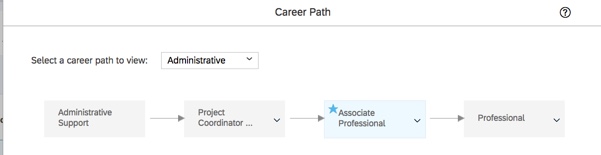
    The career path for the job role displays. The job role in the career path is highlighted and starred.

    Entire career path of targeted role displays

    Any role within the path may be selected as a targeted role.

    Once selected, the targeted role appears on the Career Worksheet as a Role I’m Considering sub-tab within the My Job Roles tab.

    Targeted Roles Icons

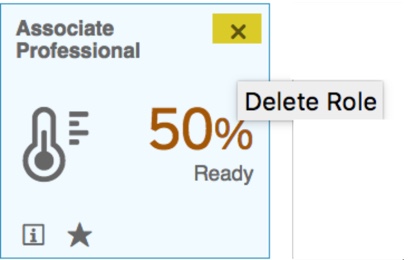
    Once a target role in selected, on the Job Roles I’m Considering sub-tab, an Information icon will be visible and will provide instruction on how to navigate through the selected roles and add or delete roles.

    Contents of Information icon

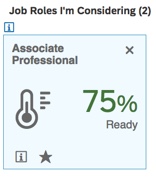
    Each targeted role will have a Readiness meter along with up to 3 icons:  Role Details, Make this the default target role and Add New Learning Activity.

    Note:  if LMS is not used or not linked to the development module, the learning activity icon will not be present.

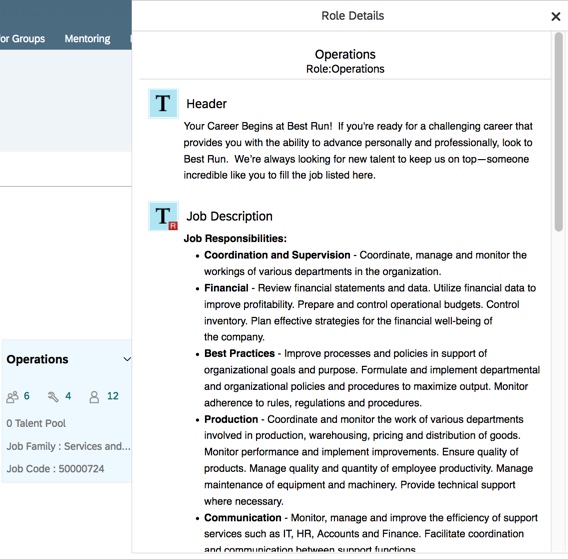
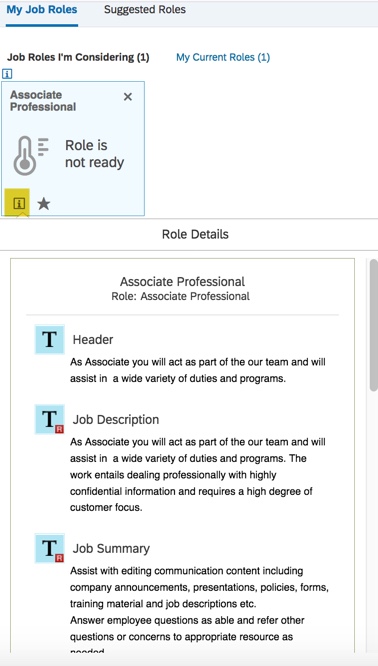
    Click the Role Details icon to see the job profile associated with the role. The contents of the job profile may include the role description, competencies, minimum requirements, education, certifications, and job responsibilities.

    Role details will display

    Clicking the star icon will make this the default target role.

    Click star icon to make the targeted role the default

    After choosing any additional job roles, selected targeted roles will display on the Job Roles I’m Considering sub-tab. Until a role readiness form is completed, the readiness meter will show that the role is not ready.

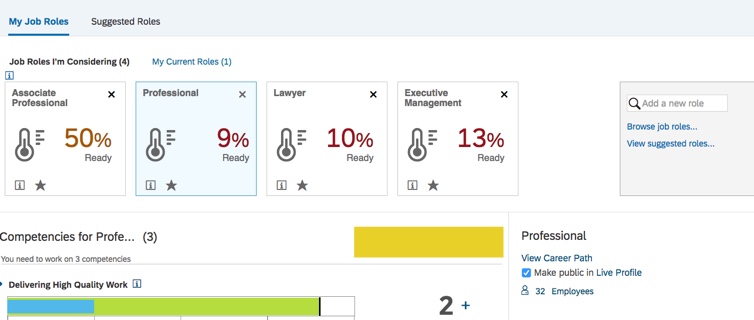
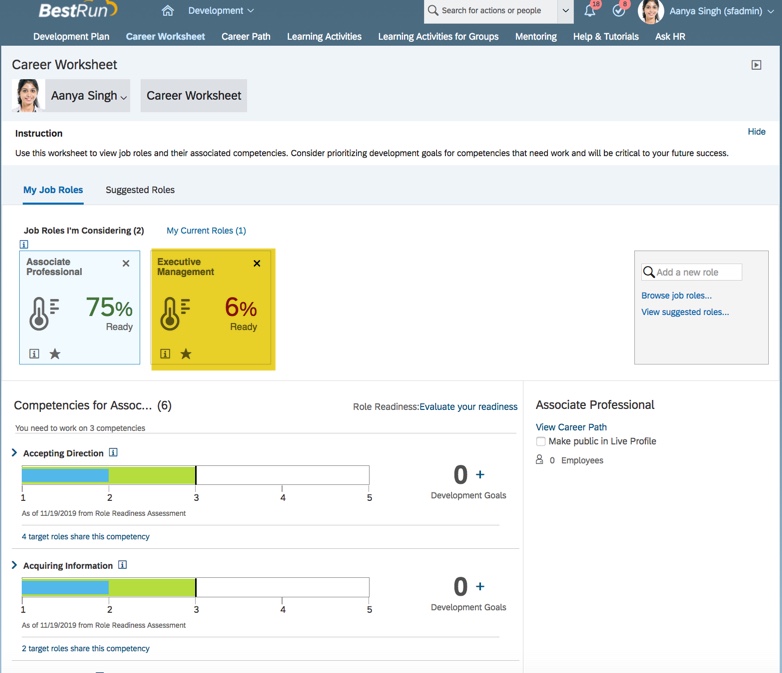
    Readiness Meters for targeted roles prior to evaluating readiness
    Role Readiness

    An important component of the Career Worksheet is the Role Readiness Assessment form.  The form creates metrics that help employees plan their career development. When the employee adds roles they are considering to the Career Worksheet, they can launch the form.  The form enables employees to review the targeted role’s competencies and rate their proficiency to determine their readiness for the role. This allows them to identify the competency gaps for the target position or future role so that know what areas they need to work on. They can track and measure their development to prepare themselves for the future roles and responsibilities.

    A few notes about the Role Readiness Assessment form
    • Only employees can launch the assessment form for their targeted role.
    • It is not possible to launch the form when proxied as another user.
    • There is a link within the worksheet that opens the role readiness self-assessment form, bypassing the usual form creation steps.
    • The form will auto-populate all of the competencies for the role.
    • The system uses the Career Worksheet readiness cal­culation to compute a competency match score which compares the em­ployee’s competency rating with the ex­pected rating for the role.
    • Any other targeted roles that contain the same competencies will have the Readiness Meter updated after the form is completed.
    • Once the form is complete, the updated ratings are used in the Career Worksheet to show the role readiness.
    • The employee may relaunch the form as many times as they like and each time the readiness will be recalculated.

    Launching the form

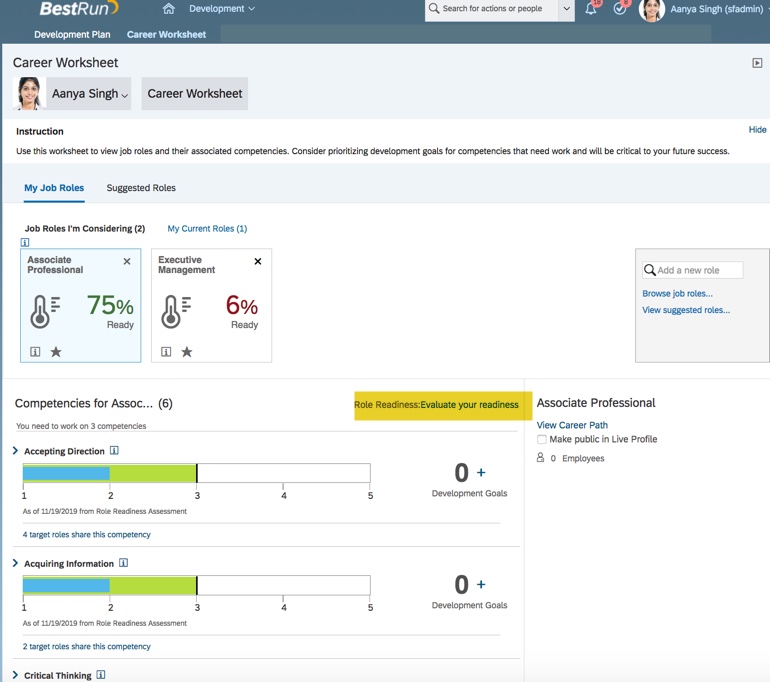
    The form is launched when the employee selects a targeted role from the Job Roles I’m Considering sub-tab on the My Job Roles tab and then clicks on Evaluate your readiness.

    The employee will rate themselves on the competencies needed for the future role. These are the competencies that are mapped to the targeted role.

    Ratings for each competency will be required with optional comments for each.  Upon completion, form goes to their manager for their assessment of the employee’s mastery of the needed competencies.

    Form as seen in the Manager Assessment step.

    The Manager will get form in their inbox and will need to rate each competency, add optional comments for each competency and provide comments for areas to focus on.  The ratings and comments from the employee will be visible.

    After the manager step is complete, the form may go back to the employee to view and submit to completion. NOTE: this is based on the steps from the standard Role Readiness form template.

    The completed form will appear in the employee and manager’s completed folder. 

    Both manager and employee will have copy of completed form in their performance forms folder

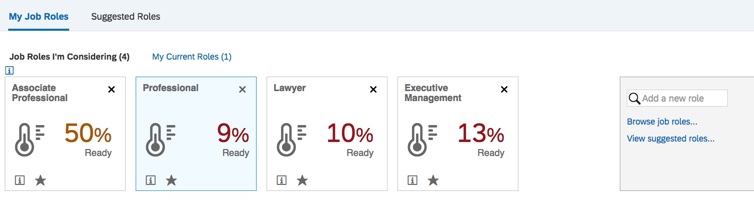
    When the employee goes back into the Career Worksheet, the readiness meter for the role that the employee is considering will now contain a percentage. This percentage represents how ready they are for the role based on their competency ratings against the expected ratings for the role.

    Readiness meter once Role Readiness form is completed
    Readiness Meter

    The Career Worksheet calculates employee readiness for a role by evaluating the employee’s rated competencies for the future role.

    The competencies for a role are configured to determine the expected rating. An employee’s readiness for the role depends on the form’s rating of the competencies against the expected ratings.

    By default, the system uses the latest rating information in the system. The admin may also configure to specify a form or a couple of forms as the source of the existing ratings.

    Readiness Meter for Targeted Role
    Role Competency Expected Ratings

    Competency mappings to roles are the sole source of competencies listed on the career worksheet. And only ratings from completed forms are displayed in the career worksheet.

    Gaps are calculated using the expected rating from Families and Roles.  Since expected ratings can vary by role, the same competency might display different gap values for different roles.   The admin may define default weights and/or the ratings expected based on the job role.

    The form can be generated again whenever Evaluate your readiness displays on the Career Worksheet. It may be relaunched again and again for the same targeted or any other roles under consideration.

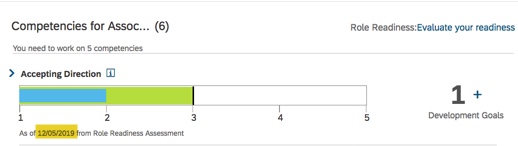
    Any additional forms that are completed will then recalculate the readiness meter based on the new ratings.  It is also possible to add more roles to consider and run the form for the new roles.   There will be a date that shows when the role assessment form was last run so you know when the readiness was calculated.  The meter always uses the most recent role readiness ratings.

    If any of the roles being considered have mutual competencies, the readiness meter will populate for all of them.

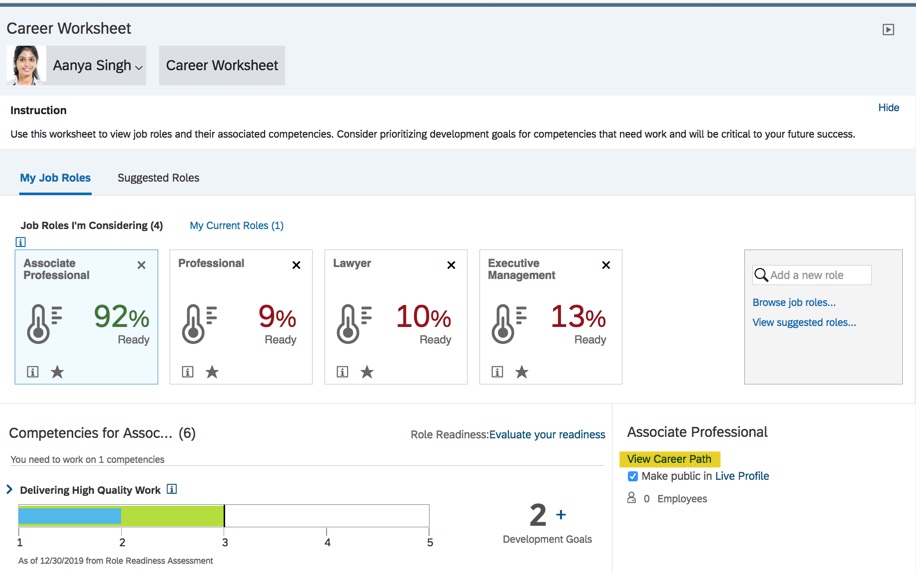
    Role Readiness form completed for Associate Professional role but any other roles under consideration have readiness calculated as well.
    Gap Graph

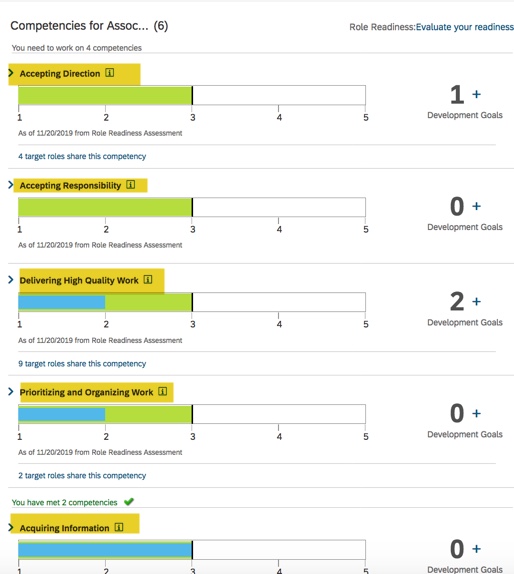
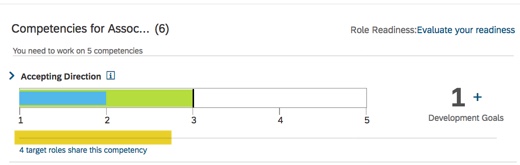
    On the Career Worksheet, the gap graph shows the rating for each competency based on the form ratings and what the expected rating is.  There is a gap analysis for each competency, comparing the last rating of record specified for the employee with the expected rating for that role.

    The blue line in the graph represents the form rating score and the green line represents the expected rating. If the form rating matches the expected rating, the competency is considered “met”.

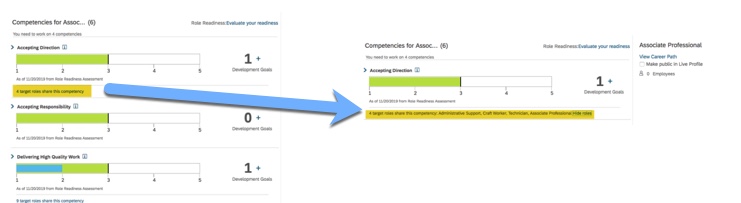
    For each of the role’s competencies, there will be a count of the roles that also have this competency linked to it. This can be expanded to see the other roles.

    The targeted role competencies that do not meet the expected rating will display first.  These are the competencies that that the employee needs to develop in order to be ready for the role. These will have the green line visible in the graph because the form rating is lower than the expected rating.

    Competencies that have not been met

    These are the competency the employee may wish to add development goal to in order to help them prepare for this role.

    The targeted role competencies that the employee has met will be displayed after the competency that need work. There will be no gap for these competencies because the form rating matches the expected rating.

    Additional Features of the Career Worksheet

    The Career Worksheet has a count of the employees in the targeted role. The list of employees in the role may be displayed.

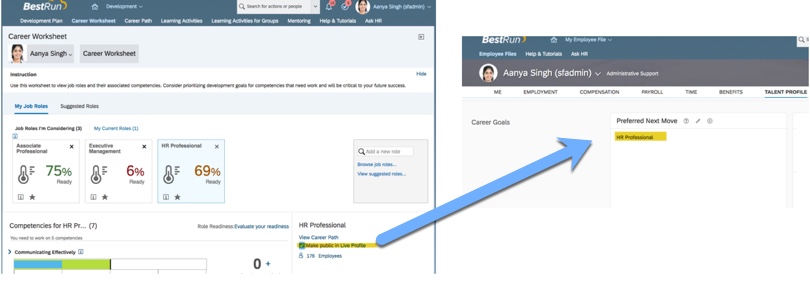
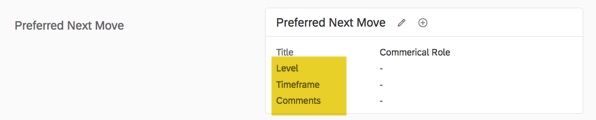
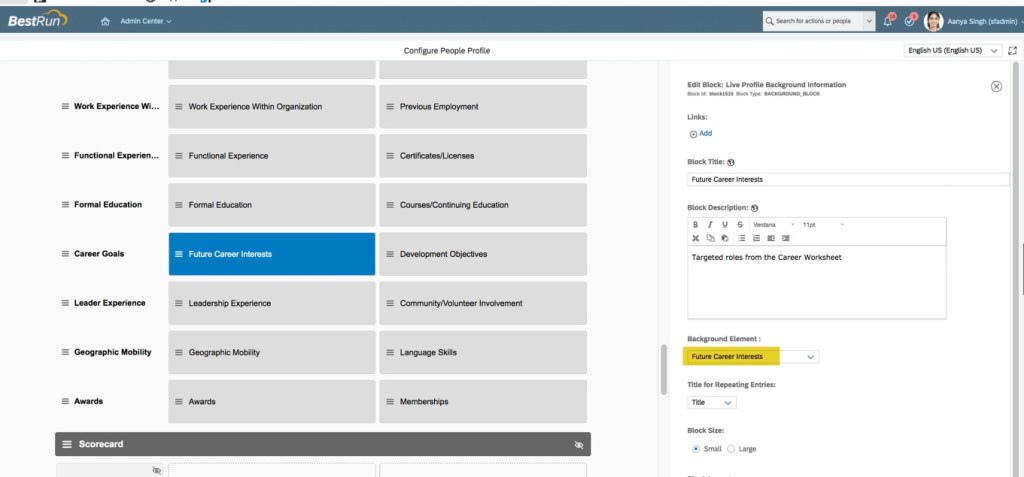
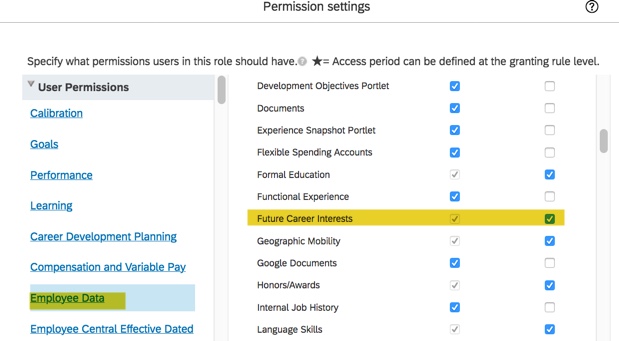
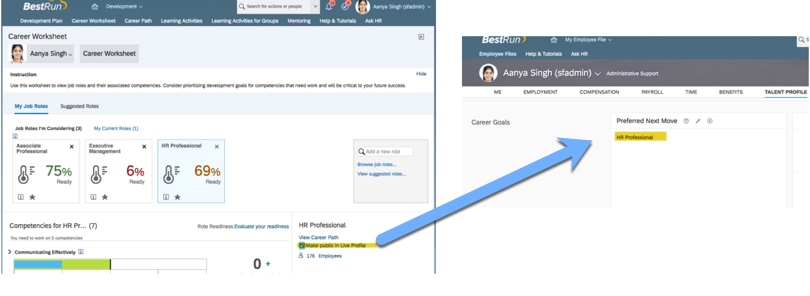
    There is an indicator to set so the preferred next role appears on the profile under Preferred Next Move. Enable checkbox to make the targeted role visible in the employee’s profile. There is a link to go to People Profile.  The targeted role will display as the preferred next move.

    Wrap up

    The Career Worksheet puts power into the hands of the employees so they can take charge of their careers and plan for the future. When Job Profile Builder is enabled, the employee has visibility to roles that will enhance their ability to drive their development and guide their career.

    More to come…

    Look for the next installment to discuss how to set up the Career Worksheet and Role Readiness Assessment form.

    For more information about Role Readiness and other talent management modules in SAP SuccessFactors, check out our book here!

    Need help? Please contact us!

    Worklogix

    Worklogix partners with clients to plan, configure, develop and integrate HR products and custom applications. We have assembled a global team with years of experience implementing HCM solutions. Our team is dedicated to understanding your business challenges, helping you leverage your technology and implement solutions that deliver results.


  • “Ask for Feedback” vs.”Get Feedback” in the SAP SuccessFactors Performance Management Form

    “Ask for Feedback” vs.”Get Feedback” in the SAP SuccessFactors Performance Management Form

    You may wonder if these are just different terms for the same thing.  But these features on the SuccessFactors Performance form serve different purposes and impact the form in different ways. 

    So what’s the difference?

    “Get Feedback”  is a feature allows the manager to send the performance form to someone that is not part of the performance process. This enables the manager to route the form to a specific user to get edits and/or comments directly on the form.

    Ask for Feedback” is a feature that enables the manager to send an email to solicit feedback. The performance form is not sent to the feedback provider, they will just reply to the email with their comments.

    How do they work?

    Both required permissions based on role and route step. A later blog post will detail the configuration needed for both.

    Both require permissions based on role and route step.

    How does the manager “Get Feedback”?
    There are two ways for the manager to “Get Feedback”:

    • Click on the “Get Feedback” button on the bottom of the performance form as shown below to initiate the request.
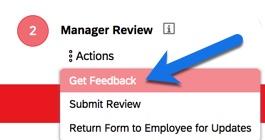
    • Click on Actions for the current step on the Route Map on the performance form to see the options. Select “Get Feedback” as shown below.

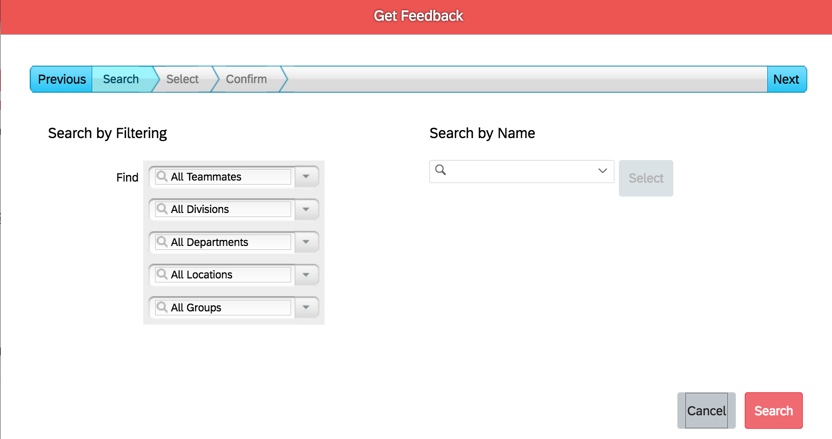
    In either case, a popup like the one below will display and the manager may search for a user.

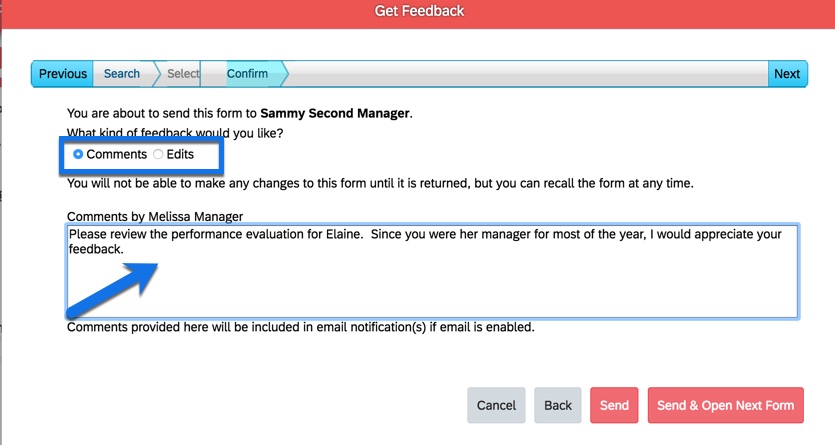
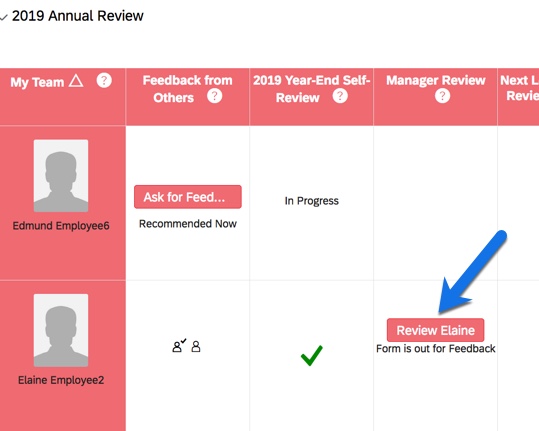
    Once the designated feedback provider is selected, the manager may decide to request edits or comments. Additionally, the manager may opt to add comments to the email that is sent with the request as shown below.

    How does the “Get Feedback” provider get notified? As long as the routing document email notification is enabled, the feedback provider will receive an email similar to the email shown below.

    If the email notification is not enabled, the feedback provider will still see at To Do item in their performance tile on their Home page. Based on the configuration decisions made, once the form is in their inbox, the feedback provider may add ratings and comments to the goals, competency and overall performance sections of the form. Upon completion, the feedback provider submits the form and it goes back into the manager’s inbox to complete the step.

    Can the form be recalled? Yes, it may. While the form is with the feedback provider, the manager may recall the form. On the Team Overview page, the manager may click on the Review button to recall the form.

    A read-only version of the form will then display and at the bottom of the form, the manager will see just one button: Recall Feedback

    After clicking the “Recall Feedback” button, the editable version of the form will display and the manager may send the form to someone else for feedback or complete the form and submit to the next step.

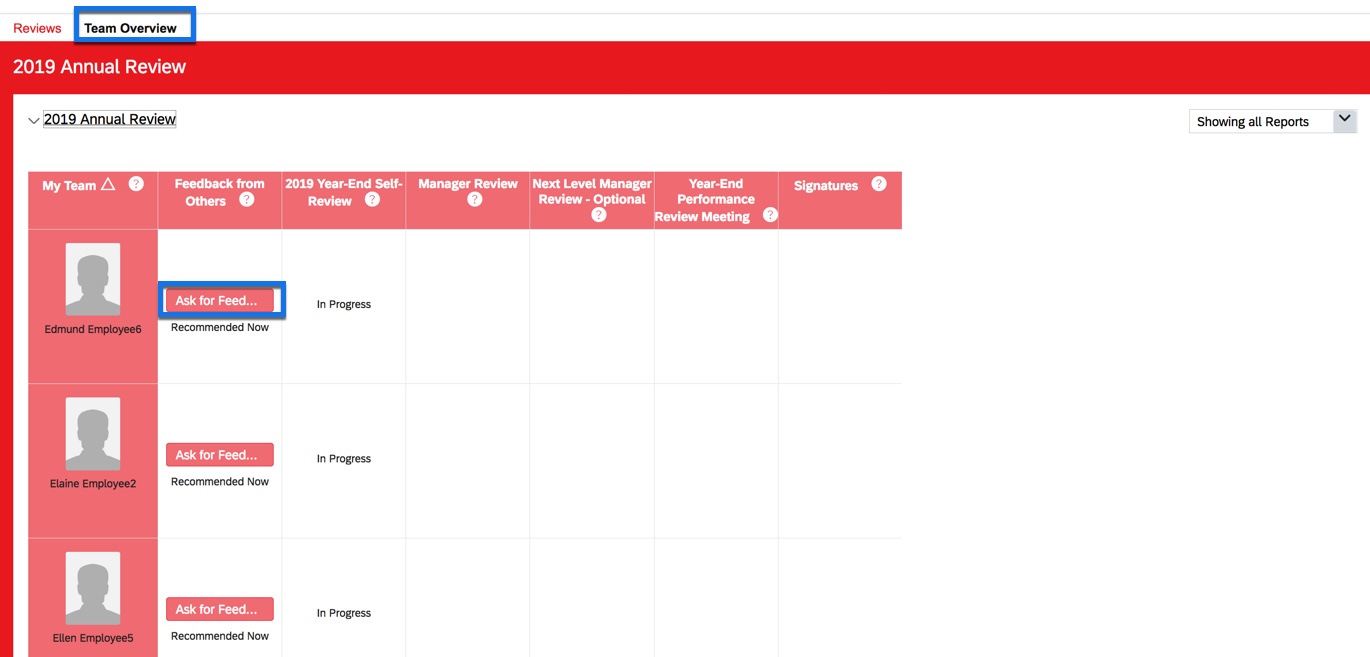
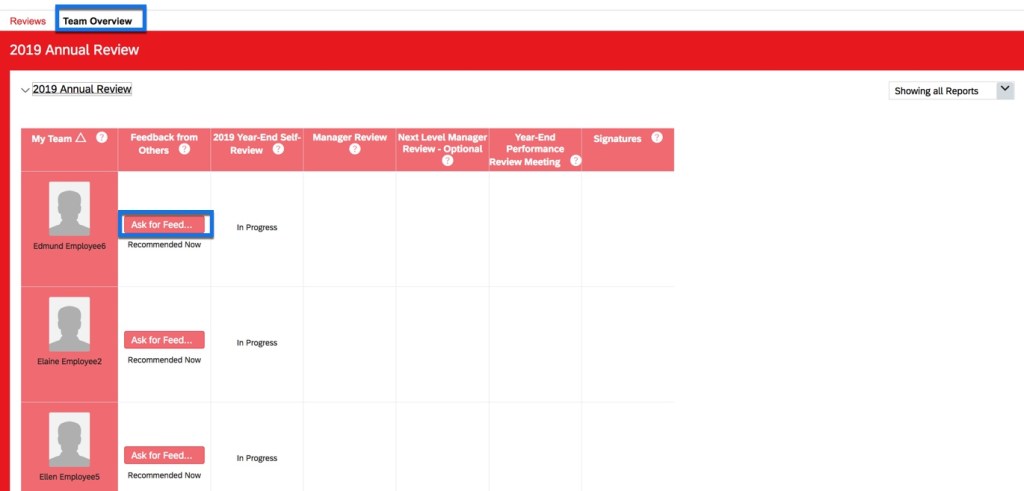
    How does the manager “Ask for Feedback”? The manager asks for feedback via the Team Overview page within Performance. The manager will see all of the launched forms and may opt to ask for feedback for any or all of their team.

    As shown below, the manager may request feedback for any launched forms by clicking “Ask for Feedback”.

    “Ask for Feedback” is initiated within Team Overview

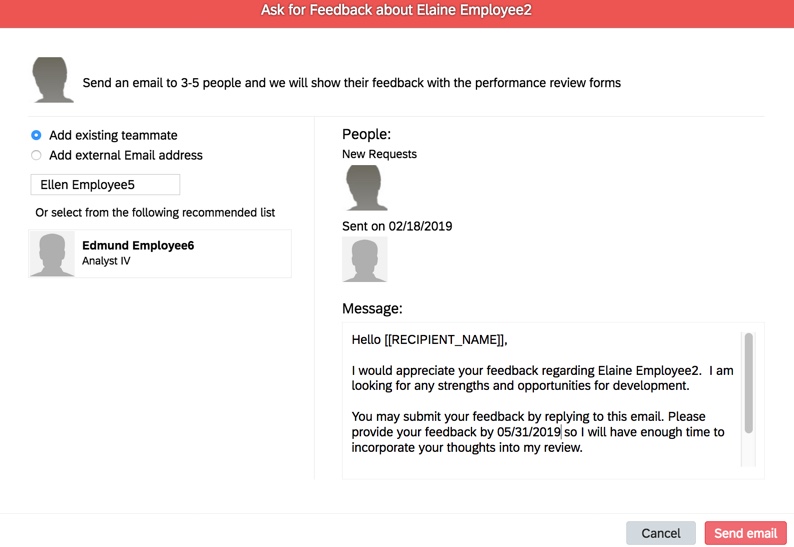
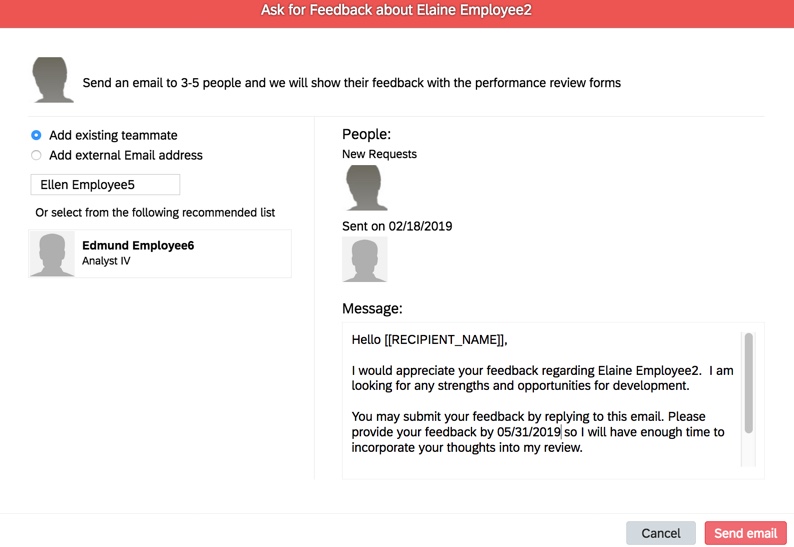
    A popup will display and the manager may select any internal or external feedback provider as long as they have a valid email address. The manager may also modify the default email text before submitting the request as shown below.

    How does the “Ask for Feedback” provider respond?  The feedback  provider will receive an email like the sample shown and will just need to reply back with their comments.

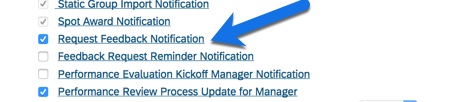
    Which email notification is used for “Ask for Feedback”? In order to ask for feedback, the Feedback Request Notification must be enabled as shown below.

    Where do the “Ask for Feedback” comments go? The “Ask for Feedback” comments are available to view in two locations.

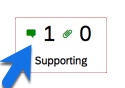
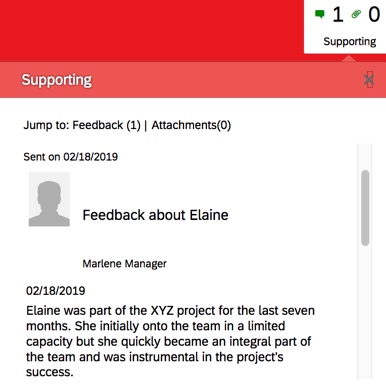
    • Stored within the Supporting Information pod on the performance form.
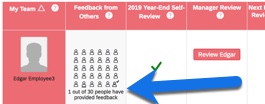
    Pod has indicator to show the number of feedback responses received
    This pod also may be configured to hold attachments

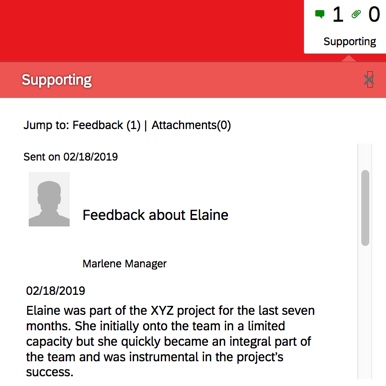
    Clicking within the pod, the manager will be able to see feedback date, the author and the comments as shown below.

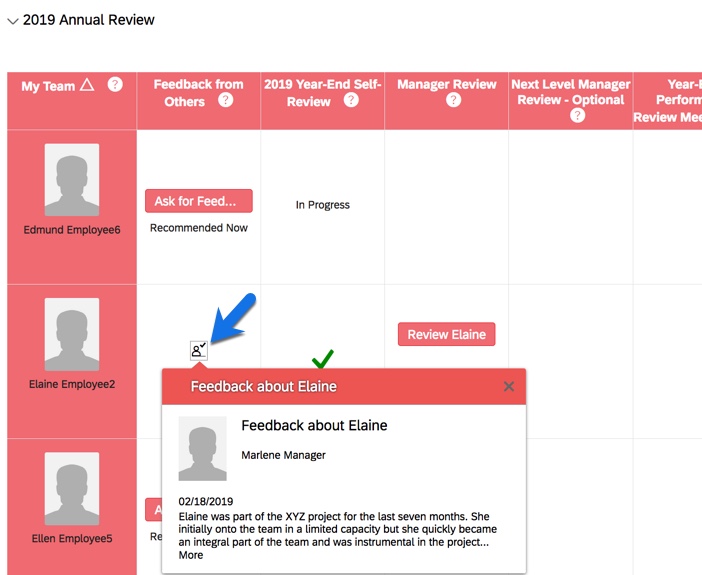
    • Team Overview. The manager may also track the status of the “Ask for Feedback” requests on the Team Overview page and view the responses as shown below.
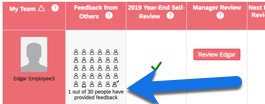
    The manager may track number of request sent and their status

    So now what?

    Now that you are familiar with the differences, which type of feedback is best for your organization?

    When to use “Get Feedback”?  

    • Use “Get Feedback” in cases where an employee transferred to a new manager but you would like the prior manager to provide input to the year-end evaluation.
    • When you would like someone outside of the roles on the route map to provide ratings and comments.
    • When you would like ratings and comments on objectives, competencies and the overall performance of an employee and not just general feedback.

    Disadvantages of “Get Feedback”

    • When a form is sent for feedback, it is not available to the manager for edit. The manager would have to recall the form or wait for the feedback provider to complete the form.
    • Form can only be sent to one feedback provider at a time. Once it it out for feedback, it cannot be sent to another feedback provider until they complete the review or the manager recalls the form.
    • “Get Feedback” cannot be used in a collaborative step.
    • The feedback provider would get an email notification if the document routing notification is turned on, otherwise they would only see a To Do item on their Home page.
    • When the feedback provider submits the form, it goes back to the step where the request was made. The form cannot be routed on to a different step.

    When to use “Ask for Feedback”

    • When you would like to have feedback from several individuals. Up to 30 requests are permitted.
    • When you would like the manager to be able to edit the form while the feedback responses are pending.
    • When you do not want the feedback providers to have any visibility to the performance form.
    • When you would like to have feedback on the employee that may not be specific to the goals and competencies found of the performance form.
    • When you would like to have the option for external feedback.
    • When you would like to allow feedback over a specific period of time which may span several steps of the review process.

    Disadvantages of “Ask for Feedback”

    • Once the feedback email request is sent, it cannot be recalled.
    • Feedback provider has no visibility into what the employee is being evaluated on so the comments may not necessarily be relevant.
    • Once comments are provided, they cannot be deleted. The comments will appear in the Supporting Information pod as well as in Team Overview.

    Can a form use both types of feedback?

    Absolutely! You may decide that you like the benefits of each type of feedback and may configure the form to handle both. Either way, the manager is getting a more comprehensive view of the employee which will make the performance evaluation more meaningful.

  • Things to Consider Before Enabling “Ask for Feedback” on an SAP SuccessFactors Performance Review Form

    Things to Consider Before Enabling “Ask for Feedback” on an SAP SuccessFactors Performance Review Form

    Is “Ask for Feedback” right for your organization?

    It is if you need a fast, flexible method for gathering performance feedback from those outside of the formal evaluation process. This feature enables a manager to get a more comprehensive view of their employees which adds greater perspective and objectivity into the assessments.  With a click of a button, a manager may solicit feedback from anyone that has a valid email address, both within the organization and externally. As soon as the recipient replies, the feedback is available for the manager to use within the performance appraisal in the Supporting Information pod.

    Things to consider before enabling “Ask for Feedback”   

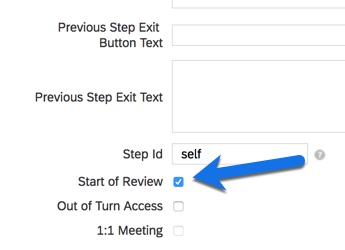
    Does your route map have “Start of Review” enabled on the first step? This checkbox makes Team Overview available for managers and is where “Ask for Feedback”  is initiated.

    Ask for Feedback on Team Overview

    Team Overview is also where the manager tracks the feedback requests: the number of requests sent, the request recipients and the status of each request.


    Do the majority of the organization’s employees have email addresses?  Email is the vehicle used to request and provide feedback so only those with a valid email address may participate.

    View of “Ask for Feedback” email to be sent

    The feedback provider will not have access to the performance form. Without visibility to the objectives and competencies that an employee is being evaluated on, the feedback provider may be providing comments that are not relevant to the evaluation.

    “Asking for Feedback” is not limited to the manager role. Any role contained in the route map with access to Team Overview may be request feedback. Matrix managers, HR managers, and next level managers that are part of the review process may request feedback from others as well.

    “Asking for Feedback” does not slow down the review process. When configuring the form, the feedback period is set to determine the timeframe for sending and receiving feedback requests. This means feedback may be requested in steps before the form lands in the manager’s inbox. In addition, the manager may make multiple requests and the form does not get “stuck” in a step until the feedback is received.  

    Up to 30 internal and/or external feedback requests may be initiated.  Each non-employee role from the route map may send out 30 requests. In addition,  feedback may be requested from the same user multiple times as long as it occurs on separate days. This is helpful later in the year if the manager would like additional comments from someone that replied earlier in the process.

    Once the feedback request is sent, if cannot be recalled. The email goes out instantly, so exercise caution when selecting feedback providers. If the email request is sent to someone in error, it can’t be retrieved.

    It is not possible to delete any feedback that has been received. Upon submission, all comments are immediately available on the Team Overview page and within the Supporting Information pod within the performance form.  

    View of feedback within Supporting Information pod on performance form

    If feedback is not received, it will not stop the performance form from moving forward.  There simply won’t be any feedback in the Supporting Info pod.

    You may decide to allow employees to view the feedback.  Based on your organization, transparency to the feedback may be encouraged. Typically if employees have access to the feedback, it is during the one-on-one meeting and signature steps.

    Feedback is not anonymous. All feedback includes a date stamp and the feedback provider’s name. If you enable employees to view the feedback on their form, be aware that they will know who provided the comments.

     As you can see, there are not a lot of downsides to configuring this option. “Ask for Feedback” provides a manager with an additional avenue to gather information in order to conduct a more thorough performance review without adding complexity to the process.

    At a later date, I will illustrate how to configure this feature, so please check back.