Tag: SuccessFactors

  • SAP SuccessFactors H1 2021 Employee Central Release Updates

    SAP SuccessFactors H1 2021 Employee Central Release Updates

    Interested in what’s new for Employee Central for H1 2021? There’s quite a few enhancements! In this quick blog we run through the major release updates that caught our attention the most.

    As of April 9, 2021, SAP has released the documentation for the H1 2021 release.  The preview release will be April 16 and the move to production will be May 21st.  You can view the full set of documentation in the What’s New Viewer here. For full details on the release cycle, check out the SAP SuccessFactors official product updates blog here.  New to the release process? For tips on how to manage a release, check out our blog here

    Qualtrics Integration

    Increasing the integration between Qualtrics and SuccessFactors has been a priority for SAP – we’ve seen multiple integrations across modules and now there’s a few more for EC. SAP has added 4 email survey integrations based on intelligent services to trigger in the below events:

    • Employee Rehire
    • First Time Manager
    • Transition from Individual Contributor to Manager
    • Transition from Manager to Individual Contributor

    These surveys can be very insightful to find out if employees are comfortable in their new roles and identify where they might need help!

    BizX Talent Integration / Succession Data Model

    Integration with the BizX Talent side of SuccessFactors has also been improved. In particular, SAP has made it possible to run a full HRIS sync (that pushes data from EC to BizX) based on individual user ids.

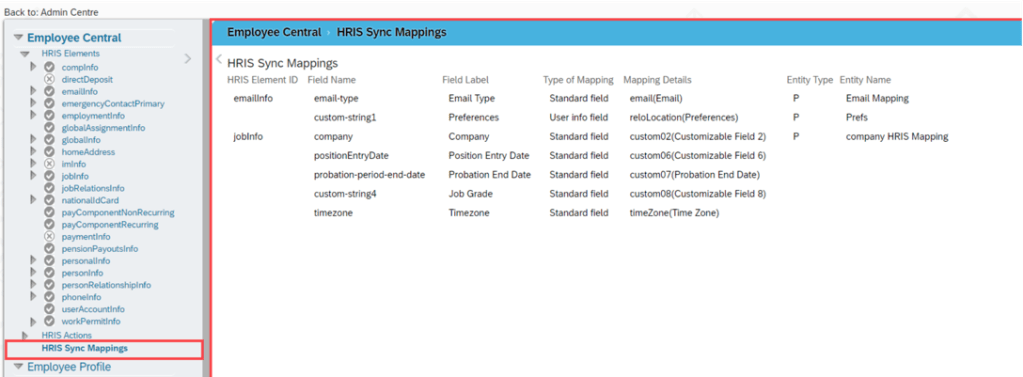
    In addition, they’ve made it easier to view what the HRIS mapping looks like in the Manage Business Configuration Screen with an overview screen of all of the mappings in one location. Previously you had to dig through all of the fields individually to find this information! Check out the screenshot below:

    Overview of HRIS Sync Mappings

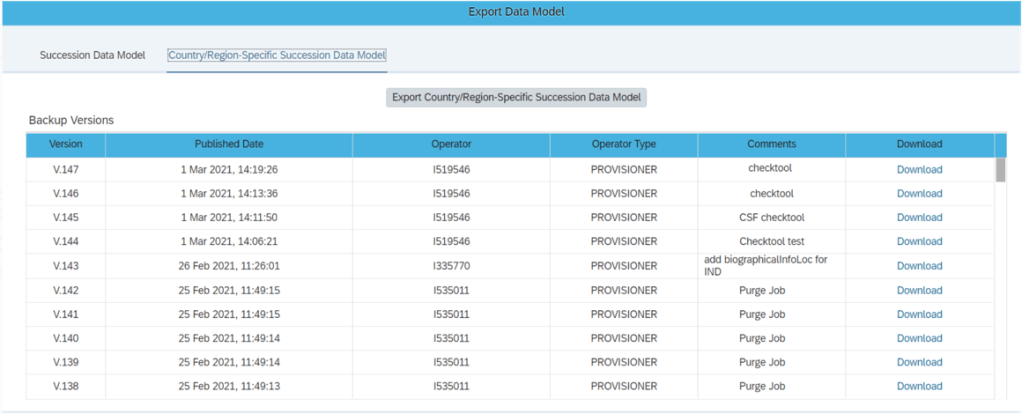
    Admins can also now export the Succession Data Model and Country/Region_specific Succession Data models from Admin Center (previously only partners could do this in provisioning). Simply give the new permission “Export Succession Data Model or Export Country-Specific Succession Data Model” permission and you’ll get access to the screen shown below:

    New Export Succession Data Model Screen

    These enhancements help make the integration between employee central and the talent modules more clear cut.

    Business Rule Scenarios

    Multiple new business rule scenarios are now available that allow you to:

    • Configure cross-entity rules triggered from a source entity with changes executed on the target entity
    • Calculate Full Time Equivalent for a user
    • Create business validations / raise alert messages for HRIS elements

    These enhancements contribute to the ongoing effort to increase the flexibility and robustness of business rules.

    SAP Integration

    If you sync your HRIS data with SAP, you’ll be happy to know there are 10 enhancements to this integration including:

    • A comparison tool that compares configuration between EC instances
    • An enhancement considering the purging status of ERP communication data while replicating employee communication data from EC
    • The ability to select specific foundation objects by object ID ad choose log or list view when viewing the Foundation Object Transfer Report
    • In Define Employee Data Settings for EC instance, the field names have been changes to “Standard Mapping (PERNR)” and “Standard Mapping (CP)” for clarity
    • The Enhanced Work Schedule Rule Transfer Report was updated with a new BAdi to maintain the external code of work schedule rules
    • Better data replication that considers purged data
    • Replication of inactive employees that were terminated in EC before the full transmission start date
    • Sample contract elements (IT0016) content
    • Replication of OM data infotypes even when relationship data (IT1001) can’t be replicated
    • Organizational assignment data that was marked as status “Failed” will change to “Outdated” once the next replication job runs

    These enhancements help to make the interface more robust and reliable for customers wishing to replicate employee data to on-premise SAP.

    Global Benefits

    Enhancements and automations came to the global benefits functionality as well. Let’s take a quick look at these:

    • When an employee has a job change that affects their benefits eligibility, this can now trigger an intelligent service event to create or update benefit enrollments
    • When benefit master data changes, a new automatic enrollment job now exists to handle creating and updating enrollments
    • A new pension / retirement savings plan type has been introduced called “Workplace” that offers additional contribution options

    Once again, we see how the system continues to provide helpful automations and features to make this functionality more simple and robust to use.

    Reporting

    Custom fields are now allowed in story reports. The fields can be seen within the query designer.

    Conclusion

    The SAP SuccessFactors Employee Central product continues to grow and become increasingly more robust! This does not represent all of the enhancements in the H1 2021 release – only the highlights we found most compelling. Check out the What’s New Viewer here for the complete list of enhancements.

    See this great article for useful information on how to prepare for a SAP SuccessFactors Regular Release.

    Contact info@worklogix.com for any assistance supporting and implementing your SAP SuccessFactors Modules, or download our support services brochure.

  • What’s New for Recruiting  in 1H 2021

    What’s New for Recruiting in 1H 2021

    As of April 9, 2021, SAP has released the documentation for the H1 2021 release.  The preview release will be April 16 and the move to production will be May 21st.  You can view the full set of documentation in the What’s New Viewer here. For full details on the release cycle, check out the SAP SuccessFactors official product updates blog here.  New to the release process? For tips on how to manage a release, check out our blog here

    For your convenience, we’ve summarized the highlights of 2 legacy items that will require your attention if there are still used in your current SAP SuccessFactors implementation and 6 features for 2021 Recruiting.

    Migration of Legacy Quickcard to Latest Quickcard

    If you are using this feature for recruiting. You will need to move to the latest quickcard, the legacy Quickcard will be retired/deleted as of May 21st. Transition to the latest quick card will help to maintain consistency with the SAP SuccessFactors Quickcard. Additionally, the latest Quickcard improves user experience with the updated user experience.

    Deprecation of Legacy Picklists Management

    The legacy Picklist Management tool reached end of maintenance on December 31, 2018 and will be retired/deleted on November 18, 2021.

    Support for Posting Jobs to Twitter and Jobvite from Job Postings is Deleted

    The ability for posting jobs to Twitter and Jobvite from Job Postings is deleted as of May 21, 2021.

    SSL Certificate Renewal Reminders for Career Sites

    After a nice long and relaxing weekend. You come back to the office Monday morning and your career site is down because the SSL certificate has expired and now as you struggle to get the career site back up and running again your stress level is at it’s peak again. Well hopefully you will never experience these feelings again with this new feature.

    SAP SuccessFactors Recruiting now proactively reminds organizations when their career site’s SSL certificate needs to be renewed.

    To avoid career sites from becoming unreachable due to an expired SSL certificate, Career Site Builder offers two reminder methods: A pop-up dialog that appears when logging in to Career Site Builder, as well as the ability to enable email reminders for admin users.

    Content Security Policy for Career Sites

    Career Site Builder has introduced the Content Security Policy setting, which enables an HTTP header to automatically disallow external domains and only allow the browser to render resources from your domain. This will protect your career site against cross-site scripting attacks.

    The content security policy is designed to guard against cross-site scripting (XSS) attacks through the use of a Content-Security-Policy HTTP response header that lets you control the resources allowed to load for a web page. The headers are used in career site pages owned by the organization.

    Enhanced External Password Policy Configuration

    The enhancement includes increasing the minimum password length and limiting the lock-out threshold. The enhanced external password policy impacts:

    • External candidates creating an account for the first time. 
    • Existing external candidates trying to change their passwords. For example, password reset and forgot password. 
    • Agency users trying to change their passwords.

    Ability to Edit Existing Category Page Names in Career Site Builder

    Career Site Builder administrators can now edit category names directly, without having to contact Professional Services, an implementation partner, or SAP Support.

    In the previous version, the Name field became readonly after the category page was created and saved. Changing a category name was performed in the backend Command Center tool by Professional Services, an implementation partner, or SAP Support.

    New Job Status Available in Job Postings Table

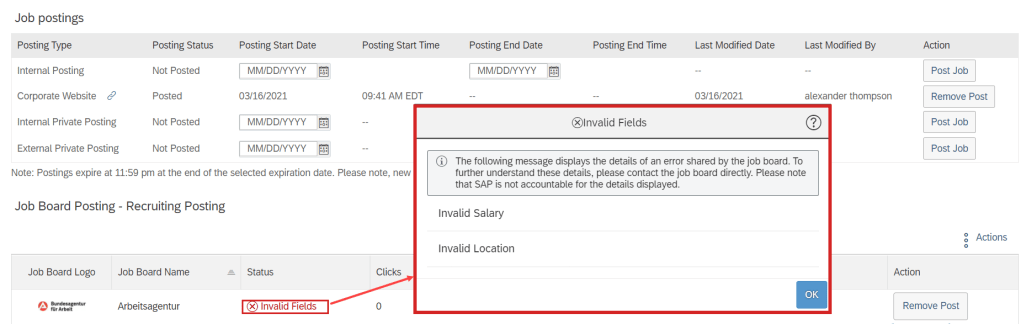
    You can now see a new job status, Invalid Fields, in the job postings table when the job board’s system sends back error messages because of one or more incorrectly populated fields while posting a job.

    See this great article for useful information on how to prepare for a SAP SuccessFactors Regular Release.

    Contact info@worklogix.com for any assistance supporting and implementing your SAP SuccessFactors Modules, or download our support services brochure.

  • H1 2021 SAP SuccessFactors Analytics/Reporting Features

    H1 2021 SAP SuccessFactors Analytics/Reporting Features

    Photo by PhotoMIX Company from Pexels

    SAP SuccessFactors has some exciting new features for your Analytics & Reporting Solutions. They can be found in detail here (S-User ID required).  Filter on Solutions for Analytics to review all of the latest changes. Under the Description for each, you can click on ‘See More’ to see screenshots and detailed information.

    As a reminder, preview release will be April 16th and production will be released May 21st.  For full details on the release cycle, check out the SAP SuccessFactors official product updates blog here.  New to the release process? For tips on how to manage a release, check out our blog here

    After reviewing all the changes, we narrowed the list down to the Highlights for H1 202SAP SuccessFactors Analytics/Reporting Features:

    1. Calibration, Succession, and Compensation and Variable Pay Reports Now Available for Download in Report Center
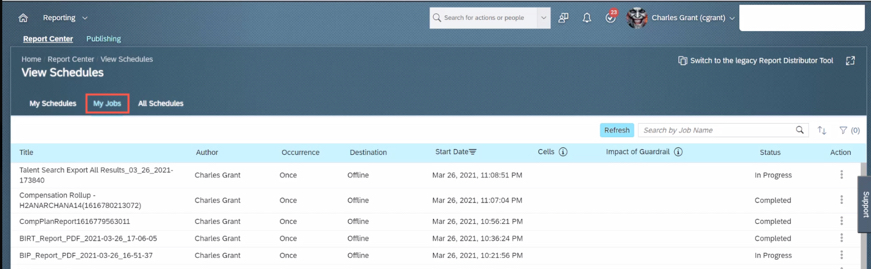
      • Previously, the reports were available for download on the Scheduled Reports page in classic view. This caused confusion for users on how to get to their reports by having to direct them to Switch to Classic View.
      • You can now download the reports from the My Jobs page within View Schedules in Report Center.
    Reports can now be accessed via My Jobs

    2. All User Info Fields Are Now Available in Story Reports

    • You no longer need to set a User Info field as Reportable to make it available in Story reports.
    • All the User Info fields are now automatically available for reporting using Stories in People Analytics.

    3. Stories in People Analytics for SAP SuccessFactors Learning

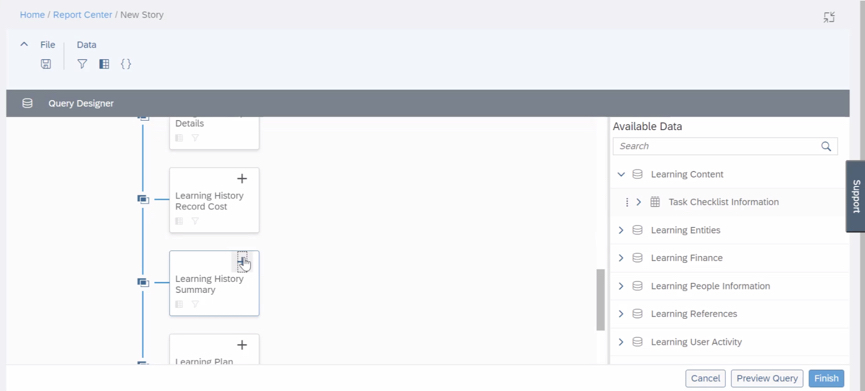
    • You can now create, access, and share Learning stories in People Analytics for generating custom Learning reports.
    • You can also have the data of SAP SuccessFactors Learning and other modules side-by-side in the same story and link them to apply common filters on them.
    Stories in People Analytics for SAP SuccessFactors Learning

    4. Increase in Number of Columns Supported in Queries of Story Reports

    • The number of columns that you can select while creating a query has been increased from 30 to 120.
    • You can now create complex or detailed queries that involve more than 30 columns.

    5. UI Enhancements for Stories in People Analytics

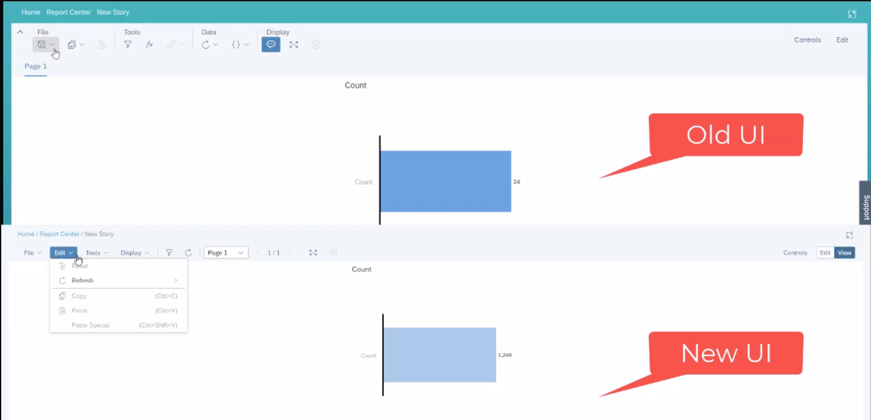
    • The UI enhancements on the viewer mode include:
      • An updated Display menu, which now has the Tab Bar, and the Comment Mode options. By default, the page dropdown view appears. The multiple pages in tab view now appear when you select the Tab Bar option.
      • Separate File and Edit menus.
      • Removal of the Data menu. The refresh option has moved into the Edit menu and the edit prompt option has moved into the Tools menu.
    Enhancements to UI to improve usability

    Do you need help implementing or supporting your SAP SuccessFactors system?  Contact info@worklogix.com for assistance, download our support services brochure, or visit https://www.worklogix.com/implementation.html for additional information.

  • What’s New in Onboarding H1 2021

    What’s New in Onboarding H1 2021

    It’s that time of year! As of April 9, 2021, SAP has released the documentation for the H1 2021 release.  The preview release will be April 16 and the move to production will be May 21st.  You can view the full set of documentation in the What’s New Viewer here. For full details on the release cycle, check out the SAP SuccessFactors official product updates blog here.  New to the release process? For tips on how to manage a release, check out our blog here

    In the SAP SuccessFactors Onboarding H1 2021 release, we’ve mainly seen updates to compliance forms and processes as well as some user experience enhancements and security Features. Let’s take a look at what’s new in the Onboarding module below!

    Compliance Forms & Processes

    As expected, SAP continues to expand the number of compliance forms supported. In this release SAP has included these forms:

    In addition, reporting information is also now available for I-9 and E-Verify data so that you can create Stories in in People Analytics using the information.

    Also important on the compliance front: Russian Personally Identifiable Information (PII) data will also now be stored in the Russian data center from Day 1. For more details, take a look at the help guide here: https://help.sap.com/viewer/c94ed5fcb5fe4e0281f396556743812c/2105/en-US/d9e6b7923a9049a6a742f13d05b28d5a.html

    User Experience

    In addition to compliance features, there’s some nice enhancements to user experience. Of all the modules, I think onboarding is one of the more confusing to navigate as an admin user and these enhancements help address this issue. Let’s take a look!

    First, users can now navigate directly to the onboarding dashboard from the global navigation (early adoption feature). I personally liked this one because when I first started with Onboarding, I was used to the main page of every module being accessible through the navigation menu – onboarding was the only one where you had to click on a home page tile instead. I think this will provide some nice consistency for users.

    In addition to easier navigation to the dashboard, its features have also been enhanced. Here’s a list of the new feaures:

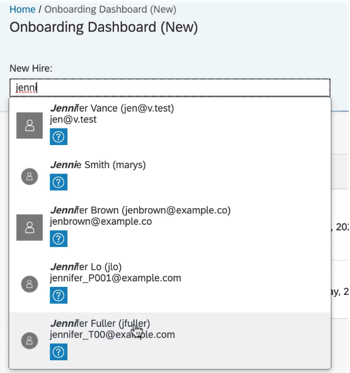
    • New Hire Search – allows onboarding users to type a name to search through new hires
    • Checklist Task – can now be viewed under “New Hire Tasks”, items can be added for a specific user using the “Delegated” drop down (delegates can also be notified via email when the task is assigned to them), and under “View Details” users can edit the checklist tasks,
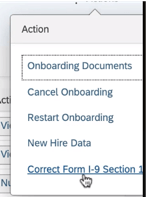
    • I-9 – corrections to section 1 can now be initiated from the “New Hire Details” action menu
    • E-Verify – view details from the “E-Verify Case Details” link on the “New Hire Details” screen
    User Search
    Correct I-9 from the Action Menu

    Its great to see the dashboard getting some new features to make transitioning between screens easier!

    Next, the locale for external users of Onboarding will now be updated automatically based on their recruiting settings. This is a common sense win. Locale can also be set when manually adding users via the “Add New Hire to Onboarding” screen. If no value is specified in either scenario, the locale will default to the default language set in provisioning.

    Security Features

    In addition to compliance enhancements and improvements to usability, there’s a few cool security features worth mentioning.

    First, the target population for the external user target population can now be based on the division, department, and location of the user. This allows organizations to have multiple admins specific to division, department, and/or location rather than just admins who can see the whole new user population.

    Next, on the new hire side, the external user visibility tool lets you make objects visible to new hires. This gives a level of flexibility to administrators they previously had to contact SAP to modify. For a full list of objects and how to configure, check out this link: https://help.sap.com/viewer/c94ed5fcb5fe4e0281f396556743812c/2105/en-US/5df8a72caabf4848a145b74f0516cff8.html

    Last, read access audit logs for onboarding have been enhanced to show context and reason why sensitive fields were accessed (e.g. through the UI, or APIs, or a downloaded document). This is designed to give auditors better understanding of why data was accessed.

    Wrap up

    I hope you’ve enjoyed this quick review of the latest Onboarding features available in the H1 2021 release! Do you need help managing your SuccessFactors Release cycles?  Download our support services brochure or email info@worklogix.com to see how we can help!

  • SAP SuccessFactors H1 2021 Release Updates for Succession

    SAP SuccessFactors H1 2021 Release Updates for Succession

    Photo by Sigmund on Unsplash

    It’s finally here! As of April 9, 2021, SAP has released the documentation for the H1 2021 release.  The preview release will be April 16 and the move to production will be May 21st.  You can view the full set of documentation in the What’s New Viewer here. For full details on the release cycle, check out the SAP SuccessFactors official product updates blog here.  New to the release process? For tips on how to manage a release, check out our blog here

    In this release, we saw a wide range of enhancements across the Talent modules – some specific to Succession and others that lay across the modules but help out succession planners. Let’s take a look at what’s new in the Succession module below!

    Succession Management Specific Changes

    Let’s start with what’s new just for Succession Management before we take a look at some general talent improvements that are relevant to Succession.

    Nomination History

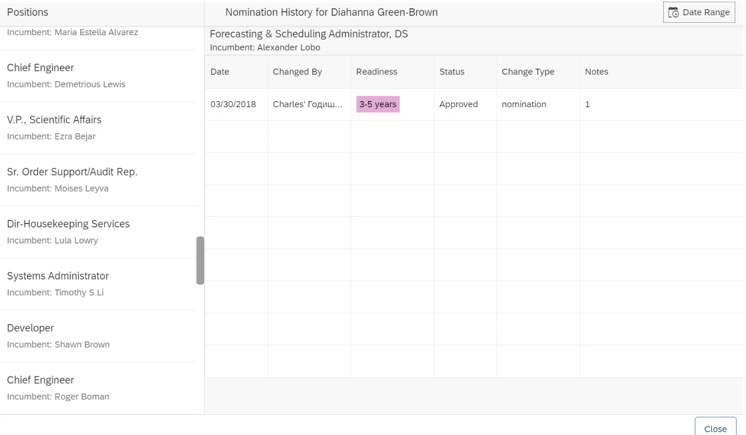
    The main new feature exclusive to Succession Management is the ability to view nomination history in the talent card and in the people profile. Users will with Succession Planning permission can click a history icon on these screens to see a list of positions for which the employee has been nominated and information about the nomination history for each including the date, nominator, readiness level, status, change type, and notes. The information includes deleted nominations as well.

    Nomination History View

    Hide Pending Nominations for Talent Pools

    Succession configurators have had the ability to hide pending nominations from succession planners for some time now, but the ability was only extended to position nominations. Now, this feature works for talent pool nominations as well. This configuration setting remains in the same in Admin Center -> Nomination Setup.

    Form-Based Nomination Deleted

    Another update specific to succession with this release is that form-based succession nomination will be completely deleted as of May 21,2021. This was a legacy method of approving nominations – if you never used it, then don’t worry because no action is required. If you are still using forms to approve nominations, you have little time left to switch to the newer permission-based method!

    General Talent Management Updates Relevant to Succession

    There are also numerous updates across the talent modules in general that affect not only Succession, but also Performance, Goals, Development, and/or Calibration. Let’s take a look at these briefly below.

    Editing Talent Info Directly on a Talent Card

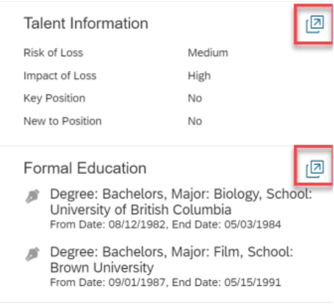
    It seems like every customer for whom I’ve implemented Succession has asked why they need to switch between the employee profile view and other views to edit talent information. Why can’t customers just change the information right on the talent card that shows up across the different views that contain the talent card? This way data like impact of loss or risk of loss can be updated when the user has the contextual information they need to make the decision. Well now, customers can!

    Users can now click the icon shown below to open a popup that allows these fields to be changed.

    Editing Information on a Talent Card

    My Jobs Downloads

    Previously Succession (and other talent reports) could be downloaded from the Scheduled Reports page in Classic View. Reports may now be downloaded from My Jobs page within Report Center. This eliminates the need to switch to Classic View prior to downloading.

    A report with multiple files can be downloaded in a compressed .zip file or downloaded individually.

    Numerous Calibration Session Improvements

    There are a variety of calibration session feature that have been added/updated as well. For example specifying default facilitators or allowing managers to more easily create calibration sessions for their teams. For more information on these improvements, check out our blog on What’s in in H1 2021 SAP SuccessFactors Calibration Release.

    That’s a Wrap!

    That’s all of the updates for H1 2021! We hope you found this blog informative!

    Do you need help managing your SuccessFactors Release cycles?  Download our support services brochure or email info@worklogix.com to see how we can help!

  • What’s New in the 1H 2021 SAP SuccessFactors Career Development Release

    What’s New in the 1H 2021 SAP SuccessFactors Career Development Release

    Want to learn what is coming soon in SAP SuccessFactors Career Development? The latest updates for H1 2021 have been announced.

    As of April 9, 2021, SAP has released their documentation for the H1 2021 release.  You can view the full set of documentation in the What’s New Viewer here.  As a reminder, preview release will be April 16 and production will be released May 21st.  For full details on the release cycle, check out the SAP SuccessFactors official product updates blog here.  For tips on how to manage a release, check out our blog here.  For your convenience, we’ve summarized the highlights of what’s new for 2021 Career Development below.

    There are five universal updates related to Mentoring and one for Development Goals. Let’s take a look!

    Mentoring

    The mentoring features are related to the mentor program sign up process and are designed to improve the user experience.

    Key Questions Indicated

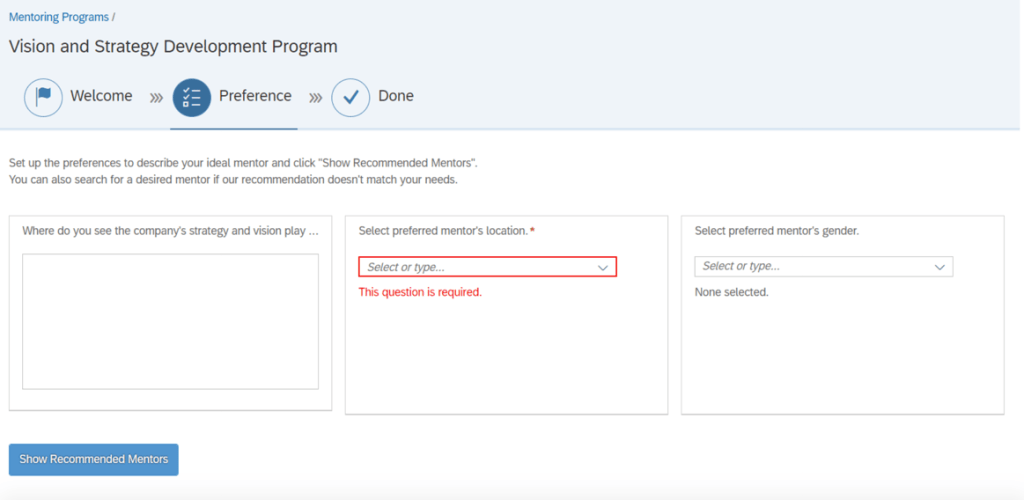
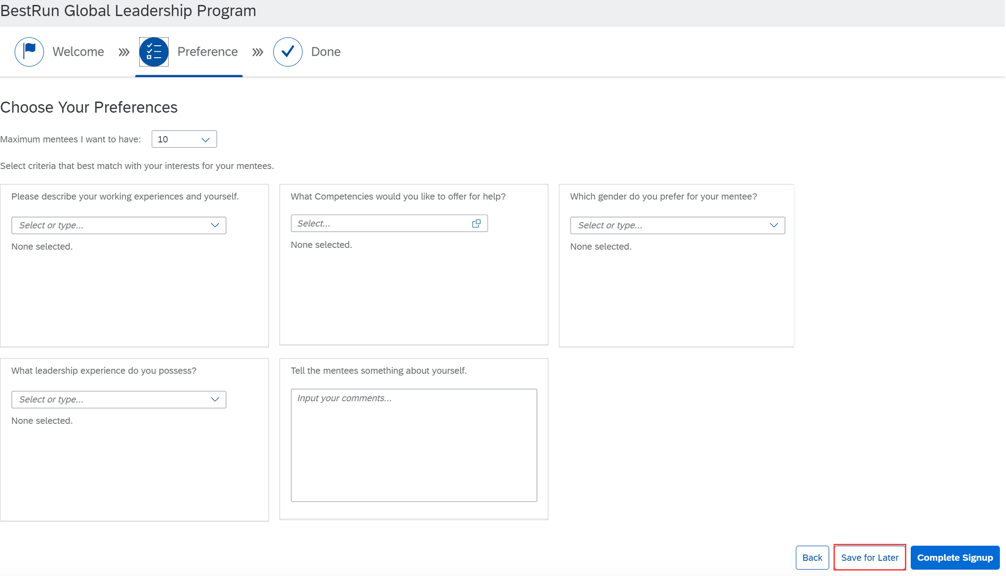
    In the sign up sheet, required entries are noted by a red asterisk. This ensures the mentees complete these fields prior to looking at the recommended mentors. Answering the key questions will improve the recommended mentors match.

    Answers to questions will be saved but preferred mentors are not saved.

    Save Sign Up Program to Complete Later

    There may be times when an employee starts to enroll in a mentoring program but is not ready to commit. Maybe they need to consider their mentoring preferences further or need to check in with their manager first. The employee may start to fill out the sign up form, save it and come back to it later to make any updates prior to signing up.

    There will be a “Save for Later” button that will display within the program sign up page.

    Once saved, the program will appear on either the Invitations or Open Enrollment tab, whichever is applicable.

    The program visible on the tab and can be easily be identified with an icon and “Saved for later” text.

    Identify Mentor Requests

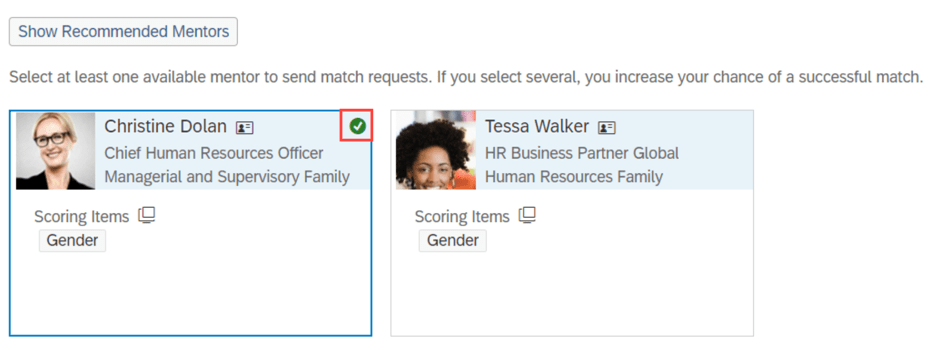
    While filling out the sign up form, mentors that are selected from the recommended list will display a green check mark on the mentor cards.

    Confirm Sign up

    A mentee will see a confirmation popup when they are completing a program sign up. This gives the mentee the opportunity to confirm signing up for a mentor program. By clicking the “Complete Signup” button, the mentee is enrolled and mentor requests are submitted.

    Your Mentor Requests

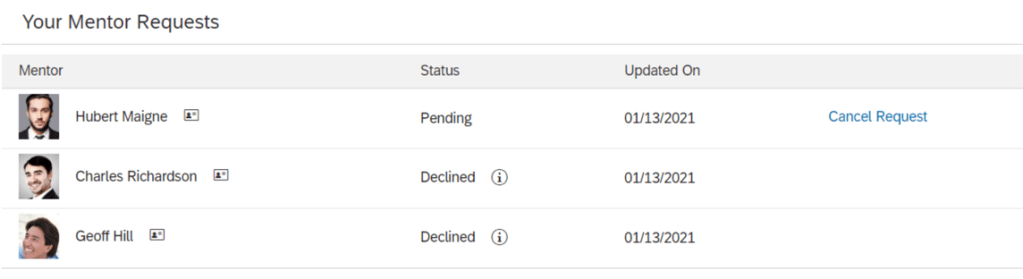
    The Mentoring Page will contain a new section that tracks any mentor requests that a mentee has made. The “Your Mentor Requests” section allows a mentee to see the status of their mentor requests. Pending requests will appear as well as any declined requests and reasons. This feature is only applicable to open enrollment and unsupervised programs. Supervised programs rely on a matching program instead.

    Mentees may also cancel any pending mentor requests.

    Admin Opt-Ins for Mentoring

    There is one admin opt-in available to for Mentoring.

    Qualtrics Surveys for End of Mentoring Relationships

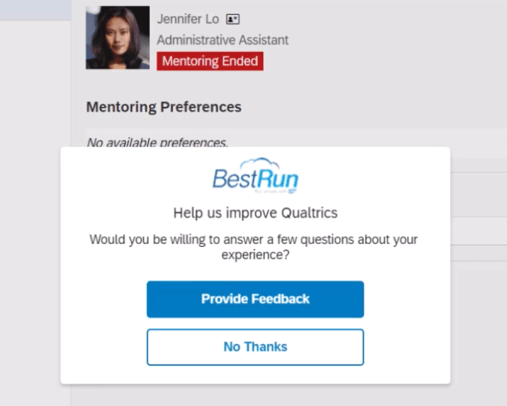
    Qualtrics Surveys may now be used with Mentoring. The survey can be used when a mentor program participant opts to end the mentoring relationship. Based on how the program was configured, either the mentor or the mentee may cancel the mentoring relationship. A survey will pop up after a participant ends the mentoring relationship.

    An email survey is sent to the other participant in the mentor relationship.

    The feedback provided in the survey results are seen by the program owner and may be helpful when designing new mentoring programs.

    In order to take advantage of this feature, Manage Qualtrics Integrations from the SAP SuccessFactors Admin Center needs to be set up.

    Development Goals

    Learning OData V4 Service

    There is a new Learning OData V4 service. When using transcript or legacy learning activities, learning activities may be created and updated in mass to be associated with development goals and competencies.

    Do you need help managing your SuccessFactors Release cycles?  Download our support services brochure or email info@worklogix.com to see how we can help!
  • SAP SuccessFactors Job Profile Builder Talent Management Integration

    SAP SuccessFactors Job Profile Builder Talent Management Integration

    SAP SuccessFactors Job Profile Builder (JPB) is a tool used to create and maintain job profiles associated to job roles. Job profile content can be used when creating job requisitions but it can be used for much more. JPB is integrated with many HCM modules and the key that ties all of these modules to Job Profile Builder is job roles.

    The job profile components can be used in many modules. These components are useful in many areas of SuccessFactors including:

    • Performance Management
    • Career Development
    • Succession
    • Employee Profile

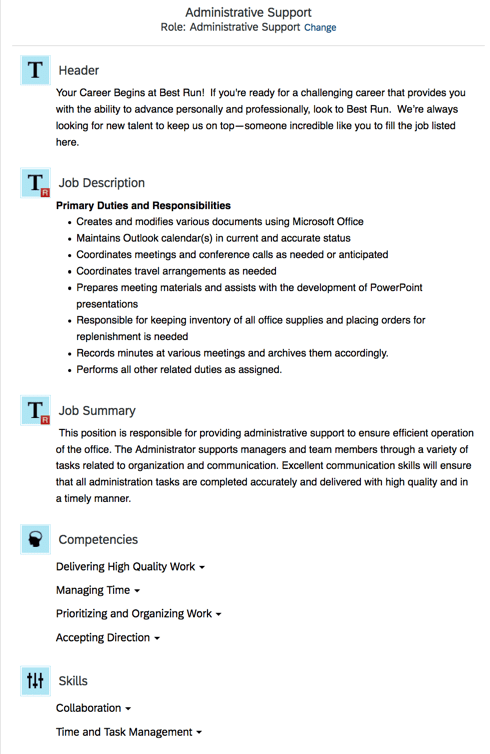
    First, let’s look at a job profile. Job Profiles are tied to job roles within a job family. The profile can include education, skills and competencies to associate with a job role. This information can get pulled into a req and the position associated with a job will inherit its properties.

    An example of a job profile is shown below.

    Job Profile

    Competencies are a very critical component of a job role. The competencies are selected from a competency library, most notably the SuccessFactors 2.1 Competency Library. Once the job roles are created, competencies are selected to map to roles. Positions associated with a job will then have these competences that can included as requirements on a job req or a way for an employee to track progress on goals.

    As you see below, for a role, a competency library is selected and then competencies can be added.

    Mapping Competencies to a Job Role

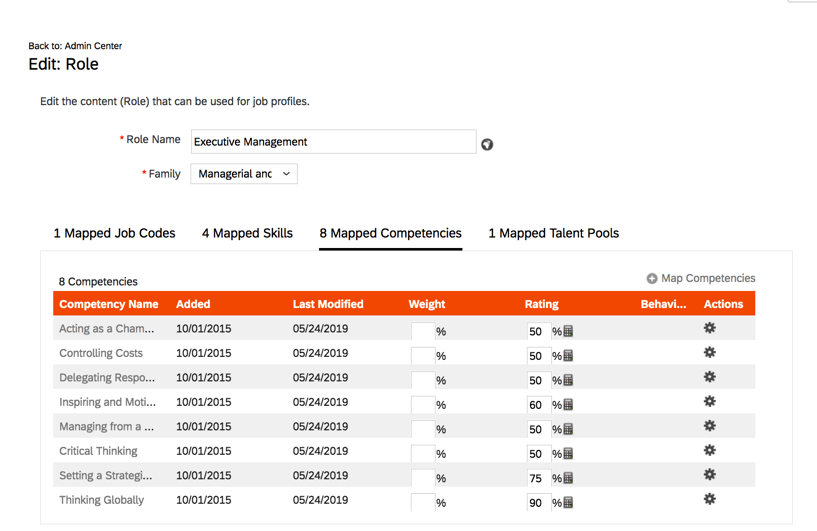
    Job codes, skills, competencies and talent pools can be mapped to a job role. Job codes associated with the roles will inherit the skills and competencies. An example is shown below.

    The job role below has a job code, 8 competencies, 4 skills and a talent pool mapped to it.

    Job Role with Mappings

    This means that all positions associated with a job code will then have the associate skills and competencies.

    Performance Management
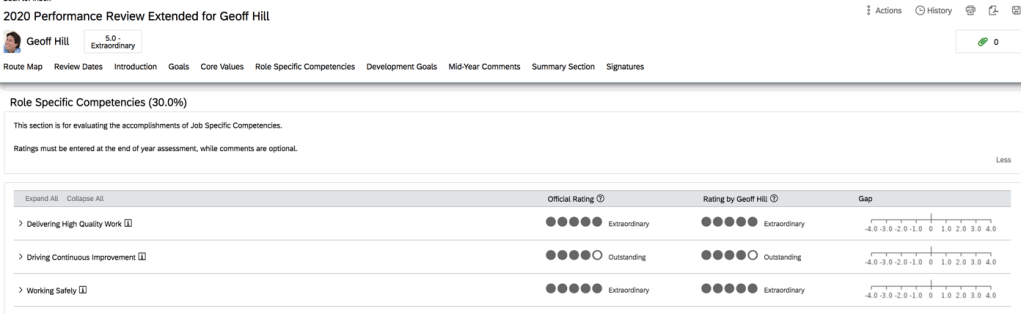
    Any job related competencies can be included on performance form template. This allows an employee to be rated on their job specific competencies.

    When a form is generated, all competencies associated with the employee’s role will be pulled in when a performance form is generated.

    Role Competencies on PM Form

    Development Goal Plans

    Development goals can have have competencies added. This is especially useful when using Career Worksheet which we will look at next,

    Competencies on Development Goal

    Career Worksheet
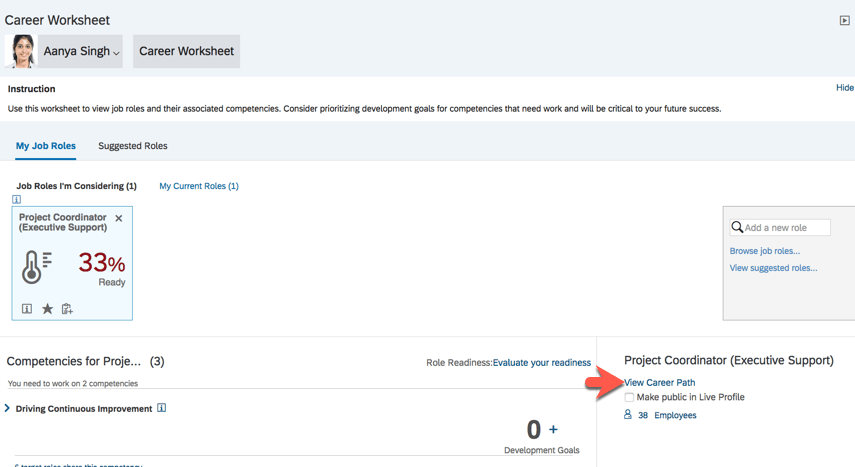
    The Career Worksheet is a component of Career Development and is used by an employee to discover development opportunities based on roles that may wish to grow in to. The Career Worksheet is also dependent on job roles and their job role definitions, mapped competencies and expected competency proficiency ratings.

    Job profiles will appear throughout the career worksheet, when browsing roles, viewing suggested roles, viewing career paths to name a few.

    The employee selects future or targeted roles to view along with the job role’s associated competencies. The worksheet identifies competency gaps which highlight development areas that the employee needs to work on.   The worksheet also illustrates how ready an employee is for the targeted role based on their competency proficiency. The worksheet may also be used to view career paths and suggested future roles.

    Competency mappings to roles are the sole source of competencies listed on the career worksheet. Only ratings from completed forms are displayed in the career worksheet.

    A job role will require a number of competencies and each competency should have an expected proficiency level rating. An employee’s readiness for the role depends on whether the employee’s proficiency rating for the competencies meets the expected ratings.

    The system uses the Career Worksheet readiness cal­culation to compute a competency match score which compares the em­ployee’s competency rating with the ex­pected rating for the role.

    An employee can browse career paths and suggested roles from their Career Worksheet. Employees can proactively prepare for that next step. By discovering the competencies and skills needed to exceed in a job role, the employee can create development goals that align with a targeted role. This gives employees a sense of empowerment to develop skills, behaviors and competencies to prepare for future roles.

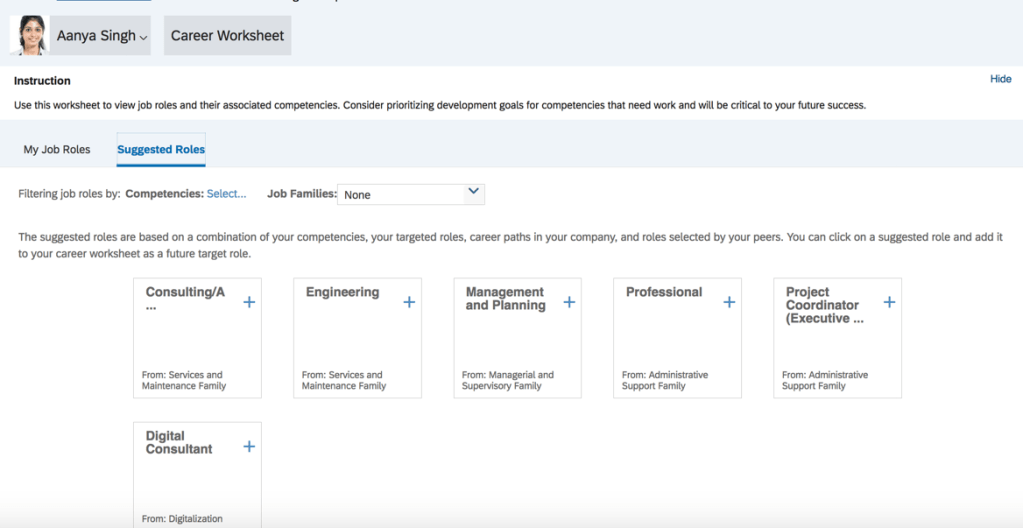
    Suggested Roles

    Suggested roles can be based on career paths or through an algorithm based on a set of criteria. The suggested roles can be a combination of competencies, targeted roles, career path and roles selected by peer. Clicking within any role will will display the job profile, Selecting a role will add it to the employee’s career worksheet in order gauge their readiness for the role.

    Suggested Roles

    Clicking the plus sign will add the role the employee’s career worksheet.

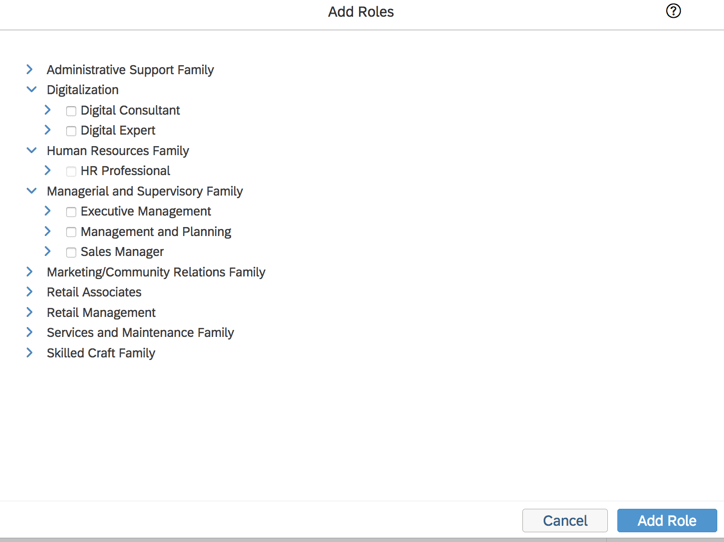
    The employee can view job roles based on job family. Selecting any will add the role to career worksheet.

    View

    Career Path

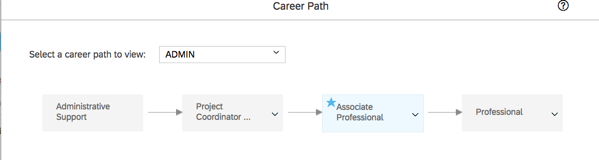
    Once a target role is selected, the career path for the role can be viewed. This gives the employee a chance to see the job role progression. Job profiles for the roles in the path may be viewed as well.

    On the Career Worksheet, the job profile of a targeted role may be viewed.

    Career Path for Target Role

    All of the job roles that have been configured for a career path will display. The targeted role will be highlighted. Clicking on the information icon give the employee a view of the job profile which can be used to help them decide if that is a job they may like to grow into.

    Job Profile

    Role Readiness Form

    The Role Readiness form is launched from the Career Worksheet by the employee and is used to rate how proficient they are in the competencies needed for any future roles that they selected.   The form is used to help employees plan their career development and identify areas of  development needed for the future roles. 

    Role Readiness Form

    Readiness Meter

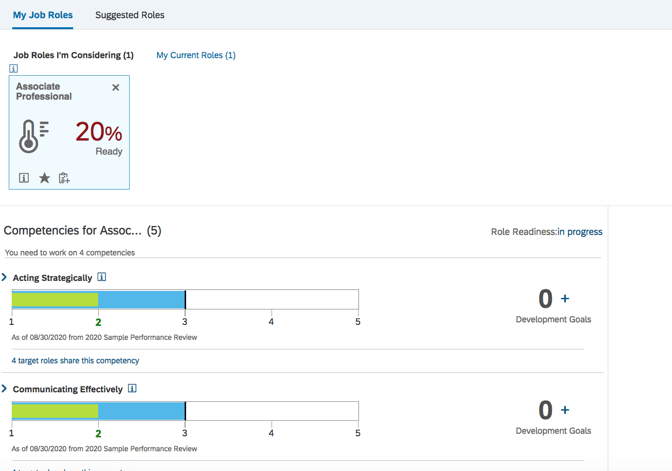
    Once the form has been completed, the readiness meter on the career worksheet will show how ready the employee is for the targeted role.

    Readiness Meter

    Gap Graphs

    There is a gap graph for each competency comparing the last competency rating of record for the employee with the expected rating for that role. All job roles mapped to a competency will be included.  The graph shows the actual competency rating from the latest rating form against the expected rating for the competency.

    For any large gaps for the competencies, the employee may decide to add a development goal to help them become more proficient. This will add the development goal to their development plan. The development goal will also show the linked competencies.

    Succession

    Job roles can be tied to talent pools. When a talent pool is mapped to a job role, all positions tied to the job code will then become members of the talent pool. Talent pools associated with a position display in the position card when accessed from the Succession Org Chart or Position Tile view.

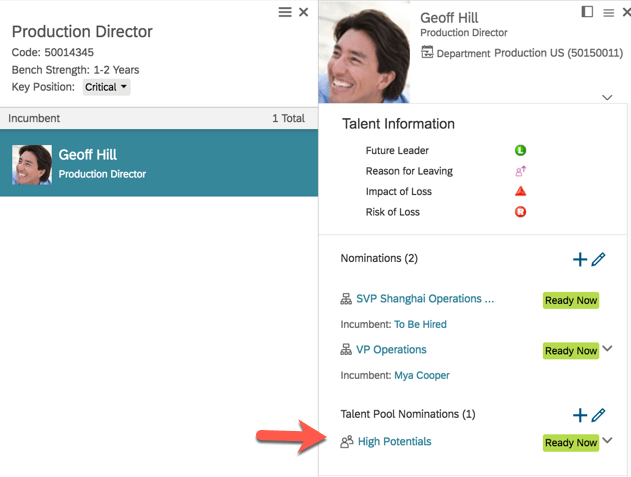
    An employee’s talent card will also show the talent pools their position is associated with as seen below.

    Talent Pool on Talent Card

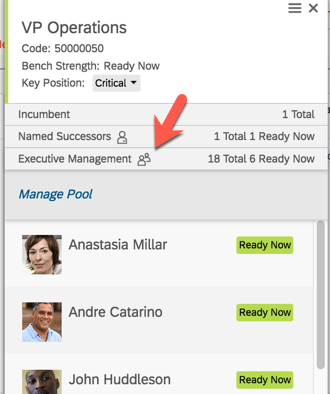
    The Position card will also show talent pool successors.

    Position and role information may be viewed as well. Within the Succession Org Chart, when viewing a position, the associated job role details may be viewed. Clicking ‘View Role Details’ will open the job profile associated with the role.

    Role Details

    Employee Profile

    The skill profile is linked to JPB.

    Employees can add skills whick can be used for employee development and succession planning,

    Skill Profile

    Conclusion

    I hope you can see that Job Profile Builder can be used beyond Recruitment. The job profiles created can be extremely useful in developing the people within your organization and not just for finding new talent.

    For more information on the Job Profile Builder and Talent Management Integrations, check out our book here!
  • Cataloging Skills in the Job Profile Builder

    Cataloging Skills in the Job Profile Builder

    Photo by cottonbro from Pexels

    Introduction

    The Job Profile Builder is a valuable tool that helps companies categorize their positions into groups of jobs. Each job profile contains descriptions of what functions that job performs, qualifications needed to perform the job, etc. For more information on the Job Profile Builder in general, see our article Job Profile Builder: An Introduction.

    In this article, we go into further detail on how to catalog skills within job profiles. As a company explores what jobs to create and how to catalog their jobs, one of the most important distinguishing characteristics to identify those jobs are the skills and qualifications needed for the job.

    Adding Skills in Manage Job Profile Content

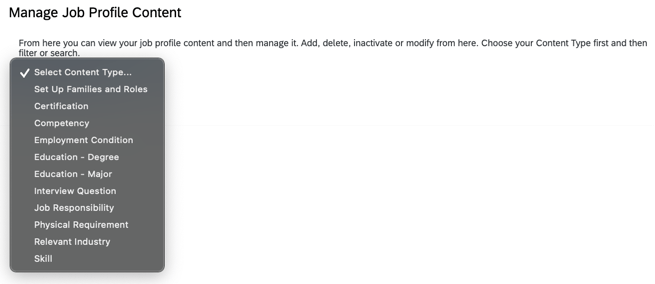
    The list of available skills for jobs in SAP SuccessFactors are defined in the “Manage Job Profile Content” screen (just type “Manage Job Profile Content” in the search bar and if you have admin access and the screen name will come up for you to select). You can see in the screenshot below the list of available types of content SAP allows you to create slot populate on a job profile.

    Types of Job Profile Content

    You can edit the list of available items within each of the categories shown above. Some of these categories are pretty obvious on how to populate with options. For example “Education – Degree” and “Education – Major” would pretty obviously contain lists of degrees and majors that are relevant to the company. The same can be said for certifications and interview questions. Interview questions you create here will show to recruiters. Certifications is where you would list of the certifications relevant to your company’s industry. However, some of these other items can be a little more difficult to understand. A prime examples is “Skill”. This is a very broad term. So how do we go about creating a list of available skills?

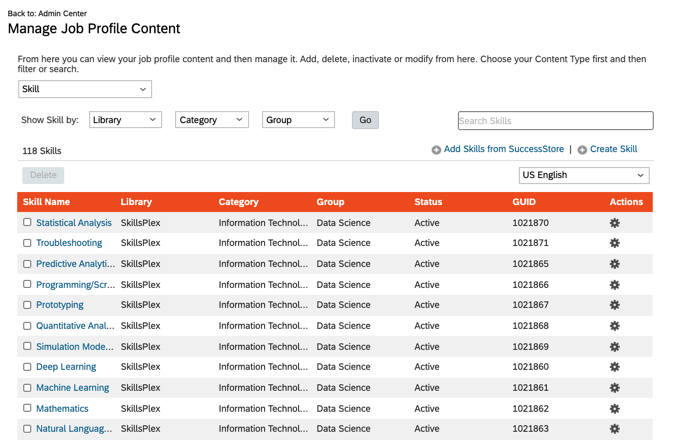
    If you click “Skill” from the drop down shown above, you will see a list of the skills currently cataloged in your system as shown below.

    Job Profile Content Skills View

    Now, we will take a look at how to add a skill from the library as a demonstration of what makes for a good skill in the SAP SuccessFactors Job Profile Builder. From the screen shown above, we can click the “Add Skills from SuccessStore” link. The screen will update as shown below.

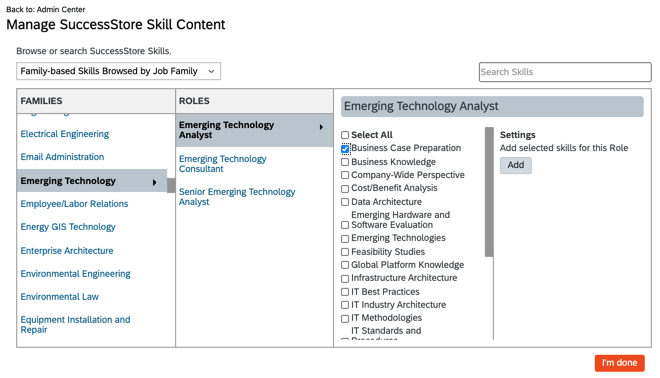
    Adding a SuccessStore skill based on job family and role

    There are two ways to browse through the catalog of skills. The first way shown above is through families and roles. This method associates the skills to a particular role within the standard SuccessStore catalog. You can learn more about job families and roles in Job Profile Builder: An Introduction. We recommend that if you want to add skills for a standard role within the catalog, that you add them from the “Set up Families and Roles” screen instead as shown below. This will actually add the role and family itself along with the skills instead of just the skill with no role.

    Adding all mapped skills when adding a Job Role

    The second way to add skills is shown below is to browse through skills that are not assigned to a particular job role but are organized through categories and groups by choosing “Unassigned Skills Browsed by Category” in the drop down in the upper left corner of the screen. You can simply think of categories and groups as two levels of organization to catalog your skills: categories being the highest level which contain groups and groups containing the individual skills. To choose a skill, click a category and then a group, and then click the name of skill(s) you want to add and click “add” as shown below. It might seem a little confusing as to why SAP created both a role taxonomy and a skill category taxonomy to search through skills, but when you consider that not everyone uses the standard roles library from the SuccessStore it makes sense to have another way to categorize skills.

    Adding a SuccessStore skill based on Category and Group

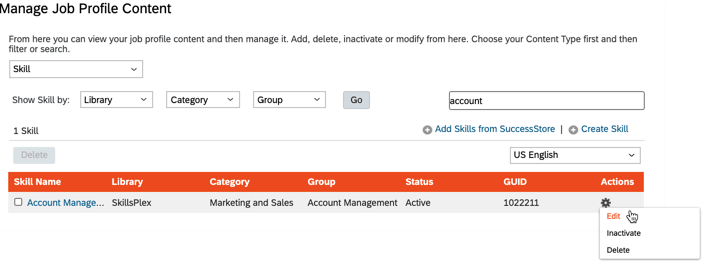
    When you return to the main screen as shown below, you will see the skill added to your local catalog of skills. You can then click the gear icon and choose “Edit” to look at the specific contents of the skill.

    Selecting a skill in your library to edit

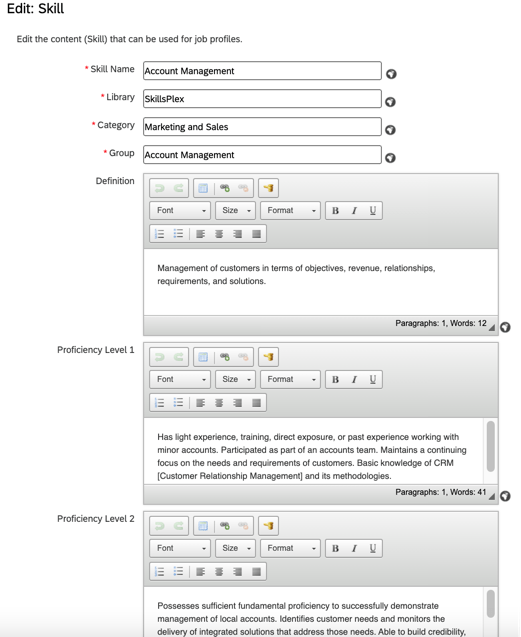
    Here in the “Edit: Skill” screen shown below you can see all the predefined content for the skill from the SuccessStore. SAP SuccessFactors skills consist of a skill name, a library name, a category, and a group to help organize the skill into a taxonomy. Getting into the detail of the specific skill, we see the definition and then 5 different proficiency levels (1 being the most basic and 5 being the most advanced – this scale is pre-set and cannot be changed). Looking at the fields and values on this screen, you can start to get an idea of how skills can be useful to define exactly what skills are required and at what specific level and what criteria define that level when interviewing someone for a job posting or guiding someone towards promotion or working with someone to remediate job performance. Now that you have a good understanding of what a skill looks like, you can continue to add or edit skills in the screen shown above. To add a skill from scratch, click the “Create Skill” link in the upper right corner of the screen. This will also take you to the screen shown below but with all the fields blank.

    Creating and editing skills

    Adding Skills to Job Profiles

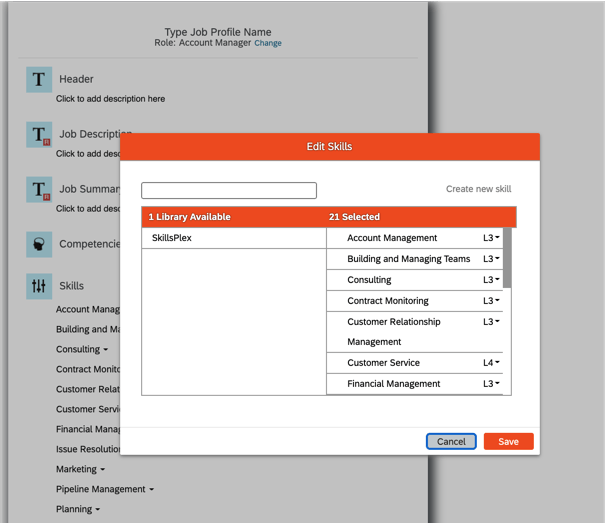
    Once we have a list of skills defined, we can start to add them to our individual job profiles (or if you downloaded the predefined skills when you downloaded the SuccessStore job family and role, the skill will already be there when you create the profile). For info on how to create a job profile see Job Profile Builder: An Introduction. You can see in the screenshot below, when we look at an existing job profile or create a new one in the “Manage Job Profiles” screen, the skills show up in the area specified for Skills in the job profile template. You can mouse over the skills section to add or edit skills. For each skill added you will also need to specify the proficiency level expected for the job. So for example we have added the “Account Manager” role and all associated skills to our library in one of our earlier screenshots. When we create a new profile for the role, the skill “Account Management” is automatically added at level 3 proficiency, “Building and Managing Teams” at level 3, etc.

    Skill assignments within a job profile

    Conclusion

    By now you should have a good understanding of what Job Profile Builder Skills are and how to create them on your own, pull standard skills from the SuccessStore library, and add them to a profile. With some good examples shown here and available on the SuccessStore, you should be able to start building your own library of skills specific to your company needs and associate them to your job profiles and roles. Adding these skills can be valuable for recruiters looking for guidance on what to look for in a candidate, or for employees looking to develop themselves for their next role.

    For more information on the job profile builder and other talent management modules, check out our book here!

    Do you need help setting up your Job Profile Builder? Contact us at info@worklogix.com.

  • An Introduction to 360 Evaluations in SAP SuccessFactors

    An Introduction to 360 Evaluations in SAP SuccessFactors

    As year-end approaches, it is common for many companies to take a second look at their employee performance and goal setting processes. In the past few weeks, I’ve been helping multiple companies revamp their employee performance processes. While some are just tweaking current forms and processes, others are considering including a new and often enlightening process – 360 evaluations.

    What is a 360 evaluation?

    The idea behind a 360 evaluation is to get a picture of how others view your performance from all angles. This means that in addition to getting feedback from your manager (top down), you also get feedback from your own direct reports (bottom-up), peers (side), and even external sources (vendors, business partners, customers, etc.).

    Why do companies implement 360 evaluations?

    Receiving feedback from a variety of sources helps create a more complete picture of how an employee is performing and/or perceived to be performing from different angles. 360 evaluations can help uncover trends and gaps in these different angles. For example, a manager may consider an employee a top performer, but when feedback is asked from peers or external sources on an anonymous basis, the employee might get different feedback (“He’s always on top of his own tasks, but sometimes at the expense of the team as a whole when we need his support”). Similarly, an employee may not be considered a top performer by a manager, but feedback from others could reveal a lot of solid performance feedback into which the manager never previously had sight (E.g. “She’s been so helpful in getting my career on the right path and helping me with work tasks at the expense of her own!”). Allowing this feedback to come to light can help employees and managers work to truly improve employee performance. We’ll take a look in a moment at how SAP SuccessFactors 360 evaluations aid in attaining this kind of feedback.

    Walk-through of a 360 form in SAP SuccessFactors

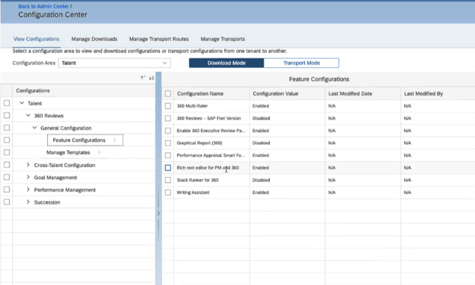
    360 forms are launched just like performance forms are. However, it is important to note that 360 forms use a separate screen for launching (don’t worry, this screen pretty much works the same as the other launch forms screen you are used to. After picking a target population, the admin can launch just like a normal performance form.

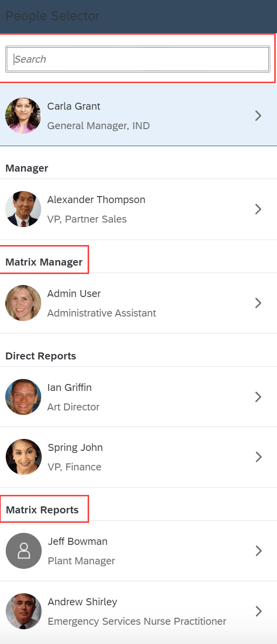
    Search bar showing separate launch screen for 360 forms

    360 forms will also show up in the performance inbox like other performance forms, but with a different icon. It is important to recognize that 360 forms use a template type than regular performance forms and get treated slightly differently in these respects.

    View of Performance Inbox with both 360 and regular performance reviews

    Once the first person in the route map gets the form (in this case the employee), they need to choose who will be involved in the evaluation. The system can be configured to default in people for categories like direct reports, manager, and peers.

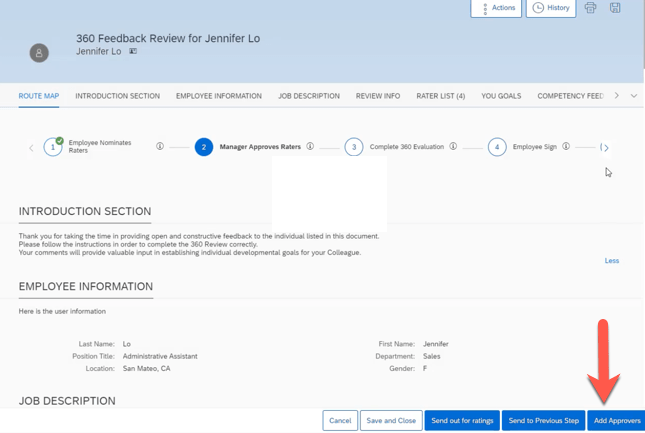
    Employee nominates raters step of 360 review

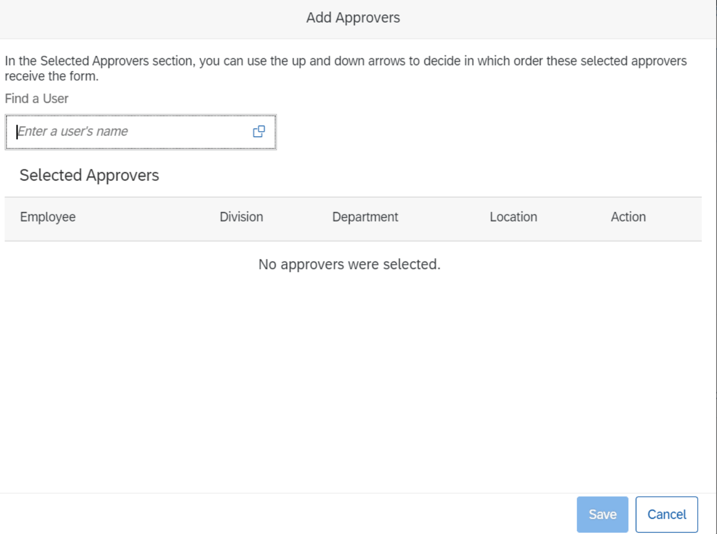
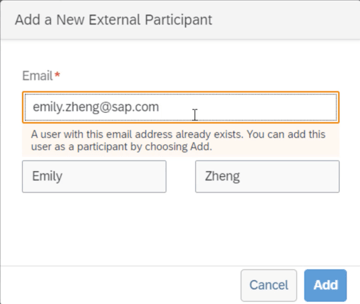
    Users also have the option to add external participants as shown below by simply providing a first name, last name, and email and then choosing in what category the person should be included.

    Adding an external participant

    Once the user is finished adding participants, there is usually an approval step prior to the evaluations being sent out. Evaluations can be designed using sections similar to those you are used to seeing in a standard performance review form. There are sections for objectives, competencies, as well as an introduction and a section for the subject’s information. Unlike regular performance forms that can be configured heavily on the online editor in “Manage Templates”, 360 forms can only be fully setup by partners or SAP (though much of the config is done in the online editor).

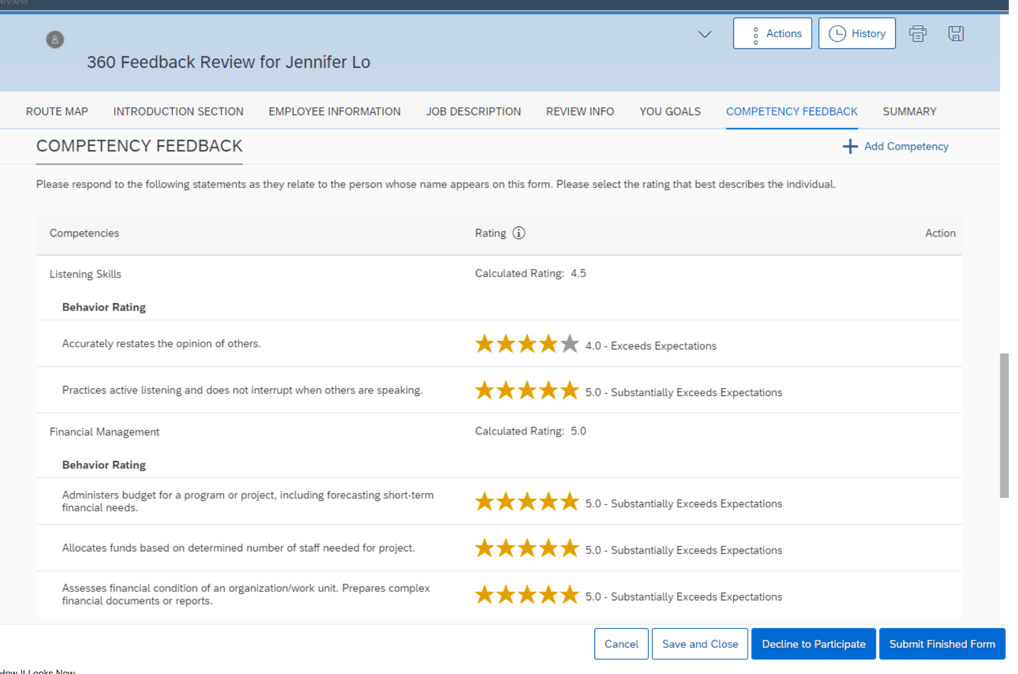
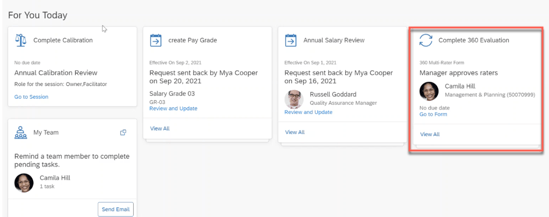
    For internal participants, the evaluation is sent to the user’s performance inbox like the typical performance reviews where they can then open the form as shown below.

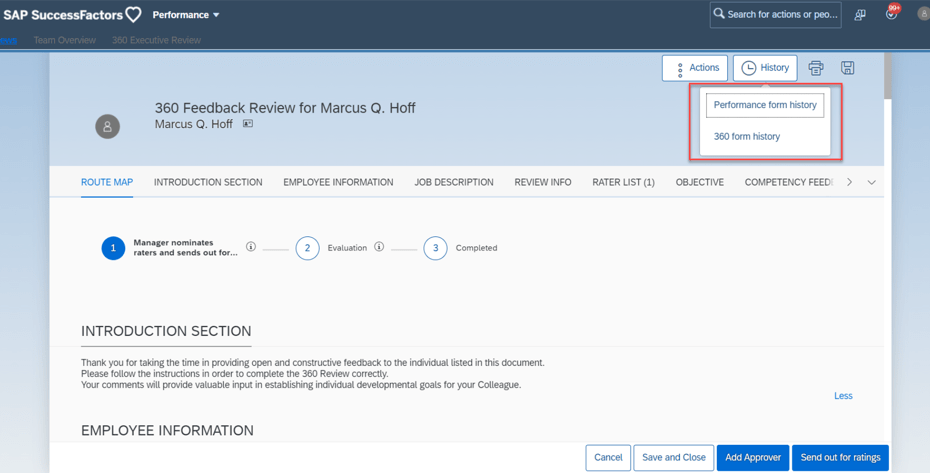
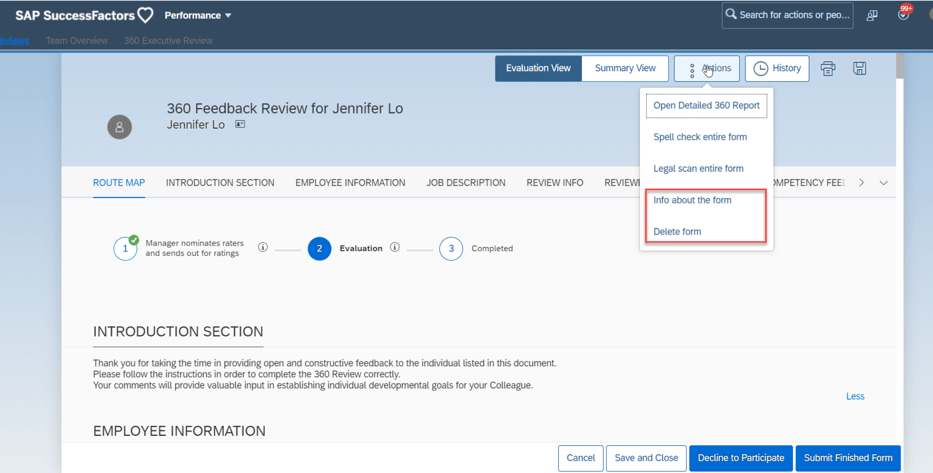
    360 Review Form Sent to Evaluator

    In the case of external participants, after approval of the evaluators, an email is sent with a link that allows external users to access the form. This can be a security consideration for some organizations since the link is only as secure as the receiving email system.

    After all evaluations have been completed, the form is put in the completed status and the employee / manger / etc can view the results depending on permission settings. You can see an example completed performance form below.

    Completed Review showing Anonymous ratings

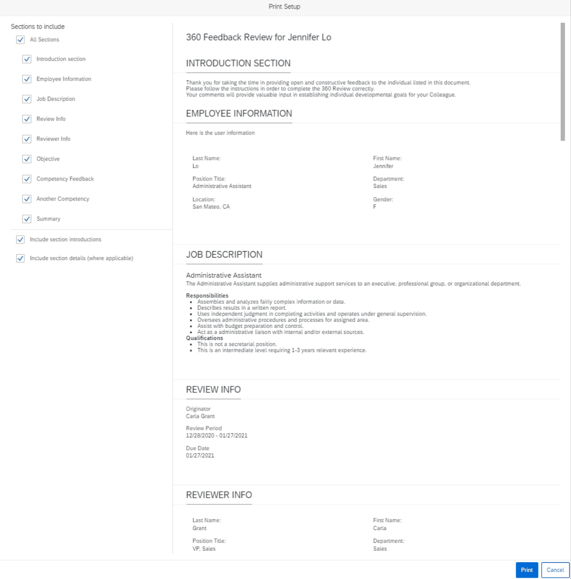
    One key advantage of the 360 form in SuccessFactors over the typical annual performance review is that the 360 feedback comments and ratings can be made anonymous. Obviously the user would know who their manager is, or they might be able to derive who the other evaluators are based on category if there are only one or two – so the forms allow you to configure minimum counts in each category as well as rollups to combine categories to help keep anonymity. The user can click on the link for each reviewer to see the details of each review and create an HTML or PDF printout of the details as shown below.

    Printed Detail of Individual Review Feedback

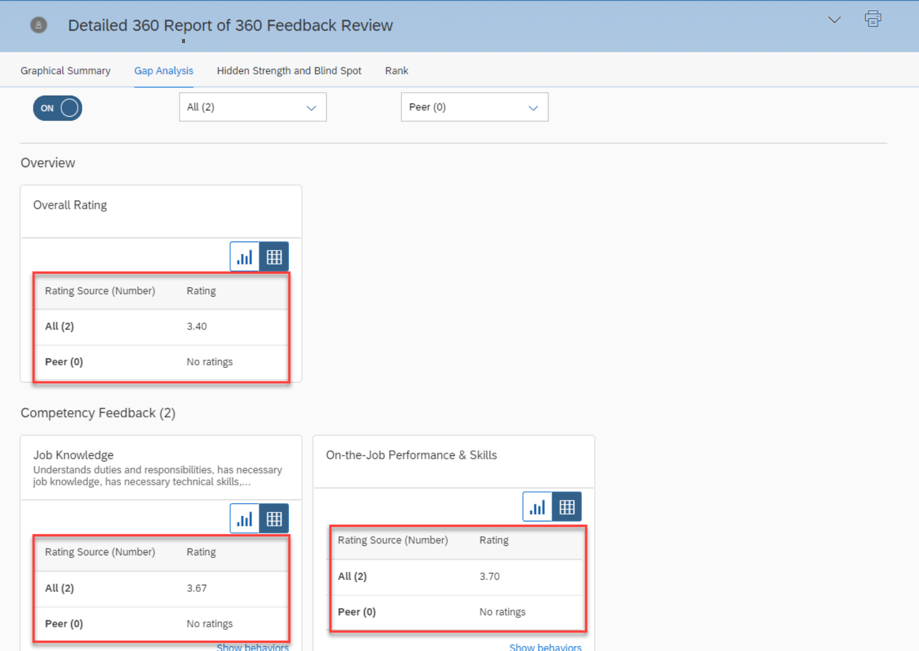
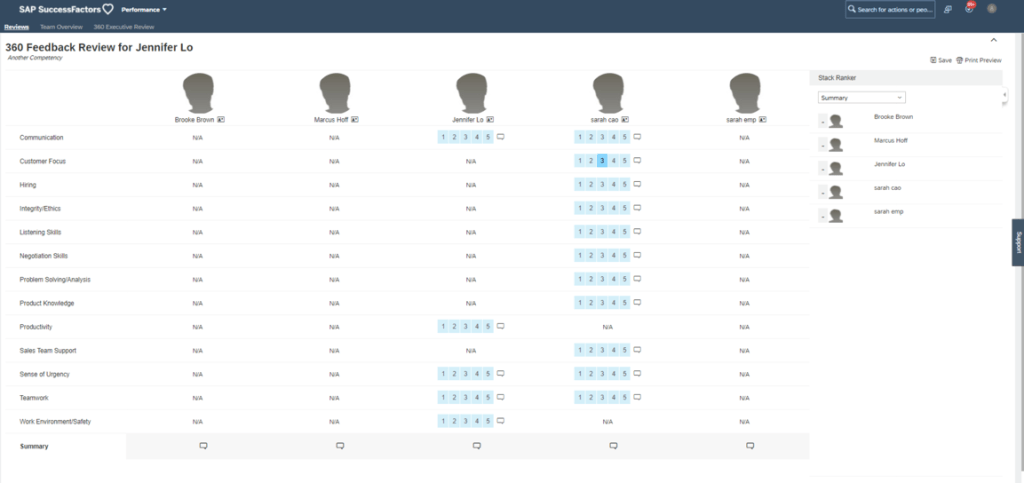
    The form also has a nice detailed report showing the combined feedback comments and overall ratings by category. This can help the employee and manager understand where any gaps between self and manager evaluation ratings may exist along with other types of ratings from other categories. For examplem we can see below there is a large gap between the manager’s perception and the employee and other’s perception of “Prioritizing and Organizing Work”. Perhaps the manager is getting too much priority and the employee needs to focus on the work the team as a whole needs completed!

    Wrap Up

    After this quick walkthrough, hopefully you can now see the advantage of 360 forms as an insightful tool to get employee performance feedback from a variety of sources and understand what a typical end-to-end 360 process looks like.

    For more information about 360 forms and other talent management modules in SAP SuccessFactors, check out our book here!

    Do you need help implementing or changing your 360 form or other performance and goals processes? Contact us at info@worklogix.com.

  • Creating a Safe and Efficient Recruiting Process using Technology during COVID-19

    Creating a Safe and Efficient Recruiting Process using Technology during COVID-19

    Companies are hiring! A recent LinkedIn article shows that individual companies are now hiring 10,000s of new employees. This is great news for the economy. We at Worklogix have also seen customers gearing up their recruiting systems. But all this renewed activity in the “New Normal” raises the question “How do we keep everyone safe during the process without sacrificing the candidate experience?” In this blog we share how we’ve helped customers expand their recruiting capabilities with SAP SuccessFactors technology to keep candidates and current employees safe.

    Engagement

    Just because there are more people looking for jobs doesn’t mean engagement needs to go down. Quite the opposite–it means now is your chance to engage the most people to get the best talent! If your company isn’t hiring yet, it makes the challenge even more important because without any postings, you’ll need to come up with creative ways to keep people checking back in with your career site. We’ve helped companies integrate with tools like chatbots that interact with candidates to document their interests and create talent profiles that can be used to trigger email updates. If you are wondering how to create talent pools and target them with email campaigns within SAP SuccessFactors, checkout our other blog article “Actively Engage Prospective Candidates with SAP SuccessFactors Recruiting CRM Features“. Email campaign content can range from virtual career fair announcements and updates on postings, to videos featuring real managers describing why they like working for the company and what they are looking for in a good candidate.

    Automated Assessments

    Assessment Status and Scores showing within Candidate Overview Screen in SuccessFactors

    Even prior to COVID-19, we’ve been helping customers sift through 1,000s of candidates with automated assessments. With more unemployed people seeking jobs, there is increasing pressure to comb through even more candidates per posting. Automated assessments can take the form of surveys or even Artificial Intelligence. For example, we’ve help customers automatically send out 3rd party survey assessments immediately upon applying or at other stages in the recruiting process. From there, the candidate can either be automatically disqualified or be sorted into different statuses and/or given a rating to easily compare against others. Assessment status and scores can also be integrated directly into the SuccessFactors user interfac as shown in the screenshot above and even sorted in descending order for maximum visual efficiency for recruiters. We’ve also worked with cutting edge vendors to give candidate similar ratings based on resume and candidate profile content using AI technology.

    One-Way Interviewing / Virtual Interviewing

    As in-person interviewing takes on new risk, many are turning to one-way interviewing and/or virtual interviewing. We’ve helped customers setup their SAP SuccessFactors systems to automatically trigger 3rd party video interviewing systems when placed in an interview status. Typically, after the status trigger, the candidate gets an email with instructions, perhaps to download an app on their phone. In a one-way interview scenario, candidates are prompted with specific questions and are allowed to record an audio or audio/video segment answering each question. The recruiter then receives the segments in the vendor system and can even get automated system feedback on how the candidate answered. The advantage here in addition to not having to meet in person is there’s no need to work out scheduling issues and the candidate can often re-record until they are satisfied with the answer they have provided. Two-way interview automations often take the form of automated scheduling systems ending in a virtual conference call.

    Will I have to work on site once I get the Job?

    Depending on the position, this is probably a question on many candidates’ minds when applying to a new position, and one that recruiters should be prepared to answer with confidence. At Worklogix, we’ve helped companies flagging their positions to denote how critical being “in-person” is to the role and even denote what kind of proximity to other people or exposure risk the role may require. By expanding position objects in the SuccessFactors MDF and linking the field to the requisition, recruiters can post positions and communicate with candidates clearly about the on-site expectations of the role are.

    Automated Drug Screening and Background Checks

    While some companies may choose to forego drug screenings, others like those subject to DOT regulations have no choice. A recent SHRM article talks about the pros and cons and realities of drug testing during COVID. The question seems to be, are we doing more harm by not conducting screenings designed to provide a safe work environment for employees? Giving candidates options might help here. We’ve helped many customers setup automations with a variety of background check & drug screening vendors. Some of these vendors allow candidates to choose from a variety of facilities that may have different safety options candidates can choose from and feel more comfortable. In a typical automation scenario, the candidate is moved to a background screening status in SuccessFactors which triggers a call to the vendor, which in turn sends an email to the candidate to provide needed information and choose a drug screening facility. Results can also be shown directly in the SuccessFactors UI similar to assessment results.

    Delaying I-9 Verification

    Once a candidate is ready to hire, companies can also delay unneeded on-site attendance by delaying I-9 verification. As you may be aware, the Department of Homeland Security has delayed the need to verify employee work authorization documents. You can read the updates from DHS here. To comply for this, SAP has made updates to the existing Onboarding 1.0 process. You can read the full SAP note on the COVID-19 onboarding process here. For Onboarding 2.0, the US forms will be out as part of the H2 2020 release.

    Wrapping up

    Online engagement using chatbots and email campaigns, automated assessments, virtual interviewing, flagging positions for work conditions, automated background checks, and I-9 updates are just a few examples of how company recruiting initiatives are working to make the recruiting and onboarding process both safe and efficient during COVID-19.

    For more information about recruiting integrations, check out our book here!

    Are you working on any similar recruiting initiatives and need help? Email us at info@worklogix.com!