Tag: Goal Management

  • Highlights of SAP Successfactors Performance Management for 2H 2025

    Learn what’s currently available for the latest Performance and Goal Management with the 2H 2025 SAP SuccessFactors Release.

    Preview release was on October 13 and production will be released November 14-16.

    For greater details, you can view the full set of documentation in the What’s New Viewer here. For full details on the release cycle, check out the SAP SuccessFactors official product updates blog.

    For tips on how to manage a release, check out our blog here

    The SAP SuccessFactors 2H 2025 release focuses on enhancing the user experience and leveraging AI.  For your convenience, we’ve summarized the highlights of what’s new for the second half of 2025 release for Performance Management below.

    Performance Management

    Replacement of Legacy Performance Management Form Experience with Latest Experience

    The latest experience of Performance Management forms is replacing the legacy one, which will reach end of development on November 14, 2025 and will be deleted on November 20, 2026.

    The latest experience was automatically enabled in the Preview environment for customers using the latest Goal Management in the 1H 2025 release. This is not the case in the Production environment, the latest experience wasn’t enabled by default.

    The latest experience has the key features in the legacy version with an enhanced user experience, a more flexible layout, more business rule scenarios, and generative AI features if the AI user license is purchased.

    Enhancements to Latest Experience of Performance Management Forms

    Some of the new features now available:

    • EZ rater
    • Goal comments and learning activities available when printing form
    • Forms can be printed in custom layout
    • “Print” button available for form snapshot
    • Additional fields are available on side panel: unofficial rating, expected rating, rating gap
    • Goal status colors display in form (if configured)
    • Help text added for rating field for competency with behaviors
    • Warning message to appear if proxy user does not have access to missing form content
    • Read only forms will not show action buttons

    Mass Route Ungrouped Forms to a Specific Step

    Using the “Route Form” action, forms may be mass routed to a specific step when they are using the same template and route map. In the past, only a group of forms from the same launch could be mass routed, not forms across launches for the same template.

    Within the “Route Form” action, search for the forms by specifying the template or uploading form IDs. In the search results, select the forms you wish to move
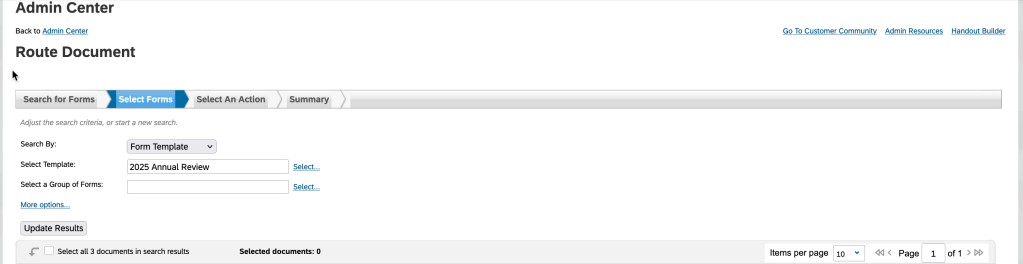
    “Route Forms” action

    Once the forms are selected, they can be mass routed using the Move the form to a specific step option in the “Select An Action” step of the routing process.
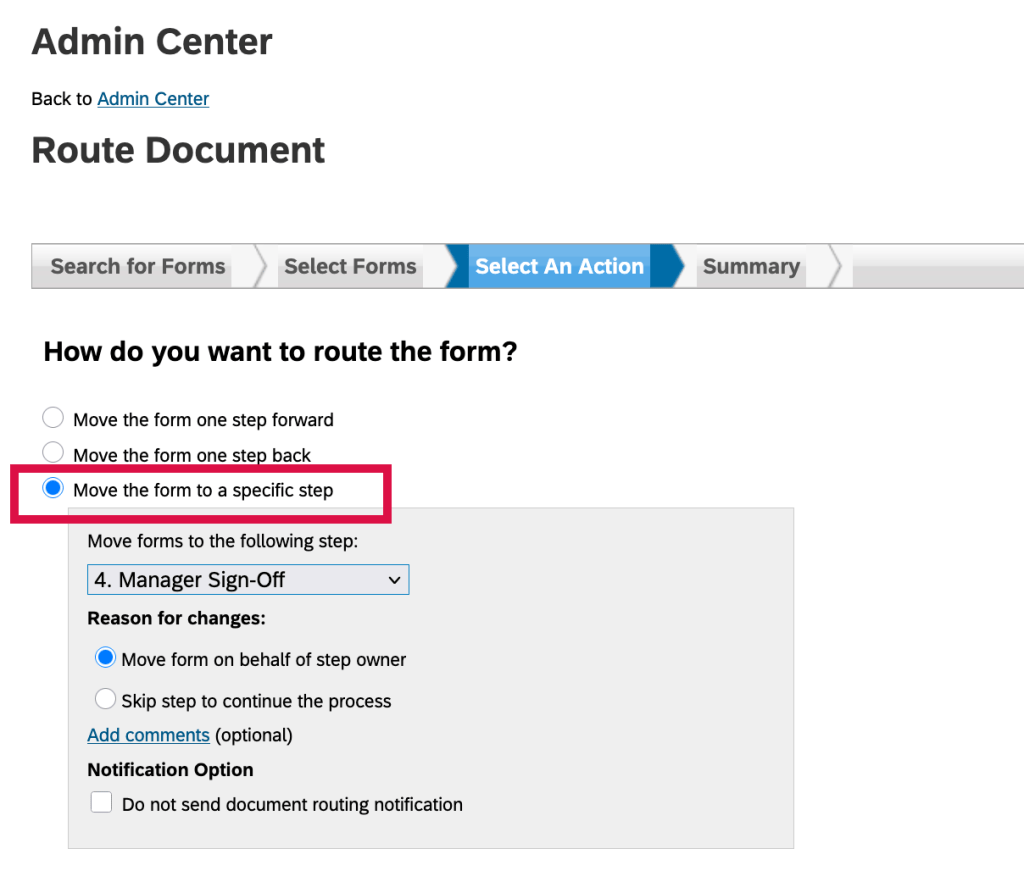
    Move ungrouped forms to a specific step

    Enhanced AI-Assisted Writing in Performance Management

    With the purchase of the AI units license, the AI-assisted writing actions, Generate Comments and Improve My Feedback are now available for goals, as well as skills, competencies, and behaviors.

    When a goal is assigned a rating, users can access the two actions in the comment box for that goal, from the context menu of the AI-assisted writing tool.

    New Business Rules

    There are some new business rules that may be configured when using the latest experience for Performance Management:

    • Conditional Field Visibility, Editability, Required/Optional
      • Create business rules to set specific form fields to visible or hidden, editable or read-only, and required or optional, when certain conditions are met
      • Creating conditional rules provide flexibility to show form fields differently based on user input. For example, a manager giving a certain rating would require a comment
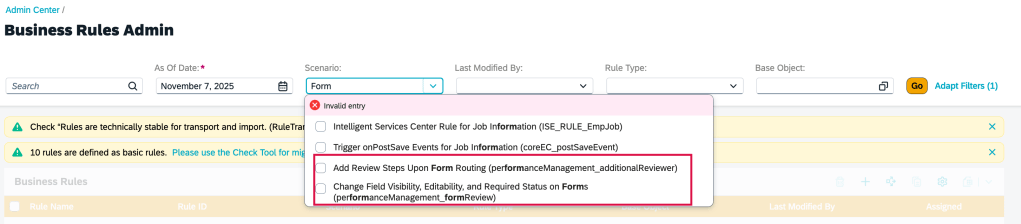
    • Add Review Steps upon Form Routing
      • Business rules may be configured to add steps to the Modify stage of the form based on meeting certain conditions. For example, a certain rating by a manager can trigger an additional step to add another reviewer to the process.
      • These steps are pre-configured in route maps and marked as Hidden Until Rule Execution. When the conditions defined in the rule are met, and the form with a hidden step is being routed forward, the rule is executed, making the step visible on the form.
      • All step types are supported
    New Business Rules

    Add link to People Profile Card View from Performance form

    Links can be configured to the latest People Profile cards in the form template when the full profile of the latest People Profile is enabled.

    In the Manage Templates admin tool, you can use the new configuration “[[CARDLINK|<cardId>|<displayName>]]” in the description section of a field to a add card link to a form template.
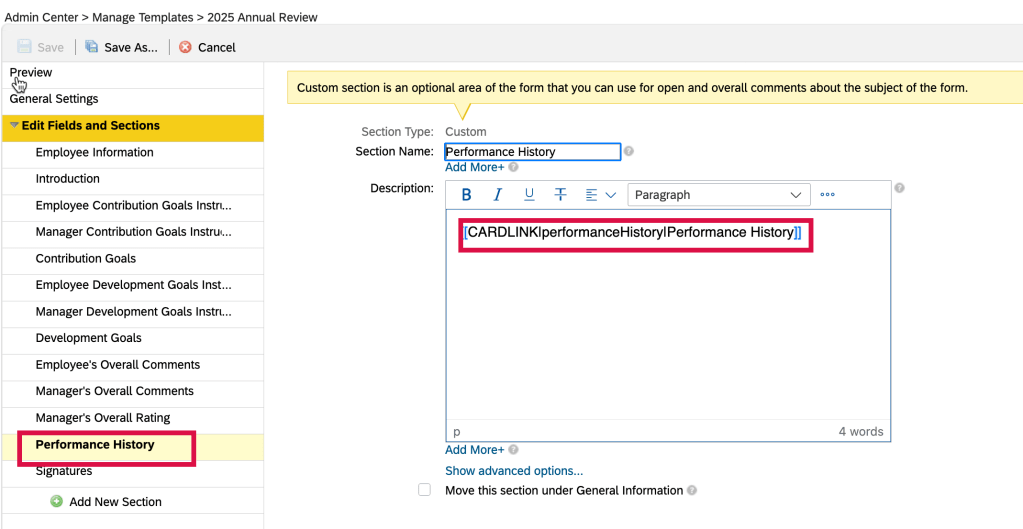
    Add card link to a section within the performance template

    This allows the ability to link to a card in the latest People Profile when working within an employee’s form where they can view and edit the profile.
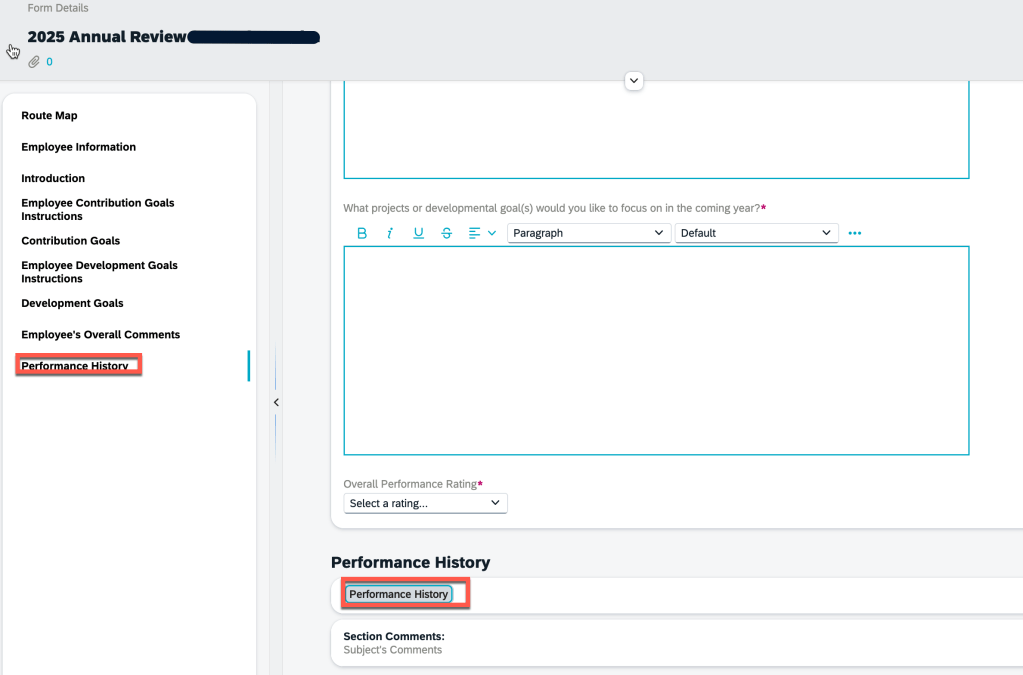
    Link in form to card within People Profile

    Card links to add include: badges, tags, goals, performance history, nominations, calibration history, trend information.

    Access to Manage Templates to update, download and edit XML templates

    A great new feature allows templates to be downloaded, viewed, edited and added via “Manage Templates”. This removes the need to use Provisioning to update the form template XML.

    This permission is applicable to performance form templates, 360 form templates, goal plan templates, and development goal plan templates. You can download templates and view template revisions without any configurations.

    This does require an update to a role’s role-based permission to a upload new templates and update existing ones. Care should be given to users that will receive this access.
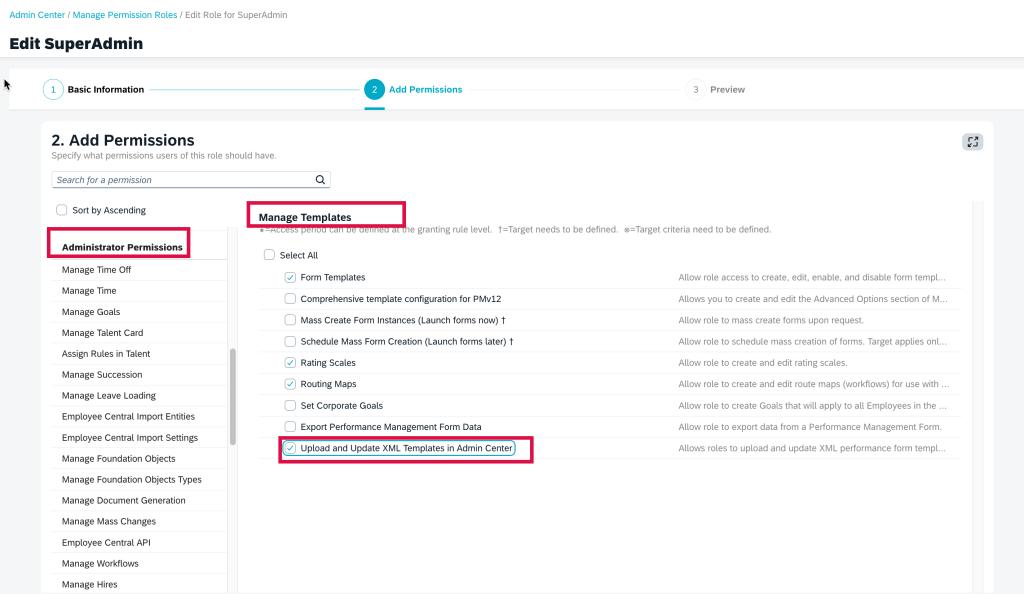
    Manage Templates Role Based Permission for Upload and Update XML Templates

    Once the role has permission to upload and update XML templates, the user can upload new templates, update existing templates, view historical XML and download the templates via Manage Templates.
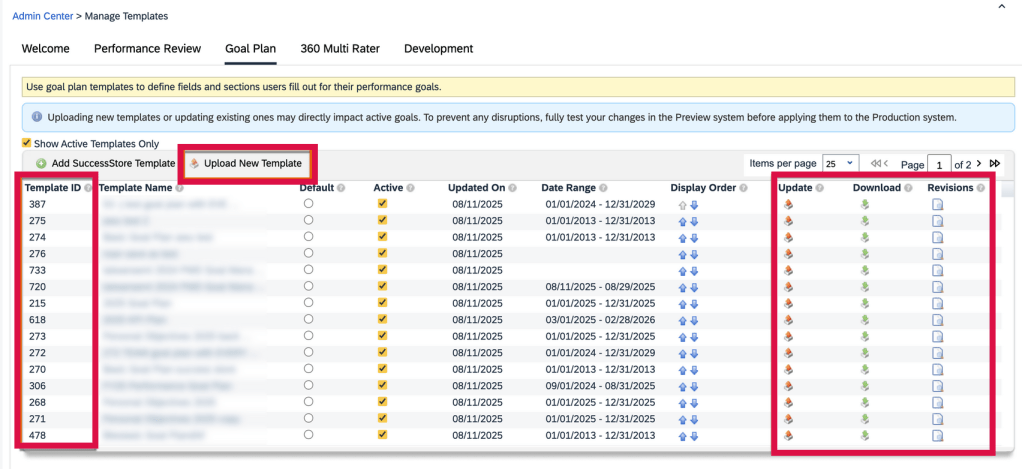
    Upload and Update Templates in Manage Templates

    Goal Management

    Here are some of the highlights of updates for Goal Management.

    Purge Goals by Goal ID

    The admin tool, Data Retention Management, has been used for data purge requests. For goal management, it has been used to purge performance and development goals by selecting the goal plan template in the purge request. This meant the process purged goal data for a specific user’s goal plan, and not just purging a single goal on the plan.
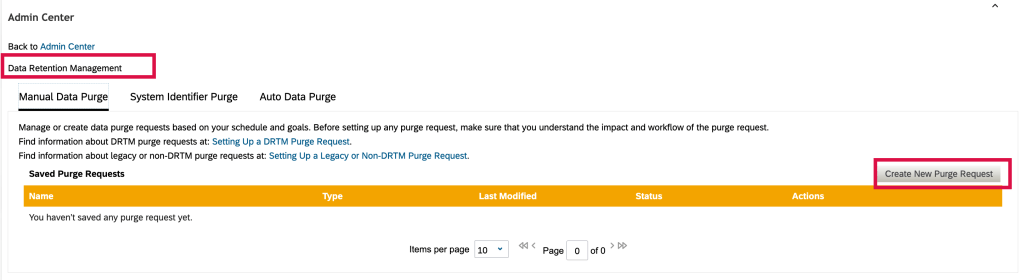
    Create Purge Request

    Now there is greater flexibility in purging user performance and development goals. In the latest version, the “Purge method” lists two options for purging goals: Purge by goal plan template and the new Purge by goal ID.
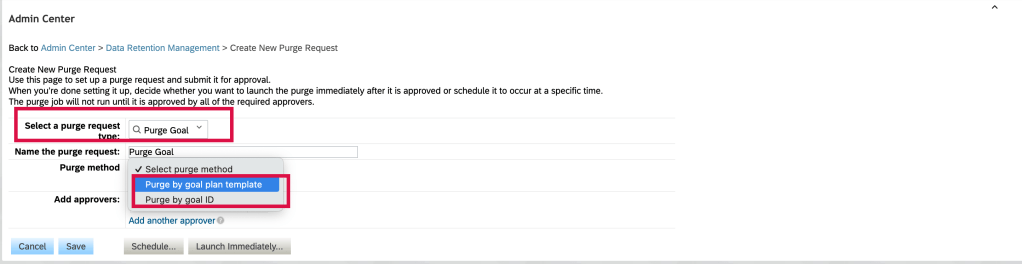
    Purge by Goal ID or Goal Template

    To purge specific goals, use the “Purge by goal ID” purge method. You can download the sample CSV file to get the proper file columns.
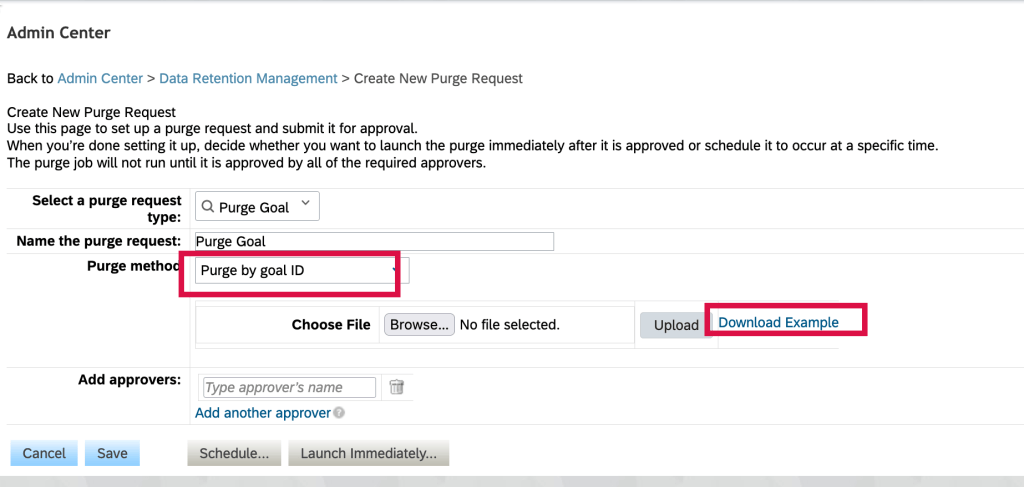
    Purge by goal ID

    You will need to populate a CSV file with the goal ids. Goal IDs can be found by creating a goal management ad hoc report that lists the goal plan template goal name, goal owner and the goal ID.
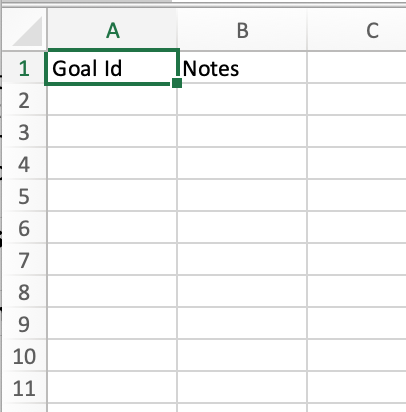
    Sample Purge file by Goal ID

    Once the goals to be purged are identified, add the goal IDs to the CSV file and upload to the purge request.

    The existing method, to purge by goal plan template will purge all data associated with the template.

    Import Goals for Target Population

    Within a role based permission role, in the Administrator Permissions section>Manage Goals, there is now an option to specify a target population to import goals for.
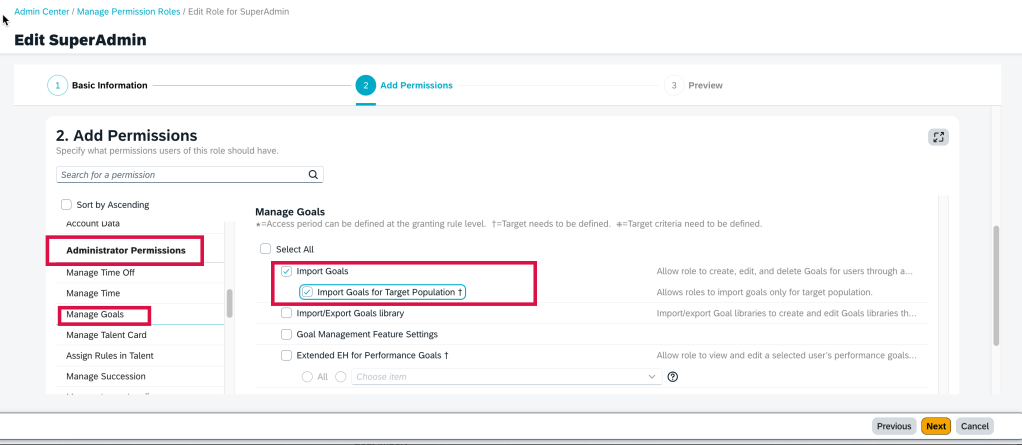
    Import Goal by Target Population

    Previously, a role having permission to import goals would be able to import goals for any active users.

    Now if attempting to import goals for users outside their target population, there would be an error message in the goal import email notification.

    Minor Goal Management Enhancements

    There are some minor goal management enhancements in this release which streamline the goal management experience for users.

    • For the confirmation message and button label in the confirmation dialog for Edit Performance Goal, Create Performance Goal, Edit Team Goal, Create Team Goal, Edit Development Goal, and Create Development Goal pages. the confirmation dialog was “Are you sure you want to discard the changes?”, and the corresponding button label was “Keep Going”.
      • This has now changed to “If you’ve made any changes, they won’t be saved. Are you sure you want to discard them?” and the “Keep Going” label is changed to “Cancel”.
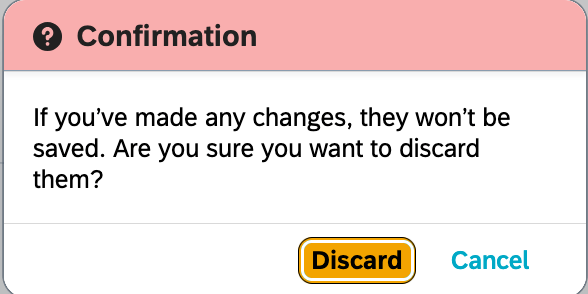
    Updated Cancellation Confirmation Message
    • On the Goals landing page, the warning messages for goal number and weight limits are now displayed as message strips. This highlights to users the defined limits of goal number and total goal weight.
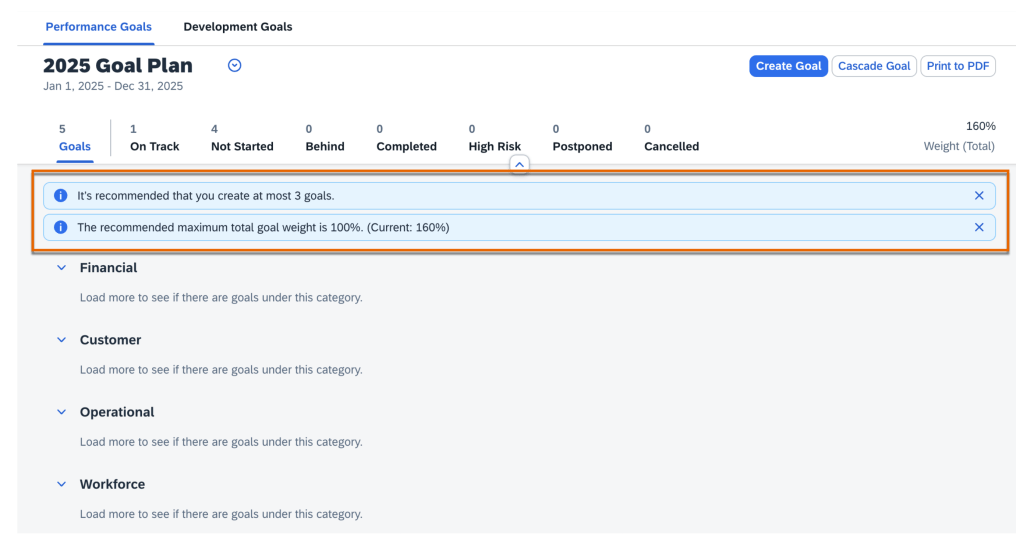
    Goal Warning Messages
    • On the Goals landing page, the goal filter component no longer uses status colors

    Goal Status Without Colors
    • Assigning Team Goals – users can select all loaded goals during the goal selection step in the Assign Team Goal and Cascade Goal dialogs. The number of goals is now increased to 100 from 20, and the checkbox is renamed “Select All Loaded Goals”
    • Update to Sharing, Unsharing Team Goals – users with the Share Team Goals permission can now share and unshare team goals with anyone in the organization
    • A more user friendly error message displays when saving goal plan template, it shows the cause of the error and provides a solution

    Goal Plan Save Error
    • Consistency in use of “More”: on the Goals landing page and Manage Team Goals page, the button label “More” is changed to “Show More “
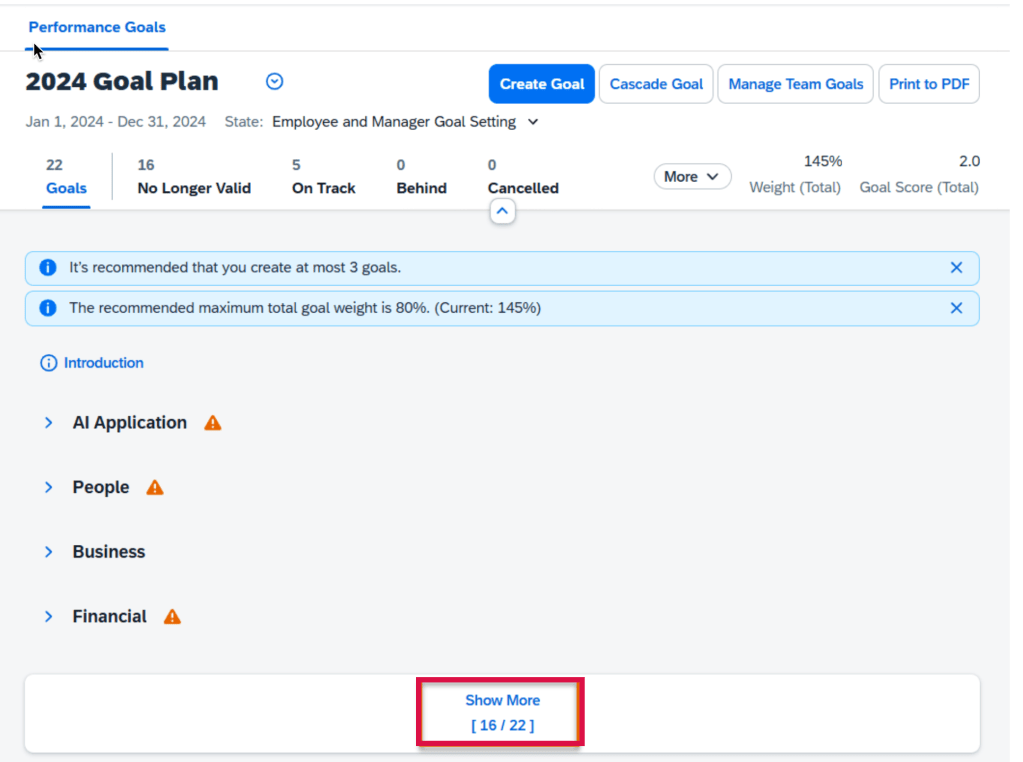
    “Show More” replaces “More”

    360 Reviews

    Here are some notable updates for 360 Reviews.

    Add Link to Detailed 360 Report in Email Notifications

    A link can be added to the Detailed 360 Report in the “360 Document Complete Notification” email template by using a new tag [[PM360_DETAILED_REPORT_URL]].

    When this tag is added to the 360 Document Complete Notification email template, users have immediate access to Detailed 360 Reports from their email.
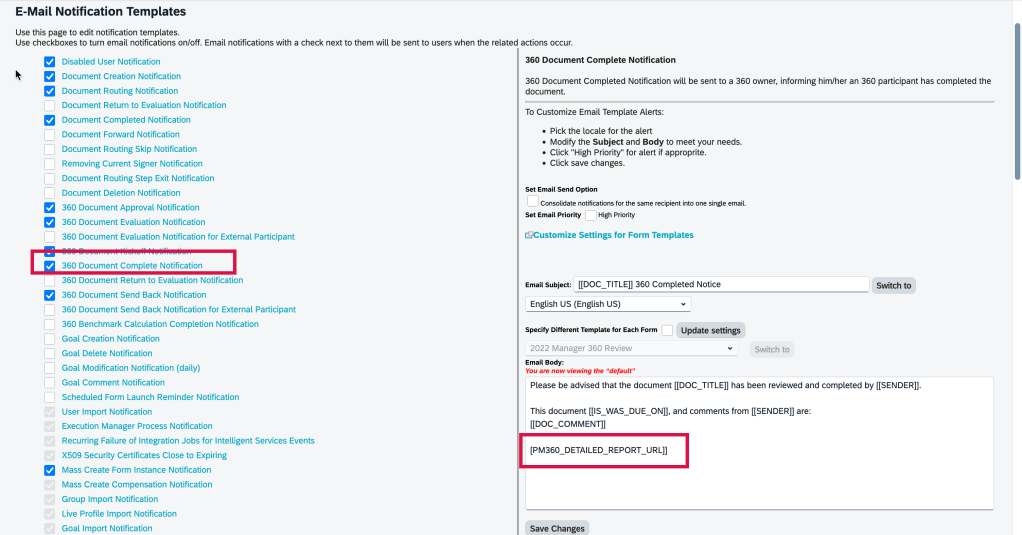
    New Token for 360 Document Complete Notification

    How the tag is rendered depends on whether the option Enable HTML email notifications is selected in Company System and Logo Settings:

    • If selected, the tag appears as a clickable phrase: Detailed 360 Report for {subject user’s full name}.
    • If not selected, it’s resolved as a clickable URL, preceded by an introductory text: For an overview of raters’ feedback, view {URL}.

    New switch to hide Radar Charts on 360 Detailed Reports

    In the Advanced Settings for a 360 template in Manage Templates, there is a new option to hide radar charts on the Detailed 360 Report. The switch “Hide Radar Charts on Detailed 360 Report” is turned off by default.
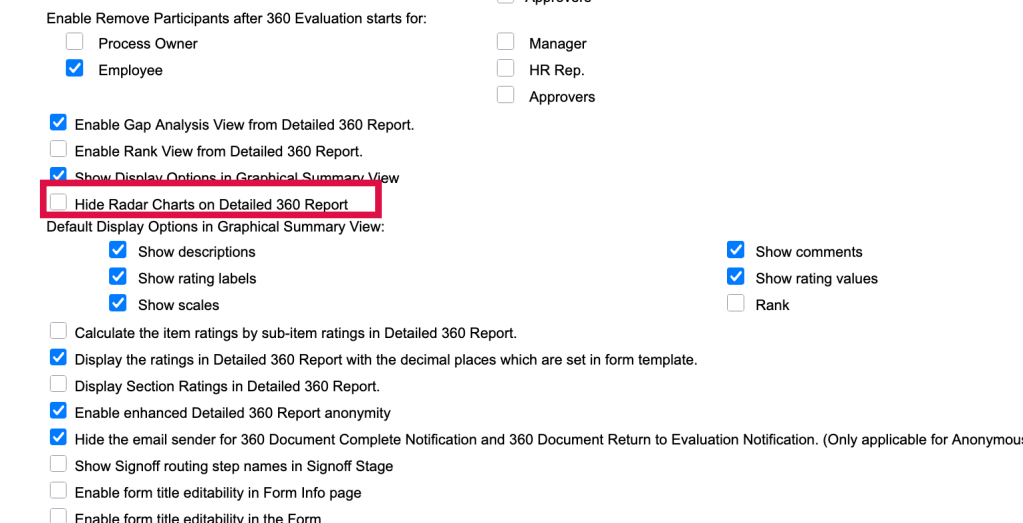
    Advanced Settings – Option to Hide Radar Charts on Detailed 360 Report

    Minor 360 Review Enhancements

    There are new visual and functional enhancements in this release.

    • The spacing of Competency and Objective sections have been improved
    • When adding back deleted participants during the Evaluation stage, participant’s original category information is retained and pre-filled in the Add Participants dialog
    • The Suggestions for Improvement section in Assisted 360 Reviews Insights now includes links to generate development goals
    • Error messages now explain the issue and provide troubleshooting.when users open, send, save, or perform other actions on a form
    • Information about behaviors (names, descriptions, ratings) is now used as input for generating comments

    Multiple Review Reminders for Upcoming 360 Review Steps

    You can now schedule several reminder notifications to prompt participants before a 360 review step is due.

    In Manage Templates, in the Advanced Settings for a 360 template, there is a new option, “Series Due Notification Dates (days before due date)“. Using this option enables you to schedule multiple reminders when using step due notifications for the template.

    You may set a series of reminders before a step due date. Simply enter the number of days prior to the step due date to define how many days in advance reminders are sent. Separate each number of days with a comma.
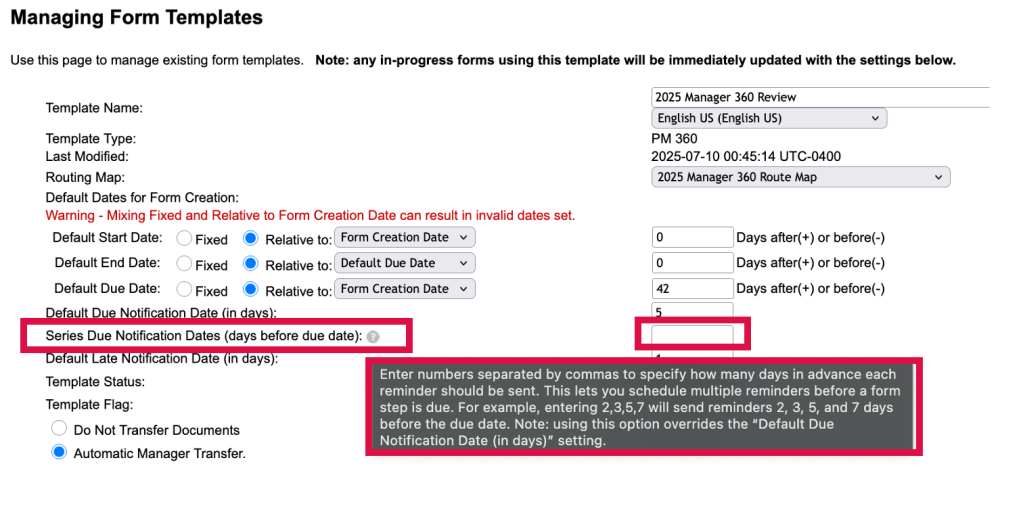
    New Series Due Notification Dates

    Using this option overrides any settings for the existing option Default Due Notification Date (in days), which supports only a single reminder.

    To learn more, see the full set of documentation in the What’s New Viewer here.

    Do you need help implementing or supporting your SAP SuccessFactors system?  Contact info@worklogix.com for assistance, download our support services brochure, or visit https://www.worklogix.com/implementation.html for additional information.

  • Highlights of SAP SuccessFactors Latest Goal Management for 2H 2024

    Learn what’s currently available for the latest Goal Management with the 2H 2024 SAP SuccessFactors Release.

    For greater details, you can view the full set of documentation in the What’s New Viewer here. For full details on the release cycle, check out the SAP SuccessFactors official product updates blog.

    For tips on how to manage a release, check out our blog here

    Hide “Create from Scratch” Option for Goal Creation

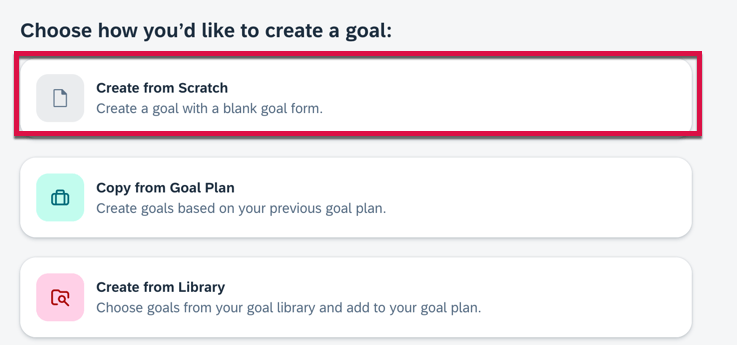
    When creating on goal on a goal plan using the latest Goal Management, it is possible to create a performance goal from scratch, copy a goal from another goal plan or create a goal from a goal library. The options are shown below.

    Create Goal Options

    The Create from Scratch goal option for performance goals may be hidden. To hide this option, there is a switch to set in the goal plan template XML:

    <switches>

    <switch for=” turnoff-add-personal-goal-button” value=”on” />

     </switches>

    Once the switch is set to turn off this button, the option to create goals from scratch will no longer appear.

    Copy Goals on Behalf of Others

    In the latest Goal Management, managers can now go to a user’s goal plan and copy personal goals on the user’s behalf. The Copy from Goal Plan option is available only for the latest goal plan.

    Configuration Requirements

    • Using the latest Goal Management
    • The TGM/CDP Goal Transfer Wizard feature is enabled
    • Users are assigned more than one goal plans
    • The create permission for goals is granted in the goal plan template XML

    Goal Modification Email Notification Jobs in Admin Center

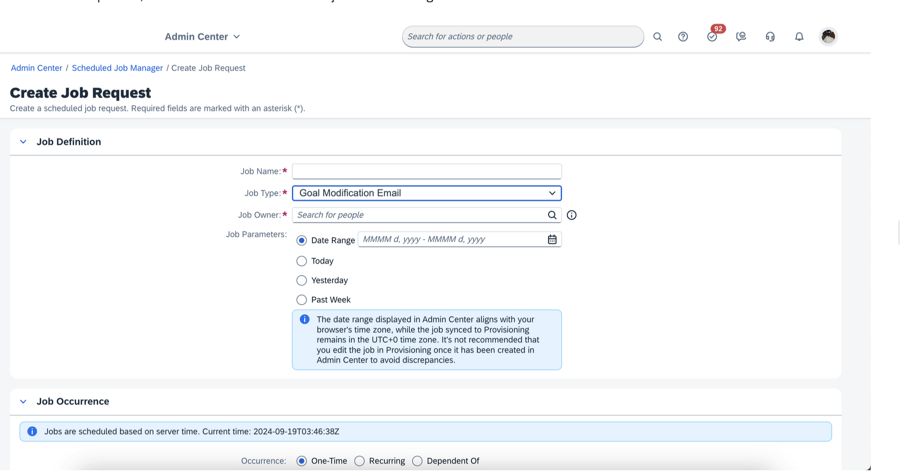
    You can now create a job request for the goal modification email in Scheduled Job Manager. It no longer has to be set up in Provisioning.

    Create Goal Modification Notification

    The date range displayed in Admin Center aligns with your browser’s time zone, but the job synced to Provisioning remains in the UTC+0 time zone.

    Link and Unalign Goals

    In the latest Goal Management, It is now possible for users to link their performance goals with another user’s goals or unalign goals In their own goal plan:

    • Choose the Link Goal option on a goal card and follow the on-screen instructions.
    • Go to another user’s goal plan, choose the Link with Mine option on a goal card, and complete the linking steps.

    Goal Plan Template Cascade/Align Permissions

    In the goal plan template XML:

    • Grant cascade-align permission for roles to link goals
    • Grant unalign-parent or unalign-child permission for roles to unalign goals

    Minor Enhancements for latest Goal Management

    Some enhancements for the latest Goal Management have been added to make it easier to use.

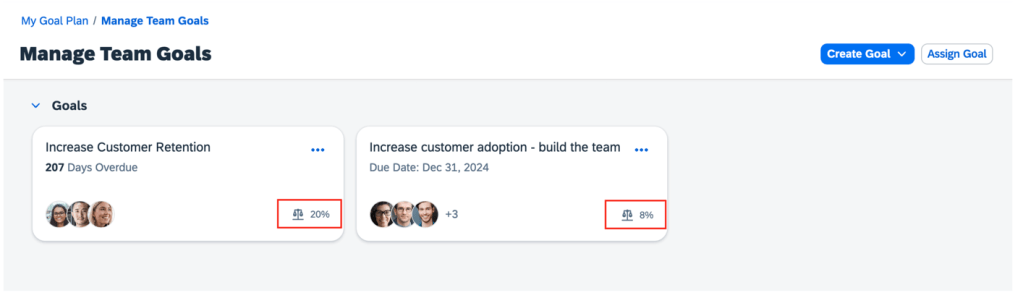
    Weights for Team Goals on Goal Cards

    Weights are now displayed for team goals on goal cards.

    Weights on Team Goals

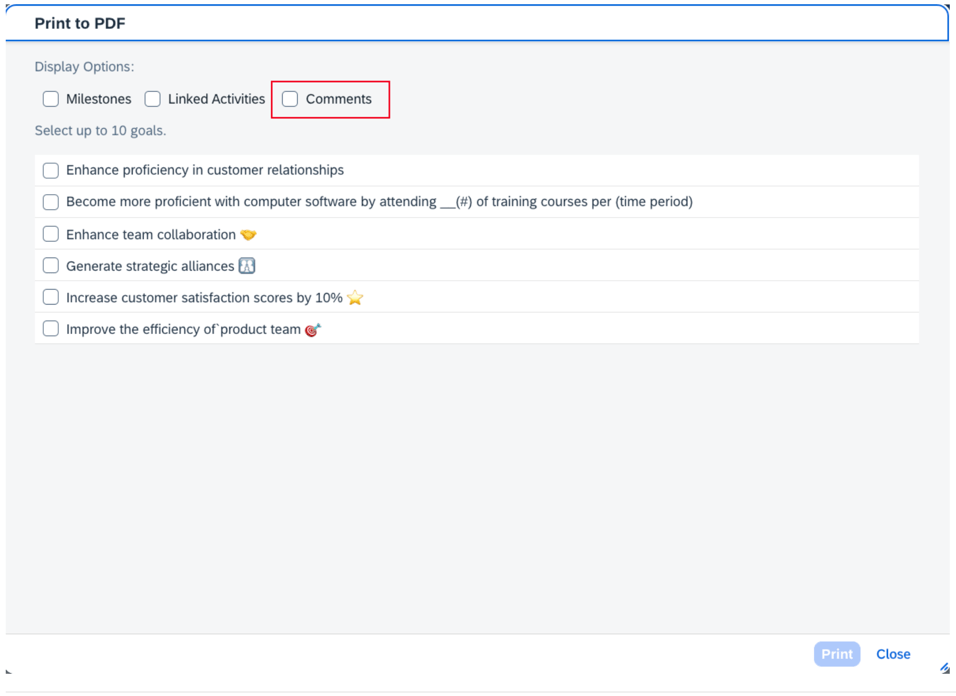
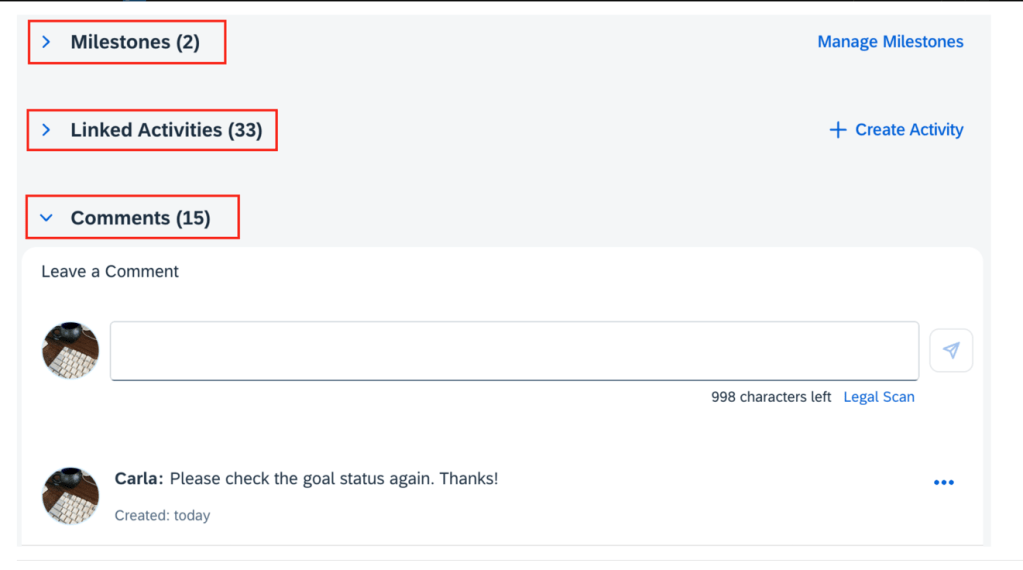
    Comments on PDF

    Users can now include comments in the PDF output for goals.

    Print Comments

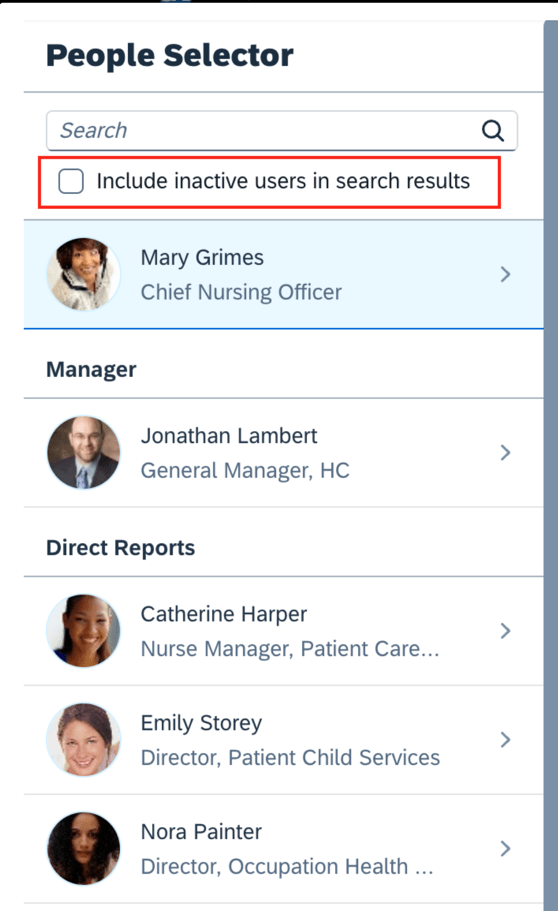
    Inactive Users in People Search for Goal Plans

    Inactive users may now be included in search results in People Selector and their goals may be edited.

    Search for inactive users

    Goal Details Page Updates

    There are enhancements to the goal details page.

    • The left-hand sections of the goal details page can be collapsed.
    Collapse Goal Sections
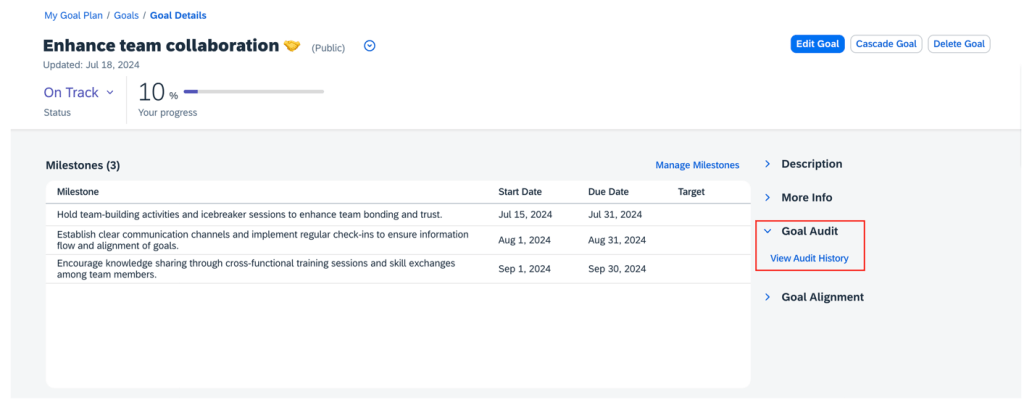
    • Audit history is now a new section on the right side of the page instead of a button to click to view the audit history.
    Audit History in Right Panel
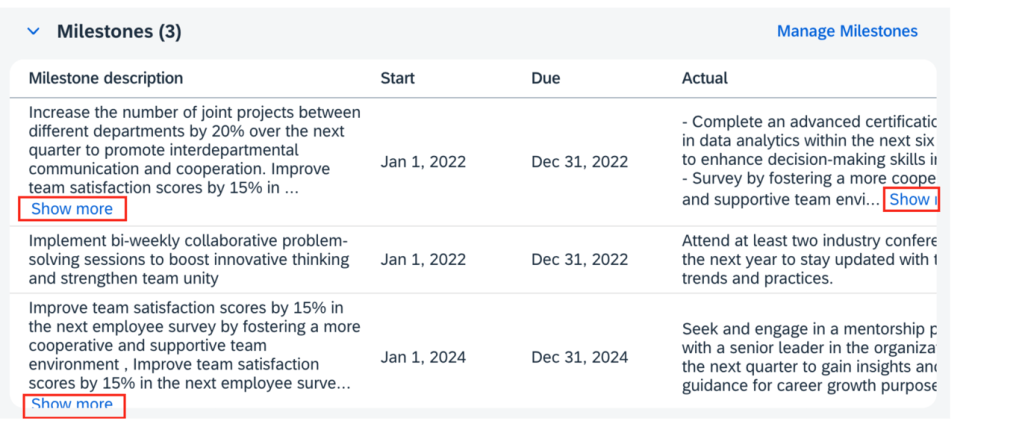
    • All milestone fields are visible and the milestone table can be scrolled horizontally.
    Milestone Fields
    • For milestones, the Show more button expands to display all of the content of the milestone fields that are configured as textarea type. This eliminates the need to click the Manage Milestones button to see all the text.
    Show more for Milestones
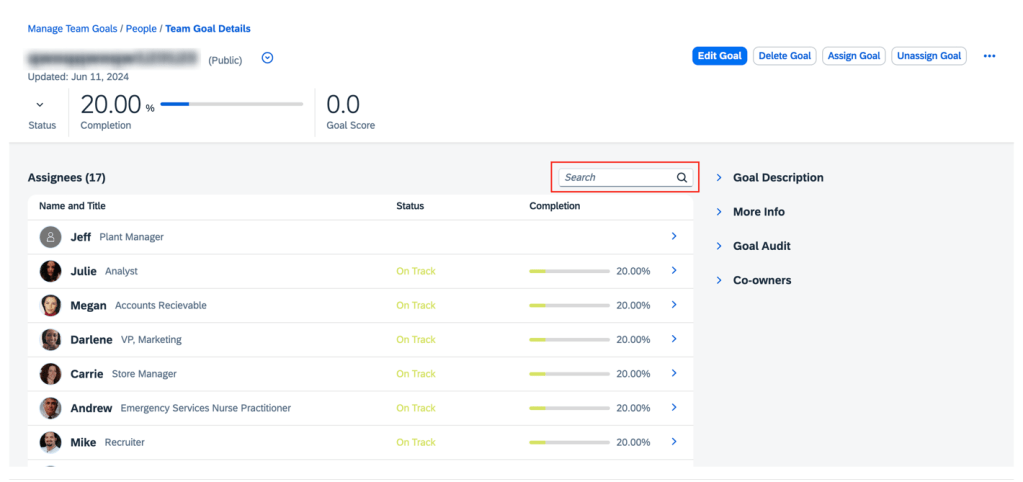
    • Users can now search for assignees on the Team Goal Details page.
    Assignee Search on Team Goals Page
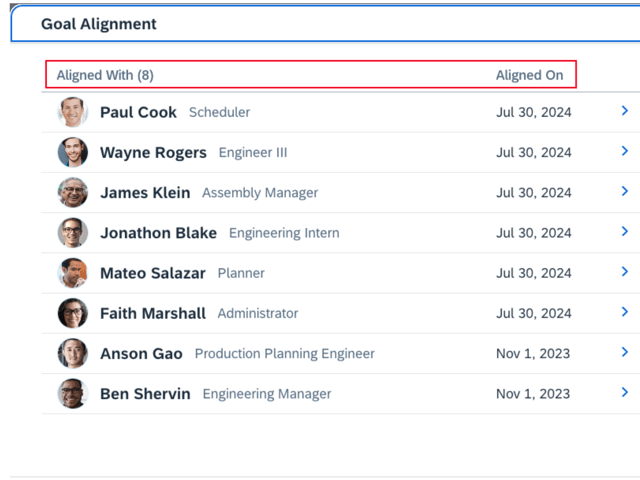
    • On the Goal Alignment pop up, headers have been updated to show Aligned With with a count and the aligned on date.
    Goal Alignment Headers
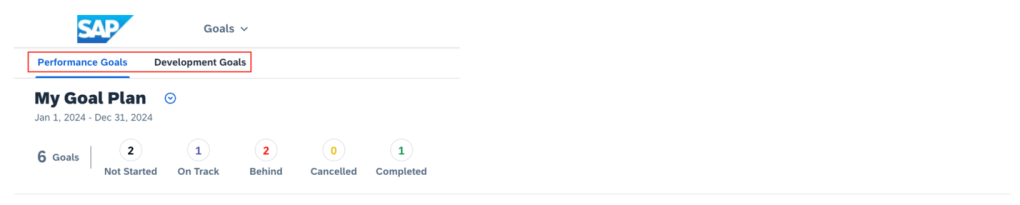
    • On the landing page, the tab names for Performance goals and Development goals now use the plural form.
    Goal Tab Names
    • There is no limit to the number of goals that can be displayed in the personal and team goal list views.
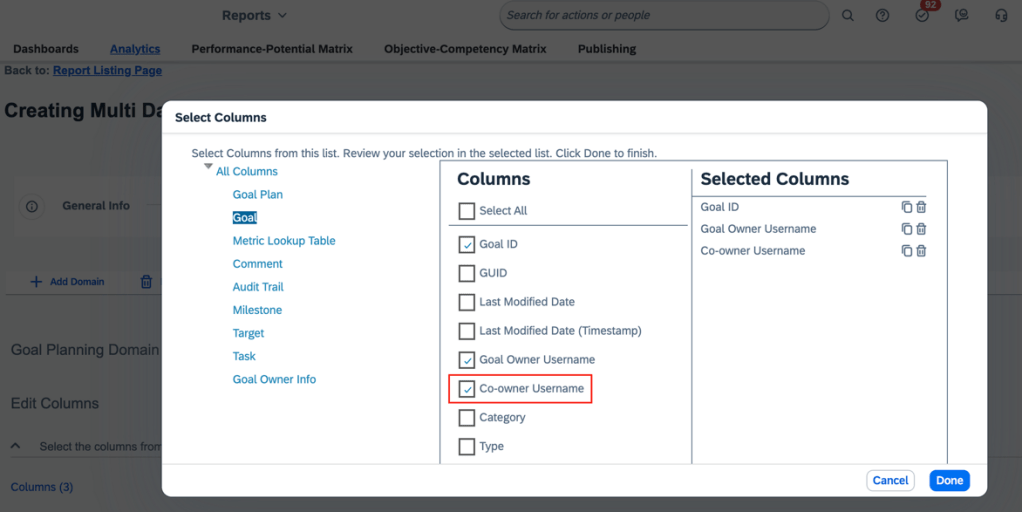
    • When creating reports for master team goals, there is a new Co-owner Username column. This is available in both Story reports and Table reports.
    New Column for Reporting
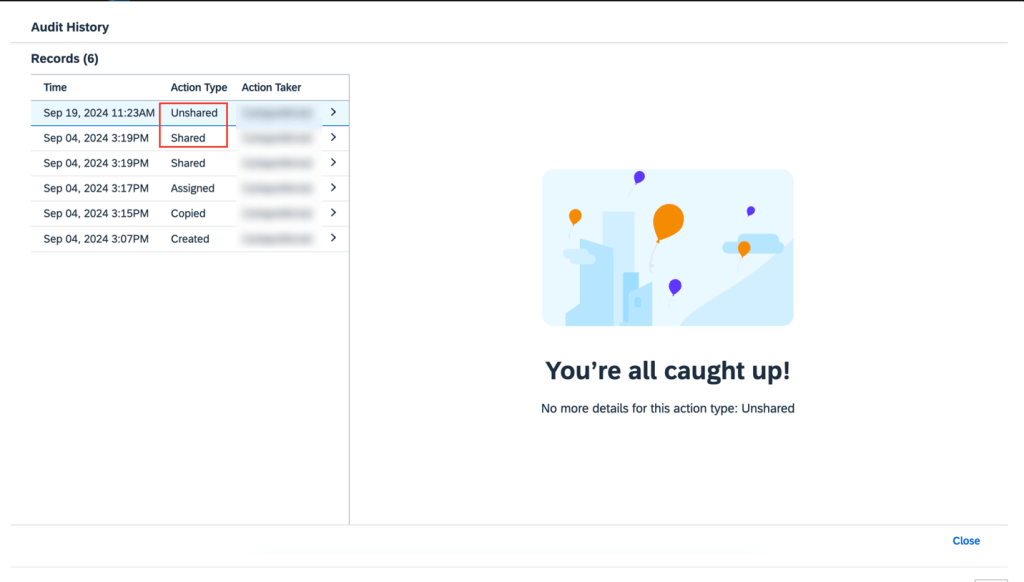
    • In audit history, “Shared” and “Unshared” are now supported as new action types for team goals.
    New Action Types for Team Goals

    Roll-up Calculation for Cascaded and Linked Goals

    Roll-up calculations can now be used for cascaded and linked goals in the latest Goal Management.

    Bizx-actual, bizx-target, and bizx-pos fields can be set to average or sum using the rollup-calc-type attribute.The sum or average values for these fields are automatically calculated across cascaded and linked goals based on your configuration. These values are then reflected in source goal details.

    When a parent goal is cascaded or linked, two audit records are generated for it, one record indicates the action type (“Cascaded” or “Linked,”) while the other record shows “Modified” due to changes in the roll-up fields.

    AI-Assisted Goal Creation Enhancements

    If you have purchased the AI units license, have enabled the latest Goal Management, and have assisted goal creation is enabled and properly configured, you will experience a more engaging AI-assisted goal creation experience.

    Updates include:

    • Updated AI tag: On the goal creation page, the tag for fields with content generated by AI is now “AI-generated content”, replacing the previous “AI-enhanced content”.
    • Improved content comparison: the Compare Generated Content page has been eliminated. It is replaced by the AI-assisted writing tool to enhance content at the field level.
    • Enhanced prompt template: The prompt template automatically applies goal plan configurations, such as start, due, and maxlength, to AI-generated goals.
    • Custom fields: Custom fields of text and textarea types are now supported for performance goals. You specify the context by providing meaningful text for <field-description>. This allow AI to generate more better suggestions for your goals.

    Do you need help implementing or supporting your SAP SuccessFactors system?  Contact info@worklogix.com for assistance, download our support services brochure, or visit https://www.worklogix.com/implementation.html for additional information.
  • H2 2020 SAP SuccessFactors Release Latest Goal Management Features and Integration

    H2 2020 SAP SuccessFactors Release Latest Goal Management Features and Integration

    SAP SuccessFactors H2 2020 release updates finds us with several admin-opt “latest” versions including Home page, Goal Management and Continuous Performance Management (CPM). Here we will focus on the latest version of Goal Management and discuss how it fits into the new home page and how it integrates with CPM. See my earlier blog post for more information on performance management updates and my blog post for what’s new in CPM.

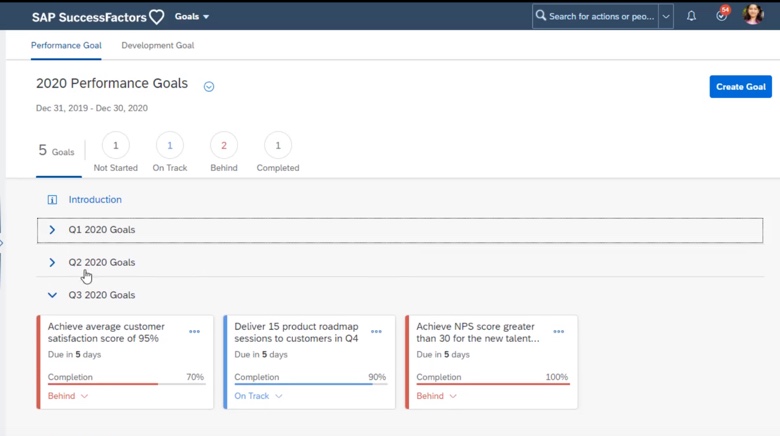
    There is a new admin opt-in for the latest version of Goal Management. The latest version of Goal Management provides users with a streamlined view of goals to make it easier to access and manage. Performance Goals and Development Goals are now housed within Goal Management and have improved integration with CPM. Access to Goal Management contains both plans with a tab for each as seen in the example below.

    New Goal Management View with Both Goal Plans

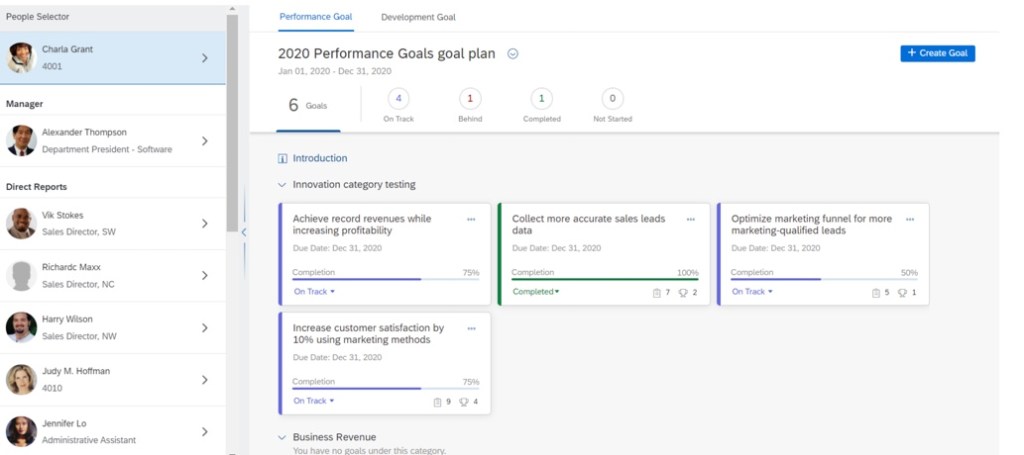
    For managers, the new look is especially helpful. It is easy to navigate to direct report’s plans or any other users in their target population. They can swap between between their reports and within the two plans. An example the manager’s goal plan view is seen below.

    Manager View of Goal Plans

    Latest Goal Plan Features

    The latest version of Goal Management still allows for the following existing functionality:

    • Creation of personal goals.
    • Development goals can have competencies and learning activities added.
    • Receipt of goal notifications.
    • Edit, view, and delete all goals except group goals v1.
    • Access to other’s goal plans with proper role-based permission.
    • Existing integration with other modules.

    New functionality includes:

    • Personal goals not yet at the completed stage and approaching or past due date can appear on the latest home page.
    • Linked achievements for the latest version of CPM may be created and viewed here rather than having to go out of the goal plan and navigating to CPM.
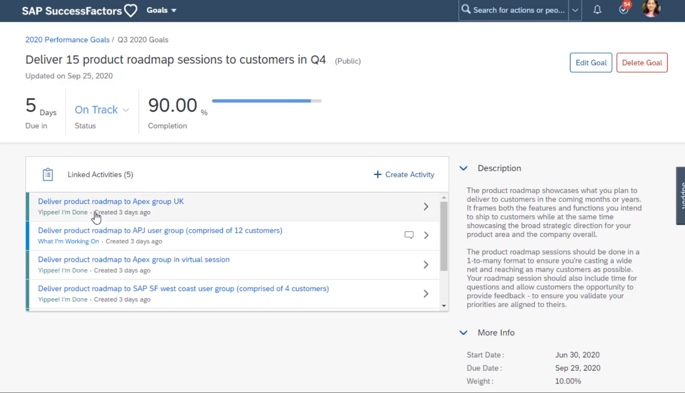
    • Activities can be added directly to goals and linked activities may also display. An example of activities tied to a goal is shown below.
    Add Activity to Goal

    However, only the latest version of Goal Management may be used with the latest version of CPM.

    Latest Goal Management Limitations

    Since this is a new version for Goal Management, there is some goal plan functionality not yet available including:

    • Mass import of goals.
    • Ability to cascade and assign goals.
    • Use of Group and Team Goals.
    • Changing goal plan states within goal plan.
    • Use of metric lookup tables.
    • Use of Coaching Advisor for development goals.
    • Assigning custom learning activities to development goals.
    • OData APIs.
    • Some mobile features which will be identified shortly.

    Attributes that may be Configured

    Listed below are the the goal plan XML attributes that may be configured in the latest Goal Management:

    • max-goals
    • max-weight
    • max-weight-per-obj
    • min-goals
    • min-weight
    • min-weight-per-obj
    • new-obj-share-status-public
    • show-total-goalscore

    Unsupported Goal Plan Field Types

    Additionally, there are some goal plan field types that are not supported:

    • Bool
    • Checkbox
    • Comment
    • Link
    • Table
    • Text when used for achievement text, actual achievement text, object plan field 1, go to url

    Changes to Goal Plan Fields with Latest Version of Goal Management

    • Name field is required with a maximum length of 500 characters.
    • Description and metric fields have a maximum 1000 character limit.
    • State. For use on the latest version of the home page, set the final enum value of the state field to “complete” in order to trigger the change of the goal state which enables incomplete goals to appear on the latest home page.
    • When using weight, if min-weight-per-obj and max-weight-per-obj attribute values are not met, goal creation is not possible.
    • For development goals, competencies can only be used in conjunction with Job Profile Builder.
    • Cannot select a single competency to link to a development goal in the UI.

    You may convert existing goal plan templates but the goal plan field types that are not supported will not appear in converted goal plans.

    After the upgrade, goal plan templates will need to be converted. Convert a template only once and and one at a time. Only convert the goal plans in use. Goal plans not converted will be read-only. Once converted, the goal plan templates may be used in the latest version of Goal Management.

    Mobile Apps Limitations

    There are some limitations using the latest version of Goal Management in mobile apps. For Performance and Development goals:

    • Cannot delete a goal from the goal card.
    • Cannot enter a negative number in the number field type.
    • Cannot revert back to the legacy view to see unsupported fields.

    For Development goals:

    • Unable to search for a specific competency.
    • Unable to display the number of competencies on the goal card.
    • Unable to add competencies by library or category.
    • No integration with Learning.

    Latest Goal Plan on latest Home Page

    The latest Goal Management may be used in the latest version of the home page. There is a new admin opt-in for the redesigned home page. It is available for early adopters in both Preview and Production. Any existing legacy home page custom tiles or permissions are not impacted by the new page. An example of the new Home page is shown below.

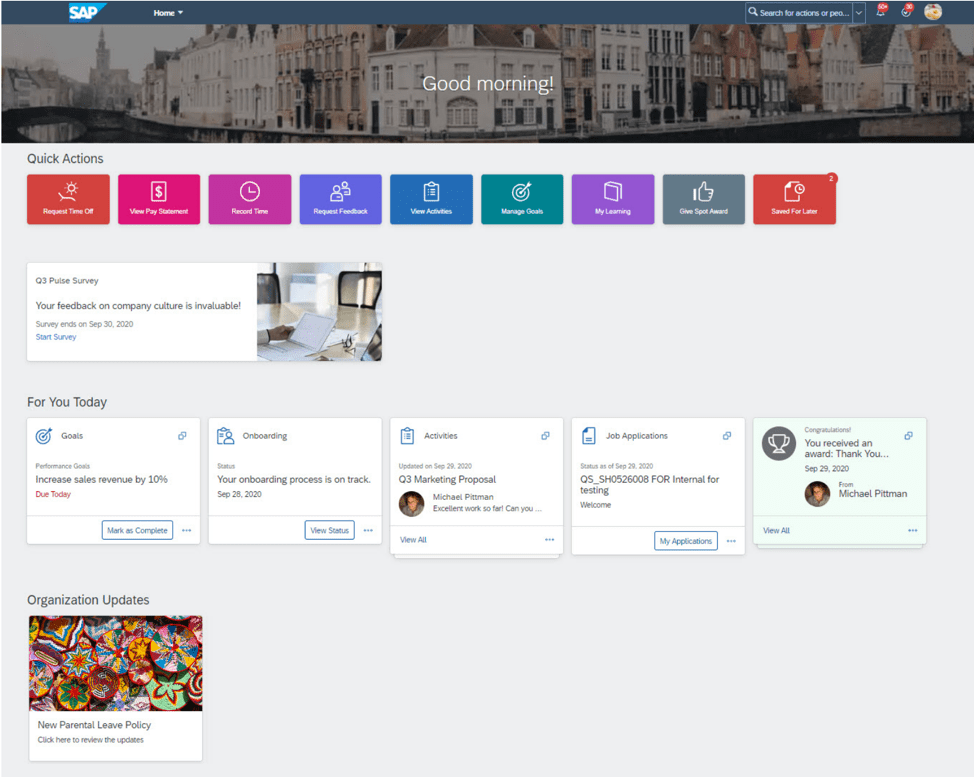
    Latest Home Page

    The view is less cluttered with customized user and organization content. Tiles are replaced with cards and are system generated and more interactive. The page is divided into three sections:

    1. Quick Actions. For frequent or quick actions.
    2. For You Today. Dynamically generated user content. Displays any recently added goals and CPM activities.
    3. Organization Updates. Contains custom organization content.

    The new Home page shows content from Goal Management, Continuous Performance Management, and Continuous Feedback. On the latest home page, you can view personal goals when the state of these goals is not yet complete and these goals are approaching their due dates or already overdue.

    The latest version of the home page handles only personal goals in the following manner:

    • Updates of goals on the home page appear on for those manually created, modified or deleted.
    • Goals from an import are not reflected on the home page.
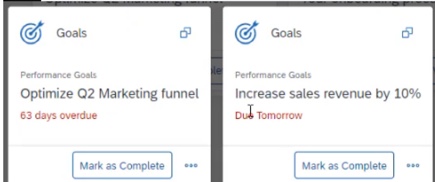
    • Performance goals appear based on status, if not yet complete and 15 days before due date.
    • Development goals appear based on status, if not yet complete and 30 days before due date.
    • Overdue Performance and Development goals will display.
    Goals in “For You Today” section

    Performance and development goals disappear from the new home page when:

    • Goals are completed.
    • Goals are deleted.
    • Goal due dates are past the due dates configured on the goal plan template.

    To-do items list can be opened and acted upon in a side panel on any page. You can take action on each to-do directly from the side panel.Overdue to-do items are indicated in red.

    Is the upgrade right for you?

    After upgrading to the latest version of Goal Management, you cannot reverse the update, so be sure to fully understand what features you will be gaining and losing. It is wise to fully test in a preview instance before committing to an upgrade to production.

    Because there are some substantial limitations to the latest version, it may be premature to upgrade but it is at least worthwhile to anticipate how Goal Management is changing and to gain an better understanding of how modules continue to be more tightly integrated with each release.

    Do you need help with your H2 2020 release? Download our support services brochure or email us at info@worklogix.com to see how we can help!