Performance, Talent, and Skills: Designing a Smarter SAP SuccessFactors Experience
When organizations implement SAP SuccessFactors, the technology is rarely the hard part. The real challenge is making thoughtful design decisions that balance structure, adoption, and long-term value.
Below are some of the most important considerations we guide clients through when designing Performance & Goal Management, Dynamic Teams, Talent Development, and Talent Intelligence Hub (Skills/Competencies)—based on real-world implementations and leading practices.
Performance & Goal Management: Structure with Purpose
One of the earliest decisions organizations face is whether performance reviews will include ratings.
Leading practice is yes—most organizations use a 5-point scale. While SuccessFactors allows flexibility (3-point, 5-point, or even custom scales), odd-numbered scales tend to drive clearer differentiation. Rating labels can be fully text-based for managers and employees, while numeric values still operate behind the scenes to support analytics and downstream processes.
If an organization chooses to go ratingless, it’s important to pause and ask: How will performance inform compensation, succession, and talent decisions? Ratingless models require stronger narrative rigor and often more mature processes to remain effective.
Continuous Performance Management
SuccessFactors offers two complementary capabilities:
Continuous Feedback – A leading-practice recommendation to enable from day one. It encourages real-time recognition and coaching without adding administrative burden.
Continuous Performance (Activities & Achievements) – Best positioned as a longer-term goal (in our opinion). While powerful, many organizations find it overwhelming at launch when layered on top of formal goal-setting and year-end reviews.
The key is adoption: more functionality doesn’t always mean better outcomes.
AI in Performance & Goals
AI-assisted capabilities can enhance goal writing, feedback quality, and review consistency. While additional licensing may be required, these tools are increasingly part of forward-looking performance strategies and worth evaluating early.
Dynamic Teams & OKRs: Flexibility for Modern Work
Dynamic Teams enable organizations to form teams outside traditional hierarchies and manage work using Objectives and Key Results (OKRs).
This functionality can be incredibly valuable for project-based or matrixed organizations—but it’s also newer within SuccessFactors. For some clients, it makes sense to adopt immediately; for others, it’s a strong candidate for a future phase, as SAP continues to expand its capabilities.
The guiding question we recommend asking is simple: Will this add clarity and alignment—or complexity?
Typically, this is not a Day 1 feature turned on at our customers.
Career & Talent Development: Turning Data into Decisions
The 9-Box Grid
The standard 9-box within Succession Management remains a cornerstone of talent reviews. Leading practice uses:
3 sustained performance ratings
3 potential ratings
If performance ratings are based on a 5-point scale, organizations must define how those ratings translate into the 3-point performance dimension of the 9-box (hence, our key addition of “sustained” performance).
Ownership matters too. Mature organizations typically empower managers to place employees into the grid, while others may rely on executives or HR Business Partners until readiness increases.
Talent Reviews & Presentations
The most effective talent reviews integrate the 9-box directly into structured discussions, often using SuccessFactors Presentations to support consistency and executive visibility.
Successor Readiness
Leading practice readiness definitions include:
Ready now
Ready in 1–2 years
Ready in 3–5 years
SuccessFactors also supports Emergency Replacement, identifying immediate successors in the event of an unexpected vacancy—an increasingly important capability for critical roles.
Learning & Development Integration
Day-one value comes from allowing employees to link learning activities directly to development goals. More advanced organizations later expand this by associating competencies with learning, enabling targeted searches and more personalized development paths.
Calibration: Aligning Decisions Across the Organization
Calibration ensures fairness and consistency. Leading practice is to use both:
Performance Calibration – Focused on performance ratings
Succession Calibration – Focused on 9-box placement
When used, calibration steps should be intentionally embedded in the route map, not treated as an afterthought.
Opportunity Marketplace: Making Talent More Visible
Opportunity Marketplace connects employees to:
Learning activities
Mentoring
Projects
Internal job opportunities
When integrated with Learning, Talent Development, and Recruiting, it becomes a powerful tool for mobility and engagement. AI-driven opportunity recommendations can further enhance adoption, though licensing considerations may apply.
Talent Intelligence Hub: Building the Skills Foundation
Skills & Competencies
A successful Talent Intelligence Hub implementation starts with clarity:
What skills matter?
What competencies define success?
Are there existing catalogs—or do they need to be rationalized?
Leading practice is to focus initially on skills and competencies only, deferring additional attributes (traits, behaviors) until integration maturity improves across the suite.
Job Profile Builder
If possible, jobs in Employee Central should map 1:1 to job roles in Talent. Skills and competencies are mapped at the job level (within Job Profile Builder)—not the job level hierarchy itself—an important distinction for accurate modeling.
Growth Portfolio
Growth Portfolio defines how skills live at the employee level. For initial releases, leading practice is:
View-only access for employees and managers
No self-selection of skills without approval workflows
More advanced edit and approval models can be introduced later, once governance and definitions are well established.
Final Thought
The most successful SuccessFactors implementations aren’t defined by how much functionality is turned on—but by how intentionally it’s designed.
At Worklogix, we help organizations make these decisions with adoption, scalability, and business impact in mind—so talent processes don’t just exist in the system, but actually work in practice. Do you need help implementing or supporting your SAP SuccessFactors system? Contact info@worklogix.com for assistance
For tips on how to manage a release, check out our blog here.
Continuous Performance Management
There are no major updates for Continuous Performance Management, they are generally available and require no additional updates. Here are a few notable updates.
All Responses shown on Feedback Given tab
The Feedback Given tab for Continuous Feedback page now shows all feedback given, both unsolicited feedback and responses to feedback requests, not just feedback response for the target population for their permission role.
Search for an activity and link to feedback
The word count for Continuous Performance fields is now based on characters instead of bytes.
In addition, several field lengths have been extended:
Users can request and review feedback on their activities in any channels where they are the participant
When a user is the participant in a channel, they can request and view feedback on all their activities. Previously, the feedback functionality was only available for activities recorded in channels between managers and direct reports.
Share Activities Across Channels on Continuous Performance Page
Users are now able to share their activities across channels where they participate, giving relevant users the ability to view and edit these activities for seamless collaboration. These activity sharing records are reportable with Story reports.
Only the channel participant, who is responsible for completing the activities within a channel, can share them with other channels in two ways. They can also control whether the target channel owners can view and add comments on each activity. This setting is pre-selected as the default.
On My Activities with <channel owner’s name> page, select Share Activities button and choose activities that they want to share with another channel in the pop-up dialog.
Share Activity with Another Channel
On the Activity Details page, users may choose channels that they want to share an activity with.
Share Activity within Activity Details
Channel owners can track the source and destination channels of a shared activity through the Channels link in the Shared With: field on the Activity Details page. However, the field and link are only available for activities shared across channels. On the activities overview page, channel owners and participants can see the “shared across channels” icon on the card of activities that have been shared, to distinguish them from those haven’t.
Share Icon Visible for Shared Activities
AI-assisted writing is now available in more text areas on Continuous Performance and Continuous Feedback pages
When the AI units license has been purchased, AI-assisted writing now includes feedback topics and feedback questions for Continuous Performance. All free text areas now support AI assistance. Text areas also include activity names, activity updates, achievement names, meeting notes, discussion topics, and channel invitation notes.
AI Assistance for Writing Tasks
To learn more and get more details, see the full set of documentation in the What’s New Viewer here.
For tips on how to manage a release, check out our blog here.
Automatic Channel Creation for Matrix Relationships
There is a new option on the Continuous Performance Management Configuration admin page, Enable matrix managers and matrix reports to be shown as people selections for Channels by default. When enabled, users identified as matrix managers or matrix reports are automatically added to the Channels list in Continuous Performance Management for the user.
Configuration Required
Each matrix manager/matrix report will have a 1:1 channel automatically created. On the Continuous Performance page, these channels will be grouped into two new categories: Matrix Managers and Matrix Reports.
Previously these channels were not automatically created nor categorized into groups. This enhancement reduces manual work and makes matrix relationships easy to see and manage.
Channel List
Bulk Channel Invitations
Users can now send bulk invitations for 1:1 meeting channels on the Continuous Performance page.
The feedback requestor may use the basic search and now the advanced search to find and select multiple employees as invitation recipients, without a limit on the total number of selections. Previously, only certain basic search criteria were available and users could select only one feedback provider at a time.
Advanced Search Options
For this to work, the option Enable Multiple Role Support must be enabled in the Continuous Performance Management Configuration admin tool.
There is also a new email notification, Delivery Status of Multiple Roles 1:1 Meeting Invitations, to update on the delivery status of each invitation. The feedback requestor receives the follow-up email if the results of the mass delivery can’t be immediately displayed in a pop-up message or if any delivery fails. This notification is enabled by default.
Delete Channels
Users and administrators are now able to delete channels as needed. There are new delete channel related email notifications are well.
Users can now delete the channels that they own. However, channels involving a user’s current direct reports and matrix reports can’t be deleted.
There are two options:
Single deletion: select the trash bin icon which appears when hovering over a channel item in the list, or select the Delete Channel button in the channel details page.
Delete Channels
Bulk deletion: Choose Select and then the Delete Channels button on the header of the channel list. In the Delete Channels page, select and delete up to 50 channels in one time. Declined channel invitations can also be deleted.
Bulk Deletion
An administrator can now search and delete the channels and declined channel invitations in the new Delete Channels admin tool. However, the employee-manager and employee-matrix manager relationships cannot be deleted.
Admin Delete Channels Tool
New Email Notifications for Deleted Channels
There are new deleted channel email notifications now available and are enabled by default.
Channel Deletion Notification to Owners: channel owners are notified when the administrator deletes a channel for them.
Channel Deletion or Move Notification to Participants: channel participants are notified when a channel is deleted or moved to Hidden Channels.
Channel Deletion Notification to Administrators: administrators are notified of the deletion result of each channel. A deletion job will run in Provisioning when more than 50 channels need to be deleted at once. If an administrator chooses to delete 50 or fewer, the result immediately pops up in a message, then the system won’t send the email.
User Experience Enhancements
The Channel list now has a header with up to six categories:
Manager
Matrix Managers
Direct Reports
Matrix Reports
Other Channels
Hidden Channels
Channel List
This allows users to easily locate channels based on different job relationships.
A more consistent avatar experience
Users who have no access to the channel list can see their manager’s avatar on the header of Activities view, together with their own one.
View of Manager Avatar
Streamlined Navigation
All items on the Channels list are clickable which provides a more consistent experience. There is a chevron icon on each item for navigation to the right-side panel, where the invitation messages are displayed.
Channel List Navigation
Text and Icon Changes
The icon for deletion of the Declined channel invitations is now a trash bin which is visible when a user hovers on the channel list items.
The channel invitation icon button is replaced by the text button Invite.
Channel List Features
View Received Feedback from the Redesigned Activity Details Screen in Mobile Apps
Users can view and access the feedback they received about an activity from the Activity Details screen, now in improved detail.
Here users can access details of each activity related feedback message in the Feedback Received list. Details include the name, profile photo, and job title of a feedback sender, and the date when the feedback was received.
Selecting a row takes the user to the associated Feedback Details screen. Previously users could only see the count of feedback messages received for an activity. And when choosing a number, the users saw a screen that listed all feedback they received instead of the feedback related to the specific activity.
Feedback Details
Further Enhancements to the Activity Detail Screen
The Activity Details screen has been enhanced with new sections to provide at a glance details.
Activity start date and modification dates are in the section.
There is a new section for linked goals
Activity updates- there is now a separate screen to add activities. The Edit Update screen was renamed Edit Activity Update.
For tips on how to manage a release, check out our blog here.
For your convenience, we’ve summarized the highlights of 1H 2023 minor visual enhancements for Performance Management and Career Development.
Visual Enhancements
There were several minor visual enhancements in this release. The visual enhancements for this release provide a more user friendly and consistent experience.
There are four types of changes:
Text changes (labels, error messages, or roll-over texts)
Iconography (new or changed icons)
Interaction pattern (new position of interaction, new order of list, new or changed buttons)
Styling (layout, spacing, or other design changes)
We will review some of the more notable visual enhancements for Performance Management, 360 Reviews, Continuous Performance Management, Calibration and Mentoring.
Performance Management
Search for users to send completed form to
Each set of filters is now below its category name
The Search Users button is below all the filters
Search Users
Create New Form from Performance Inbox
When launching a performance form from a user’s inbox, the date fields are now indented and right aligned.
Form Launch
Form Inbox Tooltips
In the Performance inbox, the tooltip for the icon in the Employee column is “View more information about <employee name>”,
Employee Info Tooltip
The tooltip for the icon in the Action column is “Add <form title> to Outlook”.
ActionTooltip
Cancel button placement updated
The button to cancel an action has been moved to the right.
This change applies to almost all user interfaces in Performance Management, including: Add Objectives from Objective Plans dialog, Send to Next Step page, Ask for Feedback dialog, Stack Ranker page, Comment dialog, Legal Scan dialog, and Print Setup dialog.
Here are some examples.
Adding objectives tot a PM form.
Return to Form button placement
Ask for Feedback dialog
Ask for Feedback Cancel button placement
Stack Ranker
Stack Ranker Cancel button placement
Goal in the goal section or Competency in the competency section
The first column header is Goal in the goal section orCompetencyin the competency section of a performance form. Previously Expand All and Collapse All were inthe first column table header
The Expand All and Collapse All options now appear in the top-left corner above the table
Goal section layout
360 Reviews
Cancel button placement updated for 360 Reviews
The Cancel button has been moved to the right for 360 Reviews.
Changes include opened 360 Reviews form, Goal Weights dialog, Add Participants dialog, Send Back dialog, Find Employee dialog, and Add Competencies dialog.
Here are some examples.
Canceling an opened 360 Reviews form
Cancel button placement on 360 Review
Canceling a participant search
Cancel confirmation to next step
Cancel button on Confirmation
Continuous Performance Management
The icon for the Request Feedback on the latest home page has two intersecting talk balloons.
Request Feedback Quick Action
Previously the icon had talk balloons that included a question mark and an exclamation mark.
Achievements on Mobile Device
On the Android app, the Visible to my manager switch and the Mark as Achievement switch have wider tracks, and new color mappings.
Achievements on Android
Career Development – Mentoring
Successful Enrollment Message
When users sign up for an open enrollment or unsupervised program as a mentee there is a “success” message. The message has been enhanced to now include a reminder for the user that they can contact preferred mentors directly if they don’t hear from the mentors for an extended period of time.
Mentoring Enrollment Message
Mentor Participation Approval Request
The Mentor Participation Approval Requests have been updated.
The Approve and Decline buttons are now closer to the message text. The buttons used to be at the bottom of the page.
Mentor Participation Request
Confirmation for Joining Mentoring Program
When signing up for a mentoring program and a user decides to Save for Later, there is now a confirmation message pop up for them to confirm if they want to save the draft for joining the program for later.
SAP has announced the latest updates and changes for SuccessFactors for the first half of 2023.
Preview release is on April 28 with the production release is scheduled for June 2. You can view the full set of documentation in the What’s New Viewer here. For full details on the release cycle, check out the SAP SuccessFactors official product updates blog.
For tips on how to manage a release, check out our blog here.
For your convenience, we’ve summarized the highlights of what’s new for 1H 2023 Career Development below.
Career Development
There are a few universal updates for Career Development that are reviewed below.
Career Worksheet – General Availability
Career Development Configurations Available in Configuration Center
You can now view, download, and transport Career Development configurations using Configuration Center.
Configuration Center
New Action Available in Action Search
On a career worksheet, View my current role in Career Worksheet action is now available for use in the global search box. Users can enter the exact text of the action or select from suggested actions to navigate to the Career Worksheet page.
Current Role Action
The new action takes users directly to a selected page and eliminates multiple steps to get there.
Career Worksheet Data in Story Reports Now Limited to Target Population
The Career Worksheet data that users can view in Story reports, including current and target roles, is now limited to their target population.
Changed Permission for Users to Show Target Roles in People Profile
Now a user only needs View permission (User Permissions>Employee Data>Preferred Next Move) in order to select the Make public in Live Profile checkbox in Career Worksheet to show target roles in People Profile.
Previously, View and Edit permissions were required. Now a user can select the option to show a role in Career Worksheet. The role then appears in the Career Goals block in People Profile.
Link to Career Goal Block
Mentoring – General Availability – Universal
Approvals for Mentoring Requests on the Latest Home Page
In an open enrollment or unsupervised mentoring program, Mentors can now accept or decline the mentoring requests sent by mentees in the Approvals section on the latest home page.
Accept or Decline Mentoring Requests
View More Recommended Mentors
When a user signs up for a mentoring program as a mentee, they can now view up to 100 recommended mentors. Previously, only 10 mentors were recommended.
While signing up and choosing Show Recommended Mentors, now there will be two rows of recommended mentor cards with the View More link below the cards.
Recommended Mentors
Customize Mentoring Email Notifications
For any customized program type created with text replacement for a Mentoring programs, email notifications for a specific program type may be customized in Email Notification Templates Settings as well.
Customize Mentoring Emails
Approvals for Mentoring Requests on the Latest Home Page in iOS and Android Mobile Apps
SAP SuccessFactors Mobile users can now search for mentors from a recommended mentoring program they haven’t joined in Opportunity Marketplace. Previously, they had to join the program first.
When a user wants to invite someone they found to be their mentor, choose Submit Request on the Mentor or Bookmarks page. They will be prompted with a message guiding them to join the program first.
Mobile Message when Joining
After joining the program, users can submit a mentoring request to their preferred mentor directly on the page.
Highlights are identified by module and the type of change.
Universal- for modules enabled, universal means no steps are required to have access to the new functionality. These features are automatically made available.
Admin Opt-In – the admin must enable the new feature, usually in Admin Tools
Admin Opt-Out – the admin must disable the new feature, usually in Admin Tools
Provisioning Opt-In and Opt-Out require a Partner or Product Support request For your convenience, we’ve summarized the highlights of what’s new for 2H 2022 Performance Management below.
Latest Goal Management
The updates are for the latest Goal Management are admin opt-ins. The new features are described below. These features are also now available in iOS and Android mobile apps.
General Availability – Admin Opt-Ins
Copy Goals from Goal Plans using the latest Goal Management
Users can now copy personal goals from their own goal plans as a new option to create goals.
Requirements to use this feature include:
The TGM/CDP Goal Transfer Wizard feature is enabled
The create permission is granted in XML configurations
The write permission for goal fields is granted
Leave Comments on Goals when using the latest Goal Management
Users can now add, edit, or delete comments on their own goals or those of their direct reports. In legacy Goal Management, comments are shown in the goal list or on the goal editing page.
Copy form Goal Plan
In the latest Goal Management, the updated comment feature is supported and comments are shown on the goal details page.
Comments Section on Goal Details
Comments can also be managed in Performance Management forms, 360 Reviews forms, and Career Development.
Team Goals Now Available when using the latest Goal Management
Users can now create, manage, and be assigned team goals in the latest Goal Management.
Users may:
Create, edit, or delete team goals
Access team goals from their own goal plan
Assign/unassign team goals to people from their team or people found via search
Share/unshare team goal ownership with others
If configured, users can manage team goals assigned to them in Continuous Performance Management.
Team Goal Landing Page
Users can also manage team goals assigned to them in Performance Management forms, 360 Reviews forms, and Continuous Performance Management.
Group Goals are no longer supported.
These new features are available in iOS and Android Mobile Apps as well.
Performance Management
The majority of the performance management updates involve Multi-Rater 360 forms and Calibration. However there are a few goal and performance related updates that we will begin with.
General Availability – Universal Updates
SMART Goal Wizard not available when using the latest Goal Management
It will not be possible to use the SMART Goal Wizard when adding a goal to a performance form. This feature currently is not supported. Even if you enable the SMART Goal Wizard setting in Form Template Settings this option will not appear when adding a goal.
Enhanced OData Entities for Querying Development Goal Sections on Forms
You can now use APIs to query development goal sections and goal items on Performance Management forms. The FormContent, FormPMReviewContentDetail, FormObjective, FormObjectiveDetails, and FormObjectiveSection APIs. Previously these APIs were used to query performance goal sections and goal items only
General Availability – Admin Opt-In
Confirmation prior to Sending Forms
When users send a form, a message popup appears and allows them to confirm the action.
In the advanced settings for the template, there will be a new option to enable the new experience as seen below.
New Setting Available
A pop-up will appear for a user that is sending a form back or forward a step to allows the user to confirm the action. It is also applicable when signing a form, rejecting form or sending a copy of a completed form.
In the route map on the form, clicking Actions in the current step, will display a dropdown list.
Actions on Route Step
Selecting the action will cause a pop-up to display.
Confirmation Pop-up
Continuous Performance Management
General Availability – Universal
Updated Character Count for Continuous Feedback Topic Field
In the previous version, when users chose the “send” button on a form, a confirmation page appeared.
The character count for the Continuous Feedback topic field to 200 characters.
Replacement of Continuous Performance Management Legacy Version with the Continuous Performance Management Latest Version
The legacy version of Continuous Performance Management (CPM) will reach End of Maintenance on May 20, 2022 and will be retired as of May 24, 2024. The replacement is the latest version of CPM, initially released in 2H 2020, that is currently available in the Upgrade Center. If no action is taken, your company will be automatically upgraded to the latest version after the retirement date.
General Availability – Admin Opt-Ins
New Quick Action to Give Feedback on the Latest Home Page
Employees can now choose to Give Feedback from the Quick Actions section on the latest home page.When the Give Feedback is selected, the user can search and select one person, input a topic, and provide feedback to the other user.
Give Feedback from Quick Actions
Once selected, the user may select the person, feedback topic, and questions.
Selections for Feedback
OData v4 API Continuous Feedback for the Latest Version of Continuous Performance Management
You can now use the Continuous Feedback OData v4 API with the latest version of Continuous Performance Management.
The OData v4 API for Continuous Feedback has been added to support third-party integrations and extensions for the latest version of Continuous Performance Management (CPM).
Calibration
General Availability – Universal
Remove Subjects from Calibration Sessions
There is a new admin tool, Remove Subjects from Calibration Sessions, used to search for the sessions where an employee has been included as a calibration subject.
When the employee is included in many sessions, you narrow down the search results by selecting a calibration template name. Then, only the sessions created with the specified template are listed.
Remove Subjects from Calibration Sessions
General Availability – Admin Opt-In
More Gender Values in Calibration Views
Male and Female were supported for visualization in Calibration Views. Now there are the other three standard values: Unknown, Undeclared, and Others.
The gender icon is displayed next to the employee’s name. When the gender of an employee hasn’t been specified in the system yet, it will be indicated as No Selection.
Gender Icons
The gender bars in the matrix grid view are now rendered in different colors:
Male: Violet
Female: Green
Undeclared: Blue
Unknown: Dark Blue
Others: Red
No Selection: Grey
Matrix Grid View
Enhancement to Guidelines Enforcement During Mass Finalization
There are more guidelines enforcement scenarios that are supported when you finalize multiple sessions at one time.
More than one rating is included in a guideline defined with a rating group
An operator other than “=” is configured in a guideline defined with a rating range
Not all ratings have a guideline
No longer are guidelines enforced only when finalizing an individual calibration session. With the latest release, multiple sessions can be finalized as long the distribution of subjects doesn’t meet one of the above-mentioned definitions. Distributions would need to be adjusted in order to finalize all of the sessions.
Previously, these guidelines were enforced only when you finalized individual sessions.
360 Reviews
There are several updates for 360 Reviews. Highlights are described below.
General Availability – Universal
Hide Route Map on 360 Reviews Forms
Similar to PM forms, a route map may be collapsed on the form.
This is done through the advanced settings of the 360 Review template by selecting “Hide Route Map on the Form”. Once enabled, when viewing the form, clicking on Hide Route Map will hide the route map from view on the form.
Visible Route Map
Clicking on Hide Route Map will collapse the route map from view on the form.
Click Show Route Map
Hidden Route Map
Required Fields Marked on 360 Reviews Forms
Fields defined as required are now identified with red asterisks on forms in the Evaluation stage. This now matches how required fields display in PM forms.
Updated Messages for Users Approving or Routing Forms Using Unsupported Tools
In the Approve Form or Route Signature Stage Form tool, once users enter document IDs and chose the buttons to approve or route forms, they weren’t informed that these tools don’t work for 360 Reviews forms.
Now if a user tries to approve or route 360 Reviews forms using unsupported tools in Admin Center, a message will display reminding them that these tools aren’t supported and are shown the correct tool to use.
Messaging when Routing using Unsupported Tools
“competency-filter” Attribute Supported in 360 Reviews Forms
The competency-filter attribute can be used to control what competencies users from different participant categories can view and rate on 360 Reviews.
Within the meta-cat element in the meta section of the form XML, define different participant categories in order to:
After the form is launched, in the Show Assignments dialog, participants belonging to the categories allowed to rate a competency are automatically selected for that competency. However, users can still select any competencies for a participant that weren’t initially included in the competency-filter defined for the participant’s category.
If a participant’s category is changed in the Modify stage, the participant’s competency assignment will be automatically updated to comply with the new category’s competency-filter.
If a participant is added in the Evaluation stage, the participant’s competency assignment will follow the competency-filter defined for the participant’s category.
If a competency is added to the form, filters including or not including this competency will apply to related competency assignments.
Disable Page Setup When Printing 360 Reviews Forms
It is now possible to prevent a user from specifying to print the Summary View or 360 Executive Review form. Instead the form will be printed in its entirety.
In Form Template Settings there is a new option – Disable Page Setup. When enabled, users aren’t allowed to specify the sections to print and the entire form will print.
Print Setup without Section Option
Show Behaviors in Summary Section by Enabling Rate-by-Behavior
When behaviors are associated with competencies, it is now possible to show behavior names and ratings in the Summary section.
To enable rate-by-behavior, set use-behavior to true and behavior-mode-opt to 0. In the Summary section, add the show-behaviors-in-summary element.
Purge Data of External Users in 360 Reviews
There is a new purge request, DRTM 360 Reviews – External User Purge used to delete data of external users no longer needed in 360 Reviews forms.
The External User Purge for 360 Reviews can be defined by the following purge rules.
A specified number of days have passed since the user declined a form
A specified number of days have passed since the user submitted a form
A specified number of days have passed and the user hasn’t responded to a form
A specified number of days have passed since the user who has never been involved in any form was added to the system
To successfully purge a user’s data who has multiple 360 Reviews forms, each form must satisfy one of the first three criteria.
360 Reviews External User Purge Request
Deprecation of 360 Reviews v11 Version
The 360 Reviews v11 version will reach the end of maintenance on May 19, 2023 and will be deleted on November 17, 2023.
360 Reviews v11 Version is being depreciated because 360 Reviews – SAP Fiori Version is generally available and includes the majority of features and functions that were available in 360 Reviews v11. In addition the SAP Fiori version has an enhanced user experience and updated visualizations.
If you’re using 360 Reviews v11 Version, please migrate to 360 Reviews – SAP Fiori Version.
Career Development
There are a few universal updates for Career Development that are reviewed below.
Career Worksheet – General Availability – Universal
Enhanced Competency Gap Graph in Career Worksheet
Previously, the gap graph was shown only when a competency had both a last rating and expected rating. With the latest release, if a competency has either a last rating or expected rating, a horizontal bar graph for ratings is shown below the competency.
In the example below, the competency has an expected rating shown in blue with no last rating.
Gap Graph
In the previous version, no horizontal bar graph was available if both ratings were not available.
Career Worksheet – General Availability – Admin Opt-Ins
Career Explorer Now Generally Available
Previously, Career Explorer was only available for customers in an Early Adopter Care (EAC) program. It is now generally available.
Career Explorer recommends career opportunities to employees based on the career paths of people who are similar to them in the organization. It provides a means for employees to find relevant opportunities in their organization outside their hierarchy, career moves of people who are similar and paths that they may not have considered.
For a recommended role, an employee can expand the card to see a career path in a lineage chart and view job profiles and recommendation reasons. The role may be added to Career Worksheet to do gap analysis for personal skills, or dislike the role to further personalize subsequent recommendations.
Recommended roles are refreshed every two weeks or when there are enough delta changes to the data. This allows employees to visit the Career Explorer page regularly to explore new recommendations.
Career Explorer Page
Mentoring – General Availability – Universal
Country/Region Picklist Available for Mentoring Matching Questions
A “Country/Region” picklist is now available in the question category to use for automatic matching. Matching rules can be created to allow mentees to define their preferred country/region when signing up for a program, and mentors’ country/region information is pulled from their profile data.
Country/Region Picklist for Mentoring
Mentoring Program Available in Cross Domain Table Reports
Mentoring Program is now available as a domain in Cross Domain reports in Table reports. This can be used with Performance Management, Goal Management and Employee Profile domains to gather mentoring program related data.
In Conclusion
We have now covered the highlights of the PM related updates for 2H 2022.
Highlights are identified by module and the type of change.
Universal- for modules enabled, universal means no steps are required to have access to the new functionality. These features are automatically made available.
Admin Opt-In – the admin must enable the new feature, usually in Admin Tools
Admin Opt-Out – the admin must disable the new feature, usually in Admin Tools
Provisioning Opt-In and Opt-Out require a Partner or Product Support request For your convenience, we’ve summarized the highlights of what’s new for 1H 2022 Performance Management below.
Performance Management
The majority of the performance management updates involve Multi-Rater 360 forms and Calibration. However there are a few performance related updates that we will begin with.
General Availability – Universal Updates
Restrict Data Access of Inactive Users’ Forms
This enhanced was designed to comply with data privacy and protection standards.
Currently there is no way to limit a user’s access to inactive employee forms. With this release, there is a role permission that may be enabled which restricts the data in an inactive user’s PM form.
To set this up, open a permission role that should have the restriction.
Under User Permissions>Performance>Restrict Data Access of Inactive Users’ Forms
With this permission set, users with this permission role will not be able to access the data of inactive users’ forms in the following areas:
Home Page (only can review performance related To-Dos but not form pages)
Stack Ranker
Team Overview
Form OData APIs that include form subject information
Use Capability Picker in Performance & Goals
The previous “New Competency Picker”, now the Capability Picker, has a new UI which includes employees’ competencies, behaviors, and skills within an organization.
The Capability Picker can be used to add competencies in competency sections on PM forms.
To this use, Job Profile Builder must be enabled. In Performance Management Feature Settings in Admin Center, Enable Capability Picker must be selected.
New Columns for Performance Management in Story Reports
In Story reports for Performance Management, users can now include feedback comments in the Ask For Feedback table as seen below.
Ask For Feedback Comments Columns
These are the Ask for Feedback comments provided by internal and external users through emails.
In addition, manual overall performance rating, manual overall performance rating description, and locale specific manual overall performance rating description are available in the Performance table.
Rating Columns
Enhanced Signed Date Column in Story Reports
Signing a form using Route Form and Sign Form, the Signed Datecolumn in Story reports now shows the date and time when the form was signed using the time of tenant preferred time zones. Only the latest record is shown in the reports if users have signed the form multiple times.
Form Signed Date and Time
Enhanced OData Entity FormAuditTrail
The FormAuditTrail API has been updated with a permission check. This API can be used to access all audit trail records of forms in the system. Otherwise, users can only access audit trail records of forms in their folders.
Permission is needed to access all audit trail records of forms in the system and the permission role should include Administrator Permissions> Manage Documents>Admin Access to Forms OData API permission.
General Availability – Admin Opt-Ins
There is a performance management related admin opt-in that is applicable for CPM achievements and feedback on a performance form.
View Achievements and Feedback on Forms on iOS and Android Mobile Apps
Performance reviewers with iOS and Android SAP SuccessFactors mobile apps, achievements and feedback linked to employees’ goals on performance forms can now viewed.
On the goal item page, there will be an Achievements row as seen in the example below.
Goal item on PM form
Achievement details may be viewed by clicking Achievements for the goal. If the employee had any achievements linked to a goal, they would appear as seen below.
Achievements linked to a goal
If there is any feedback for an achievement, it will noted with the number of feedback given.
Feedback Indicator for an Achievement
Clicking the feedback indicator, reviewers can view feedback for the achievement.
Feedback for an achievement
To take advantage of this feature, the latest version of CPM must be enabled.
Reviewers will have to the View permission for User Continuous Performance Management Achievement in their permission role.
Permission to View Achievements
360 Reviews
There are several 360 Reviews – SAP Fiori Version updates. One is also applicable to 360 Reviews v11.
General Availability – Universal Updates
Participants Able to Recall Completed Forms
A participant may recall a 360 Reviews form after providing feedback and submitting it. However this recall feature available for raters but is not applicable to process owners, managers, employees, HR representatives, or approvers.
A Recall button will appear in the action column of the Evaluation Summary section of the form.
Recall 360 Form by Participant
Using the Recall button moves the form back to the participant’s inbox.
Select Multiple Employees on Advanced Search Dialog
Previously, managers were only able to select/add one employee from the search results at a time. To add more, filters had to redefined for each selection.
Managers can now select multiple employees from a search done on the Advanced Search Dialog and add them all to the Participant List at once.
Multi select employees
Refill the Participant List After Declines Occur
Process owners may now add alternative participants to the participant list if some of the initially added participants have declined to evaluate. This helps ensure that process owners get enough feedback for evaluations.
In order to use this feature, in the advanced settings of the 360 form template, all check boxes should be deselected for the option Hide the Decline to Participate button on the 360 Form for as seen below.
Deselect Hide Button
In the advanced settings of the 360 form template, select at least one role for the option Enable Add New Participants after 360 Evaluation starts for. This allows the selected role to add participants after the evaluation has begun.
Enable adding a Participant
Form Titles Editable in 360 Reviews
It is now possible for users to edit titles of 360 Reviews forms received in their Performance Inbox folder. Already available in 360 Reviews v11, it is now available in the SAP Fiori Version as well.
In the advanced settings of the 360 form template, select the option Enable form title editability in Form info page (V10) or Enable form title editability in the Form (V10), depending on where you want to change titles.
Process Owners Able to See Participants on Anonymous Forms
Process owners now can see the participants who have given evaluation feedback even on anonymous 360 Reviews forms. This provides participant information such as employee name, email, division, department, location, manager and category.
The Evaluation Summary will still show “anonymous” for each rater, but the Rater List will show rater names instead of “anonymous”.
Rater List with Names
In order to use this feature of a Multi-rater form, some set up is needed.
The 360 template to be used should have Anonymous 360 configured in Provisioning >Form Template Administration.
Anonymous 360 Form Attributes
Within Form Template Settings for the form, on Show Participants in Status Summary (Applicable to Anonymous 360’s only) needs to be enabled.
Enable Show Participants in Status Summary
Improved Reminders Buttons
The Reminder icon in the Evaluation Summary section has been transformed into a button. Previously the Actions column contain a reminder icon as seen below.
Recall icon
This has been replaced with a Recall button in the Actions column. Users can now send reminders to those who have not given feedback yet; to a one or multiple participants. There is a new Send Reminder to All button will send a reminder to any rater that has not given feedback yet (a status of Pending). The user will also receive a confirmation of this action before reminders are sent.
Send Reminder Buttons
Add “First Matrix Manager” and “All Matrix Managers” as Default Rater Categories 360 Reviews v11 and 360 Reviews – SAP Fiori Version
Within the Manage Templates tool or by editing the XML form template, First matrix manager and All matrix managers are now options as default rater categories in both 360 Reviews v11 and 360 Reviews – SAP Fiori Version. When selected, the employee’s first matrix manager or all matrix managers will then show on the rater list by default when a 360 Review form is launched.
All Matrix Managers Role
The feature saves users from manually adding a first matrix manager or all matrix managers as raters after the form is launched.
Enforce Start Date in Route Map
A feature currently available for PM forms is now available for 360 forms.
Within the route map associated with the 360 template, select the Enforce start date option and then enter the start date for the step. This may be done for any step in the Modify and Evaluation stages on the route map.
Before the step start date, forms are read-only, but participants can open the forms to check the details.
Support for Learning Activities in Development Goal Section in 360
It is now possible to use Learning activities in the Development Goal section of a 360 Review form. A user may view details of a learning activity, add LMS learning activities, and delete LMS learning activities or Transcript-enabled custom learning activities.
In Provisioning>Company Settings make sure to select the option: Transcript — requires “Version 11 UI framework (ULTRA)”.
Show Behavior Descriptions When Not Rating by Behavior
If competencies have behaviors associated with them, behavior descriptions may be included in the Competency section of a 360 multi-rater form, even if the behaviors are not being rated.
Competency Behaviors
When including behaviors, the behavior name displays but descriptions are hidden by default. Clicking the arrow button will show the behavior’s description.
In order to use behaviors on the form, the XML form template needs to have behavior-mode-opt in the competency-sect set to a non-zero value (1, 2, 4 or 5) and use-behavior should be false.
General Availability – Admin Opt-Ins
Hide the Nonremovable Checkbox in 360 Reviews – SAP Fiori Version
You can now hide the Nonremovable for Raters checkbox on a 360 Reviews form if it’s not needed.
Nonremovable by Raters Checkbox
In the advanced settings of the 360 form template, enable the Hide the Nonremovable checkbox on a form in the Modify stage.
Previously, the checkbox always appeared on a form, even if a rater was not permitted to use it for editing linked skills.
Deprecation of 360 Reviews v11 Version
November 18, 2022 is the end of maintenance for 360 Reviews v11 and will be deleted on May 20, 2023.
360 Reviews – SAP Fiori Version has been Generally Available and now includes the majority of features and functions that were available in 360 Reviews v11.
It is recommended if you’re using 360 Reviews v11 Version to migrate to 360 Reviews – SAP Fiori Version.
Goal Management
General Availability – Universal Updates
There are no universal updates for Goal Management.
General Availability – Admin Opt-Ins
Create and Edit Goals in Non-Goal Management Modules
When the latest Goal Management is enabled, you can try out the latest Goal Management to create and edit goals through an embedded dialog.
When you create or edit a goal in the following modules, you’ll be prompted with a dialog with brand new UIs offered by the latest Goal Management:
Career Development
Continuous Performance Management
360- Multi-Rater
People Profile
Performance Management
Succession
Goal Creation
Calibration
General Availability – Universal Updates
There are several universal updates for a calibration session.
Manager Template Permission for Creating Calibration Sessions
It is now possible to identify which calibration templates managers can access when they create calibration sessions. The new permission, Manager Template Permission for Creating Sessions, is added under User Permissions >Calibration for a permission role.
Permission for Manager Calibration Sessions
Total of Expected Number of Subjects Equals Actual Number of Subjects
Logic has been enhanced for subject distribution in scenarios where the guidelines are defined with rating groups or when not all ratings have a distribution guideline.
When the guidelines are defined with rating groups or only part of the ratings have distribution guideline, but these are not met:
Ratings are included once in the guidelines
All guidelines are defined with “=” operator
Total of distribution guidelines is 100%
The system sums up the decimal parts and distributes the whole numbers to the ratings if there are decimal parts in the calculated results. This is done to ensure the total number of expected subjects for all ratings is equal to the actual number of subjects in the session.
Enhancement to Guidelines Enforcement
Distribution guidelines have been enhanced to support more guideline scenarios. Finalizing sessions individually, enforcement is now supported in three more guideline scenarios.
Distribution Guidelines are set in the Data tab of Manage Calibration Templates.
The enhancement only applies to finalizing sessions individually.
Guideline is defined in a rating group when there is one more than one rating
Guideline is defined with a rating range with an operator other than “=”
Not all ratings have a guideline
When the distribution of subjects doesn’t meet the guidelines for any these scenarios, the session cannot be finalized.
More User Information of Calibration Subject Available in Story Reports
You can now include the name and external user ID of a session subject in a Story report. The first and last names and external user ID are supported in the auto-joins for calibration subjects. This makes it easier to get calibration subject information.
Subject Name Columns
General Availability – Admin Opt-Ins
Qualtrics Feedback Opportunity for Calibration Session Finalization
Manage Qualtrics Integrations in the Admin Center now includes the Calibration Session Finalization option in the Event Name field’s drop-down list for Talent.
Calibration Session Finalization
Intelligent Services events can be used to send employee information to Qualtrics so when an employee finalizes a calibration session, a Qualtrics feedback survey may be sent via email.
Calibration, Intelligent Services and Integration Center must be enabled and a Qualtrics Employee Experience license for Lifecycle projects is required.
Continuous Performance Management (CPM)
The legacy version of Continuous Performance Management (CPM) will reach End of Maintenance on May 20, 2022 and will be retired as of May 19, 2023.
The latest version of CPM, initially released in 2H 2020 is available in the Upgrade Center. If no action is taken, your company will be automatically upgraded to the latest version after the retirement date.
In Conclusion
We have now covered the highlights of the PM related updates for 1H 2022. See our blog for 1H 2022 Career Development release features.
Highlights are identified by module and the type of change.
Universal- for modules enabled, universal means no steps are required to have access to the new functionality. These features are automatically made available.
Admin Opt-In – the admin must enable the new feature, usually in Admin Tools
Admin Opt-Out – the admin must disable the new feature, usually in Admin Tools
Provisioning Opt-In and Opt-Out require a Partner or Product Support request
For your convenience, we’ve summarized the highlights of what’s new for 2H 2021 Performance Management below.
Performance Management
There is not much in the way of new functionality, just one universal update.
General Availability – Universal Updates
Configuration Center Support For Performance Management Form Templates
You can now view, download, and transport Performance Management form templates across tenants using Configuration Center. Prior to this release, only Feature Configuration was available under General Configuration for Performance Management. Now System Configuration and Manage Templates are available.
New PM Configuration In Configuration Center
General Availability – Admin Opt-Ins
The admin opt-ins require the latest version of the home page.
PM Related Updates “For You Today” Section of the Latest Home Page
When the latest home page is used, a “For You Today’ card will appear for PM tasks.
You can enable to-do tasks on the latest home page in the Upgrade Center.
The tasks are:
“Review Employee Performance” task available for managers
“Review Employee Performance” task available for employees
To give managers a view of the form that need their review, cards are grouped into Direct Reports, Matrix Reports, and Other on the stack view. An example is shown below.
For You Today Performance Tasks
Users can go directly to the performance review forms from this card to complete the tasks.
Goal Management
There is one universal update for Goal Management. The majority of the new functionality is for the latest version of Goal Management. With each release more and more features become available.
General Availability – Universal Updates
View, download, and transport Goal Management configurations using Configuration Center.
It is now possible to use ConfigurationCenter for Goal Management to view configurations, download configurations, and transport configurations across tenants. Configuration Center permission is required.
The view feature enables the admin to view configuration as well as see the username who made changes with a date and timestamp.
The download feature is useful to take a backup of your application’s configurations as well as for troubleshooting by an Implementation Partner or Customer Support.
The export feature can be used to export configuration in order to copy from the preview system to production.
With this release, after selecting the Talent configuration area, Goal Management is visible. The admin can then select the features to download.
Goal Management in Configuration Center
After selection, the admin goes to the “Transport Mode” tab to initiate the download process.
Upon completion, the configuration bundles is downloaded in ZIP format. Configuration types are available as separate files.
Latest Goal Management
With each release, the latest version of Goal Management has functionality added that is already available in the current version,
Now supported in the latest version of Goal Management:
Beta Goal Import
Changing goal plan states in Goals
User search
Matrix relationships
Now available in the latest version of Goal Management:
Spell Check
Legal Scan
Advanced user search by criteria
We will look at the new supported functions that are available for those using the latest Goal Management. We will start with the universal updates.
Early Adopters – Universal Updates
Mass Import Personal Goals in Latest Goal Management
It is now possible to use the “Import Performance Goals” for the latest version of Goal Management.
Change Goal Plan States in Latest Goal Management
It is now possible to update the goal plan state in the latest version of Goal Management. The ability to lock and unlock goal plans will be available and provides visibility of the goal plan state using the latest version of GM.
Goal plan states are used to control the action and field permissions before and after a goal plan is approved. Users with the “change-state” permission in the goal plan XML can now change the goal plan state in a more straightforward manner.
An example using goal plan states in the latest version of a goal plan is shown below. The current state has a dropdown list.
Latest Goal Management Goal Plan Current State
In addition, employees will be able to receive email notifications when their goal plan state changes. The notifications will include who changed the goal plan state and what the current goal plan state is.
Enhanced People Selector in Latest Goal Management
When using the latest version of goals management, the people selector will include matrix manager and matrix reports. If these matrix roles have permission, they will have access to view goal plans.
An example of the people selector in a goal plan is shown below.
People Selector with Matrix Manager and Reports
If these matrix roles have permission, they will have access to view goal plans.
360 Reviews
General Availability – Universal Updates
View, download, and transport 360 Reviews configurations using Configuration Center
Similar to the Goal Management being available in Configuration Center, it is now possible to use ConfigurationCenter for 360 Reviews to view configurations, download configurations, and transport configurations across tenants. Configuration Center permission is required cross tenants.
Before this release, 360 was not available in Configuration Center Now when selecting the Talent configuration area, 360 is visible. The admin can then select the features to download fro the Transport Mode tab.
360 in Configuration Center
Add External Participants When Users Have No Search Permissions
Users without permission to search for external users may now add them as form participants by email address. Users can enter the email address of an external user in the “Add a New External Participant” dialog box.
If the external user already exists in the system, the First Name and Last Name fields are automatically filled and users can select “Add” to add the external user as a participant.
An example is shown below.
Add External Participant
General Availability – Admin Opt-Ins
360 Reviews Tasks on the Latest Home Page
When the latest home page is used, a “For You Today’ card will appear for 360 Review tasks:
“Complete 360 Evaluation task” available for managers
“Complete Your 360 Evaluation task” available for employees
Found on the latest Home Page, for any 360 forms for an employee, manager or raters, there is a card to prompt the user to review and complete the 360 Reviews form in the Performance inbox.
For You Today Card for 360
Users can go directly to the 360 review form from this card.
Calibration
General Availability – Universal Updates
There is a universal update for a calibration session.
Set max rating change span
In “Manage Calibration Templates”, if your data source is “Performance”, it is now possible to set a maximum rating change span. This setting can be found on the “Advanced” tab.
Once the span is set, if you make rating changes in the session, the following rules apply:
If the rating change made doesn’t exceed the maximum rating change span, the rating will be changed
If the rating change exceeds the maximum rating change span, an error message displays and the rating reverts to the original rating.
Shown below is the Calibration Template “Advanced Settings” tab.
Set Maximum Rating Change Span
Continuous Performance Management (CPM)
There are only admin opt-ins for this release of Continuous Performance Management.
General Availability – Admin Opt-Ins
New Qualtrics Survey for Continuous Performance Management
It is possible to integrate Qualtrics surveys with Continuous Performance Management. This integration allows you to collect feedback from employees after 1:1 sessions with their managers.
To use this feature:
CPM must be enabled
Qualtrics license for website and app feedback projects required
“Manage Qualtrics Integrations” feature is enabled in Upgrade Center
The Qualtrics account is used to create the survey and view survey feedback.
An employee will be prompted to complete the survey. An example is shown below.
Start Survey within CPM
The user will see questions to answer.
Survey Questions
Once completed, the admin may view the survey feedback.
Early Adopter – Admin Add -Ins
Enhanced Achievement Experience for Continuous Performance Management
This feature is only available if the latest version of CPM is used.
Achievements can be the default view on the CPM landing page, which enables quick access to achievements. The admin would have to select “Achievements view” as the default on the “Continuous Performance Management Configuration” page. An example is shown below.
Set Default View
When a user accesses CPM, the default view will now be the Achievements tab.
Achievements tab default view
Feedback Integration with Microsoft Outlook
Continuous feedback may be enabled from a Microsoft Outlook add-in to make giving feedback easier.
In order to use this feature:
Latest version of CPM must be enabled
SAP SuccessFactors user attributes are mapped to Microsoft Active Directory
Continuous Feedback outlook integration is enabled and the manifest file downloaded
SAP SuccessFactors user attributes mapped to Microsoft Active Directory.
The employee will see an option to give feedback.
CPM Feedback within OutlookStart Giving Feedback
The feedback questions display and enable the employee to provide feedback.
Feedback Questions
Upon submission, a confirmation message displays. An example is shown below.
Completion of Providing Feedback
Depreciation
Deprecation of 360 Reviews v11 Version
November 18, 2022 is the end of maintenance for 360 Reviews v11 and will be deleted on May 20, 2023.
We have now covered the highlights of the PM related updates for 2H 2021. See our blogfor 2H 2021 Career Development release features.
SAP SuccessFactors H2 2020 release updates finds us with several admin-opt “latest” versions including Home page, Goal Management and Continuous Performance Management (CPM). Here we will focus on the latest version of Goal Management and discuss how it fits into the new home page and how it integrates with CPM. See my earlier blog post for more information on performance management updates and my blog post for what’s new in CPM.
There is a new admin opt-in for the latest version of Goal Management. The latest version of Goal Management provides users with a streamlined view of goals to make it easier to access and manage. Performance Goals and Development Goals are now housed within Goal Management and have improved integration with CPM. Access to Goal Management contains both plans with a tab for each as seen in the example below.
New Goal Management View with Both Goal Plans
For managers, the new look is especially helpful. It is easy to navigate to direct report’s plans or any other users in their target population. They can swap between between their reports and within the two plans. An example the manager’s goal plan view is seen below.
Manager View of Goal Plans
Latest Goal Plan Features
The latest version of Goal Management still allows for the following existing functionality:
Creation of personal goals.
Development goals can have competencies and learning activities added.
Receipt of goal notifications.
Edit, view, and delete all goals except group goals v1.
Access to other’s goal plans with proper role-based permission.
Existing integration with other modules.
New functionality includes:
Personal goals not yet at the completed stage and approaching or past due date can appear on the latest home page.
Linked achievements for the latest version of CPM may be created and viewed here rather than having to go out of the goal plan and navigating to CPM.
Activities can be added directly to goals and linked activities may also display. An example of activities tied to a goal is shown below.
Add Activity to Goal
However, only the latest version of Goal Management may be used with the latest version of CPM.
Latest Goal Management Limitations
Since this is a new version for Goal Management, there is some goal plan functionality not yet available including:
Mass import of goals.
Ability to cascade and assign goals.
Use of Group and Team Goals.
Changing goal plan states within goal plan.
Use of metric lookup tables.
Use of Coaching Advisor for development goals.
Assigning custom learning activities to development goals.
OData APIs.
Some mobile features which will be identified shortly.
Attributes that may be Configured
Listed below are the the goal plan XML attributes that may be configured in the latest Goal Management:
max-goals
max-weight
max-weight-per-obj
min-goals
min-weight
min-weight-per-obj
new-obj-share-status-public
show-total-goalscore
Unsupported Goal Plan Field Types
Additionally, there are some goal plan field types that are not supported:
Bool
Checkbox
Comment
Link
Table
Text when used for achievement text, actual achievement text, object plan field 1, go to url
Changes to Goal Plan Fields with Latest Version of Goal Management
Name field is required with a maximum length of 500 characters.
Description and metric fields have a maximum 1000 character limit.
State. For use on the latest version of the home page, set the final enum value of the state field to “complete” in order to trigger the change of the goal state which enables incomplete goals to appear on the latest home page.
When using weight, if min-weight-per-obj and max-weight-per-obj attribute values are not met, goal creation is not possible.
For development goals, competencies can only be used in conjunction with Job Profile Builder.
Cannot select a single competency to link to a development goal in the UI.
You may convert existing goal plan templates but the goal plan field types that are not supported will not appear in converted goal plans.
After the upgrade, goal plan templates will need to be converted. Convert a template only once and and one at a time. Only convert the goal plans in use. Goal plans not converted will be read-only. Once converted, the goal plan templates may be used in the latest version of Goal Management.
Mobile Apps Limitations
There are some limitations using the latest version of Goal Management in mobile apps. For Performance and Development goals:
Cannot delete a goal from the goal card.
Cannot enter a negative number in the number field type.
Cannot revert back to the legacy view to see unsupported fields.
For Development goals:
Unable to search for a specific competency.
Unable to display the number of competencies on the goal card.
Unable to add competencies by library or category.
No integration with Learning.
Latest Goal Plan on latest Home Page
The latest Goal Management may be used in the latest version of the home page. There is a new admin opt-in for the redesigned home page. It is available for early adopters in both Preview and Production. Any existing legacy home page custom tiles or permissions are not impacted by the new page. An example of the new Home page is shown below.
Latest Home Page
The view is less cluttered with customized user and organization content. Tiles are replaced with cards and are system generated and more interactive. The page is divided into three sections:
Quick Actions. For frequent or quick actions.
For You Today. Dynamically generated user content. Displays any recently added goals and CPM activities.
The new Home page shows content from Goal Management, Continuous Performance Management, and Continuous Feedback. On the latest home page, you can view personal goals when the state of these goals is not yet complete and these goals are approaching their due dates or already overdue.
The latest version of the home page handles only personal goals in the following manner:
Updates of goals on the home page appear on for those manually created, modified or deleted.
Goals from an import are not reflected on the home page.
Performance goals appear based on status, if not yet complete and 15 days before due date.
Development goals appear based on status, if not yet complete and 30 days before due date.
Overdue Performance and Development goals will display.
Goals in “For You Today” section
Performance and development goals disappear from the new home page when:
Goals are completed.
Goals are deleted.
Goal due dates are past the due dates configured on the goal plan template.
To-do items list can be opened and acted upon in a side panel on any page. You can take action on each to-do directly from the side panel.Overdue to-do items are indicated in red.
Is the upgrade right for you?
After upgrading to the latest version of Goal Management, you cannot reverse the update, so be sure to fully understand what features you will be gaining and losing. It is wise to fully test in a preview instance before committing to an upgrade to production.
Because there are some substantial limitations to the latest version, it may be premature to upgrade but it is at least worthwhile to anticipate how Goal Management is changing and to gain an better understanding of how modules continue to be more tightly integrated with each release.
As of October 9, 2020, SAP has released their documentation for the H2 2020 release. You can view the full set of documentation in the What’s New Viewer here. As a reminder, preview release will be October 16 and production will be released November 20th. For full details on the release cycle, check out the SAP SuccessFactors official product updates blog here. For tips on how to manage a release, check out or blog here. For your convenience, we’ve summarized the highlights of what’s new for 2020 within Continuous Performance Management below!
The latest version of Continuous Performance Management (CPM) was restricted in the H1 2020 release and now will be generally available. The H2 2020 release builds on the redesign of the user interface for CPM that began this year.
There are four new admin opt-ins, two universal updates and one admin opt-in update available when using the latest version of CPM. We will start by reviewing what’s new.
New Admin Opt-ins
Latest Version of Continuous Performance Management using Upgrade Center
The upgrade to the latest version of CPM must be done as an admin opt-in using Upgrade Center. There are some features are automatically applied when upgrading:
Activities View- which uses a Kanban board for activity management.
Meeting View – to manage conversations.
Achievements View – with a new layout that shows activities linked to achievements.
Ability to link activities to development goals as well performance goals.
Activities must be used to create achievements.
When upgrading to the latest version, all current CPM users are impacted. It is worth noting if you are contemplating the move to the latest version of CPM, once the latest version is enabled, you can’t go back.
Once the upgrade to the latest version of CPM is completed, there are some additional admin opt-in features that may be enabled.
“Discussion Topics” replaces “Other Topics“. Any existing content within “Other Topics” gets converted to “Discussion Topics“.
There is also a new feature called “Meeting Notes“.
Multiple roles is a new permission based feature which allows users to have 1:1 meetings with anyone in their organization.
“Enable Activity-Feedback Linking ” to link activities and activities tagged as achievements to feedback.
Use of the latest version of Continuous Feedback.
“Disable Deleting Feedback” is a carryover from the prior version that is now available in the latest release which prevents a user from deleting any existing feedback.
Several features are no longer available with the latest version of CPM:
Achievement Feedback
Achievement Linking to Goals
Achievement Linking to Development Goals
Coaching
Link Activities to Development Goals in Continuous Performance Management
Another new admin opt-in available for CPM is the ability to link an activity to a development goal. In the H1 2020 release of the latest version of CPM, only performance goals could be linked to activities. An example of creating an activity and linking to a development goal is shown below.
Link Activity to Development Goal
Some additional functionality is available as well:
In addition to viewing activities by status and by goal, the Activities view will now have a tab for development goals.
When viewing an activity in the Activity Details view, the development goal linked to the activity will display.
Linked development goals will display in the Meeting view and in the Meeting History page.
Linked development goals in the Activities Kanban board may have name and details edited.
Goal linkage may be changed in the Activities Details page.
Integration with the Career Development Plan and the Development Goals section of a Performance Management form when an activity is tagged as an achievement to a development goal.
Goal Management
If you are using the latest version of Goal Management, Development will no appear in the navigation menu. Instead, performance goals and development goals are housed together within Goals with a tab for each. An example is shown below.
Access to Development Goals via Goals
The integration between Goals and CPM allows users to create and view activities within Goal Management. As it already functions for goals, it will now be possible to create and view activities in the Development Goal view.
Multiple Role Support for Continuous Performance Management
The final new admin opt-in feature allows roles beyond the manager/employee hierarchical relationship to use CPM. Currently CPM is limited to the view between a manager and their direct reports. The new Multiple Roles feature allows a user to invite someone else to share a CPM view which contains access to the Achievement, Activity, and Discussion Topic views.
This feature involves a concept called “Channels”. A user invites another user to a channel which contains the CPM Activity view and a Meeting view. An example is shown below.
CPM Channels
This feature enables users to have ongoing conversations with those they work with but are outside the traditional employee/manager roles. Users can view achievements and drilldown into individual activities. The Multiple Roles option needs to be enabled in CPM configuration view to use this.
Admin Opt-in Updates
Latest Version of Continuous Feedback for Continuous Performance Management
There is an improved process to request and provide feedback when using the latest version of CPM. Continuous Feedback is not housed within CPM but instead is found in the navigation menu. An example is shown below.
Continuous Feedback
There are tabs for feedback received, feedback given, and feedback requests sent. There are also buttons to ask for feedback and to give feedback.
New is the use of a topic and questions when requesting and giving feedback. Feedback is more targeted and based on questions asked of the feedback provider. Users could select from standard provided questions, admin created questions or allows users to write their own questions.
An example is requesting feedback is shown below.
Crafting Feedback Questions
This flexibility enables users to get constructive feedback on specific topics rather than receiving generic feedback.
Feedback details may also be viewed. An example is shown below.
Feedback Details
Filtering of feedback has also been enhanced. Feedback may be filtered by linked activities, shared feedback or feedback by date range. An example is seen below.
Filter Feedback
Universal Updates
There is two universal updates for latest version of CPM that relates to feedback.
CPM Feedback Data in Goal Plans
Feedback from CPM is now available to display in the performance and development goals plans. The CPM achievements column for a goal currently shows the count of achievements tied to a goal. With the latest version of CPM, achievement related feedback will also display. In the CPM achievements column, clicking on the count will now display the feedback topic title along the topic title and three sets of questions/answers from the Achievements tab.
CPM Feedback Data in Performance Management Forms
The CPM achievements column in the performance and development goal sections of a PM form currently shows the count of achievements tied to a goal. With the latest version of CPM, achievement related feedback will also display. In the CPM achievements column for a goal, clicking on the count will now display the feedback topic title along with the three related feedback question/answers.
Wrap Up
We have now seen what new features you can look forward to utilizing with the latest version of CPM.



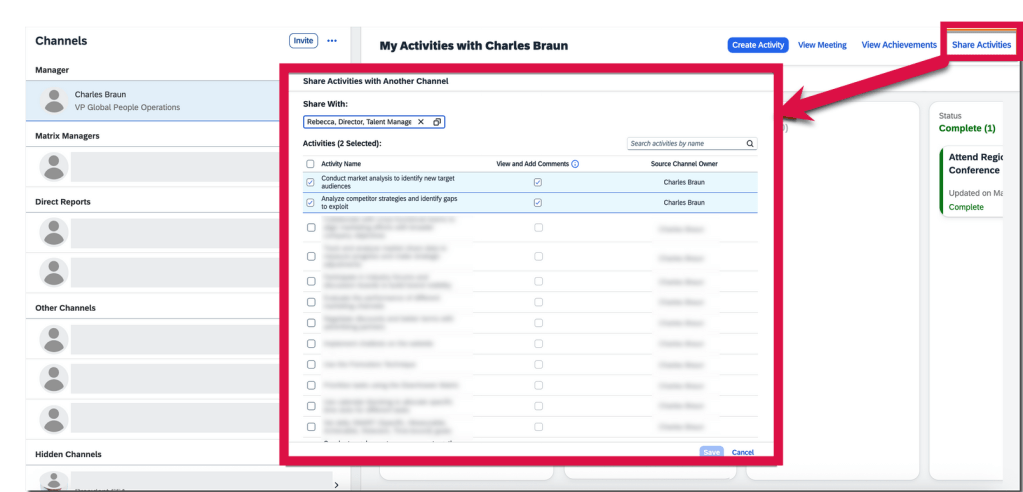
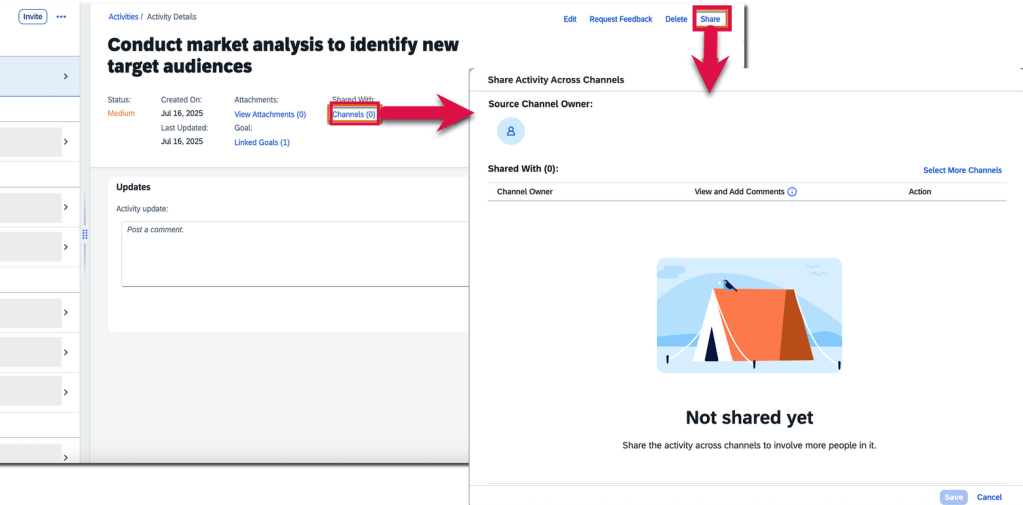
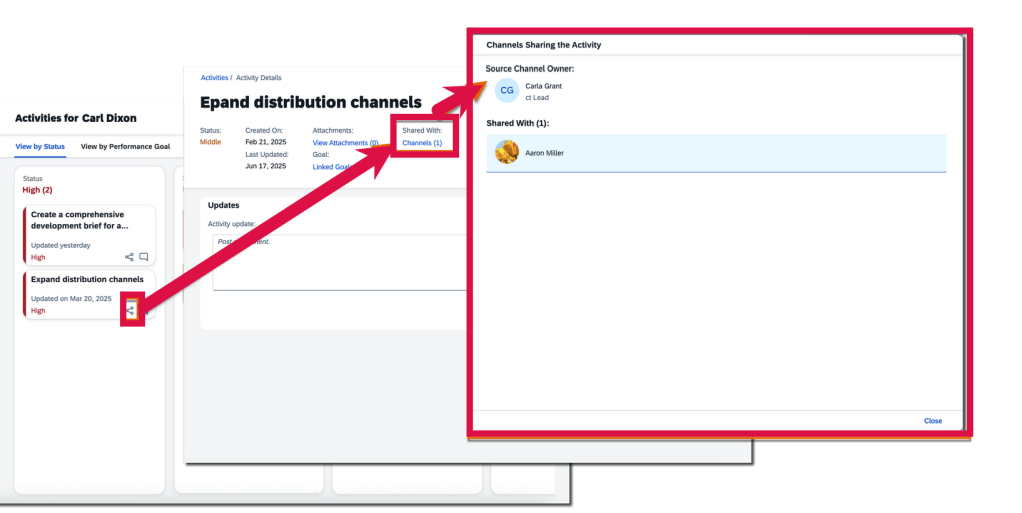
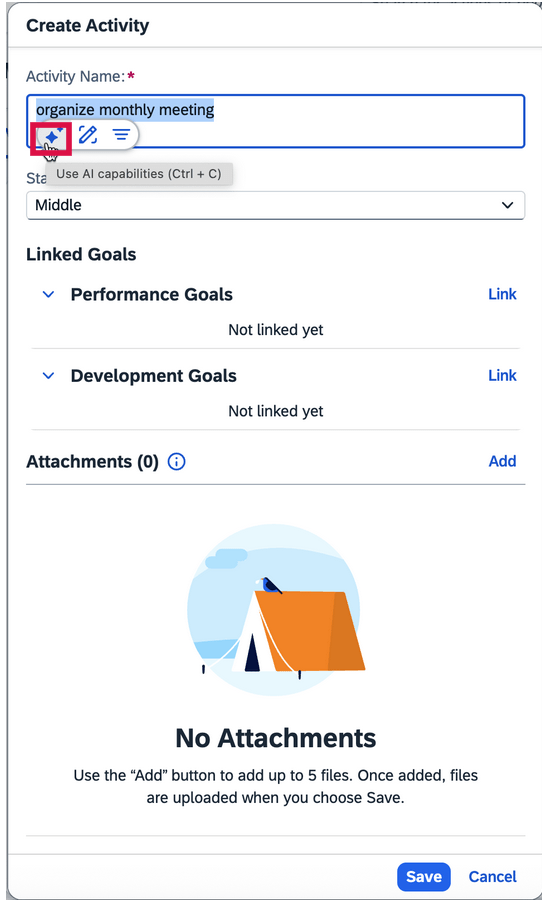

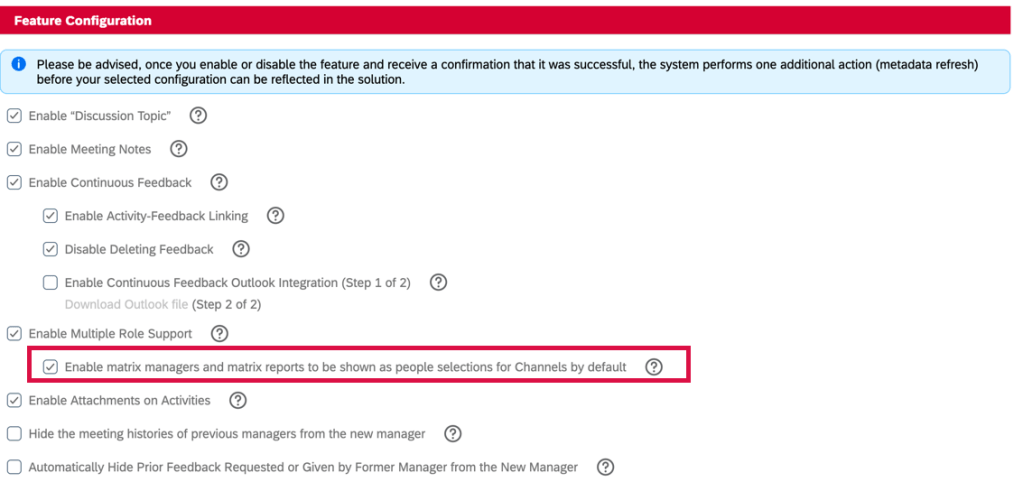

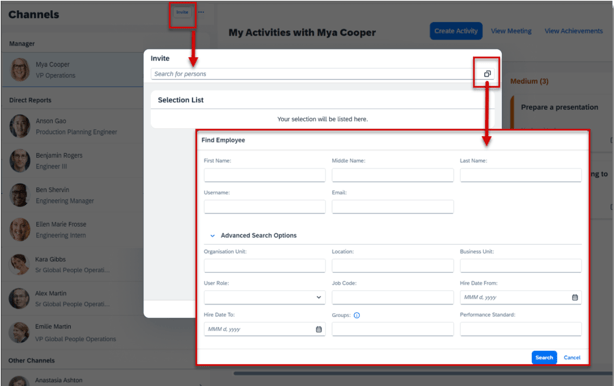
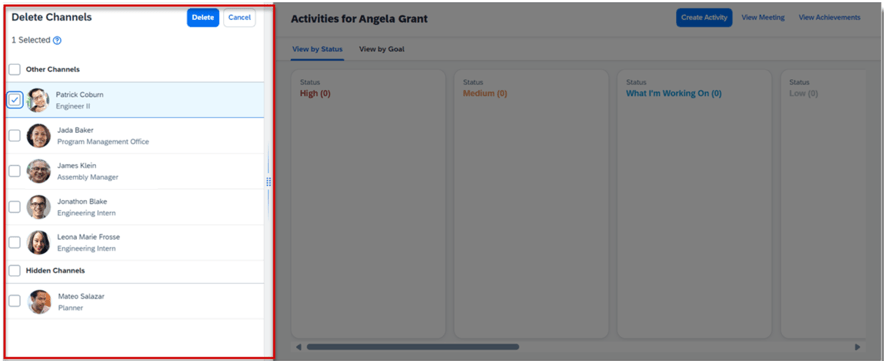
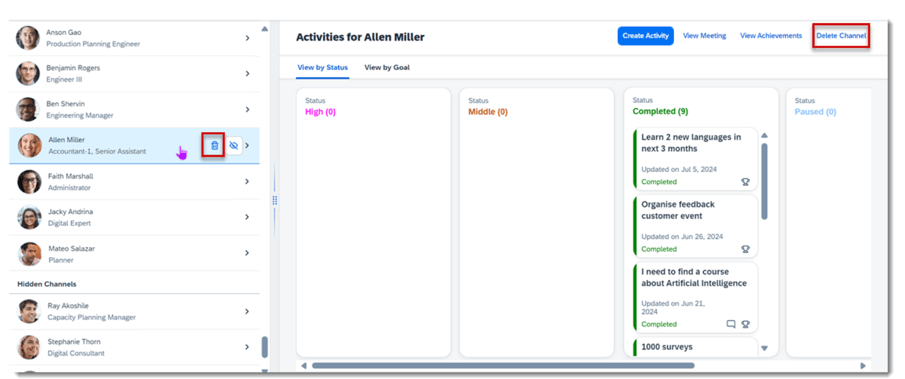
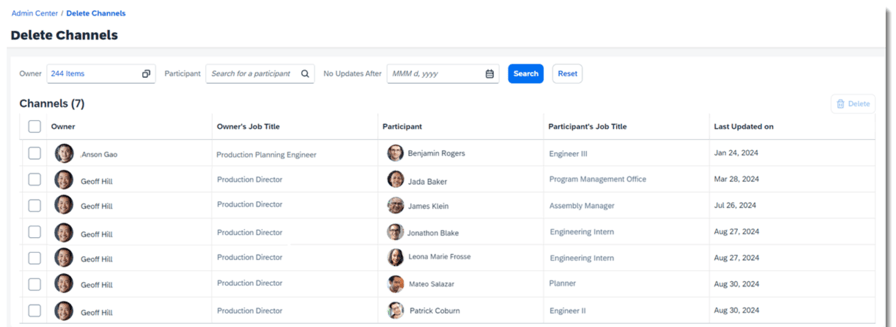
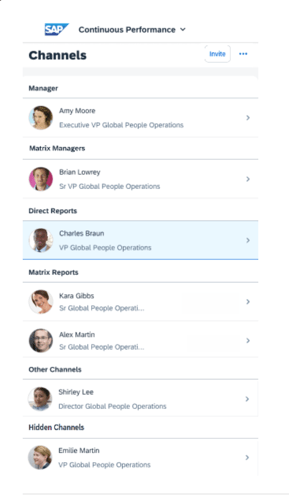
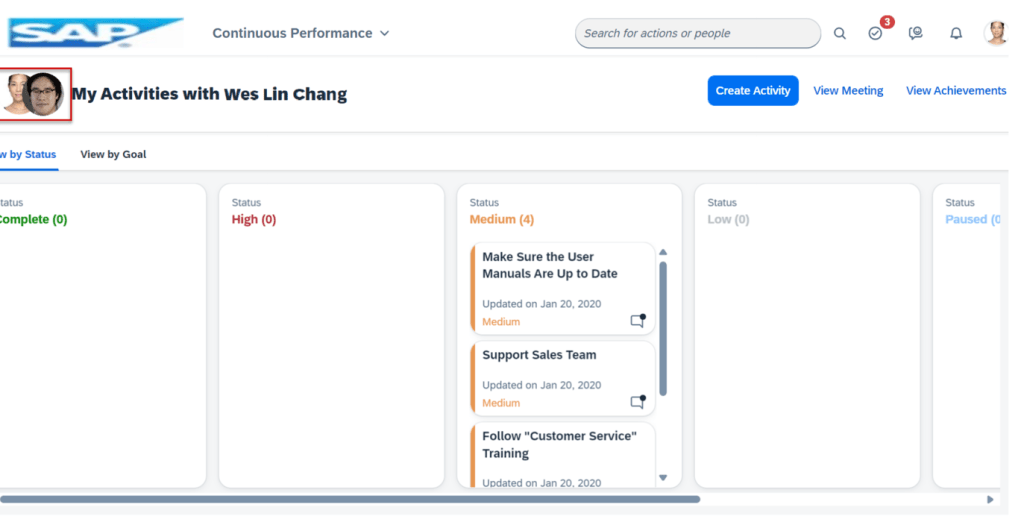
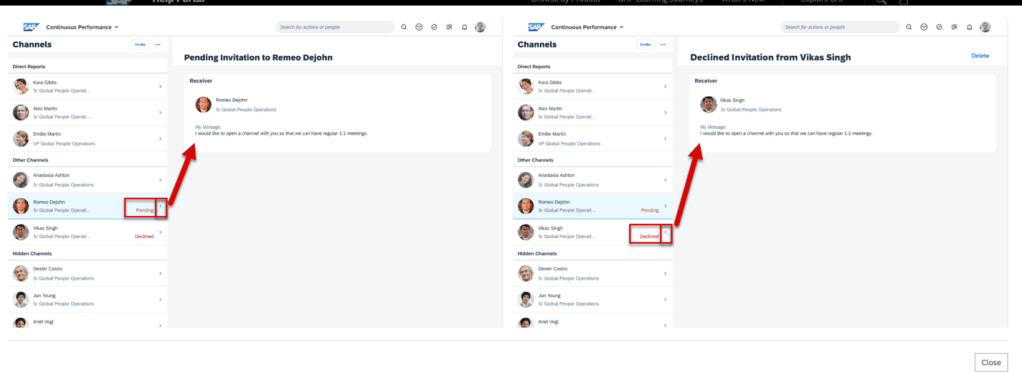

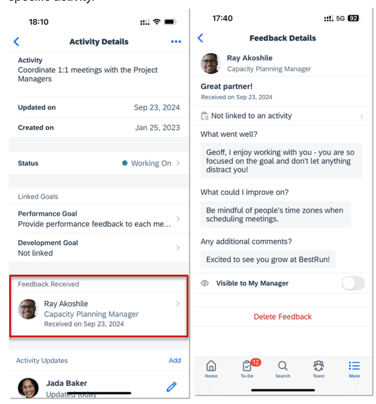
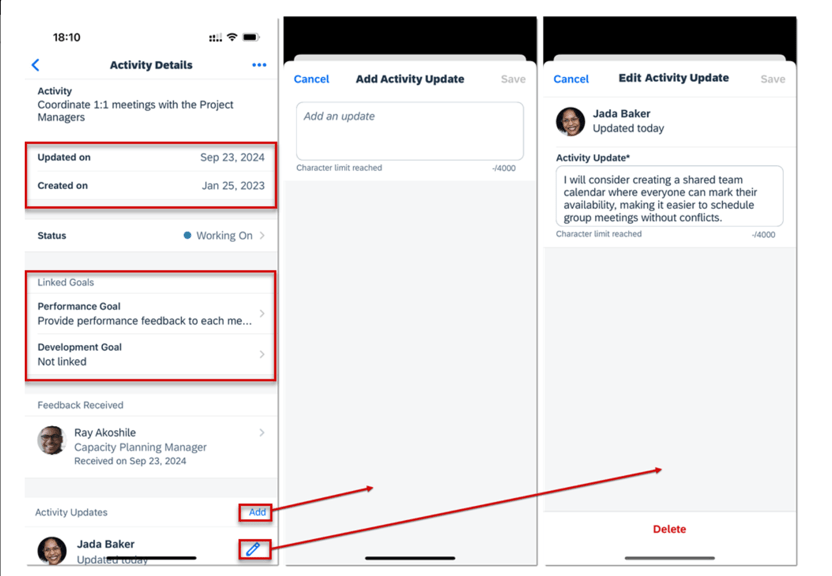

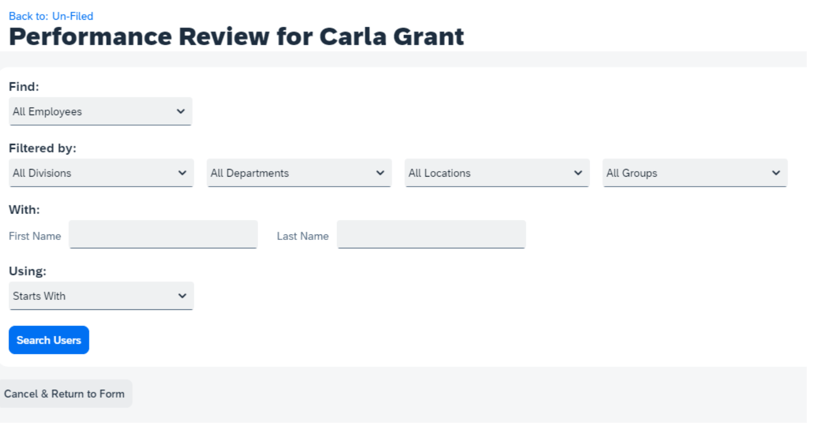
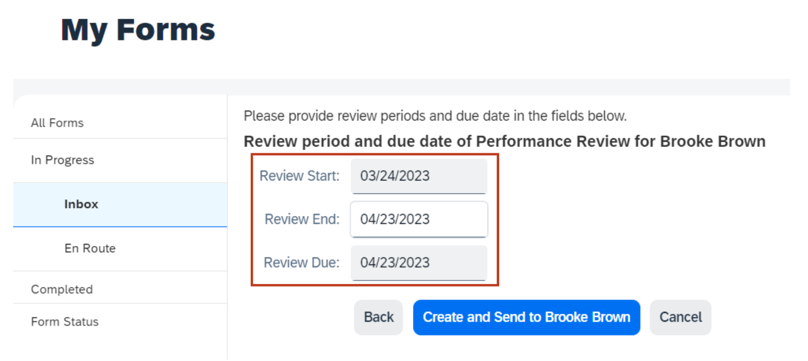


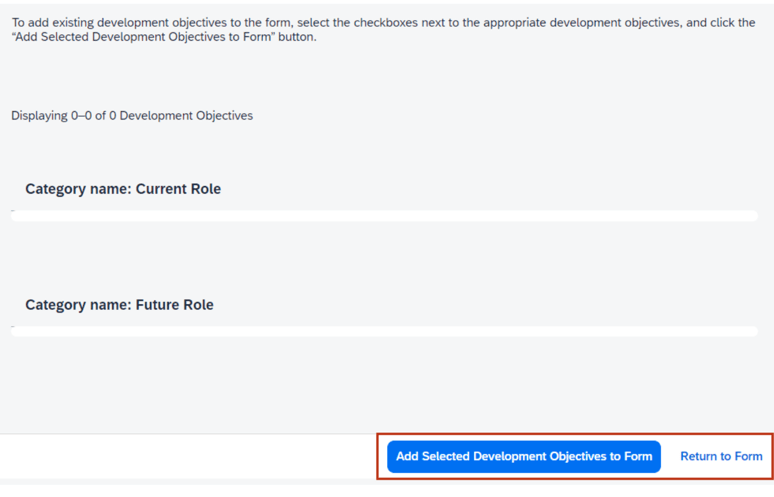
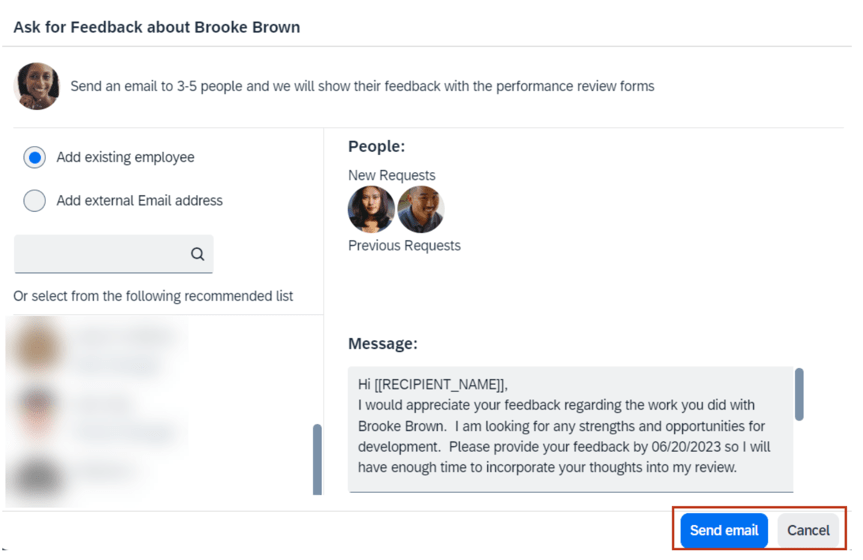
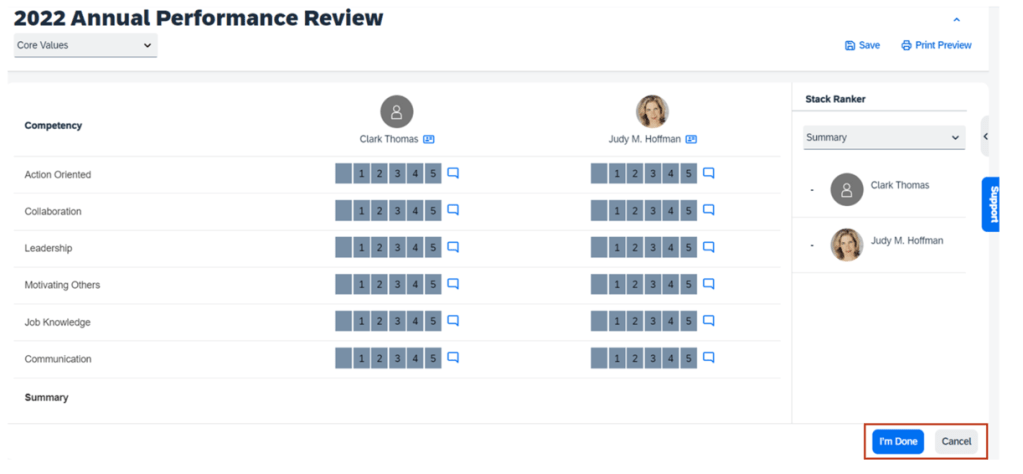

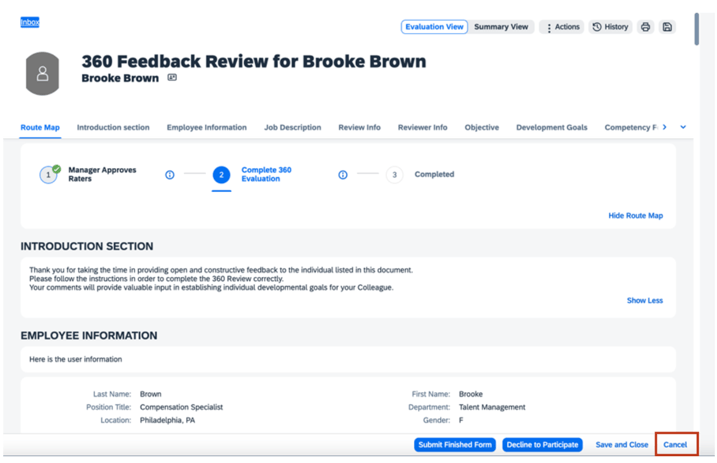
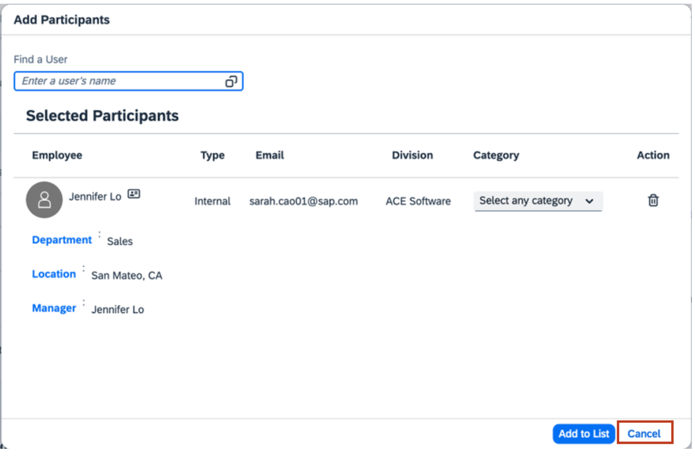
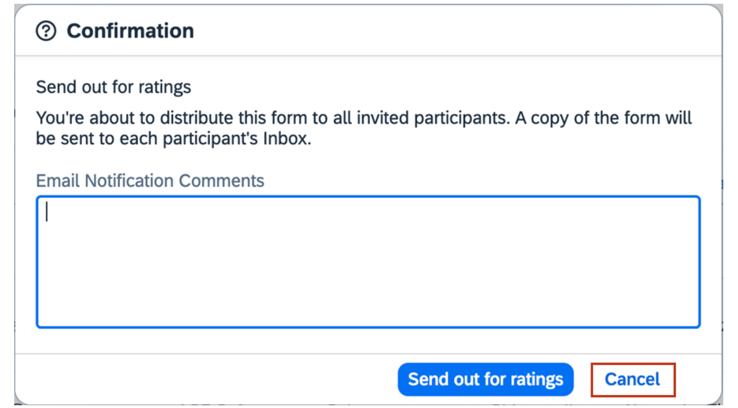
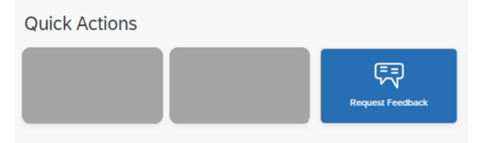
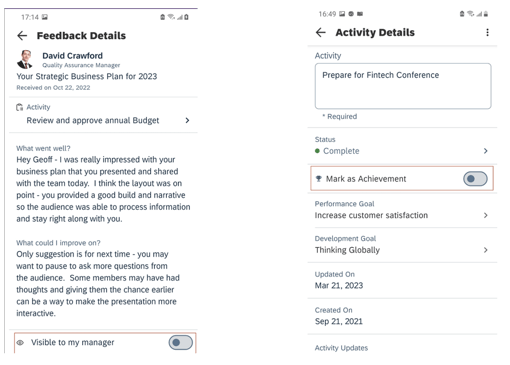
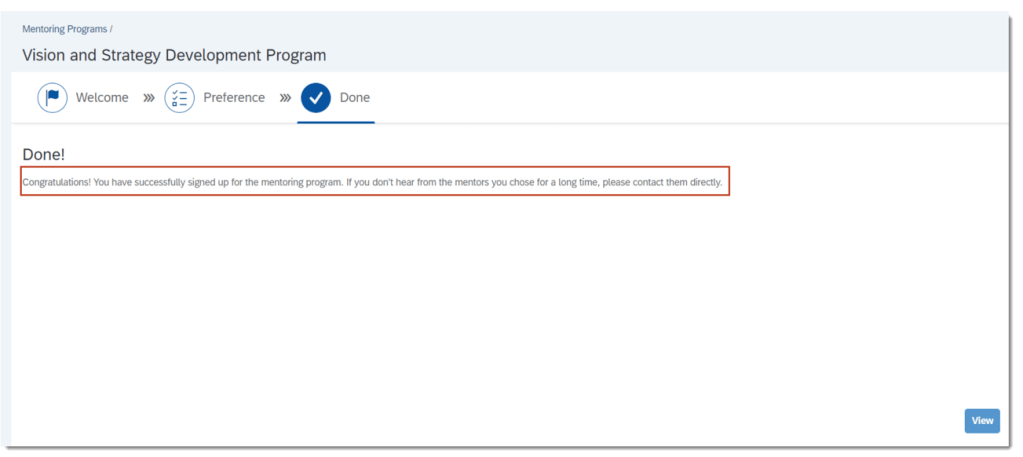
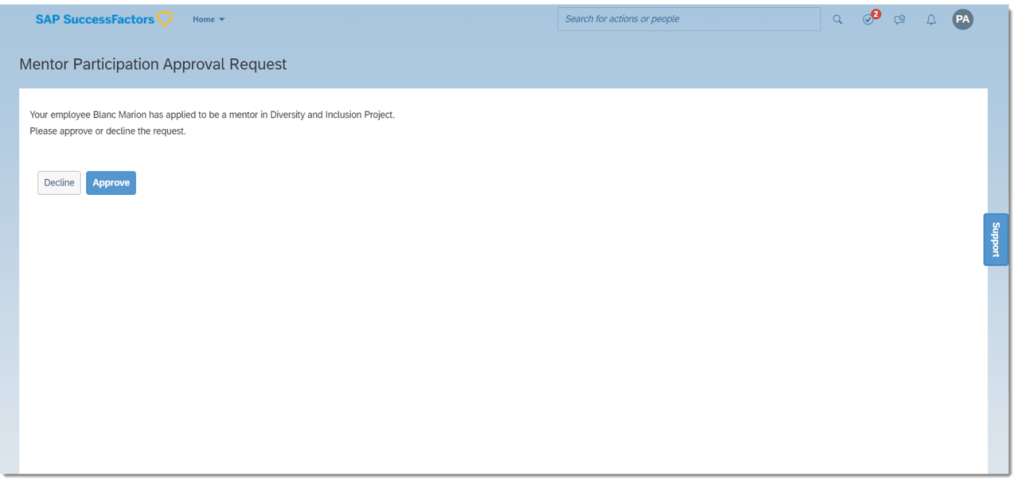
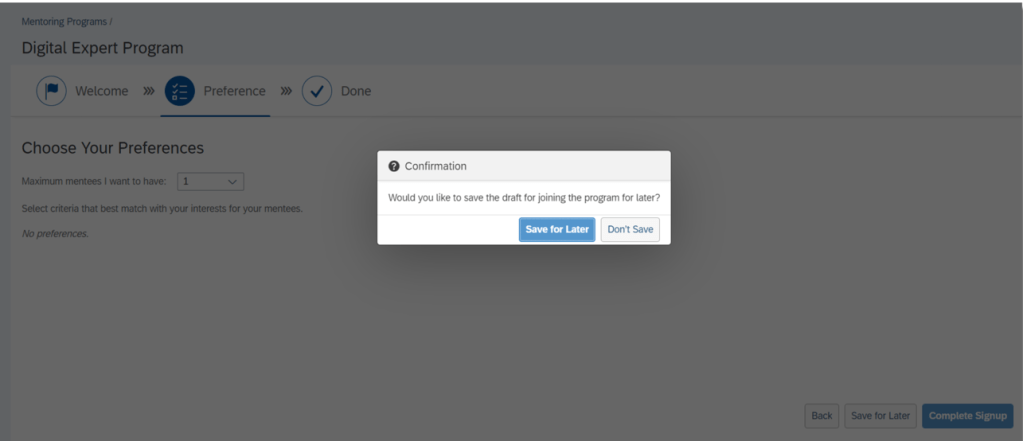


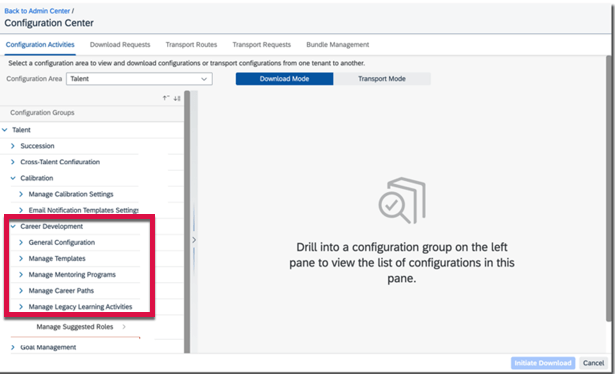
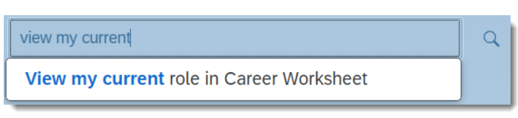
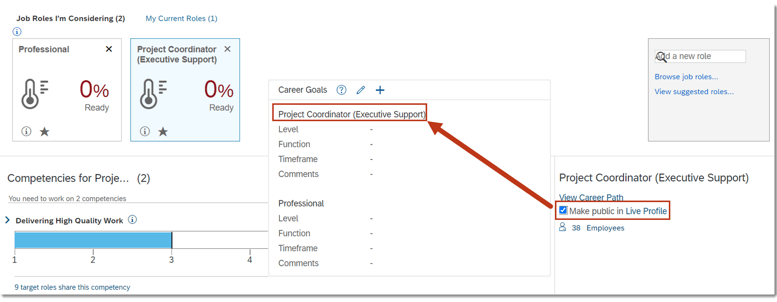
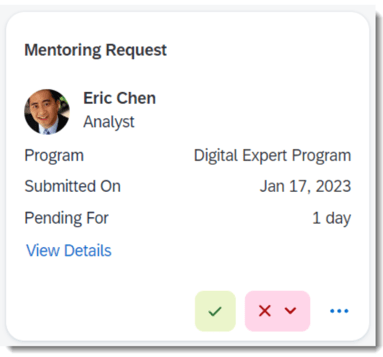
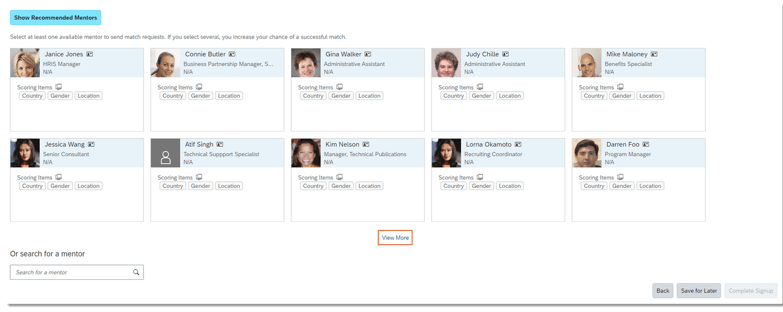
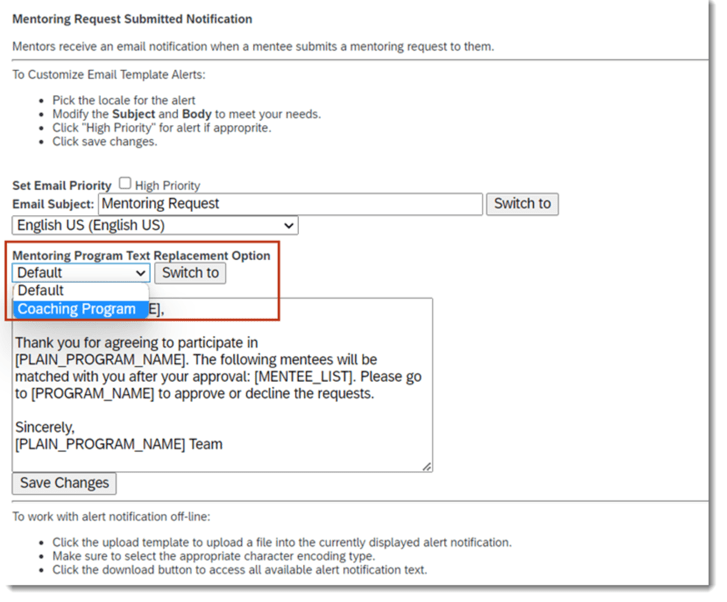
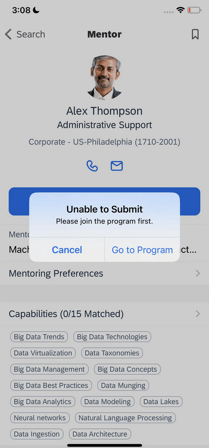


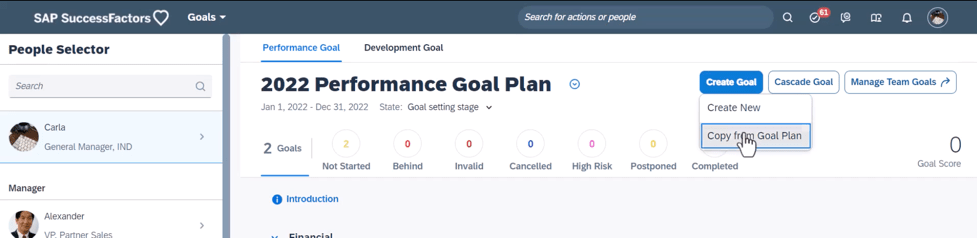
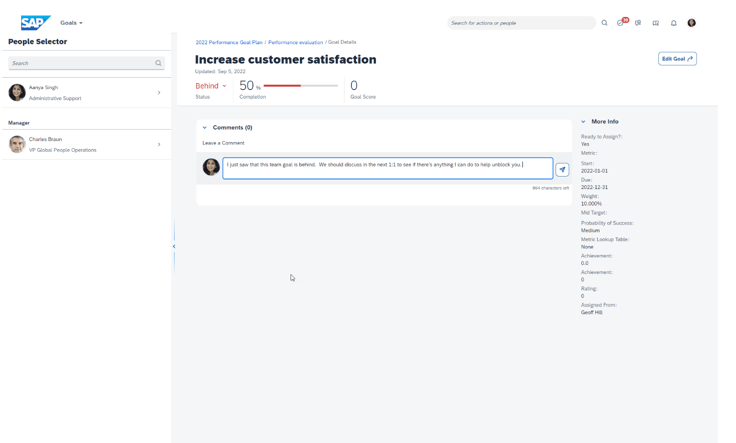
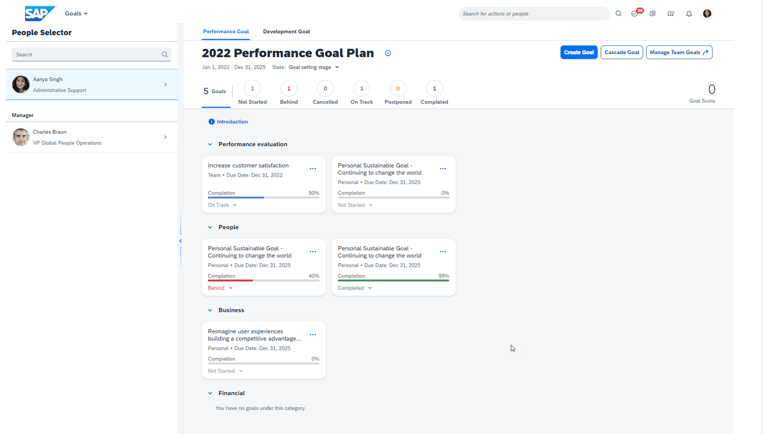
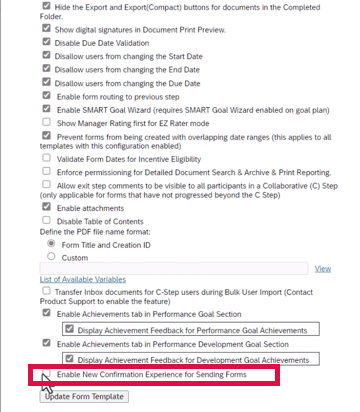
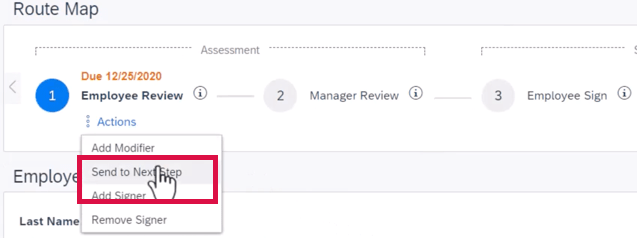
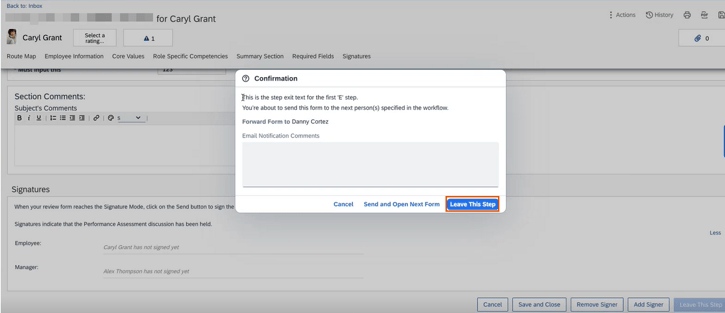
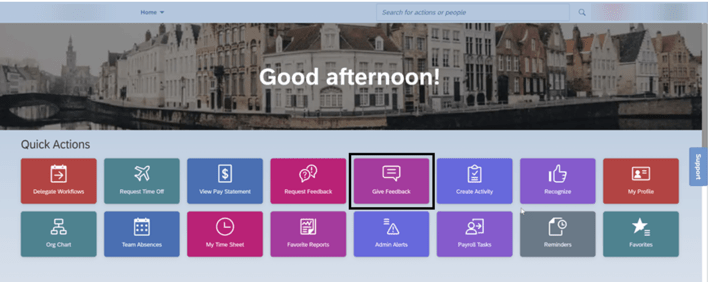
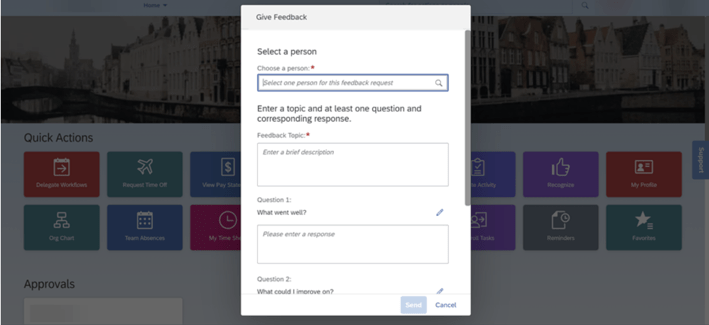
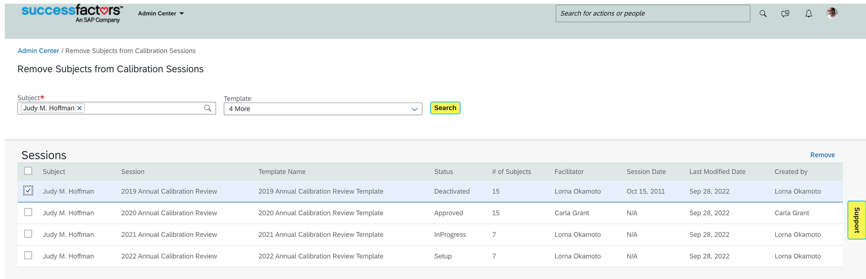
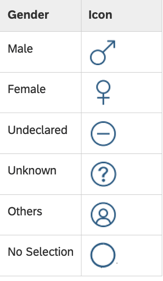
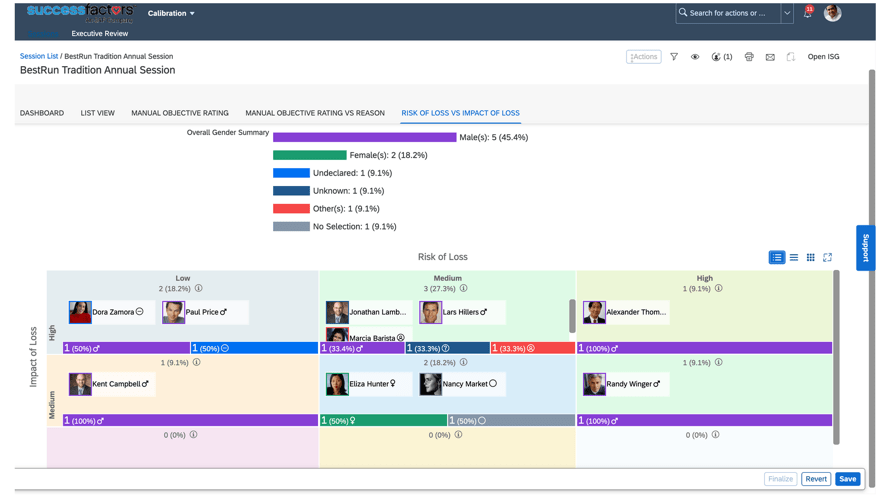
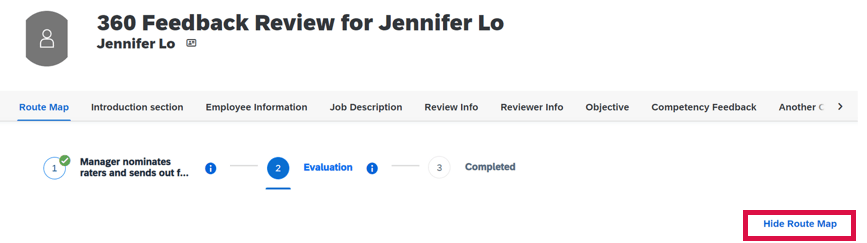

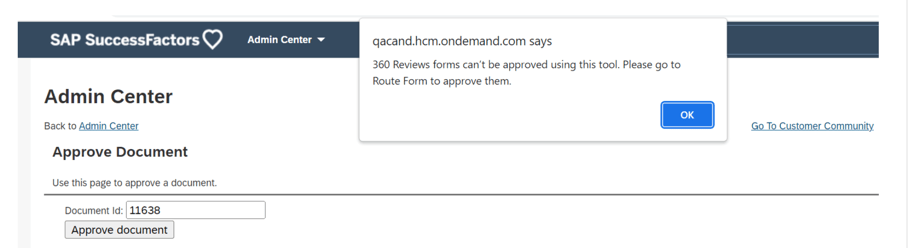
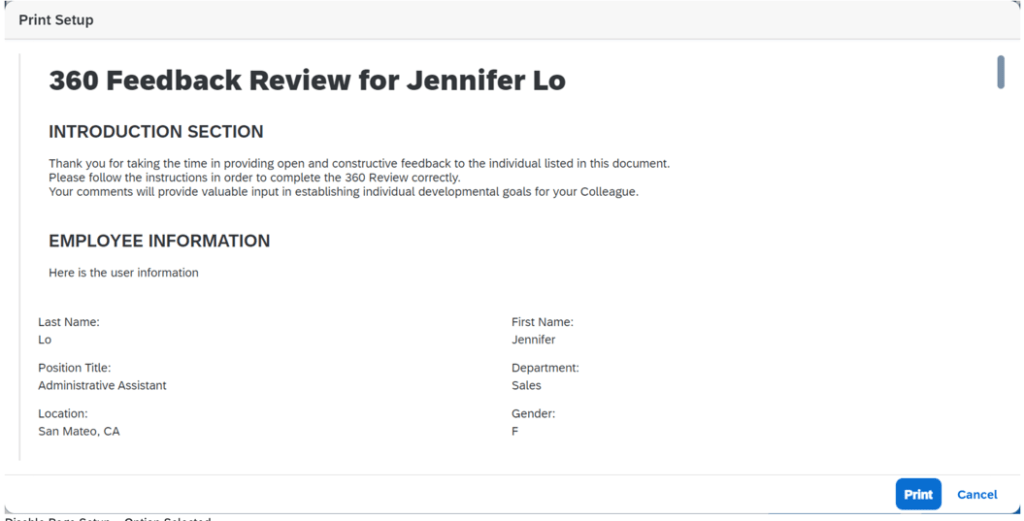
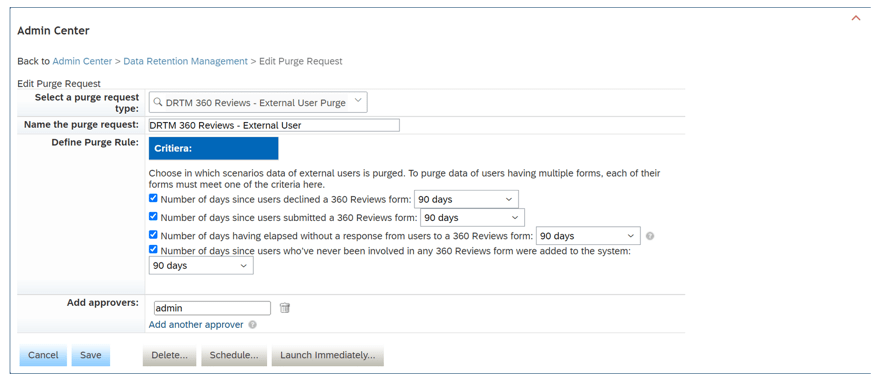

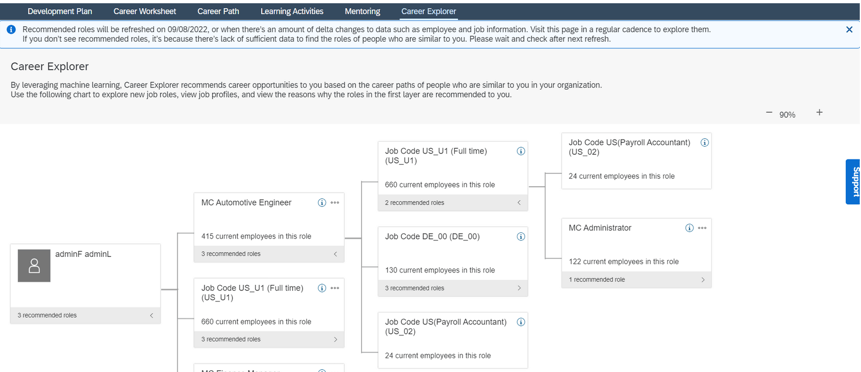
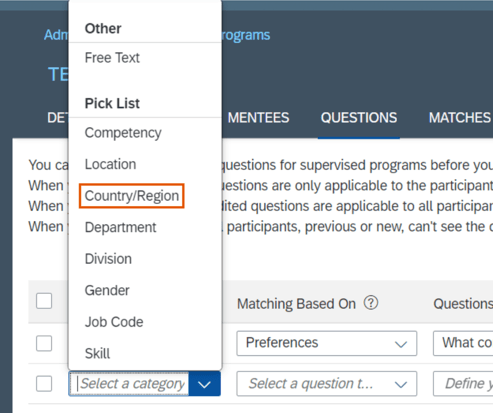


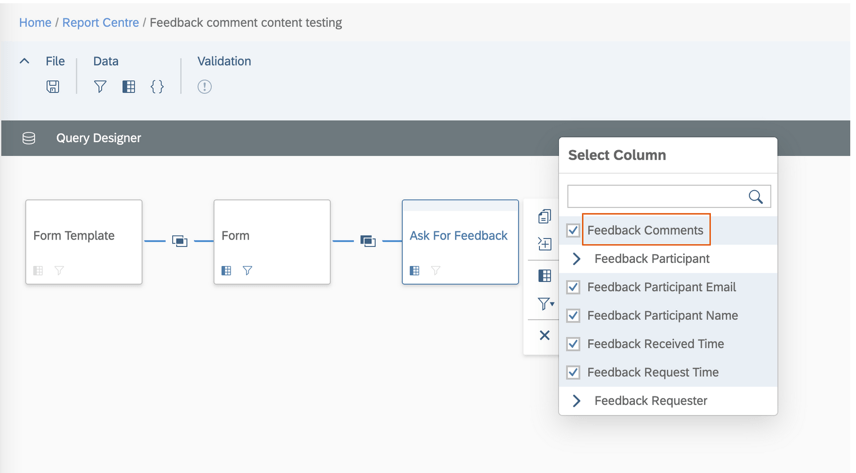
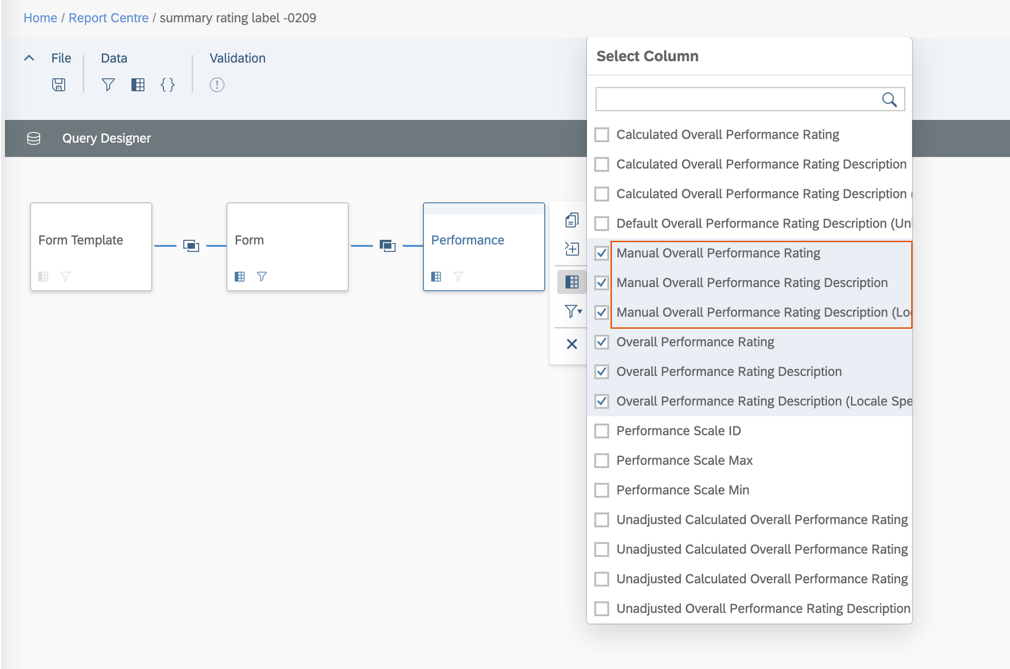
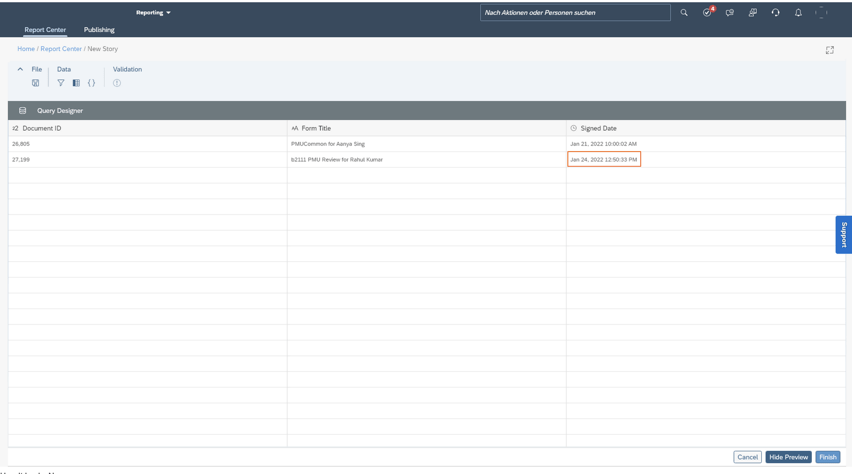
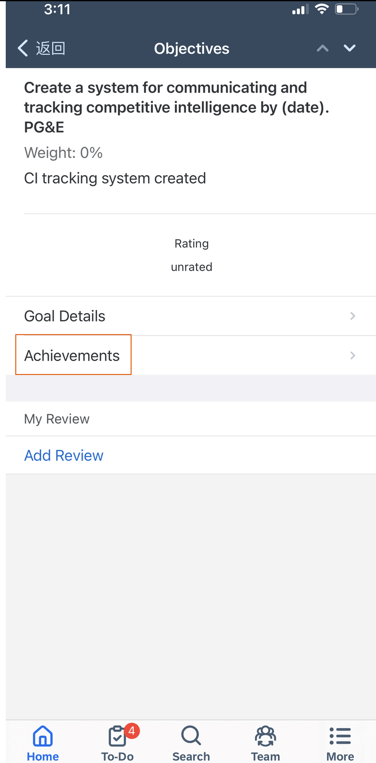
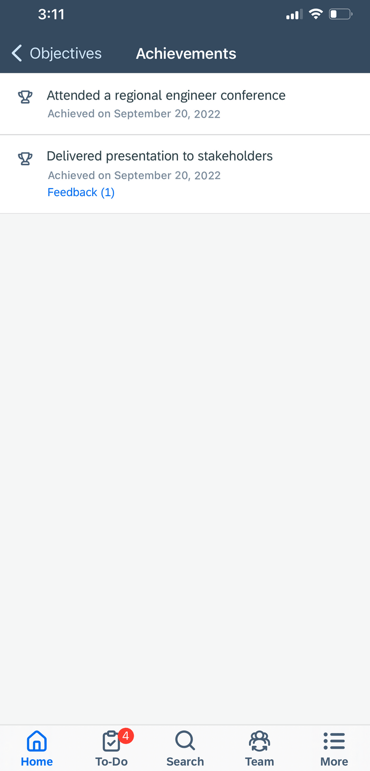
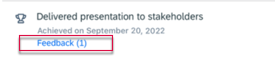
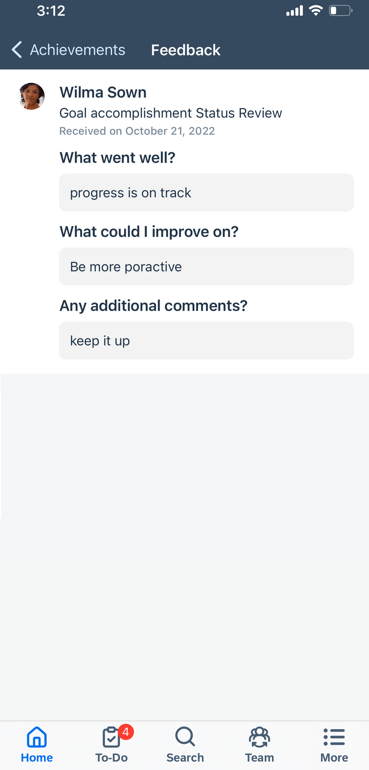
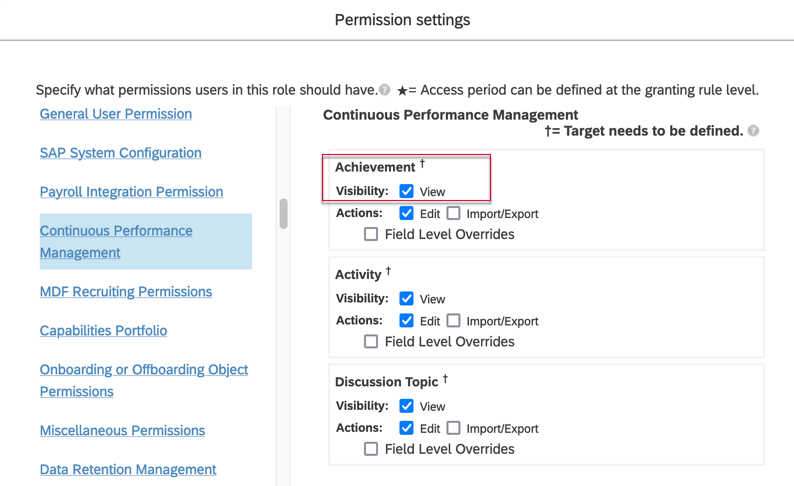
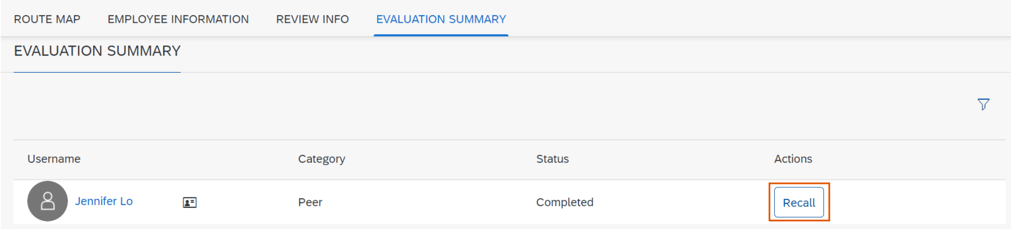
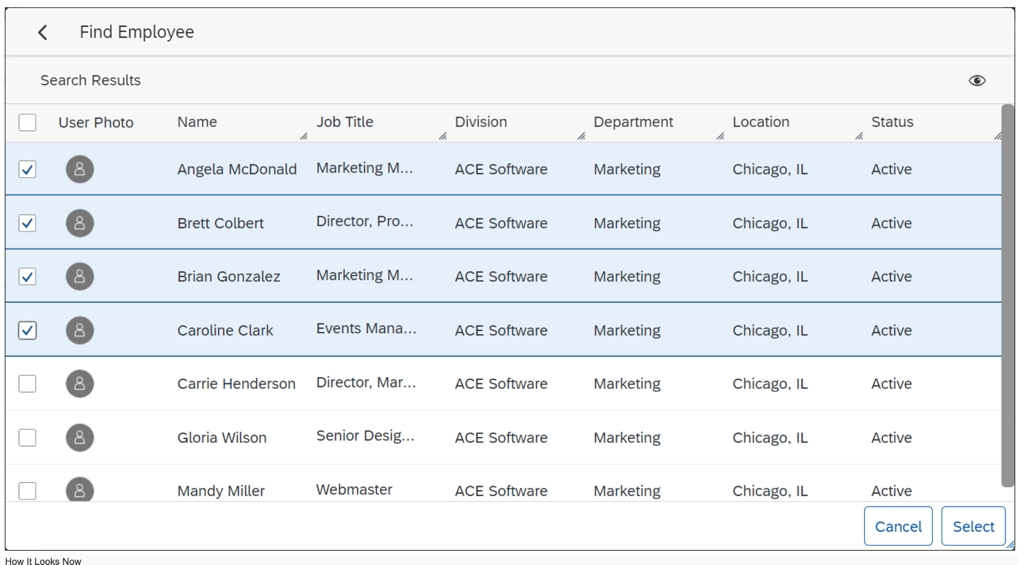


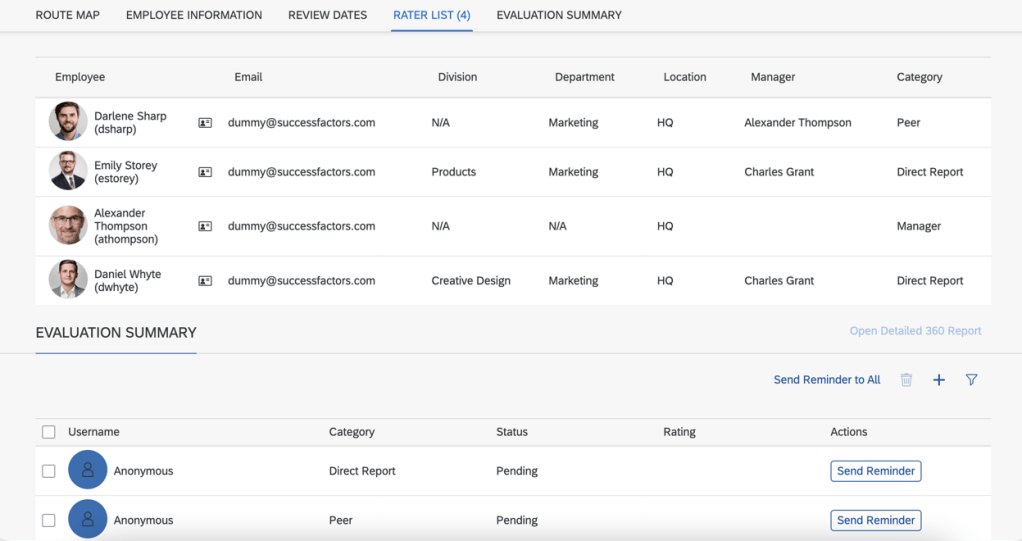


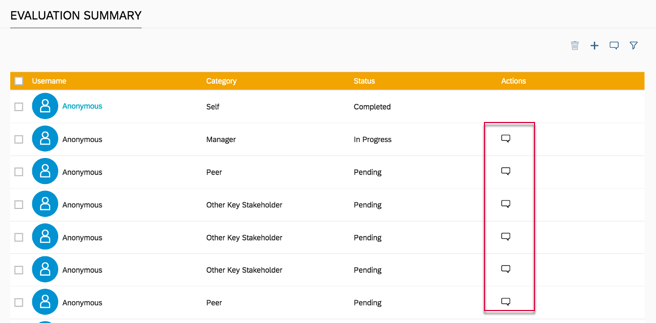
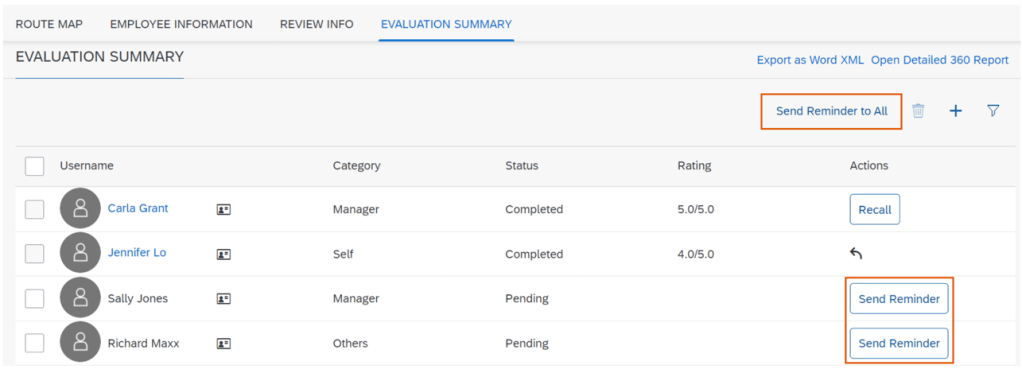
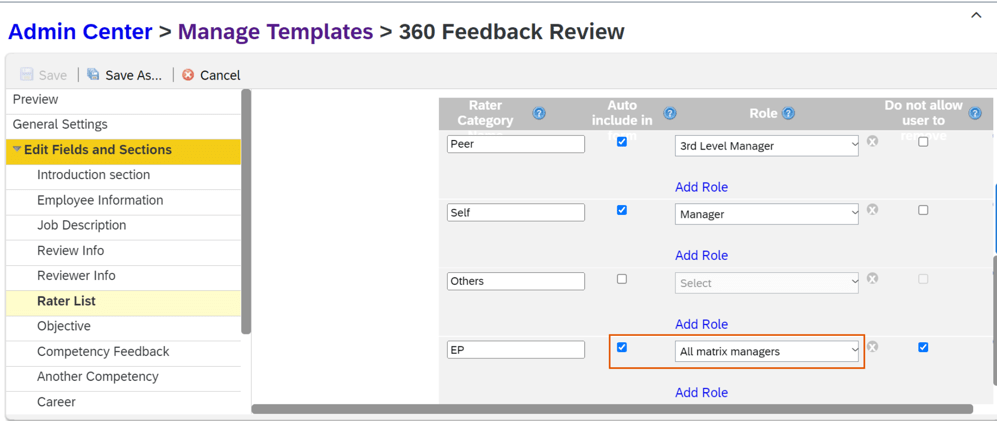
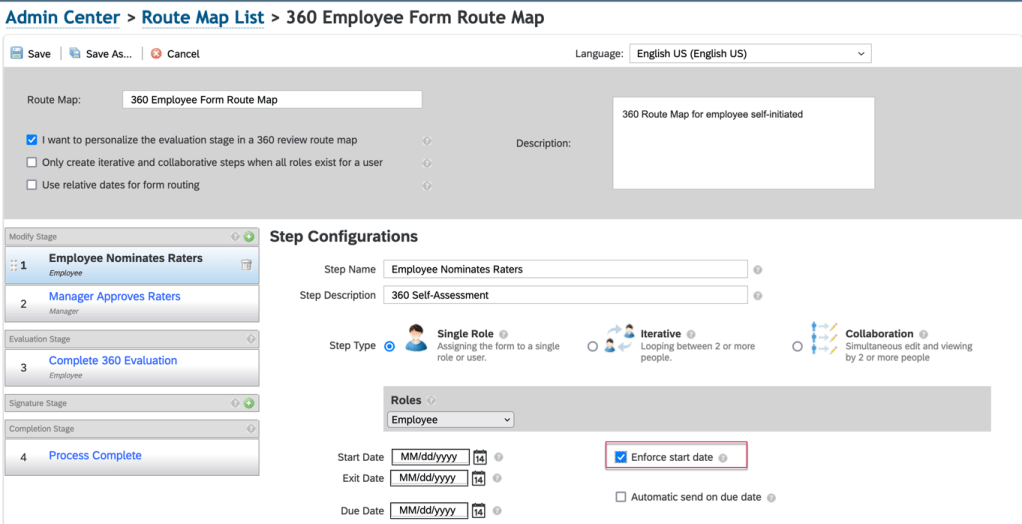
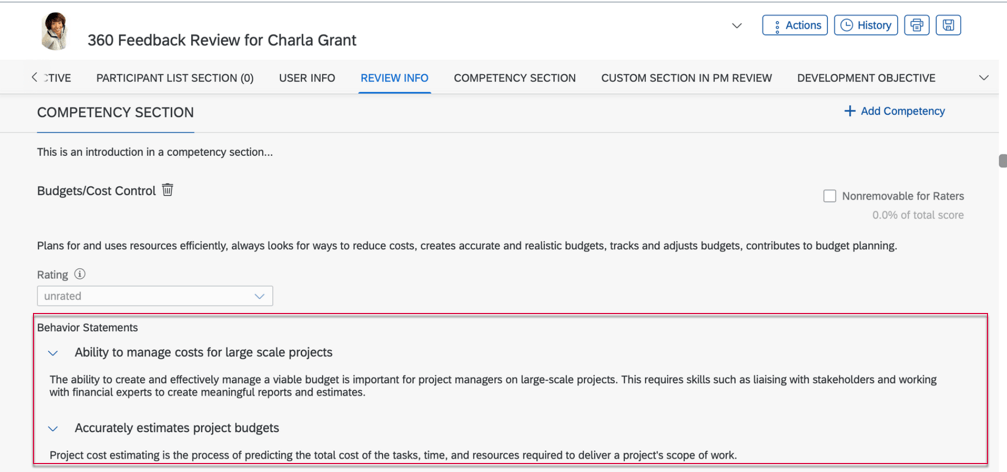
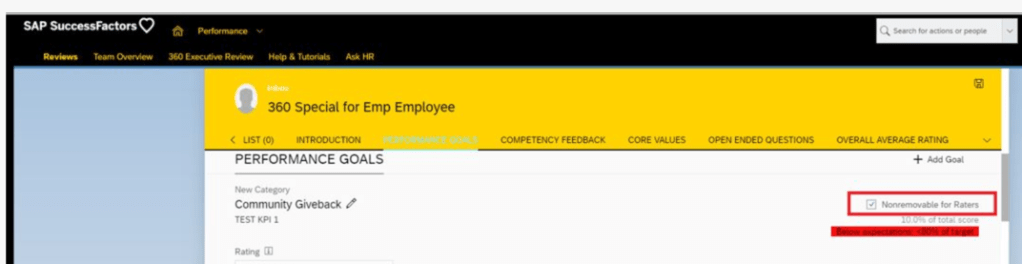
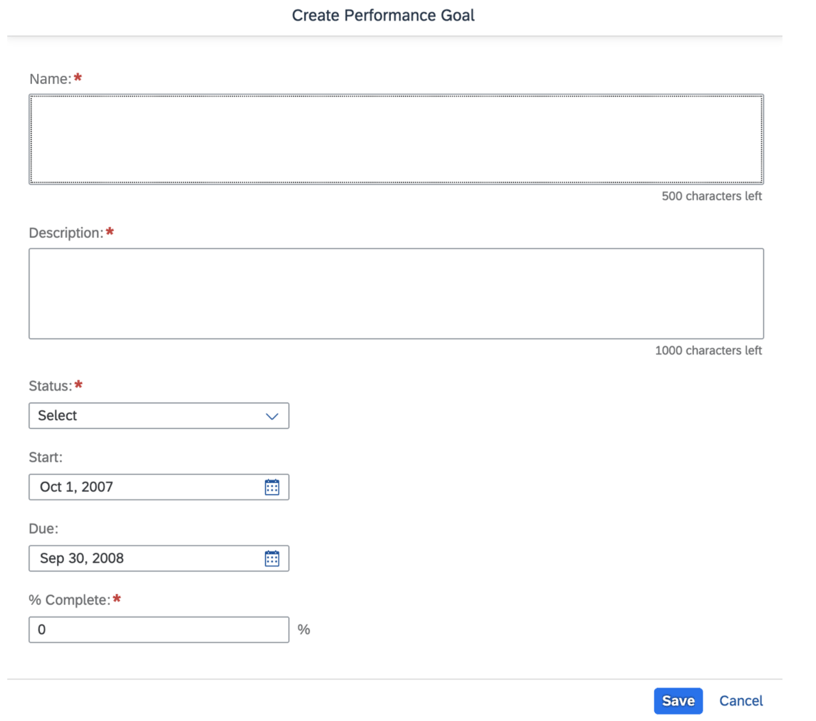
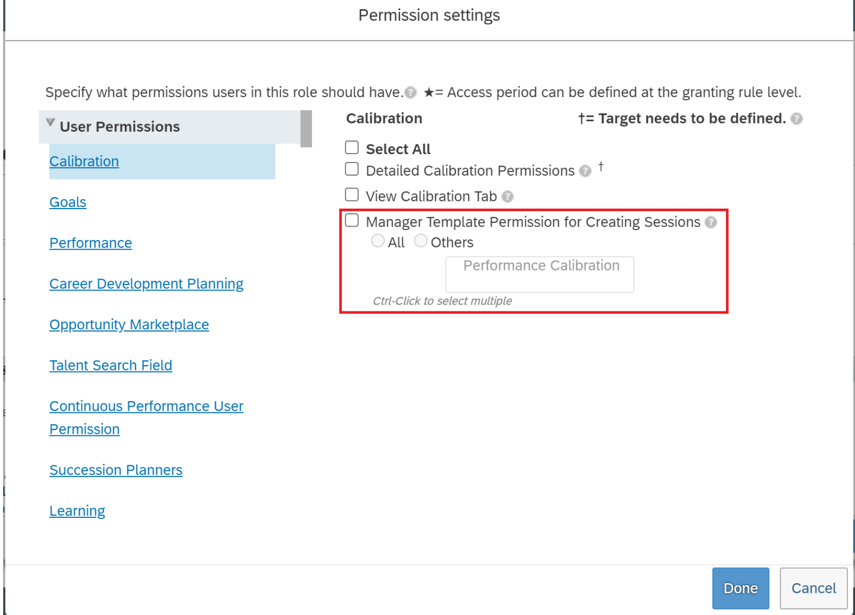
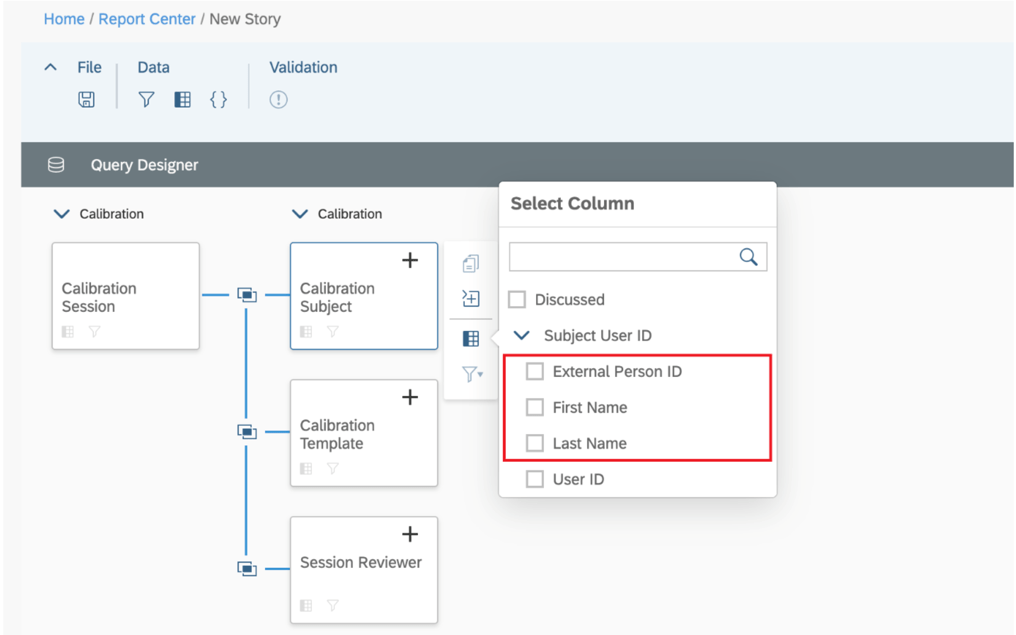
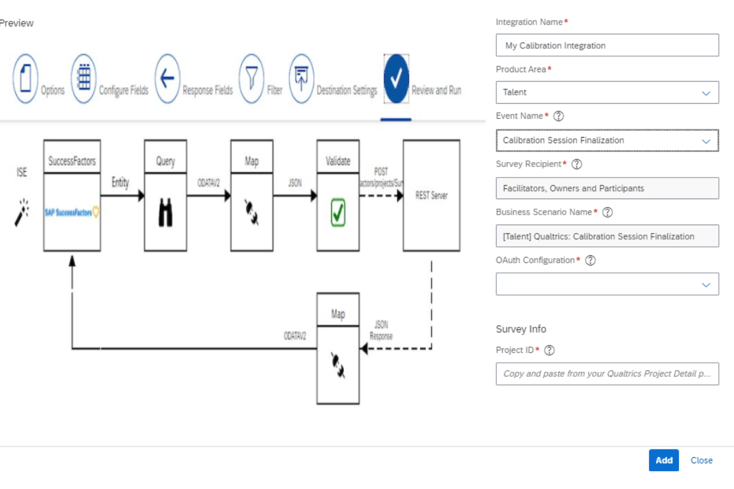

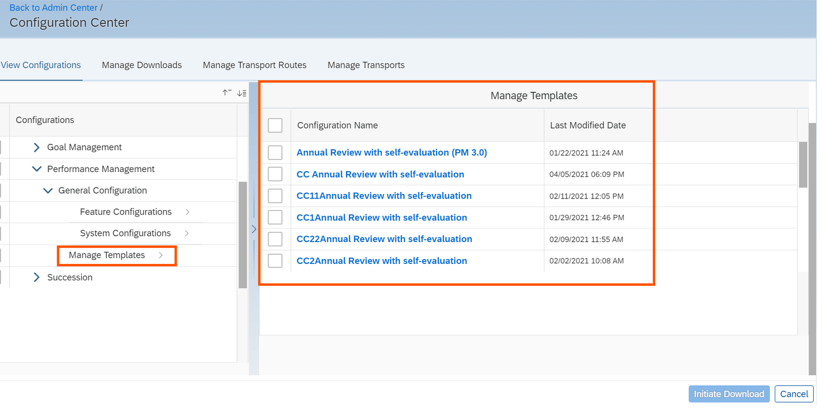
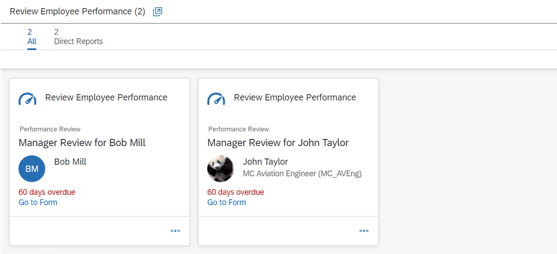
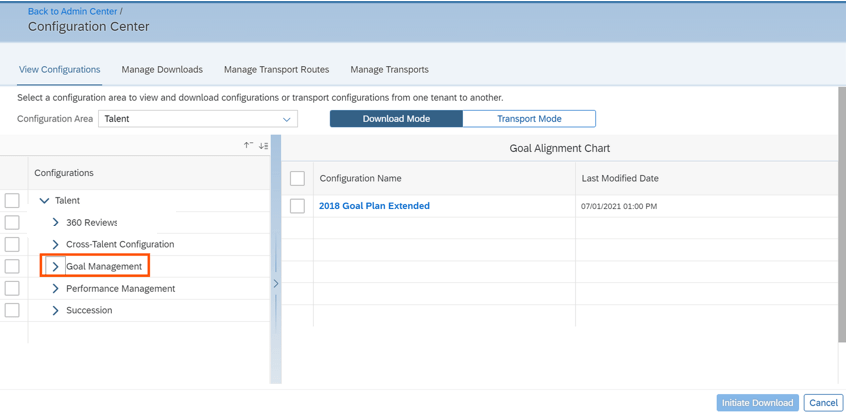
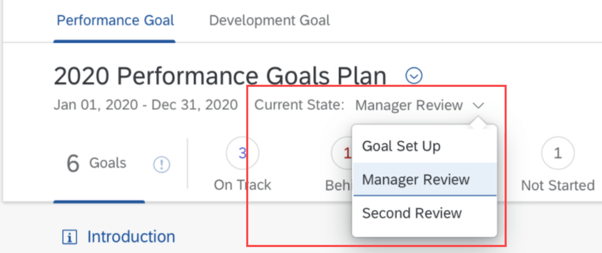
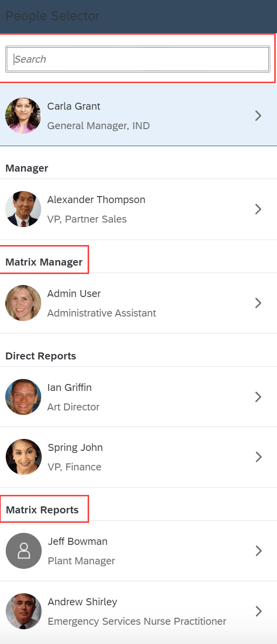
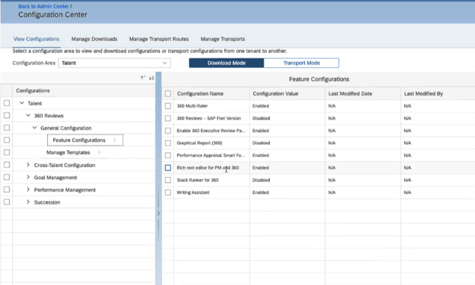
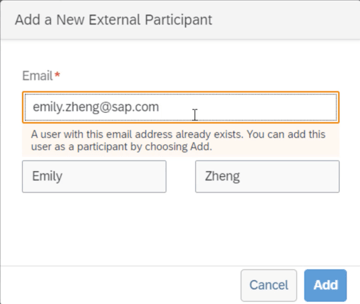
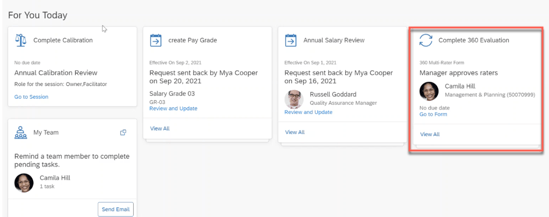
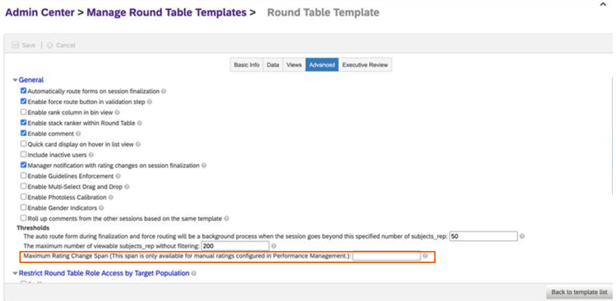
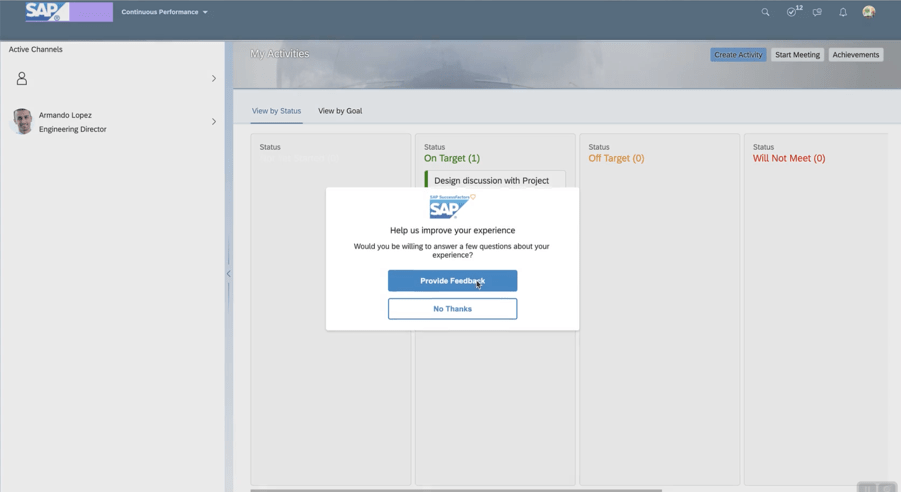
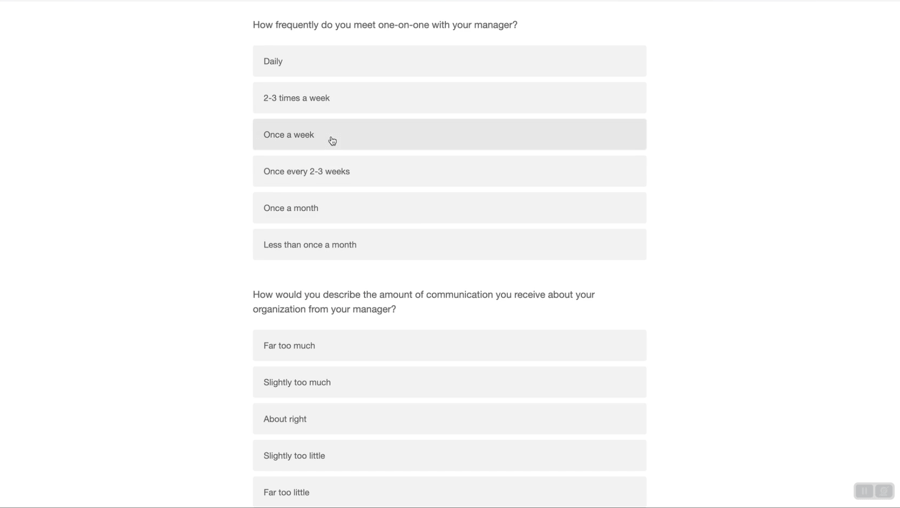
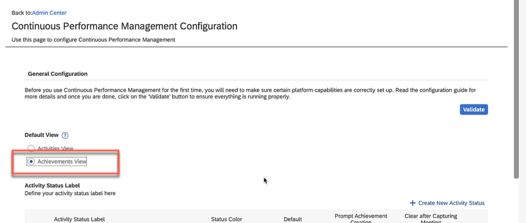
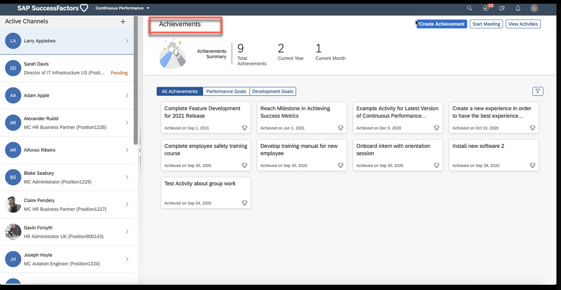
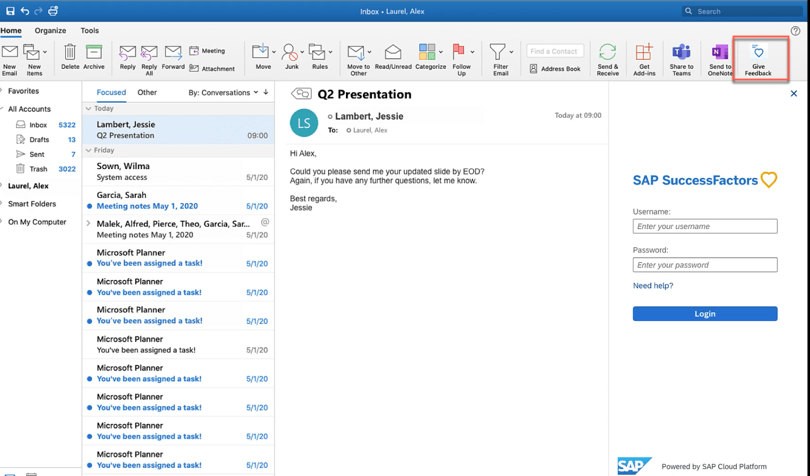
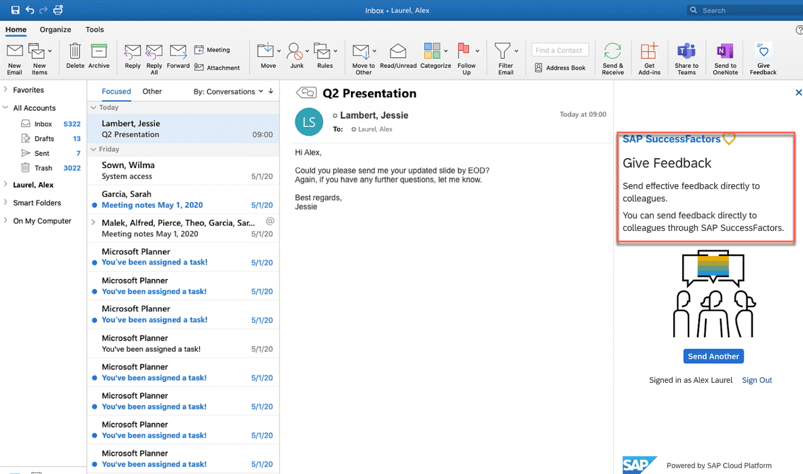
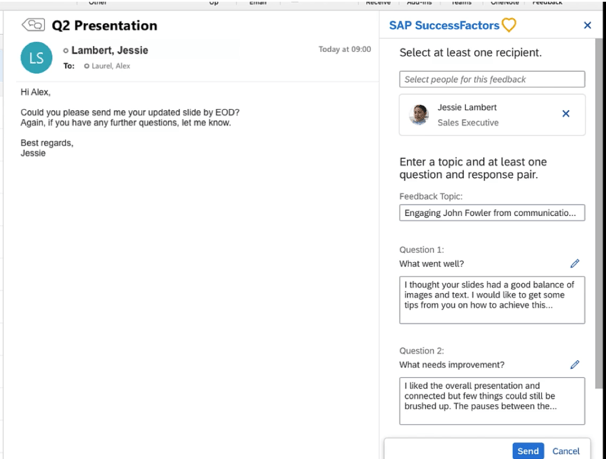
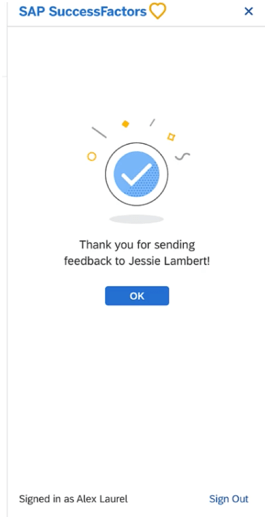

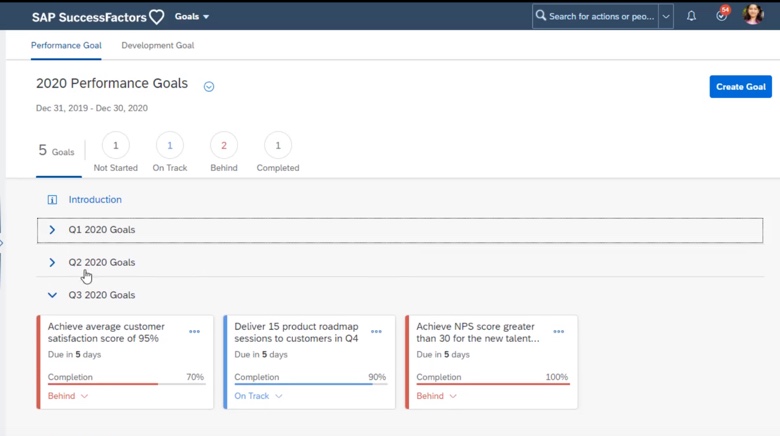
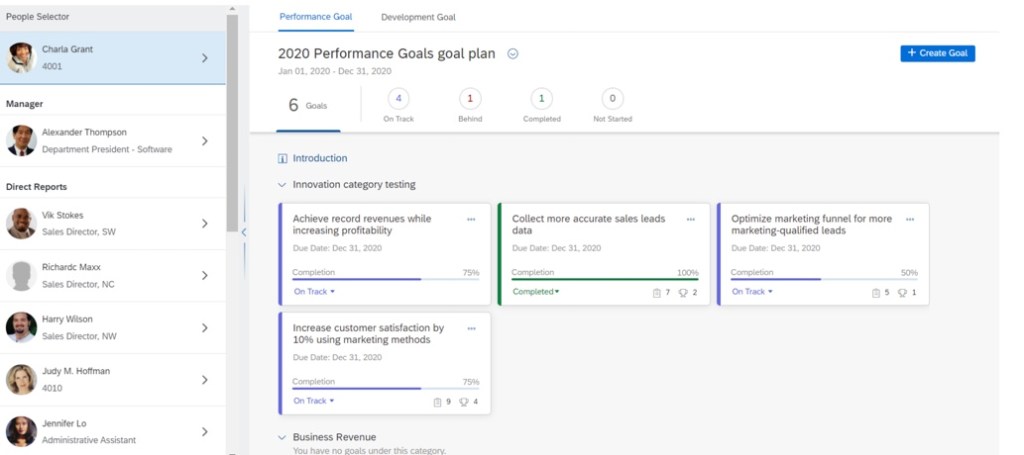
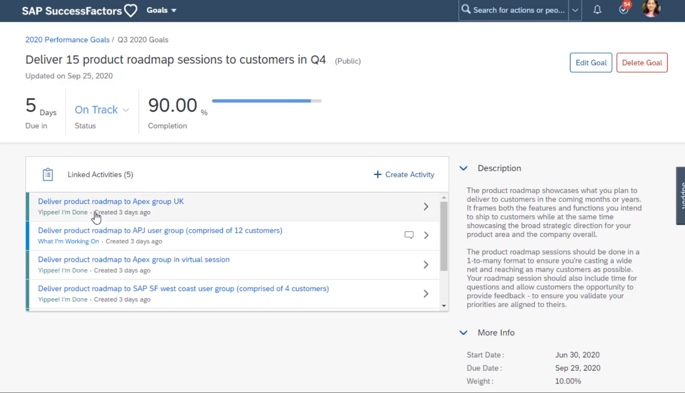
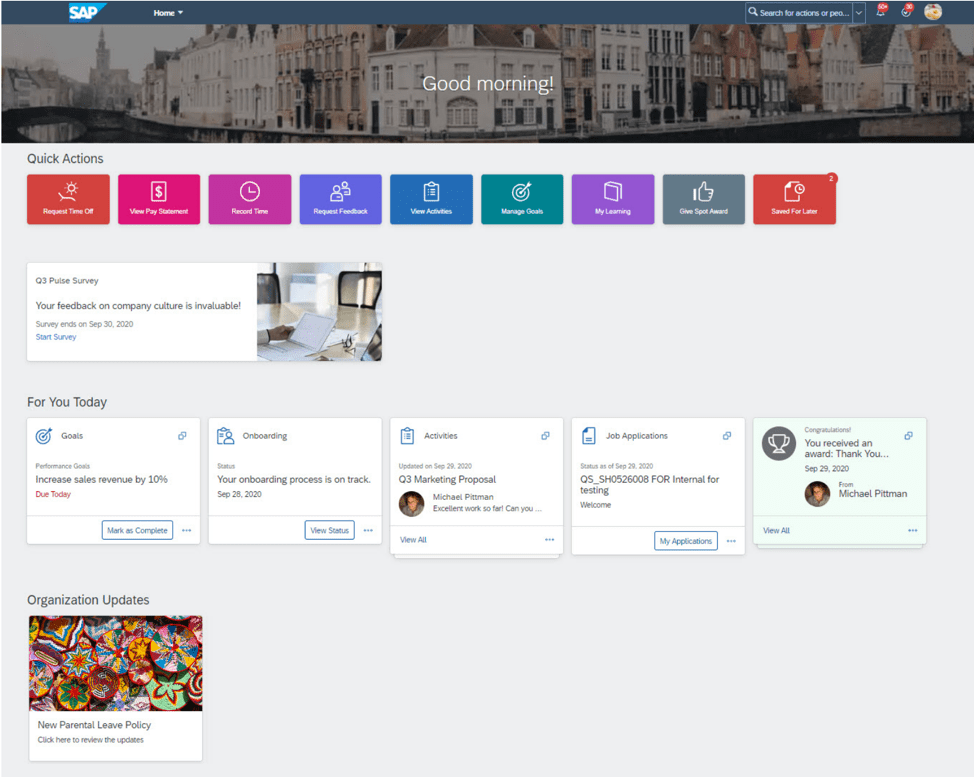
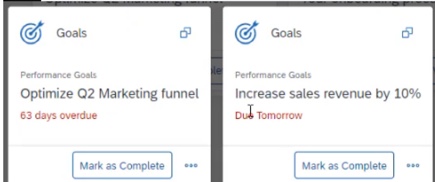


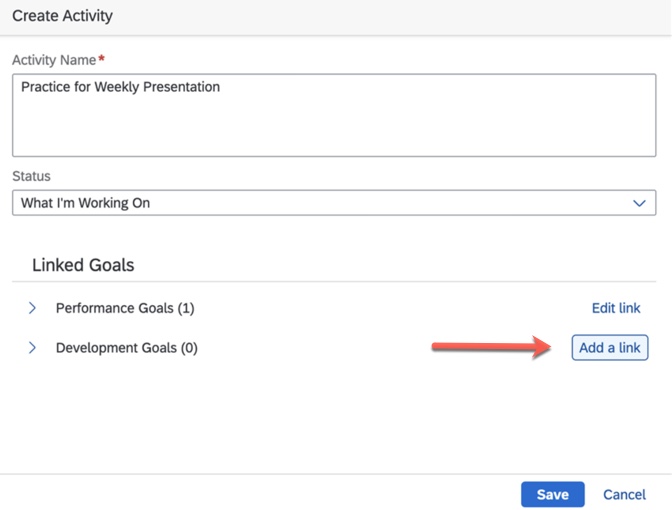
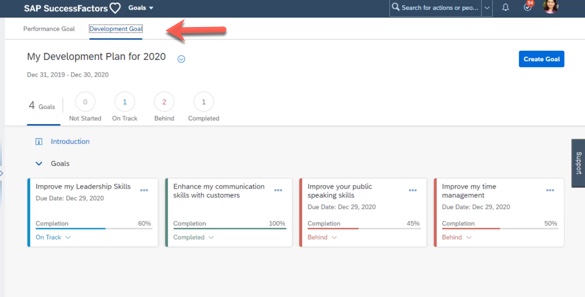
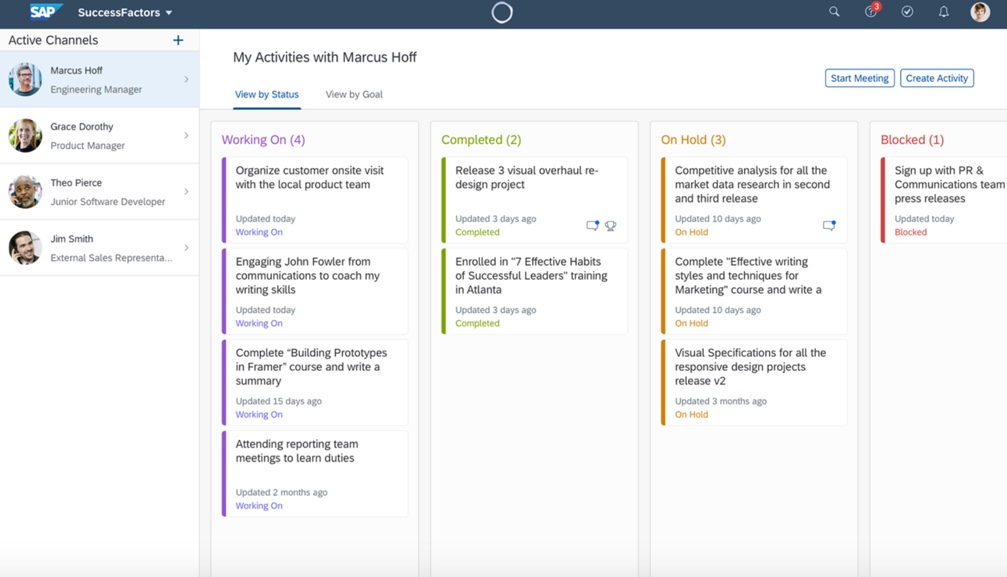
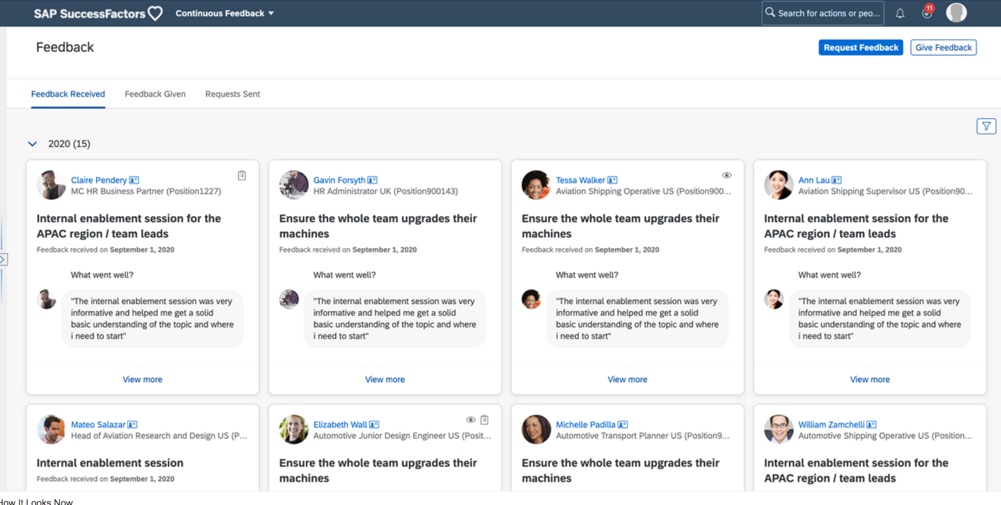


 Worklogix Blog