Month: June 2020

  • Optimizing SuccessFactors Standard Compensation Statements

    Optimizing SuccessFactors Standard Compensation Statements

    Photo by Oleg Magni from Pexels

    Compensation Statements may be the most critical aspect to a successful Compensation implementation. Statements are typically the only visibility employees have to the Compensation module and are important in not only communicating final payments to employees but also in letting them know of any other company directives and overall business results.

    Working in Compensation for over 15 years, I have configured a lot of compensation statements. Sure, custom statements in XSL can be created to meet all of the customer’s wildest dreams, but this may not always be needed or possible as customers might be restrained by budget, time, or expertise in maintaining year over year. Standard delivered statements can be used for compensation, templates, variable pay templates, or a combination.
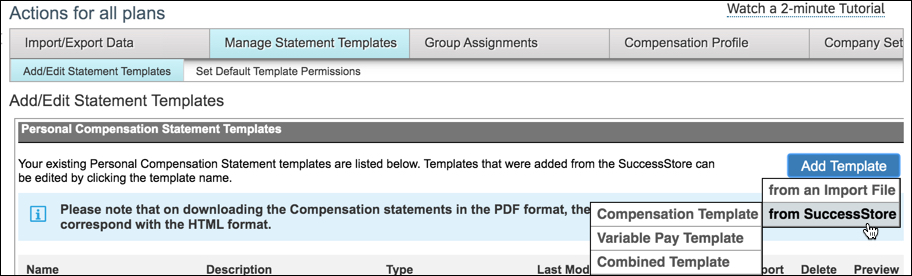
    Admin Center –> Compensation –> Actions for All Plans –> Manage Statement Templates –> Add Template –> from SuccessStore –> choose template type

    My Top 10 List on how to optimize standard compensation statements:

    1. Gather statement requirements early

    Statements are often thought of as an end of the process final product. While they are just that, you will find that if you include statements as part of the early requirements discussion along with the design of the compensation plans, you will end up with a better final product.

    In order to pull fields of information into the statements, they must be a field in the plan template(s) you are referencing. You can include extra indicative data or calculated fields (such as Merit Percent) or fields that show final values rounded (such as New Annual Salary) in case your customer wants to show nice rounded numbers to the employees. These fields do not need to be made visible during planning, but can be hidden so they are available for display in the statement.
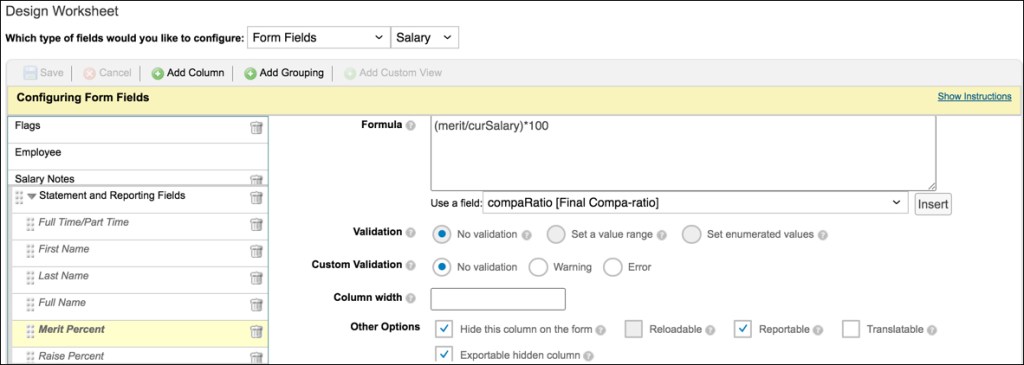
    Example of a custom field marked hidden during planning but that can be pulled into the statement

    2. Take advantage of statement suppression

    In 2019, SuccessFactors enhanced the compensation module to allow for statement suppression. Gone are the days of having to generate and recall statements for employees that you wouldn’t need to communicate awards to.

    To start, create a custom column in your template to control the suppression based on the customer’s desired logic. For example, to suppress a statement because of a low rating the custom column could include the formula if(pmRating<2, “FALSE”, “TRUE”). Employees with the value “TRUE” will have statements generated, those with a value of “FALSE” will be suppressed.

    Enable the setting from Plan Setup –> Settings. Select the box for Enable Statement Suppression and use the drop down to select the custom column you have created with your statement suppression logic. When statements are generated, the job status report will list the names whose statements have been suppressed.
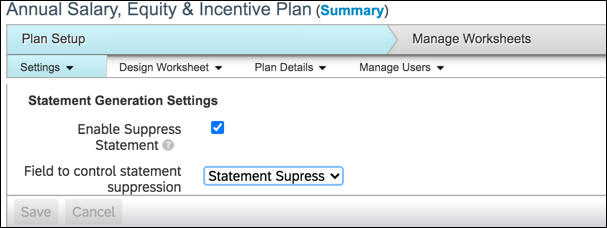
    Admin Center –> Compensation –> select template –> Plan Setup –> Settings –> Statement Generation Settings

    3. Make use of sections and conditional formatting for the right side data fields

    Group fields of data under Sections to consolidate Performance, Merit, Bonus, and Equity fields depending on the templates used in the statement. Conditional formatting can be added to suppress these groups for instance if the customer wishes to suppress the merit section if the employee had zero for their merit award. Conditional formatting can also be done on the field level in cases where customers wish to show the merit section for example to show salary information but not show the merit award field if amount = 0. This also allows for fields such as promotion or lump sum to only show if applicable to the employee.
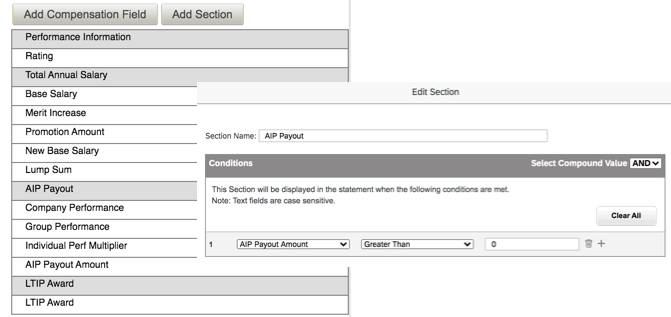
    Example of using sections to group similar compensation fields and adding conditional formatting to a section to suppress if the customer does not wish to show in various scenarios

    4. Get the most out of the left side text and logo

    Most of the time, the company logo being used throughout the SuccessFactors tool can be used as the logo in the statement as well. If the customer wants a custom logo, plan for this early as it can take time to the custom logo URL setup and to make sure the look and feel is right. Encourage the customer to use their standard logo if possible for a standard compensation statement.

    Make use of font sizes and typographical emphasis to draw attention to key elements. Typically I use the small size font throughout for text sections. These text sections can be dragged and dropped depending on the order they should appear.

    Conditional formatting can be added here as well to suppress the text section for instance if the customer wishes to only show the section if the amount is greater than 0. The conditional formatting on the left and right side should be configured together so that the logic aligns.

    Typically customers can use the left side text to add in text that is applicable to all employees such as overall company results and any disclaimers that are needed around payment dates and rounding rules.
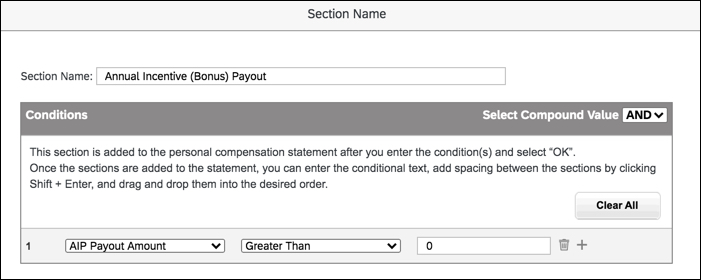
    Example of using conditional formatting to only show text sections if conditions apply

    5. Keep the statement to 1 page if possible

    Keep in mind the more text and fields you add, the longer the statement becomes. Most customers like to see a concise one page statement.

    The Signature section is not really needed as you can add this to a text box above if the signature is pretty straightforward. The section itself even with no text configured in it can cause the statement to push to the next page as it shows below the text and data sections, even if it just shows a blank second page. This section cannot be removed, but you can trick the system into shortening it significantly if you simply add a few spaces.

    Example of suppressing the signature section by simply adding a few blank spaces

    6. Multi-language requirements aren’t necessarily a show stopper

    Standard statements do not typically support multi-language requirements. You can however do a workaround and create translated standard statements using the English version as a baseline for the fields and input the required language into the text boxes and field names. If you have a requirement to translate the plan templates, you have a good start to the translations already for the fields. This process can be tedious, so make sure to have a pretty finalized English version before you start creating additional versions in other languages.
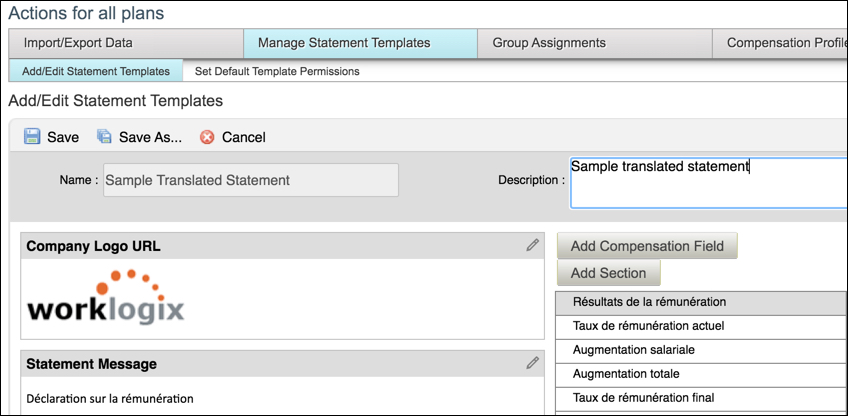
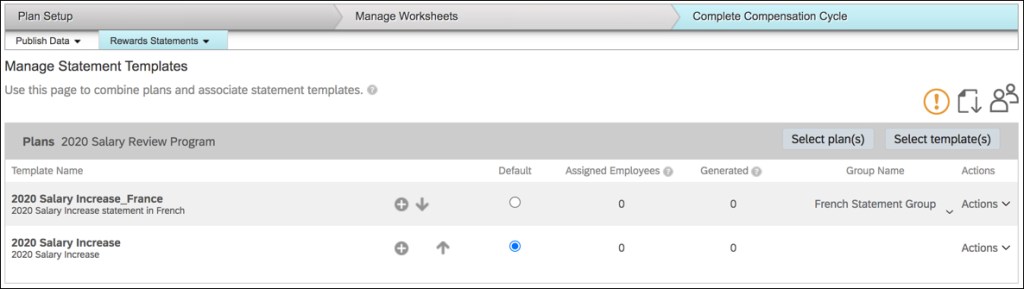
    Example of a translated standard statement into French

    You can then configure statement groups to tie the translated statements to the groups of employees that need the statement in non-English languages.
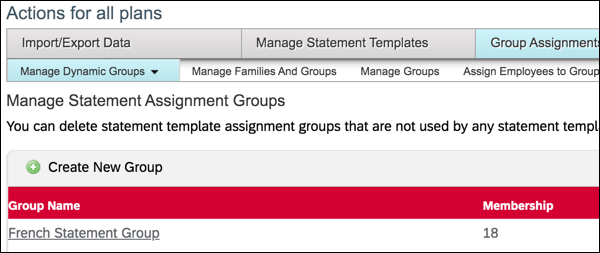
    Actions for all plans –> Group Assignments –> Manage Dynamic Group –> Manage Statement Assignment Groups –> Create New Group using required criteria
    Admin Center –> Compensation –> select template –> Complete Compensation Cycle –> Rewards Statements –> Manage Statement Templates –> Add translated statement templates and associated groups

    7. Figure out the roles that will be involved in communicating statements

    Planners are typically responsible for communicating the awards to their employees. They can download statements in several ways from their Completed worksheets or within the People Profile if permissions have been set. Additionally, check with your customer if they wish for the employees themselves to have access to their own statements. If this is the case, typically this is a task scheduled out a few weeks from the initial conversations with managers to open access to employees.

    SuccessFactors recently added the ability to download statements directly from Executive Review. This allows higher level managers as well as HR managers (assuming role based permissions have been granted to allow access to Executive Review) to be able to download their span of control using the Bulk Print Statements button. The icon for bulk download now only appears if the employees have a generated statements based on the filters in Executive Review. In the previous version, the icon was displayed even if statements weren’t generated from recently filtered list.
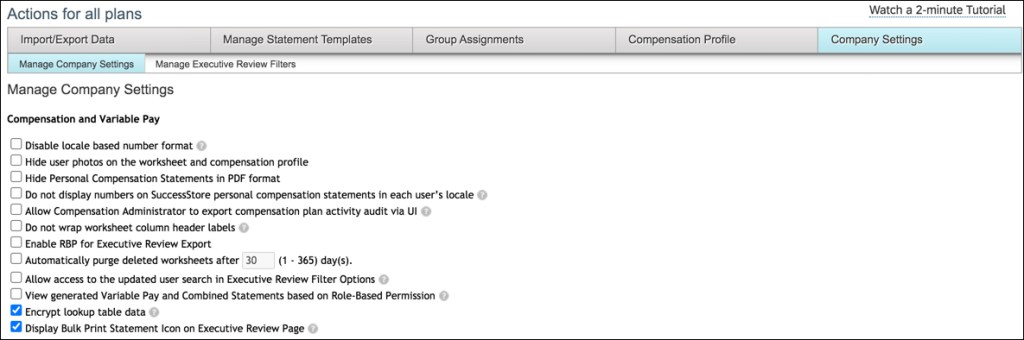
    To activate statement printing from Executive Review, these settings should be established in Company Settings: Disable Hide Personal Compensation Statements in PDF Format & Enable Display Bulk Print Statement Icon on Executive Review

    8. Test early and often

    In addition to gathering statement requirements early, plan to test the statements early as well. Ideally the statement would be part of the early iteration reviews to gather feedback before the frenzy of planning occurs. Create examples of statements to show all the different variations that are possible with the customer such as merit only, merit and lump sum, lump sum only, etc. If you wait until the planning is occurring in Production, you are no longer able to add or edit fields that customers may request in the statement.

    Also test the role based permissions and the process for how and when the various roles would download the statements. This will prevent any headaches down the road when the timing is tight to review and open statement access to HR, managers, and/or employees in Production.

    9. Make use of standard Email Notifications

    If the employees will be able to access their own statements, there is a standard email notification that can be sent. The email text can be setup in E-Mail Notification Template Settings. This will allow for Compensation Administrators to send specific text to employees or groups of employees letting them know that their statements are available and how to navigate in the system to find them.
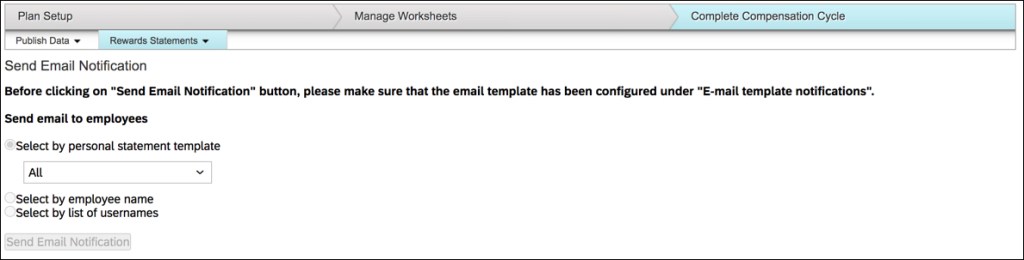
    Admin Center –> Compensation –> select template –> Complete Compensation Cycle –> Rewards Statements –> Send Email Notification

    10. Finalize with a smooth move to Production

    Validate any final changes with the customer. Company numbers and final performance may come in just prior to statement generation so an additional validation of the text sections especially is suggested.

    You can recreate the statements in each environment, but I suggest to make all changes in the lowest environment and then download and upload them instead. This takes away some flexibility in making last minute changes in Production but keeps the environments consistent and encourages testing to be done in the lower environments before moving to Production.


  • It is time to review your OFCCP Voluntary Self Identification Forms

    It is time to review your OFCCP Voluntary Self Identification Forms

    Photo by Cytonn Photography from Pexels

    With discrimination coming to the forefront of world news lately, many organizations are asking themselves:  What can we do to actively prevent discrimination in our organization?  I’ve seen a variety of options out there ranging from internal audits by 3rd party anti-discrimination consulting firms to pro-active succession planning that tracks minority status.  While organizations I’ve worked with differ in these types of approaches, one solution at minimum in the United States has been clear for my entire lifetime: federal contractors must comply with the Office of Federal Contract Compliance Programs (OFCCP) guidelines.

    Per an announcement on the Department of Labor website, a new Voluntary Self-Identification of Disability Form CC-305 was approved in May.  As of today, Federal contractors must post the comply by updating the form by August 4, 2020.  An example new form can be found here.  I warn against simply using a search engine to look for updated forms as these may lead you to the expired form (check the expiration date at the top of the form first).

    Also, while you are on the Department of Labor website and making updates to your  system in response, you might want to check out the updates to the Federal Contract Compliance Manual.  Specifically, the guidance around the Invitation to Self-Identify as a Protected Veteran.    Additionally, the “How to Comply” postings and notices guide is of great help.  I’ve found customers making updates to all of their voluntary identification forms based on these updates.

    For SAP SuccessFactors customers, this typically means:

    1. Updating your job application template to include the new form(s)
    2. Updating your Onboarding forms to include the new forms(s)

    I recommend referencing the Department of Labor website to understand the updated requirements and then working with your IT department, SAP Partner, and/or SAP to make updates to the recruiting application template and/or Onboarding forms to ensure compliance.

    Hopefully this brief update has been helpful!  While many people are out there working hard to come up with a variety of solutions for today’s social issues, one thing is for certain: EEO is the law.

    Do you need help implementing these forms in your Sap SuccessFactors system?  Contact mwellens@worklogix.com.

  • Properly Prepping for an SAP SuccessFactors Regular Release

    Properly Prepping for an SAP SuccessFactors Regular Release

    In the past few days, SAP SuccessFactors has completed moving the H1 2020 release into production.  For some well-prepared customers, users are excited about new features they are starting to enjoy.  Others might be feeling some pain with critical issues that have arisen unexpectedly.  Still others might not have done much preparation at all and are wondering if they missed something.  In my experience consulting and providing production support services, I’ve seen all 3 types.  Hopefully after reading this quick article you’ll always fall into the first category!

    Step 1: Know your Dates

    SAP SuccessFactors keeps a product update blog that you should check regularly here: https://community.successfactors.com/t5/Product-Updates-Blog/bg-p/ProductUpdates

    Note: you will need an SAP S-ID to access all of the links in this document

    The preview dates and production dates are posted in the upper-right-hand corner of the blog.  Preview date refers to the date the release will be put into the preview environments.  You know your environment is in a preview datacenter if the url has preview in it.  For example:

    Historically SAP SuccessFactors and SuccessFactors prior to the merger conducted quarterly releases.  However starting in 2020 SAP reduced the release time to every 6 months.  While I haven’t conducted a survey, my guess is most customers and SAP are pretty happy about this as it gives much more time to properly prepare.  With a quarterly release, by the time you finished your regression testing it was already time to start prepping for the next release and keeping dedicated resources onboard to only conduct regression tests was impractical.  I’m sure it was a similar story on the SAP side of the house.

    Step 2: Read the Documentation

    SAP changed how the documentation works a bit this year.  The first document you should read is the Road to Release document which is also available on the SuccessFactors Community Product Updates blog.  The latest road to release document tells you how to sign up for newsletters to keep you updated and also outlines some steps similar to the ones in this blog I’m writing.  The document is informative and a must read, but realistically I treat is as a pamphlet on when documentation will be released because in my opinion it focuses only on new features glosses over any regression testing and misses a few key things customers should do and know that I’ll point out in this blog.

    Next, given that it’s a week or so prior to the preview release (which is when SAP releases the detailed documentation), take a look at the documentation here:

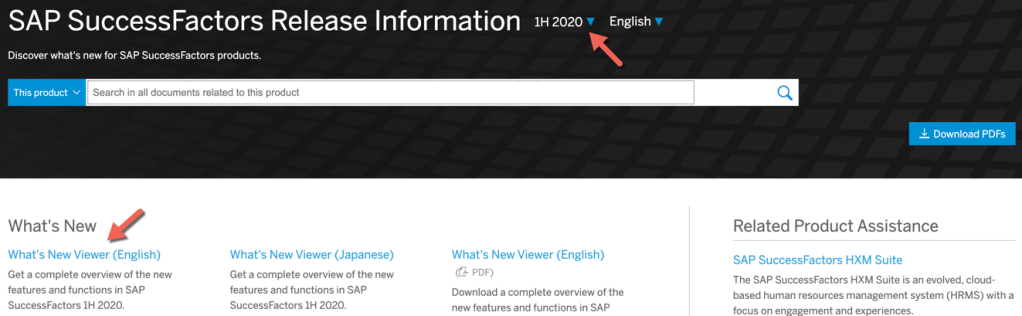
    https://help.sap.com/viewer/product/SAP_SUCCESSFACTORS_RELEASE_INFORMATION/2005/en-US

    Documentation Search

    The above link lets you search the documentation for every new feature – so if you choose to turn on a new feature, this will let you know what administrator steps to take as well as some basic end user testing scenarios.  You can also choose prior releases as well from the drop down above the search bar.

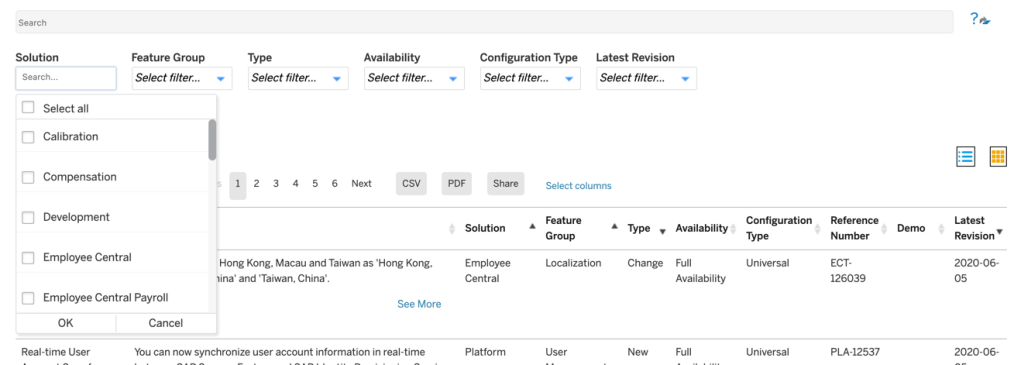
    However, before you start searching for features to turn on, you’ll want a god’s eye view of what’s available to you.  Click the link to the “What’s New Viewer” on that same page.  This tool will allow you to filter by specific modules to find what’s relevant to you, providing a brief summary of each feature.

    What’s New Viewer

    The key concept to understand when exploring this tool is the configuration type.  “Universal” means that all customers will receive the feature on preview and production release dates without taking any action.  “Admin Opt-In” means customers can opt to receive the feature by taking the steps outlined in the detailed documentation (search for the name of the feature in the big search bar in the first screenshot and you’ll find these steps).  “Admin Opt-Out” means you’ll need to follow similar steps to not receive the feature.  “Provisioning Opt-In” means you will need a partner and/or SAP to follow the steps in the detailed documentation to turn the feature on because only they have access to provisioning to do so.

    There’s links to other documents on the SuccessFactors Community Product Release Blog, however if you like to jump straight to the facts and avoid the fluff, the ones I mention above will get you on your way.

    Step 3: Analyze and Plan

    Now that you know the dates and the scale of what’s being impacted by the release, you can setup a calendar plan and resources to execute the plan.  A sample plan might roughly look like the below:

    1. Preview Release minus 1 week – IT Team reviews release documentation
    2. IT Team Meets with Stakeholders with abridged list of key features that may interest the business and discusses regression testing resources
    3. Preview Release Date – Regression testing commences
    4. IT Team reports any found defects to SAP via customer ticket
    5. Preview Release plus 1 week – IT Team and/or stakeholders attend Q&A sessions with SAP to clarify any feature questions
    6. Stakeholders report which opt-in features they would like to explore in preview
    7. Once Regression testing is complete, IT turns on opt-in features and/or engages SAP/Partners to turn on any provisioning opt-in features
    8. Stakeholders explore and test functionality in preview environment and finalize which features will be turned on in production
    9. Communications and training are drafted as needed on any new features
    10. Production Release
    11. Stakeholders report any production regression Issues to IT who reaches out to SAP as needed to open customer tickets
    12. IT Team and/or Partner/SAP turn on opt-in features
    13. Stakeholders report any production new feature Issues to IT who reaches out to SAP as needed to open customer tickets

    Step 4: Regression Test

    Being a cloud product, there’s a pretty high level of confidence that the system will continue to function as normal after release since both SAP and numerous customers are all collectively testing the same set of code.  However, if you want to err on the side of caution, you may wish to regression test your key business processes in your preview environment prior to turning on any new features.  In particular, you may also want to focus on business processes impacted by universal changes.  The key advantage here is being able to report issues to SAP ahead of production release so there’s a solution before it becomes a problem!  Often customers will reference their test scripts from their initial implementation and update them for any universal features.

    Step 5: Explore New Features

    Once you’ve explored the documentation on new features and have agreement with business stakeholders on what should be explored, it is time to start playing!

    If you’ve chosen to regression test, I’d recommend executing that prior to turning on any new opt-in features to keep troubleshooting issues less confusing.  For example, if you’ve turned on a feature you later decide you don’t want and later find a regression test issue, it may not be clear if that issue will occur in production or not.  In fact, some customers who only have 1 preview and 1 production environment wait until after production release before exploring new features in their preview environment so that there is clarity on what production will look like and what issues might arise prior to sandboxing a bit with new features.  If you have 2 preview environments at your disposal, then these activities can be done in parallel more confidently.

    Step 6: Release Friday – Stay Away!

    Typically, a release starts on a Friday evening up-until early Saturday morning.  While you might try to access the system and be able to get in, I don’t recommend it.  SAP will be loading code and restarting services.  There’s no guarantee any data you save or changes you make will be there the next day.  Have a nice weekend and come back on Monday and be glad you invested in a cloud product that handles this for you!

    Step 6: Release Monday – Be on the Alert!

    I don’t think I’ve ever turned on a new feature in the first week of a production release unless it has been a business-critical function/feature.  SAP is wise enough to start production releases on Friday evening so that if things go wrong, they’ve maximized the time available to them before customers will come back Monday morning.  However, just because the system is up does not mean everything is perfect.  Often, SAP is very busy handling new tickets related to the release.  If you are experiencing an issue, report it ASAP, but also be realistic.  If it is a critical issue that lots of customers are experiencing, it will get fixed very quickly.  If it is an issue unique to your organization and not business-critical, you may be waiting a couple weeks or more for resolution.

    Step 7: Turn on Your Production Opt-Ins

    Once you are comfortable your system is stable, it is time to turn on your opt-ins in production!  You can follow the steps outlined in the detailed documentation that you followed in preview again or use instance sync depending on the particular configuration.

    Step 8: Rinse and Repeat

    Congratulations!  You’ve made it through your release!  Time to check back on the dates for the next release!

    Do you need help updating your SAP SuccessFactors system? Download our support services brochure or contact us at: info@worklogix.com