Tag: Succession

  • Highlights of SAP Successfactors Succession for 2H 2025

    Learn what’s currently available for Succession with the 2H 2025 SAP SuccessFactors Release. The updates will be in production November 14-16.

    For greater details, you can view the full set of documentation in the What’s New Viewer here. For full details on the release cycle, check out the SAP SuccessFactors official product updates blog.

    For tips on how to manage a release, check out our blog here

    Here are some of the highlights of the release for Succession.

    Show Person-Based Nominations on Talent Card and People Profile

    An employee’s nominations from all their employments, including nominations to positions and talent pool nominations will be available on the Succession talent card. For this view, Global Assignment or Concurrent Employment must be enabled and in Nominations Setup, select “Show person-based nominations for employees with global assignments or concurrent employments”.

    Then users with proper permissions can view all nomination records of an employee.This will provide a extensive view of nominations across multiple employments for an employee.
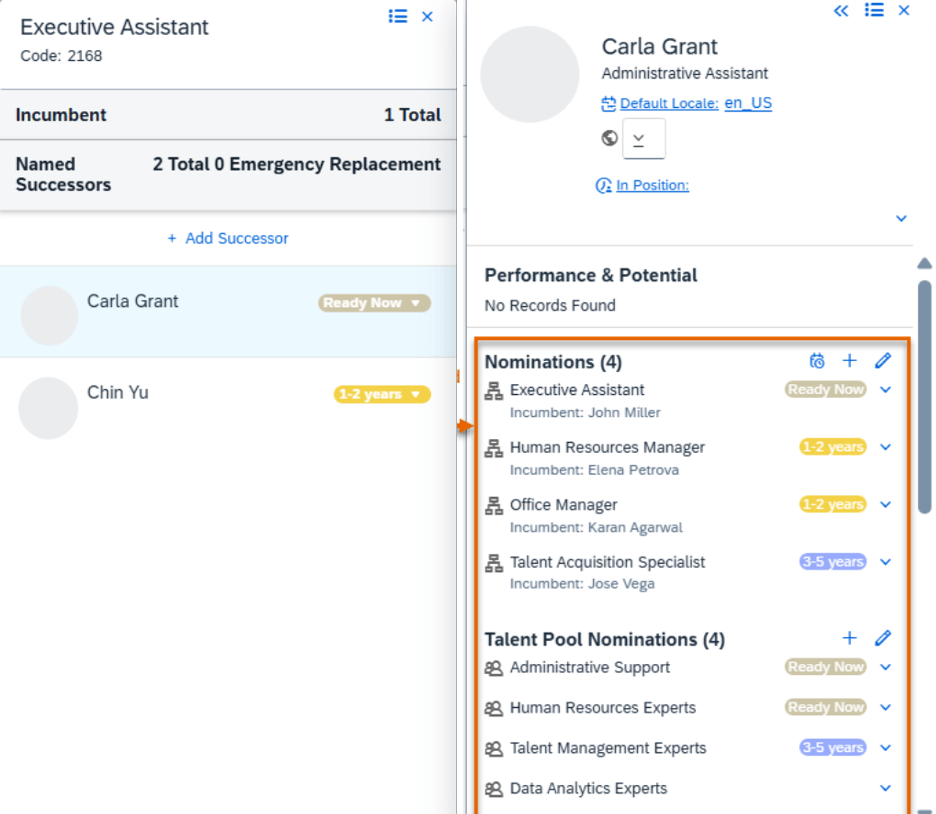
    Succession Card Nominations for Multiple Employment

    Nominations will also display on the legacy and latest People Profile.
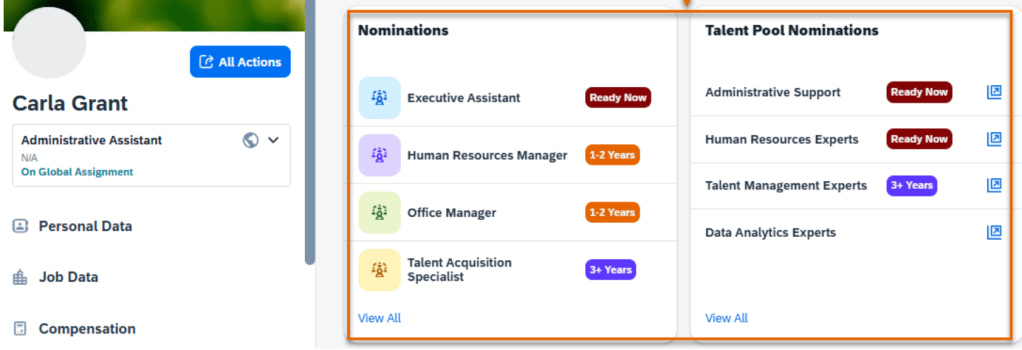
    Nominations in People Profile

    Access Inactive Employees in Talent Pools Based On Target Population

    There is a new setting which enables access to inactive nominees in an user’s target population for talent pool nominations permissions. In Nominations Setup, enable “Include inactive users in target population of talent pool nominations permissions”.

    This enables inactive employees to be visible in talent pools while applying target population.

    When the setting is enabled, Inactive employees in the target population appear in:

    • Talent pools
    • Position card in the Talent Pools section
    • Talent card in the Talent Pool Nominations section
    • Latest People Profile in the Talent Pool Nominations card or in the legacy People Profile in the Current Nominations block
    • Talent search results for talent pools

    Admin Tool Matrix Grid Rating Scales Universally Available

    The Matrix Grid Rating Scales admin tool is now available in all systems. Before the update, it was available only when the Matrix Grid Reports feature was enabled in Provisioning. Removing the restriction, the tool is now available for matrix grids on the Performance Management form and those in the Trend Information and Overview blocks in the legacy People Profile.

    Enhanced Suggested Successors Feature

    The Suggested Successors feature now supports using the skills and competency proficiency levels from Growth Portfolio. Users may also view a role readiness explanation for each suggested successor.
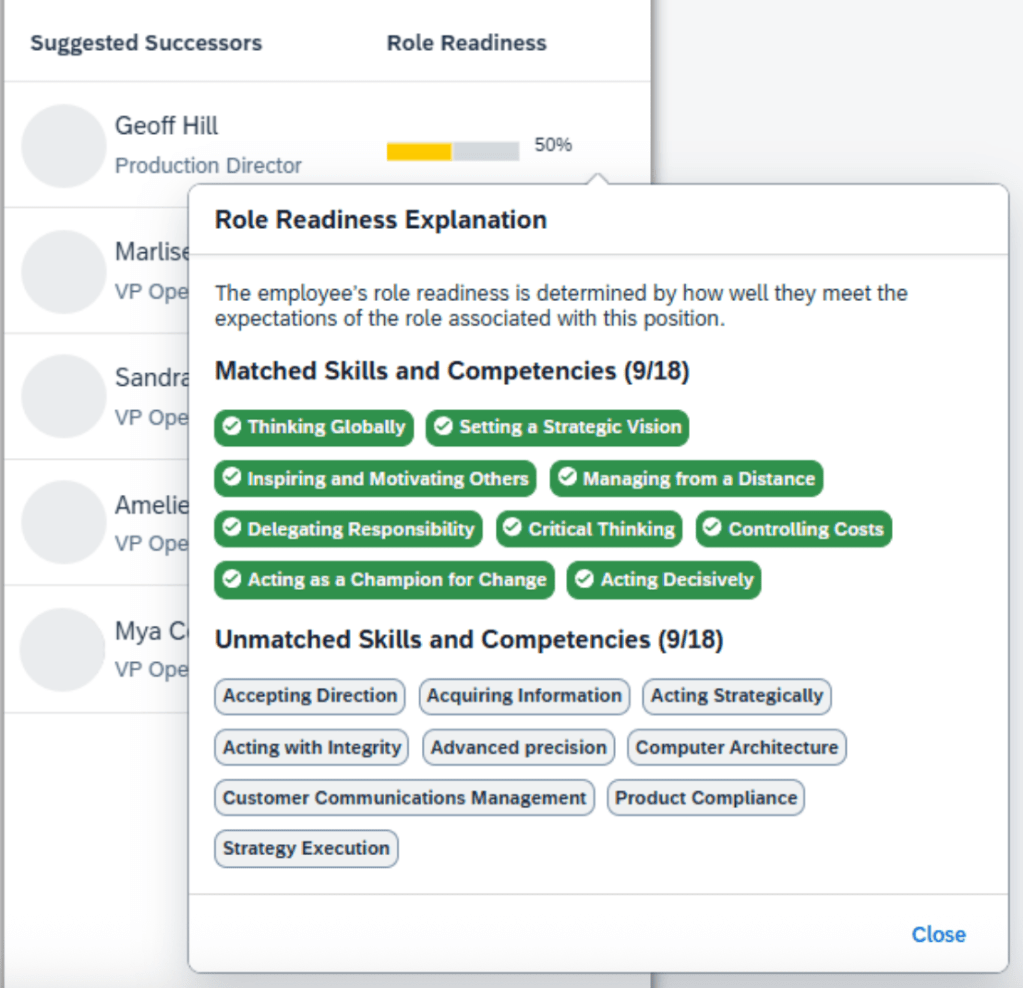
    Role Readiness Explanation

    The attributes required by the position’s role are grouped into two sections: “matched” and “unmatched”. The grouping is ased on whether the suggested successor’s current ratings meet the expected ratings of these attributes.

    Filter Position Tile View with Foundation Objects

    Foundation Objects can be used to filter position tiles displayed in the the Position Tile view.

    This requires the setting to include Foundation Objects in filters and adding Foundation Object fields as searchable fields to the Position object. Then Foundation Objects will show up as available filters in the Position Tile view.
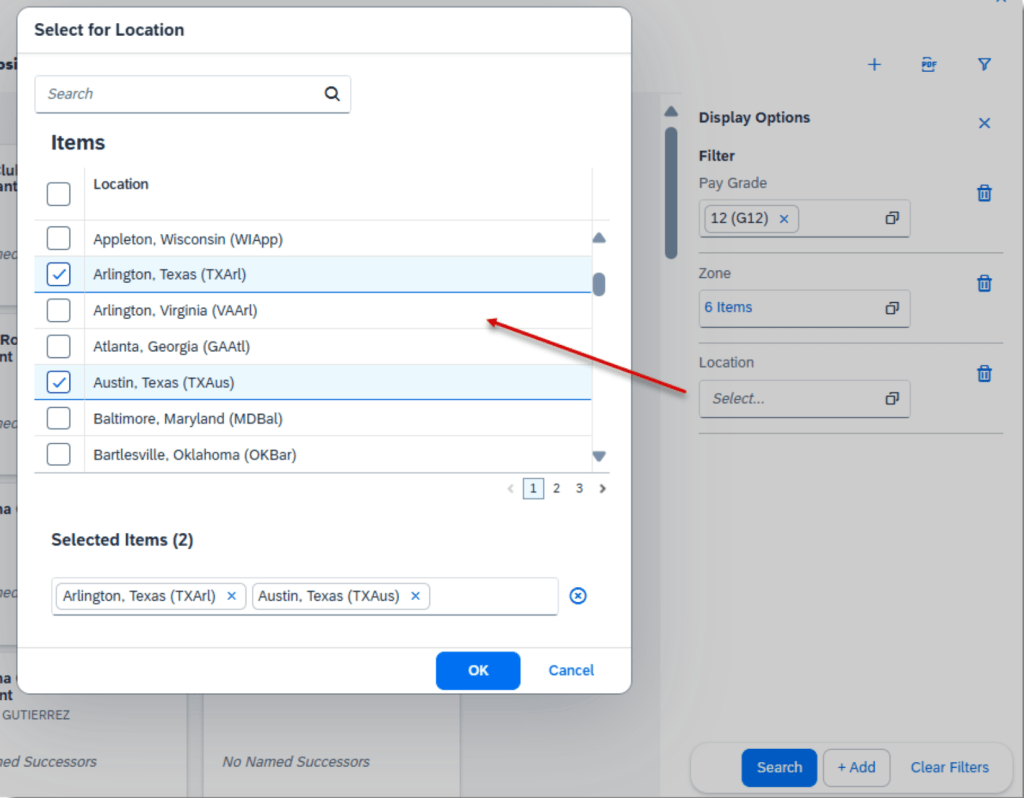
    Adding Foundation Type Filters for Position Tiles

    In Succession Settings, enable “Include Generic Objects and Foundation Objects in filters in the Position Tile view”.

    Separate Permission Control for Viewing Nomination History

    Role-based permissions can now be used to control whether users who can nominate successors or view talent pool nominees are allowed to access the history of successor or talent pool nominations. This provides more specific access control over nomination history data.

    Succession Planners permissions to view nomination history is now separate from Succession Planning Permission and View Talent Pool Nominations permissions.

    Child permissions have been added:

    • View Nomination History, which allows users who nominate successors ability to view the nomination history on the position card, Succession talent card and in the People Profile
    • View Talent Pool Nomination History, which allows users who view talent pool nominees to also view the nomination history in the talent pool details page and the People Profile
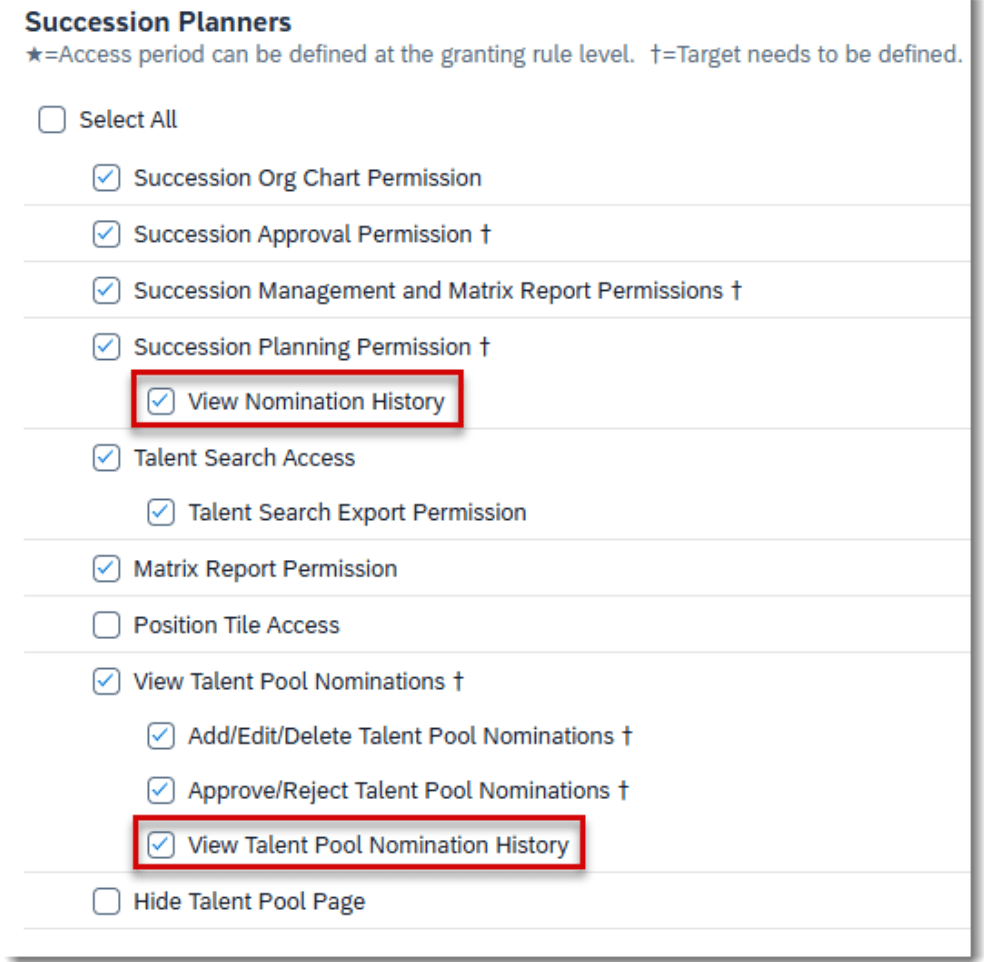
    Permissions Needed

    If a user already has Succession Planning Permission or View Talent Pool Nominations parent permission, the corresponding nomination history permission is automatically granted.

    Sort Succession Org Chart by Position or Employee Title

    Additional sorting options are now available for same-level nodes in the Succession Org Chart. In addition to the incumbent’s username, can be sorting can also be done alphabetically by position title or employee title.
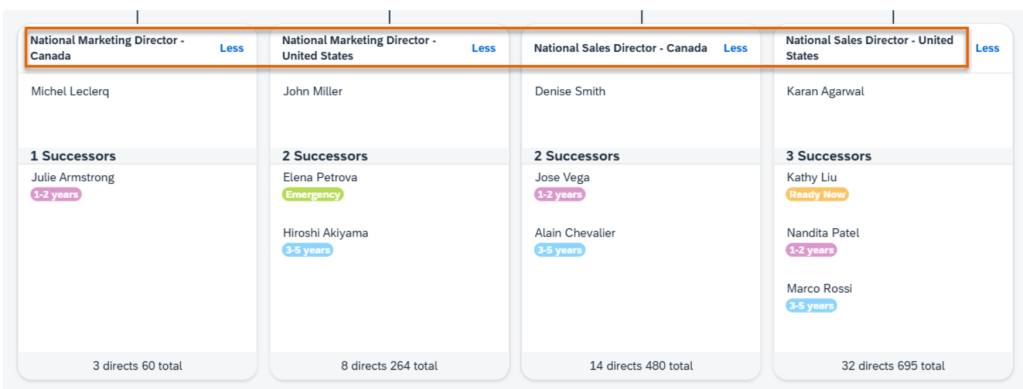
    Succession Org Chart Sorted by Position Title

    The title-based sorting is helpful when comparing succession plans for similar positions or roles. The order remains the same when incumbents change.

    To enable this sorting:

    MDF or legacy position-based nomination method

    In the Org Chart Configuration>Succession Org Chart, “Sort Succession Org Chart by position title” is selected

    For the role-person nomination method

    In the Org Chart Configuration>Succession Org Chart, “Sort Succession Org Chart by employee title” is selected

    AI-Assisted Successor Recommendation

    If you have purchased AI units license, are using Talent Intelligence Hub and enabled Growth Potential, succession planners can use the power of AI generative capabilities to view a list of recommended successors based on their skills, competencies, and work experience.

    With the Suggested Successor setting enabled, weights can be configured for skills and competencies and work experience.

    Successor Recommendations Settings

    When settings for both are set, generative AI uses the following data to recommend successors:

    • Position-related job families, roles and profile in Job Profile Builder
    • Skills and competencies in the Growth Portfolio
    • Job information and external work experience in People Profile

    In the Suggested Successors list, hover over an employee and use the Add button to nominate them as a successor. Once the employee is nominated, they are removed from this suggested list. Users can also choose the information icon to view why the employee is suggested in a popover dialog. The dialog contains up to four sections:
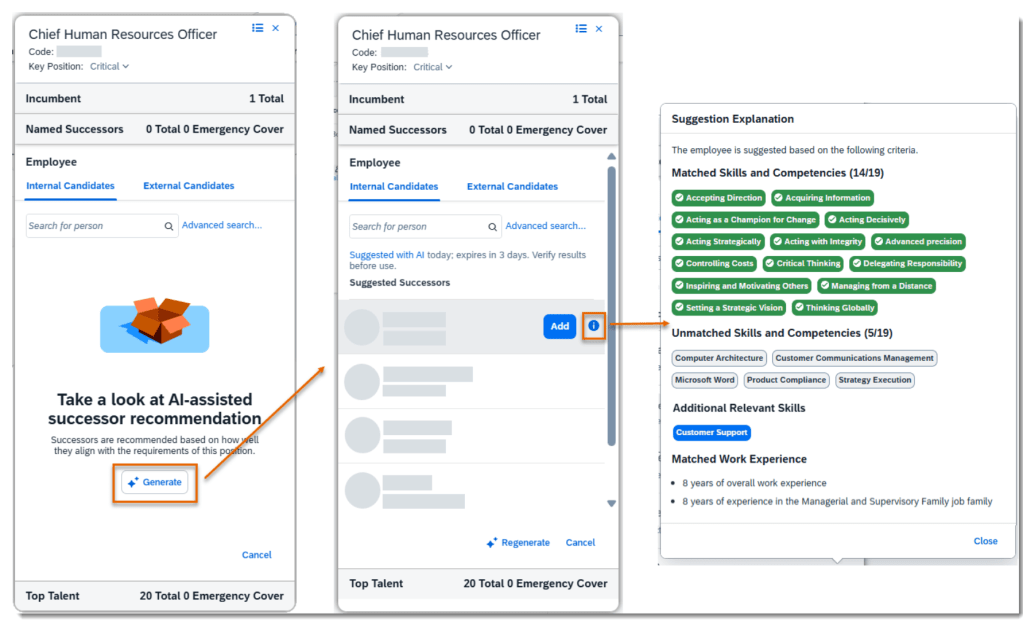
    Detailed Successor Recommendations

    For greater details, you can view the full set of documentation in the What’s New Viewer here.

    Do you need help implementing or supporting your SAP SuccessFactors system?  Contact info@worklogix.com for assistance, download our support services brochure, or visit https://www.worklogix.com/implementation.html for additional information.

  • Highlights of SAP SuccessFactors Succession Planning for 2H 2024

    Learn what’s currently available for Succession Planning with the 2H 2024 SAP SuccessFactors Release.

    For greater details, you can view the full set of documentation in the What’s New Viewer here. For full details on the release cycle, check out the SAP SuccessFactors official product updates blog.

    For tips on how to manage a release, check out our blog here

    Easier Experience of Nominating Talent Pool Members to a Position

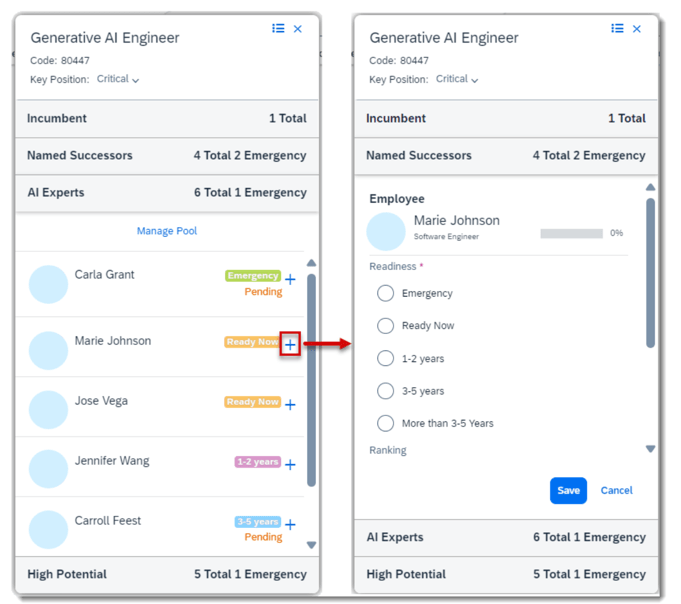
    Succession planners can now add successors directly from the talent pool sections on the position card in the Succession Org Chart or in the Position Tile view. This applies to positions associated with talent pools.

    Before the latest release, the user had to navigate to the employee’s talent card to begin the nomination process, including searching for the position. Now when the user selects the “Add as successor” button for a member of a talent pool, the Named Successors section expands to view more details before nominating the employee to the position.

    Add a Successor from a Talent Card

    Succession Text Changes

    There are some minor visual changes for Succession. Previously the search box in Talent Search didn’t have a label. Now the search box is labeled Keywords: and the placeholder text has been changed to Enter your keywords.

    Updated Talent Search

    On the details page of a talent pool, the field to filter the talent pool nominees did not have a label and was in the same line as other filters. Now it is labeled Nominee with Search for nominee in the placeholder text.

    Talent Pool Nominees Filter

    Now, this field is labeled as Nominee and has placeholder text and it is now placed above other filters.

    Succession Notification Card Available in Microsoft Teams

    If you are using the integration of SAP SuccessFactors and Microsoft 365, there is a new notification card available for users to review and approve pending nominations to a talent pool.

    Talent Pool Nominee Notification

    Do you need help implementing or supporting your SAP SuccessFactors system?  Contact info@worklogix.com for assistance, download our support services brochure, or visit https://www.worklogix.com/implementation.html for additional information.T

  • What’s New for Succession and Development in H2 2020

    What’s New for Succession and Development in H2 2020

    As of October 9, 2020, SAP has released their documentation for the H2 2020 release.  You can view the full set of documentation in the What’s New Viewer here.  As a reminder, preview release will be October 16 and production will be released November 20th.  For full details on the release cycle, check out the SAP SuccessFactors official product updates blog here.  For tips on how to manage a release, check out or blog here.  For your convenience, we’ve summarized the highlights of what’s new for 2020 within Succession and Development below!

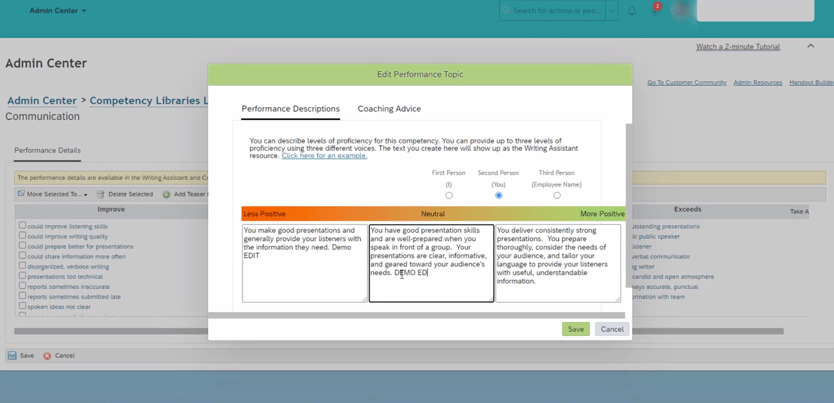
    Writing Assistant and Coaching Advisor for Job Profile Builder

    The biggest news for these modules we’ve seen is that the Job Profile builder now supports the Writing Assistant and Coaching Advisor (see below).  This was a big gap that is finally being closed.  We had some customers who wanted to use both the Job profile builder and the Writing Assistant and Coaching Advisor.  This required creating all of the content for the Coaching Advisor and Writing Assistant in the legacy competency library config screens and then switching on the Job Profile builder and hoping everything got converted OK.  If there was a mistake somewhere or something you wanted to add to the Coaching Advisor or Writing assistant…well then there wasn’t a way to fix it without turning off the Job Profile builder.  Now this gap is closed and a profile job profile builder compatible maintenance screen for the Writing Assistant and Coaching Advisor exists.  Woohoo!

    Writing Assistant

    Talent Search

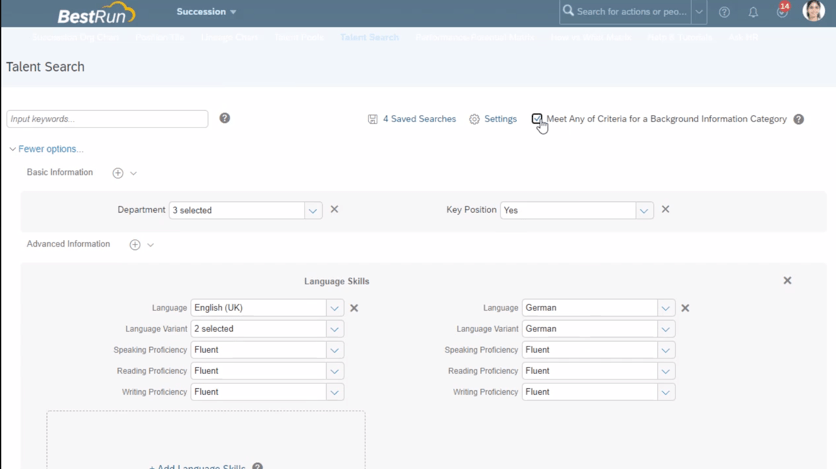
    Another significant enhancement we’ve seen is to the talent search.  Now at the top of the screen there’s a checkbox to toggle between AND/OR logic when searching for background information (see below).  We are wondering how this compliments / replaces the “Make All Criteria Optional” button that already existed under the settings menu.  You can also add up to 6 criteria within each background element.  There’s also a new competency picker in the talent search.  The export feature was also enhanced to allow you to reorder and choose which fields can be exported.  More fields can also be exported now under Advanced Information and Ratings & Competencies.

    Talent Search Showing New Check Box for Before and After

    Calibration

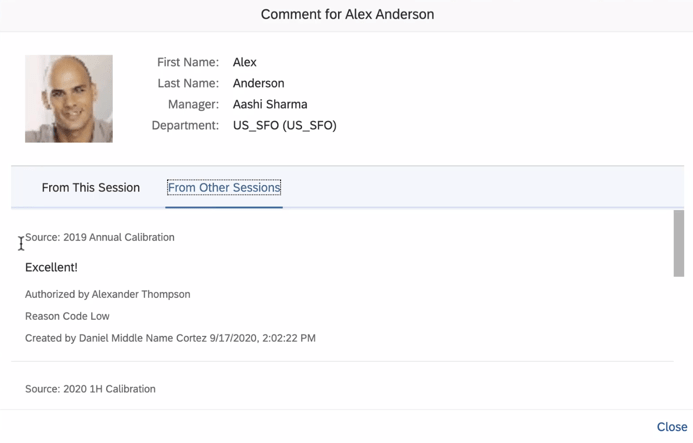
    Calibration sessions got a neat enhancement where you can now view comments from other calibration sessions so long as they use the same template (see below)!  We can see this becoming very useful to organizations that manage multiple sessions across large organizations.  This was also enhanced in the Odata API where a new object, “CaibrationSubjectComment”, is available so that these comments are exposed for interfacing.

    Calibration Comments Between Sessions

    In addition, you can also use autocomplete when searching for people in calibration.  Also, if you are attempting to purge a user who happens to be the only facilitator for a session you can now replace the user with an active user and then continue with the purge.

    Career Worksheets and Career Explorer

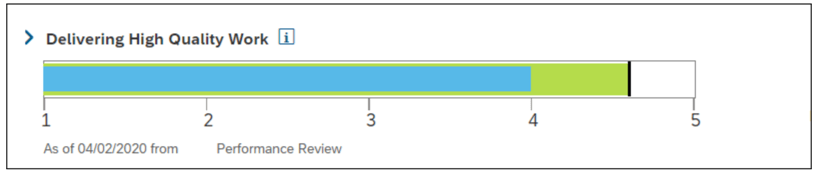
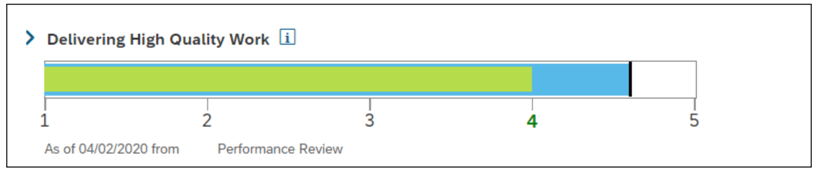
    Within Career Worksheets and the Career explorer we’ve seen some nice usability improvements.  For example, the ability to remove recommended roles in the career explorer.  Users can now remove a recommendation if they no longer wish to see it.  This is a nice feature that can help encourage employees to keep looking for other roles instead of just constantly throwing something irrelevant at them.  Aside from this, the career worksheet also got a security enhancement where the worksheet is only viewable if the employee is in the user’s target population.  The progress bar also swapped colors as shown below.  The bars will also show up now for not applicable / too new to rate competencies (they were hidden before).

    Before:

    After:

    But that’s not all!

    Development templates and Continuous Performance Management also got another integration point.  Now when a user

    Matrix views (9-box) also got visual /usability updates.  For example, you can now remove the “Too New to Rate” option.  You can also view the people cards for employees even when you are zoomed out of their box.  You can also select reporting levels in the Matrix Grid Report.

    You can now also hide contingent workers in the Succession Org Chart.  The “Add Successor” icon also appears now even when there is no successor exists.

    Talent pool nominations can also now be approved or rejected.  Nomination history for talent pools is also available via the Odata API and People Analytics Stories.

    All in all, there’s over 25 items being changed/enhanced in this release and we didn’t cover every detail here.  For more information, check out the What’s New Viewer here.

    Do you need help managing your SuccessFactors Release cycles?  Download our support services brochure or email info@worklogix.com to see how we can help!

  • Highlights of the 1H 2020 SAP SuccessFactors Release for Succession

    Highlights of the 1H 2020 SAP SuccessFactors Release for Succession

    What’s New in Succession?

    With the SAP SuccessFactors First Half 2020 release there are six updates in Succession. There are four new features and two enhancements. Let’s start with Talent Pools.

    Talent Pools

    There are two new features and some minor enhancements for Talent Pools.

    The two new features are:

    1. View Nomination History for Talent Pools
    2. View Talent Pool Nominations in People Profile and Talent Cards without Talent Pool Object Level Permission

    The Talent Pool enhancements involve filter fields and the Nomination Table.

    Now let’s look closer at each starting with what’s new for Talent Pools.

    View Nomination History for Talent Pools

    This new universal feature permits those with Talent Pool permission to see nomination changes for nominees within a Talent Pool.

    In prior releases, there was no nomination history available to view within a talent pool.  Now users with Talent Pool role-based permissions with assigned target populations may see the nomination history for employees in a talent pool.

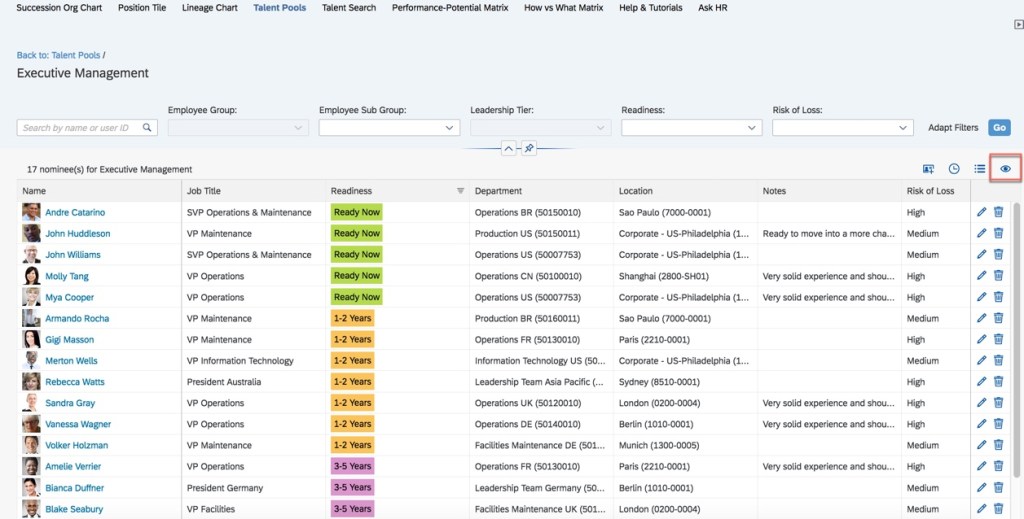
    Within a talent pool, there is new icon used to view nomination history for each nominee. The example shown below identifies the icon which displays on the top right side of the talent pool table.

    View Nomination History Icon

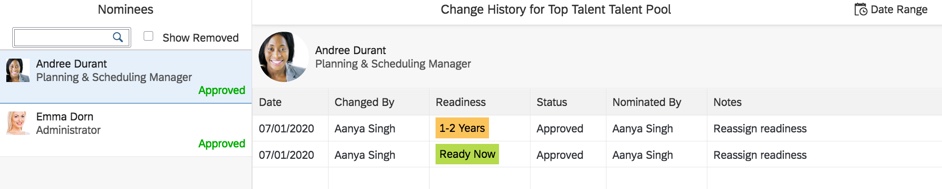
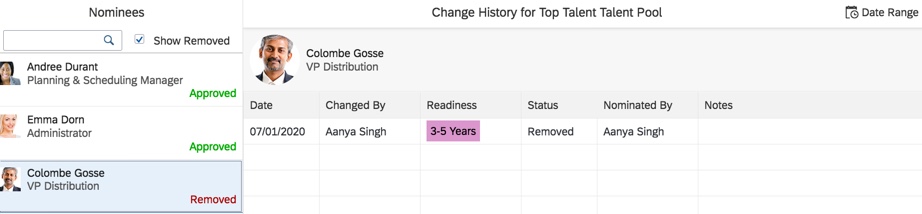
    Talent pool nominees that have nomination change history for this pool will display in the “Nominees” section that displays on the left side of the page.   Click on any nominee name from this column and their nomination change history for this talent pool will display.

    An example is displayed below.

    Talent Pool Nominees with Nomination Changes

    The name of the user that made the change will display along with the change date. The readiness, status, nomination source and notes for each change are displayed as well.

    Approved and Removed nominees will display their nomination history.  You must click the checkbox for “Show Removed” in the nominees section to see any employees removed from the talent pool. Both Approved and Removed nominees will display as seen below. The default view is approved nominees.

    Approved and Removed Nominees with Nomination Change History

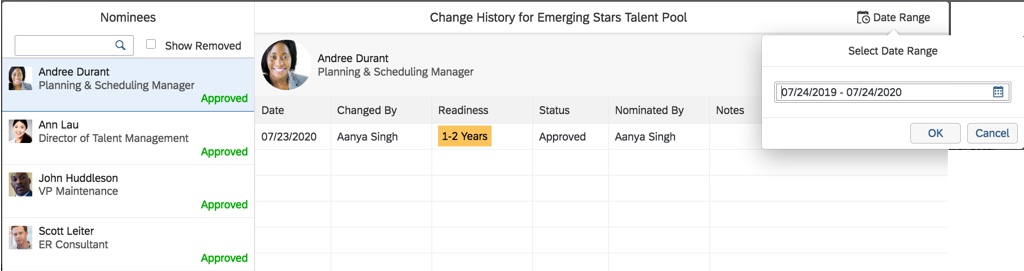
    To see the nominee’s talent pool history for another date range, click the “Date Range” calendar icon that is available on this screen. An example is shown below.

    Modify Date Range for Nomination History

    The default date range is one year from the current date. The date range may be modified and then the nomination history will display for the new date range

    We will now look at the other new feature for Talent Pools.

    View Talent Pool Nominations in People Profile and Talent Cards without Talent Pool Object Level Permission

    It is now possible to enable users without Talent Pool object level permission to view Talent Pool nominations of employees in People Profile and Talent Card.

    This new feature may be used to enable managers to see this information for their direct reports in  People Profile and Talent Card.

    This is a provisioning opt-in.  The setting to enable is “View Talent Pool nominations in People Profile and Talent Card without having the Talent Pool object level permission“.

    Provisioning Opt-In

    When enabled, users without Talent Pool object level permission may view Talent Pool nominations for employees within:

    • Nomination Block in People Profile
    • Nominations section of Talent Card

    In addition to these two new features, there is also an enhancement for Talent Pools that we will look at next.

    Talent Pool Enhancements

    There are a few enhancements to talent pools. Let’s open a talent pool to see what’s changed.

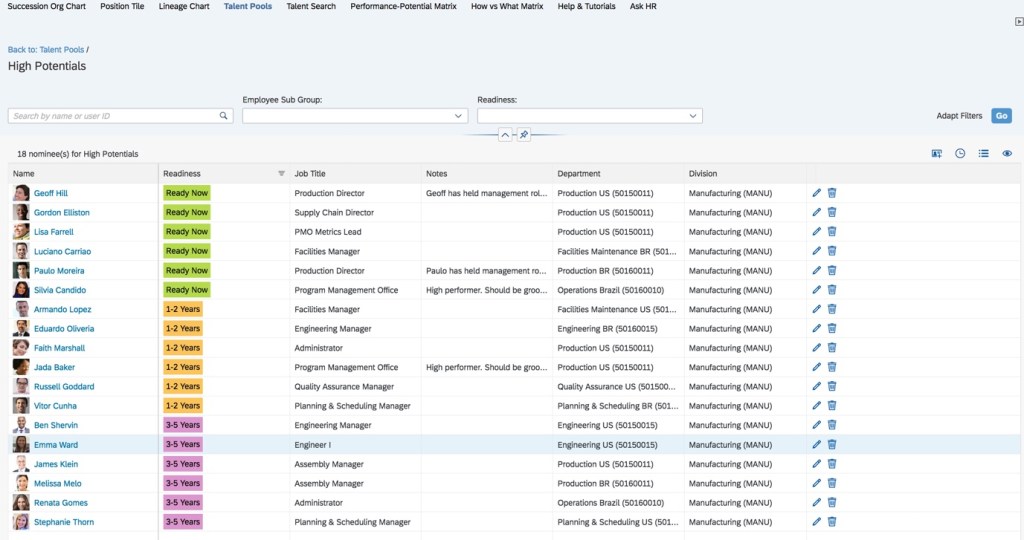
    Talent Pool Nomination Table View

    First, there are more lines available in a talent pool nomination table view as seen below. This update also includes making the line width consistent with tables in other modules.

    Updated Nomination Table for a Talent Pool

    Notes Column Placement

    There is an additional display field option as well. Users may modify the position of the Notes column. Let’s see how it’s done.

    Within the talent pool, click on the “Define Column Properties” icon as noted below.

    Define Column Properties Icon

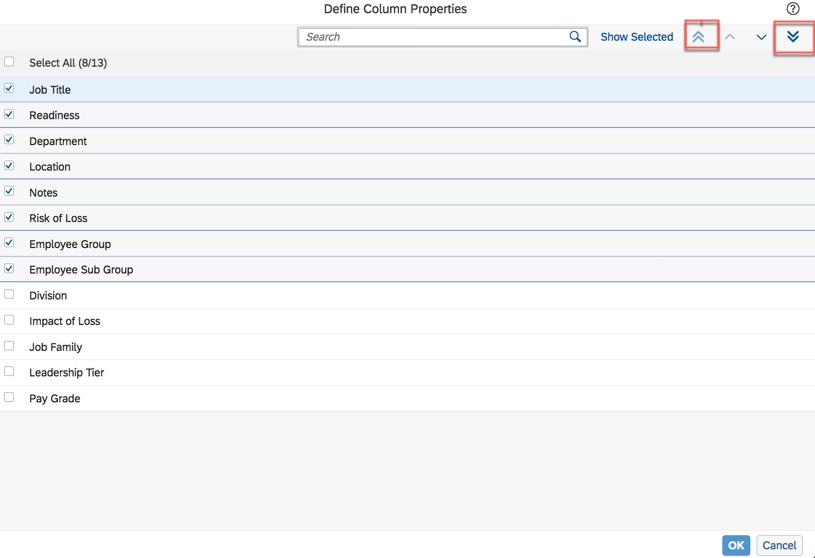
    A pop up displays the available fields that may be included in the talent pool view. When the cursor is place on “Notes“, the upward and downward arrows may be used to change placement of this field. 

    Define Talent Pool Column Properties

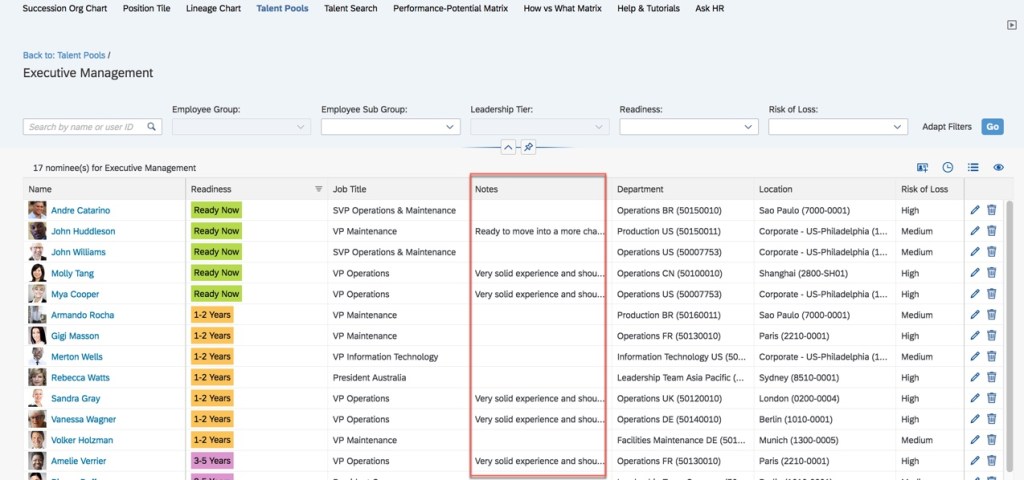
    Clicking “OK” and the nominations in the Talent Pool will now reflect the changed column order as seen in the figure below.

    Nomination Table with Updated Notes Column Placement

    The final enhancement to Talent Pools involves selected filters.

    Talent Pool Filters

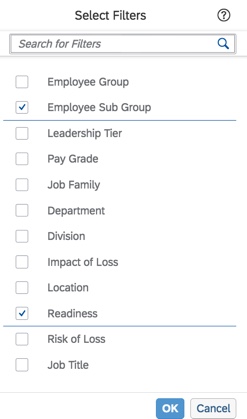
    First, the selected filters can now be automatically cleared after all nominees are deleted from a Talent Pool. Looking at the example below, the filters were defined by clicking “Adapt Filters“.

    Select Fields to Appear on Filter Bar

    Here is where the filters are defined. The fields to use as filters are selected and will appear on the filter bar within a talent pool.

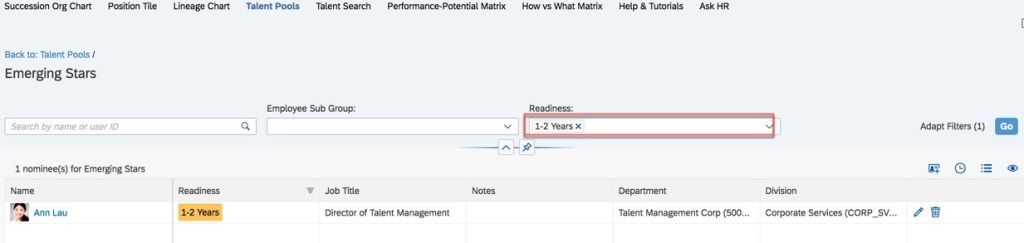
    In the example shown below, there is a filter to display nominees with a readiness of 1 to 2 years.

    Talent Pool Before Nominee Deletion

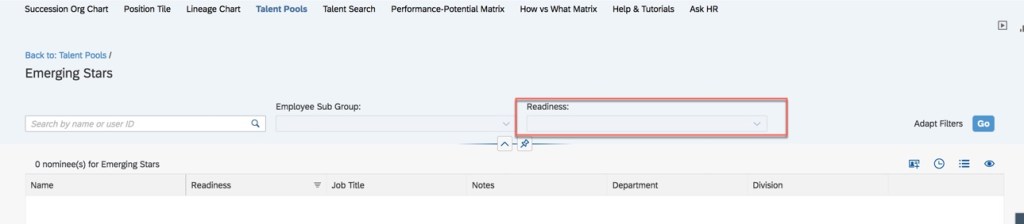
    After the final nominee is deleted from the talent pool, the readiness filter is cleared as seen below.

    We have now seen all of the updates for Talent Pools. Let’s see what else is new in Succession.

    Exclude Nominees from Seeing Themselves within a Succession Plan

    This is an admin opt-in setting that when enabled, prevents users nominated as successors to see themselves in a succession plan. This will also prevent them from nominating themselves. This means that users with permission to do Succession Planning for certain positions won’t see themselves within the succession plans of those positions.

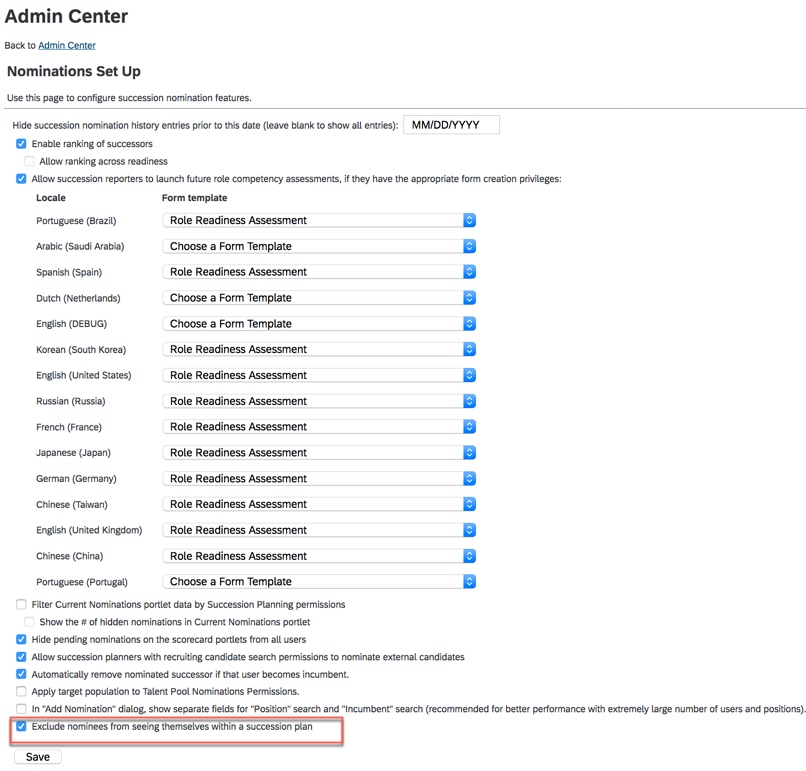
    Let’s see how to enable this feature. Go to “Nominations Set Up”. Scroll to the very bottom of the screen and enable “Exclude nominees from seeing themselves within a succession plan”. The “Nomination Set Up” page is shown below.

    Nomination Set Up Feature to Enable

    This exclusion prevents nominees from nominating themselves. Additionally, the nominees would not see themselves in Succession Org Chart, Position Tiles, Lineage Chart, Talent card, People Profile, Presentation and Nomination History from position card.  A Talent Search would not display them or a list that they are a part of.

    There is one additional feature that we will now explore.

    New OData API Function Imports for Succession

    There are two new OData API Function Imports for Succession:

    • approveSuccessors
    • rejectSuccessors

    These function imports may be used to approve or reject nominees that are in a pending status.

    In prior releases, third-party applications could only read the Succession nominations in Pending Approval status.

    The two new function imports allows third-party applications to write the approval steps of the nomination workflow.

    The role-based permissions needed for both function imports is: Succession Planners>Succession Approval Permission.

    Approve Nominees in Pending Status

    Pending status for approvals are:

    • Change Pending
    • Pending
    • Approval Pending

    Parameters for approval and rejection are nomineeIds (mandatory) and comment (optional).

    NomineeIds use semicolon between multiple ids.

    example: https://<API-Server>odata/v2/approveSuccessors?nomineeIds=’101;102;103’&comment=’testapproval&#8217;

    Rejecting Nominees in Pending Status

    Pending status for rejecting successors are: 

    • Change Pending
    • Pending
    • Deletion Pending

    example: https:///odata/v2/rejectSuccessors?nomineeIds=’100;101;102’&comment=’test&#8217;

    Now we have seen what’s new in Succession, let’s see the final enhancement.

    Picklist Label Enhancements for Matrix Grid Report and Talent Pools Overview Page

    In previous releases, picklists used for filter fields in the Matrix Grid Reports and Talent Pool Nominations overview page showed option IDs rather than labels.

    Matrix grid reports support custom filters and these filters may be associated with a picklist. If this is the case, the picklist labels will be displayed in the customizable fields. Picklists that are used for filter fields of the Matrix Grid Reports and Talent Pools nominations overview page will now show labels instead of option IDs. A custom picklist with values for a talent pool filter is shown below.

    Talent Pool Filter with Values

    These fields also remember the picklist labels that were chosen the last time.

    Wrap Up

    We have now seen the new features and functionality for the Succession module. Check out my blogs on Highlight of 1H 2020 Release Updates for Calibration and Career Development too.

    Do you need help supporting or implementing your SAP SuccessFactors Succession module? Contact us at: info@worklogix.com or download our support services brochure.