
Learn what’s currently available for the latest Goal Management with the 2H 2024 SAP SuccessFactors Release.
For greater details, you can view the full set of documentation in the What’s New Viewer here. For full details on the release cycle, check out the SAP SuccessFactors official product updates blog.
For tips on how to manage a release, check out our blog here.
Hide “Create from Scratch” Option for Goal Creation
When creating on goal on a goal plan using the latest Goal Management, it is possible to create a performance goal from scratch, copy a goal from another goal plan or create a goal from a goal library. The options are shown below.
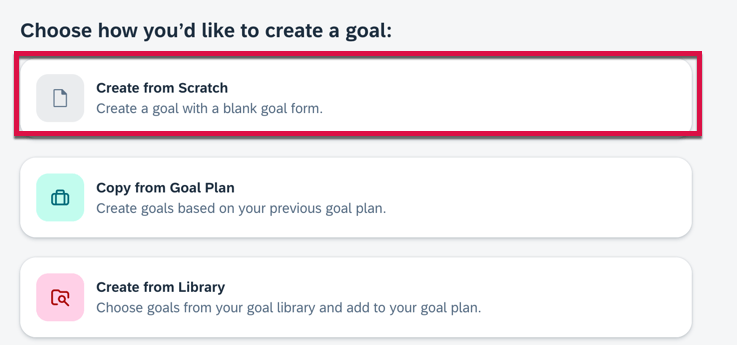
The Create from Scratch goal option for performance goals may be hidden. To hide this option, there is a switch to set in the goal plan template XML:
<switches>
<switch for=” turnoff-add-personal-goal-button” value=”on” />
</switches>
Once the switch is set to turn off this button, the option to create goals from scratch will no longer appear.
Copy Goals on Behalf of Others
In the latest Goal Management, managers can now go to a user’s goal plan and copy personal goals on the user’s behalf. The Copy from Goal Plan option is available only for the latest goal plan.
Configuration Requirements
- Using the latest Goal Management
- The TGM/CDP Goal Transfer Wizard feature is enabled
- Users are assigned more than one goal plans
- The create permission for goals is granted in the goal plan template XML
Goal Modification Email Notification Jobs in Admin Center
You can now create a job request for the goal modification email in Scheduled Job Manager. It no longer has to be set up in Provisioning.
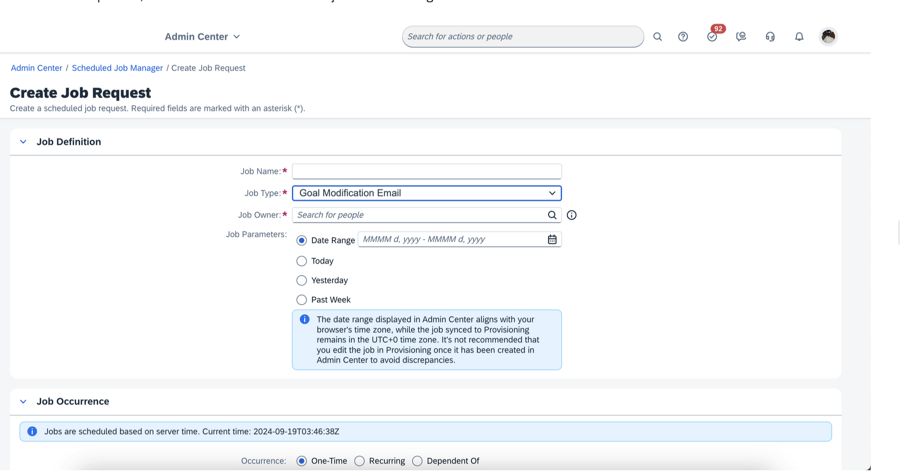
The date range displayed in Admin Center aligns with your browser’s time zone, but the job synced to Provisioning remains in the UTC+0 time zone.
Link and Unalign Goals
In the latest Goal Management, It is now possible for users to link their performance goals with another user’s goals or unalign goals In their own goal plan:
- Choose the Link Goal option on a goal card and follow the on-screen instructions.
- Go to another user’s goal plan, choose the Link with Mine option on a goal card, and complete the linking steps.
Goal Plan Template Cascade/Align Permissions
In the goal plan template XML:
- Grant cascade-align permission for roles to link goals
- Grant unalign-parent or unalign-child permission for roles to unalign goals
Minor Enhancements for latest Goal Management
Some enhancements for the latest Goal Management have been added to make it easier to use.
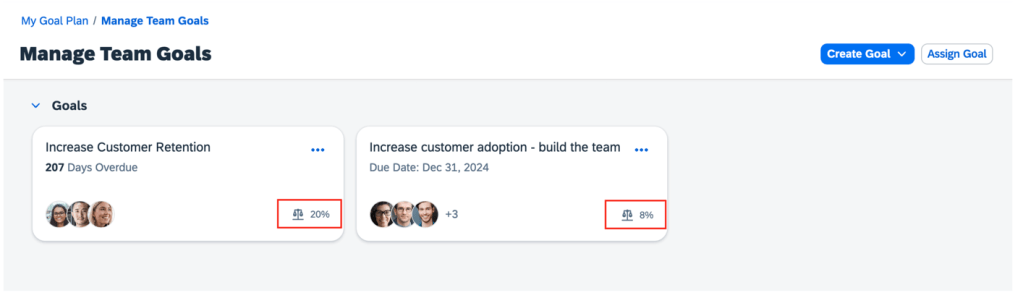
Weights for Team Goals on Goal Cards
Weights are now displayed for team goals on goal cards.
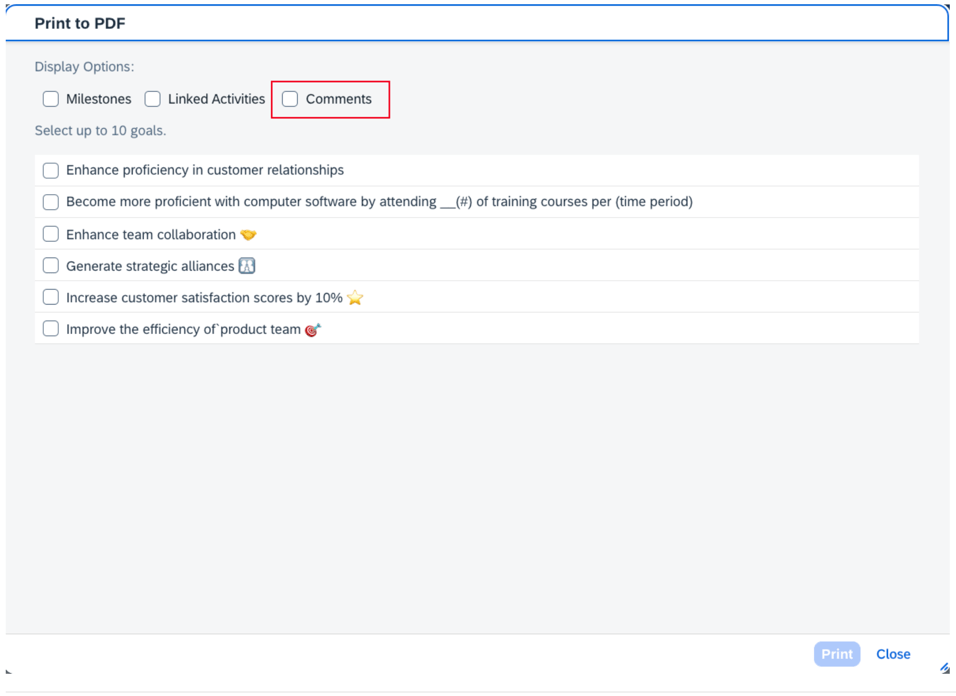
Comments on PDF
Users can now include comments in the PDF output for goals.
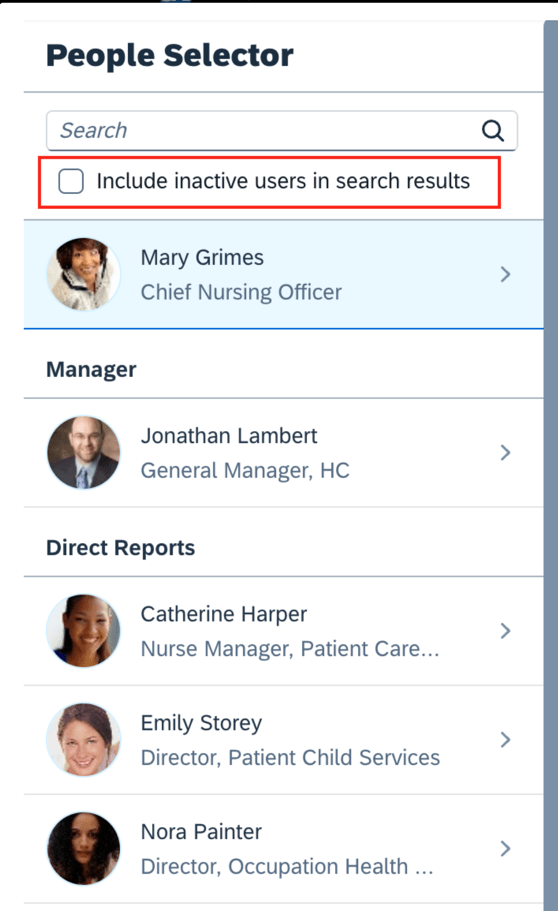
Inactive Users in People Search for Goal Plans
Inactive users may now be included in search results in People Selector and their goals may be edited.
Goal Details Page Updates
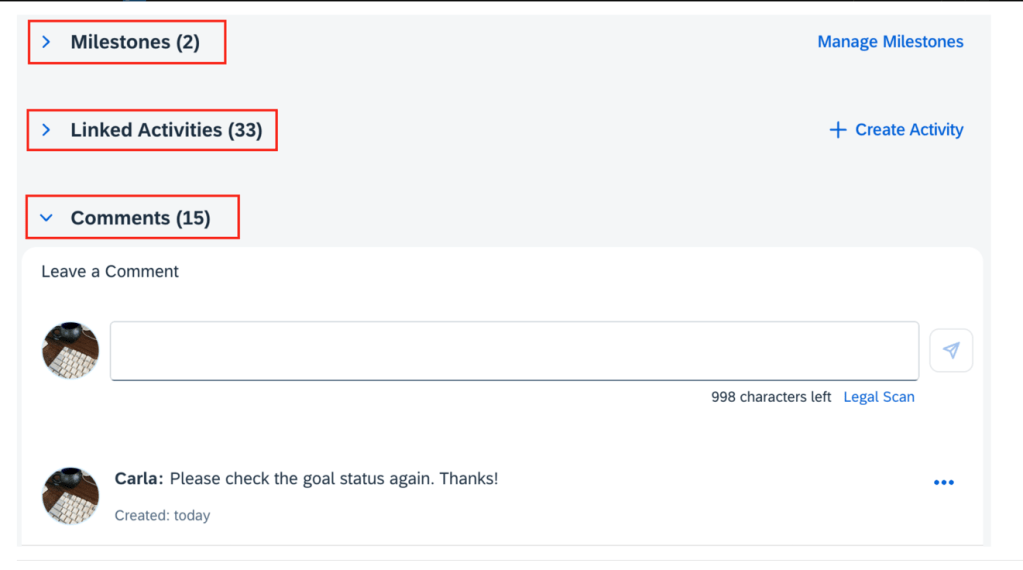
There are enhancements to the goal details page.
- The left-hand sections of the goal details page can be collapsed.
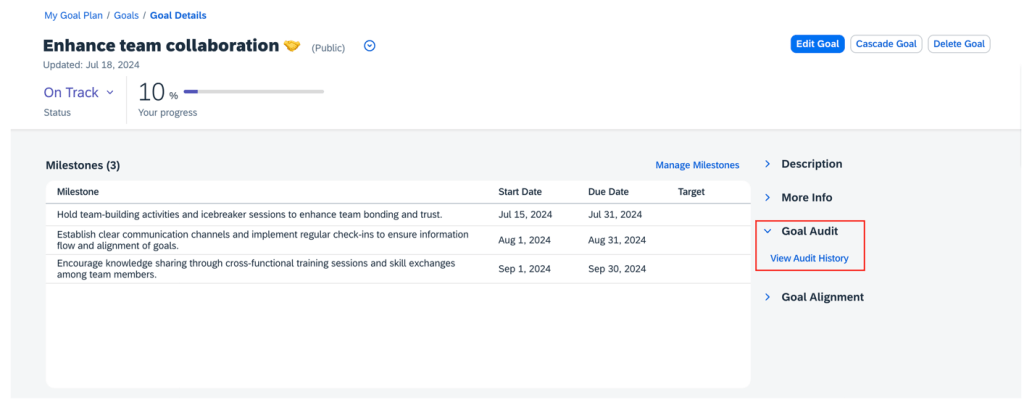
- Audit history is now a new section on the right side of the page instead of a button to click to view the audit history.
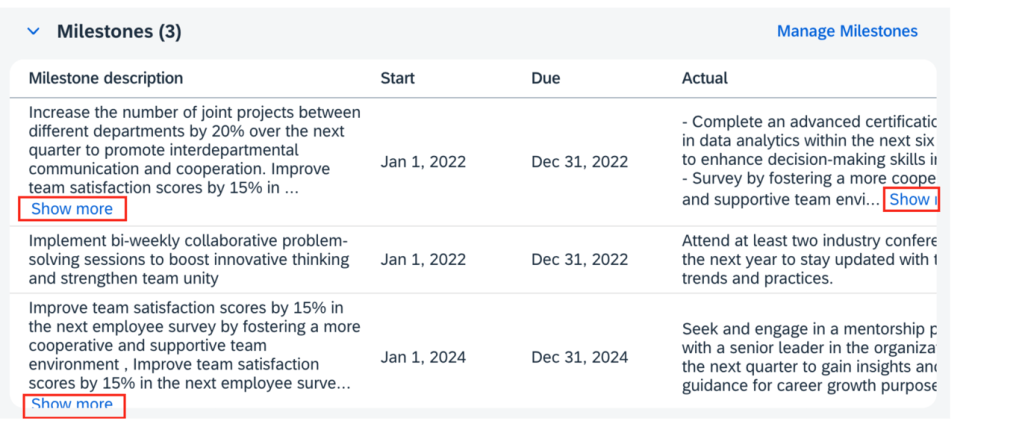
- All milestone fields are visible and the milestone table can be scrolled horizontally.

- For milestones, the Show more button expands to display all of the content of the milestone fields that are configured as textarea type. This eliminates the need to click the Manage Milestones button to see all the text.
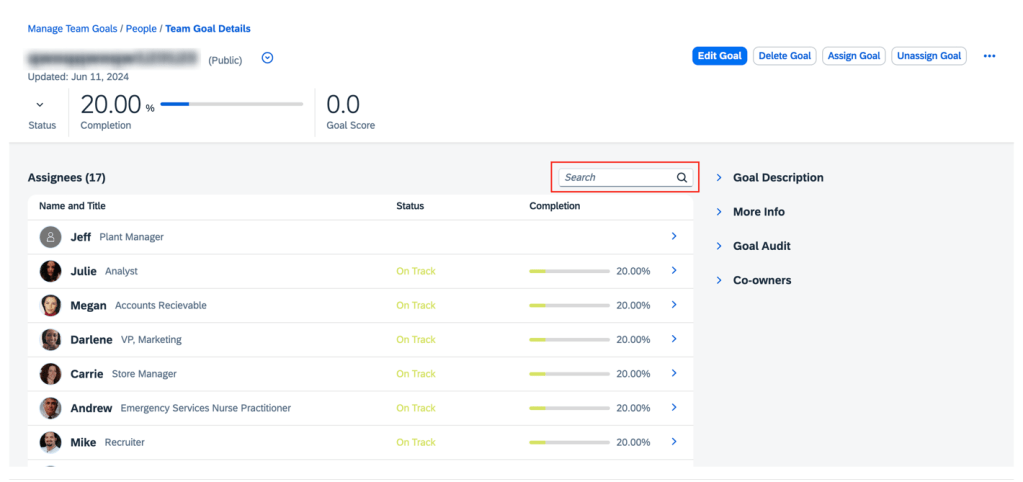
- Users can now search for assignees on the Team Goal Details page.
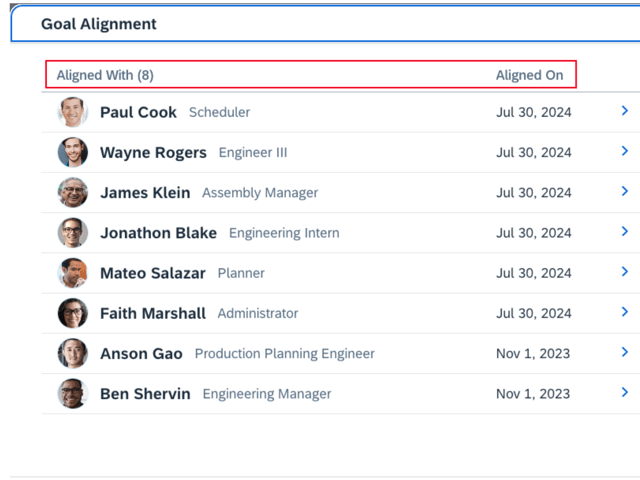
- On the Goal Alignment pop up, headers have been updated to show Aligned With with a count and the aligned on date.
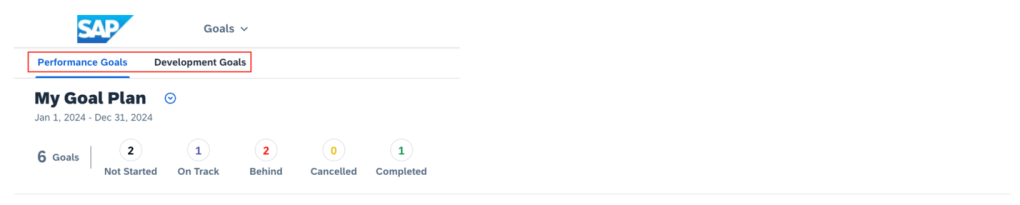
- On the landing page, the tab names for Performance goals and Development goals now use the plural form.
- There is no limit to the number of goals that can be displayed in the personal and team goal list views.
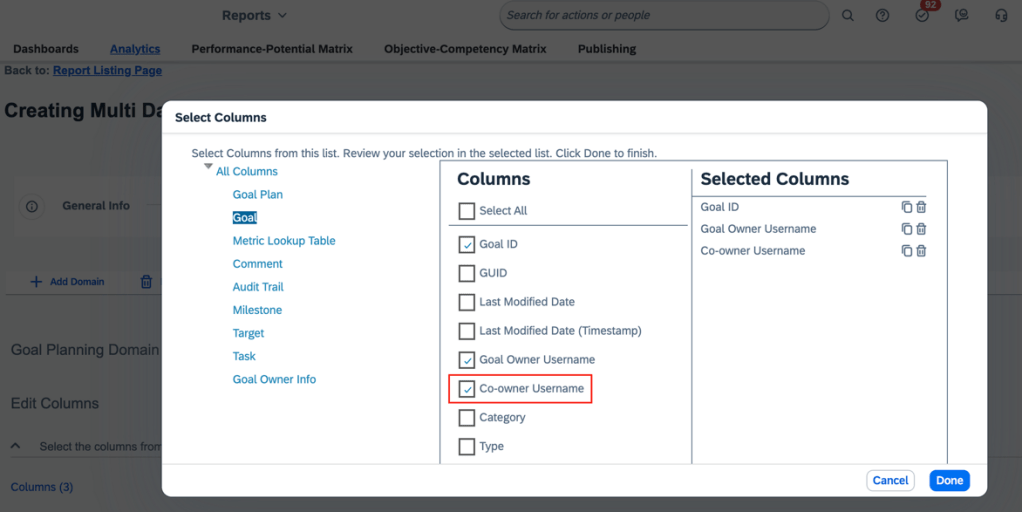
- When creating reports for master team goals, there is a new Co-owner Username column. This is available in both Story reports and Table reports.
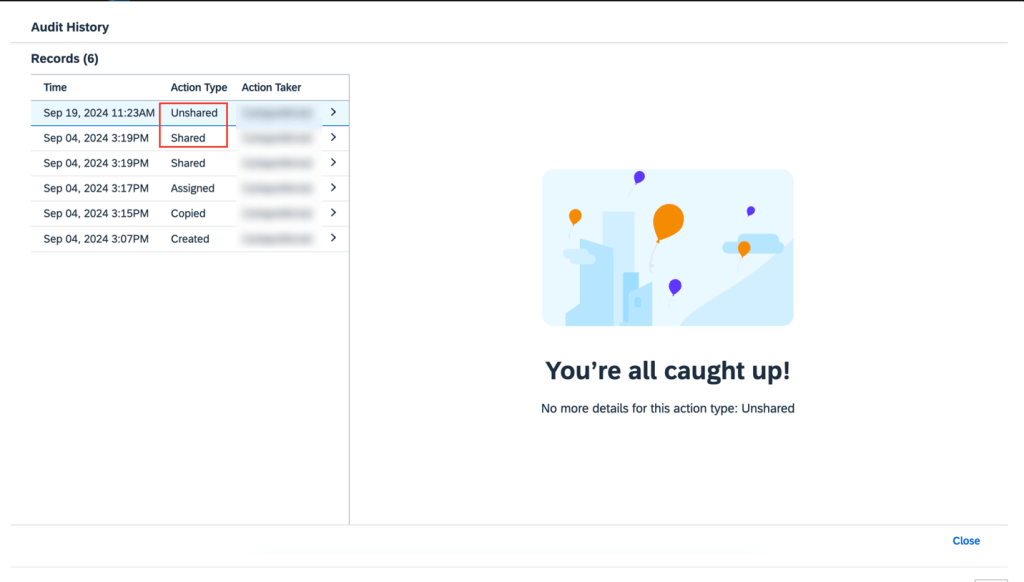
- In audit history, “Shared” and “Unshared” are now supported as new action types for team goals.
Roll-up Calculation for Cascaded and Linked Goals
Roll-up calculations can now be used for cascaded and linked goals in the latest Goal Management.
Bizx-actual, bizx-target, and bizx-pos fields can be set to average or sum using the rollup-calc-type attribute.The sum or average values for these fields are automatically calculated across cascaded and linked goals based on your configuration. These values are then reflected in source goal details.
When a parent goal is cascaded or linked, two audit records are generated for it, one record indicates the action type (“Cascaded” or “Linked,”) while the other record shows “Modified” due to changes in the roll-up fields.
AI-Assisted Goal Creation Enhancements
If you have purchased the AI units license, have enabled the latest Goal Management, and have assisted goal creation is enabled and properly configured, you will experience a more engaging AI-assisted goal creation experience.
Updates include:
- Updated AI tag: On the goal creation page, the tag for fields with content generated by AI is now “AI-generated content”, replacing the previous “AI-enhanced content”.
- Improved content comparison: the Compare Generated Content page has been eliminated. It is replaced by the AI-assisted writing tool to enhance content at the field level.
- Enhanced prompt template: The prompt template automatically applies goal plan configurations, such as start, due, and maxlength, to AI-generated goals.
- Custom fields: Custom fields of text and textarea types are now supported for performance goals. You specify the context by providing meaningful text for <field-description>. This allow AI to generate more better suggestions for your goals.
Do you need help implementing or supporting your SAP SuccessFactors system? Contact info@worklogix.com for assistance, download our support services brochure, or visit https://www.worklogix.com/implementation.html for additional information.
 Worklogix Blog