For tips on how to manage a release, check out our blog here.
Continuous Performance Management
There are no major updates for Continuous Performance Management, they are generally available and require no additional updates. Here are a few notable updates.
All Responses shown on Feedback Given tab
The Feedback Given tab for Continuous Feedback page now shows all feedback given, both unsolicited feedback and responses to feedback requests, not just feedback response for the target population for their permission role.
Search for an activity and link to feedback
The word count for Continuous Performance fields is now based on characters instead of bytes.
In addition, several field lengths have been extended:
Users can request and review feedback on their activities in any channels where they are the participant
When a user is the participant in a channel, they can request and view feedback on all their activities. Previously, the feedback functionality was only available for activities recorded in channels between managers and direct reports.
Share Activities Across Channels on Continuous Performance Page
Users are now able to share their activities across channels where they participate, giving relevant users the ability to view and edit these activities for seamless collaboration. These activity sharing records are reportable with Story reports.
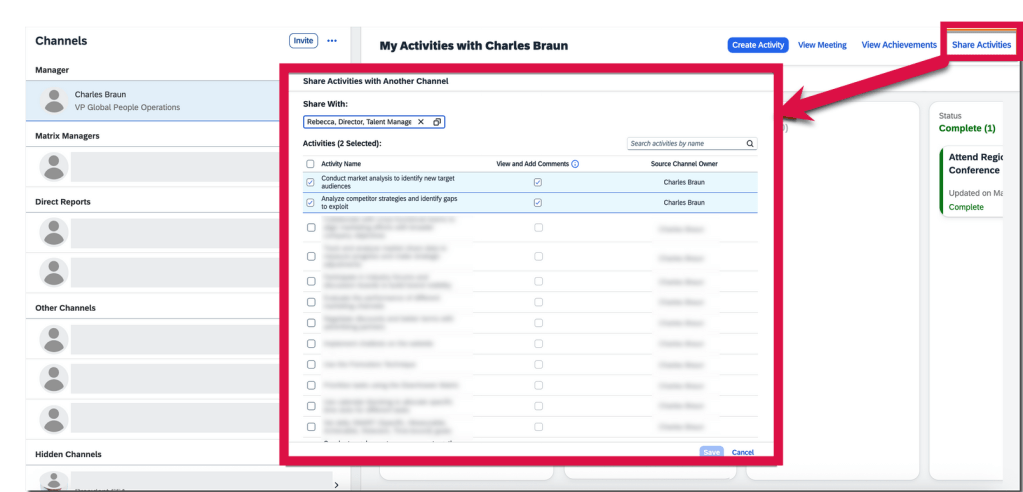
Only the channel participant, who is responsible for completing the activities within a channel, can share them with other channels in two ways. They can also control whether the target channel owners can view and add comments on each activity. This setting is pre-selected as the default.
On My Activities with <channel owner’s name> page, select Share Activities button and choose activities that they want to share with another channel in the pop-up dialog.
Share Activity with Another Channel
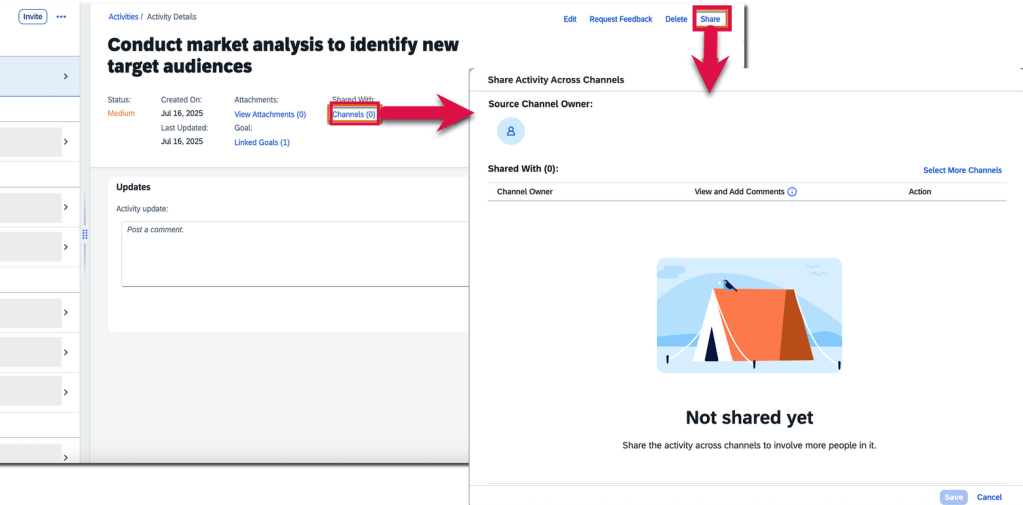
On the Activity Details page, users may choose channels that they want to share an activity with.
Share Activity within Activity Details
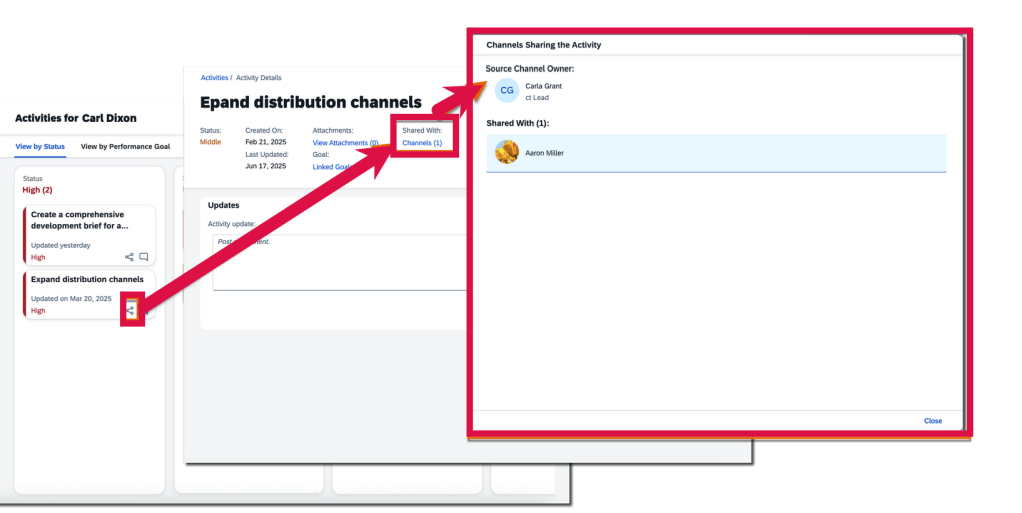
Channel owners can track the source and destination channels of a shared activity through the Channels link in the Shared With: field on the Activity Details page. However, the field and link are only available for activities shared across channels. On the activities overview page, channel owners and participants can see the “shared across channels” icon on the card of activities that have been shared, to distinguish them from those haven’t.
Share Icon Visible for Shared Activities
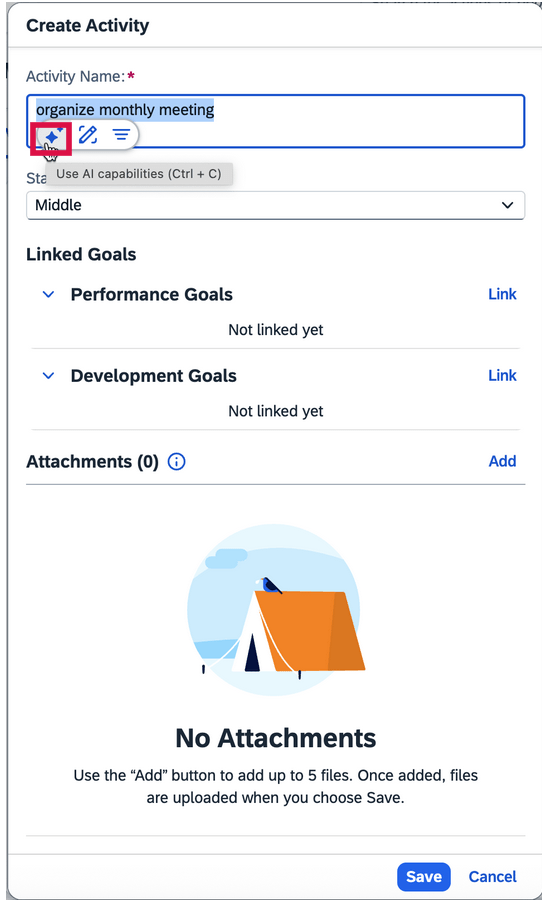
AI-assisted writing is now available in more text areas on Continuous Performance and Continuous Feedback pages
When the AI units license has been purchased, AI-assisted writing now includes feedback topics and feedback questions for Continuous Performance. All free text areas now support AI assistance. Text areas also include activity names, activity updates, achievement names, meeting notes, discussion topics, and channel invitation notes.
AI Assistance for Writing Tasks
To learn more and get more details, see the full set of documentation in the What’s New Viewer here.
As of October 9, 2020, SAP has released their documentation for the H2 2020 release. You can view the full set of documentation in the What’s New Viewer here. As a reminder, preview release will be October 16 and production will be released November 20th. For full details on the release cycle, check out the SAP SuccessFactors official product updates blog here. For tips on how to manage a release, check out or blog here. For your convenience, we’ve summarized the highlights of what’s new for 2020 within Continuous Performance Management below!
The latest version of Continuous Performance Management (CPM) was restricted in the H1 2020 release and now will be generally available. The H2 2020 release builds on the redesign of the user interface for CPM that began this year.
There are four new admin opt-ins, two universal updates and one admin opt-in update available when using the latest version of CPM. We will start by reviewing what’s new.
New Admin Opt-ins
Latest Version of Continuous Performance Management using Upgrade Center
The upgrade to the latest version of CPM must be done as an admin opt-in using Upgrade Center. There are some features are automatically applied when upgrading:
Activities View- which uses a Kanban board for activity management.
Meeting View – to manage conversations.
Achievements View – with a new layout that shows activities linked to achievements.
Ability to link activities to development goals as well performance goals.
Activities must be used to create achievements.
When upgrading to the latest version, all current CPM users are impacted. It is worth noting if you are contemplating the move to the latest version of CPM, once the latest version is enabled, you can’t go back.
Once the upgrade to the latest version of CPM is completed, there are some additional admin opt-in features that may be enabled.
“Discussion Topics” replaces “Other Topics“. Any existing content within “Other Topics” gets converted to “Discussion Topics“.
There is also a new feature called “Meeting Notes“.
Multiple roles is a new permission based feature which allows users to have 1:1 meetings with anyone in their organization.
“Enable Activity-Feedback Linking ” to link activities and activities tagged as achievements to feedback.
Use of the latest version of Continuous Feedback.
“Disable Deleting Feedback” is a carryover from the prior version that is now available in the latest release which prevents a user from deleting any existing feedback.
Several features are no longer available with the latest version of CPM:
Achievement Feedback
Achievement Linking to Goals
Achievement Linking to Development Goals
Coaching
Link Activities to Development Goals in Continuous Performance Management
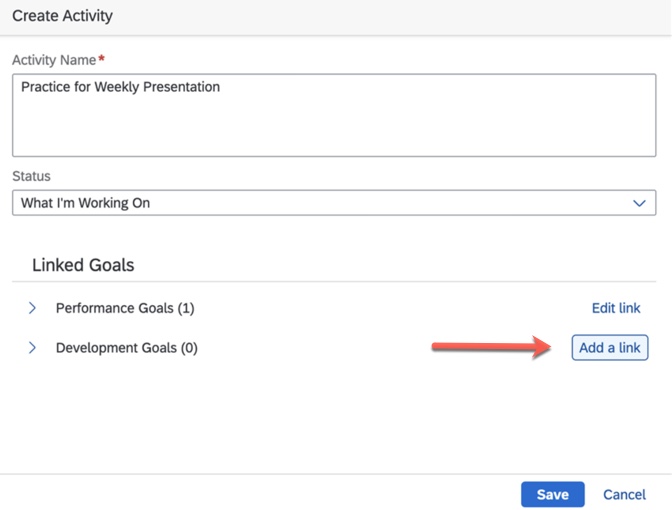
Another new admin opt-in available for CPM is the ability to link an activity to a development goal. In the H1 2020 release of the latest version of CPM, only performance goals could be linked to activities. An example of creating an activity and linking to a development goal is shown below.
Link Activity to Development Goal
Some additional functionality is available as well:
In addition to viewing activities by status and by goal, the Activities view will now have a tab for development goals.
When viewing an activity in the Activity Details view, the development goal linked to the activity will display.
Linked development goals will display in the Meeting view and in the Meeting History page.
Linked development goals in the Activities Kanban board may have name and details edited.
Goal linkage may be changed in the Activities Details page.
Integration with the Career Development Plan and the Development Goals section of a Performance Management form when an activity is tagged as an achievement to a development goal.
Goal Management
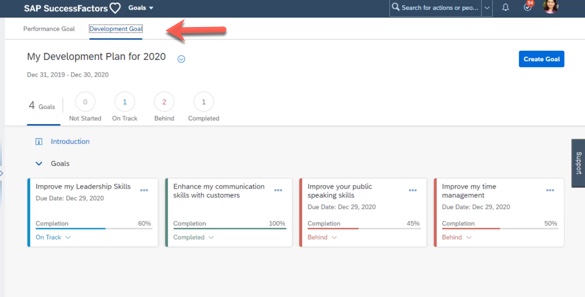
If you are using the latest version of Goal Management, Development will no appear in the navigation menu. Instead, performance goals and development goals are housed together within Goals with a tab for each. An example is shown below.
Access to Development Goals via Goals
The integration between Goals and CPM allows users to create and view activities within Goal Management. As it already functions for goals, it will now be possible to create and view activities in the Development Goal view.
Multiple Role Support for Continuous Performance Management
The final new admin opt-in feature allows roles beyond the manager/employee hierarchical relationship to use CPM. Currently CPM is limited to the view between a manager and their direct reports. The new Multiple Roles feature allows a user to invite someone else to share a CPM view which contains access to the Achievement, Activity, and Discussion Topic views.
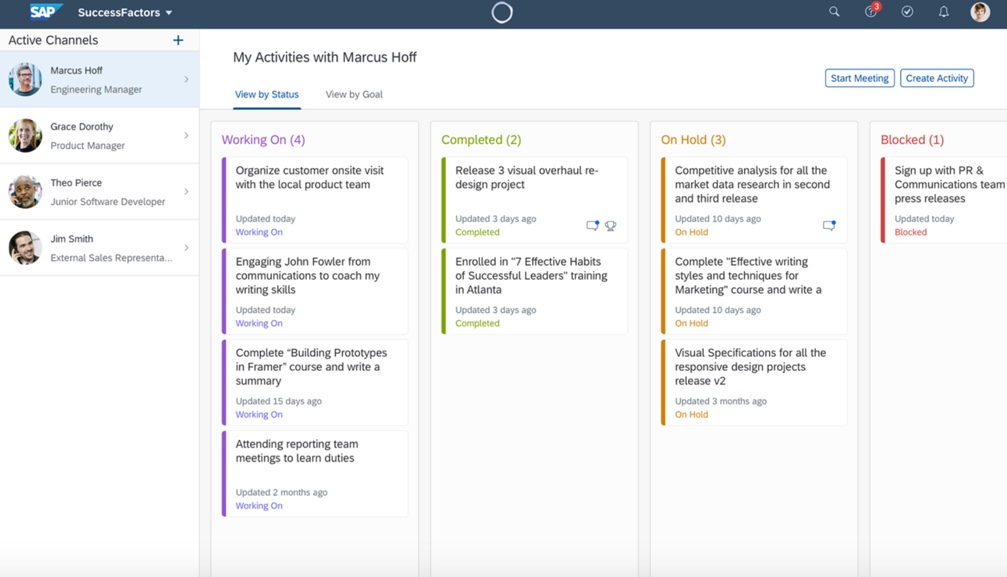
This feature involves a concept called “Channels”. A user invites another user to a channel which contains the CPM Activity view and a Meeting view. An example is shown below.
CPM Channels
This feature enables users to have ongoing conversations with those they work with but are outside the traditional employee/manager roles. Users can view achievements and drilldown into individual activities. The Multiple Roles option needs to be enabled in CPM configuration view to use this.
Admin Opt-in Updates
Latest Version of Continuous Feedback for Continuous Performance Management
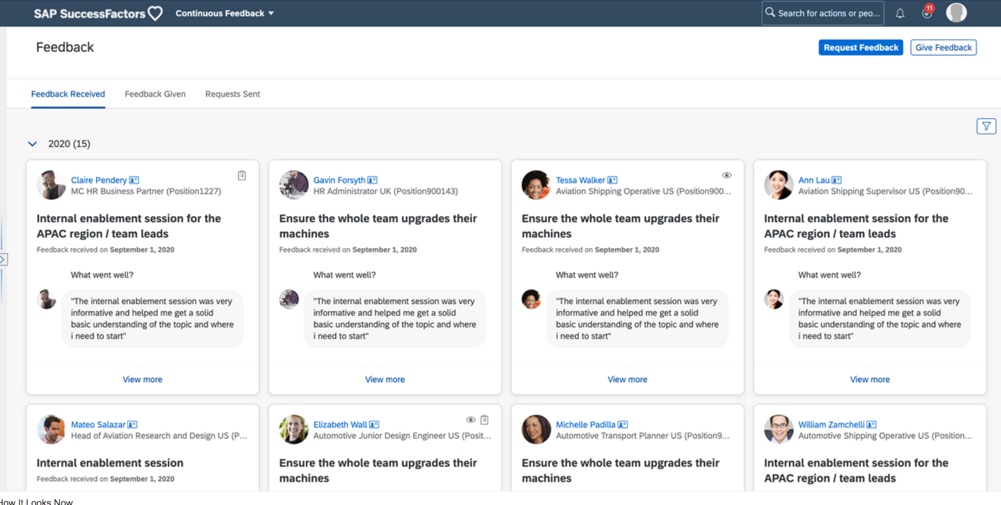
There is an improved process to request and provide feedback when using the latest version of CPM. Continuous Feedback is not housed within CPM but instead is found in the navigation menu. An example is shown below.
Continuous Feedback
There are tabs for feedback received, feedback given, and feedback requests sent. There are also buttons to ask for feedback and to give feedback.
New is the use of a topic and questions when requesting and giving feedback. Feedback is more targeted and based on questions asked of the feedback provider. Users could select from standard provided questions, admin created questions or allows users to write their own questions.
An example is requesting feedback is shown below.
Crafting Feedback Questions
This flexibility enables users to get constructive feedback on specific topics rather than receiving generic feedback.
Feedback details may also be viewed. An example is shown below.
Feedback Details
Filtering of feedback has also been enhanced. Feedback may be filtered by linked activities, shared feedback or feedback by date range. An example is seen below.
Filter Feedback
Universal Updates
There is two universal updates for latest version of CPM that relates to feedback.
CPM Feedback Data in Goal Plans
Feedback from CPM is now available to display in the performance and development goals plans. The CPM achievements column for a goal currently shows the count of achievements tied to a goal. With the latest version of CPM, achievement related feedback will also display. In the CPM achievements column, clicking on the count will now display the feedback topic title along the topic title and three sets of questions/answers from the Achievements tab.
CPM Feedback Data in Performance Management Forms
The CPM achievements column in the performance and development goal sections of a PM form currently shows the count of achievements tied to a goal. With the latest version of CPM, achievement related feedback will also display. In the CPM achievements column for a goal, clicking on the count will now display the feedback topic title along with the three related feedback question/answers.
Wrap Up
We have now seen what new features you can look forward to utilizing with the latest version of CPM.





 Worklogix Blog