
The SuccessFactors performance form has an audit trail on the Form Information page which shows the chronological log of actions, users, and comments as a form moves through the workflow steps.
The audit trail provides benefits to the organization, the manager and the employee. It provides transparency by showing history of actions taken on the form, acts as legal evidence in disputes and grievance, is useful in error tracking and facilitates internal and external audits by providing traceable documentation.
Let’s look at what the audit trail delivers.
There are 2 ways to see the audit trail.
- The Blue Information icon displays in a user’s inbox in the Actions column.
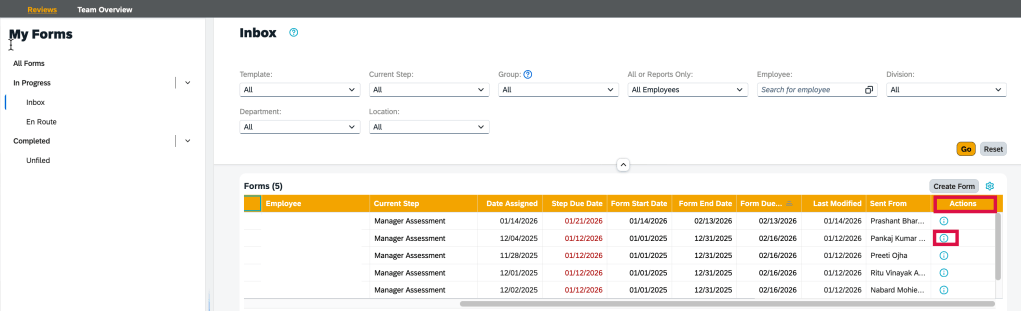
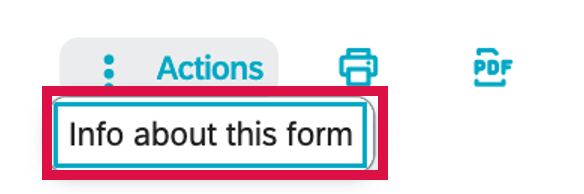
- Within the form, go to Actions at the top of the page and select “Info about this form”.
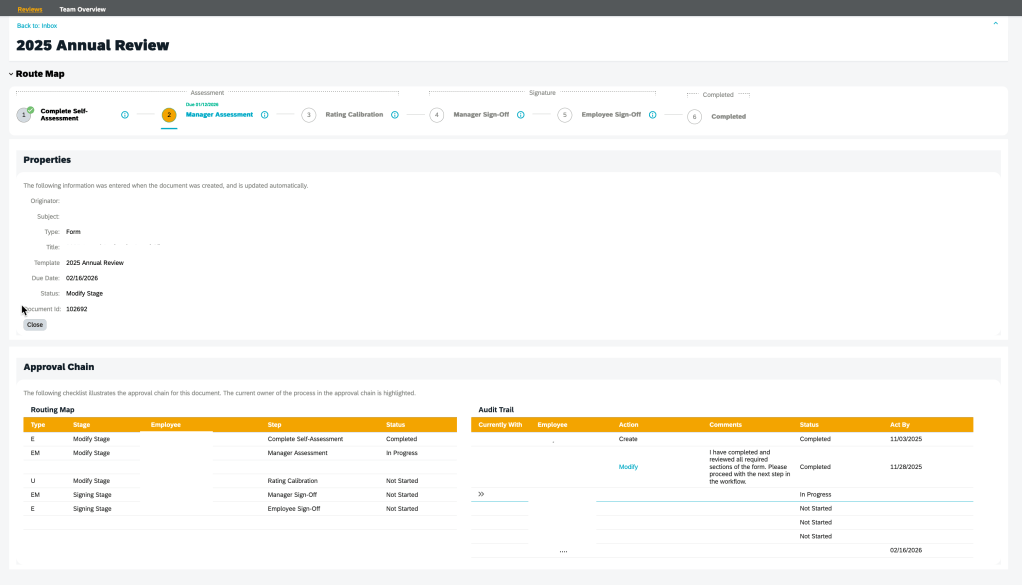
The Form Information view displays. The Route Map, Properties and Approval sections display.
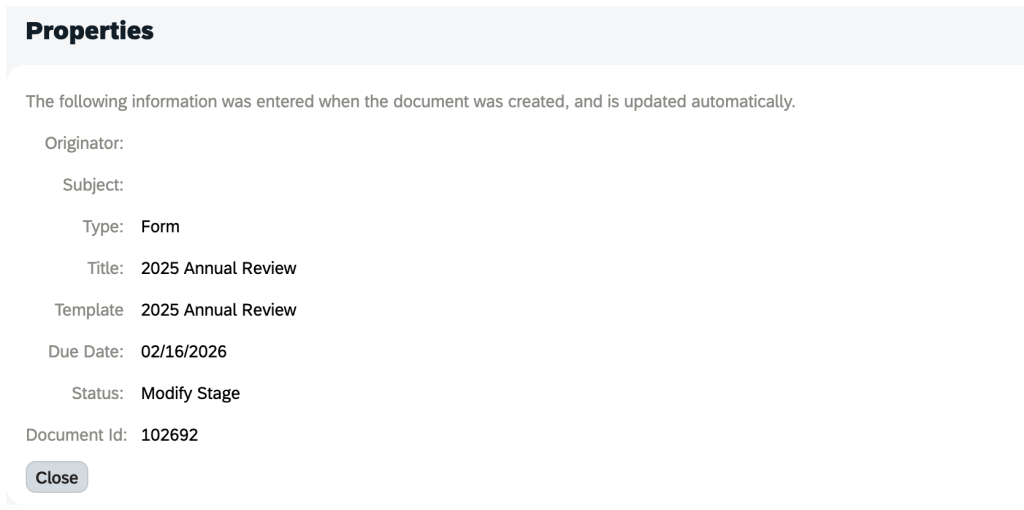
The Properties section shows the information present at the time the form was created and includes the user who generated the form, the form subject, type, form title and template and status.
The Approval Chain section is comprised of the Routing Map and Audit Trail information for the form.
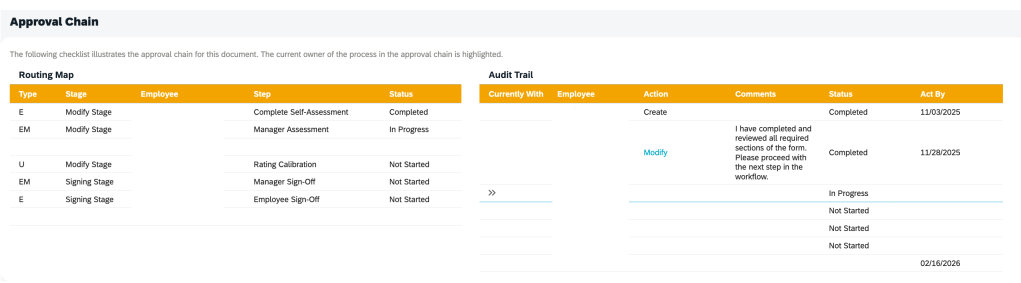
The Routing Map section displays the Step Type, Stage, Employee, Step, Status for the form.
The Audit Trail shows a chronological log of users within the workflow and the actions taken.
The Audit Trail section entries are created when a form moves from one step to the next and will show you the following information: Currently With, Employee, Action, Comments, Status, Act By.
Iterative and Collaborative steps are not shown.
Entries in the audit trail are only created when a form moves from one step and shows the routing history of the form.
In the Action column, you can find the changes employees made to a form. Click the link in a step to open a form and view what the form at that step. Employees cannot drill into steps which they do not have permission to.
Access to the step link is affected by the following two options from Admin Center > Company System and Logo Settings:
- Everyone can access the revision history of the document. Allows users to access the revision history of each document for which they were on the approval chain. When you select this option, your users can go to the Documents Information page and view a read-only snapshot of the document as it was in each stage of the workflow.
- Manager can access the revision history of the document. When you select this option, the manager can go to the Documents Information page and view a read-only snapshot of the document as it was in each stage of the workflow.
However, there is no option to determine whether users have opened the form.
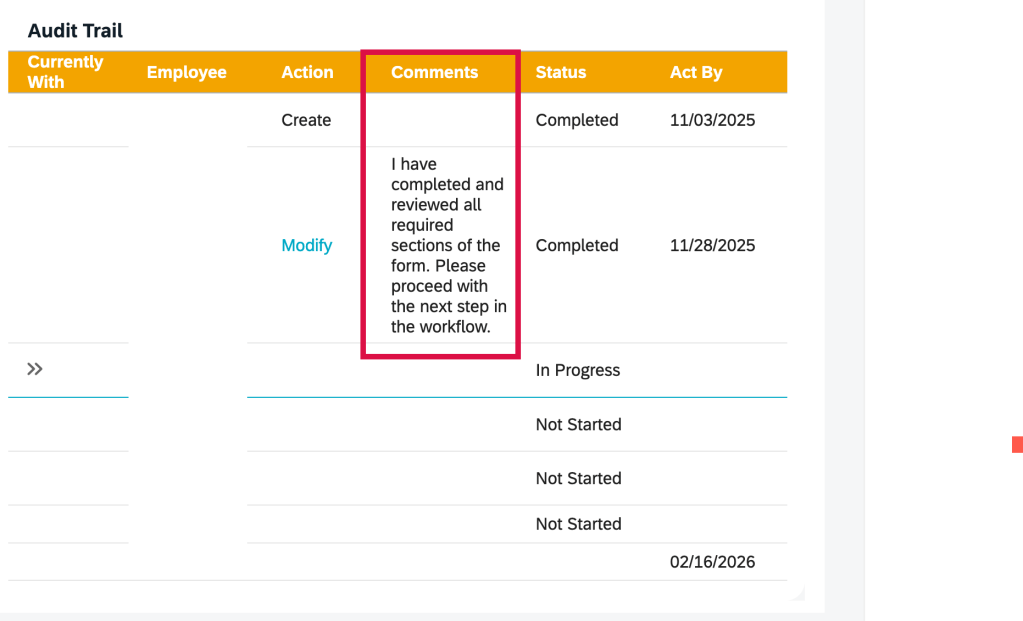
The Comment column includes the system comments and the e-mail notification comments entered by the sender when sending the form to the next step.
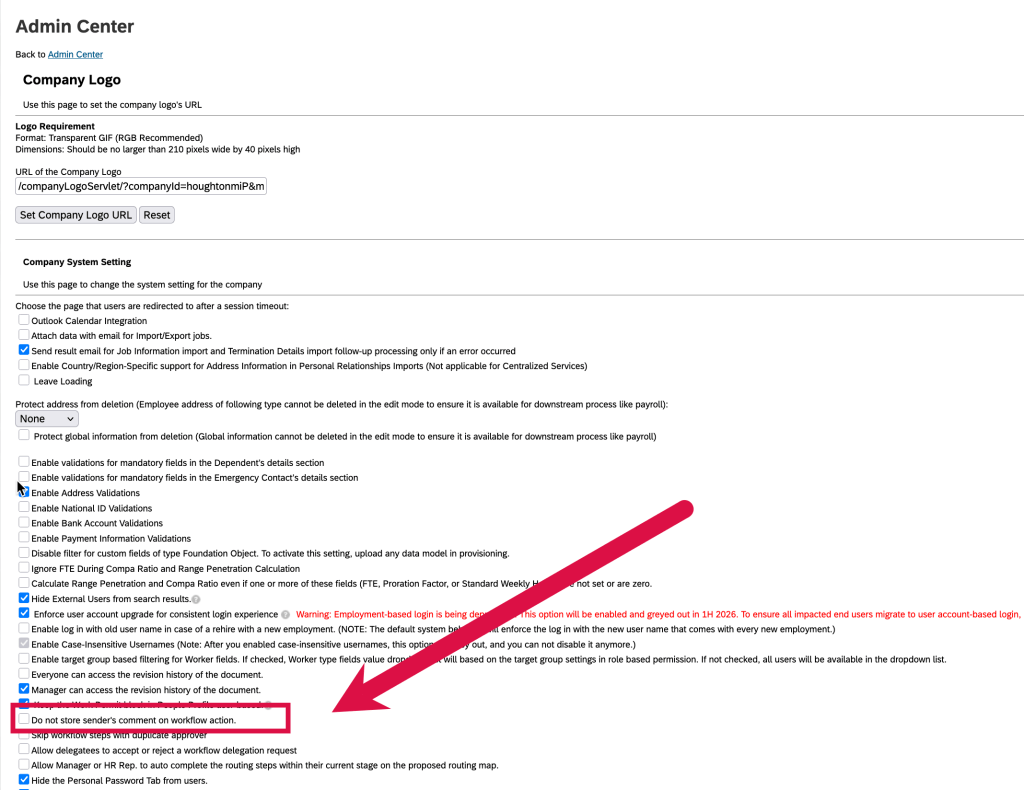
If you do not want the sender’s comments to be stored and displayed in the Audit Trail section, go to Admin Center > Company System and Logo Settings, and select “Do not store sender’s comment on workflow action”.
Reporting
Reporting can be done on the audit trail records of the form completed steps by using the Audit Trail table in the Performance Management schema in Story reports.
Reportable fields include step owner, step action, date time when a step was completed, and system and user comments.
You can also join the Audit Trail table with the Next Route Step and Previous Route Step tables in the Route Entry schema to report on step information.
In Closing
The most successful SuccessFactors implementations aren’t defined by how much functionality is turned on—but by how intentionally it’s designed.
At Worklogix, we help organizations make these decisions with adoption, scalability, and business impact in mind—so talent processes don’t just exist in the system, but actually work in practice. Do you need help implementing or supporting your SAP SuccessFactors system? Contact info@worklogix.com for assistance.
 Worklogix Blog
Leave a comment