
Having forms automatically route to the next step can be a efficient method to keep the performance process moving along but there is a wrinkle that can cause lots of manual intervention and even trap you in time loop.
It all starts with the route map
First let’s look at the route map associated with a performance template.
Route maps can be set up to have forms auto route on a designated step due date. Any or all steps can have the forms move based on when you decide the step is due. This means any forms sitting in this step on the step due date will automatically route to the next step the following day.
The settings for this auto routing are shown below.
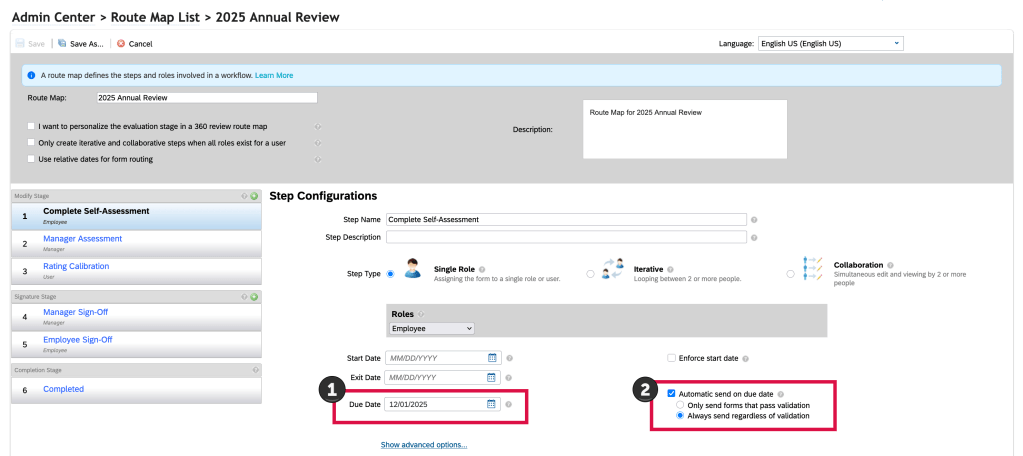
First, identify a due date for the step (1) and then enable the “Automatic send on due date” box (2).
In order for this auto routing to work, a background job needs to be set up in Provisioning. In Provisioning, go to Manage Scheduled Jobs . Here the Auto Route Based on Due Date job needs to be set up and should be configured as a recurring job running nightly.

An example of the job details are shown below.
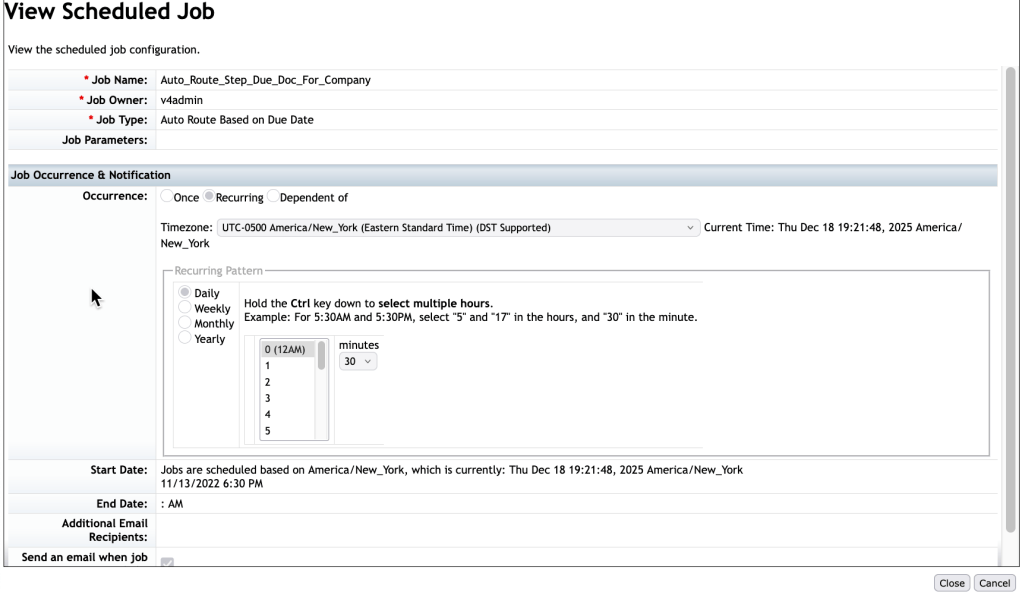
In the example, the job is scheduled to run daily, 30 minutes after midnight.
It is best to have the job scheduled to run after midnight so the forms will route immediately at the end of the step due day.
Now the route map is set up with the auto route step due date(s), the background job is set up and the forms are launched.
Once the performance review process is in flight, forms will progress through the workflow. With the scheduled background job running nightly, any form still in a step on the auto route due date will automatically route to the next step at the end of day.
Potential Gotcha
This is where a gotcha may lie. The admin can manually send a form back or a user in the current step can send to the form to the previous step. A hiccup can occur after the step due date when a form is returned to this step.
In this example, a user may ask that a form be routed back a step. The admin would have to route the document back.
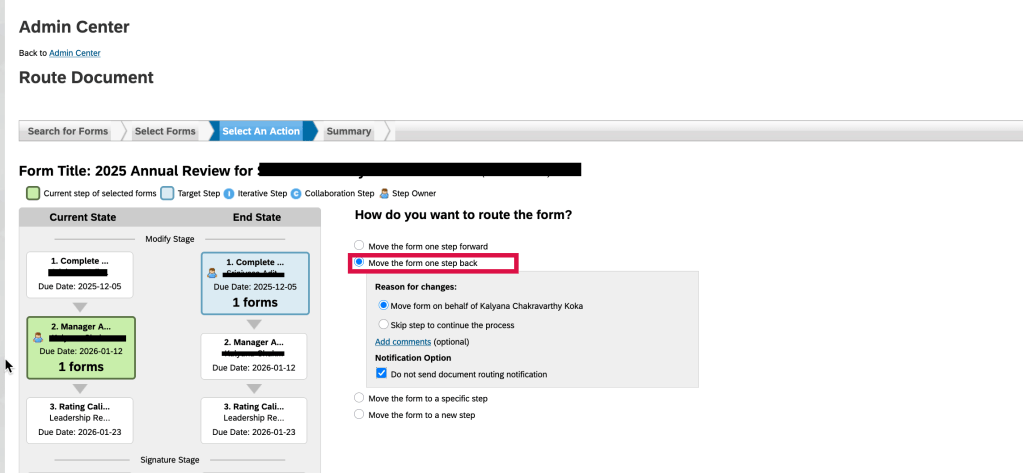
Another way to have a form move back a step is to have the template configured to allow the form to go back a step.

In either case, the form had auto routed to the next step, but was then routed back to the prior step. If the employee does not make updates to the form that day, that evening the form will route forward again to the next step.
This bears repeating. If a form is routed back to an auto route step, if no action is taken on that day, the form will auto route forward again at the end of the day.
Even though the step due date has passed, if a form resides in that step, it will auto route again the next time the background job runs. This can cause a lot of manual rerouting of forms if the form is not actioned upon the day that the form is routed back.
Workaround
There are a few ways to handle this time loop.
Updating Just a Few Forms
When dealing with just a handful of forms that were impacted, run an ad hoc query to find any forms that are in that prior step based on a recent modify date.
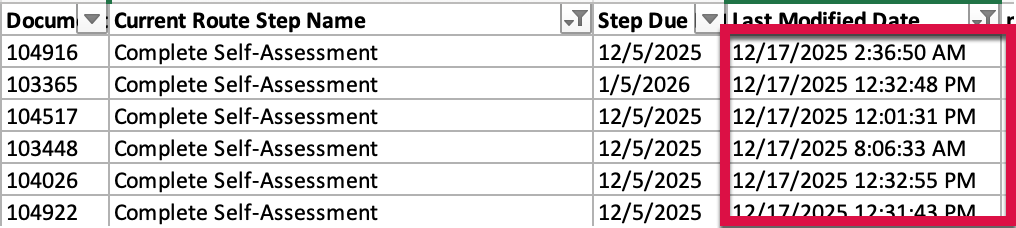
The admin would use this information to go to Modify Form Route Map to update the route map for each of the impacted forms.
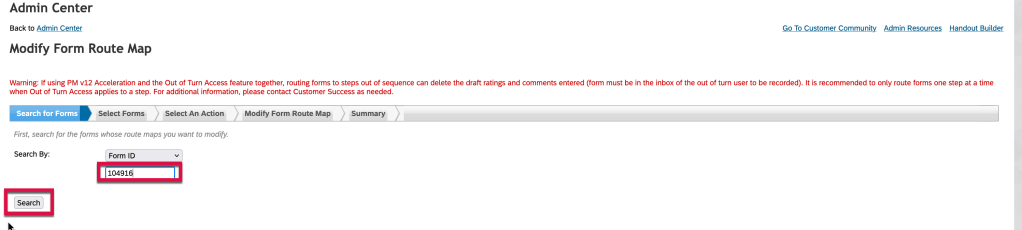
Enter the Doc ID from the ad hoc report and click “Search”. The form route map steps display.
Click on the route map step that you wish to update. This will expand the step configuration section and show the step details.
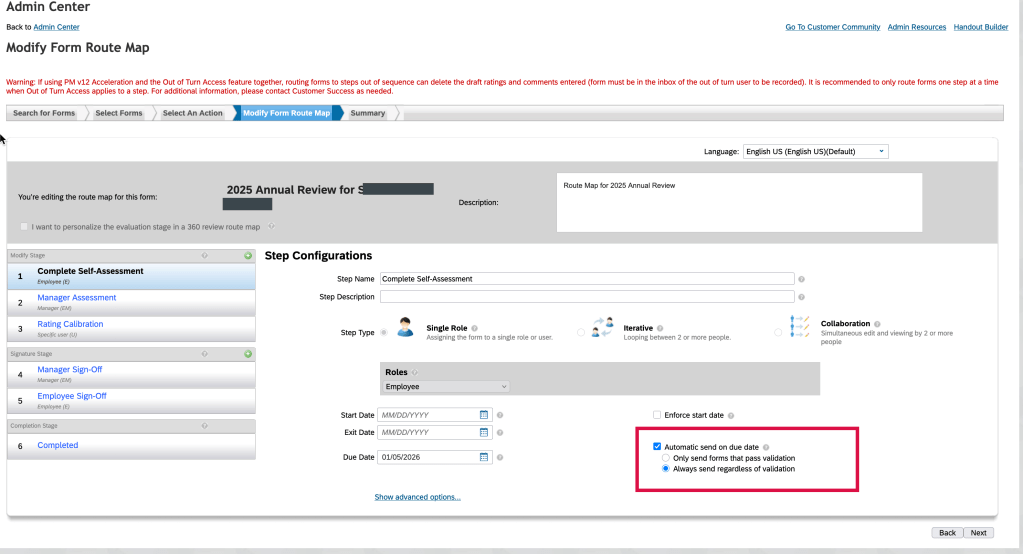
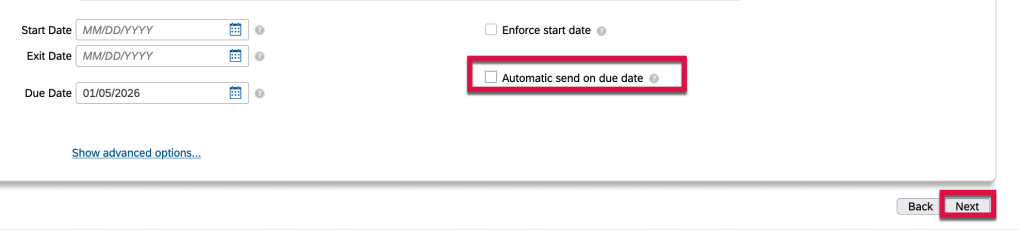
In order to stop this form’s auto routing to the next step, uncheck the “Automatic send on the due date” checkbox and then click on “Next” as shown below.
The form has been updated and the the automatic routing for this step has been removed, for this form only.
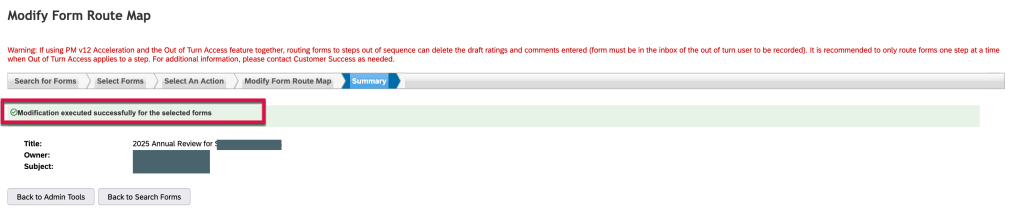
Repeat this process for each individual form that needs to have the automatic routing for this step removed. Click on “Back to Search Forms” to update the next form.
To Remedy Auto Route for All Generated Forms
To completely remove the auto route so that it will not continue to occur each time a form is routed back to an auto route step, the admin may modify the route map via Modify Form Route Map.
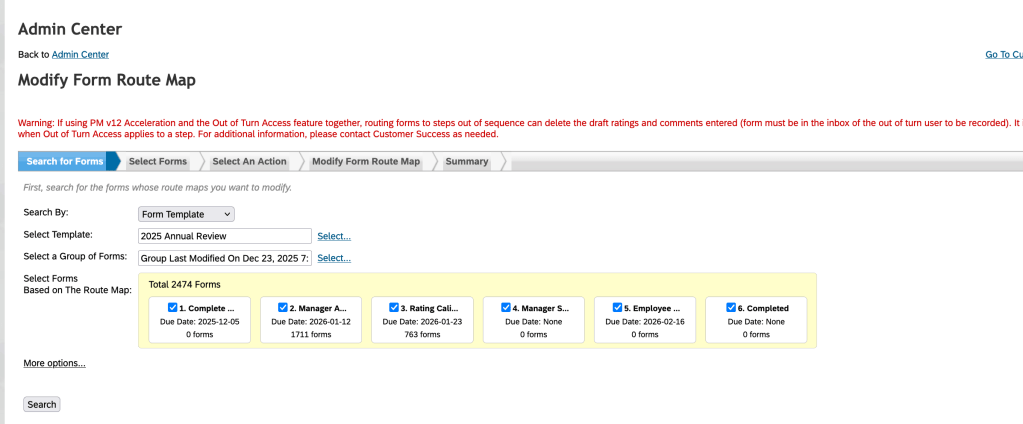
Once the forms are selected, remove the automatic send of due date for the step.
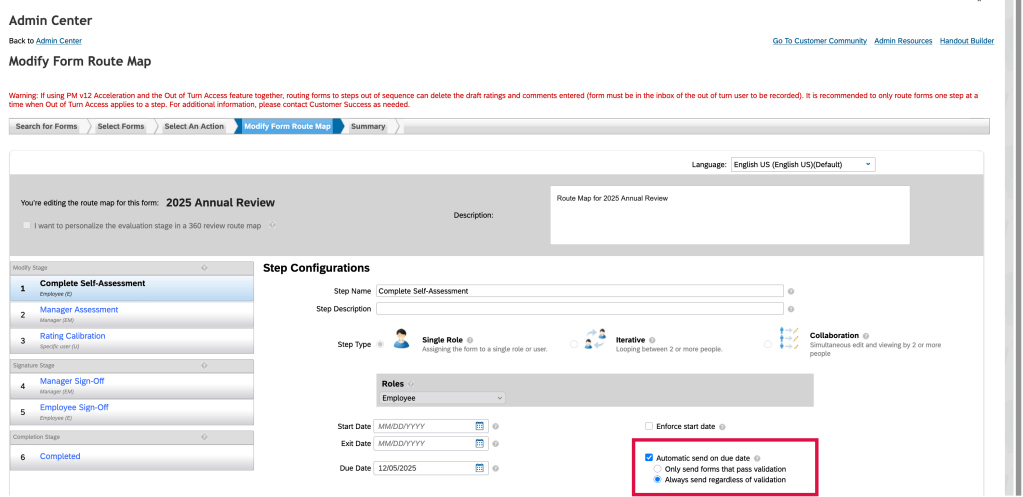
This means all of the forms generated will now auto route if any forms are returned to this step later in the process.
If this manual intervention seems too cumbersome, you may decide to limit the use of the auto-route feature going forward with other templates.
Other Gotchas
Auto Route Only if Validation Passes
If you find that a form did not auto route on the step due date, check the route map to see if Only Send Forms that Pass Validation is enabled for the step. If a form had required fields that needed to be populated during the current step and they were left blank, the form would not route to the next step.
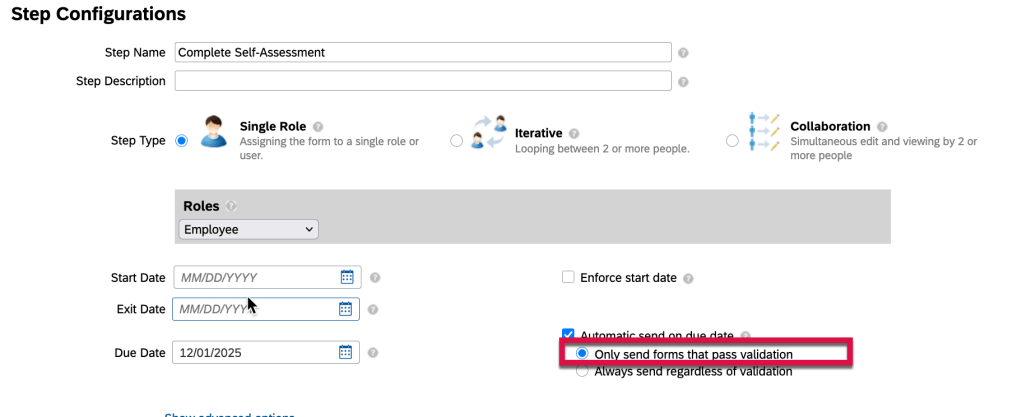
In this case, the admin would have to auto route the form to get it to the next step.
Cannot Auto Route Due to Missing User in Step Role
Another issue that can arise is when a form is set to auto route to a manager step and the manager role is not populated for an employee’s form. The manager step will be skipped. The form cannot route to a step with any empty role.
To resolve this, the admin route would have to route the form back to the first step and once the manager role is populated, the form will route correctly. This causes the system to re-evaluate employee data, new managers, route steps, and roles.
One more thing
The most successful SuccessFactors implementations aren’t defined by how much functionality is turned on—but by how intentionally it’s designed.
At Worklogix, we help organizations make these decisions with adoption, scalability, and business impact in mind—so talent processes don’t just exist in the system, but actually work in practice. Do you need help implementing or supporting your SAP SuccessFactors system? Contact info@worklogix.com for assistance.
 Worklogix Blog
Leave a comment