See what’s currently available for Calibration within Performance Management with the 2H 2025 SAP SuccessFactors Release.
For greater details, you can view the full set of documentation in the What’s New Viewer here. For full details on the release cycle, check out the SAP SuccessFactors official product updates blog.
For tips on how to manage a release, check out our blog here.
Calibration
Auto Activate Calibration Sessions
You may now create job requests to automatically activate Calibration sessions. There is a new setting to enable in Admin Center>>Manage Calibration Templates on the Advanced tab.
A new setting, “Enforce session activation“, has been added under “Auto-activate sessions”. When enabled, if validation errors are found for certain subjects, those subjects will be removed from the corresponding session, allowing the sessions to be activated.
Previously, sessions could not be activated if errors were found for subjects during validation.
Once the Auto-activate sessions option for a template is enabled, set your desired activation date. Next, create the job request at Admin Center>Scheduled Job Manager to auto-activate sessions that use this template. A new job type, Auto-Activate Calibration Sessions on Planned Date, is now available.

Sessions can be auto-activated at the template or session level. If you set an activation date only in the template and do not specify a different date for individual sessions, the sessions will be auto-activated on the date defined in the template.
If you assign a different activation date to individual sessions, that date will take priority. If no activation date is set for either the template or the sessions, the sessions based on the template will not be auto-activated, even if the option is enabled.
When the auto-activation job is completed, you will receive email notifications detailing the results of the activation process. However, if the job runs but finds no sessions to activate, no email notifications will be sent.
Comments from Other Calibration Sessions
In the subject list of a calibration session, the comment icon next to each subject now shows a total count of comments from the current session and other sessions that are based on the same template. When you viewing the comment dialog box,there are separate counts and comments on the From This Session and From Other Sessions tabs.
The counts update automatically when comments are added or deleted from any session.
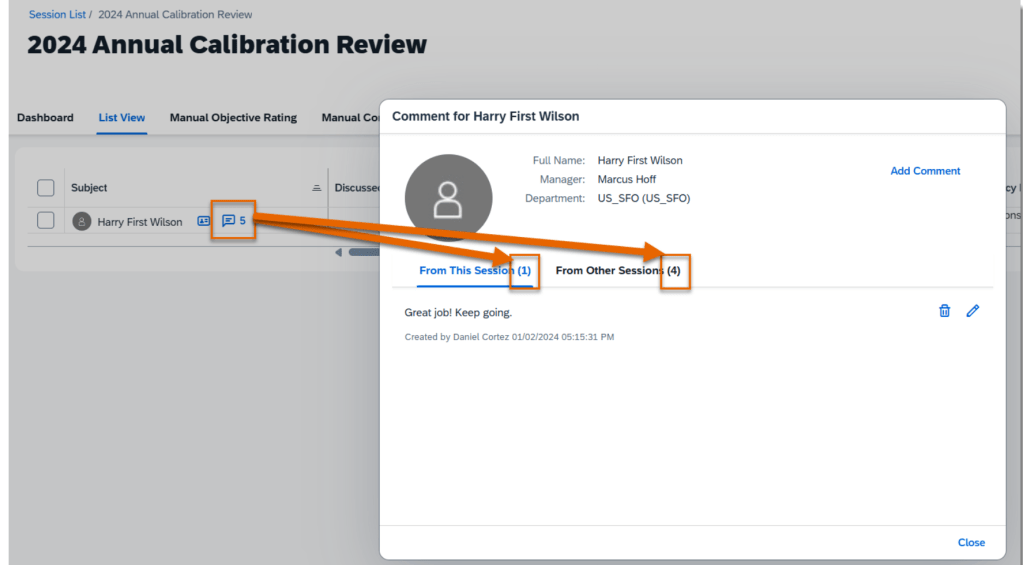
In order to see this, using Manage Calibration Templates, go the to Advanced tab and select “Enable Roll up comments from the other sessions based on the same template“.
Remove Inactive Subjects from Calibration Sessions
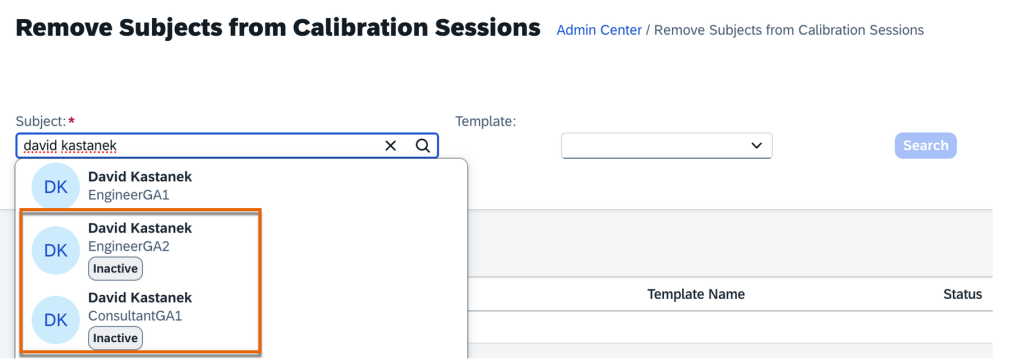
Inactive subjects may now be removed from all calibration sessions using the Remove Subjects from Calibration Sessions admin tool. Previously, only active users could be searched for and removed.
Display Extra Fields in Bin and Matrix Views
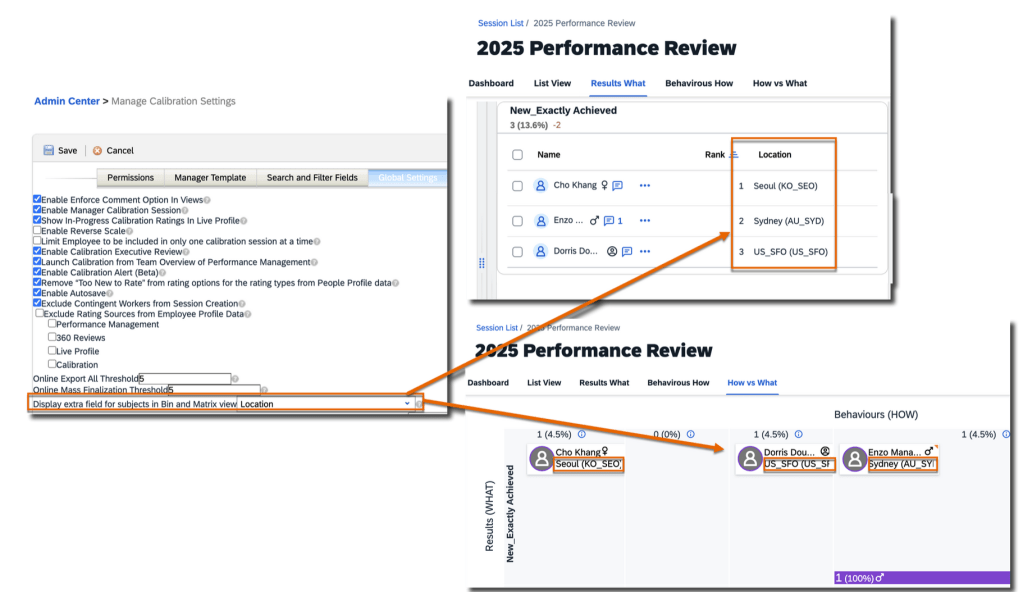
The setting “Add an extra field to people card shown in 9-box view” has been updated to “Display extra field for subjects in Bin and Matrix view“. Found under Admin Center>>Manage Calibration Settings >>Global Settings, you can now enable this option and select an extra field to display for subjects in both Bin and Matrix views. Any field that was previously selected for display in the Matrix view will now automatically be visible in the Bin view.
Track Rating Changes in Calibration Sessions
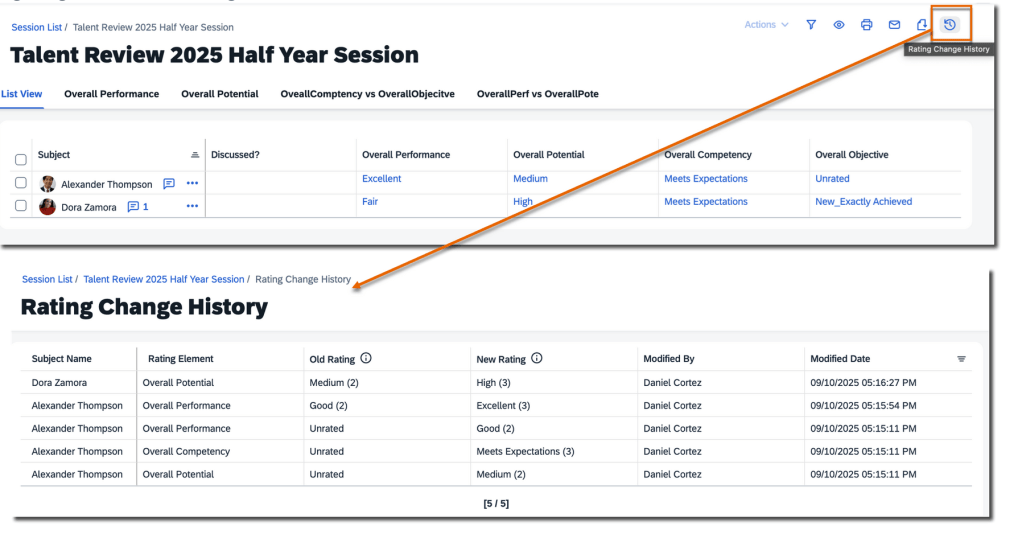
Rating changes can now be tracked within a calibration session. The update makes it easier to track the rating changes and maintain a record of all adjustments made.
There is a new Rating Change History icon in the upper-right corner of a calibration session. Clicking the icon opens a Rating Change History page.
Here all rating modifications made to subjects within that session are listed. The Old Rating and New Rating columns display the rating label and also includes the corresponding rating value. The user who made the change as well as the modify date/time are noted as well.
Bin width adjustments automatically saved
In the Bin view of a calibration session, any adjustments made to the width of each bin are now saved automatically. When accessing the Bin view the next time, the saved widths will be applied. In the past, bin width changes were not saved, and each bin would revert to its default width upon reopening the view.

Exclude Contingent Workers when Creating Calibration Sessions
Contingent workers can now be automatically removed when you create calibration sessions.
A new setting, Exclude Contingent Workers from Session Creation, is available under Admin Center>Manage Calibration Settings>Global Settings.
Once enabled, contingent workers are automatically removed from the list of participants and subjects when you create sessions using:
- Manage Calibration Sessions tool. After searching for users through the org chart or advanced search and then adding the selected users as participants and subjects, a warning message will appear if any contingent workers are included. Message will include which contingent workers been removed
- Manager created sessions on the Calibration landing page
- Sessions created via a CSV file
For learn more, you can view the full set of documentation in the What’s New Viewer here.
Do you need help implementing or supporting your SAP SuccessFactors system? Contact info@worklogix.com for assistance, download our support services brochure, or visit https://www.worklogix.com/implementation.html for additional information.
 Worklogix Blog
Leave a comment