
Learn what’s currently available for Performance Management with the 2H 2024 SAP SuccessFactors Release.
For greater details, you can view the full set of documentation in the What’s New Viewer here. For full details on the release cycle, check out the SAP SuccessFactors official product updates blog.
For tips on how to manage a release, check out our blog here.
Delegation Available for Performance Reviews
Managers can now delegate their performance review tasks to others for a specific time period. It also allows administrators to create delegations on behalf of managers.
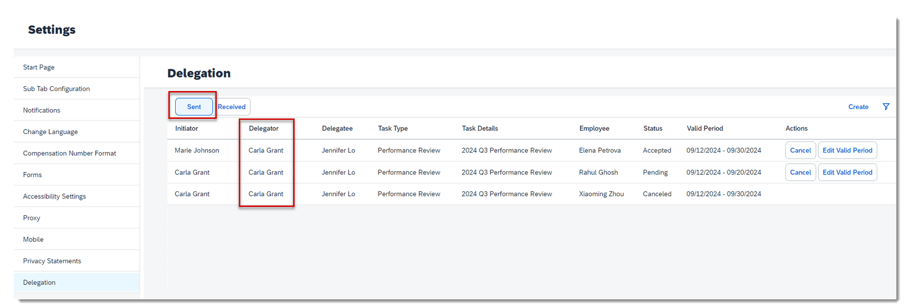
From Settings, go to the Delegation tab, this will display a Delegation page where a user can:
- Create a delegation request for themselves
- View and manage the delegations they created and those created by administrators on their behalf
- Accept or decline the delegation requests they received
- Go to the delegated task they accepted
Delegation will not display on the side panel if the user does not have the permission to use it.
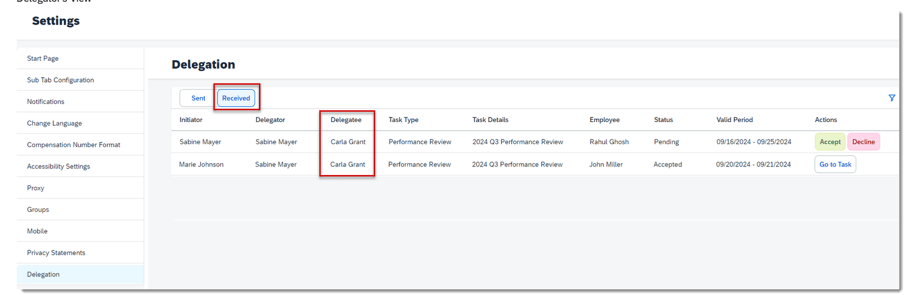
A Sent and Received tab will be visible.
On the view for the delegatee, they can see any delegation requests and accept or decline requests.
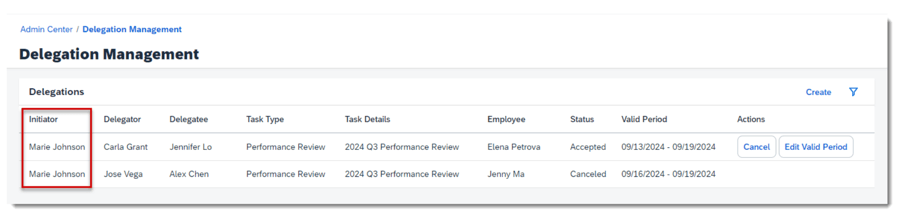
On the Admin Center Delegation Management page, an administrator can:
- Create a delegation request for users
- View and manage the delegations they created on others’ behalf
Delegation Steps
Create Delegation – a request to delegate is initiated by a manager or an admin. The validity period and form template must be identified in the request.
Respond to Delegation – the delegatee receives a notification to act as a delegate. Within Settings, clicking the Delegation tab, details about the request are shown and they may choose to accept or decline the request. The requestor is notified of their decision.
Perform Delegated Task – a Go to Task button is visible on the Delegation page during the validity period. The delegatee can perform the action on the form. The original manager sees the form in their inbox as read-only.
Edit or Cancel Delegation – The delegator may edit the validity period of the delegation or cancel the request.
Complete Delegated Task – The delegatee completes the task and the form moves to the next step in the route map.
Delegation Related Email Notifications
Email notifications are automatically generated in the following steps of the delegation process:
- Delegation Created/Pending Action notification goes to the delegatee
- Delegation Accepted or Declined notification goes to the delegator and delegatee
- Delegation Canceled Manually notification goes to the delegator and delegatee
- Delegation Request Auto-Canceled due to Inactivity notification goes to the delegator and delegatee
- Delegation Expired notification goes to the delegator and delegatee
Requirements for Delegation
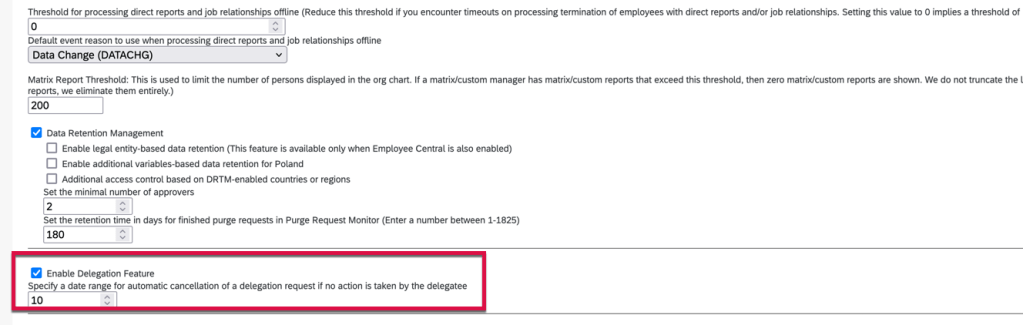
Delegation must be enabled within Company System and Logo Settings. A number of days to automatically cancel a delegation request if no action is taken by the delegatee must be set as well.
Permissions for Delegating Performance Review Tasks
To allow all managers to delegate, permissions need to be added to their role. If you wish to allow administrators to delegate on manager’s behalf, the admin role will need additional permissions as well.
First let’s review the various roles in a delegation scenario.
- Initiators: managers and administrators
- Delegators: managers
- Delegatees: managers’ peers and those directly above them
- Employees: managers’ direct reports
Based on the roles, we will need to add delegation permissions to the various permission roles.
Admin Role:
- Administrator Permissions>Manage Delegation>Delegation Management
- User Permissions >Delegation>Create Delegation Based on Form Templates
Delegators Role:
- User Permissions >Delegation>Delegator-Delegatee Relationship, defines who can be selected as the delegatees of a delegator during the delegation creation process.
- User Permissions >Delegation>Delegator-Employee Relationship, defines who can be selected as the delegatees of a delegator during the delegation creation process.
Create Performance Reviewer (Delegation) Role
A permission role needs to be created as well, this allows users can access the Performance Management forms delegated to them from the Delegation page. Do not assign the role. It’s expected to be inactive.
Required to allow access of forms from the delegation page:
- User Permissions>General User Permission>User Login
- User Permissions>Performance>Performance Management Access
Optional
To add, edit or delete goals on the PM form: User Permissions>Goals>Goal Plan Permissions
To view People Profile blocks through links on the form: User Permissions>Employee Data>View (identify the elements to view)
To restrict access to inactive users’ forms: User Permissions>Performance>Restrict Data Access of Inactive Users’ Forms

When the delegatee goes to their delegated form, the system automatically grants them the role’s permissions, with the form subject (employee) being the target population.
Enhancement to the Latest My Forms Page for PM Forms
If you are using the latest My Forms Page, there are some improvements for the user’s experience. The My Forms page has updates to form creation, form lists and filters.
Form Creation
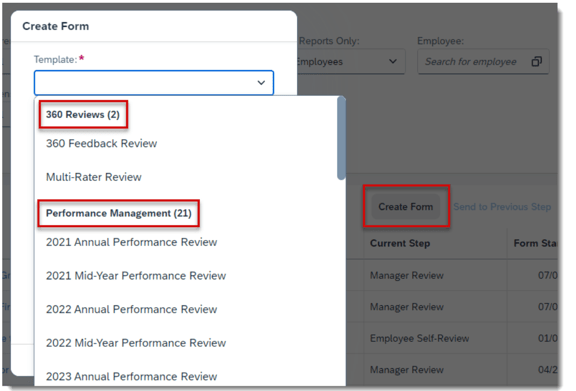
The Create Form button is now only visible for users that have permission to create at least one PM or 360 form.
The dropdown list of forms is now grouped by under 360 Reviews and Performance Management. Each heading lists the number of forms available for the category.
Form Lists
The number of forms is included in the forms list title.

Filters
- Standard and custom filter visibility can be controlled by role. All filters display by default but can be hidden using role based permissions. Enable Use RBP to control visibility of filters on the latest My Forms page in Performance Management Feature Settings.
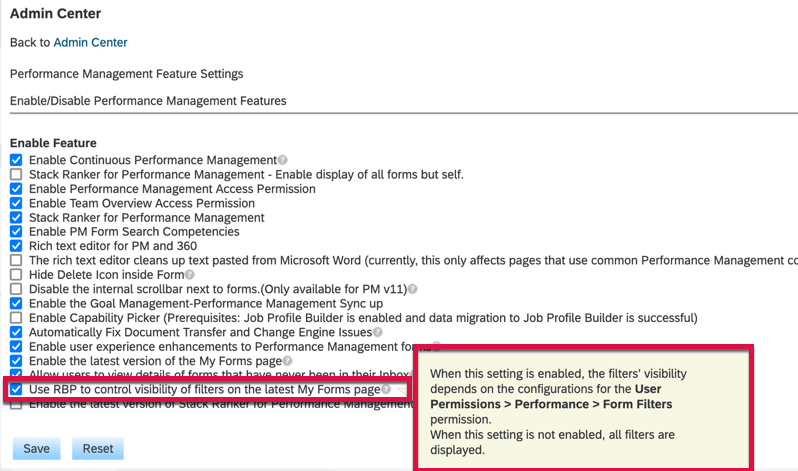
Then, grant users the User Permissions Performance Form Filters permission to show all or certain filters to them.
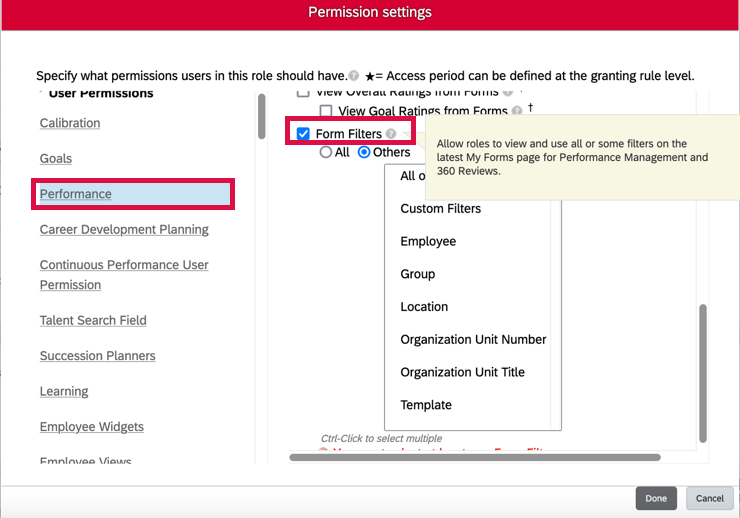
- A All or Reports Only filter is available for users with direct reports, matrix reports or HR reports
- The Template filter is now dynamic and changes based on templates of forms in a folder, previously all templates were listed
- There is a reset button to clear filters

Performance Management Text Changes
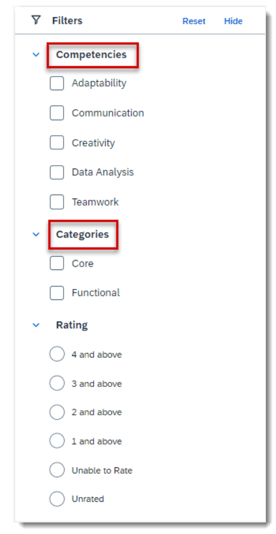
If you aren’t using Talent Intelligence Hub, the filters have been renamed from Attributes to Competencies and Tags to Categories.
Do you need help implementing or supporting your SAP SuccessFactors system? Contact info@worklogix.com for assistance, download our support services brochure, or visit https://www.worklogix.com/implementation.html for additional information.
 Worklogix Blog
Leave a comment