
Learn what’s currently available for Career Development with the 2H 2024 SAP SuccessFactors Release.
For greater details, you can view the full set of documentation in the What’s New Viewer here. For full details on the release cycle, check out the SAP SuccessFactors official product updates blog.
For tips on how to manage a release, check out our blog here.
Enhancement to latest Development Goals
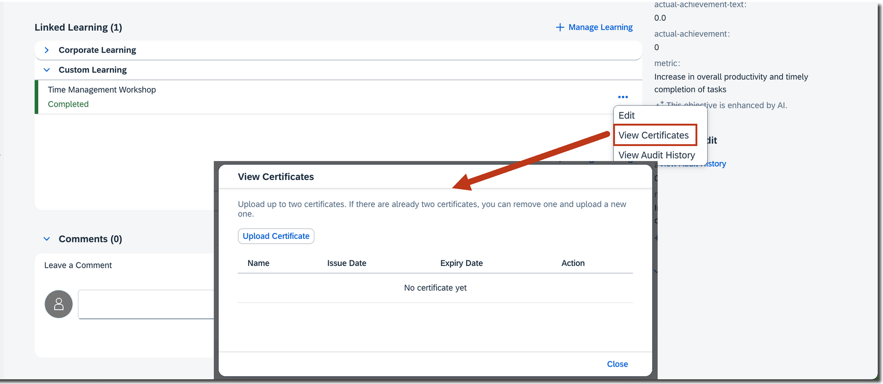
Users can now view audit history for custom learning activities linked to development goals. Certificates may be uploaded to custom learning activities as well.
Adding or editing a custom learning activity generates an audit history record. The learning activity history shows the type of change, the date of the change, the before and after values of any changed fields, and who made the change. However, a custom learning activity linked to a development goal is not logged in the learning activity’s audit history.
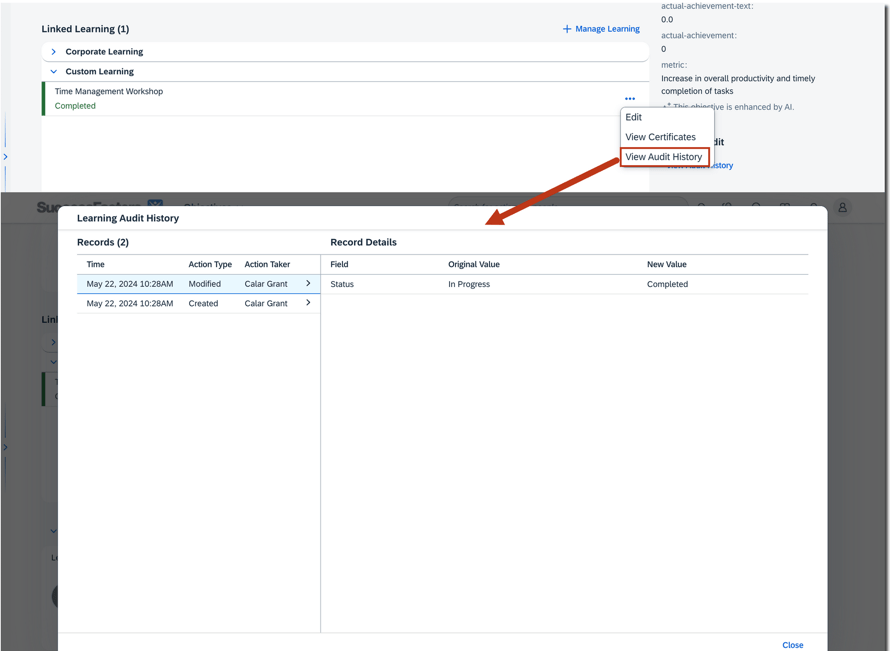
Users can upload certificates to a completed custom learning activity, providing the Certifications field is configured in the learning activity template.
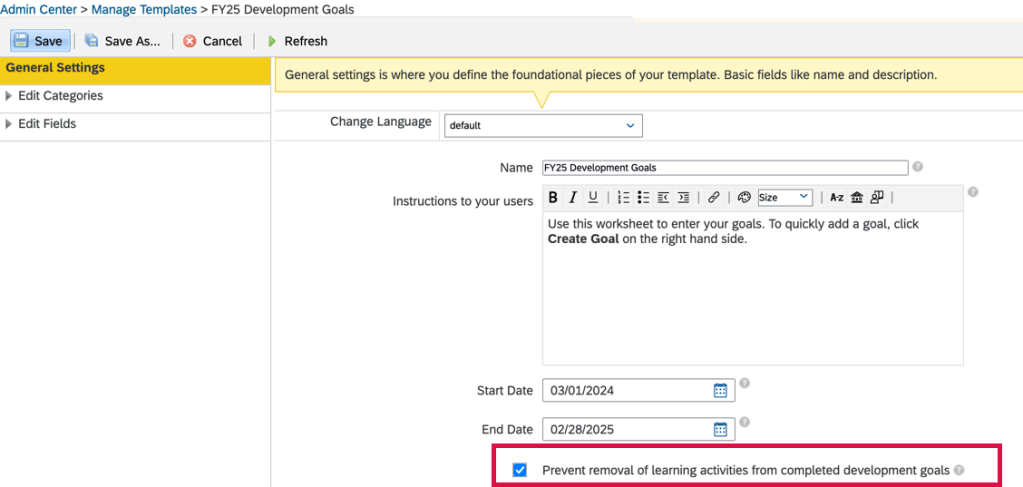
Prevent Removal of Learning Activities from completed Development Goals
In the latest version of Development Goals, it is now possible to prevent users from removing learning activities after their development goals are completed.
In the General Settings of the development goal plan templates in Manage Templates, you will now see an option to prevent the removal of learning activities from completed development goals.
Updates for Career Worksheet
Allow More Roles to Launch Role Readiness Forms in Career Worksheet
If you are still using the legacy version of Career Worksheet, the template can now be configured to allow more roles to launch the Role Readiness form. Up until now, only an employee could launch the form for themselves.
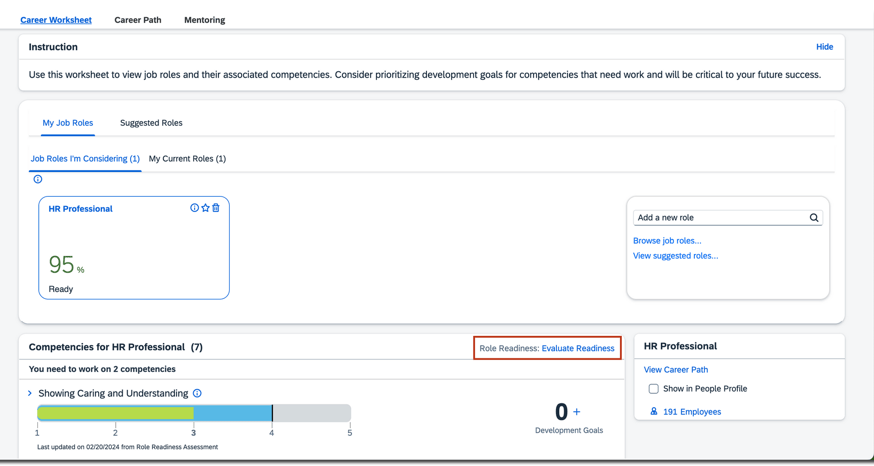
The <permission for=”launch-assessment-form”> setting has to be added in the Career Worksheet template with the roles identified that can launch the Role Readiness form.
Minor Visual Changes for Career Explorer
There are some visual updates made for Career Explorer that are shown below.
The messages on the page description has been enhanced.
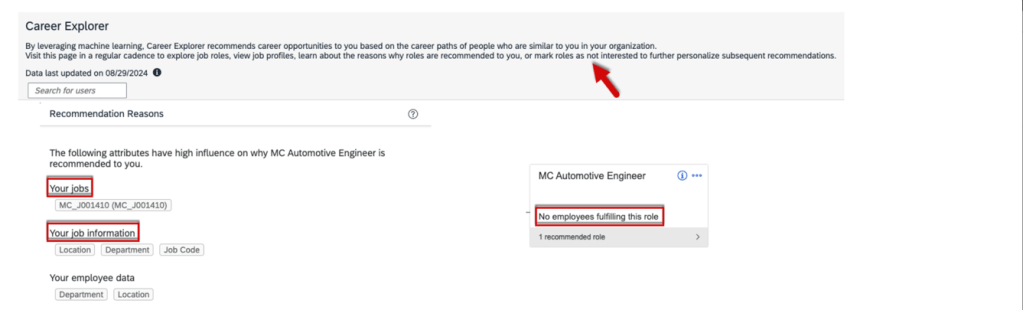
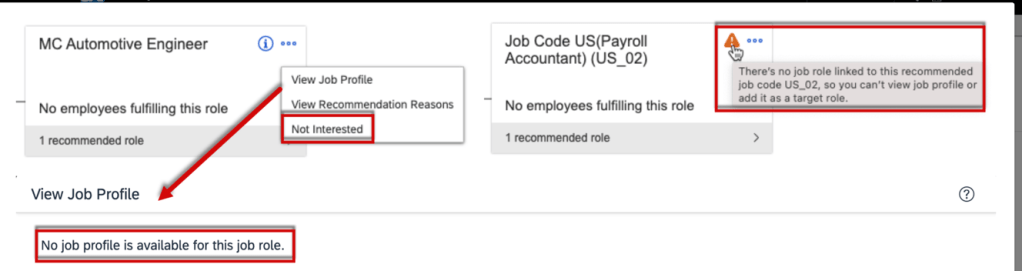
- The Remove Role button is now labeled Not Interested and is now located in the more actions list on the role card.
- If there is no job role linked to a job code, the info icon on the role card has been changed to a warning icon, and the tooltip has been changed to There’s no job role linked to this recommended job code, so you can’t view job profile or add it as a target role.
- If there is no job profile defined for a job role, the message is: No job profile is available for this job role. However, users can still add the role as a target role in the View Job Profile dialog.
Explore Recommended Roles in latest Career Worksheet
Users can now see recommended roles in both card and chart views.
In Growth Portfolio, select Explore Career Options which opens a page of recommendations.
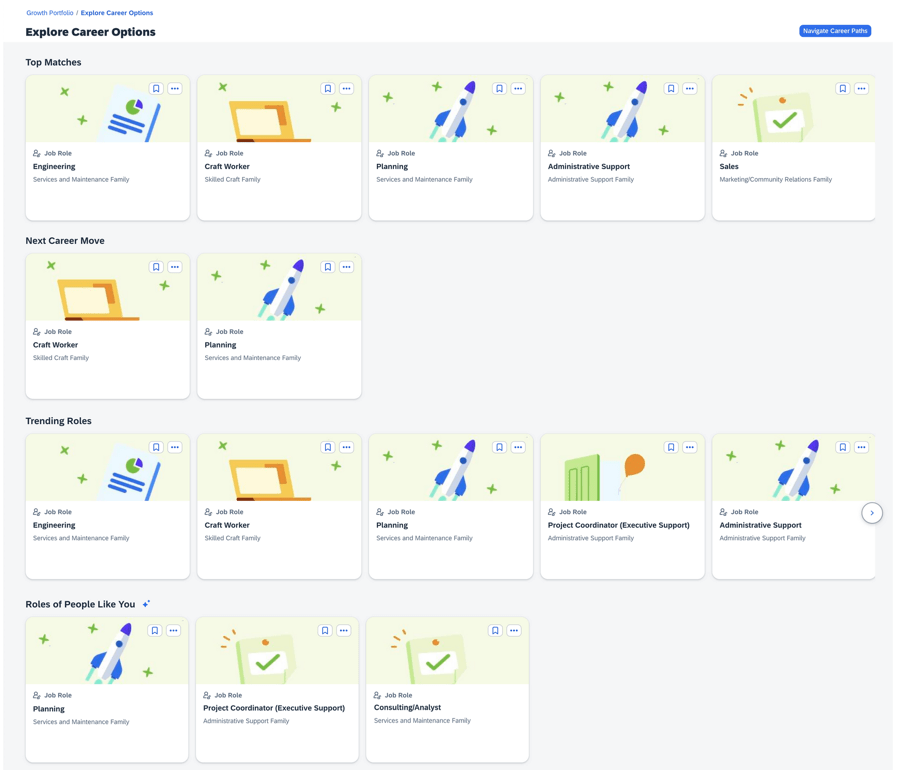
The page has four sections which are shown below.
Top Matches – the systems suggests matches based on:
- Skill and attribute ratings
- Skills and attributes that are associated with a core or critical tag in Growth Portfolio or marked as Passionate
Next Career Move – displays the next role in the Career Path
Trending Roles – suggests roles with open positions
Roles of People Like You – suggests roles from Career Explorer, if enabled
View More Role Information in latest Career Worksheet
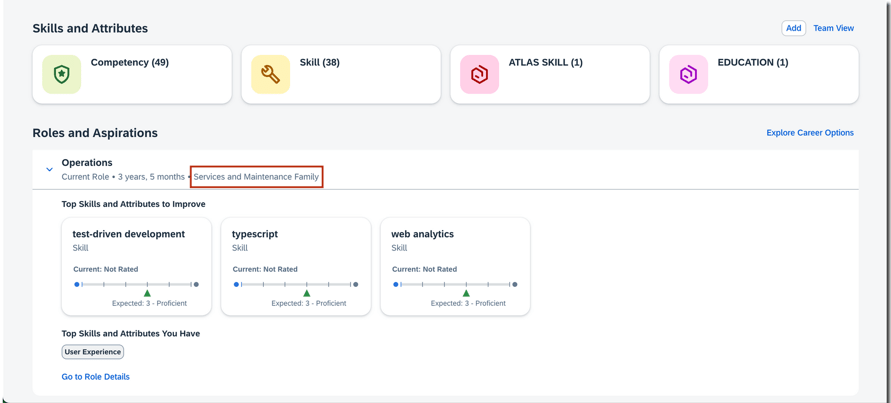
In the latest Career Worksheet, employees have greater visibility into their current, target and recommended roles. Information about job family, incumbents, and organizational career paths are now available.
On the Growth Portfolio page, there is a Roles and Aspirations section where job family information is displayed.
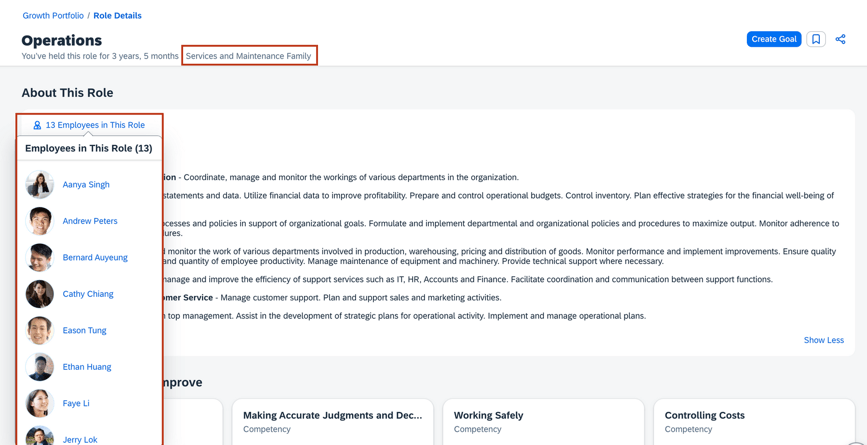
On the Role Details page, this information is also available. Here they can also view the number of current employees in the About This Role section. A list of employees in this role displays when the user clicks on the [Number] Employees in This Role. If there are more than 20 employees, users can choose A View All option that appears and the entire list is shown on the Directory Search page.
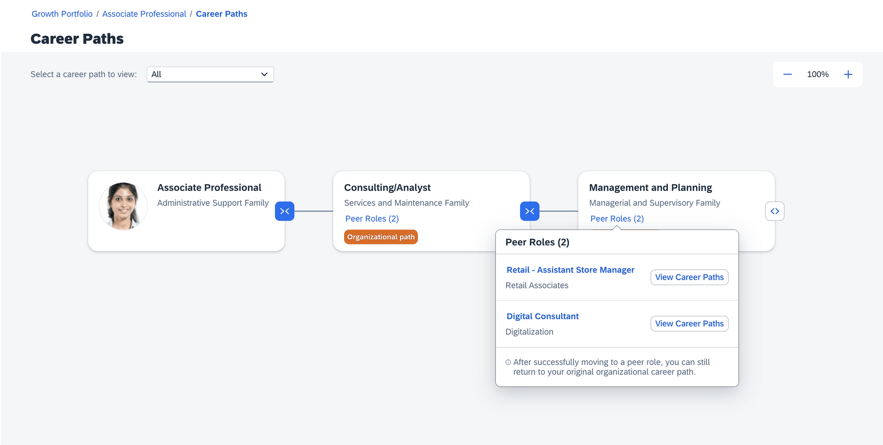
Similar to the legacy Career Worksheet, the latest version now also allows the user to choose a career path, select a role card and see the details page of the selected role. A role’s peer roles can also be seen through the role card.
Navigate Career Path
A chart view of recommended roles can be seen by selecting Navigate Career Paths on the Explore Career Options page.
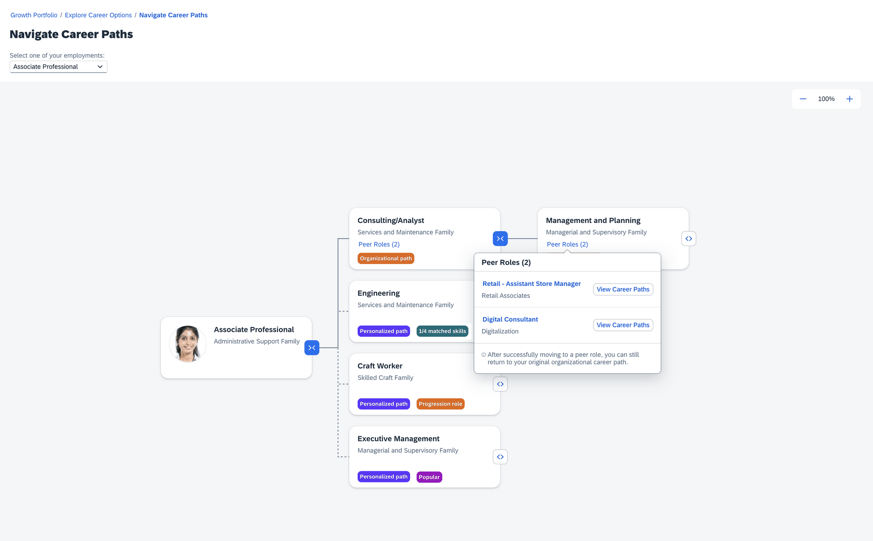
The employee’s current role is the starting point. Recommended roles include organizational path roles from organizational career paths and personalized path roles that are tightly match with the employee.
There are organizational path and personal path role cards. The organizational path role cards show details on peer roles. The personalized path cards show why certain roles were recommended for them. Recommendation reasons can include same job family, popular role, progression role or open position.
The view also allows switching between current roles. For employees with more than one current role, they may select any of those roles to see the recommendations for that role.
Updates for Mentoring
There are some new features for Mentoring as well.
Manage Administrator Permissions for Mentoring Programs
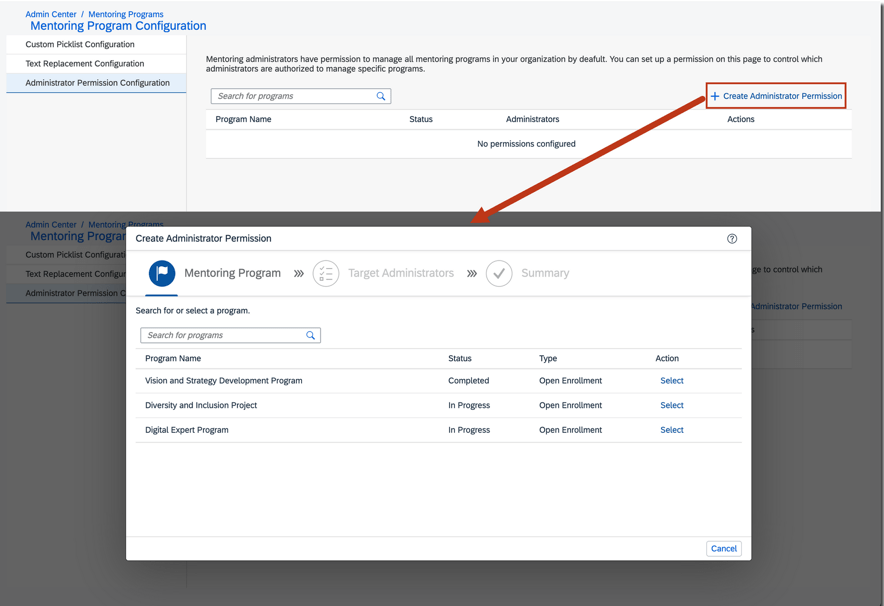
It is now possible to limit which administrators can manage specific mentoring programs. Go to Manage Mentoring Programs. Within the Administrator Permission Configuration, select a mentoring program and the identify the target administrators who can manage it.
Change Participants in In-Progress Mentoring Programs
Program participants for in-progress open enrollment and unsupervised programs may now be added or removed by the mentoring admin or mentoring program owner.
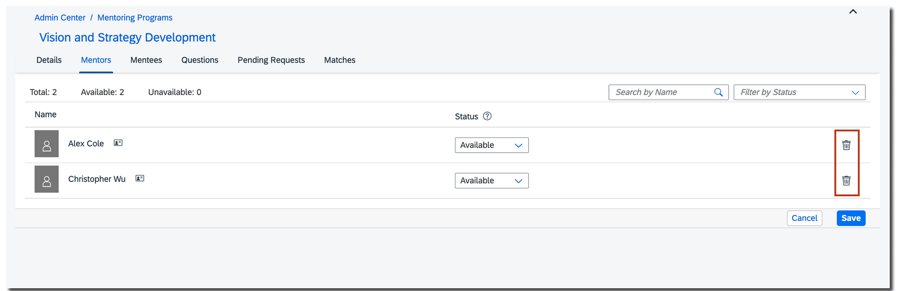
Mentors and mentees may also be added to in-progress unsupervised programs.
Mentoring Matched Date Now Available in Reporting
It is now possible to report on the matched date for mentors and mentees in mentoring programs in Table and Story reports. This is helpful to report on the duration of mentoring relationships.
Mentoring Notification Cards Available in Microsoft Teams
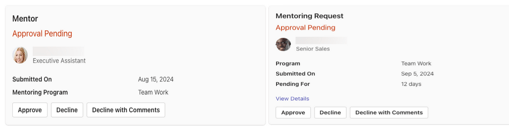
If you are using the integration of SAP SuccessFactors and Microsoft 365, there are two new Mentoring notification card available for users.
Mentors are notified to approve or decline employee requests to be a mentor. Mentoring requests from a mentee can also received by a potential mentor.
Updates for AI
AI-Assisted Career Highlights
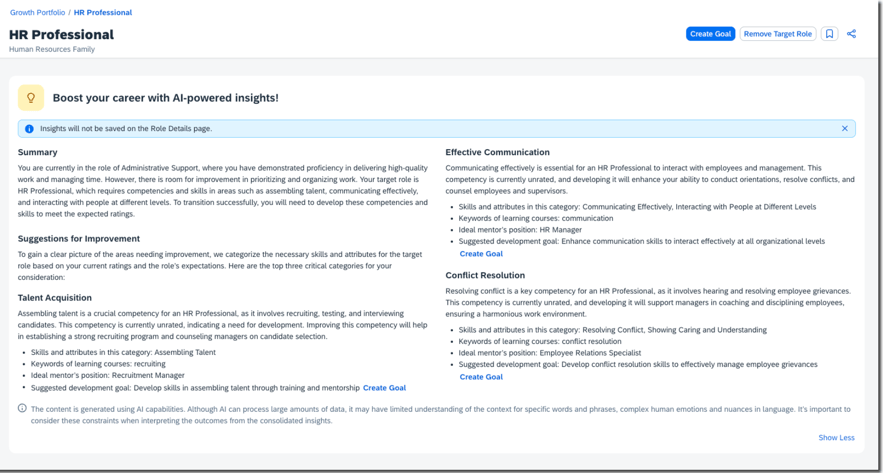
With the latest Development Goal and AI enabled, employees can see development actions they can take towards their target role.
Using the Generate button on the Boost your career with AI-powered insights! section of a target role’s details page you will see:
- Summary which gives an overview of the employee’s current role and target role
- Suggestions for Improvement which identifies three growth areas for skills and career development with suggestions for:
- Skills and attributes in the category
- Keywords of learning courses
- Ideal mentor’s position
- Suggested development goal with the ability to create a development goal
Do you need help implementing or supporting your SAP SuccessFactors system? Contact info@worklogix.com for assistance, download our support services brochure, or visit https://www.worklogix.com/implementation.html for additional information.
 Worklogix Blog
Leave a comment