Learn what’s currently available for Continuous Performance Management with the 2H 2024 SAP SuccessFactors Release.
For greater details, you can view the full set of documentation in the What’s New Viewer here. For full details on the release cycle, check out the SAP SuccessFactors official product updates blog.
For tips on how to manage a release, check out our blog here.
Automatic Channel Creation for Matrix Relationships
There is a new option on the Continuous Performance Management Configuration admin page, Enable matrix managers and matrix reports to be shown as people selections for Channels by default. When enabled, users identified as matrix managers or matrix reports are automatically added to the Channels list in Continuous Performance Management for the user.
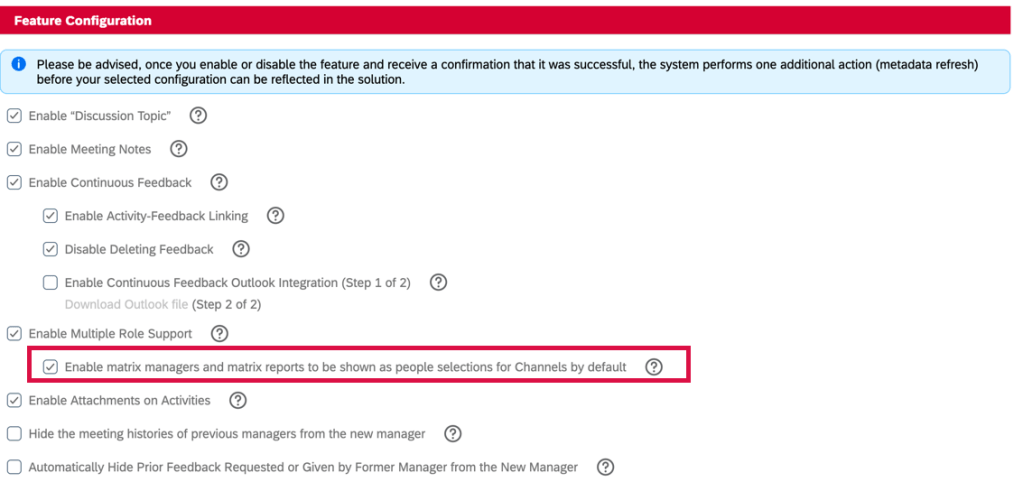
Each matrix manager/matrix report will have a 1:1 channel automatically created. On the Continuous Performance page, these channels will be grouped into two new categories: Matrix Managers and Matrix Reports.
Previously these channels were not automatically created nor categorized into groups. This enhancement reduces manual work and makes matrix relationships easy to see and manage.

Bulk Channel Invitations
Users can now send bulk invitations for 1:1 meeting channels on the Continuous Performance page.
The feedback requestor may use the basic search and now the advanced search to find and select multiple employees as invitation recipients, without a limit on the total number of selections. Previously, only certain basic search criteria were available and users could select only one feedback provider at a time.
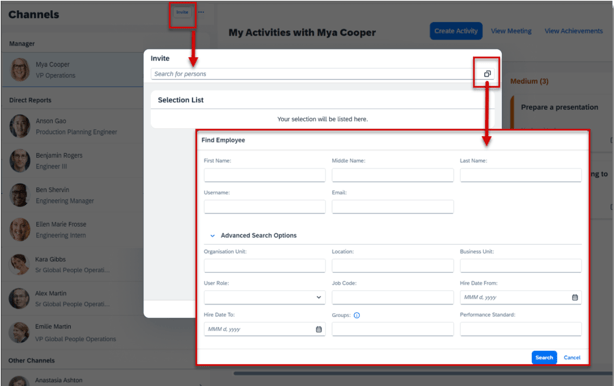
For this to work, the option Enable Multiple Role Support must be enabled in the Continuous Performance Management Configuration admin tool.
There is also a new email notification, Delivery Status of Multiple Roles 1:1 Meeting Invitations, to update on the delivery status of each invitation. The feedback requestor receives the follow-up email if the results of the mass delivery can’t be immediately displayed in a pop-up message or if any delivery fails. This notification is enabled by default.
Delete Channels
Users and administrators are now able to delete channels as needed. There are new delete channel related email notifications are well.
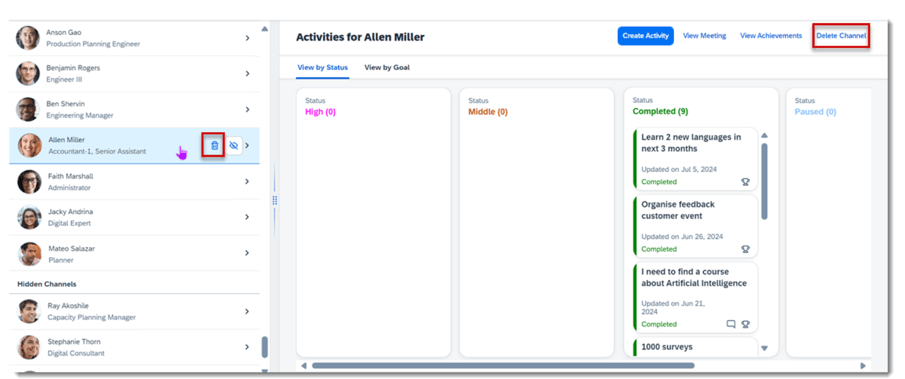
Users can now delete the channels that they own. However, channels involving a user’s current direct reports and matrix reports can’t be deleted.
There are two options:
- Single deletion: select the trash bin icon which appears when hovering over a channel item in the list, or select the Delete Channel button in the channel details page.
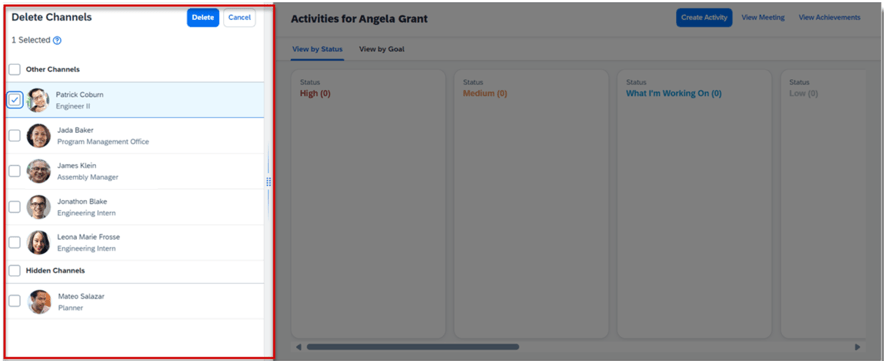
- Bulk deletion: Choose Select and then the Delete Channels button on the header of the channel list. In the Delete Channels page, select and delete up to 50 channels in one time. Declined channel invitations can also be deleted.
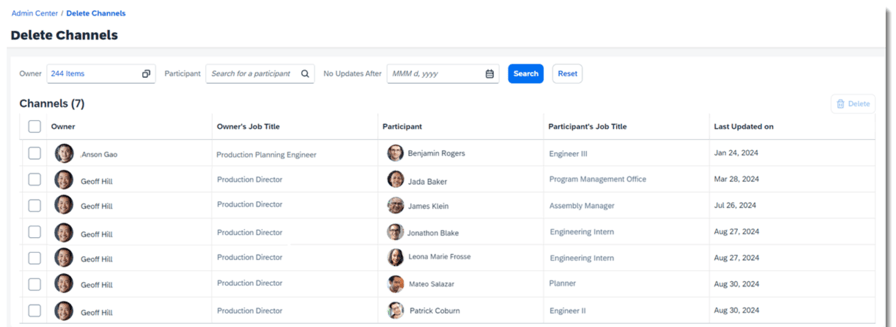
An administrator can now search and delete the channels and declined channel invitations in the new Delete Channels admin tool. However, the employee-manager and employee-matrix manager relationships cannot be deleted.
New Email Notifications for Deleted Channels
There are new deleted channel email notifications now available and are enabled by default.
- Channel Deletion Notification to Owners: channel owners are notified when the administrator deletes a channel for them.
- Channel Deletion or Move Notification to Participants: channel participants are notified when a channel is deleted or moved to Hidden Channels.
- Channel Deletion Notification to Administrators: administrators are notified of the deletion result of each channel. A deletion job will run in Provisioning when more than 50 channels need to be deleted at once. If an administrator chooses to delete 50 or fewer, the result immediately pops up in a message, then the system won’t send the email.
User Experience Enhancements
The Channel list now has a header with up to six categories:
- Manager
- Matrix Managers
- Direct Reports
- Matrix Reports
- Other Channels
- Hidden Channels
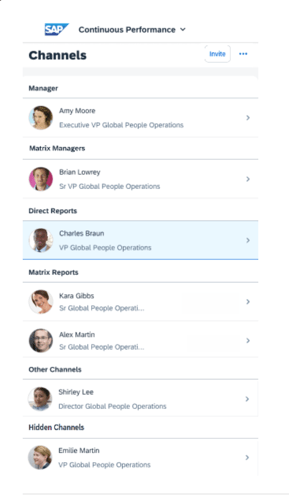
This allows users to easily locate channels based on different job relationships.
A more consistent avatar experience
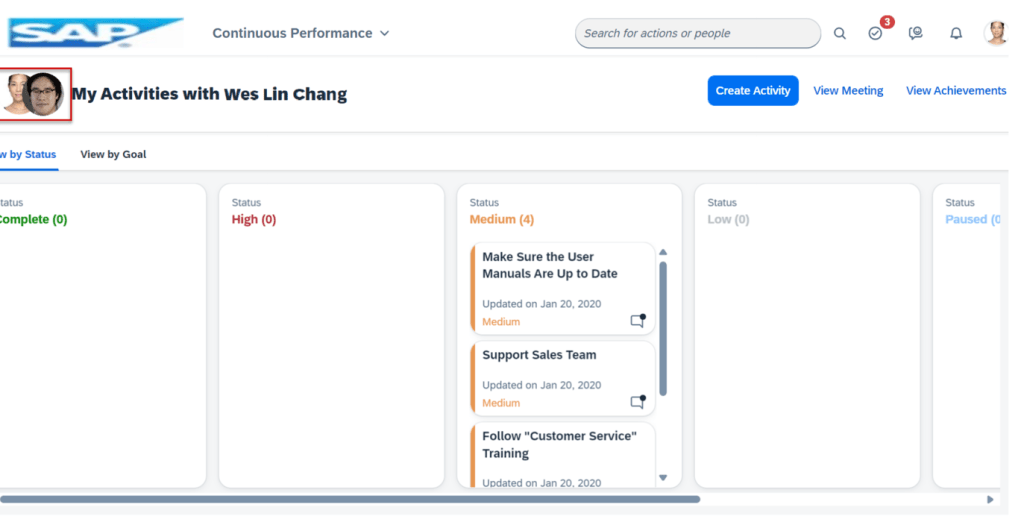
Users who have no access to the channel list can see their manager’s avatar on the header of Activities view, together with their own one.
Streamlined Navigation
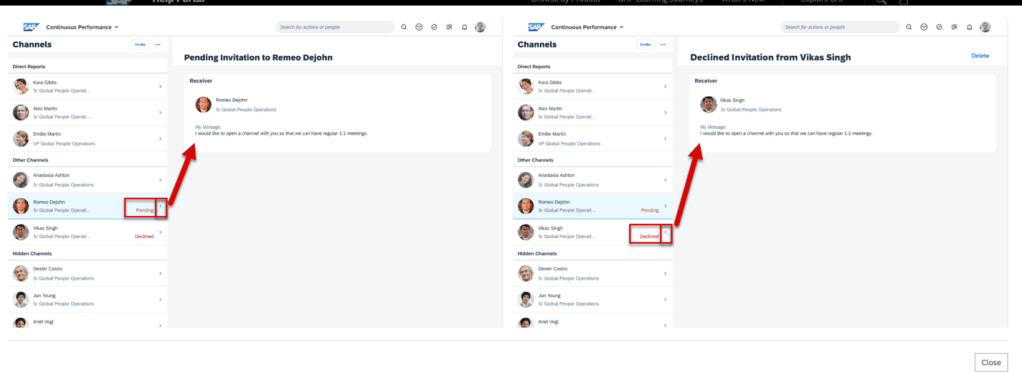
All items on the Channels list are clickable which provides a more consistent experience. There is a chevron icon on each item for navigation to the right-side panel, where the invitation messages are displayed.
Text and Icon Changes
- The icon for deletion of the Declined channel invitations is now a trash bin which is visible when a user hovers on the channel list items.
- The channel invitation icon button is replaced by the text button Invite.

View Received Feedback from the Redesigned Activity Details Screen in Mobile Apps
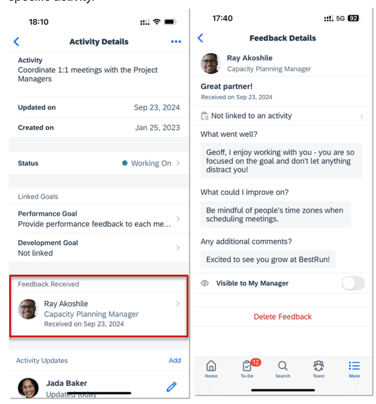
Users can view and access the feedback they received about an activity from the Activity Details screen, now in improved detail.
Here users can access details of each activity related feedback message in the Feedback Received list. Details include the name, profile photo, and job title of a feedback sender, and the date when the feedback was received.
Selecting a row takes the user to the associated Feedback Details screen. Previously users could only see the count of feedback messages received for an activity. And when choosing a number, the users saw a screen that listed all feedback they received instead of the feedback related to the specific activity.
Further Enhancements to the Activity Detail Screen
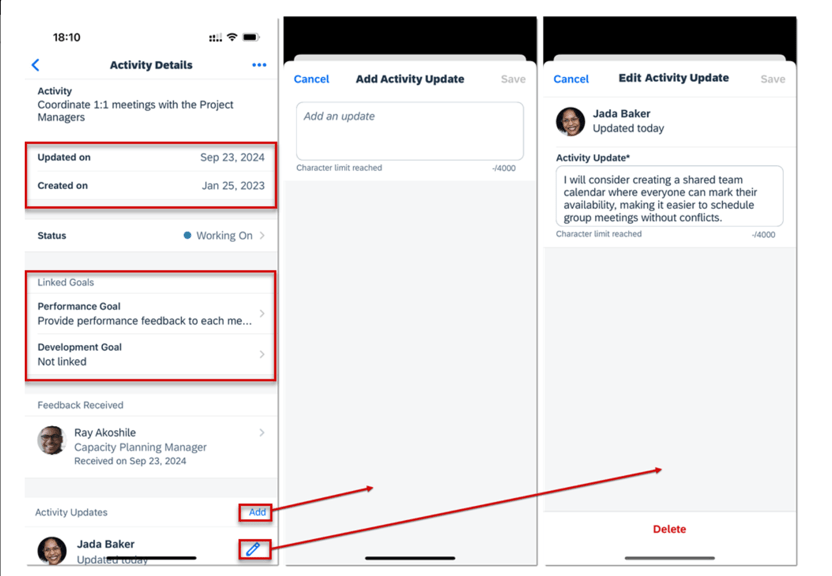
The Activity Details screen has been enhanced with new sections to provide at a glance details.
- Activity start date and modification dates are in the section.
- There is a new section for linked goals
- Activity updates- there is now a separate screen to add activities. The Edit Update screen was renamed Edit Activity Update.
Do you need help implementing or supporting your SAP SuccessFactors system? Contact info@worklogix.com for assistance, download our support services brochure, or visit https://www.worklogix.com/implementation.html for additional information.
 Worklogix Blog
Leave a comment