

Performance review periods can extend over several months, and during this time, organizational changes such as reassignments or department shifts may occur. One common scenario involves a manager transition: a situation where an employee’s manager moves to a different department or role. This raises an important question: What happens to the employee’s in-progress performance form? Should the form remain with the original manager, or should it transfer to the new manager?
This article explores the impact of manager changes on performance forms and the system settings that determine which manager will have access to these forms. We will first outline the various trigger events that can cause a manager change, and then discuss the settings within the Performance Management (PM) form template that govern the transfer process.
Trigger Events: Understanding Manager Change Scenarios
Manager changes can be triggered by several actions, each of which can prompt a document transfer based on predefined rules. These trigger events include:
- Manual Change: Executed via Admin tools under Manage Users > Documents Transfer.
- Automated FTP Employee File Import: Transfers are configured during the initial setup of the FTP process and remain unchanged unless manually adjusted.
- Manual Employee File Import: This option allows for different settings with each import, potentially leading to varied results.
- Employee Change Engine: Beyond standard manager changes, this engine can trigger document transfers based on other criteria such as job code or location changes.
We will examine these trigger events in greater detail later. For now, we turn to the advanced settings within the PM form template that control the outcomes of such changes.
PM Form Template Advanced Settings
The advanced settings within a performance form template provide several options to manage what occurs when a manager change takes place during the review process.
Automatic Manager Transfer Options
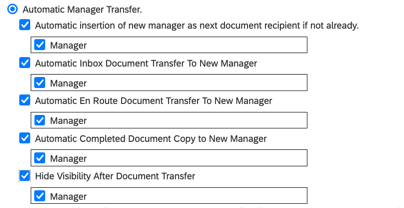
These settings are designed to ensure a seamless transition and appropriate document handling. The following are key settings available:
- Automatic Insertion of new manager as next document recipient if not already: This option automatically inserts the new manager as the next document recipient, ensuring continuity in the review process. The original manager is removed from future steps.
- Automatic Inbox Document Transfer to New Manager: If the form is in the original manager’s inbox at the time of the change, it will be transferred to the new manager’s inbox. The original manager retains a copy, which will not be updated with new information.
- Automatic En Route Document Transfer to New Manager: Similar to the inbox transfer, this setting moves the form from the original manager’s En Route folder to the new manager’s folder, again leaving a static copy with the original manager.
- Automatic Completed Document Copy to New Manager: This option ensures that all completed documents are copied to the new manager’s Completed folder, providing them with a comprehensive view of the employee’s review history.
- Hide Visibility After Manager Transfer: When enabled, this setting removes the original manager’s visibility of the form once it has been transferred, thereby restricting access to only the new manager.
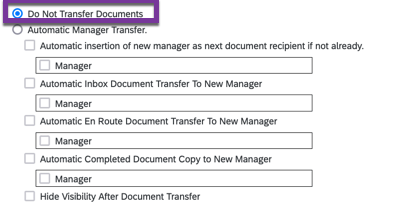
Do Not Transfer Documents
Also found in the form template advanced settings, selecting this option means forms will not transfer when the manager changes regardless of any other settings configured elsewhere.
Document Transfer Tools
Once the appropriate settings have been enabled within the form template, several tools are available to trigger the document transfer upon a manager change. These include:
- Employee Import: The employee import function allows for manager updates and works in conjunction with the automatic transfer settings to ensure smooth transitions.
- HRIS Sync: This tool updates the manager on the effective date of the Job Info record and synchronizes the change to the appropriate user data.
- Manage User: For one-off situations, this tool enables the manual update of an individual employee’s data, prompting a document transfer as needed.
Best Practices and Considerations
Handling manager changes during performance reviews requires careful consideration to maintain the integrity of the review process. It is crucial to align the system settings and transfer tools with your organization’s specific needs and workflows. For instance, the Employee Change Engine can be used to ensure that forms remain with the original manager until the review is completed, avoiding disruptions during critical evaluation periods.
Additionally, enabling the Automatic Fixing of Document Transfer and Change Engine Issues feature can help mitigate risks associated with RBP refresh failures, ensuring that document transfers are not blocked due to system errors.
Conclusion
Manager changes during performance reviews can present challenges, but with the appropriate settings and tools, organizations can effectively manage these transitions. By ensuring that performance forms are properly transferred and that review processes are uninterrupted, businesses can maintain consistency and fairness in employee evaluations.
For assistance in implementing or supporting your SAP SuccessFactors system, please contact us at info@worklogix.com. You can also download our support services brochure or visit our implementation page for more information.
 Worklogix Blog
Leave a comment